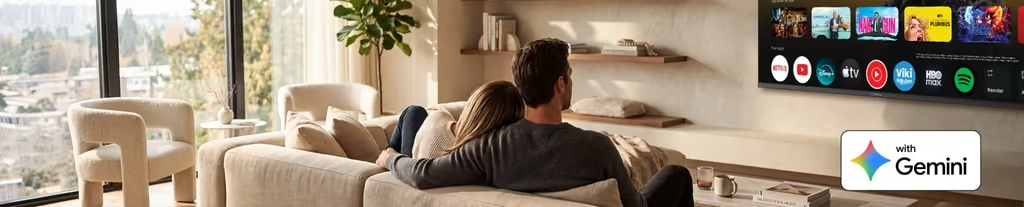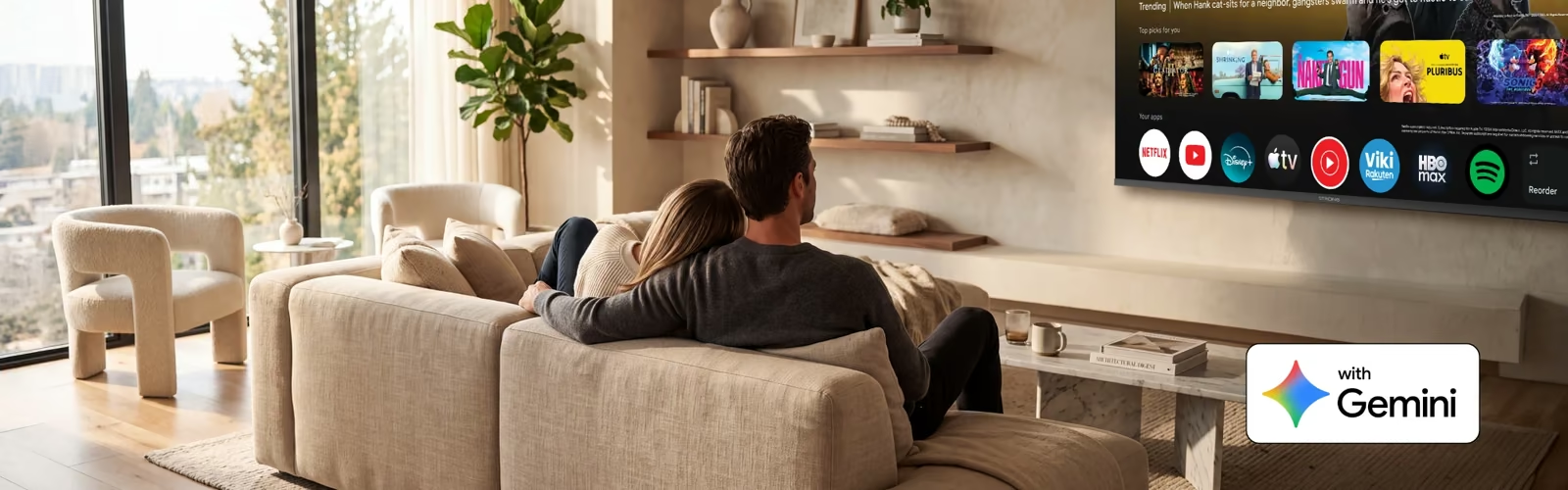
For years, Google Assistant has helped us control our TVs by voice: open an app, search for a film, turn up the volume. Today, that assistant is getting a major upgrade. Google is bringing Gemini, its conversational AI, to Google TV.
Everything you already do with Google Assistant still works. The difference is that you can now talk to your TV the way you would talk to a friend: ask vague questions, follow up, change your mind. Google first announced Gemini for TV in September 2025, showcased it at CES 2026, and is now rolling it out in many countries, including France, Germany, Italy, Spain and the United Kingdom.
In short, your remote control is becoming a genuine conversational assistant. Here is what that means for you, and how to check whether your TV is ready.
What Is Gemini for TV, and What Can It Do?
Gemini for TV is Google's AI assistant, adapted for the big screen. Where Google Assistant expected precise commands, Gemini understands natural language. You no longer need to know the exact title of a film or the right keyword: you simply describe what you want.
To use it, press the microphone button on your remote or, on devices with a hands-free microphone, just say "Hey Google".

Find something to watch, even when you don't know what you want
This is where Gemini makes the biggest difference. Instead of scrolling through endless rows of content, you can ask for things like "a film like Mission Impossible, but funnier" or "a short series we can watch as a family this weekend". Gemini suggests titles and lets you refine the request as the conversation goes on.
Ask questions on any topic
Gemini is not limited to entertainment. You can ask it to explain a historical event, a scientific concept or a recipe, and it answers on screen with visuals and related YouTube videos to go further.
Control your connected home
Gemini can also help with everyday actions, such as turning off the lights or showing the feed of a compatible security camera on your TV, all without leaving the sofa.
A newer Gemini experience is rolling out
Google is gradually updating Gemini on TV so that it matches the Gemini app on your phone or computer. This new experience introduces Connected Apps: Gemini can use content from Google Photos, Google Home, Spotify, YouTube Music and Netflix to give you more personal answers. The update arrives automatically, device by device, and you cannot switch between the two versions yourself.
Try it: 6 requests to get started
- "What are some films like Mission Impossible, but funnier?"
- "Find me a feel-good comedy under two hours."
- "What's the series everyone is talking about right now?"
- "Explain the solar system to a 9-year-old."
- "Play some relaxing music."
- "Show me the front door camera."
Coming Next: Features Already Live in the US
Google often tests new features in the United States before rolling them out elsewhere. Several Gemini features on Google TV are currently available only in the US and in English. They give a good idea of what could arrive in Europe in the months ahead.
Deep dives
When a topic catches your interest, Gemini can create a narrated, visual breakdown of it, a bit like a short documentary made on demand. You select Dive deeper after a question, or browse topics in the Learn section.
News and sports briefs
Gemini can give you a narrated overview of the day's news or of your favourite sports, with suggested YouTube videos to find out more. These briefs summarise topics found on Google Search; they do not invent new ones.
Your Google Photos on the big screen
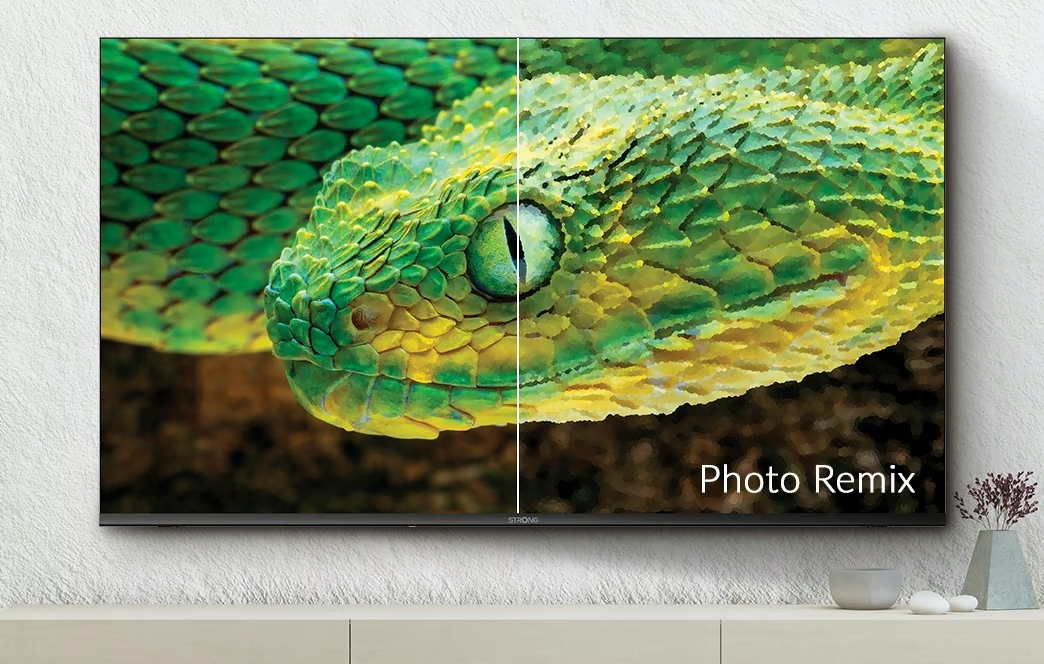
You can ask Gemini to find specific people or moments in your Google Photos library, show them full screen or start a slideshow. With Google Photos Remix, an experimental feature, you can even restyle a photo as a watercolour or an oil painting. Google has said it plans to bring these photo features to more countries and languages.
Create images and videos
On selected TVs in the US, Gemini can generate custom images and short videos using Google's Nano Banana and Veo models, either from a template or from your own spoken description.
Adjust picture and sound by voice
On a few TV models in the US, you can simply say "the screen is too dark" or "I can't hear the dialogue clearly", and Gemini adjusts the settings for you.
None of these features has a confirmed date for Europe yet. They show where Google TV is heading: from a simple app launcher to a real assistant for the whole household.
Is My Device Compatible?
Gemini does not arrive on every Google TV device at the same time. To get it, your TV or streaming device must meet four conditions.
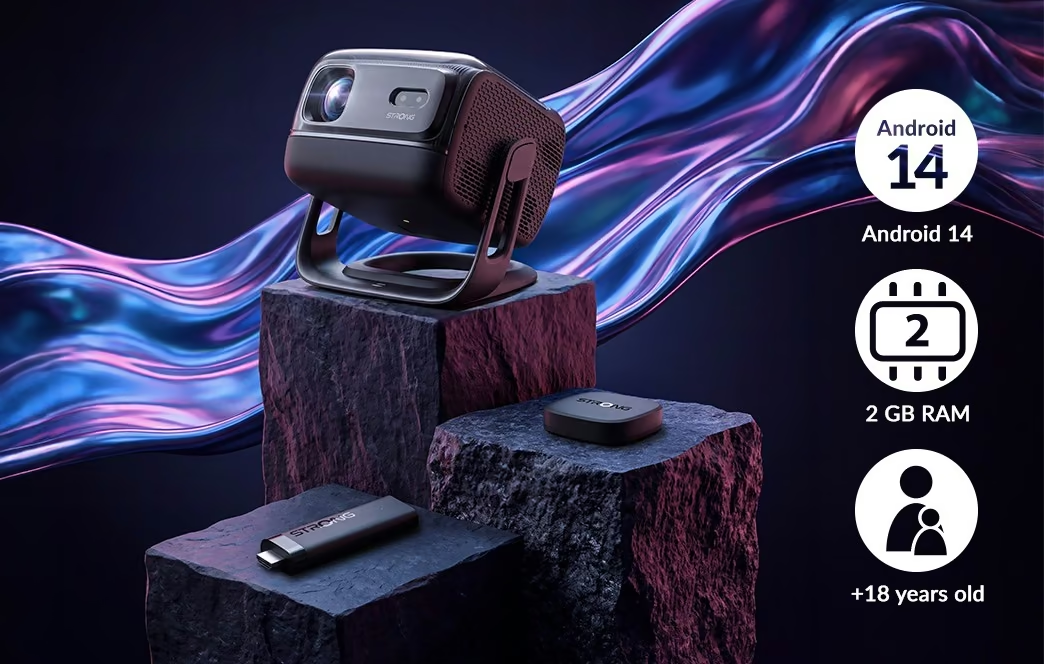
- Google TV running Android 14 or higher. Older Android TV versions keep Google Assistant.
- At least 2 GB of RAM. Gemini needs more memory than the previous assistant.
- A supported country and language. In Europe, Gemini is available in France, Italy, Spain and the United Kingdom. The newer Gemini experience extends this to Austria, Belgium, Denmark, Finland, Germany, Ireland, the Netherlands, Norway, Sweden and Switzerland, on the devices Google has listed so far.
- An adult profile. Gemini's AI answers are reserved for users aged 18 and over. Kids' profiles do not get Gemini, and profiles of under-18 users continue to use Google Assistant.
A gradual rollout
Even if your device ticks every box, Gemini may not appear straight away. Google activates it progressively, device model by device model and country by country. If you don't see it yet, keep your device up to date: it will arrive automatically when your model becomes eligible.
What about STRONG devices?
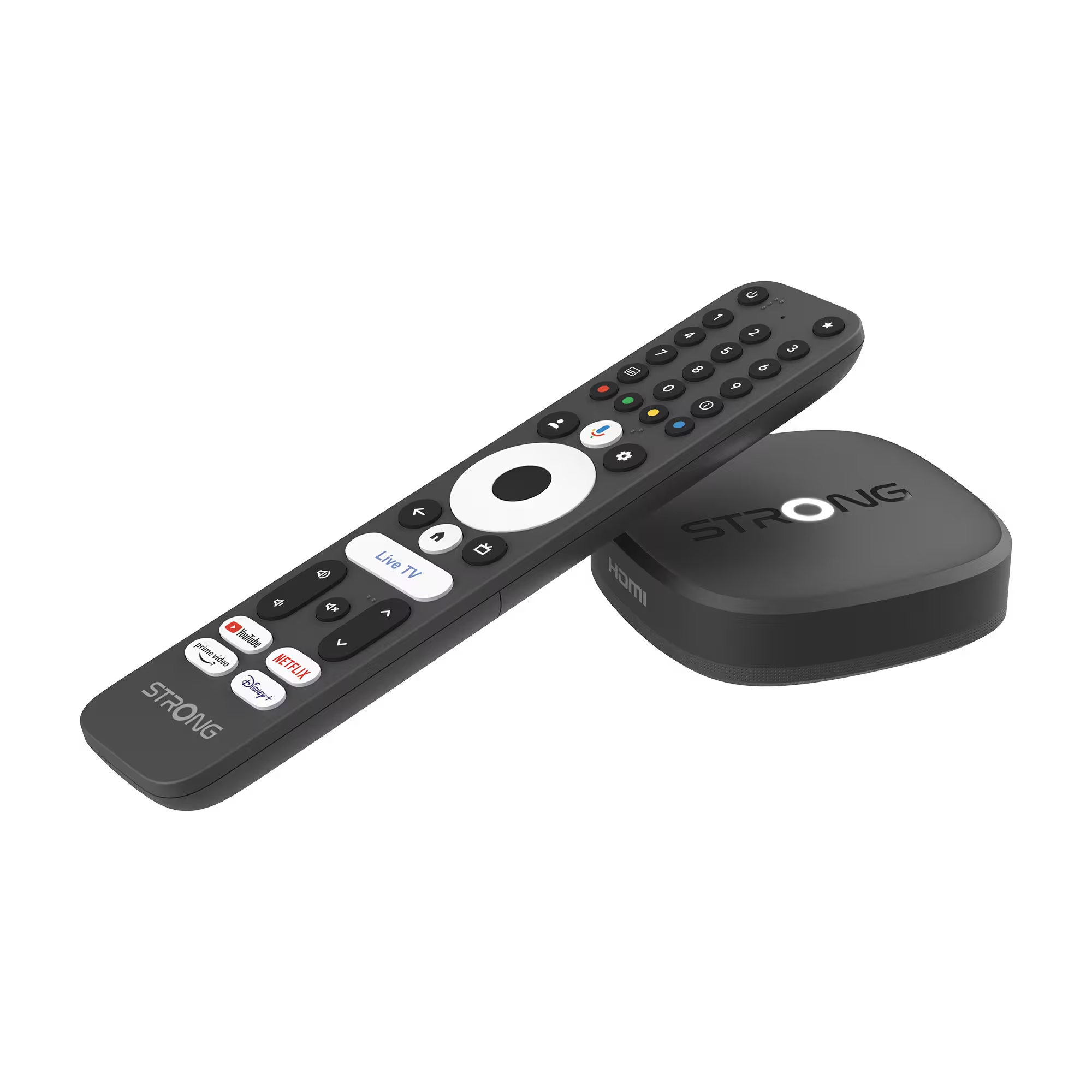
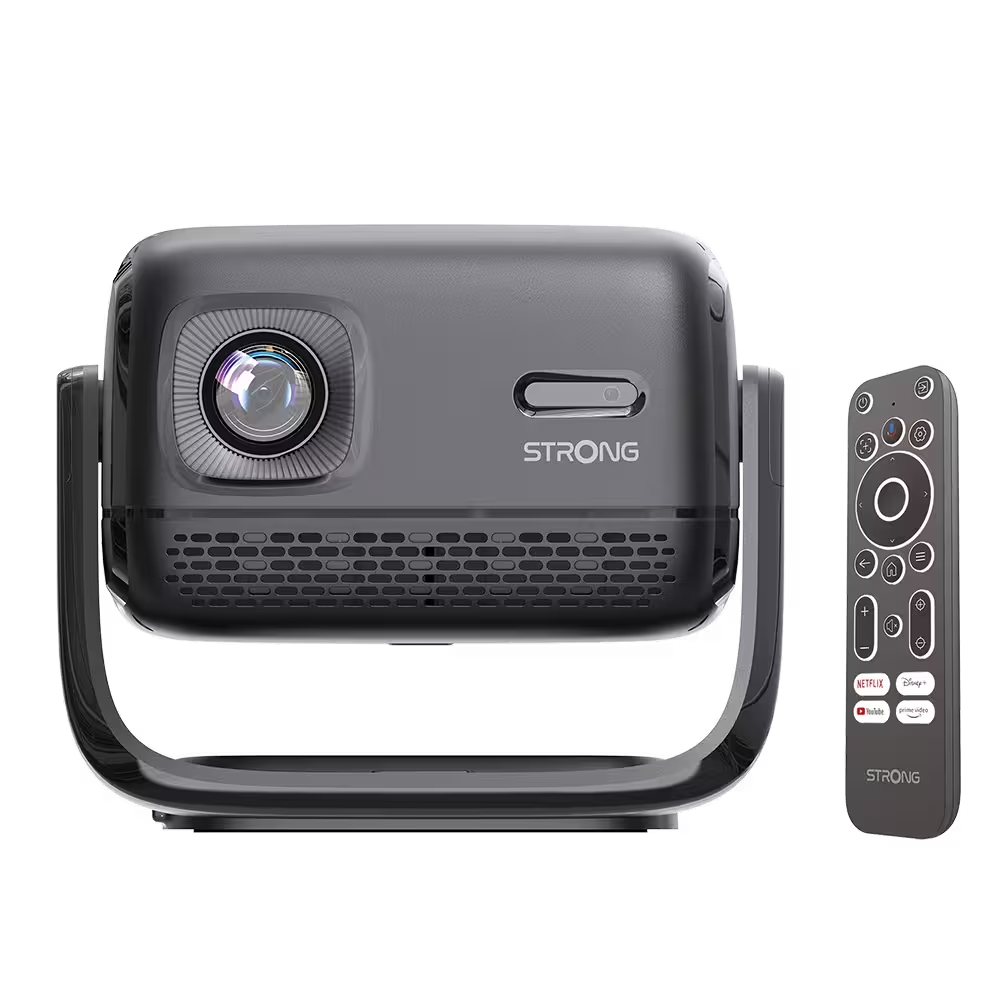
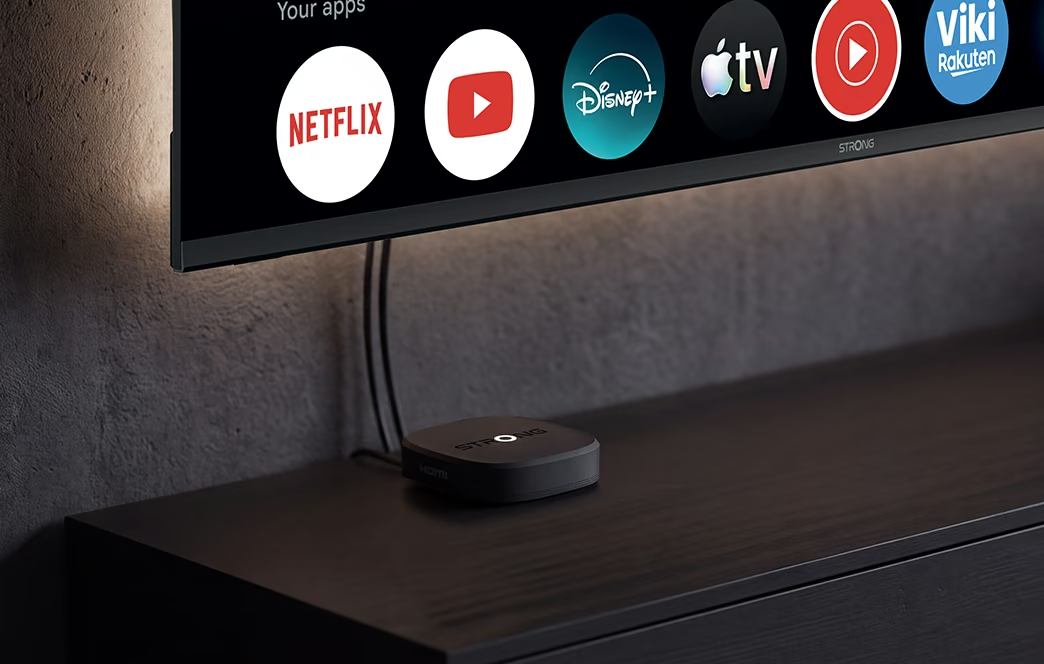
Our streaming devices, such as the LEAP NOVA 4K streaming stick and the MIRA-X2 streaming projector, are Google TV certified and run Android 14.
Want to know why the Android version matters? Read Android 12, Android 13 and Android 14, what's the difference?
How to Set Up Gemini on Your Google TV
In most cases, there is very little to do. If your device and your Google account are eligible, Gemini activates automatically. Here is how to make sure everything is ready.
- Update your device. Go to the system settings and install the latest software update, then check that the Google TV, Google and Google Play Services apps are up to date in the Play Store.
- Add your TV to Google Home. On your TV, go to Settings > Accounts & Profiles > your account > Google Home > Add TV to Home. You can also do it from the Google Home app on your phone. If several people use the TV, add their Google accounts as members of the same Home.
- Open the voice assistant settings. Go to Settings > Accounts & Profiles > your account > Voice assistant. If your device is eligible, Gemini appears here and you can select it.
- Turn on the hands-free microphone (optional). In the same menu, enable Hands-free mic to talk to Gemini with "Hey Google", without pressing any button. Make sure the physical microphone switch on your device is on.
- Personalise your experience (optional). Choose a new, more expressive voice for Gemini, and set up Voice Match in the Google Home app so that only your voice can access your personal results.
Which Gemini experience do you have?
In Settings > Accounts & Profiles > Voice assistant, look for a Connected Apps option. If you see it, you already have the newer Gemini experience. Because a TV is a shared device, Gemini may ask you to confirm your identity with a notification on your phone or a TV PIN before showing personal content.
Like any AI assistant, Gemini comes with a few things worth knowing.
Your data stays under your control. With the original experience, your Gemini interactions are saved in the "Google Assistant" activity of your Google account if Web & App Activity is on, and you can delete them at any time. With the newer experience, your activity is saved in Gemini Apps Activity, for 18 months by default; you can change this period or turn off the setting entirely in your Google account.
Keep a critical eye. Gemini is constantly improving, but it can still make mistakes. Its answers should never replace medical, legal or financial advice from a professional.
Gemini on Google TV is only just getting started. New features and new countries are being added month after month, and the line between a TV and a personal assistant is getting thinner. Choosing a Google TV device running Android 14 today is the best way to be ready for what comes next.