
4G AIRHOME 410 with Fixed 4G antennas
All questions
SIM card and mobile network
How do I change the SIM Card PIN Code?
It is possible to change the PIN code of your SIM card in the Web UI. To do so, follow the procedure below.
1Connect to the Wi-Fi Network of your router
You must connect to the Web UI. To do so, enter the SSID (Wi-Fi Network Name) and Wi-Fi password of the router in your device.

2Browse to the following IP Adrress
Then, enter the following IP address in your browser: 192.168.188.1
3Enter your credentials
You must enter the Password. Then, click Login.

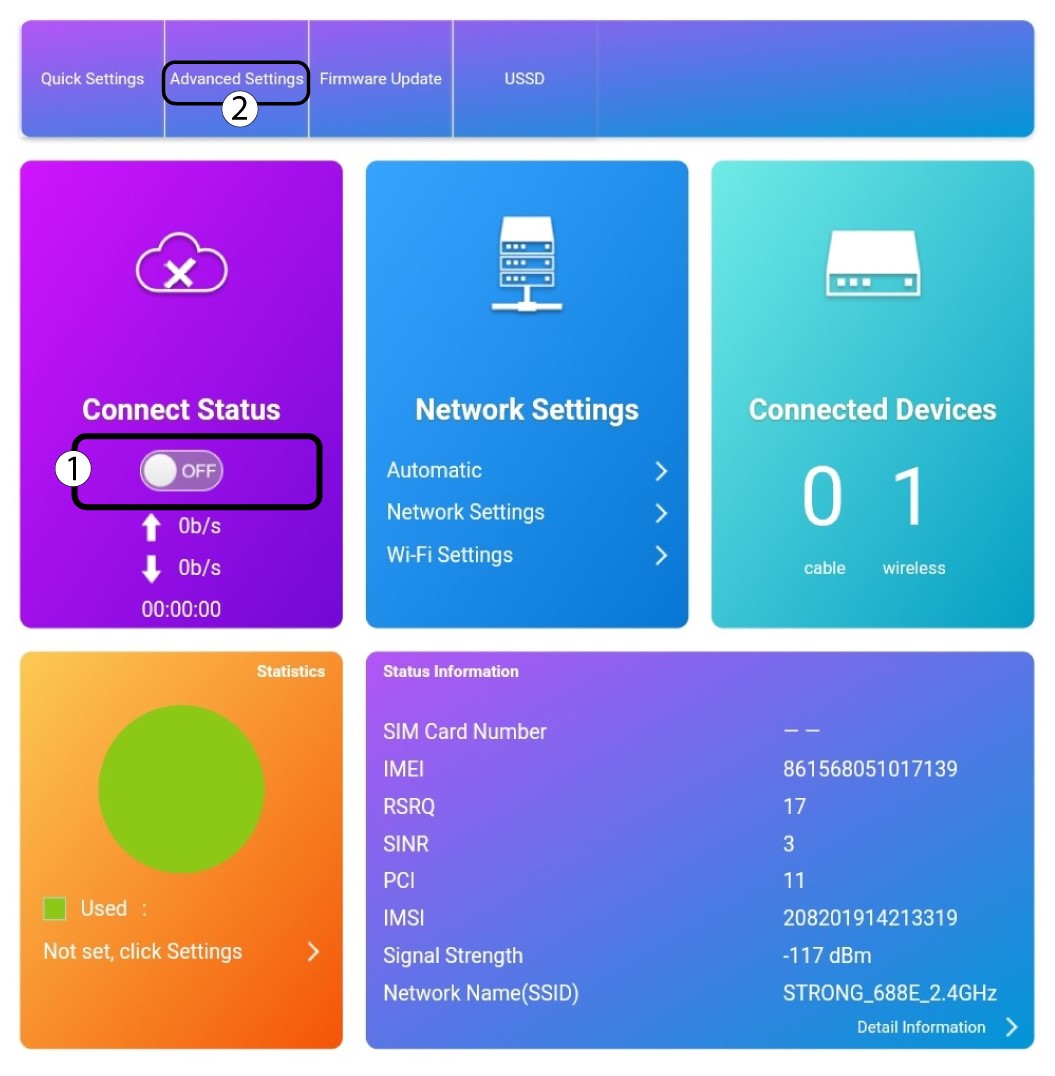
4Advanced Settings
Click the toggle on the Connect Status Section and click Advanced Settings.
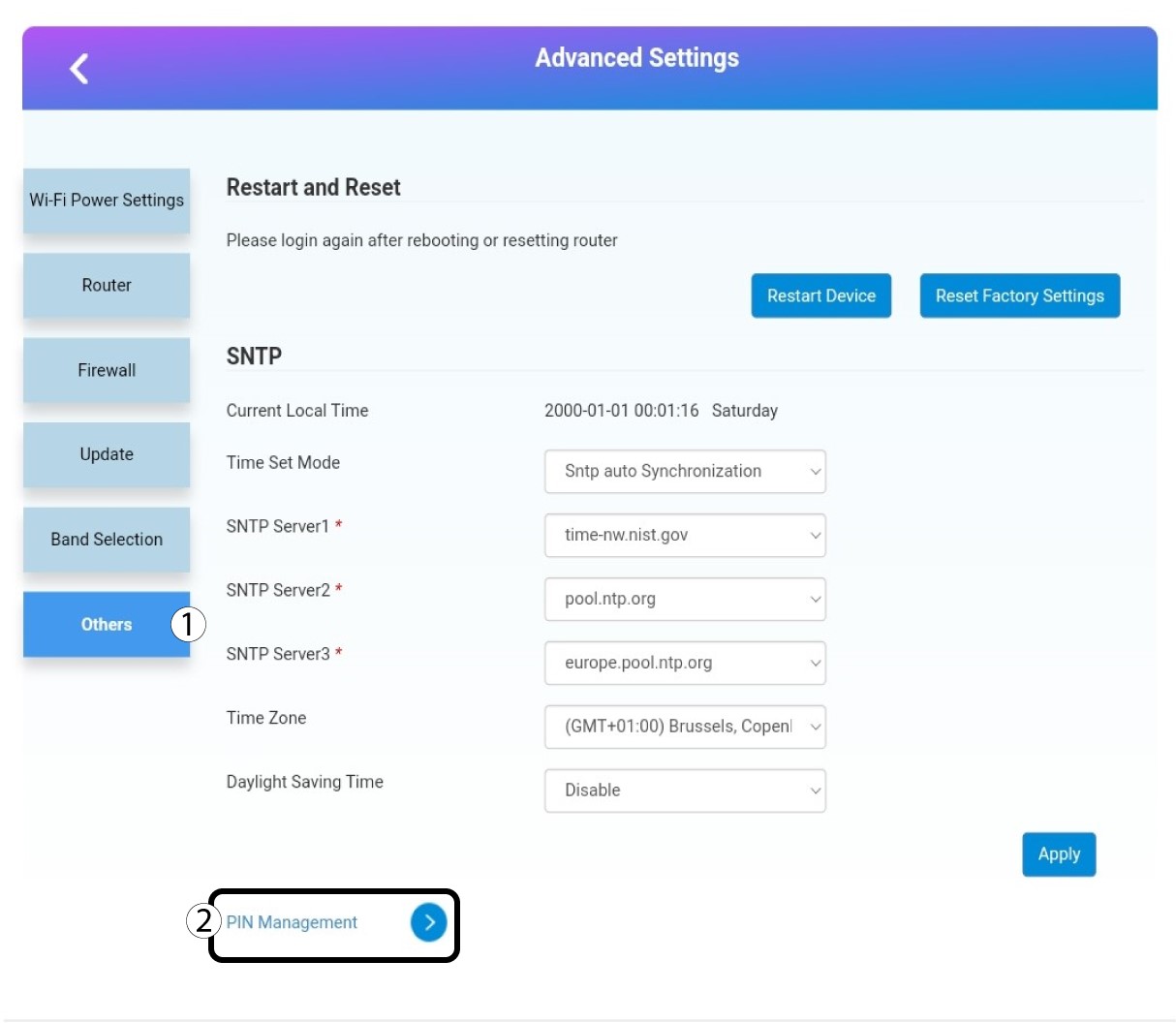
5PIN Management
Click Others and PINManagement.
6Change PIN
Click Change PIN.

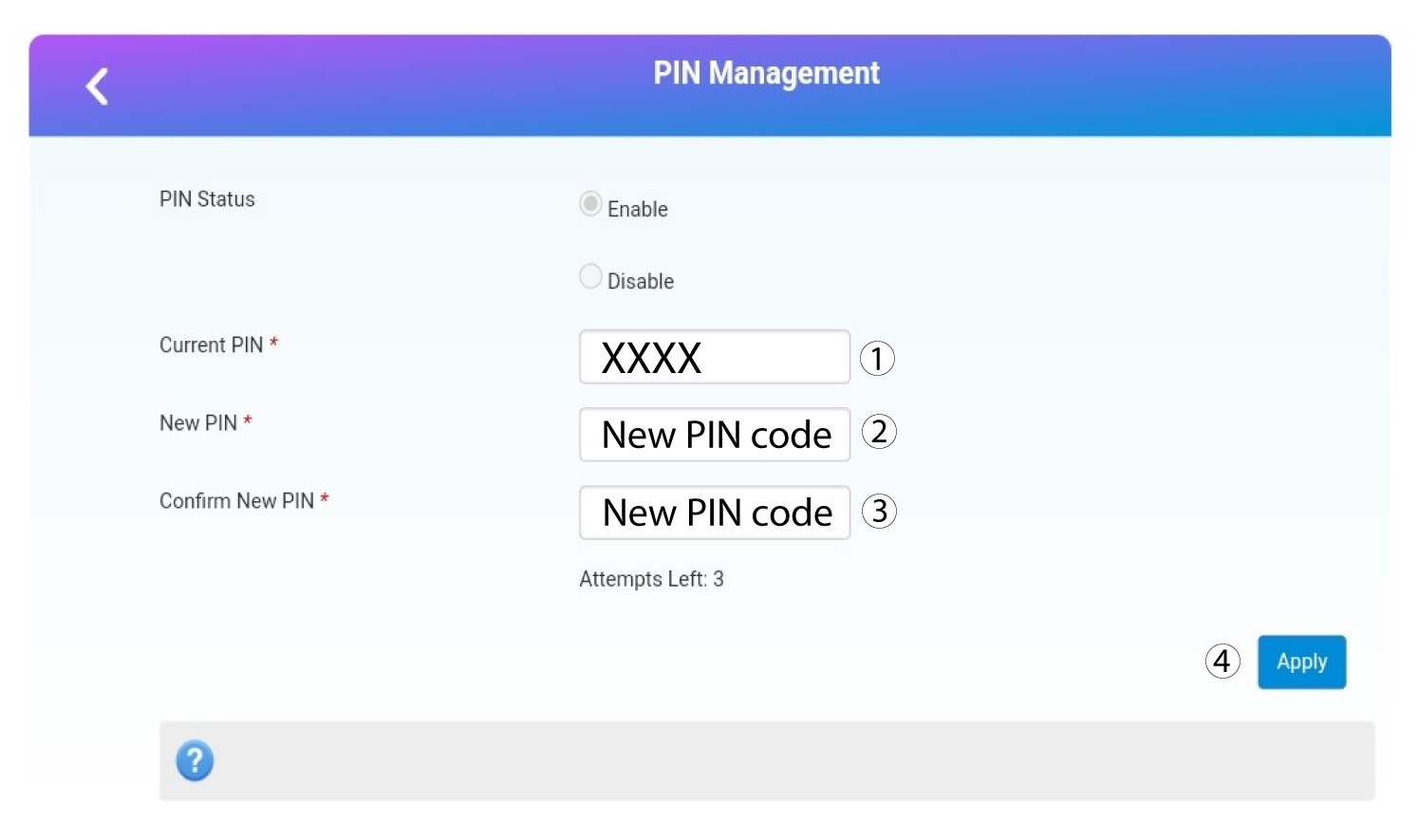
7Enter the new PIN Code
Enter the following information before clicking Apply:
- Current PIN: Enter your current PIN code.
- New PIN: Enter your new PIN code.
- Confirm New PIN: Enter the new PIN code.
How do I check and edit the APN settings of my service provider?
When your SIM card is not automatically recognized by the device you must login the Web UI to check the APN settings and edit them, if necessary. The APN settings of your service provider can be found directly on its website, or you can request them to the support service of your service provider.
1Connect to the Wi-Fi Network of your router
You must connect to the Web UI. To do so, enter the SSID (Wi-Fi Network Name) and Wi-Fi password of the router in your device.
2Browse to the Web UI IP Address
hen, enter the following IP address in your browser: 192.168.188.1
3Enter your credentials
You must enter the Password. Then, click Login.
4Network Settings
Click Network Settings.

5Check the APN Settings
Look for the APN settings on your service provider’s website. You need to write down the following information:
- Name
- APN
- Username
- Password
- Authentication
6Create new APN Settings
Click APN and then Manual and Add New.

7Enter the new APN Settings
Enter the following information before clicking Set as default:
- PDP Type: select IPv4 as the PDP Type value.
- Profile Name: enter the name of your service provider.
- APN: enter the APN address.
- Authentication Type: Select the Authentication Type defined by your provider for your APN between the following values (NONE, CHAP, PAP)

How do I deactivate the SIM card PIN code?
It is possible to deactivate the PIN code of your SIM card in the Web UI. To do so, follow the procedure below.
1Connect to the Wi-Fi Network of your router
You must connect to the Web UI. To do so, enter the SSID (Wi-Fi Network Name) and Wi-Fi password of the router in your device.
2Browse to the following IP Adrress
Then, enter the following IP address in your browser: 192.168.188.1
3Enter your credentials
You must enter the Password. Then, click Login.
4Advanced Settings
Click the toggle on the Connect Status Section and click Advanced Settings.
5PIN Management
Click Others and PINManagement.
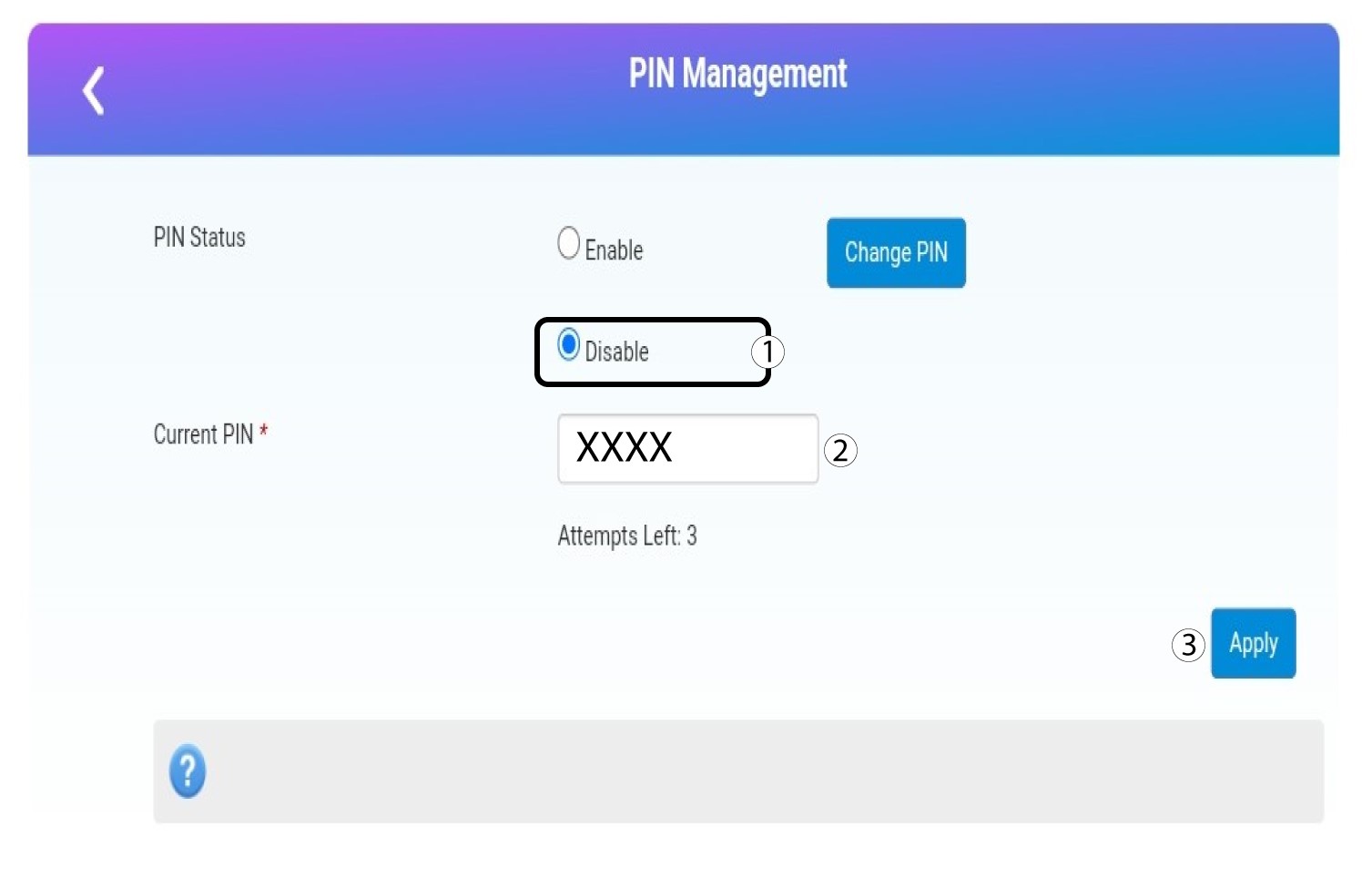
6Disable PIN Code
Click Disable and enter the PIN code then, click Apply.
How do I enter my SIM PIN code?
1Connect to the Wi-Fi Network of your router
To enter your SIM PIN code, you must connect to the Web UI. To do so, enter the SSID (Wi-Fi Network Name) and Wi-Fi password of the router in your device.
2Browse to the Web UI IP Address
Then, enter the following IP address in your browser: 192.168.188.1
3Enter your credentials
Once you have browsed to the IP Address, you must enter the password and click Login.
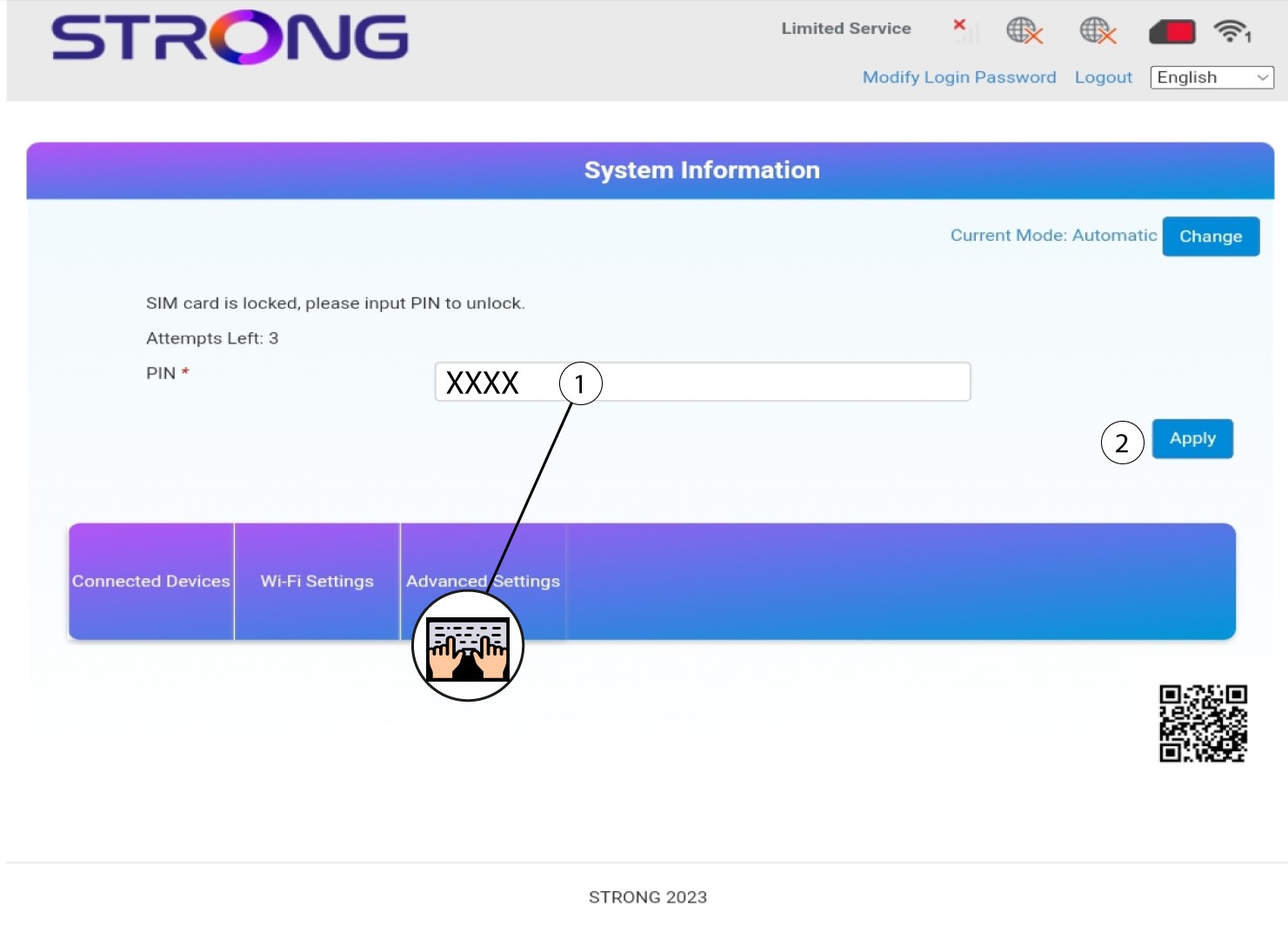
4Enter the PIN Code
Enter your SIM PIN code and click Apply.
I don’t have internet after inserting my SIM card in the router, why?
There are many reasons that can explain that your internet connection is not working after inserting the SIM card.
- The first one can be that the SIM card is not inserted properly, please check the position of the SIM card by referring to the schema that shows the insertion procedure.
Case 1: Micro SIM Card to Full Size SIM Card
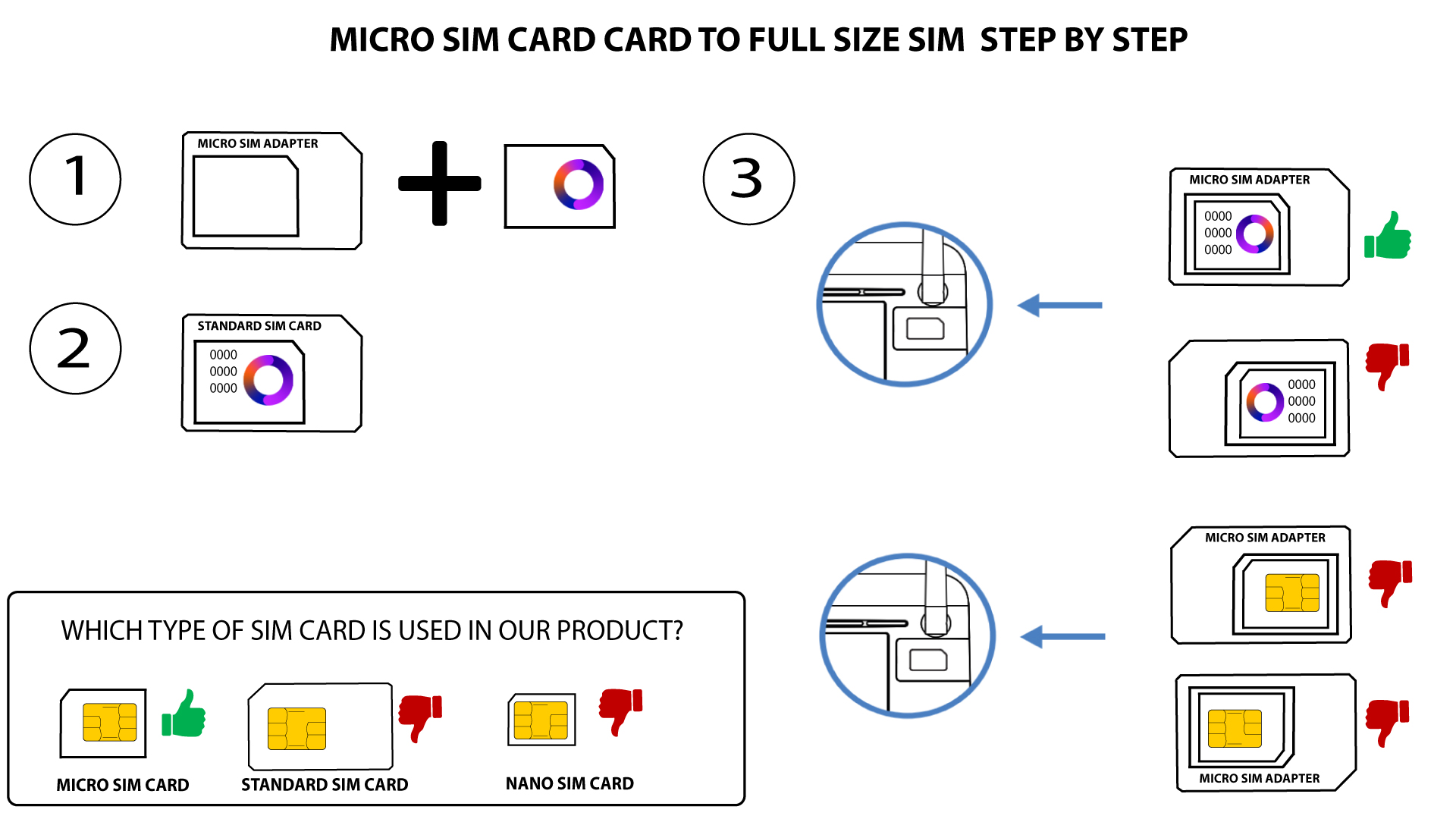
CASE 2: Nano SIM Card to Full Size SIM Card
- Another reason can be that your SIM card is locked by a PIN. To unlock it, you must connect to the Web UI and enter the PIN code. Please follow the procedure described in the following section: How do I enter my SIM PIN code?
- Finally, it is also possible that your SIM card is detected but not automatically recognized by the device. In this case, you must connect to the Web UI and check the APN settings of your service provider. This procedure is explained in the following section: How do I check and edit the APN settings of my service provider?
What does the colour of the SIM card icon mean in the Web UI?
When you are logged in the Web UI the SIM card icon can be white or red.
- If the icon is red, it means that the SIM card is either locked due to the PIN code or not detected and that there is no connection in each case.

- If the icon is white, your SIM card is detected, unlocked, and working.

What type of connector is used for our antennas? Is it possible to use a SMA connector for an external antenna?
The Antenna connectors of 4G LTE Router 350 are compatible with SMA.
To install a new 4G antenna on the router, you must unplug the 4G LTE Router 350. Then, you must unscrew the antenna located on the right side when looking at the rear of the device. Once this is done, you must screw the SMA connection cable of your new 4G antenna in this location.
Please note that the left antenna of the device only enables reception, whereas the right antenna enables transmission and reception.