Dual-light IP camera
Camera, NVR and recording
How can I perform a factory reset of my camera in the NVR?
You can reset your camera to its factory settings.
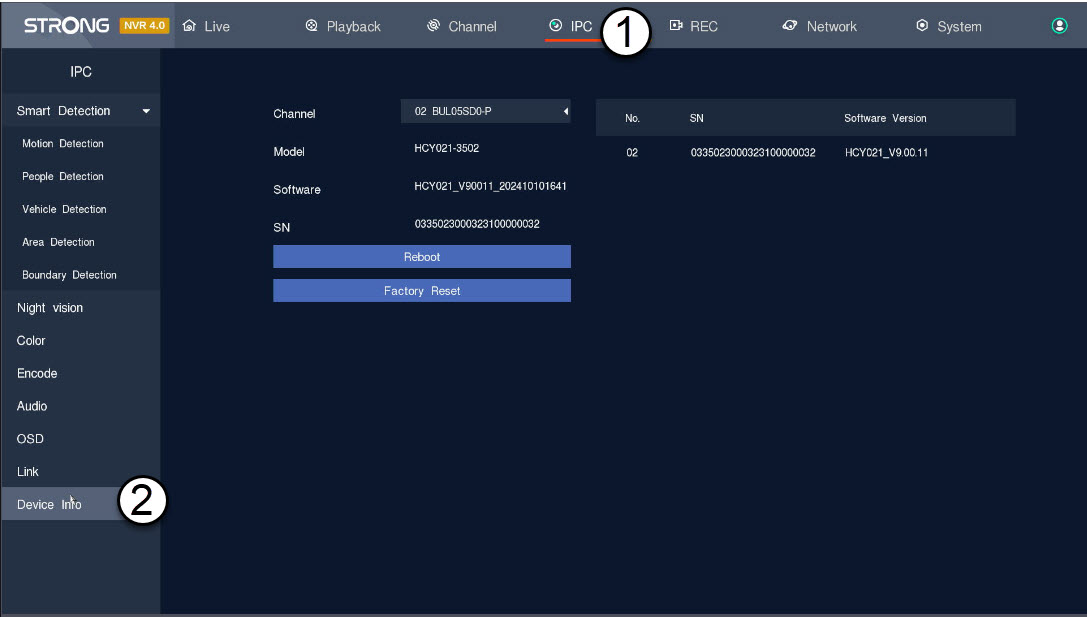
1Access the Camera Settings Panel
Click IPC and Device Info.
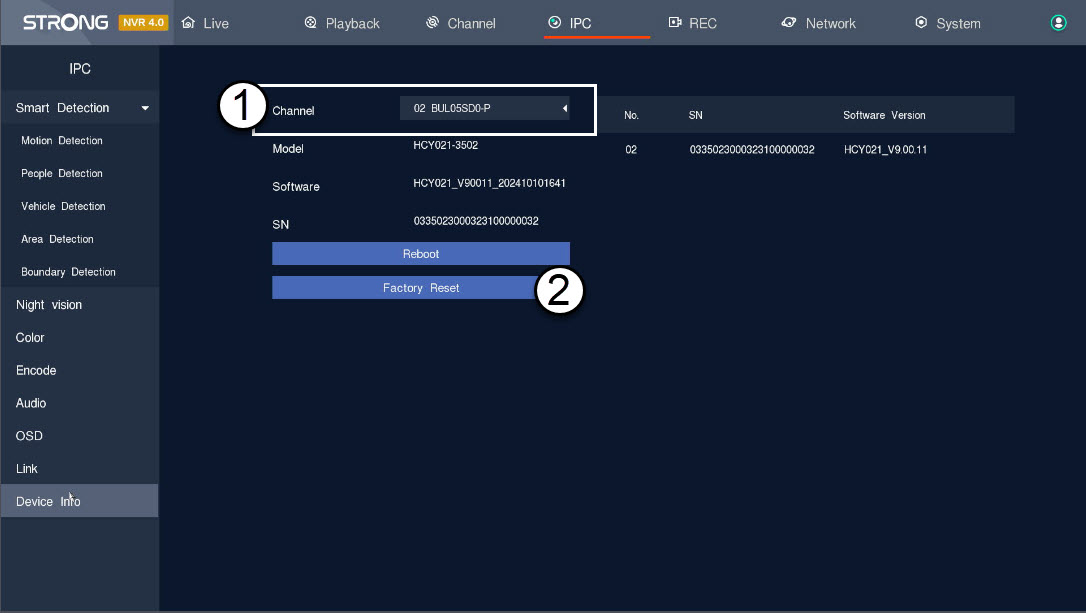
2Choose and Restore Camera Settings
Select the camera from the Channel list and click Factory Reset .
How do I access the camera Web UI?
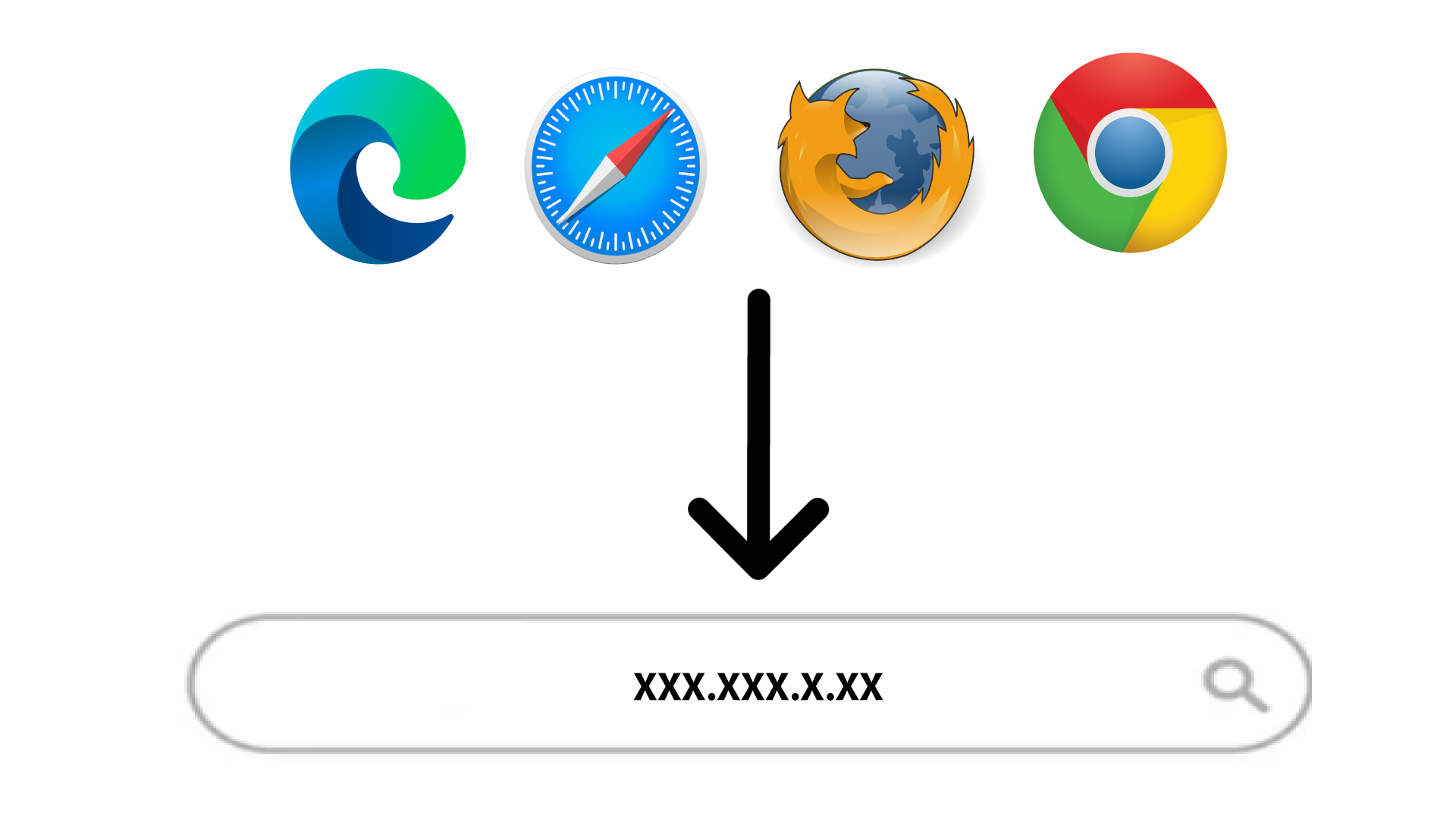
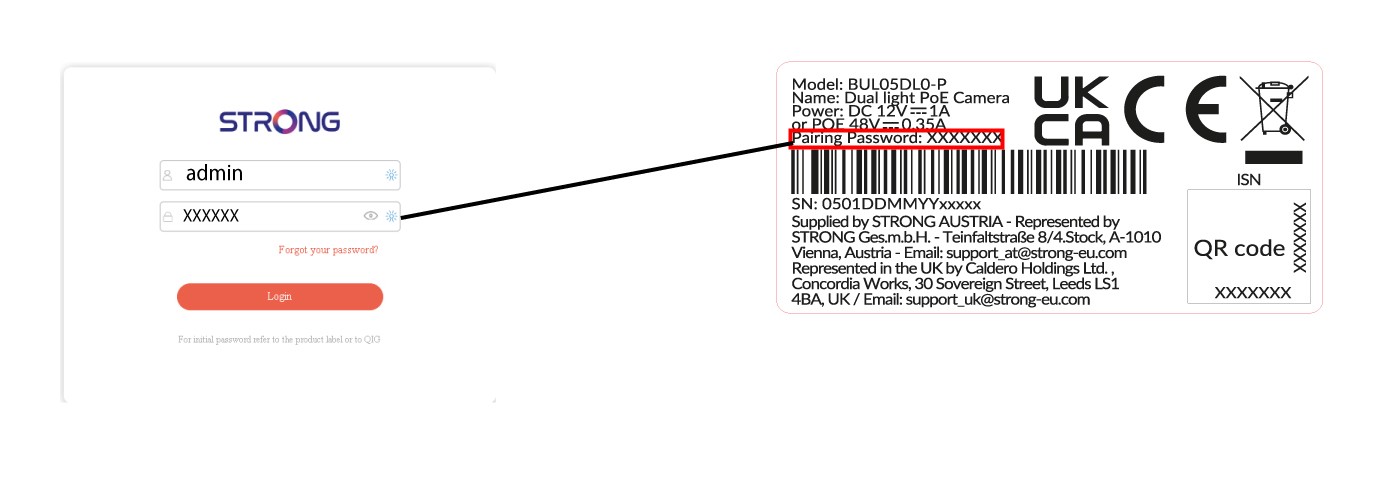
1Open the Camera Interface in Your Browser
Enter the camera IP Address in your browser search bar to access the UI.
2Log In with Your Credentials
When prompted, enter the credentials:
- username: admin
- password: pairing password written on your product label or the one that you previously set.
How do I add my camera in the app?

WARNING: If you do not manage to add your camera in the app, please connect to the administration interface of you internet router to find the IP address of the camera. For more information about the factory reset, please see Reset to factory settings.
You can configure your camera by using the Vision by Strong app. Follow the steps below to connect your camera and start monitoring.
1Get the App
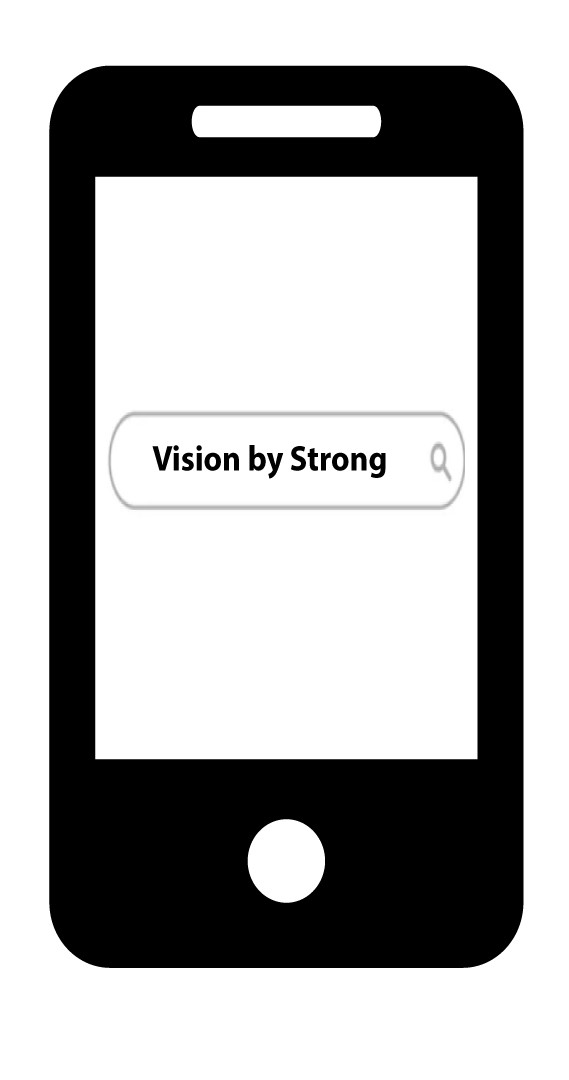
Search for the app in the Google Play store and Apple App store. Alternatively, you can find the .apk file on our website to install it on your phone if it is not available in your app catalogue.
2Install and Launch
Install the app.
3Set Up Your Camera
You can either plug your camera to a POE port or connect it to a 12V power supply (not provided).
4Connect a New Camera
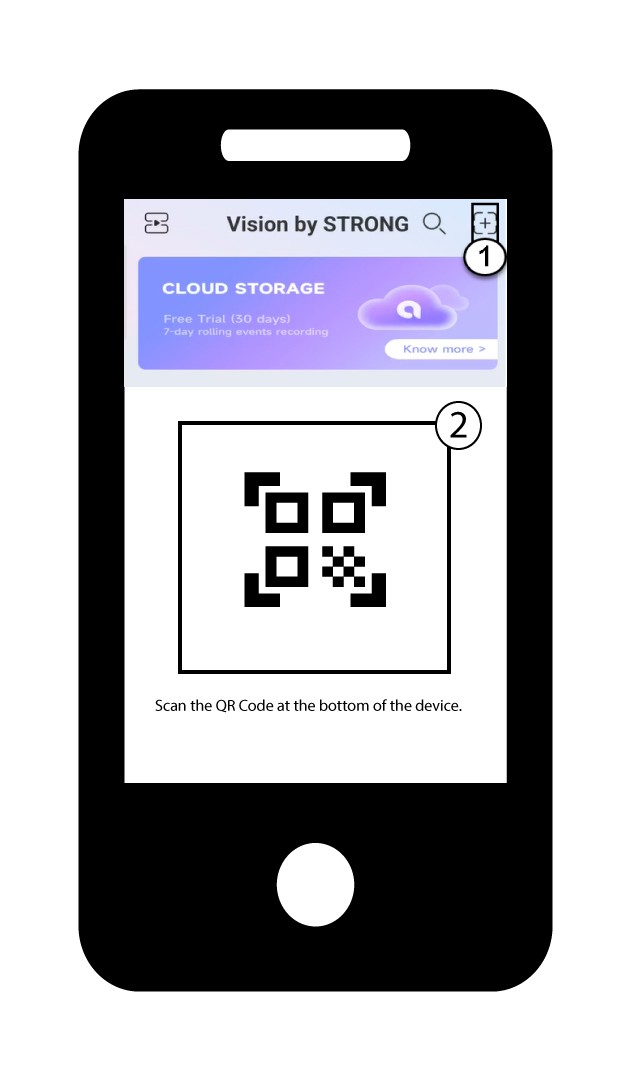
Then, click the + button in the app to add your camera by scanning the QR Code located on the product.
5Please Wait While the Camera Connects
Wait for the app to connect the device.
How do I choose the detection type of my camera?
You must choose the detection type used to record the events based on your needs.
Here are the following detection modes:
- Motion Detection: the camera detects all the movements that occur in a specific area.
- People Detection: the camera detects all the people that are moving in a specific area.
- Vehicle Detection: the camera detect all the vehicle that are moving in a specific area.
- Area Detection: the camera detects all the vents that occur in the area that you have defined.
- Boundary Detection/Line Crossing Detection: the camera detects all the event that occur on the line that you have defined.
How do I configure my cameras in the NVR?
TIP: To add several cameras, simply search for them via the Channel menu and add them. Once your camera is added, you can see the live stream in the live section of the UI.
1Search for the Camera
Click Channel and Search for device.

2Add the Camera
Select the camera name from the list and click Quick Add.

3Wait for IP Allocation
The camera status will be displayed as unconnected while the NVR is allocating an IP to the camera.
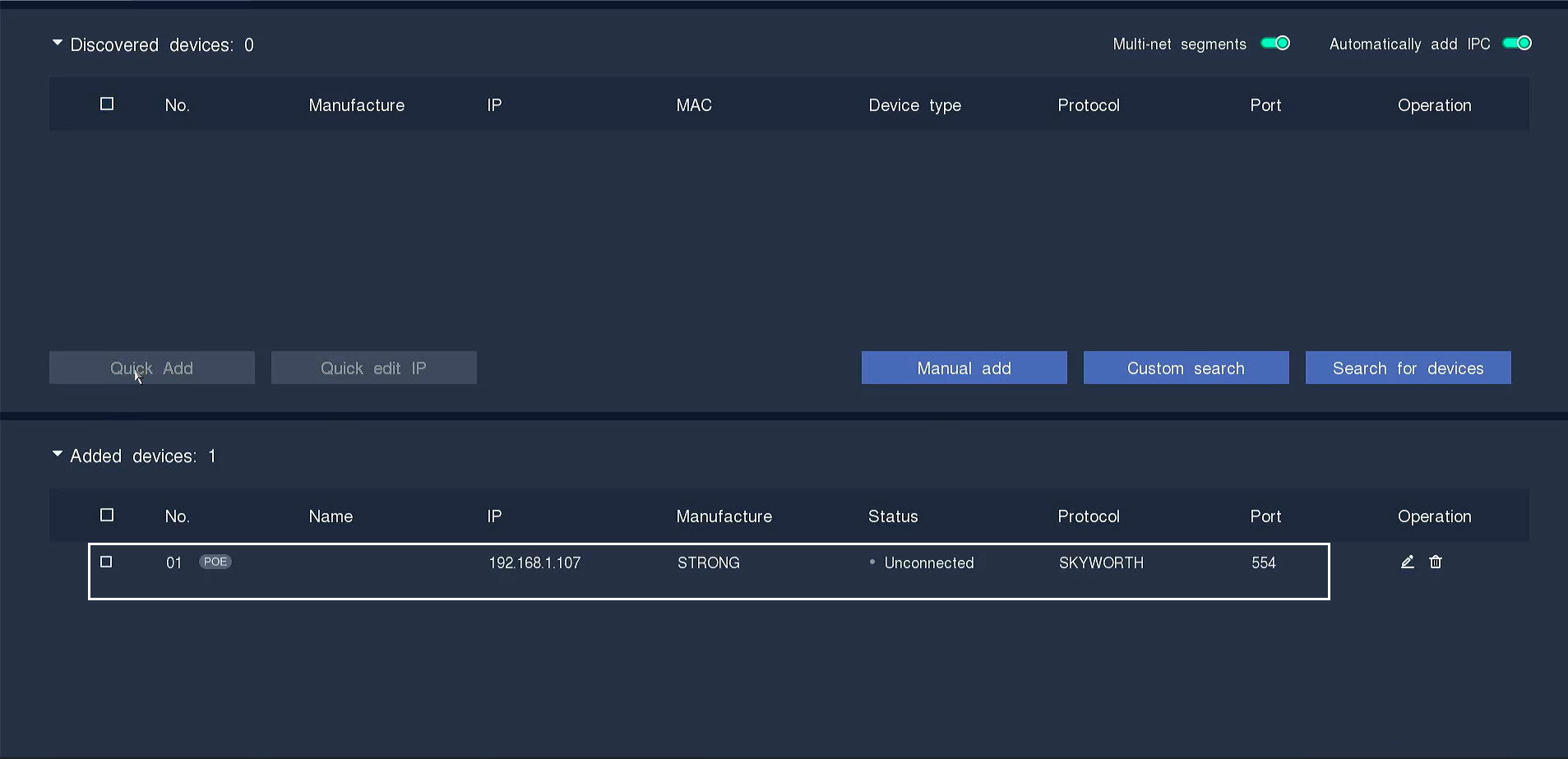
4Edit Camera Information
Click the pen icon to edit the camera information.
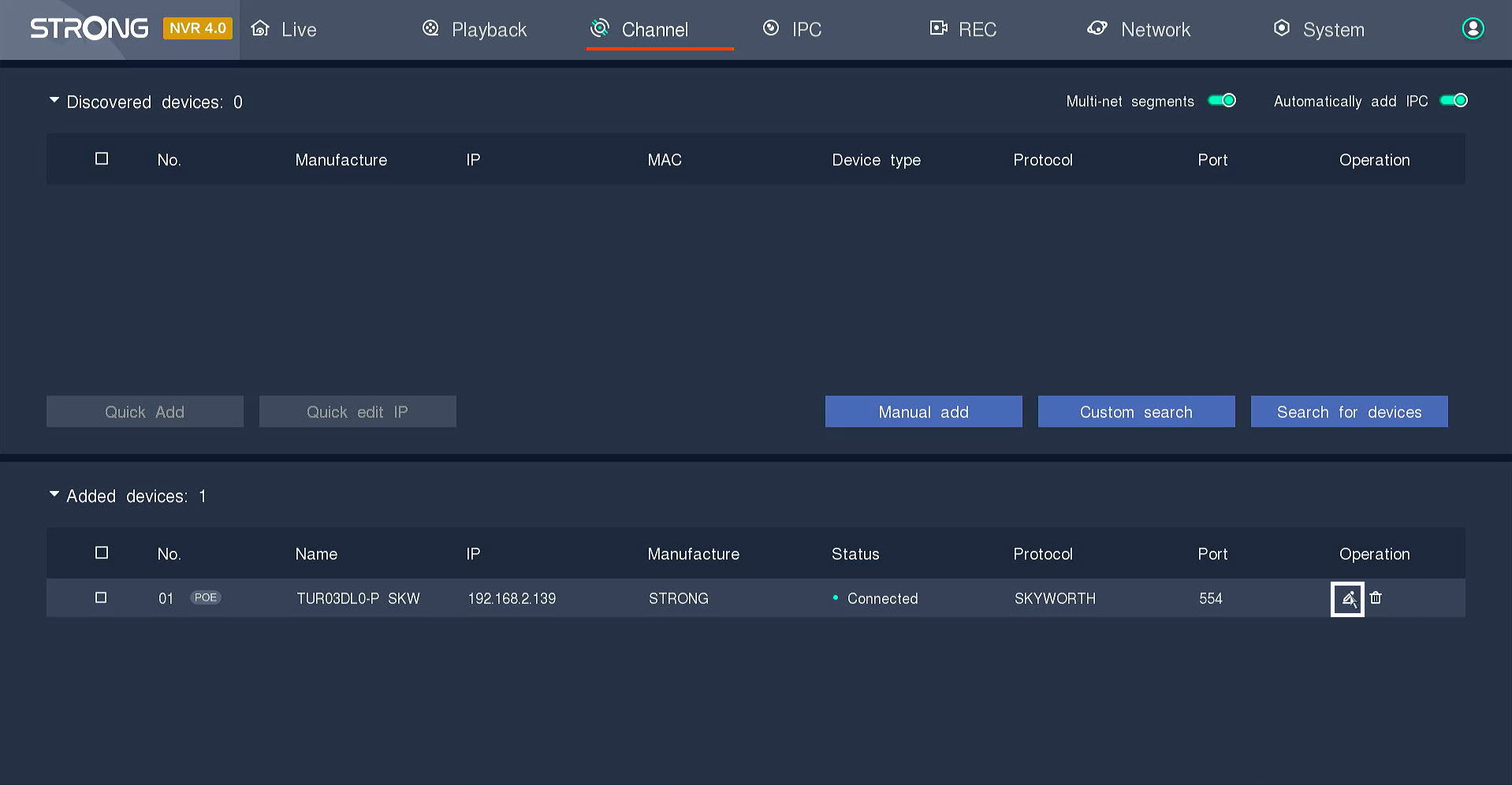
5Enter the Camera Password
Enter the password of your camera. Click the enter key to validate the password.
TIP: The password of the camera can be found on the product label. To display the current password, click the eye icon.
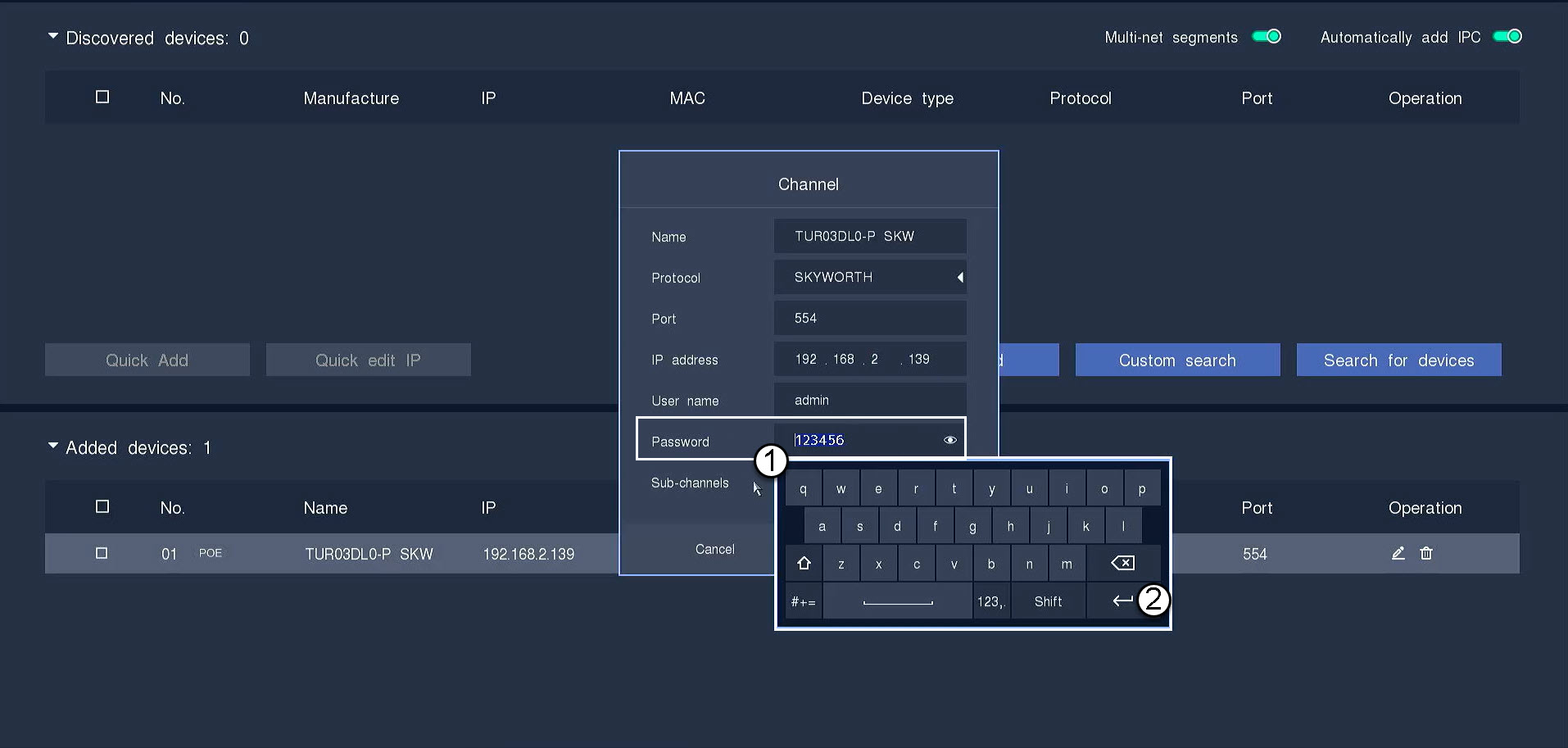
6Click OK
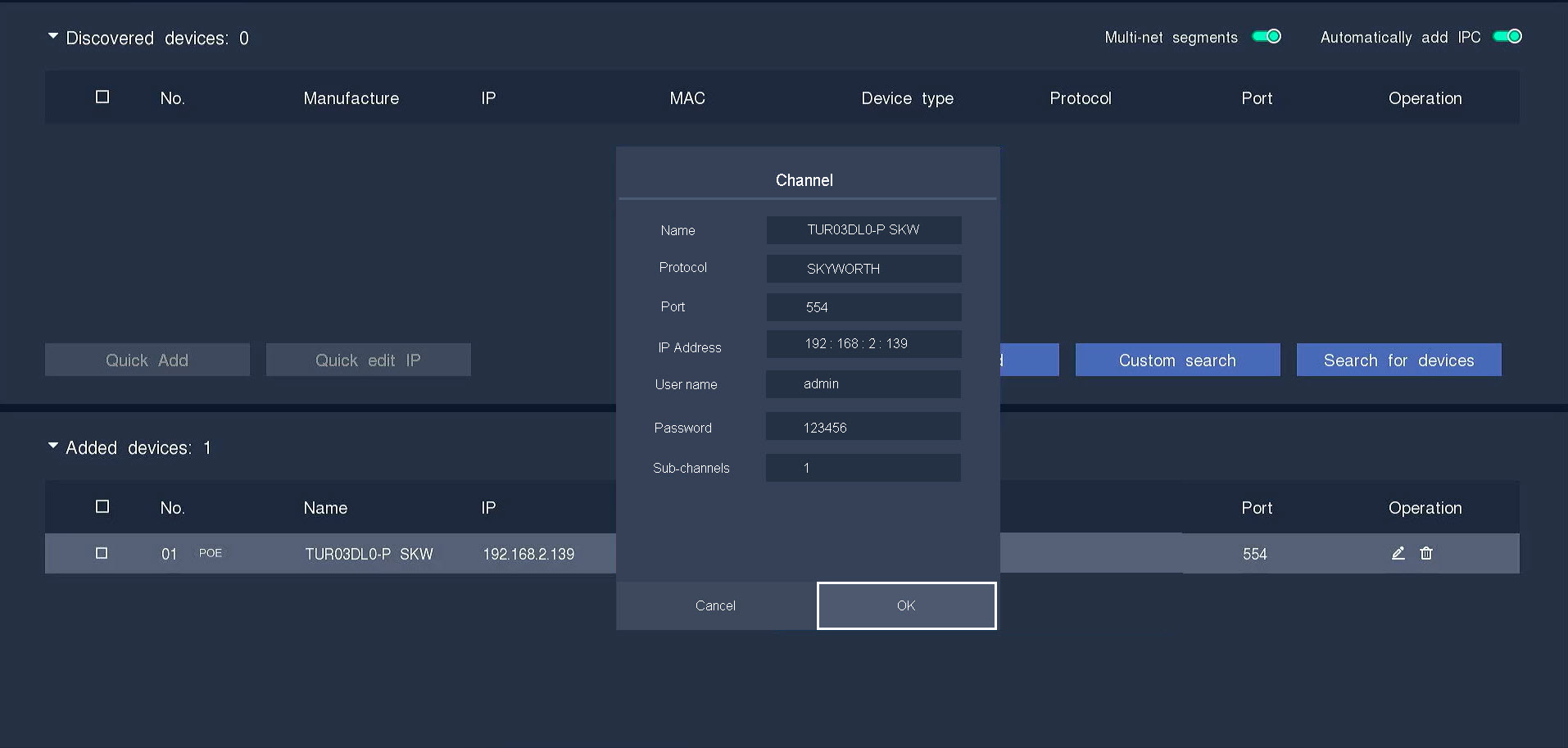
7Connection confirmed
The status will switch to connected.
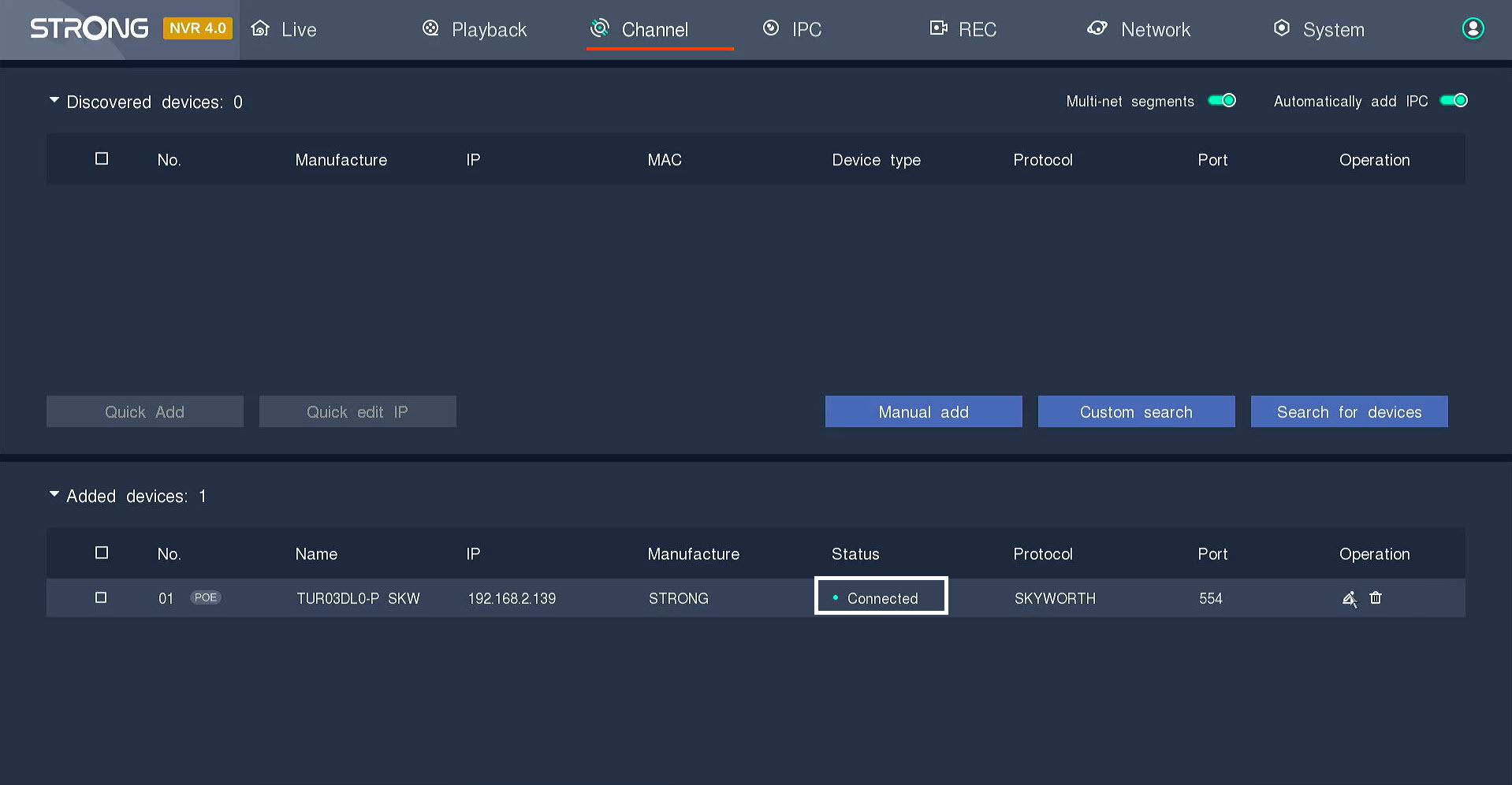
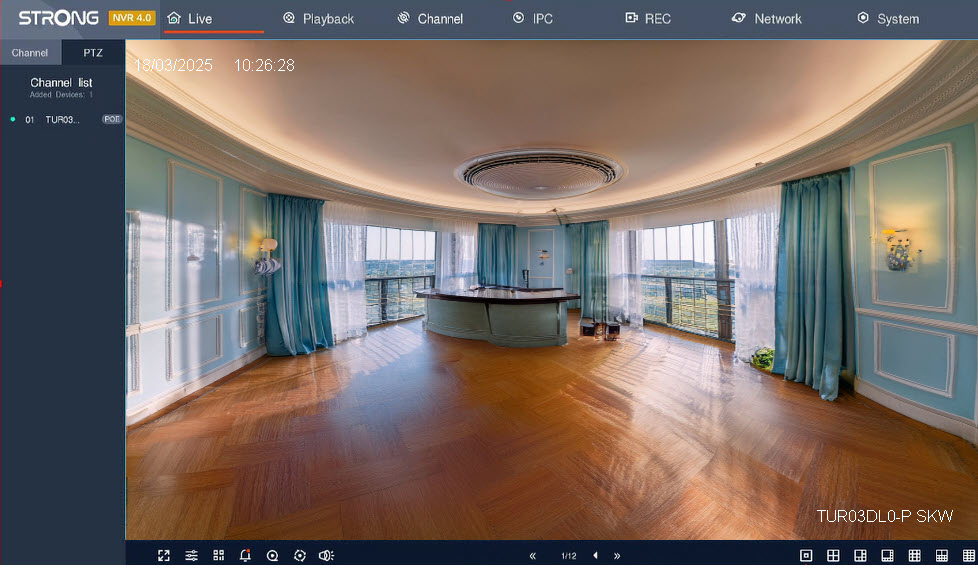
8View the Live Stream
The camera is connected and you can see the live stream.
How do I create user profiles in my NVR?
You can add users that will be able to access the NVR and set specific permissions for the different types of users.
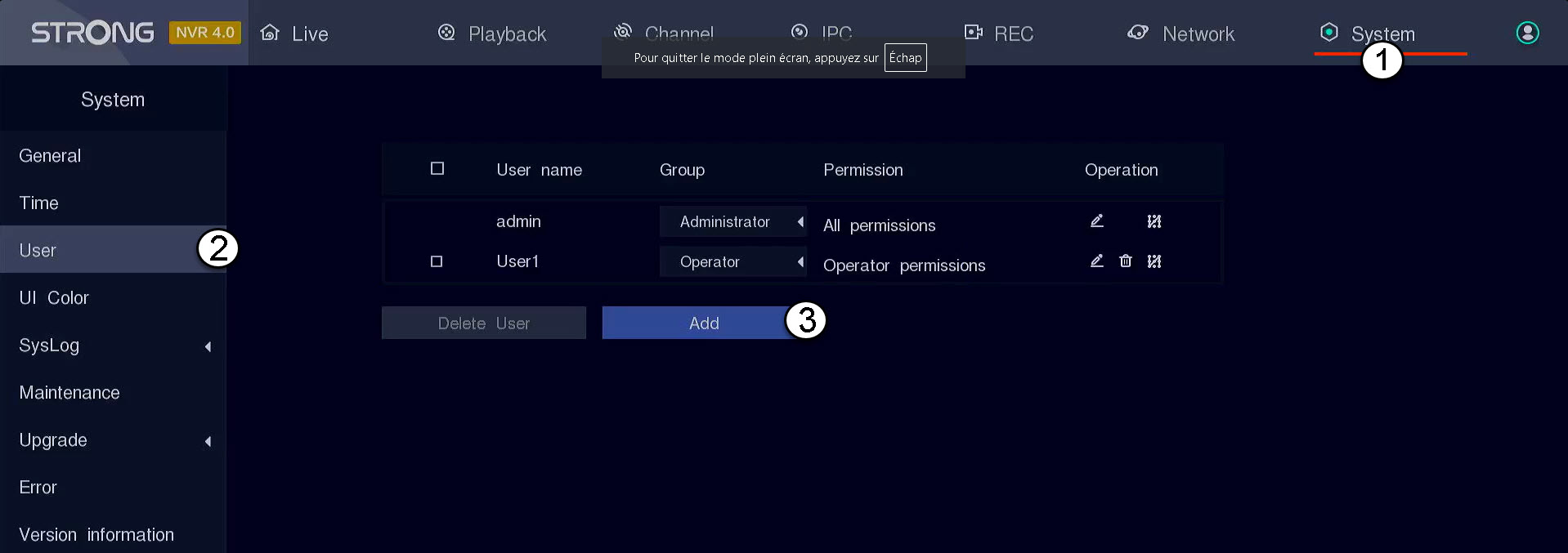
1Access the User Settings
Click System, then select User. Then, click Add.
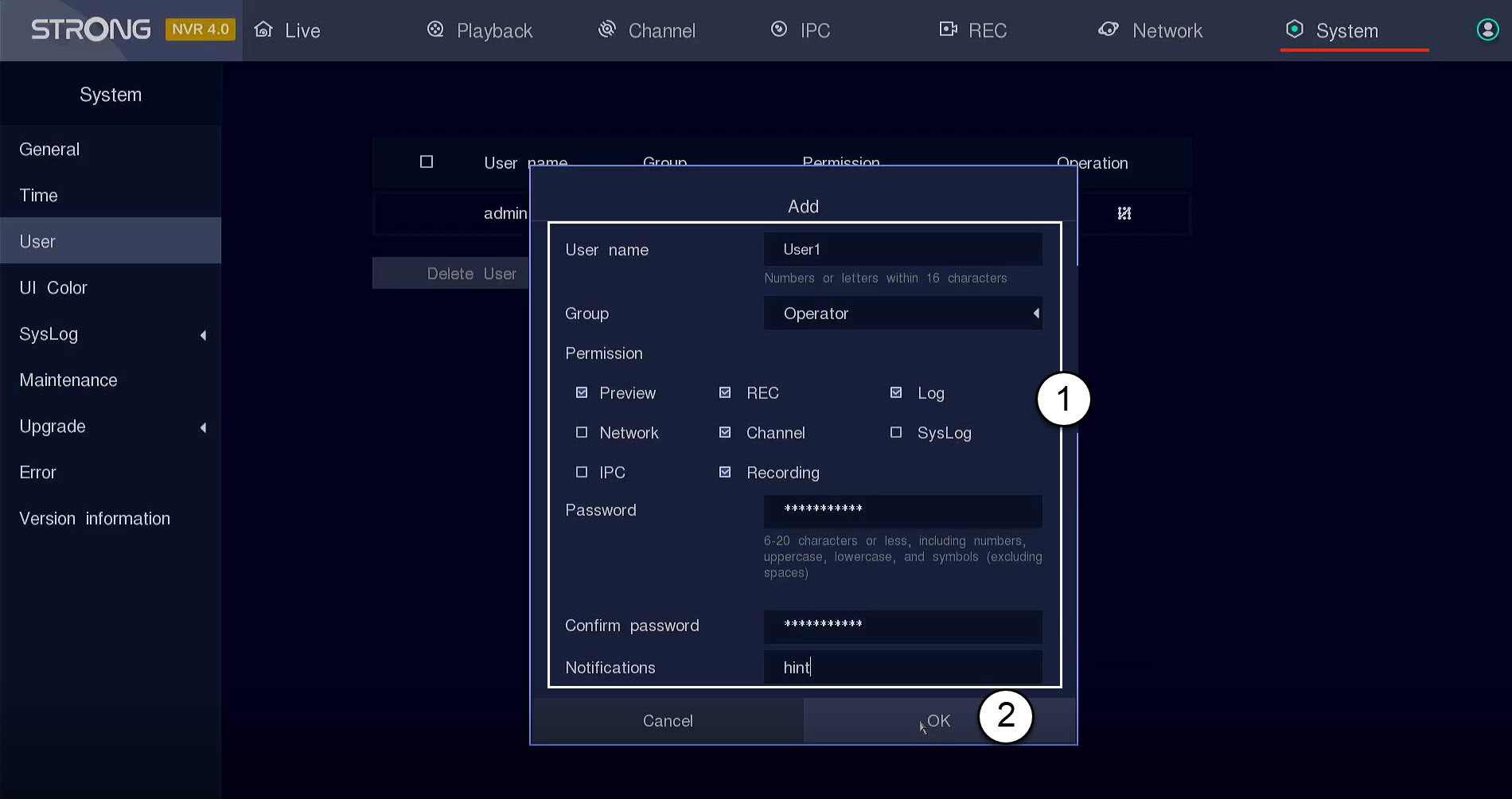
2Fill in User Information
Before clicking OK, complete the following fields:
- User Name: Enter a name for the user profile. It will be used to login to the UI.
- Group: Select the type of group based on the level of authorization (administrator: access to all features, operator: access to specific features defined by the administrator, user: access to specific features defined by the administrator such as Recording, channel, preview)
- Permission: Select the features that the user will be able to access based on its user group.
- Password: Define a password for the user. It will be used to login to the UI.
- Confirm password: Enter the same password as the one that you previously defined.
- Notification: Enter a description.
How do I find the IP address of my camera?
Warning: Before being able to configure the advanced parameters of your camera through its UI, you must configure it in the Vision by Strong App and write down its IP address.
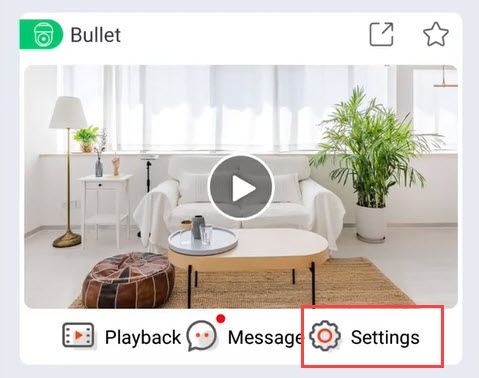
1Open the Settings Menu in the App
In the app, click Settings.
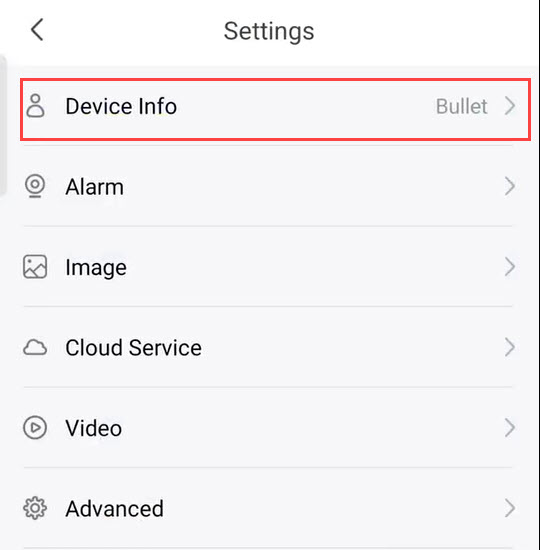
2Access Device Info
Then, click Device Info.
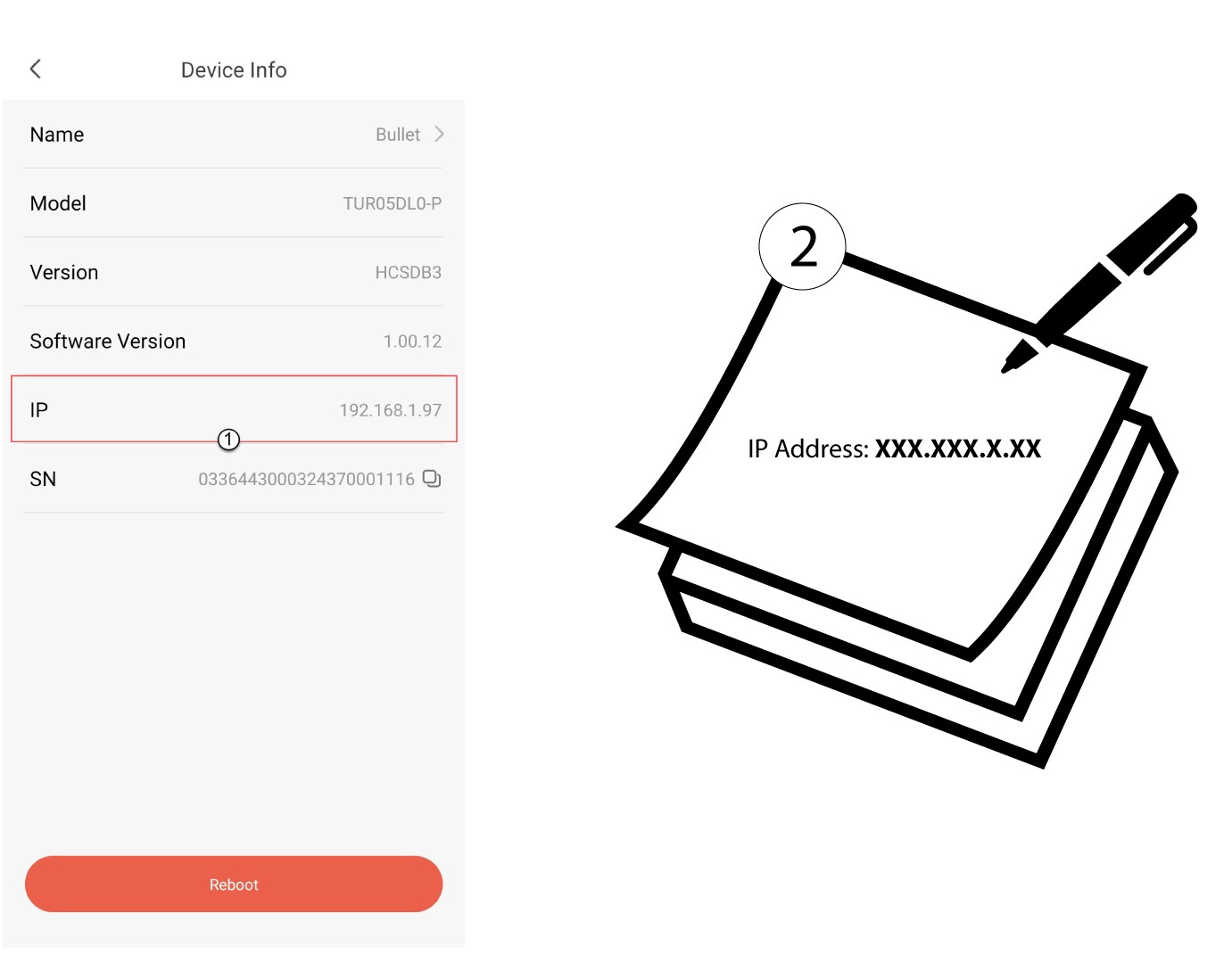
3Write Down the IP Address
Write down the IP address of your camera.
How do I install my NVR and cameras?
Each camera is equipped with a Y cable that provides Network access (RJ45), power supply (12 VDC power supply not provided) and for some products, an audio output.
You can organise your network and connect your cameras to it in different ways.
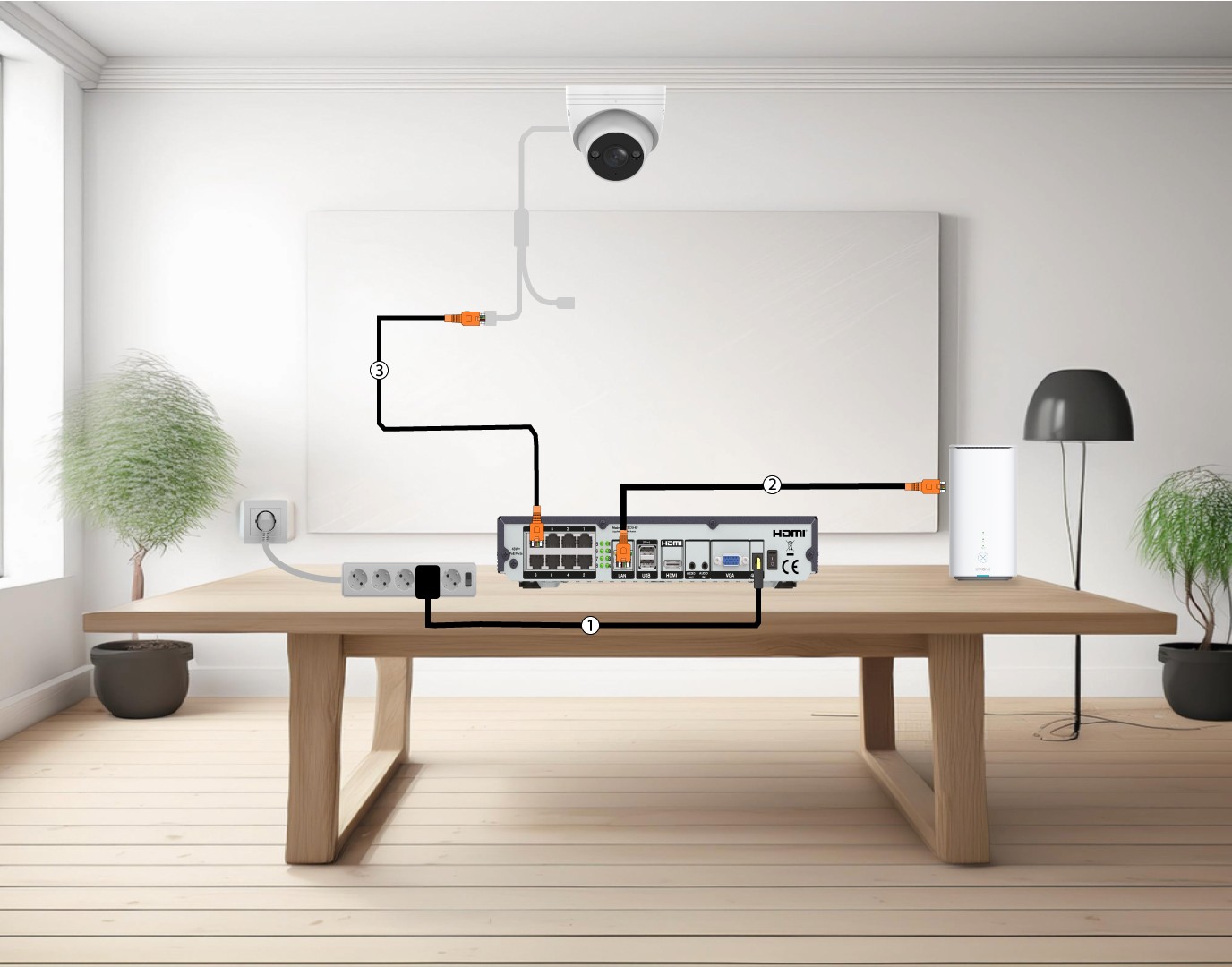
1Connect Cameras Directly to a NVR
Plug in your NVR (1) and insert an Ethernet cable from your NVR LAN port to your Internet Box (2). Then, plug an Ethernet cable from the NVR POE ports to the camera Ethernet port (3). The NVR will provide power to your cameras so you will not need to plug in a power cable.
2Connect your camera to a POE switch
To do so, plug in your POE switch (1) and connect your switch to the internet box with an Ethernet cable (2). Finally, connect your camera to the switch by plug in an Ethernet cable from the camera to the POE switch (3). In this case, Cloud Services are required to record.

3Connect your cameras to a POE Switch with a NVR
To do so, Plug in the NVR (1), then insert an Ethernet cable from the LAN port of your NVR to your POE switch (2). Then, connect your switch to the internet box with an Ethernet cable (3). Finally, plug in an Ethernet cable from the camera to your switch (4).
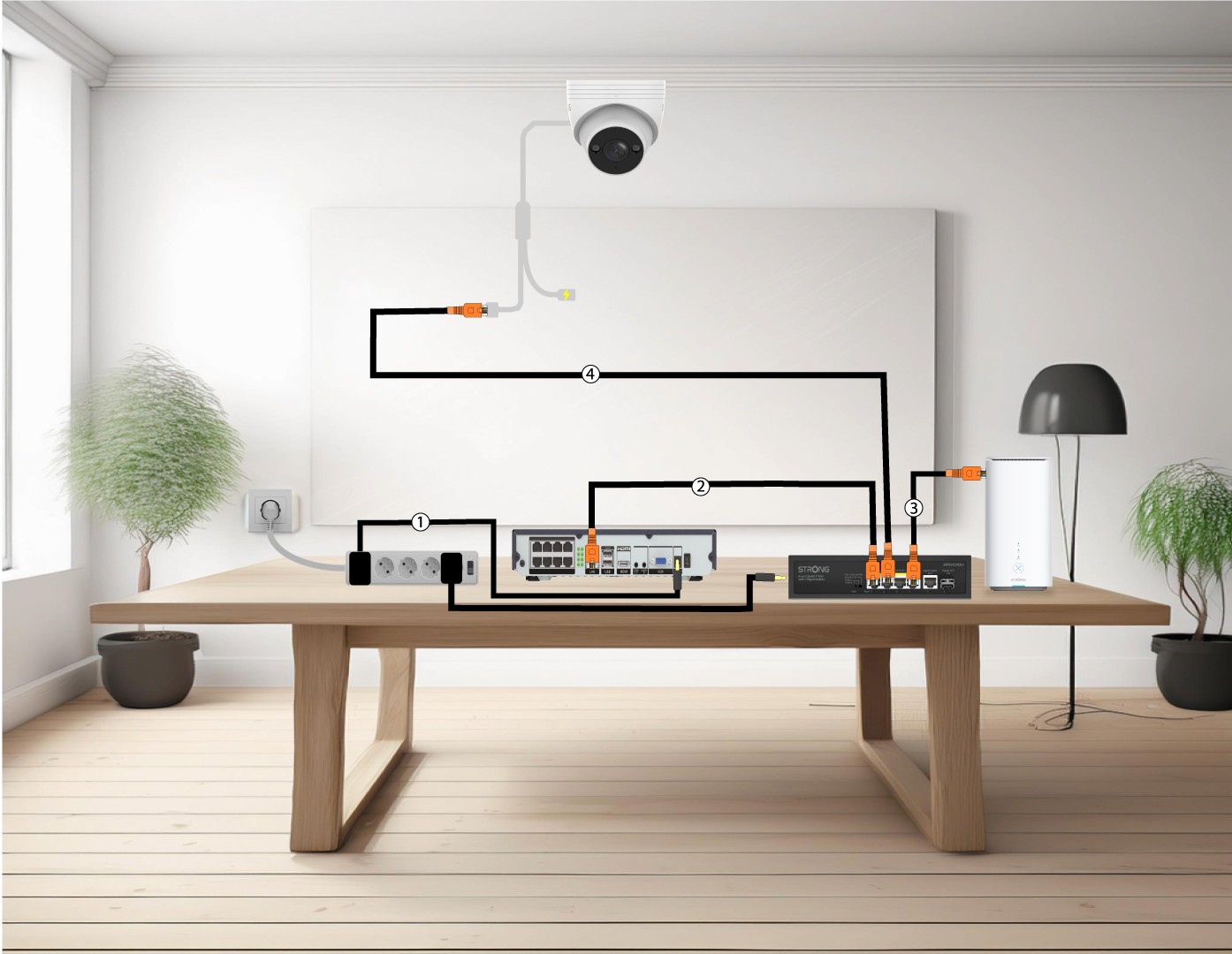
4Connect your cameras to a Non POE switch and NVR
To do so, Plug in the NVR (1), then insert an Ethernet cable from the LAN port of your NVR to your switch (2). Then, connect your switch to the internet box with an Ethernet cable (3). Finally, plug in an Ethernet cable from the camera to your switch (4).

5Connect your camera to a Non POE Switch
To do so, plug in your switch (1) and connect your switch to the internet box with an Ethernet cable (2). Then, connect your camera to the switch by plug in an Ethernet cable from the camera to the switch(3). Pugin the power supply of your camera(4).
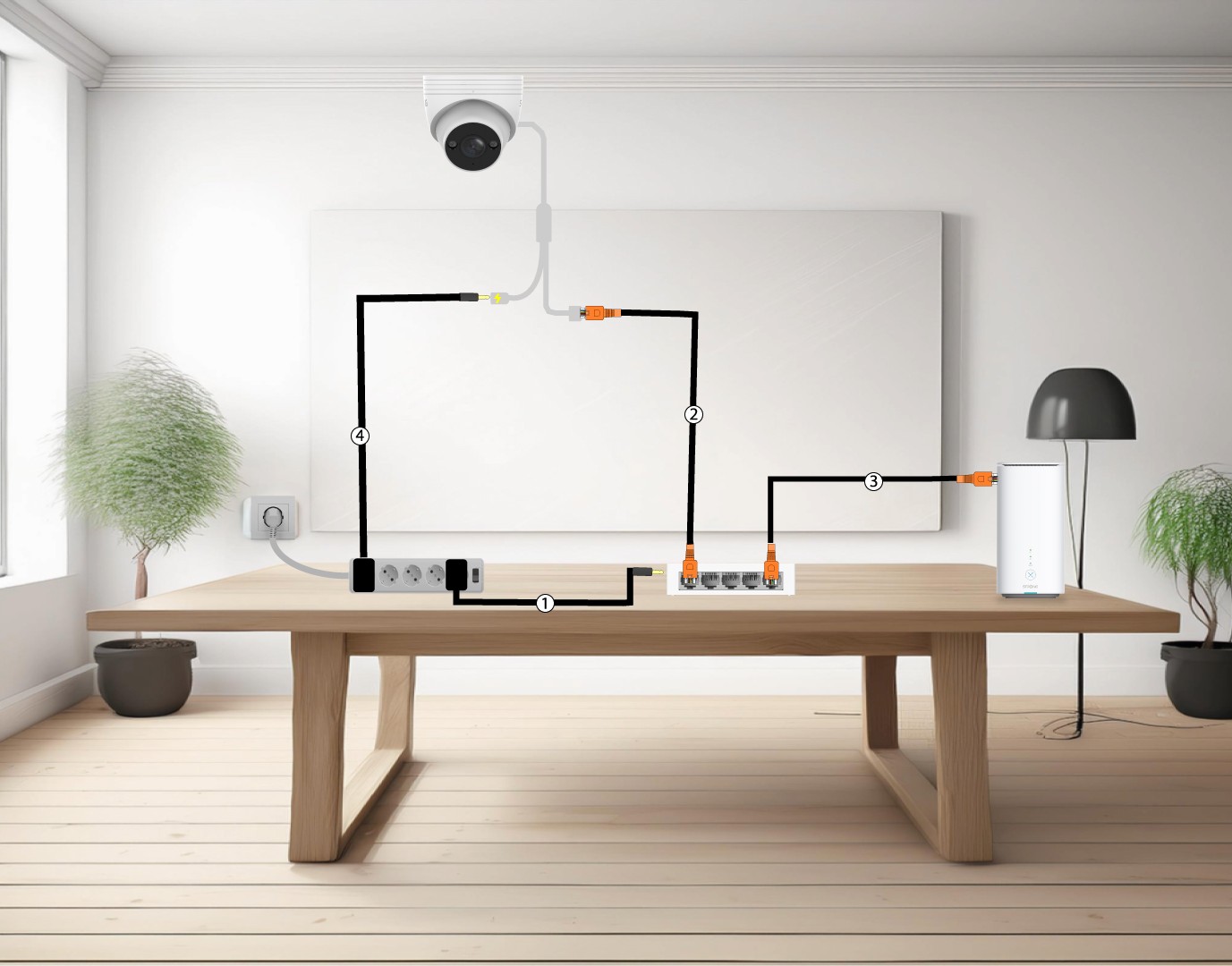
6Connect your cameras to the Wi-Fi
To do so, Plug in the NVR (1), then insert an Ethernet cable from the LAN port of your NVR to your internet box (2). Add your smart home camera to the Vision by Strong app and link it to your Wi-Fi Network (3), it will be automatically recognized by your NVR.
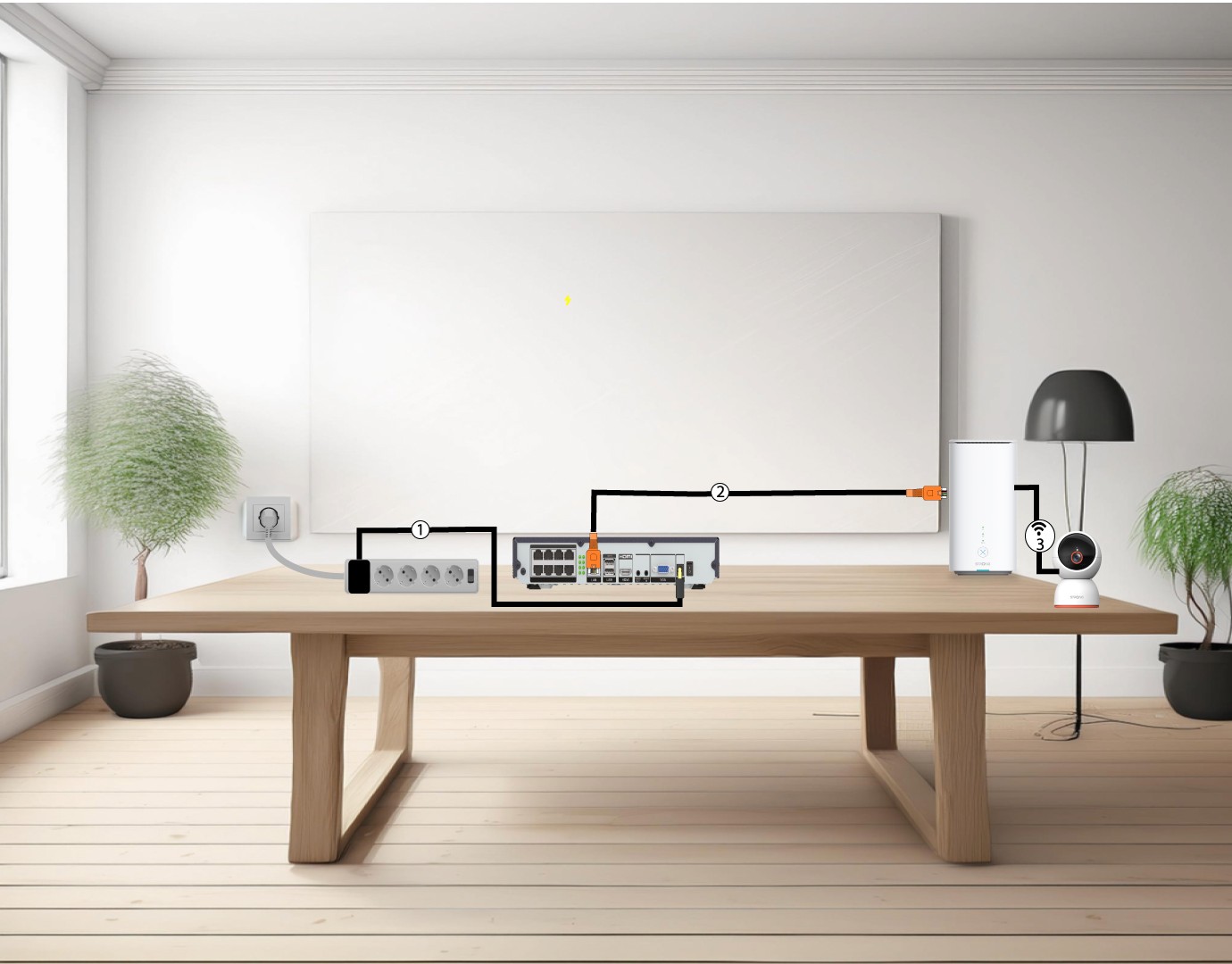
How do I manage my camera password in the Web UI?
You can change your admin password for the Web UI. To do so, follow the steps below.
1Open the Password Settings
Click on System Settings, then click Password Management. Then, click Change password.
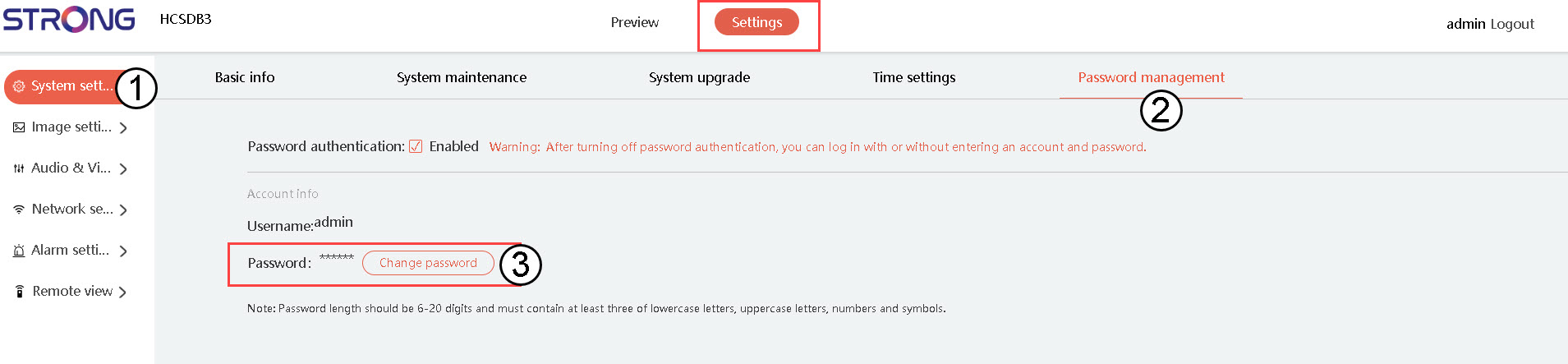
2Enter Your New Password Details
Fill in the following fields:
- Current Password: Enter the password written on your camera.
- Enter New Password: Enter the new password.
- Confirm Password: Enter the password that you put in the previous field.

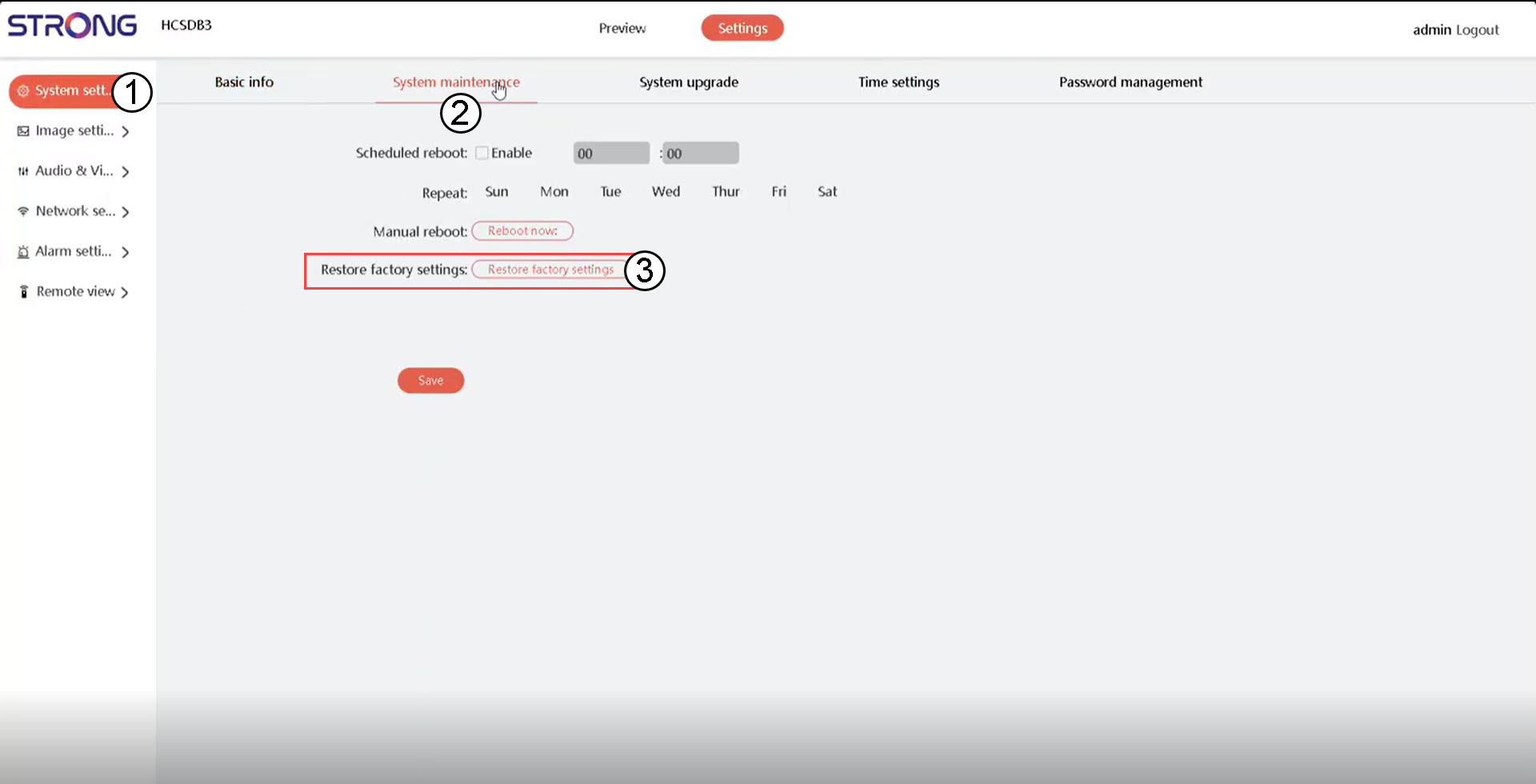
How do I perform a factory reset on my camera in the Web UI?
To reset your device to its factory settings, follow the steps below:
1Access the System Settings
Click System Settings and System maintenance. Then, click Restore factory settings.
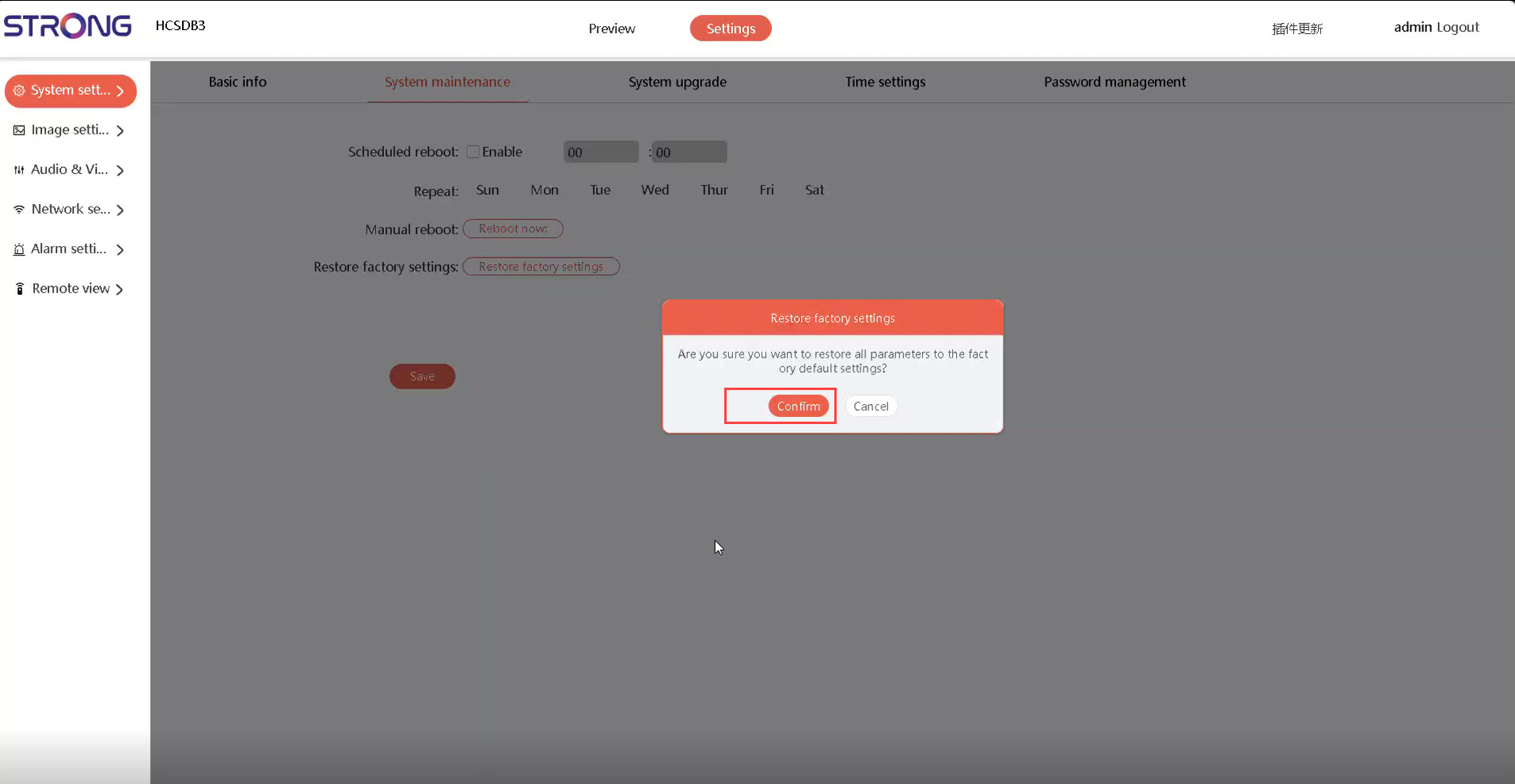
2Confirm
Then click Confirm.
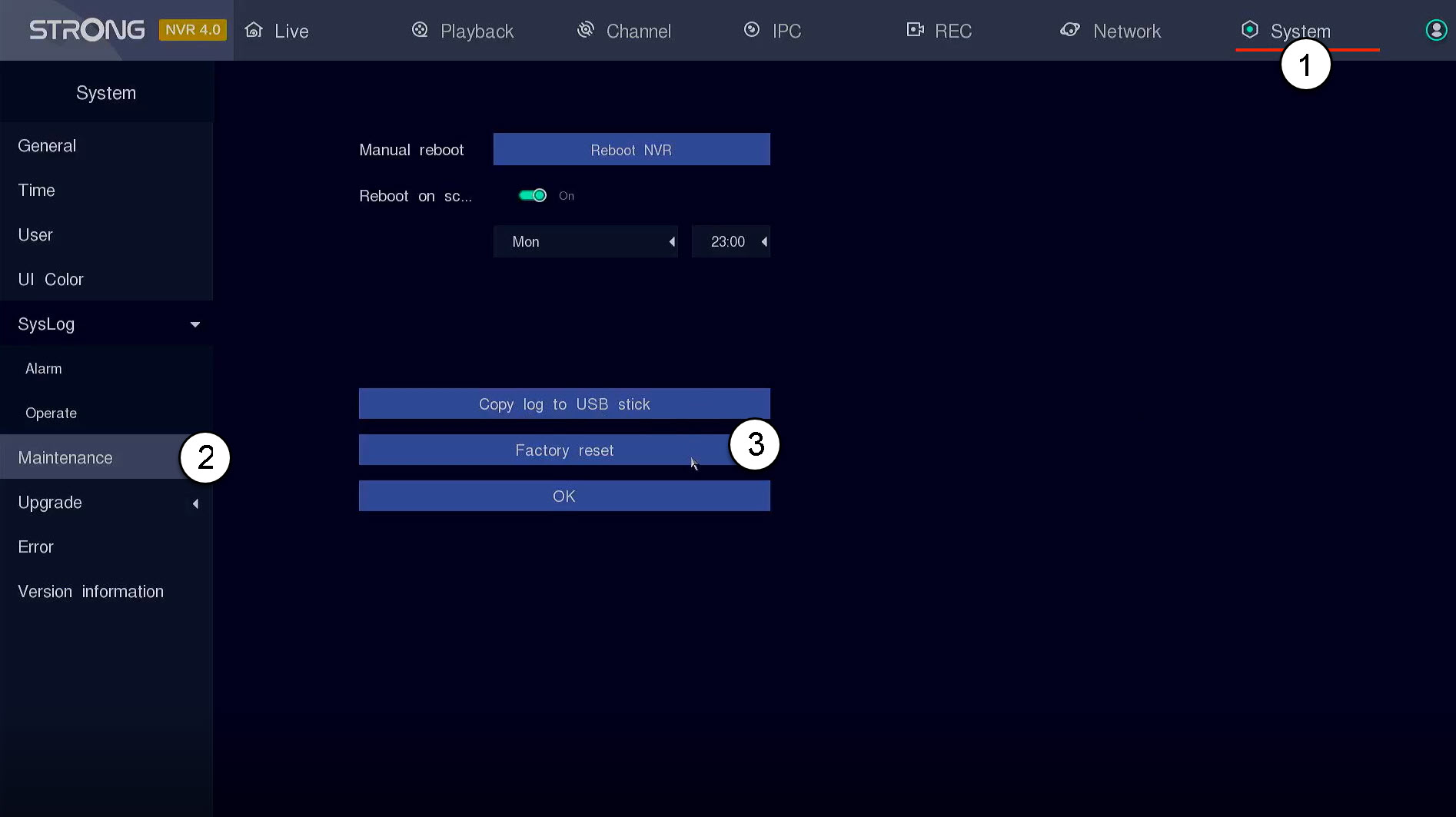
How do I reset my NVR to its factory settings?
To reset your device to its factory settings, follow the steps below:
Click System and Maintenance. Then, Click Factory Reset.
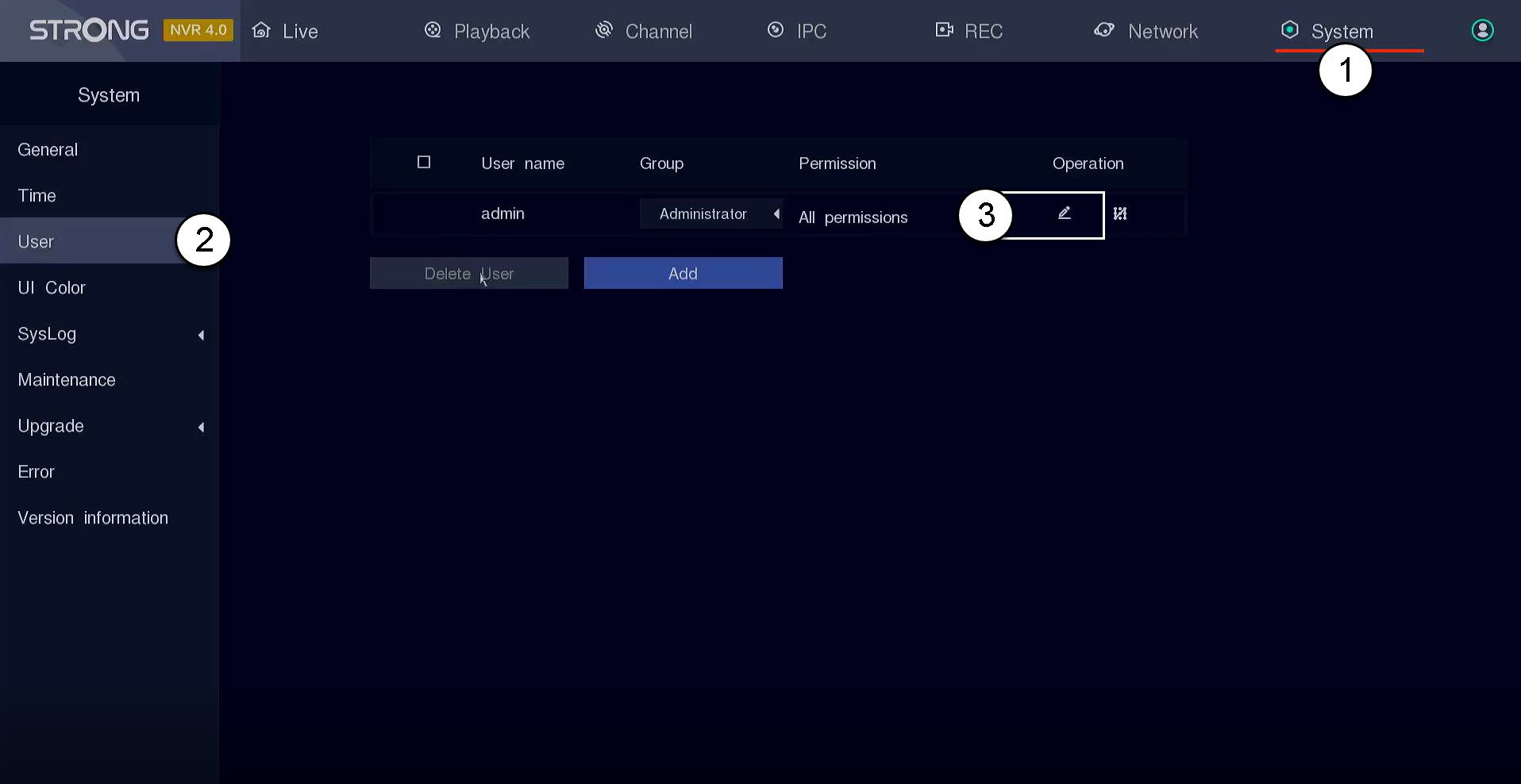
How do I set up or manage my admin and user passwords in the NVR?
You can change the passwords of the different user profiles.
1Go to User Settings
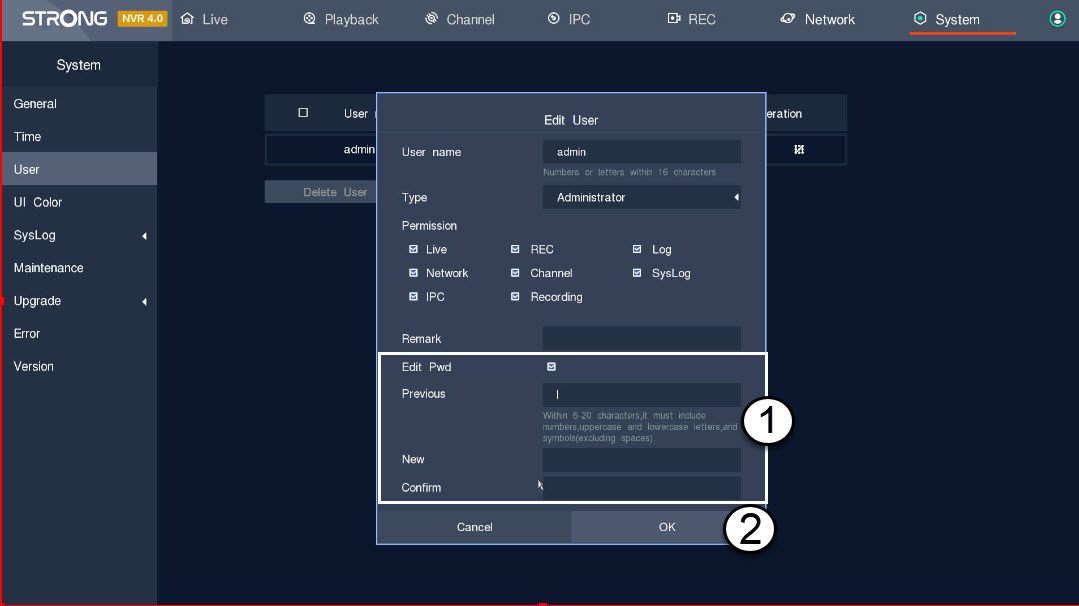
Click System and User. Then, click the pen icon next to the user profile
2Change the Password
Enter the following information before clicking OK:
- Edit Pwd: Tick the box to edit the password.
- Previous: Enter your actual password.
- New: Define a password for the user. It will be used to login to the UI.
- Confirm: Enter the same password as the one that you previously defined.
How do I update my NVR?
You can upgrade the software of your NVR.
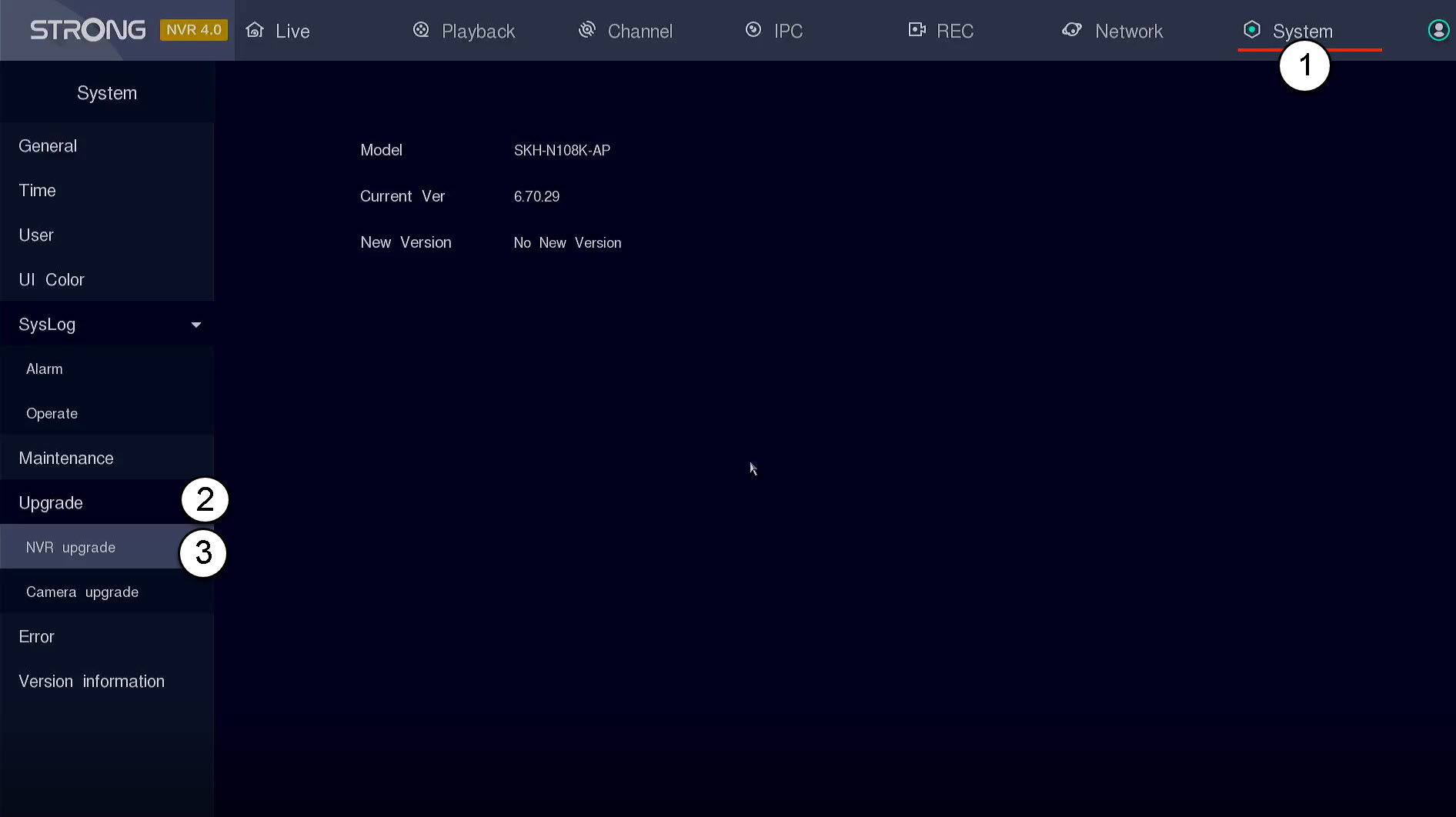
Click System and Upgrade. Then, click NVR upgrade. The NVR will automatically look for the new software version, if there is one available.
TIP: Alternatively, you can insert a USB stick that contains the new software on your NVR to upgrade your device. This software will be provided by Strong.
How do I update my camera in the NVR?
You can update your camera in the NVR UI.
1Open the Camera Upgrade Menu
Click System and Upgrade.
TIP: Alternatively, you can insert a USB stick that contains the new software on your NVR to upgrade your device. This software will be provided by Strong.

2Start the Camera Update
Click Camera upgrade. Then, select your camera in the list and click Online Upgrade.

How do I update my camera in the Web UI?
TIP: To update your device, please go to the Downloads section of our website and browse to the product page to download the new firmware version of your product.
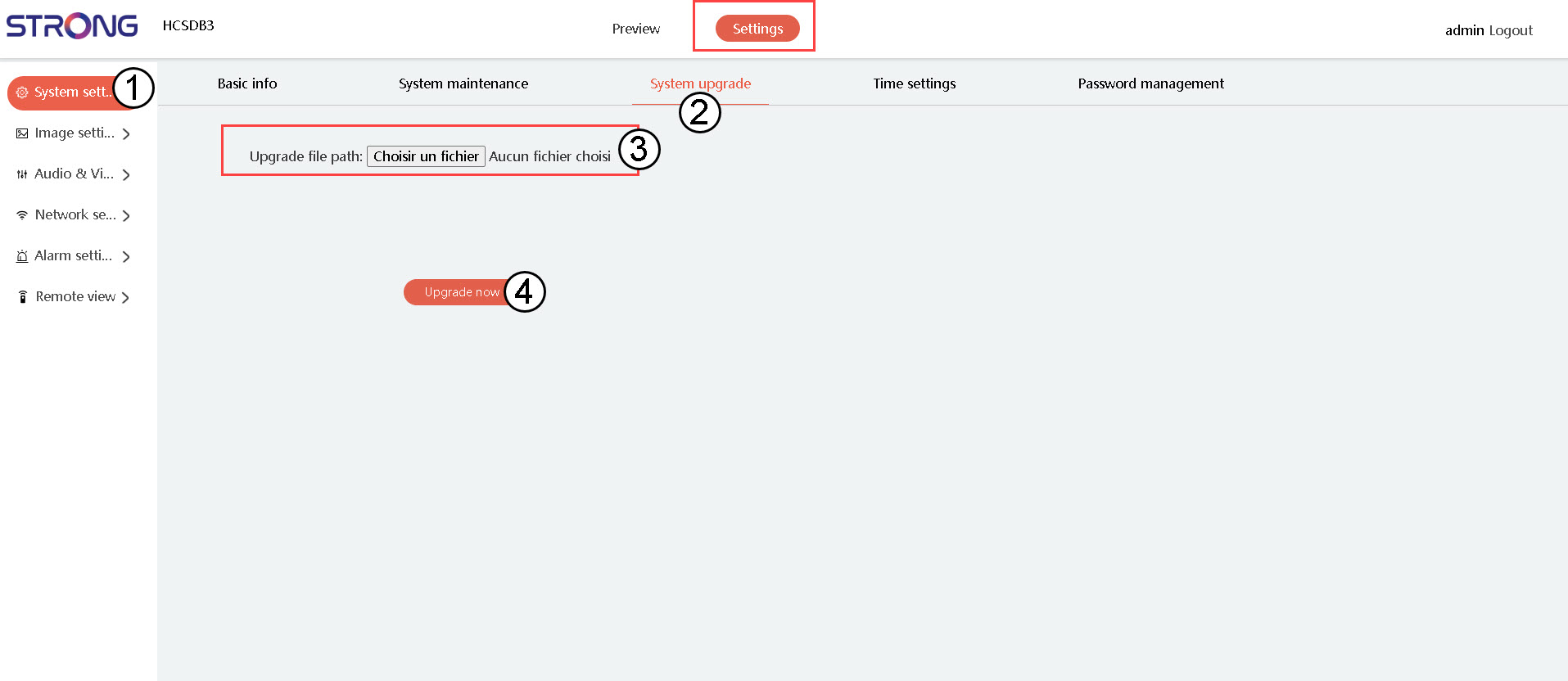
In the Settings, click System Settings and System upgrade. Then, click the choose file button and select the update file and click the upgrade button.
Warning: Please wait for the upgrade to be finished before performing any action on your device.
How do I use the cloud services with the NVR or POE Cameras?
You can view your NVR through the Vision by Strong app.
Click Network and Cloud Service. Then, scan the app QR code in the vision by strong app
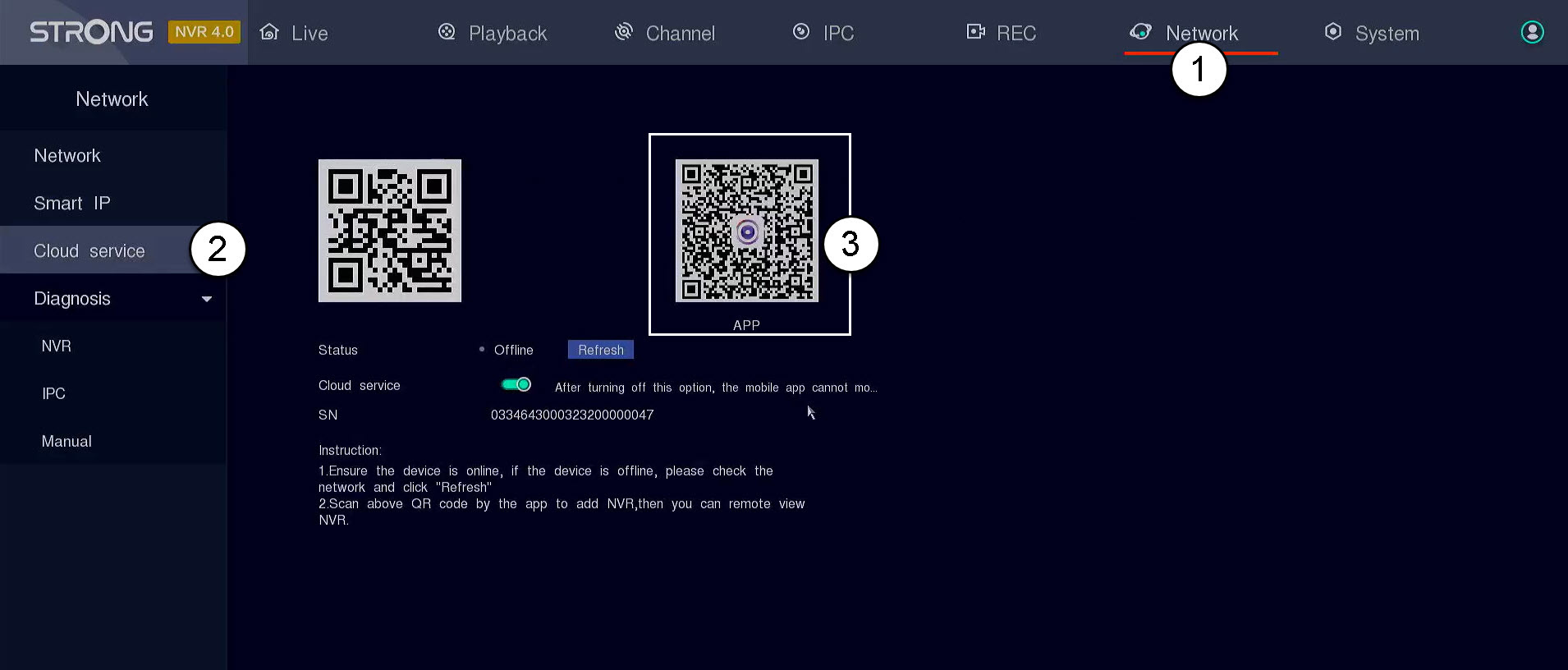
WARNING: Please check that the status displayed is online. If the status is offline, please click the Refresh button.
How to set up my NVR?
1Wait for the System to Boot
Please wait during the booting phase.
2Choose Your Preferred Language
Select the language and click Next.

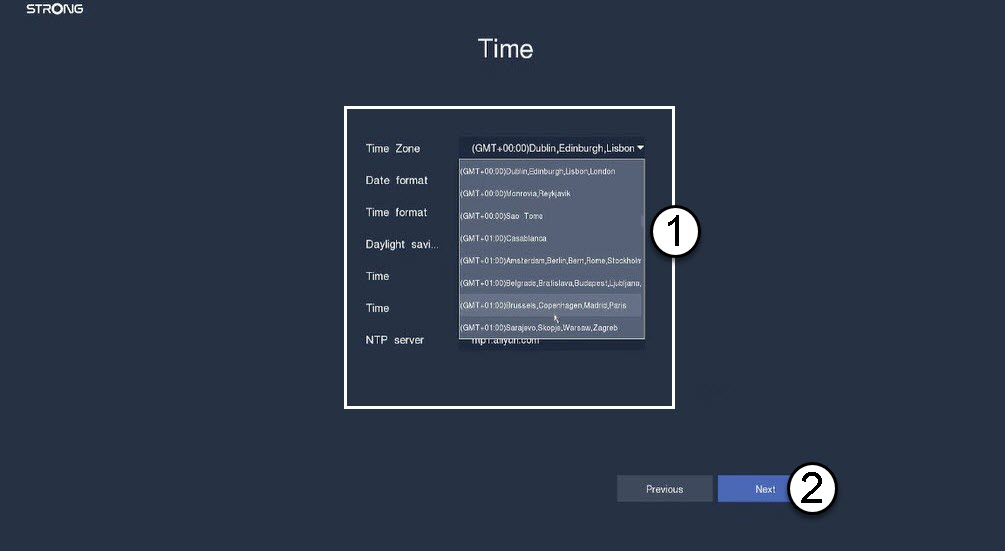
3Set the Date, Time, and Region Settings
Enter the following information before clicking Next:
- Time Zone: Select the time zone of your country/region.
- Date Format: Select the format used in your region.
- Time Format: Select the format used in your region.
- Daylight Saving: Activate this feature only if you have different default time zones in summer and winter.
- NTP Server: Enter the address of a time server.
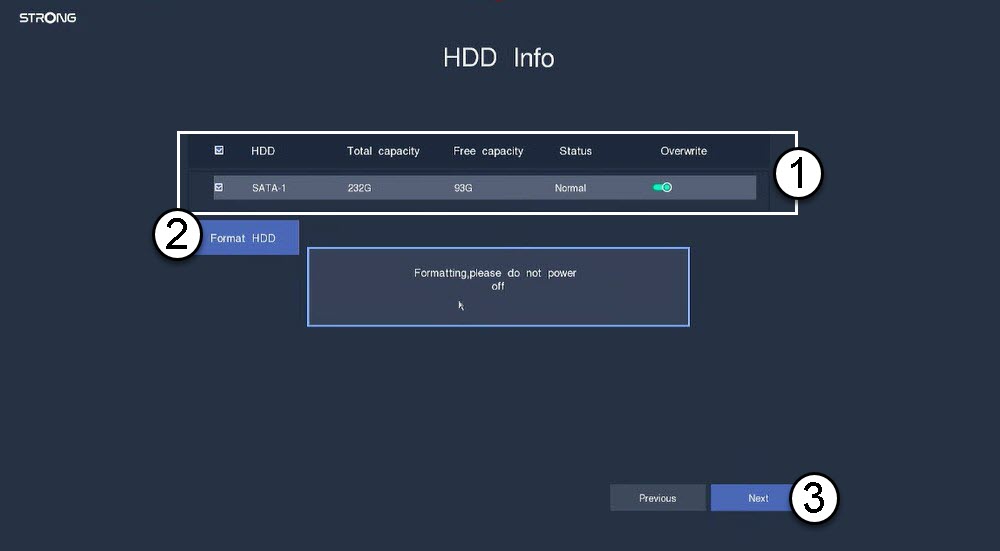
4Format Your Hard Drive
Please format your hard drive by selecting its name from the list and click Format HDD. Then, click Next.
5Check Network Connectivity
In the network section, please check the DHCP LAN information. If the DHCP address is correct, the displayed status is connected. Click Next.

6Create an Admin Password
When connecting for the first time to the NVR, you must configure its password.
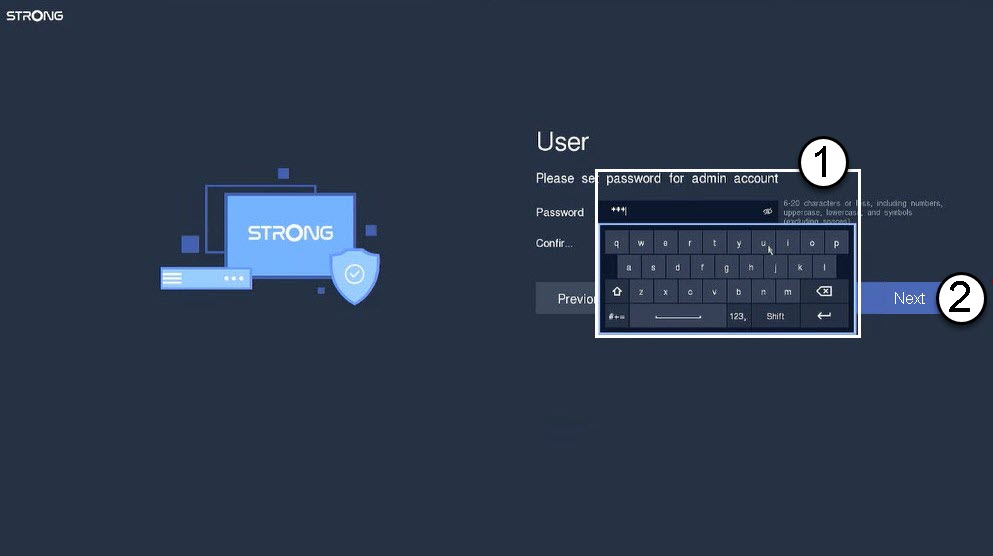
Warning: Please write down the password you set up. You will need it to connect to the UI.
What can I do in the camera Web UI?
In the camera Web UI, you can:
- Display the live view of your camera or a specific channel at a specific date.
- Set the time zone, time and date, language, cloud services, user rights, password, adjust the UI colour, see the system logs, reboot, reset and upgrade, and so on...
Why is it impossible to preview the live view of my camera in the Web UI?
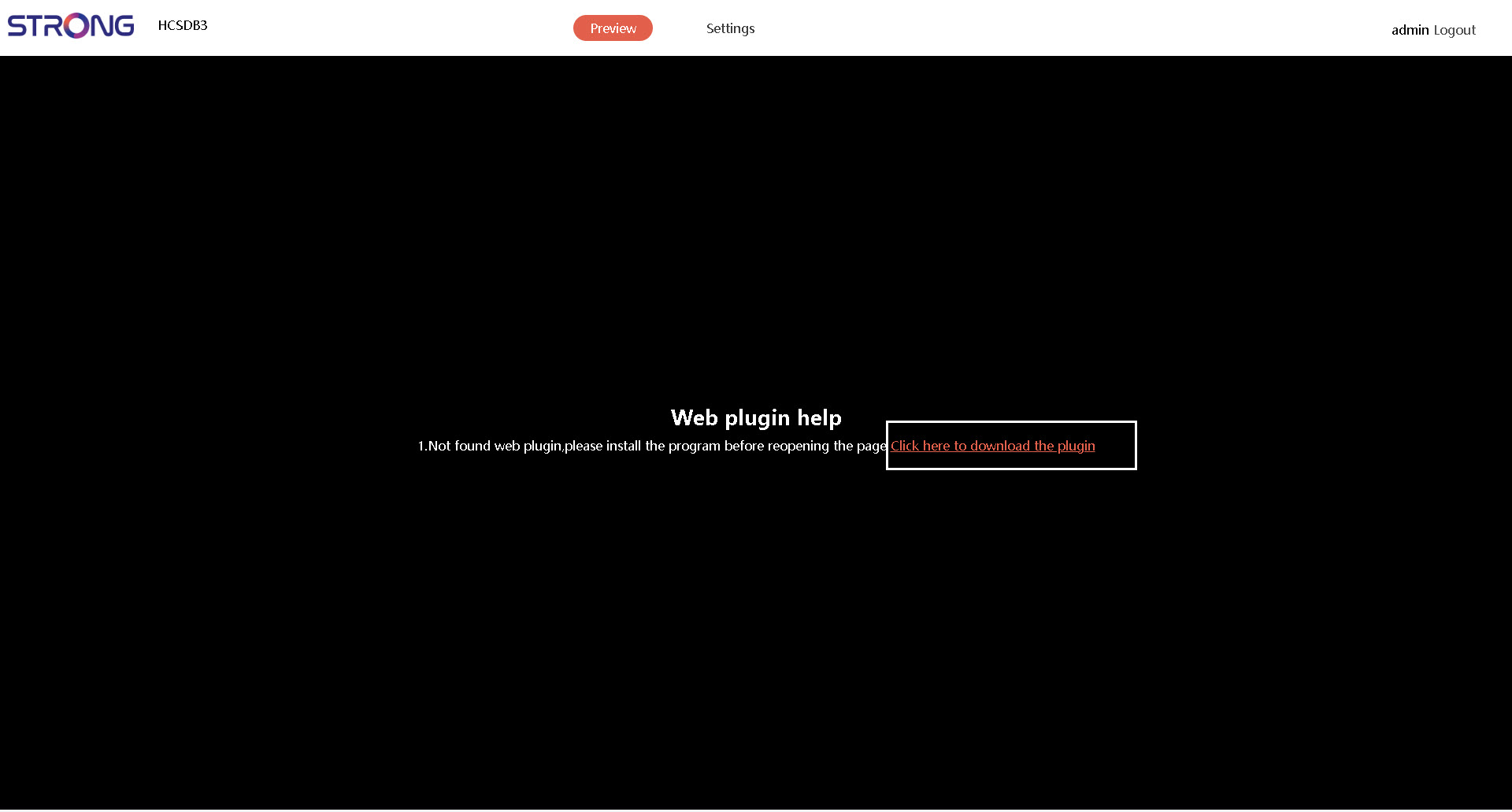
The first time that you are connecting to the Web UI, you have to download the camera plugin to preview the live stream of your camera.
Warning: Please note that the video live stream feature may not be available as it can be blocked by your antivirus software. You must allow the download and installation of the plugin for the live preview to work.
1Download the Plugin to View the Live Stream
Download the plugin to display the video live stream by clicking the link written in orange on your screen and follow the instructions.