
4G LTE Router 300 Mini UK
All questions
Credentials and Web UI access
How do I access the Web UI?
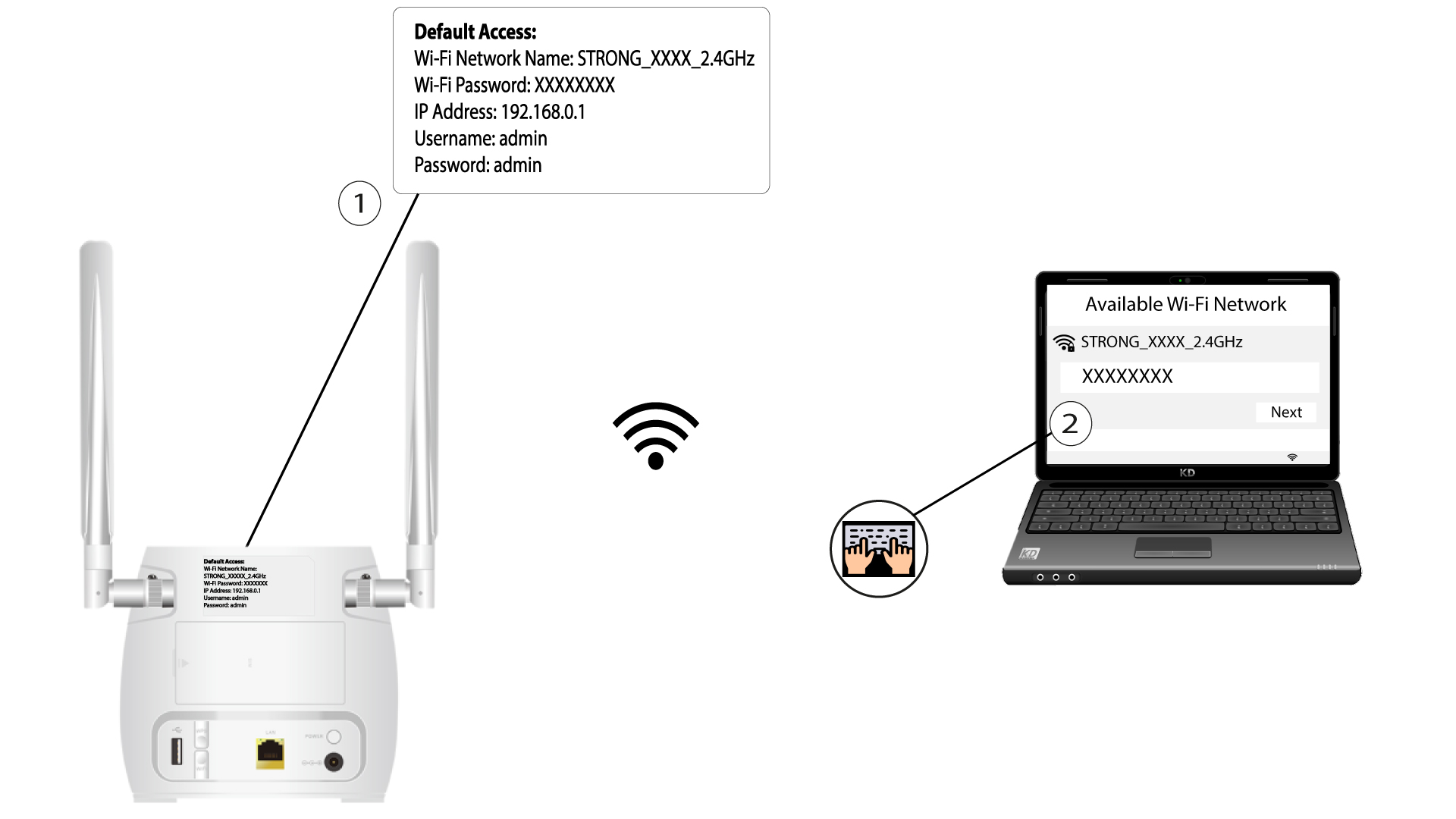
To access the Web UI, you must be connected to the Wi-Fi of your device after positioning the SIM card in the slot.
1Connect to the Wi-Fi
To do so, enter the SSID and password of the router in your device:
2Enter the Web UI IP Address
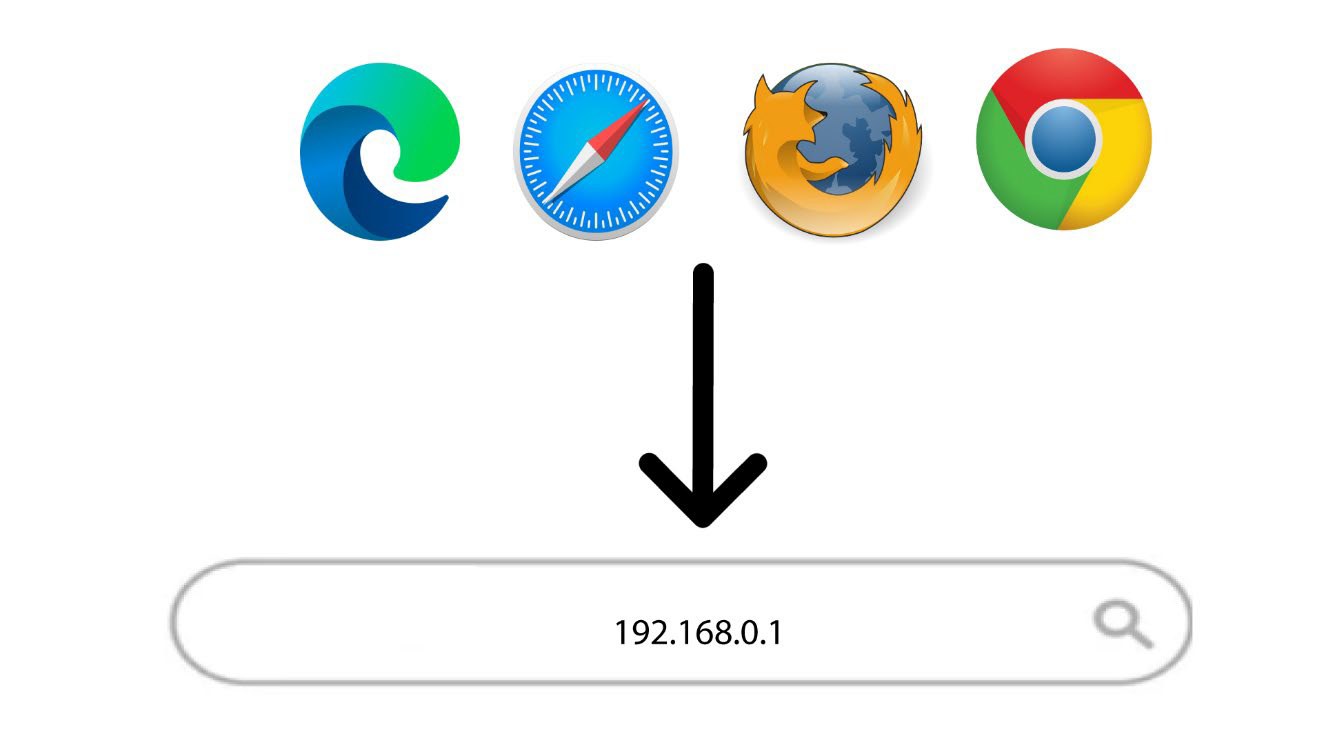
Then, enter the following IP address in your browser: 192.168.0.1
3Login Page
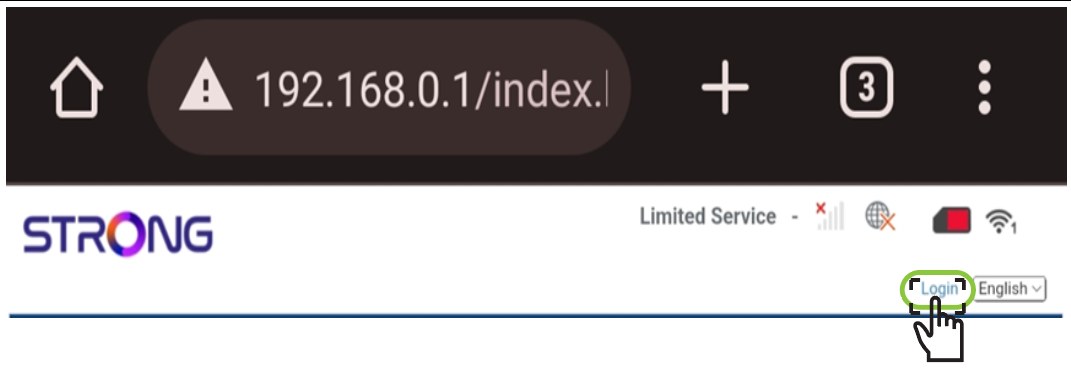
Once you have browsed to the IP Address, click login.
4Enter the credentials
You must enter the username and password. Then, click Login.
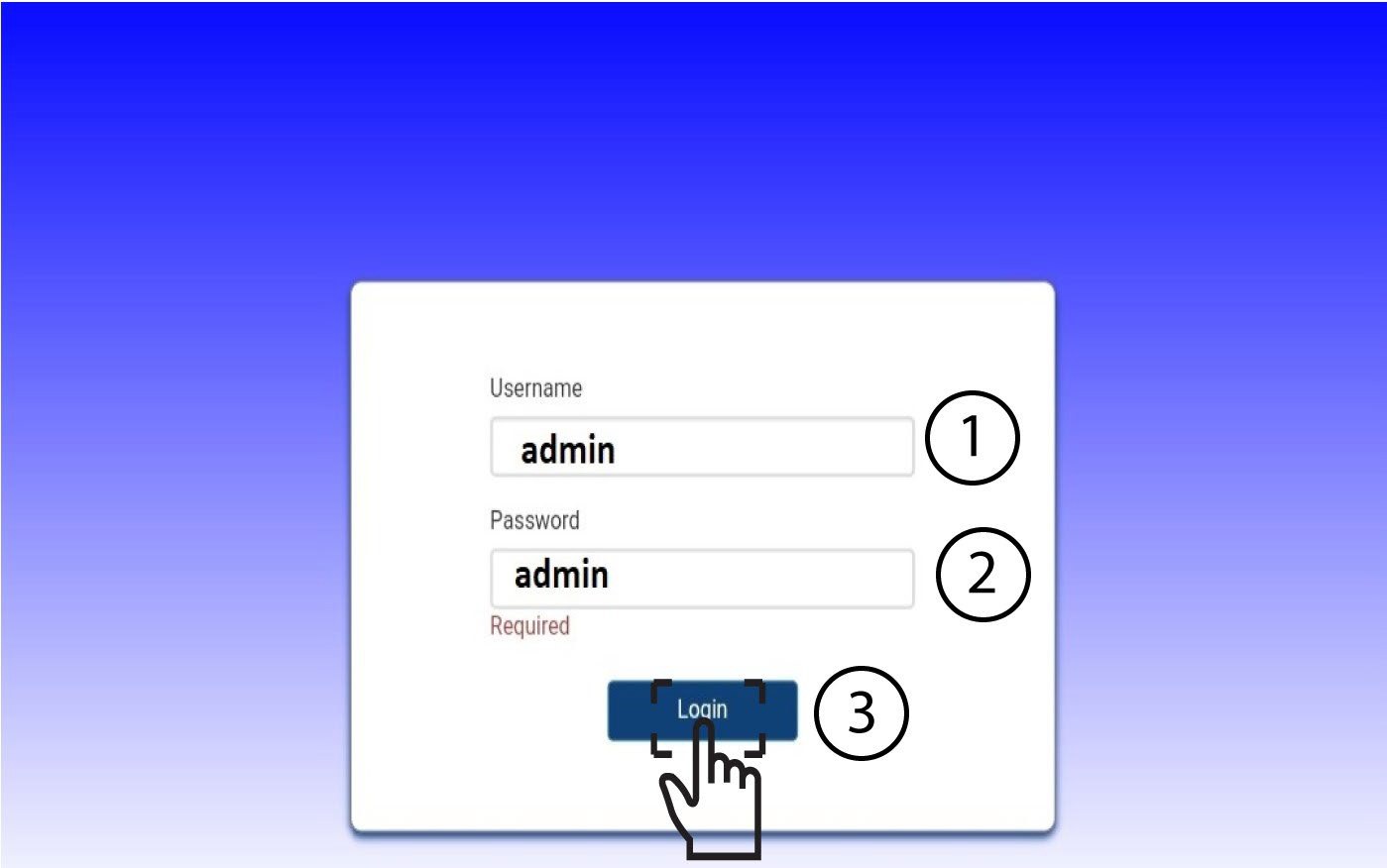

After connecting for the first time, we strongly advise you to change the administrator password to secure the access to the router and prevent hacking.
How do I change the SSID and password? (Quick Settings)
How do I change the SSID and password?
In the Web UI, you have two ways to change the SSID and password of your router:
• By using the Quick Settings
• Or by using Wi-Fi Settings.
Let's focus on the first case, changing the Network Name (SSID) and Password by using the Quick Settings tab in the Web UI.
1Quick Settings
In the Web UI, the Quick Settings enable you to change the information of your network: its network name and password.
To do so, click Quick Settings in the top bar.
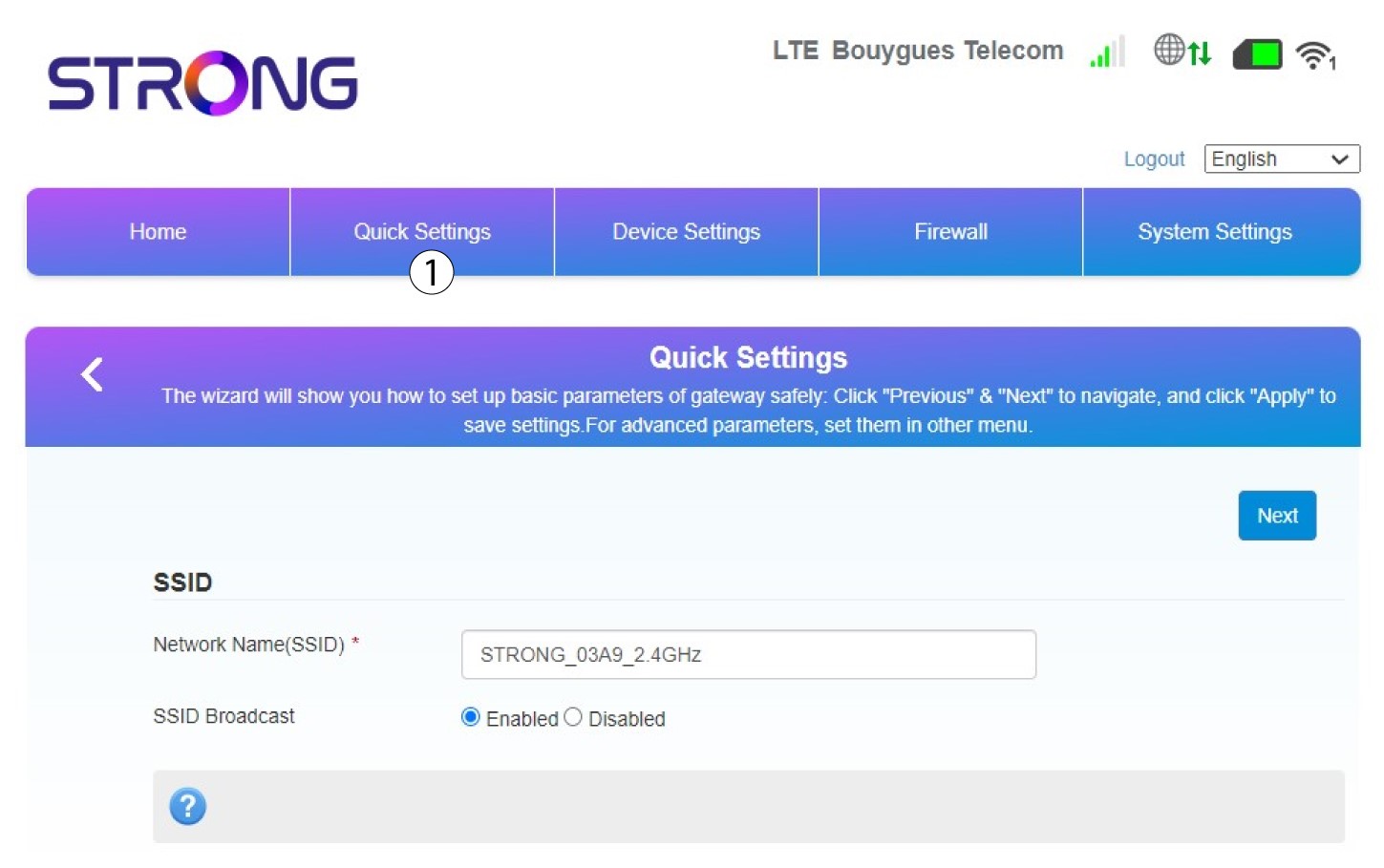
2Enter the new network name
Then enter your new network name and click Next.
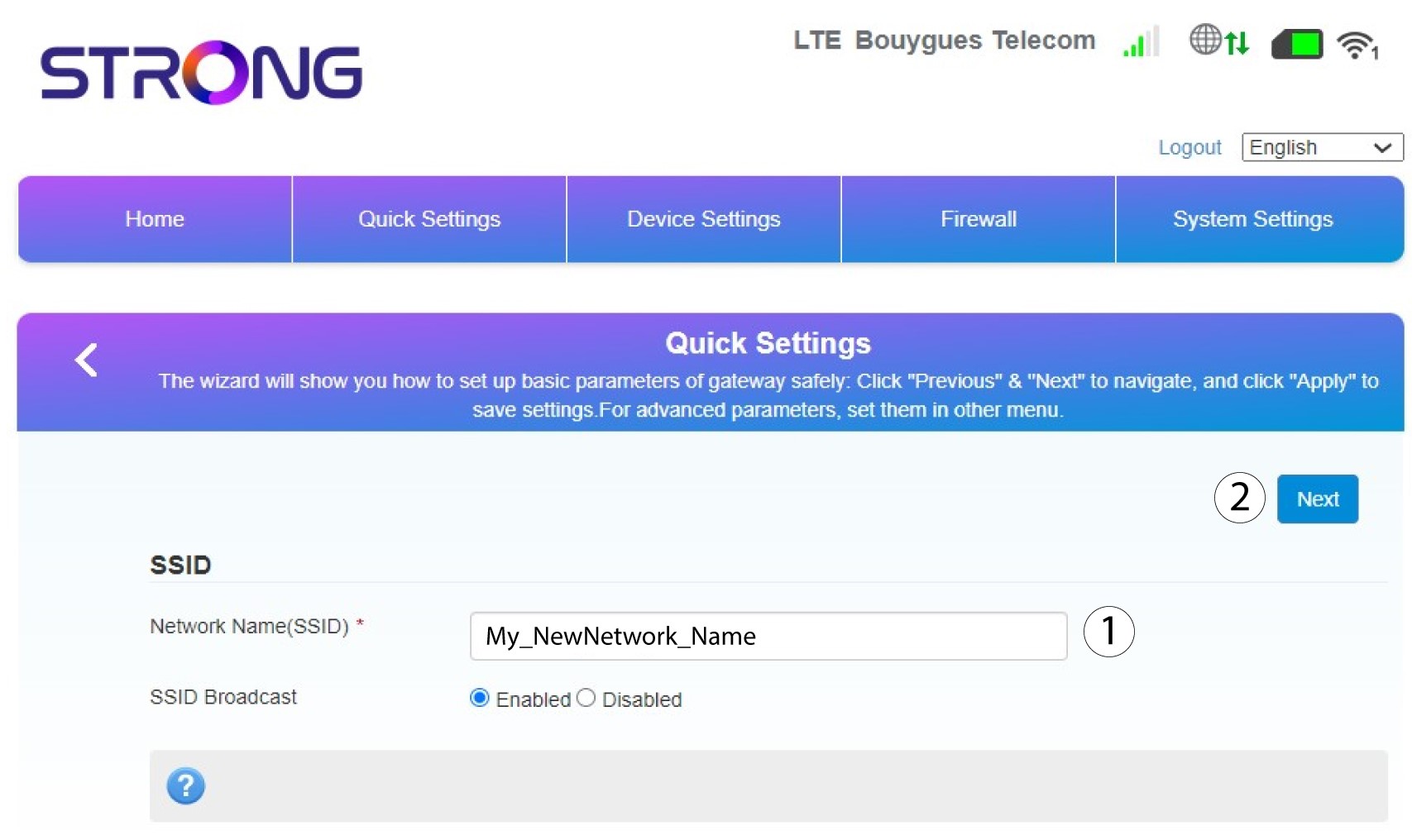
3Display your password
Click Display Password.
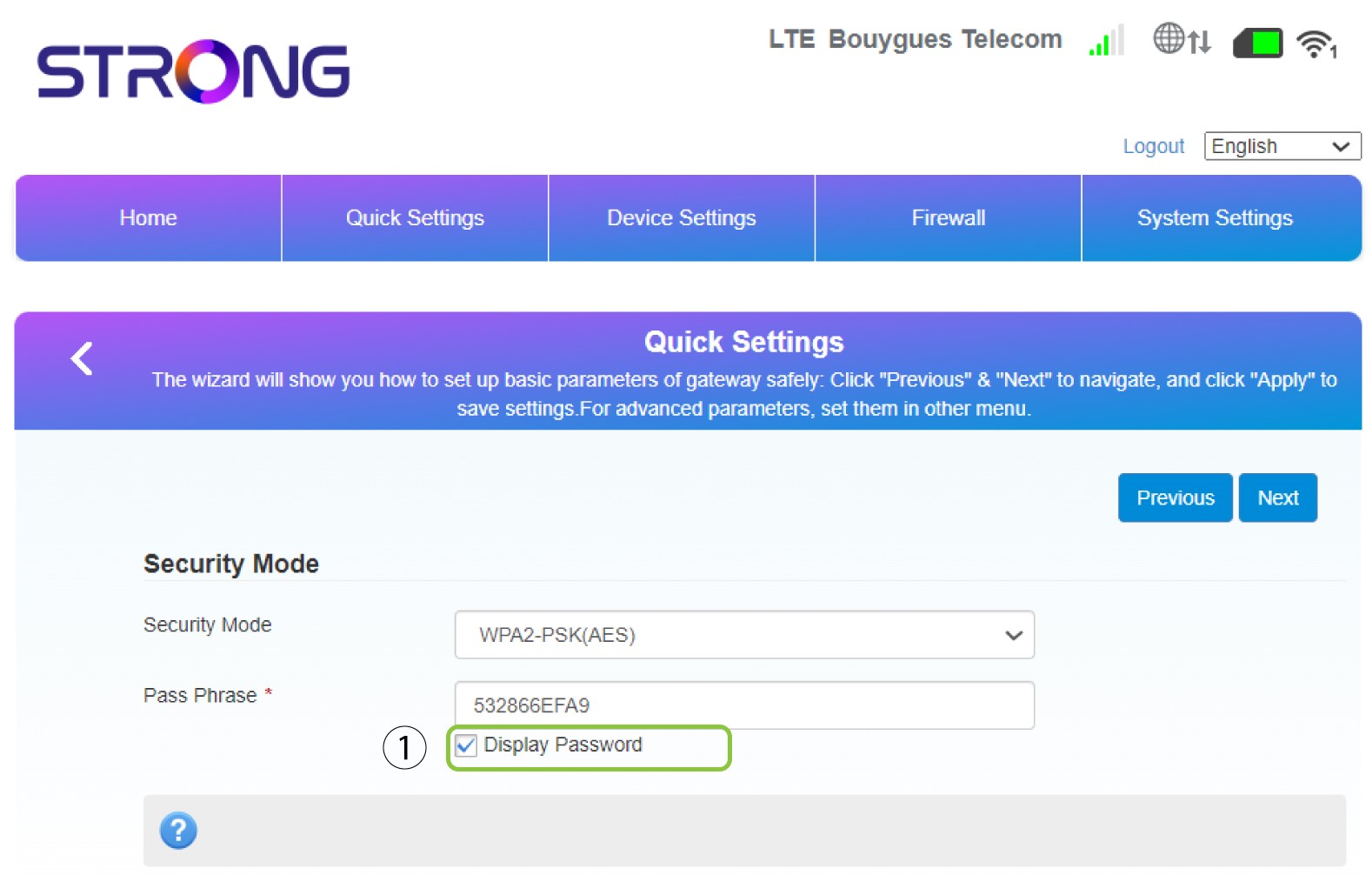
4Enter a new password
Change your password. Then click Next.
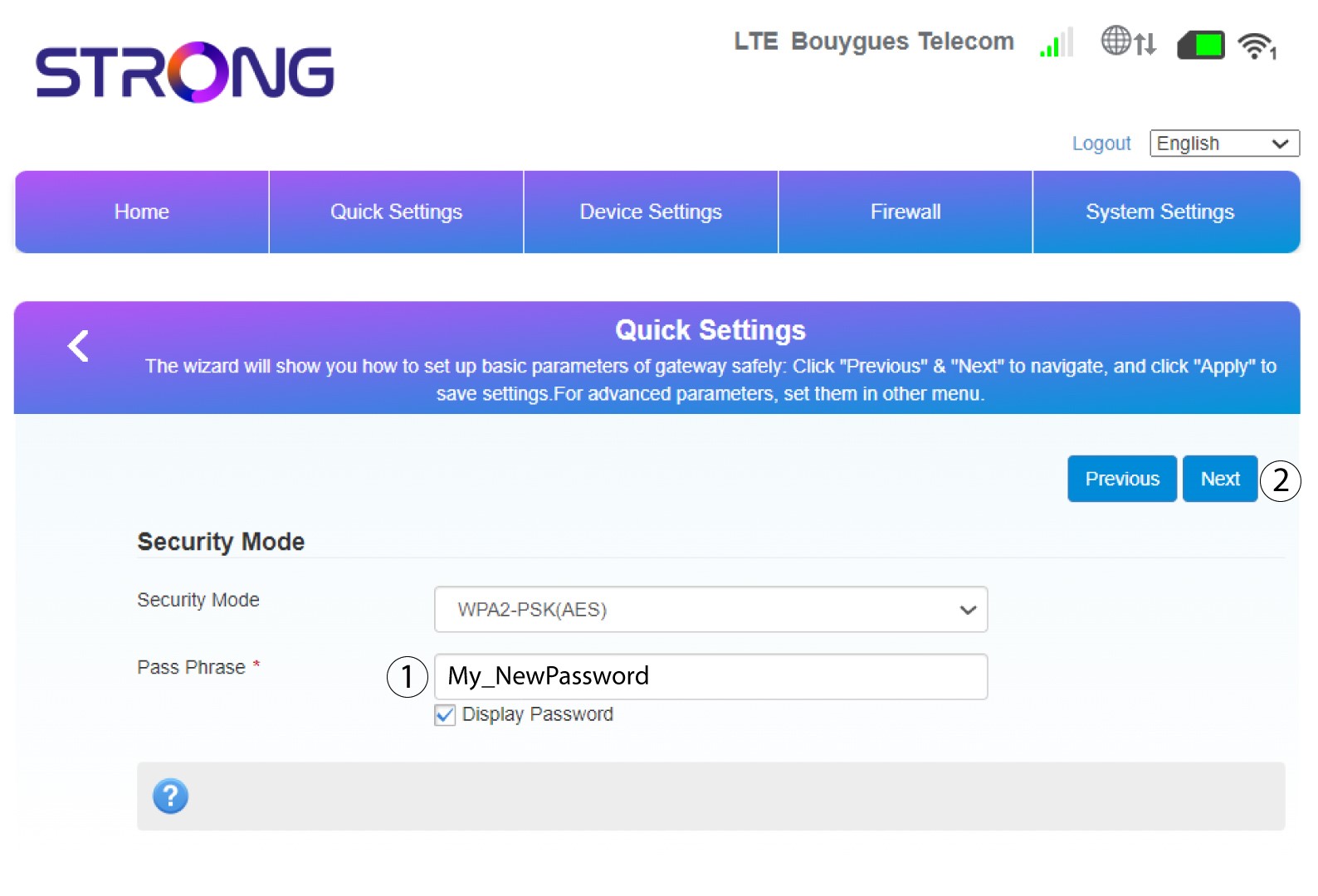
5Review your changes
To save the changes, click Apply.
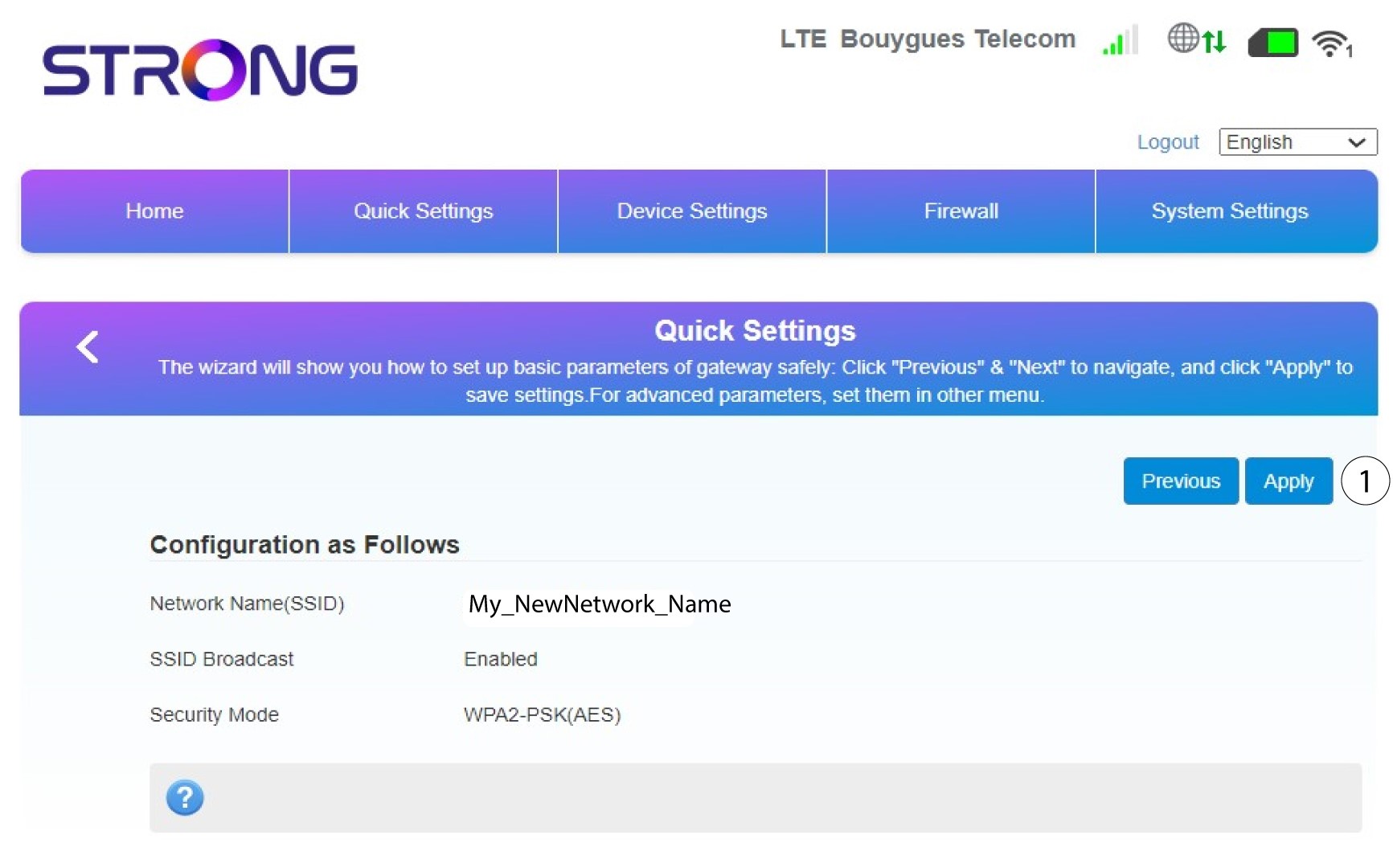
6Write down the new nework name and password
Please write down the new SSID and Password that you created on a piece of paper.
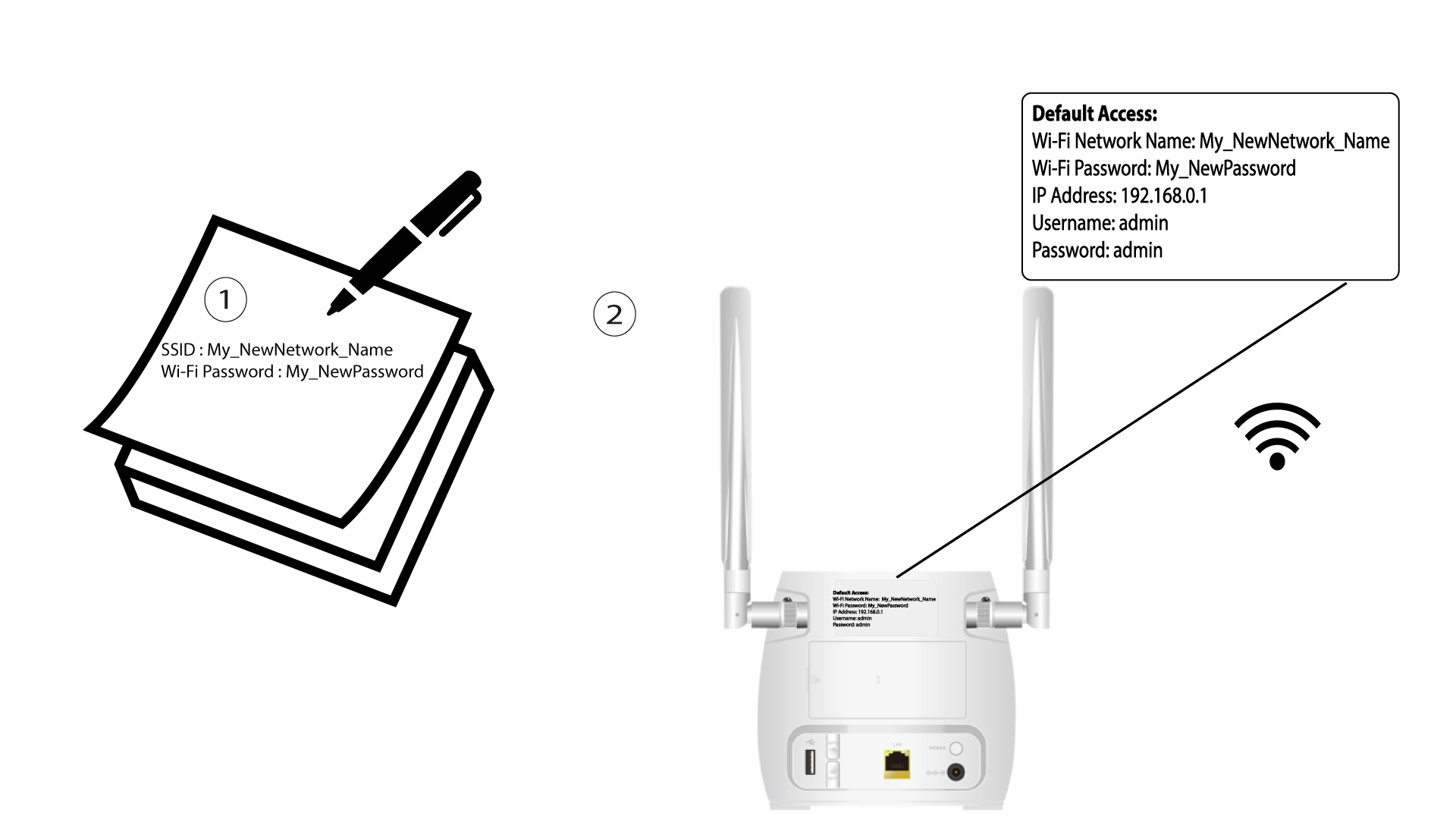
Once you have changed the Network Name and Password of your router, the QR code will not work anymore as the connection information of your router will be different.
How do I change the SSID and password? (Wi-Fi Settings)
Once you have changed the Network Name and Password of your router, the QR code will not work anymore as the connection information of your router will be different.
Please write down the new network information on a piece of paper.
1Connect to the Wi-Fi of the router
To change the SSID and password, you must connect to the Wi-Fi of your device.
2Browse to the Web UI IP Address
Then enter the following IP address: 192.168.0.1 in your browser.
3Login Page
Then click Login.
4Enter your credentials
You must enter the Username and Password.
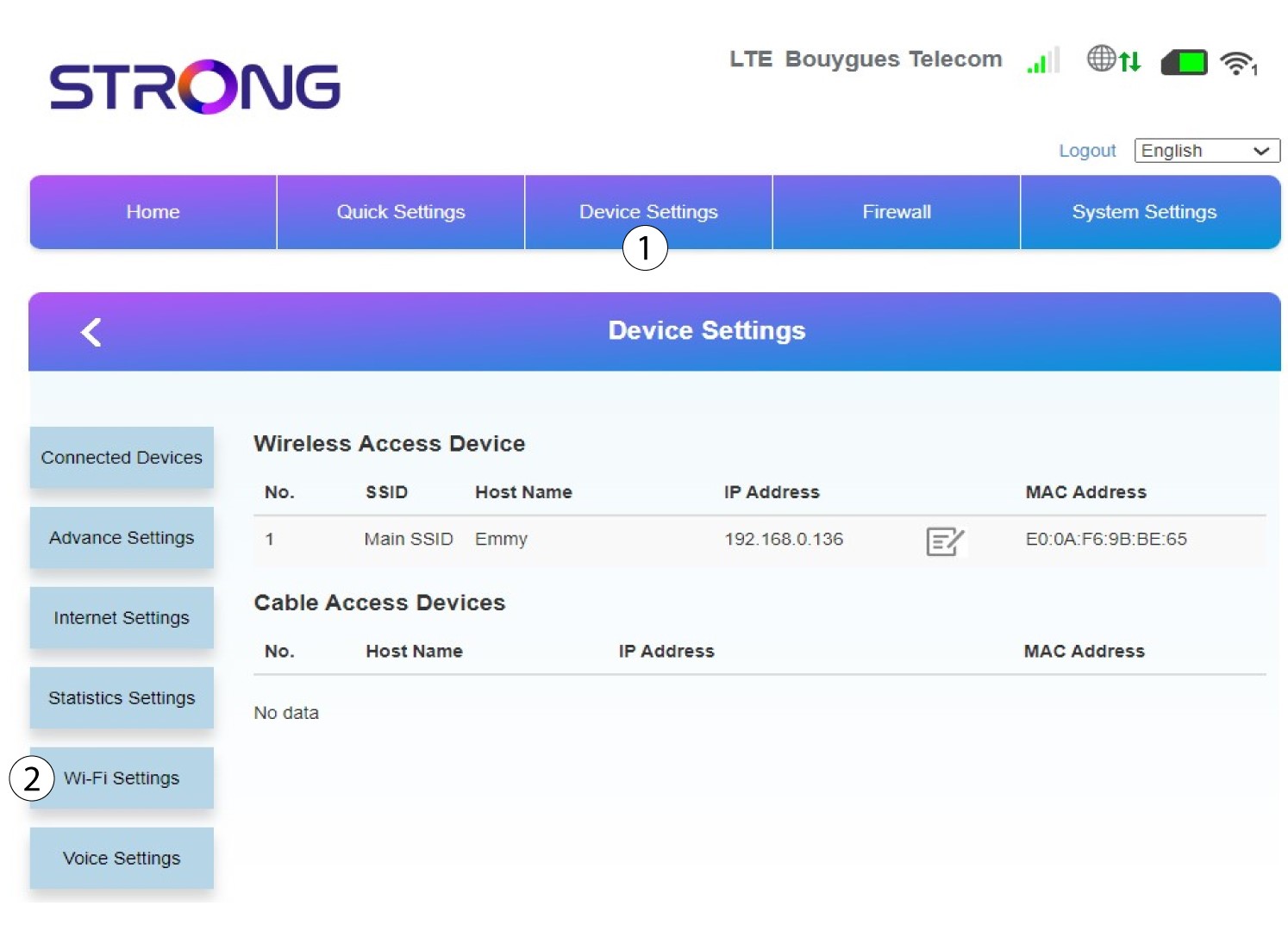
5Wi-Fi Settings
Click Device Settings and select Wi-Fi Settings.
6Main SSID
Then select SSID Settings and select Main SSID.
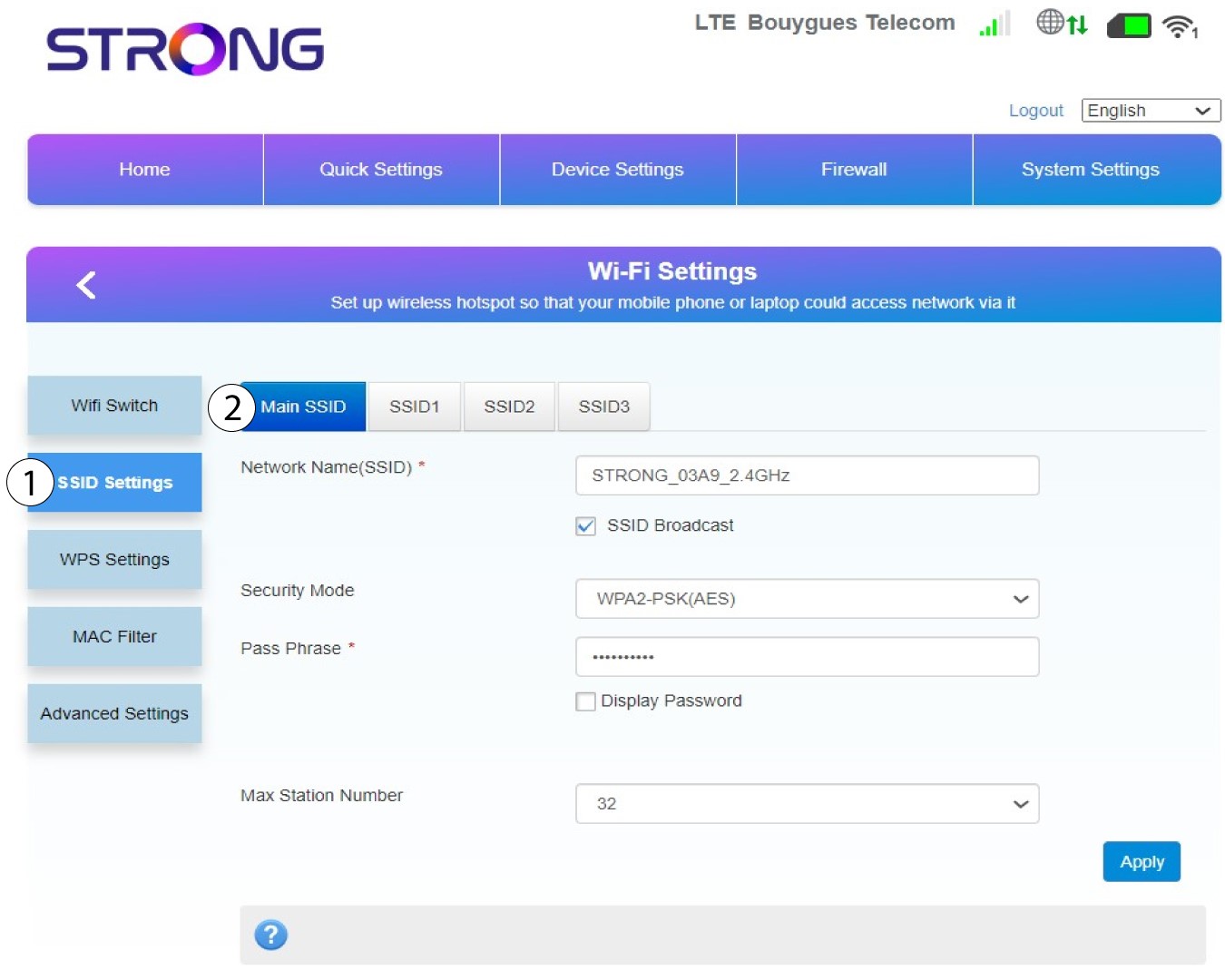
7Enter a new network name and password
Change the name entered in the Network Name (SSID) field and check the Display Password box. Then, change the password entered in the Pass Phrase field.
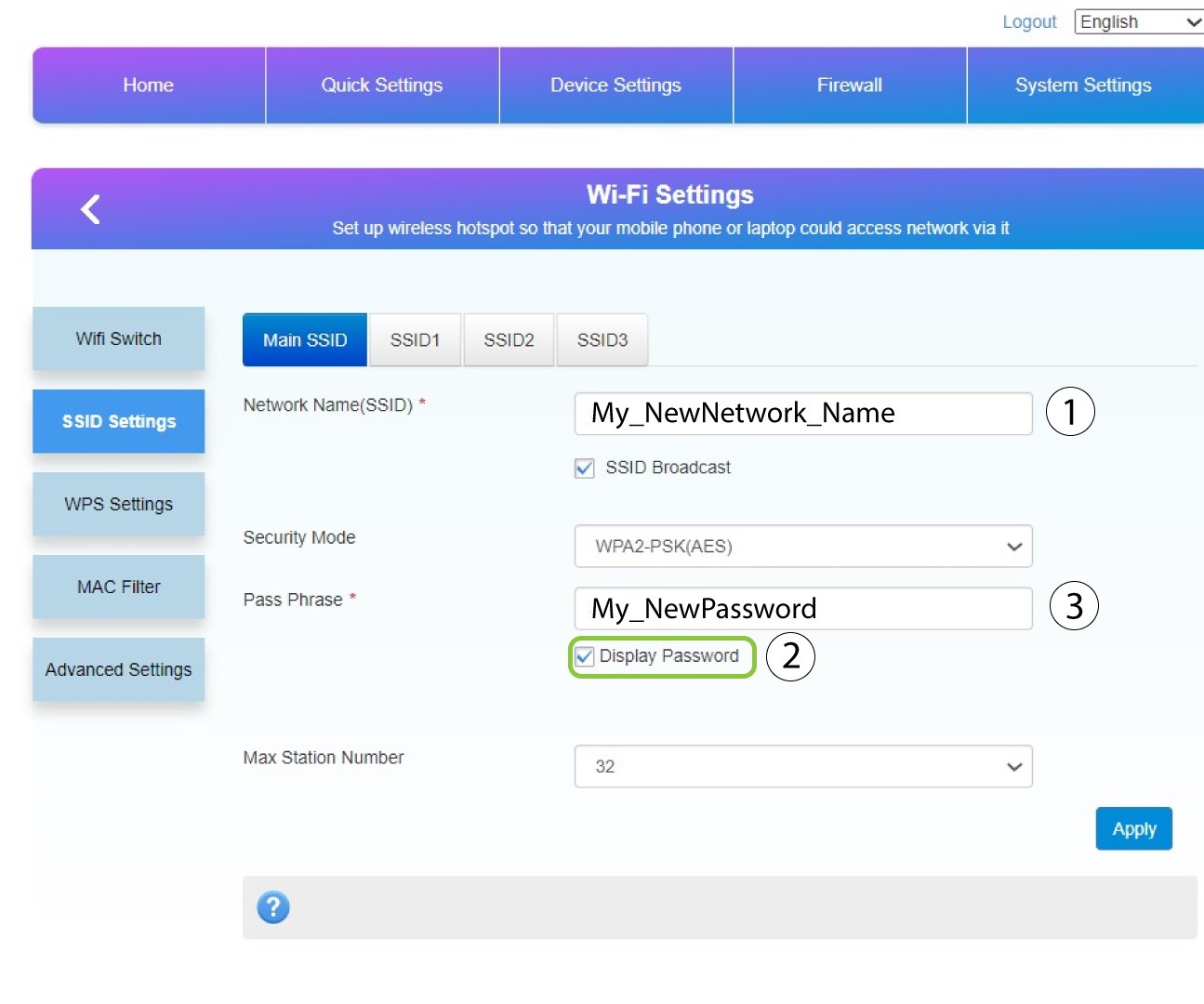
8Save your changes
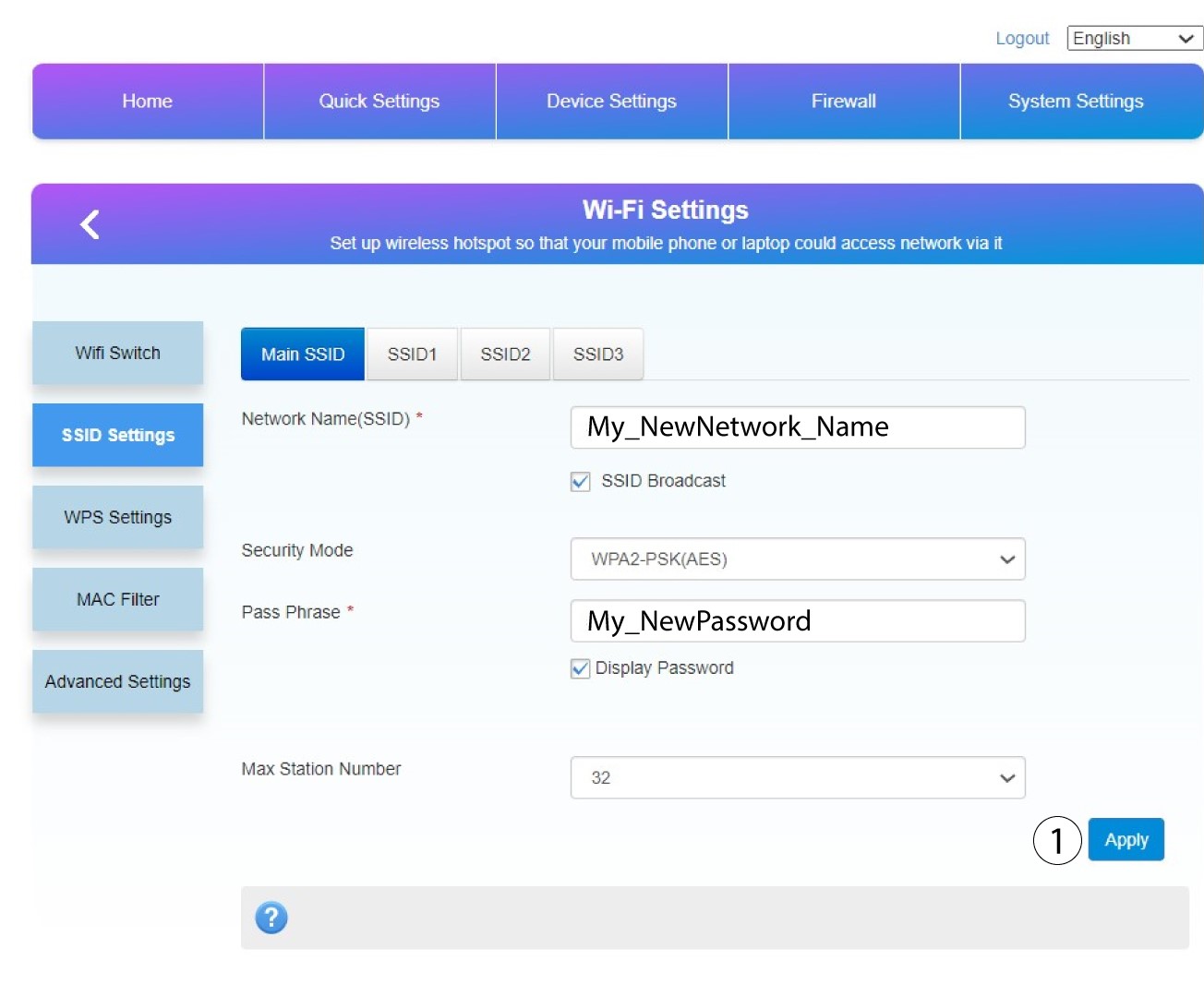
Click Apply to save the changes.
9Write down your new information
Write your new SSID and password on a paper and tape it to the router.
How do I change the admin password and username?
To connect to the Web UI, please follow the guidelines written in: How do I access the Web UI?.
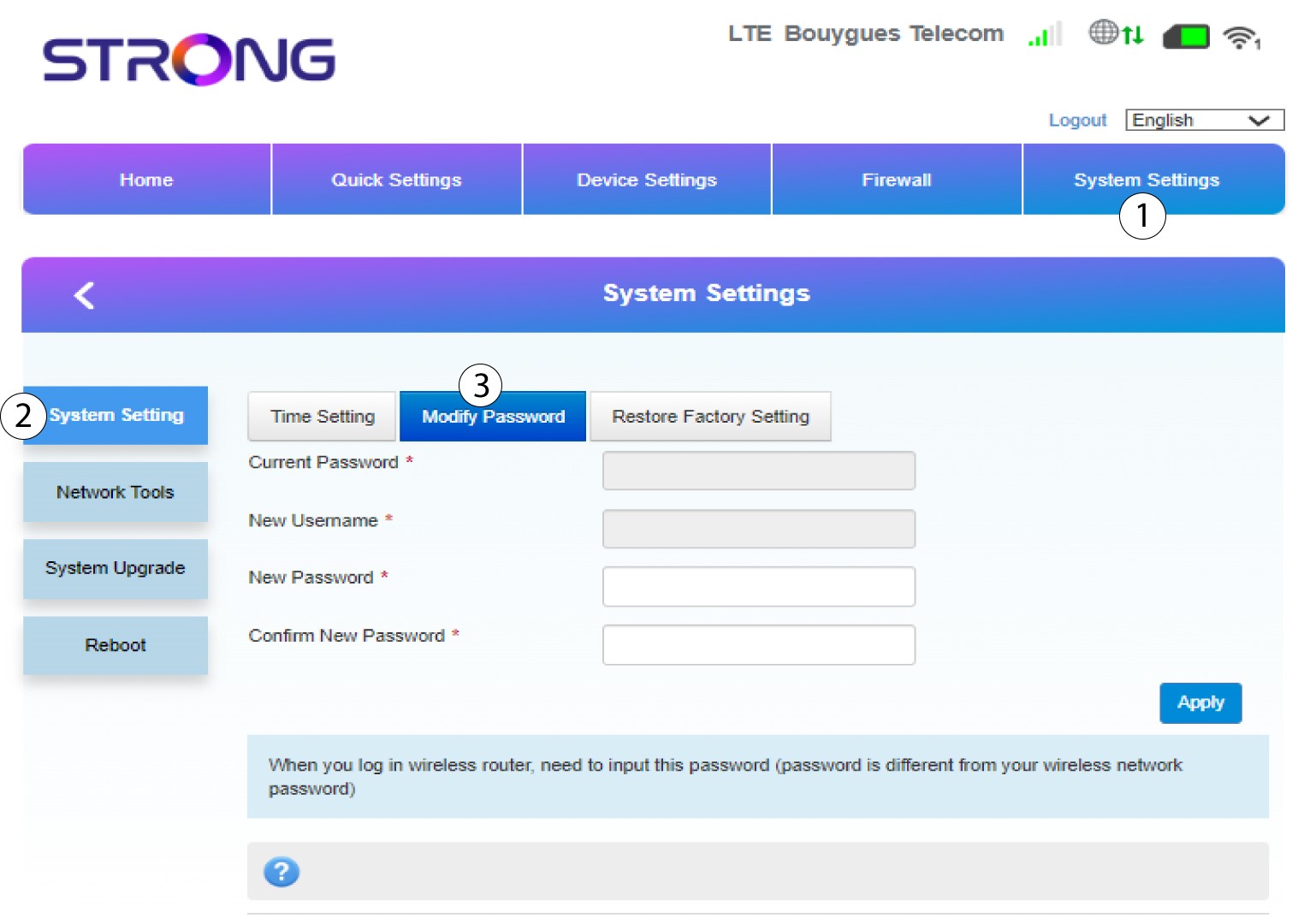
1System Setting
Once this is done, click the System Settings tab and select System Setting. Then, click Modify Password.
2Second Step
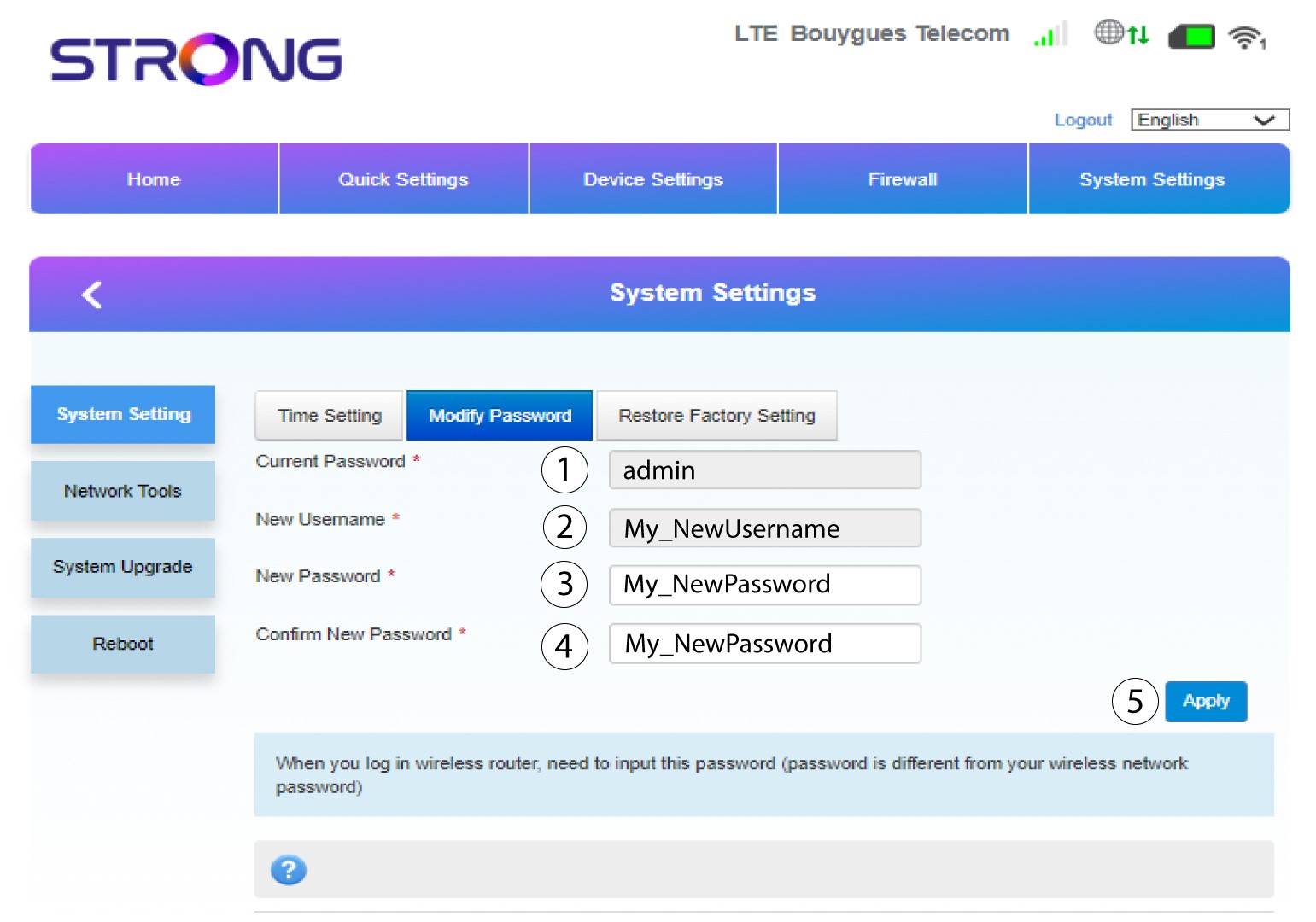
Enter the following information before clicking Apply:
• Current Password: Enter the current password.
• New Username: Enter the new username.
• New Password: Enter the new password.
• Confirm New Password: Enter the same password as in the previous field.
3Save the changes
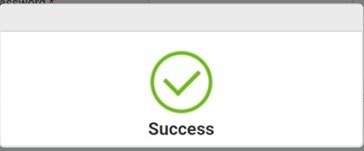
When the details are saved, the following pop-up message appears:
What can I do in the Web UI?
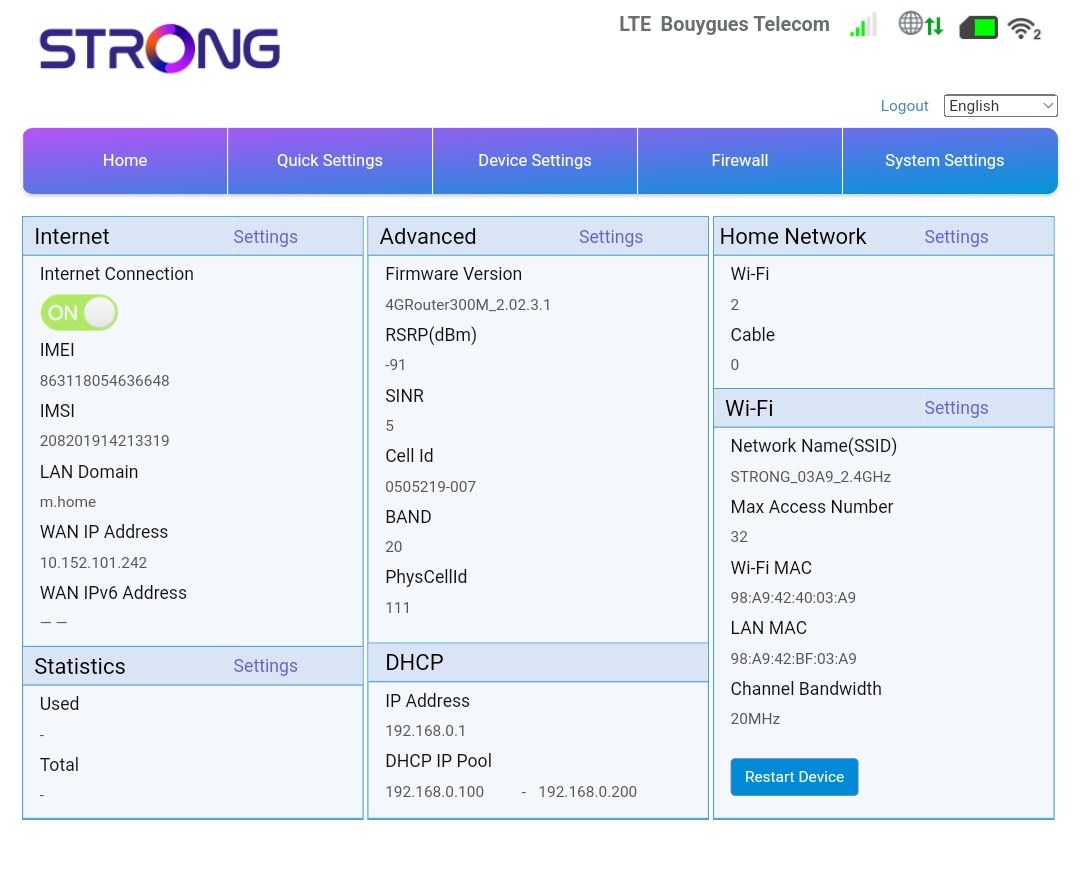
The Web UI is divided into 5 sections, for more information see.
• Home: where you can see the main information regarding your router which corresponds to the status of the internet connection, the firmware version, the IP address, information about the Wi-Fi network and Home Network, and so on...
• Quick Settings: where you can edit your SSID and password.
• Device Settings: where you can see the number of connected devices, manage IP Address settings, PIN codes, Antenna settings, Wi-Fi settings, Internet Settings, etc.
• Firewall: where you can set up security parameters.
• System settings: where you can update, reboot, or edit your settings.
In addition, you can also see the status of the Wi-Fi network, Mobile Network, and data.
Where are the password and SSID written?
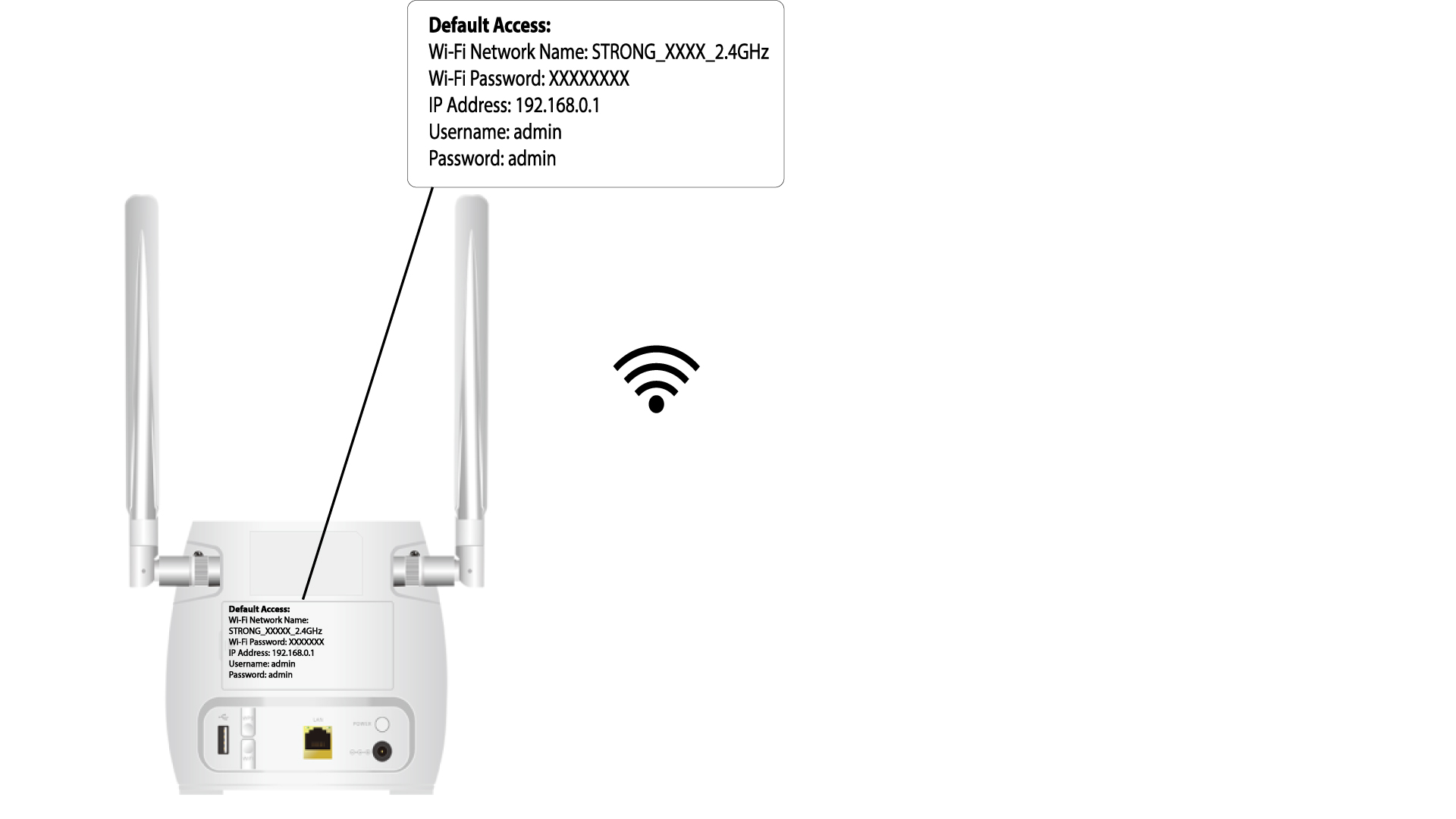
To find the password of your device, you can look at the back of the device, the information will be written.
Why is it written Limited Service in the Web UI?
There are several reasons why, the Limited-Service text is written next to the Network and Web icon.
The main reason can be that your SIM card is protected by a PIN code that needs to be entered in the device Web UI to activate the network.
Another reason can be that the SIM card is not inserted properly and is not detected by the device.
it is also possible that your SIM card is detected but not automatically recognized by the device. In this case you must connect to the Web UI and check the APN settings of your service provider.

Why is there a QR Code on the rear side of the router?
Good news, every router is sold with a sticker that contains the Wi-Fi network information such as the Wi-Fi name and its password. You may have noticed a QR Code next to it. This QR Code is designed to simplify your connection to the Wi-Fi. Indeed, if you open your smartphone and scan the QR Code you will be automatically connected to the Wi-Fi of your device.
Once you have changed the Network Name and Password of your router, the QR code will not work anymore as the connection information of your router will be different.