4G+ AIRSPOT 520 Mobile Wi-Fi with Touchscreen
All questions
4G+ AIRSPOT 520 Mobile Wi-Fi with Touchscreen
Reset, reboot and firmware update
How do I reset my router to its factory settings? (Mi-Fi screen)
You can reset your device to its factory settings from the screen.
1Power On the Device
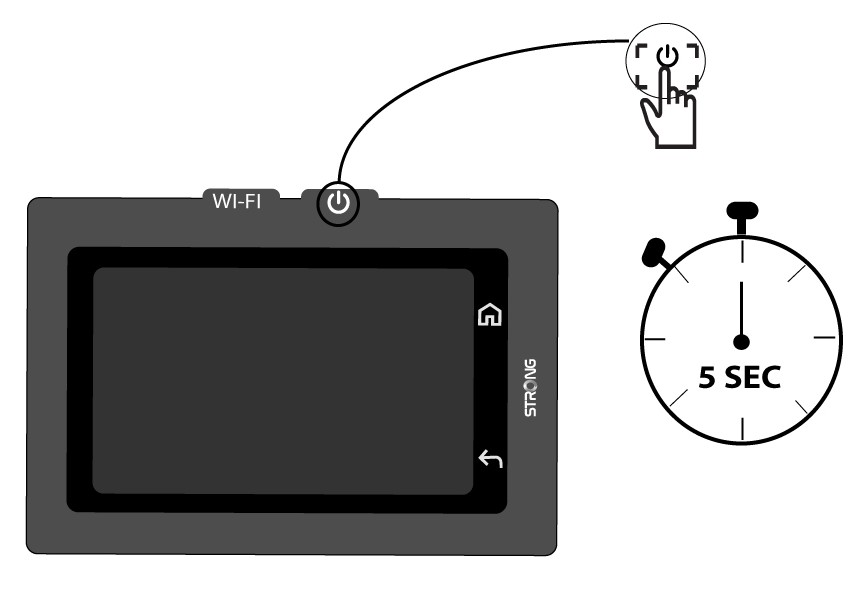
Turn on your device by pressing its power button for 5 seconds.
2Access the System Menu
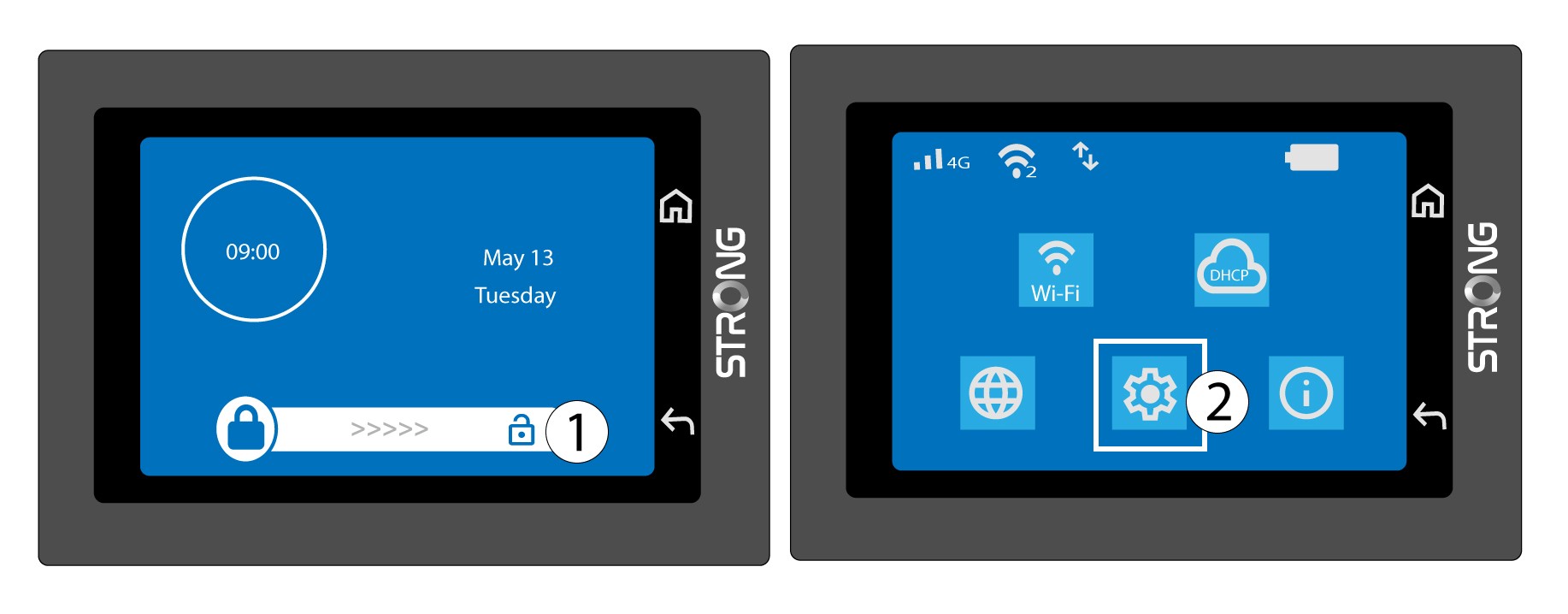
Then, unlock the screen and press the system icon.
3Select the Restore Option
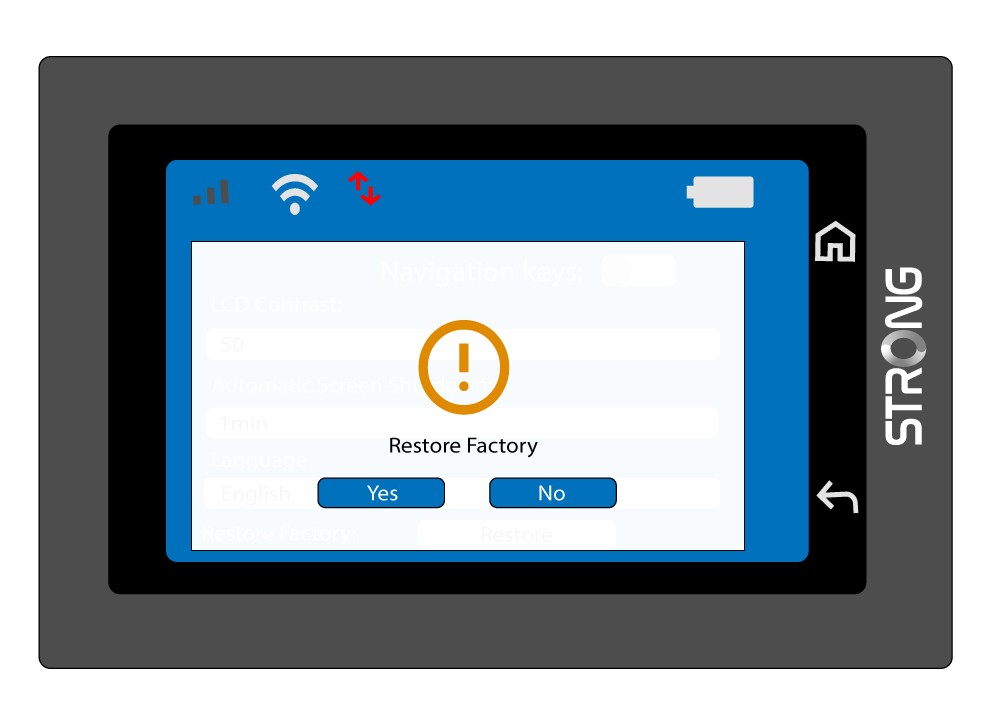
Scroll down the menu to press Restore.

4Confirm the Factory Reset
Press Yes.
How do I reset my router to its factory settings? (Reset button)
CASE 1: Reset button
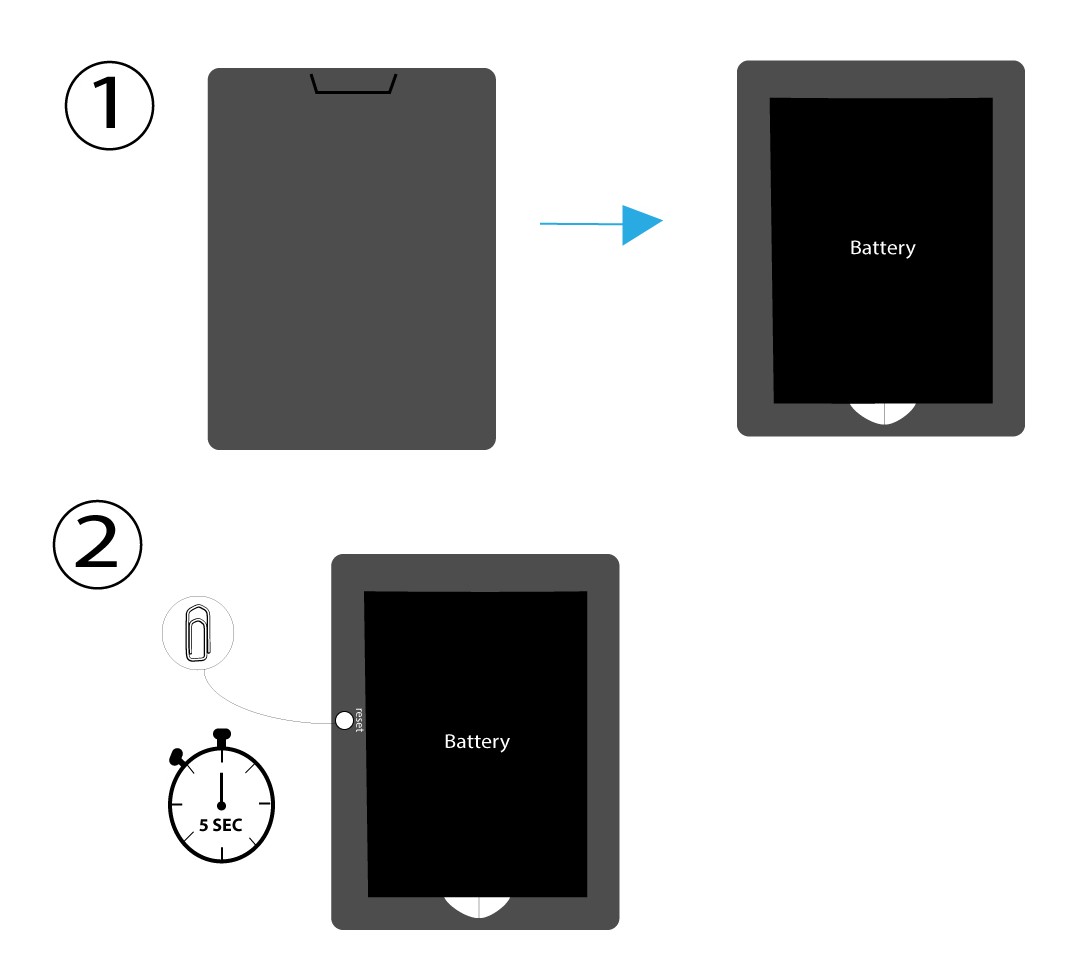
To do so, remove the cover on the rear side of the router and press the RESET Button for 5 seconds with a paper clip.
CASE 2: Factory Reset in the Web UI
1Factory Reset in the Web UI
Please follow the steps listed here to connect to the web UI: How do I access the Web UI?
2Navigate to the Restore Option
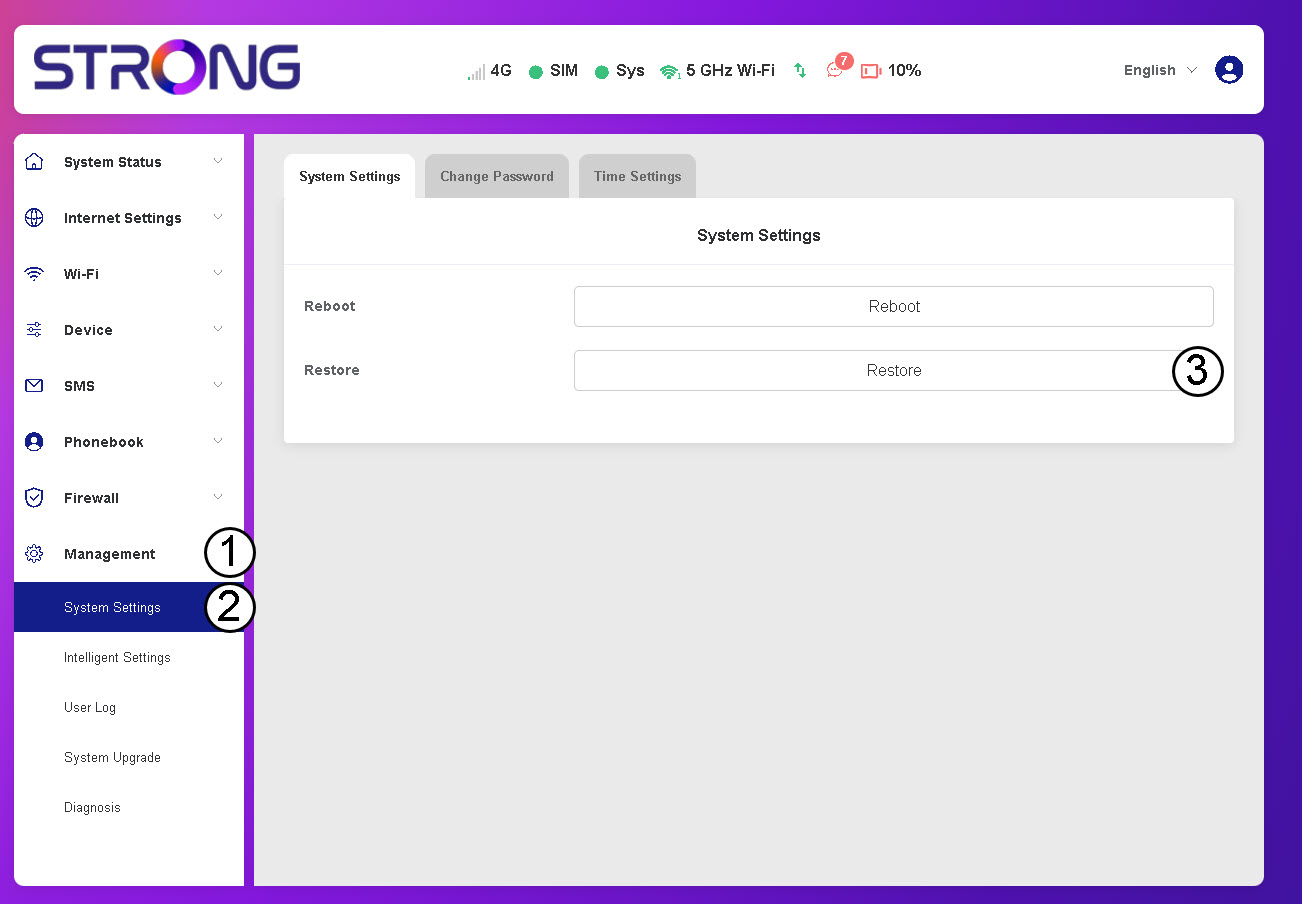
Click Management, System Settings and Restore.
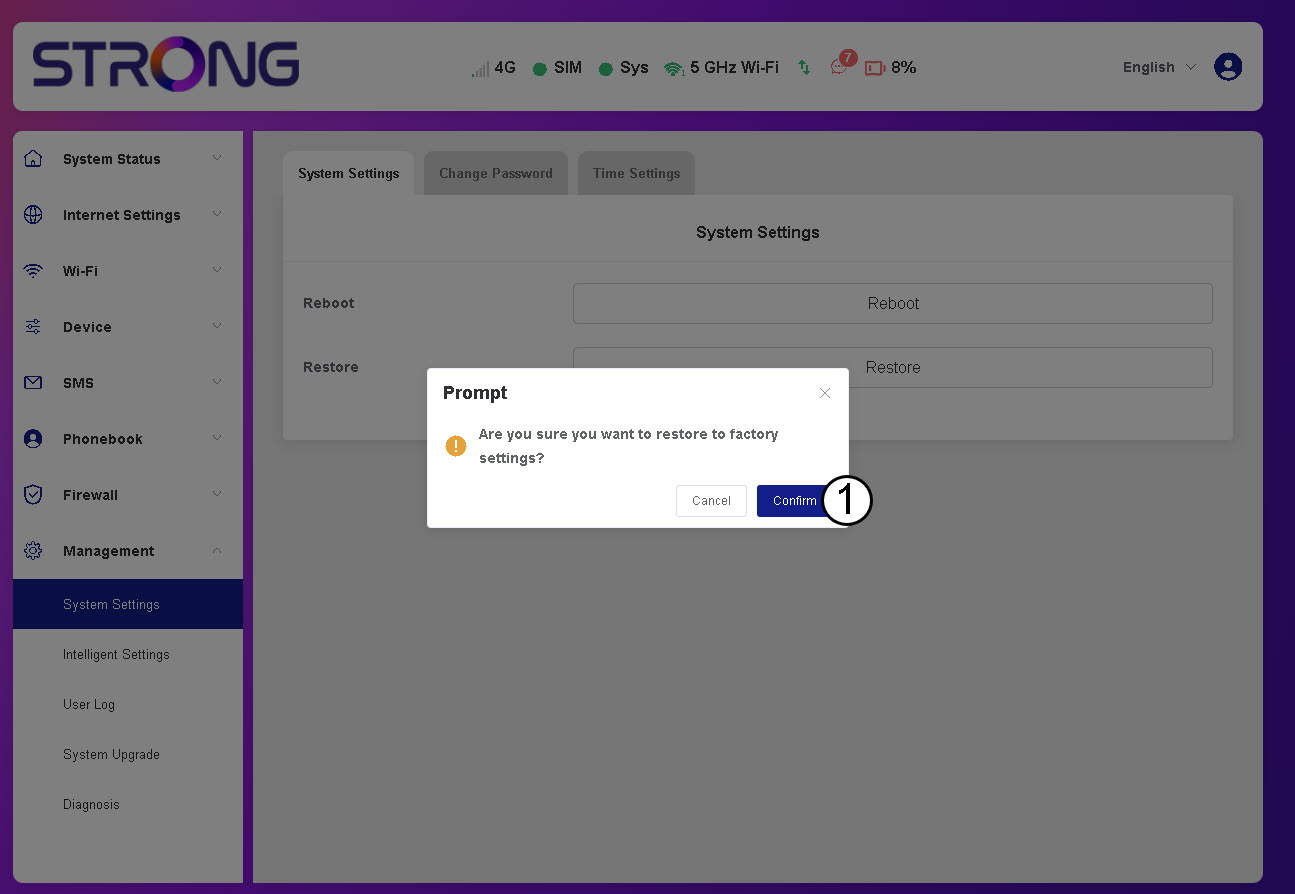
3Click Confirm
4Wait for the Router to Reboot
Please wait, the router will turn off and turn on, once the process is finished.
CASE 3: Reset button
How do I reset my router to its factory settings? (Web UI)
You can reset your router to its factory settings.
1Access the Web Interface
Please follow the steps listed here to connect to the web UI: How do I access the Web UI?
2Navigate to System Settings
Click Management, System Settings and Restore.
3Confirm the Reset
Click Confirm.
Please wait, the router will turn off and turn on, once the process is finished.
How do I turn on and off the device?
To turn on or turn off the device, press the power button for 5 seconds. The power button is located on the right side of the device.

Warning: Please make sure that the device battery is charged before turning on the device. Alternatively you can plug the USB C cable to a power supply to charge your device.
How do I update the firmware of the device?
You can perform an automatic upgrade or a manual upgrade in the Web UI.
Case 1: Automatic upgrade
1Access the Web Interface
Follow the procedure below to access the Web UI: How do I access the Web UI?
2Open System Upgrade Settings
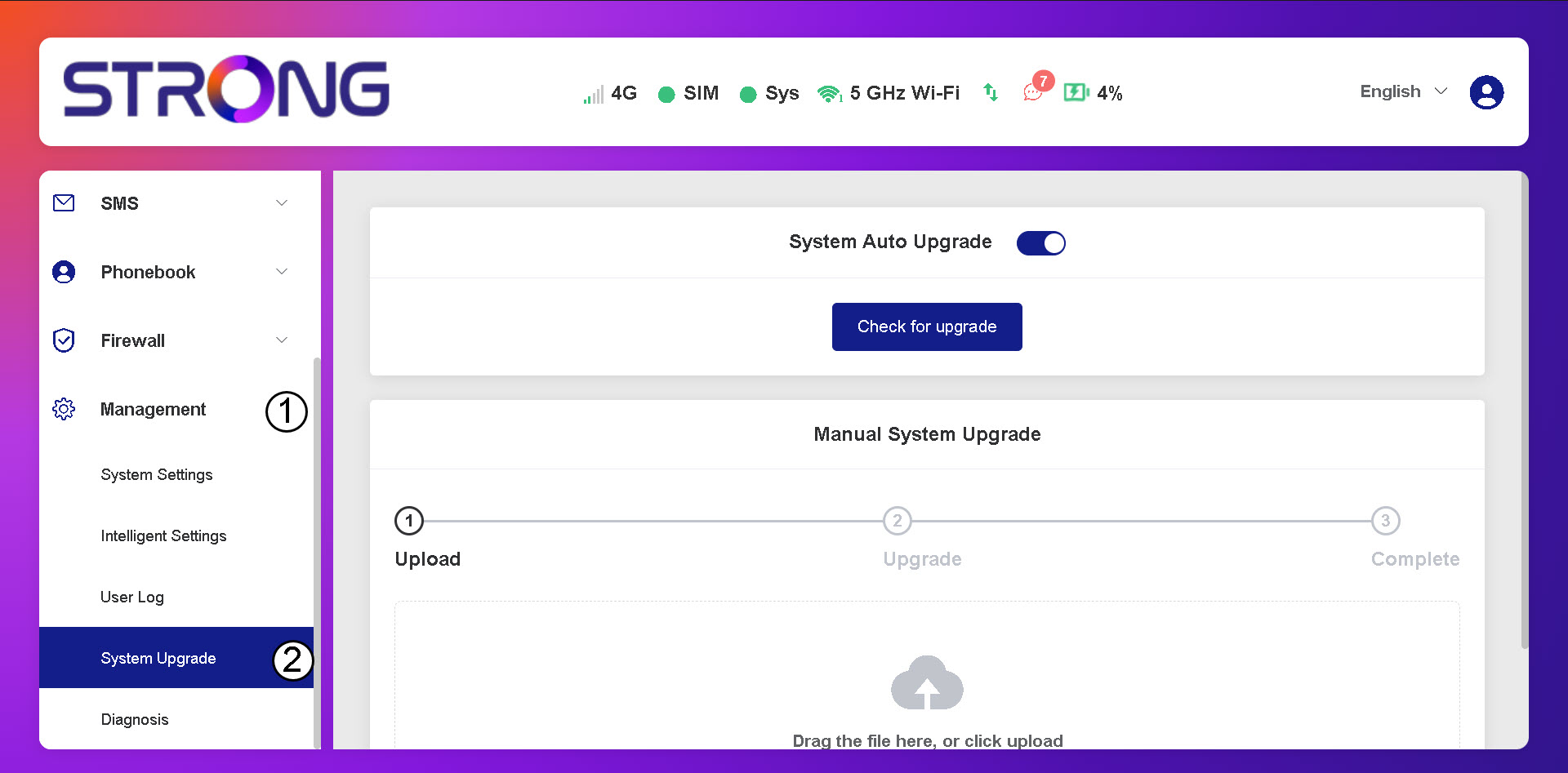
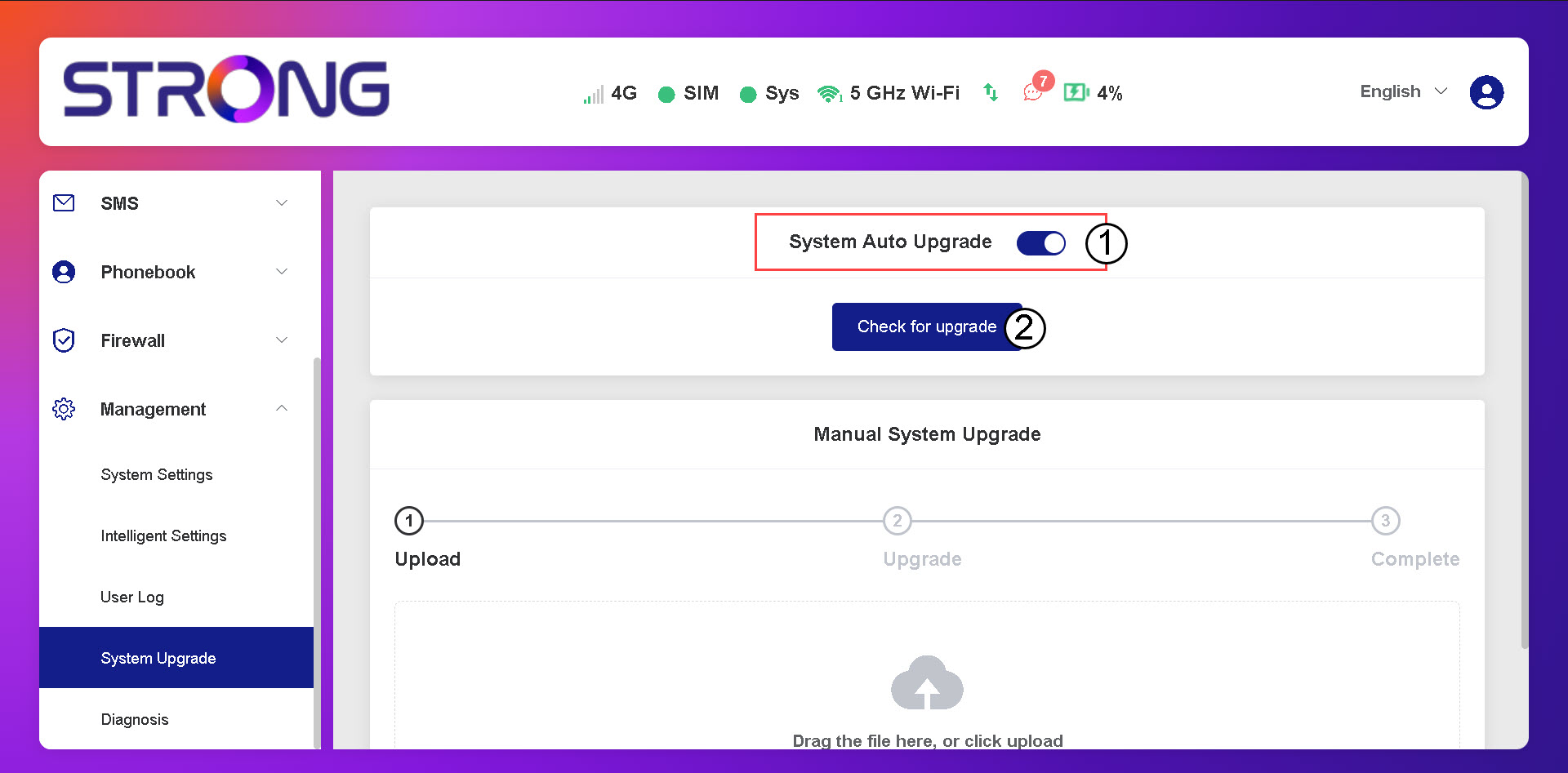
Click Management and System Upgrade.
3Check for Automatic Updates
Check if the System auto upgrade toggle is activated and click the check for upgrade button.
4Wait for the Upgrade Check
Wait for the system to look for the upgrade if there is one the system will ask you to download it.
5Confirm System Status
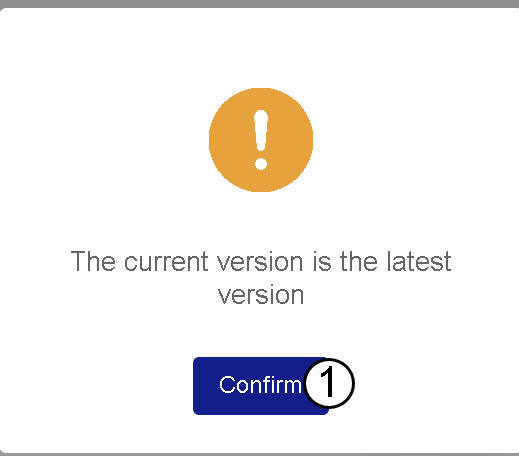
If your device is up-to-date the following message is displayed.