CÂMARA SMART HOME 2K+
Todas as perguntas
CÂMARA SMART HOME 2K+
Como adicionar uma câmara na aplicação
Como é que adiciono uma câmara na aplicação?
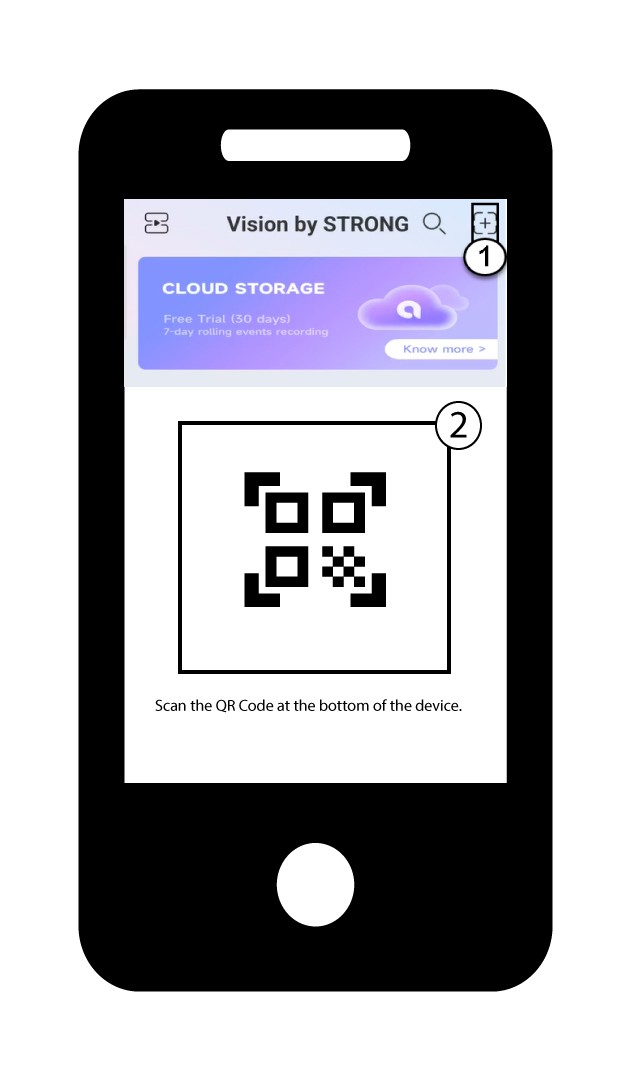
1. Começar aadicionar um dispositivo
Clique no ícone + e digitalize o código QR com a câmara.
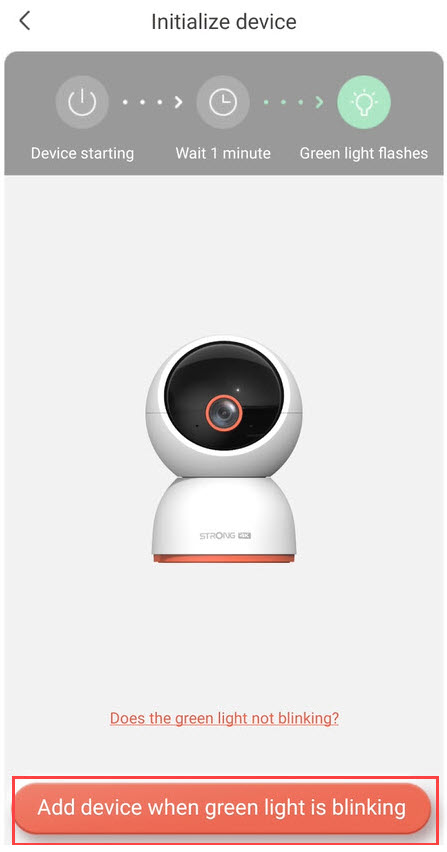
2. Verifiqueo LED da câmara
Em seguida, observe o LED da sua câmara; se estiver a piscar a verde, prima «Adicionar dispositivo».
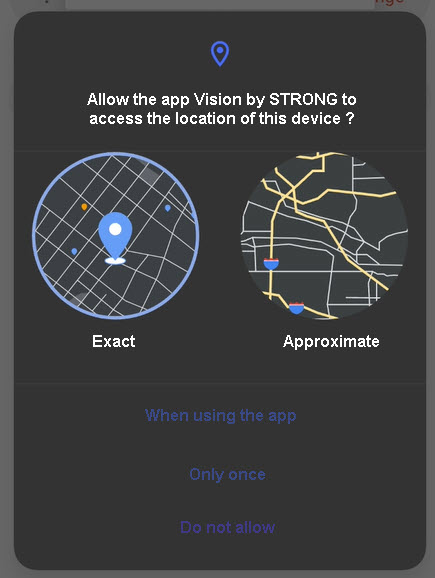
3Permitiracesso à localização
Autorize a aplicação «Vision by Strong » a aceder à localização do seu dispositivo.
4.Configurar a sua rede Wi-Fi
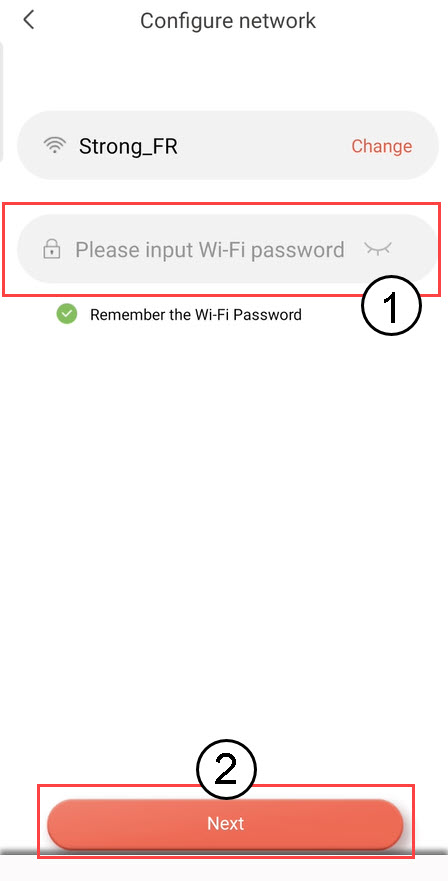
Selecione uma opção da lista apresentada no ecrã. Tem de configurar a sua rede Wi-Fi. A aplicação selecionará automaticamente a rede Wi-Fi à qual o seu telemóvel está ligado. Em seguida, introduza a palavra-passe da rede Wi-Fi e clique em «Seguinte».
DICA: Clique em «Alterar» para selecionar uma rede Wi-Fi diferente da lista. Se quiser ver a palavra-passe do Wi-Fi, clique no ícone do olho.
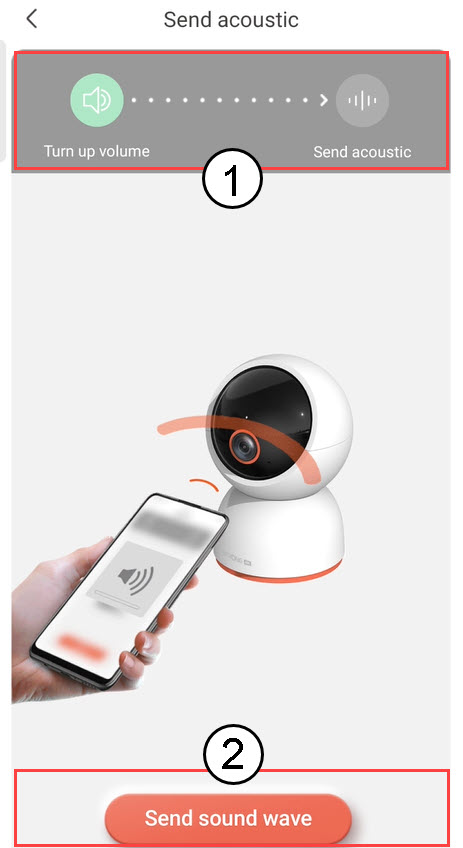
5. Enviara onda sonora
Aumente o volume do telemóvel e clique em «Enviar onda sonora».
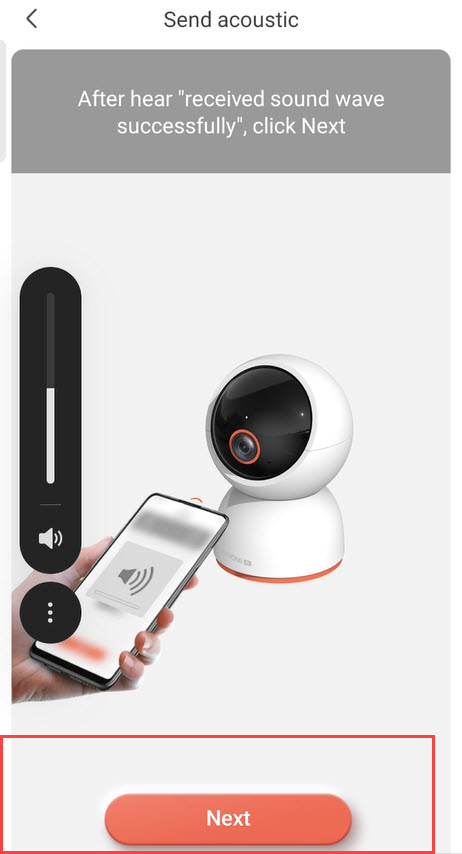
6. Confirmara receção da onda sonora
Aguarde até aparecer a mensagem: «Onda sonora recebida com sucesso» e, em seguida, clique em «Seguinte».
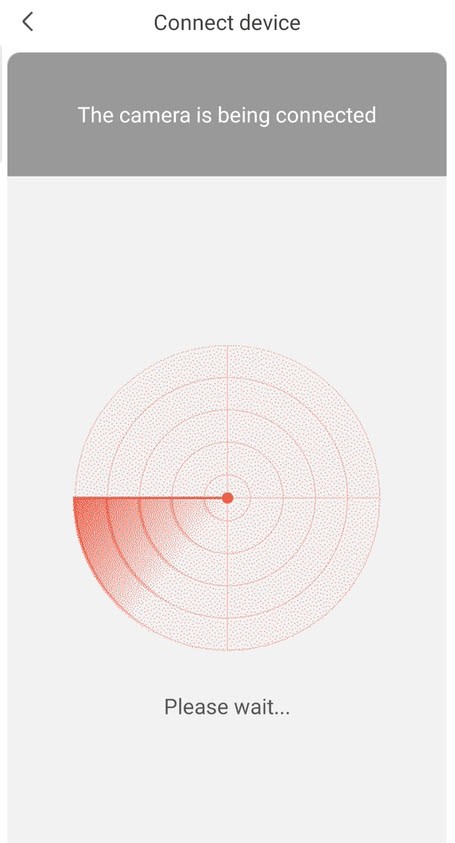
7 Configuraçãoem curso
Por favor, aguarde enquanto a câmara está a ser configurada.
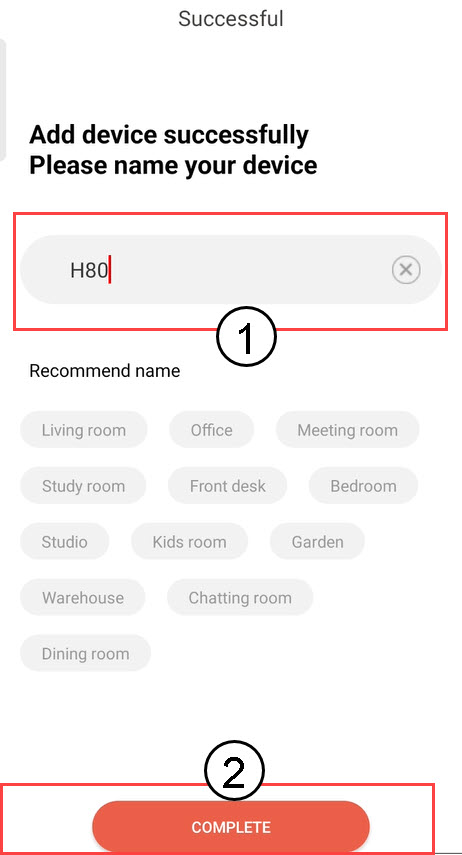
8. Dê um nomeà sua câmara
Assim que a configuração estiver concluída, deve atribuir um nome à sua câmara. Em seguida, clique em CONCLUIR.
Dica: Se tiver várias câmaras, nomeie-as de acordo com a divisão onde se encontram.
9Câmaraadicionada
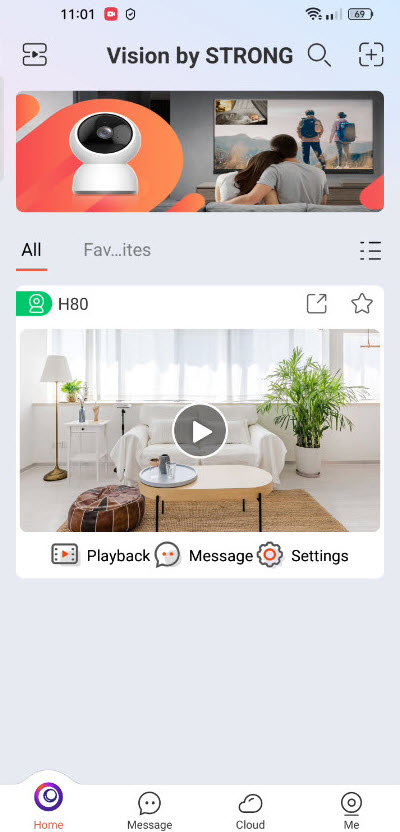
A tua câmara aparece agora na página inicial da aplicação.