
PLW600MDUO
Alle Fragen
PLW600MDUO
Ich habe keinen Internetzugang und/oder die LED des „Home“-Symbols leuchtet nicht.
Sie müssen die Adapter auf die Werkseinstellungen zurücksetzen. Befolgen Sie dazu bitte die nachstehenden Schritte.
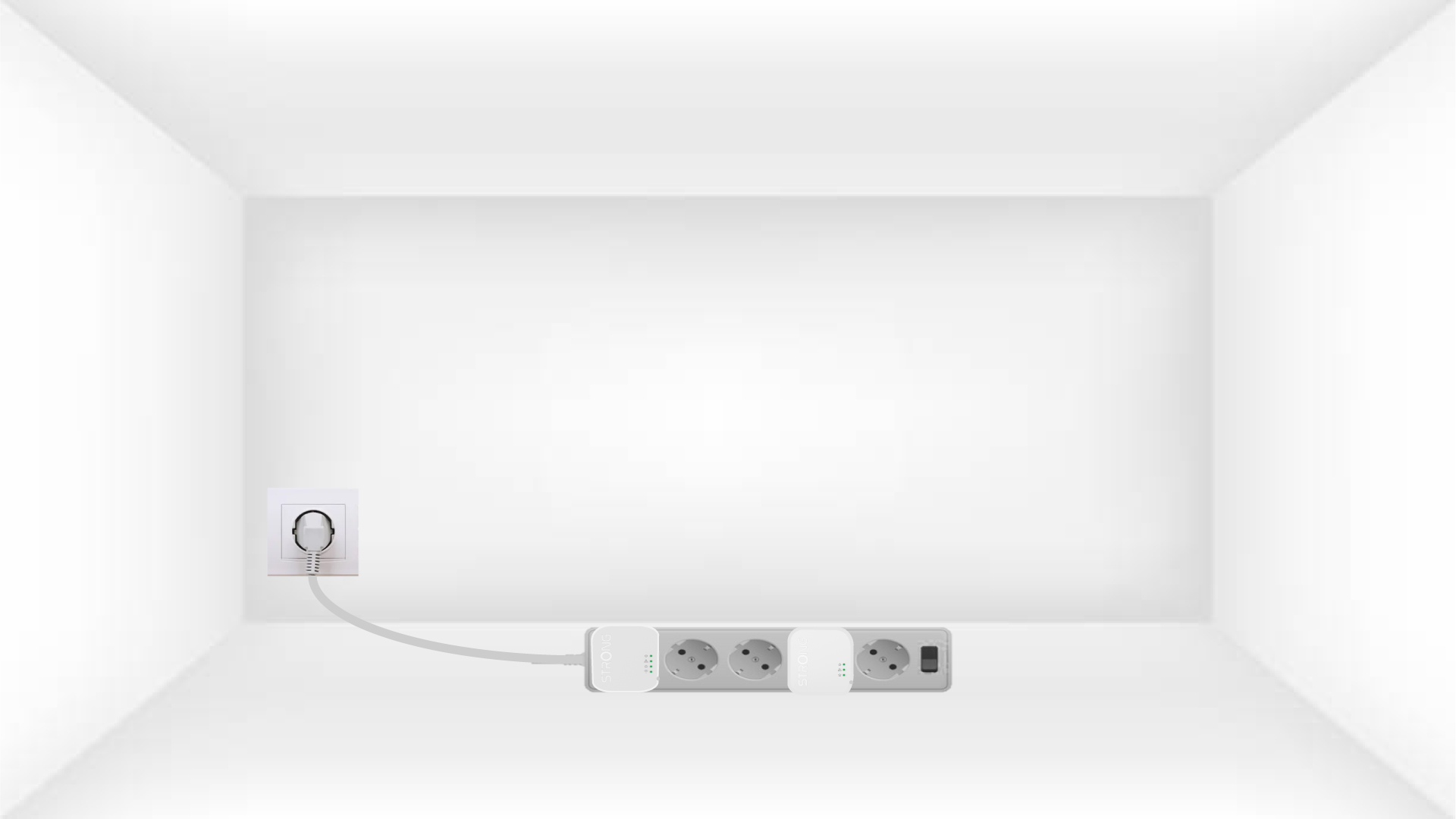
1Plug the adapters into a power strip
Schließen Sie die Adapter nacheinander an eine Steckdosenleiste an.
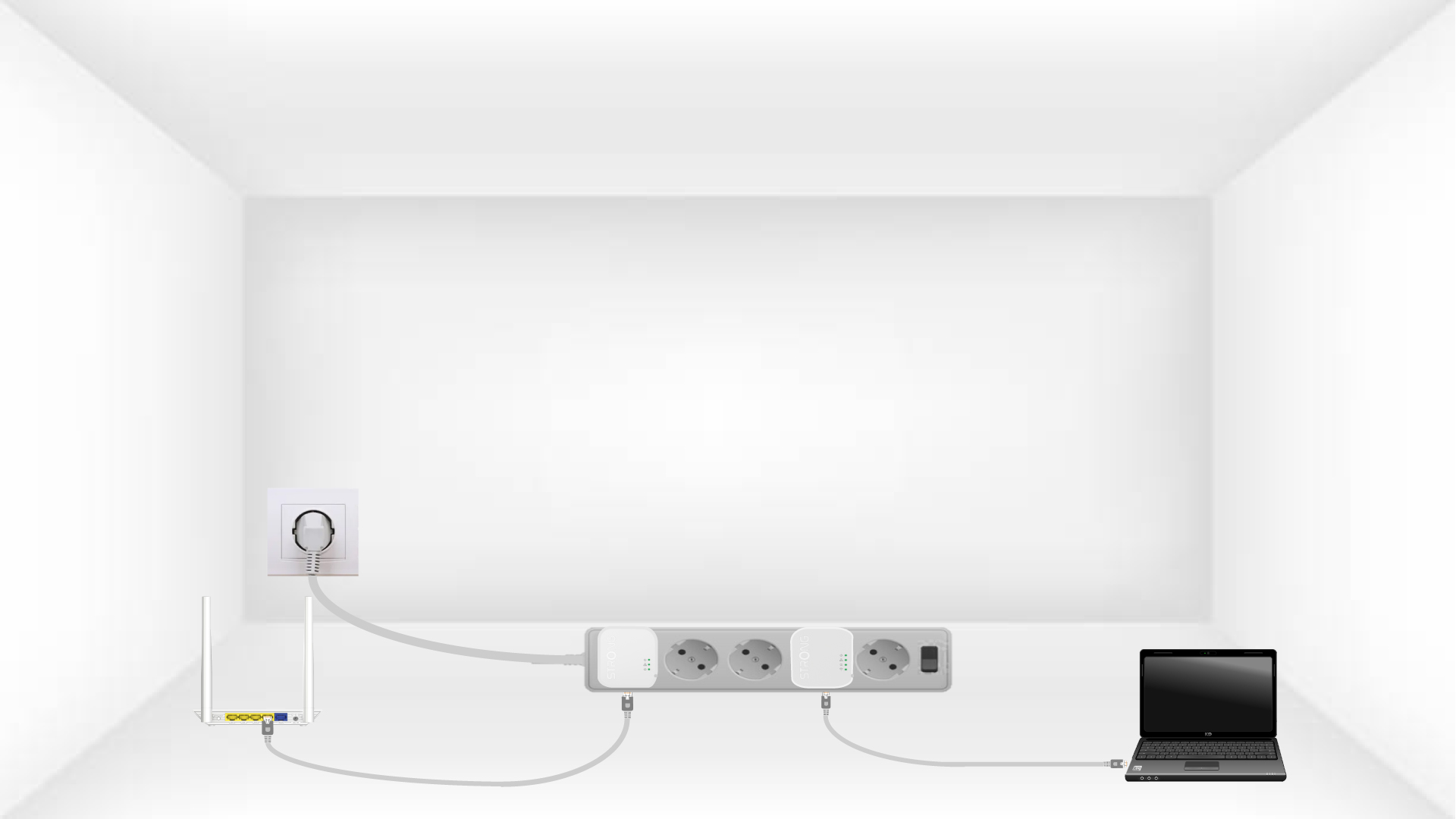
2. Verbinden Siedie Adapter mit dem Internet
Connect each adapter to a working device (Internet router/gateway, Android box, Smart TV, computer, etc.) with an Ethernet cable. There must be communication between the devices, otherwise the adapter will automatically go into standby mode.
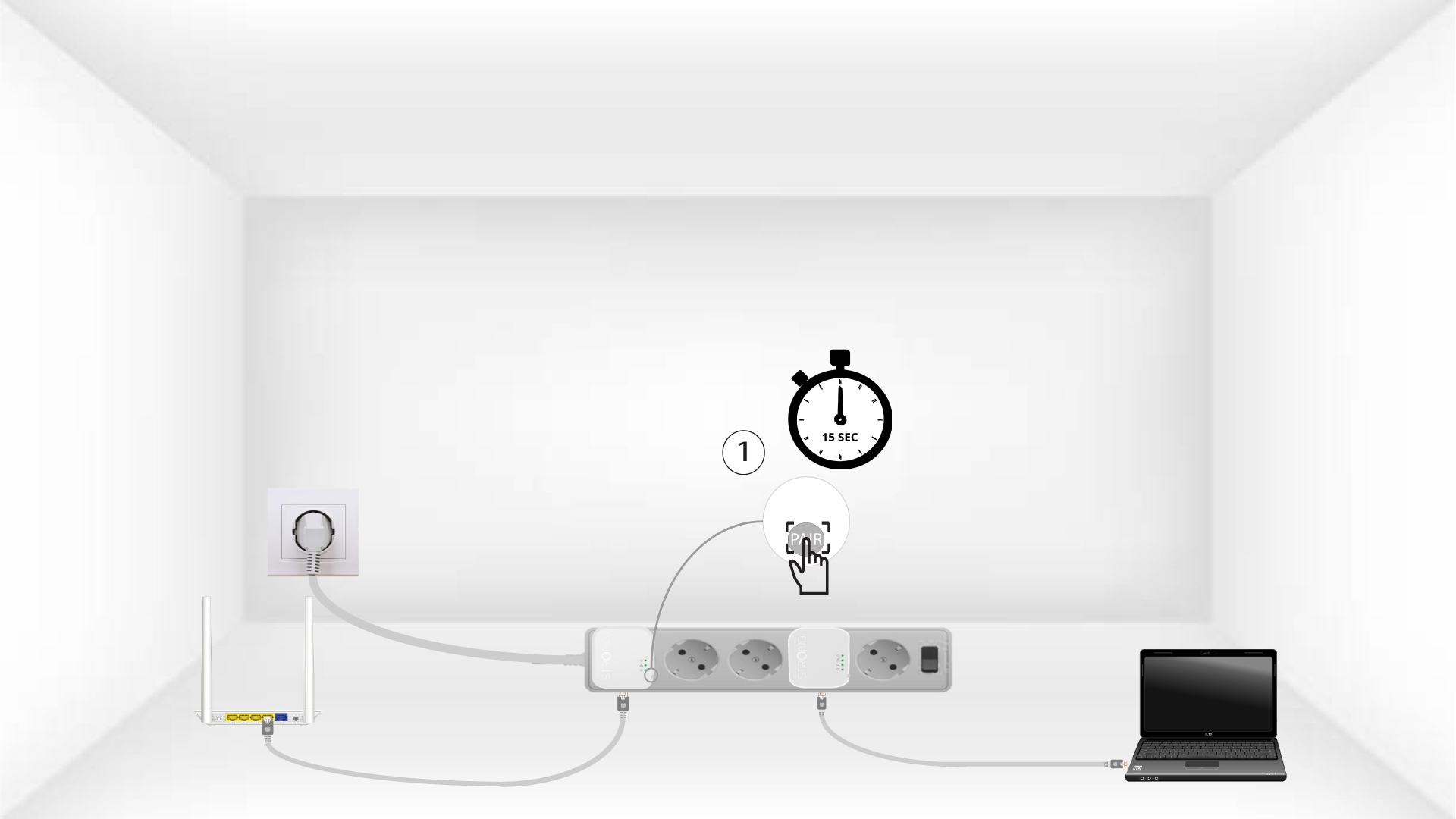
3 Drücken Siedie Taste „Connect & Secure“ (erster Adapter)
Once the adapter is plugged in and connected to the Ethernet, press the Connect & Secure button on the right side of the device for 15 seconds.
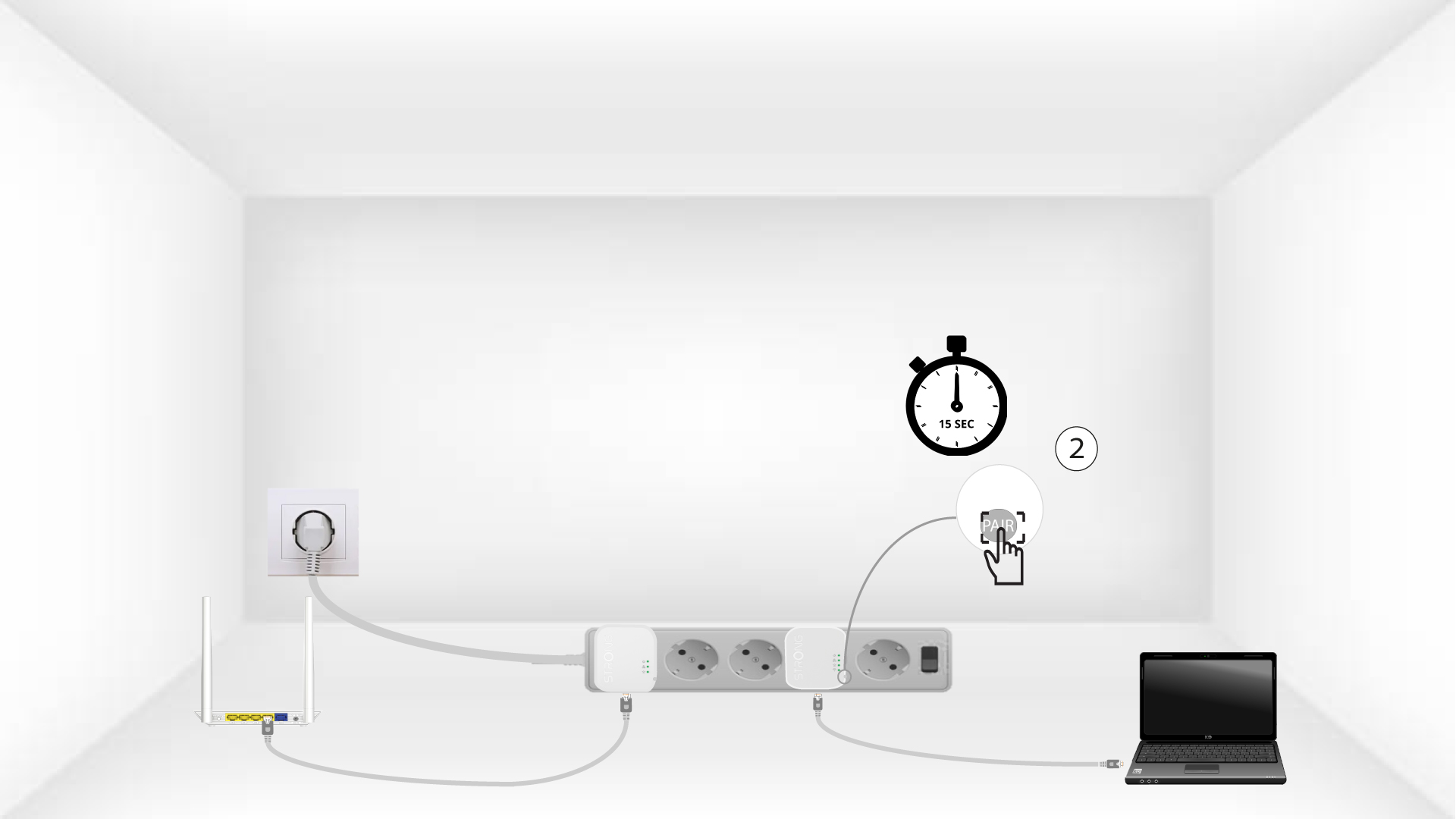
4. Drücken Siedie Taste „Connect & Secure“ (zweiter Adapter).
Press the Connect & Secure button on the right side of the second device for 15 seconds.
5The home LEDs blink
Die LEDs am Gerät sollten nun zu blinken beginnen.
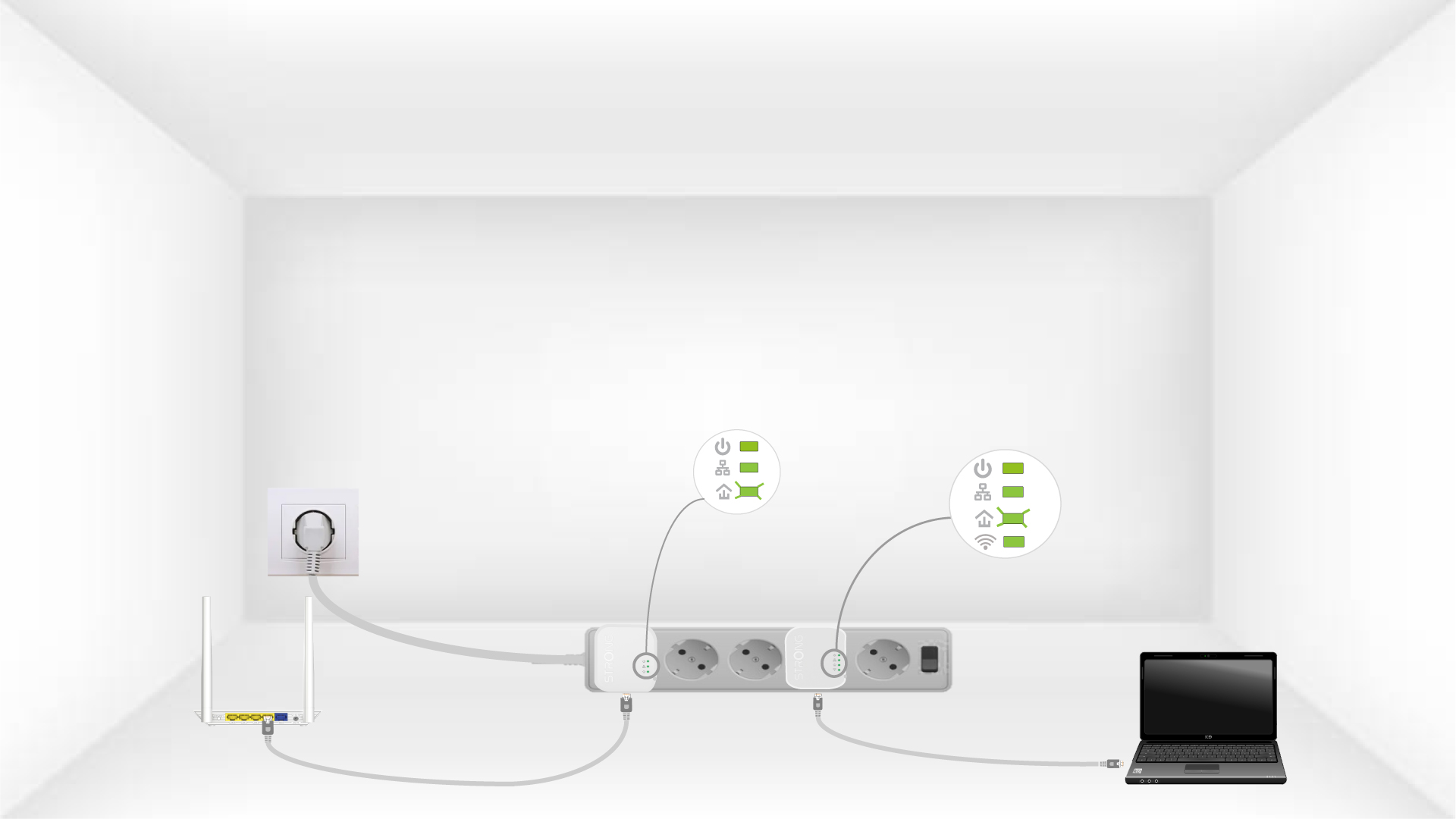
6The devices are reset
All the LEDs must be green at the end of the operation.
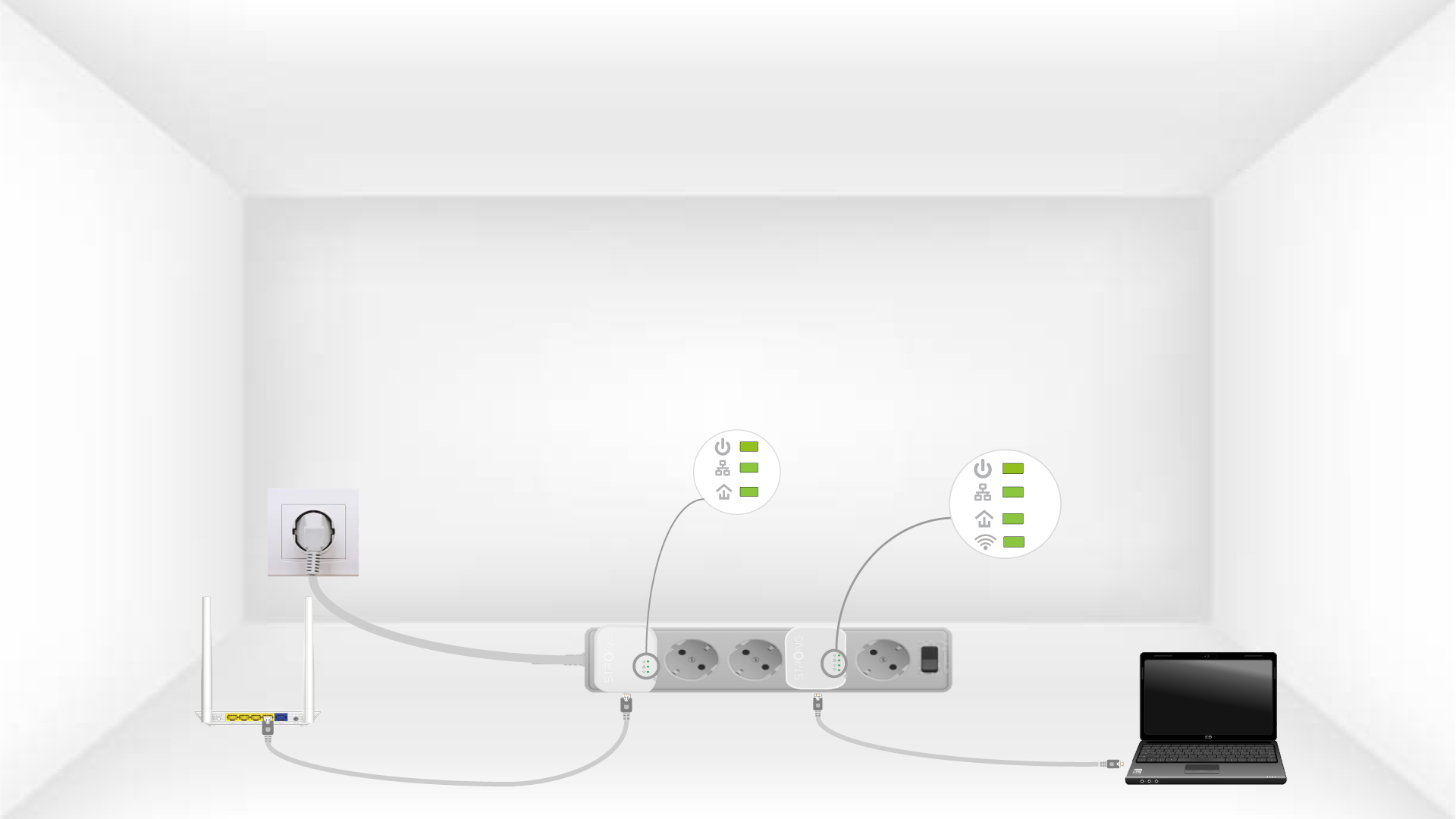
Repeat the same operation for a third powerline. You can have up to eight Powerline 600 Mini adapters on the same electrical installation. After resetting all the devices, you can put them in the rooms where you need them.