CÁMARA SMART HOME 2K
Todas las preguntas
CÁMARA SMART HOME 2K
Cómo añadir una cámara en la aplicación
¿Cómo añado una cámara en la aplicación?
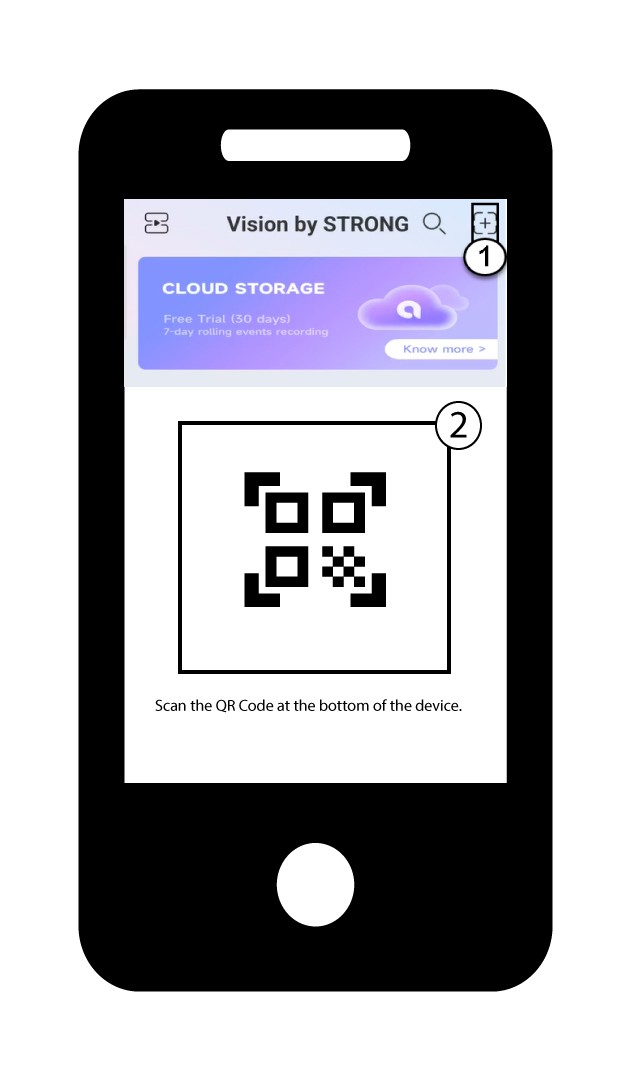
1. Empezar aañadir un dispositivo
Haz clic en el icono «+» y escanea el código QR con la cámara.
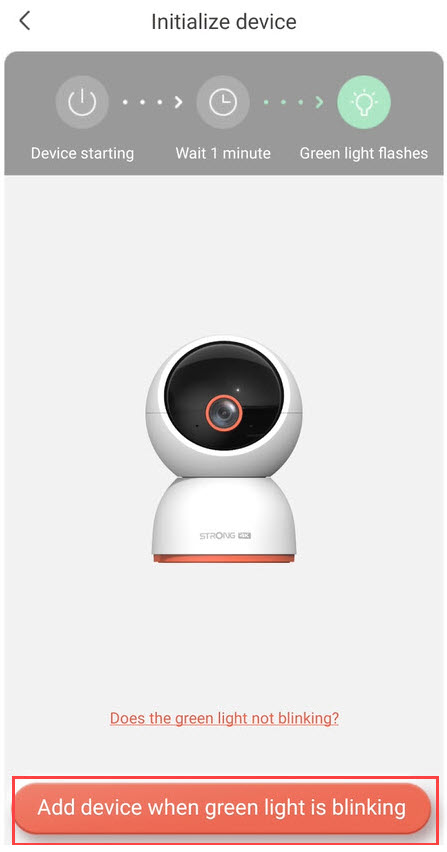
2. Compruebael LED de la cámara
A continuación, fíjate en el LED de tu cámara; si parpadea en verde, pulsa «Añadir dispositivo».
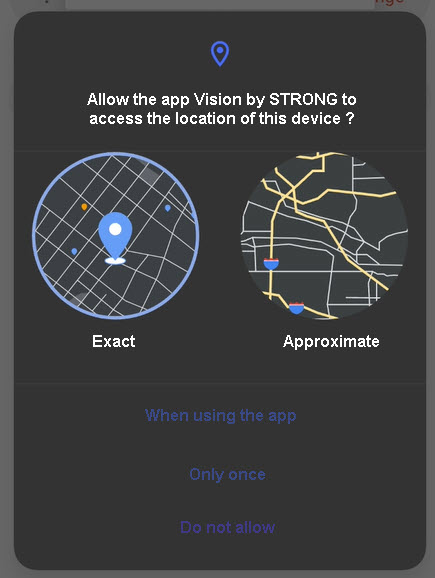
3. Permitirel acceso a la ubicación
Autoriza a la aplicación Vision by Strong para que acceda a la ubicación de tu dispositivo.
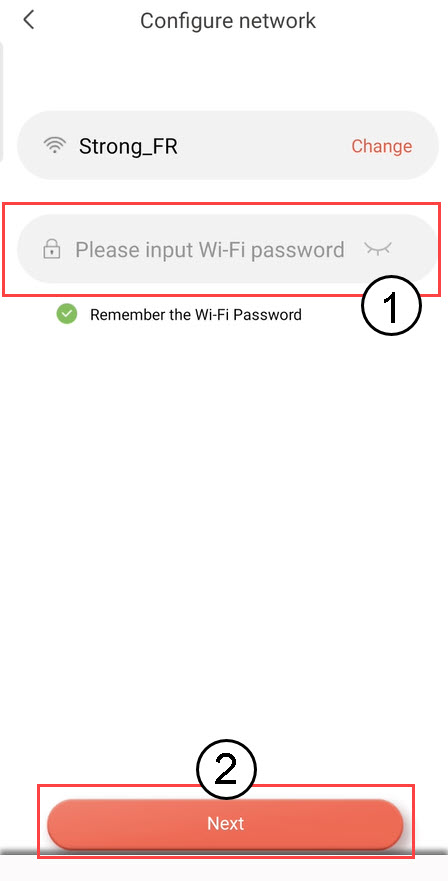
4.Configura tu red Wi-Fi
Selecciona una opción de la lista que aparece en pantalla. Debes configurar tu red Wi-Fi. La aplicación seleccionará automáticamente la red Wi-Fi a la que está conectado tu teléfono. A continuación, introduce la contraseña de la red Wi-Fi y haz clic en «Siguiente».
CONSEJO: Haz clic en «Cambiar» para seleccionar otra red Wi-Fi de la lista. Si quieres ver la contraseña de la red Wi-Fi, haz clic en el icono del ojo.
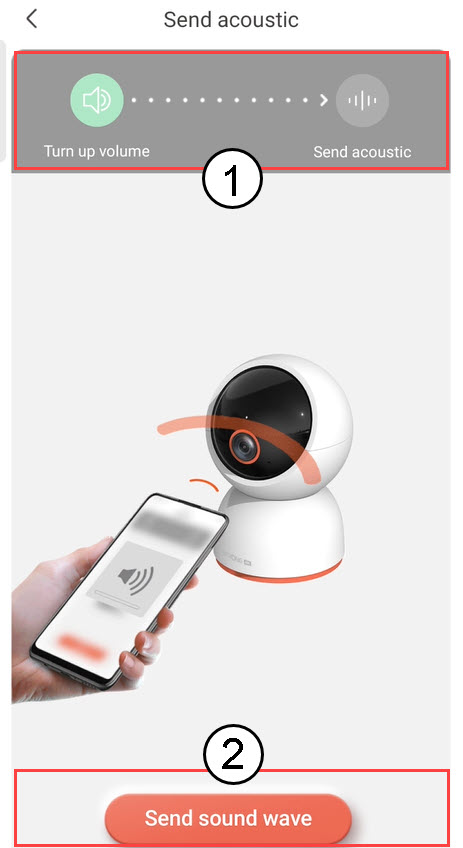
5. Envíala onda sonora
Sube el volumen de tu móvil y haz clic en «Enviar onda sonora».
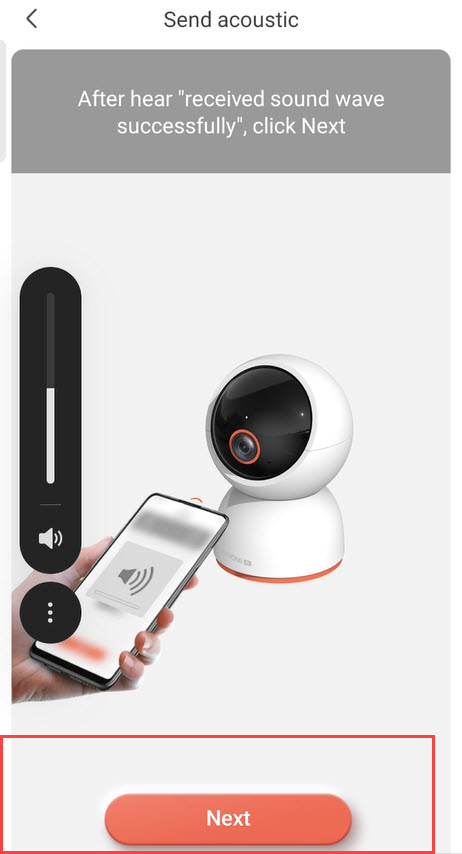
6. Comprobarla recepción de la onda sonora
Espera a que aparezca el mensaje: «Onda sonora recibida correctamente» y, a continuación, haz clic en «Siguiente».
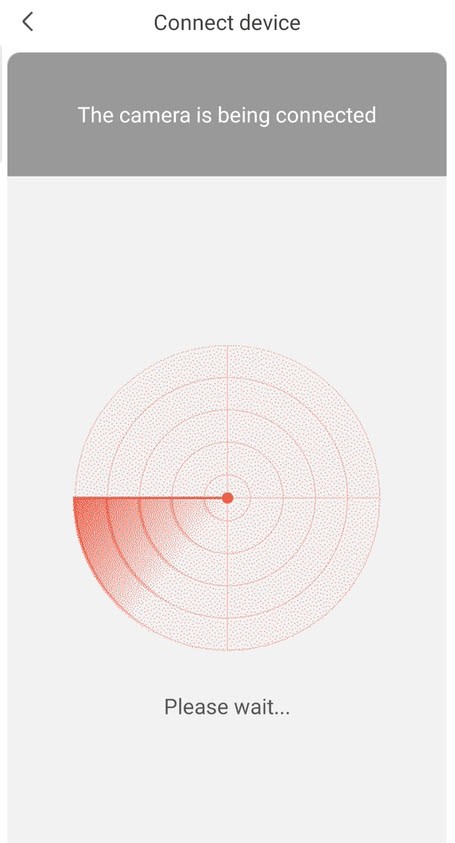
7. Configuraciónen curso
Por favor, espera mientras se configura la cámara.
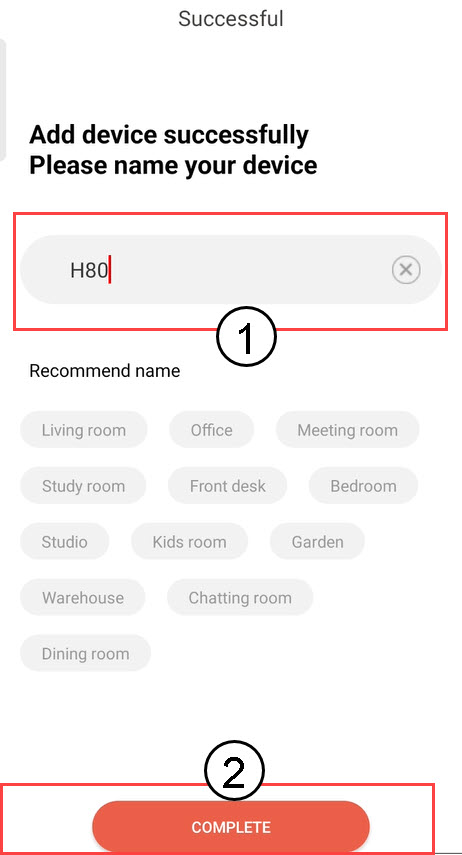
8. Ponle nombrea tu cámara
Una vez finalizada la configuración, debes asignar un nombre a tu cámara. A continuación, haz clic en «FINALIZAR».
Consejo: Si tienes varias cámaras, asigna un nombre a cada una en función de la habitación en la que se encuentren.
9. Se ha añadido una cámara
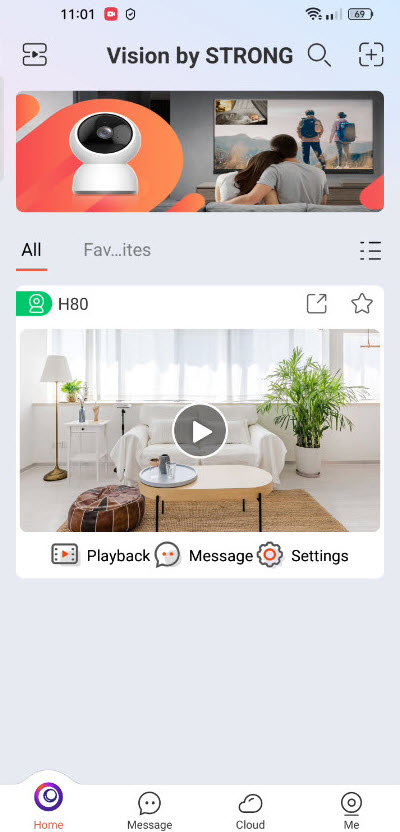
Tu cámara aparece ahora en la página de inicio de la aplicación.