
Universal Repeater 300 V2
All questions
Wi-Fi and network troubleshooting
Can I change the Wi-Fi channels of Universal Repeater 300 at repeater mode?
Yes, you can change the channel of the Wi-Fi band that is being used for the communication between your modem/router in the “Wi-Fi Setting” menu of the web UI.
1Connect to the Web UI
To connect to the Web UI, follow this procedure.
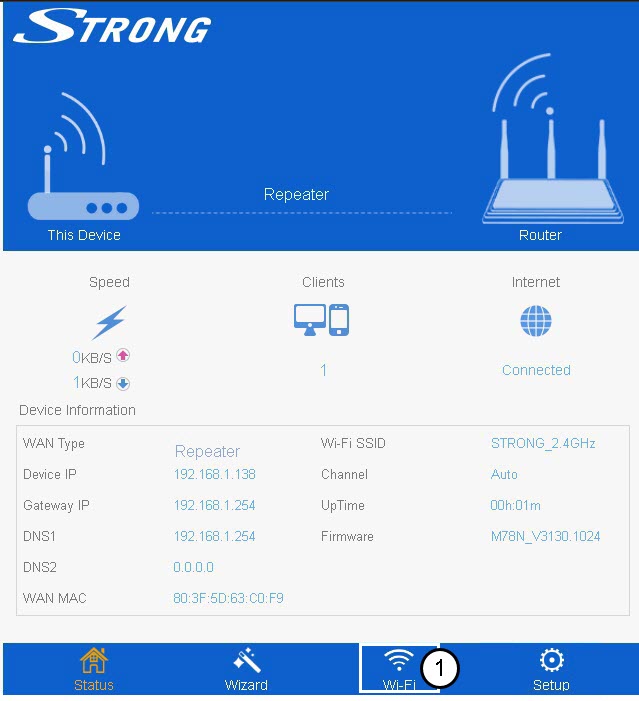
2Wi-Fi Settings
Click Wi-Fi.
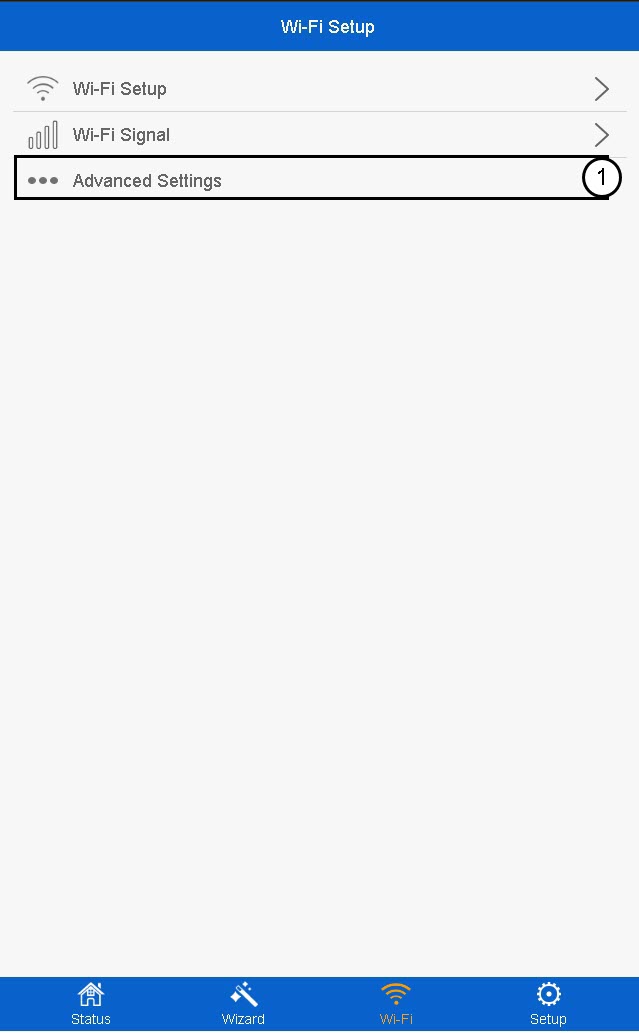
3Advanced Settings
In the Wi-Fi settings page, click Advanced Settings.
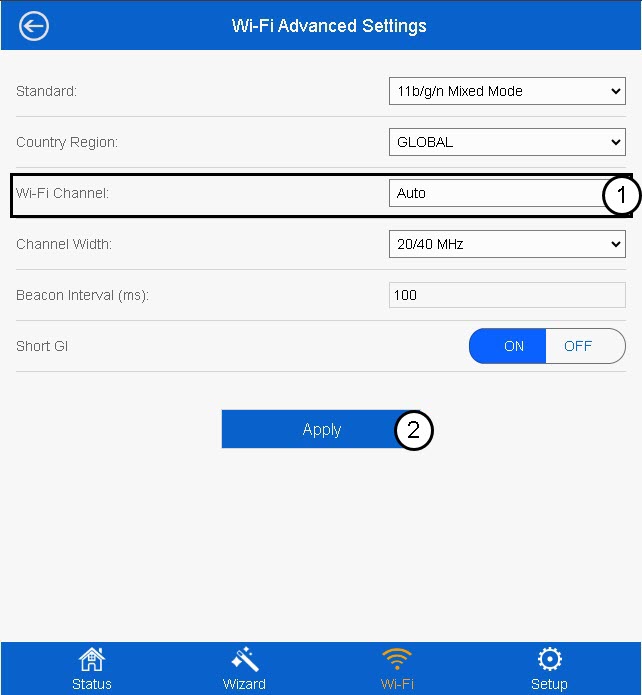
4Edit the channel band
Select a new value in the Wi-Fi Channel List and click Apply.
How can I change the settings of the repeater?
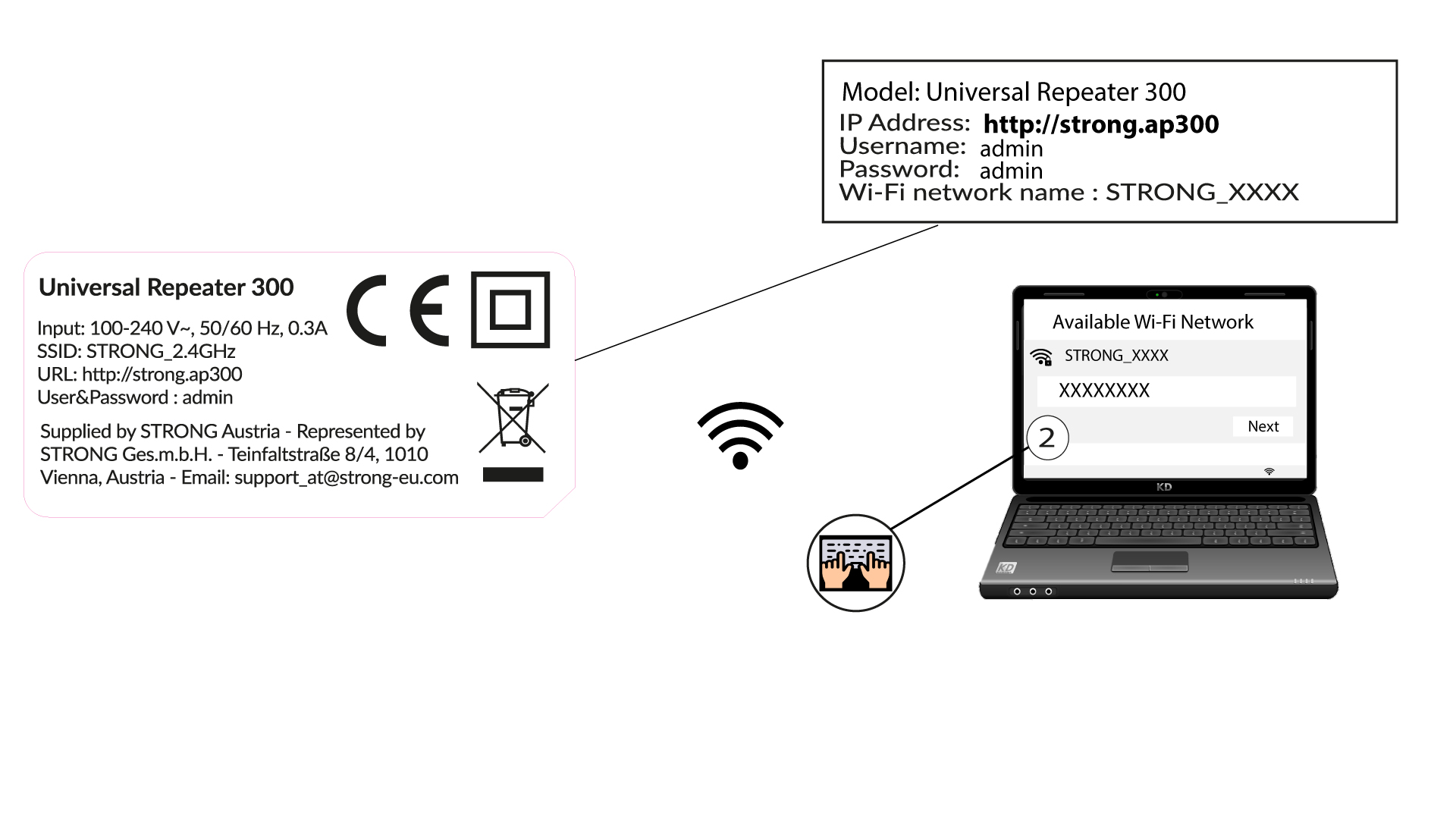
You can change all the settings by the web management interface embedded in the product. The URL of the web management interface is http://strong.ap300
1Connect to the Wi-Fi of the repeater
Connect to the Wi-Fi of the repeater. The Network information is written on the label located under your repeater.
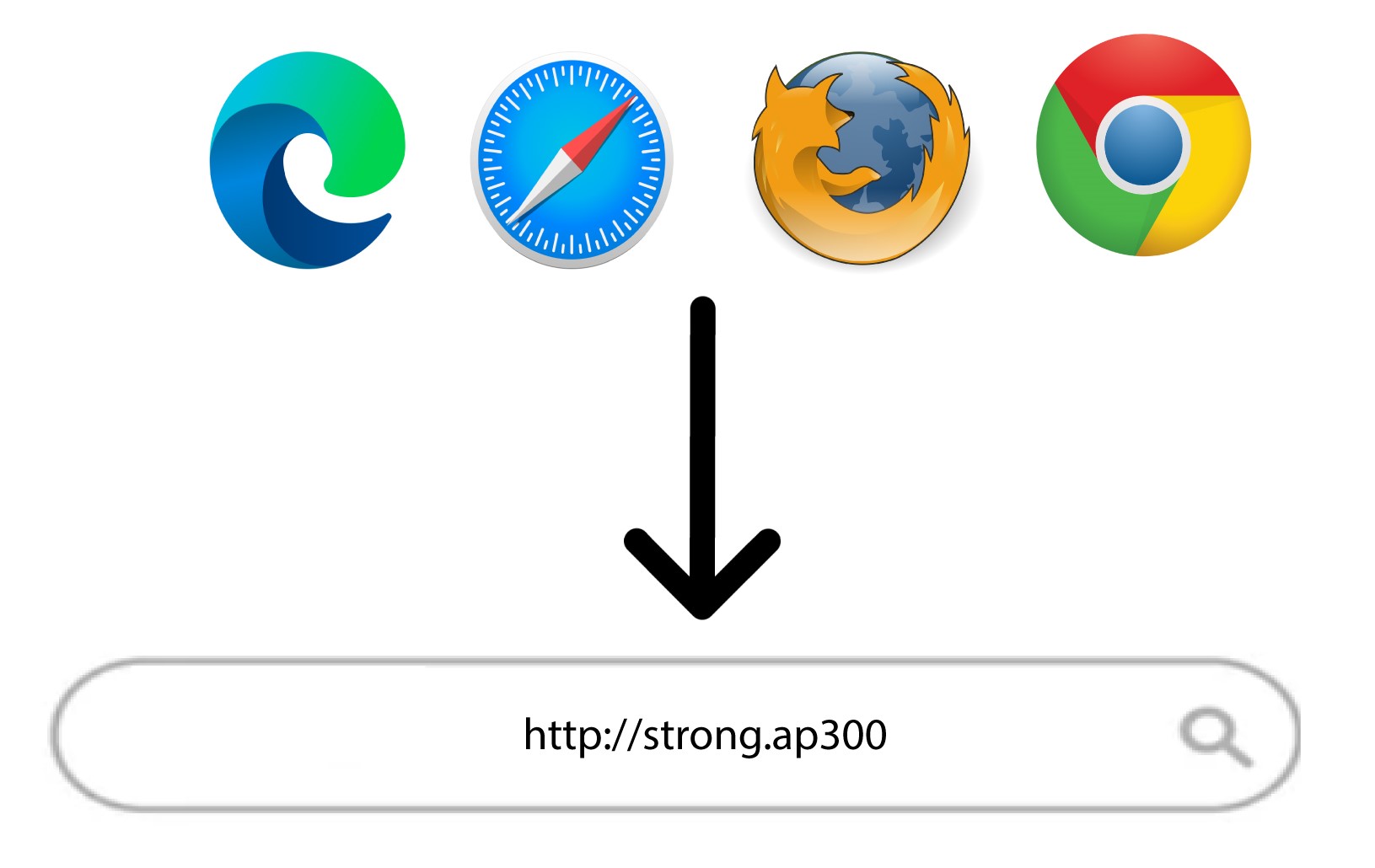
2Browse to the URL
Enter the following URL: http://strong.ap300
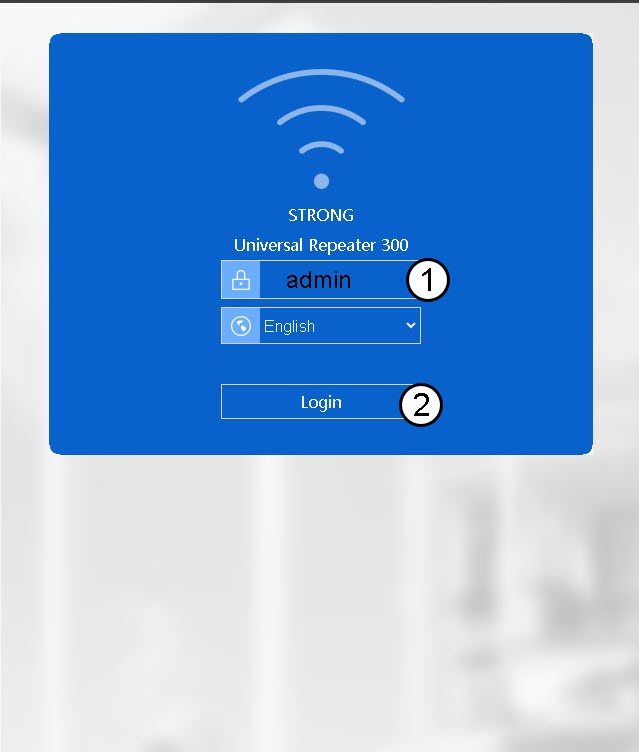
3Login Page
On the Login page of the web UI, enter your password (admin). Then, click Login.
How can I connect my device to my Universal Repeater 300 for the installation?
There are two options to connect a device to Universal Repeater 300 for the installation
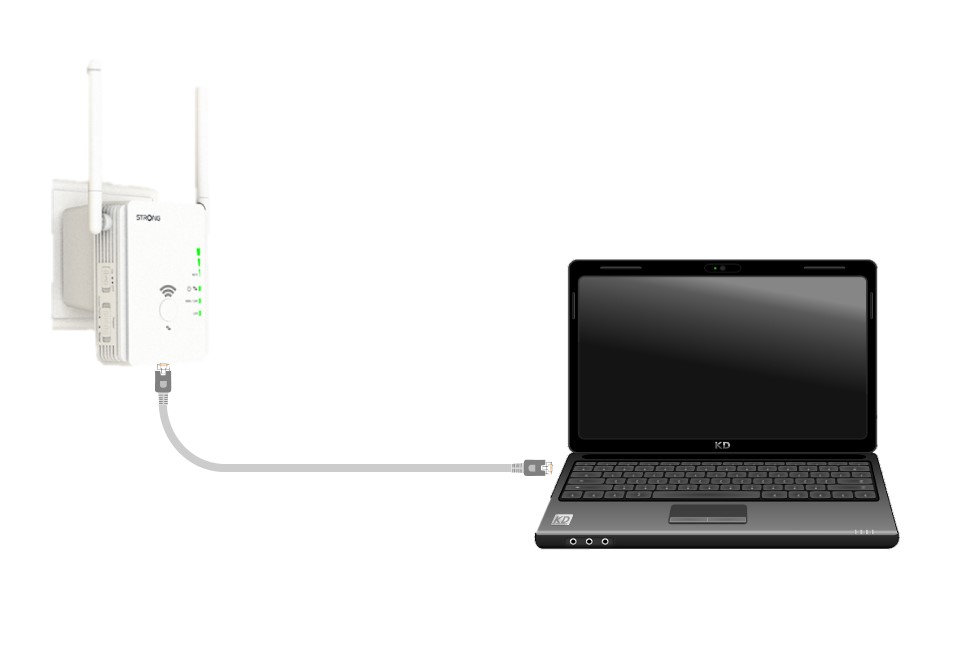
1CASE 1: Connect the repeater to a device with a RJ45 Port
Use a laptop and connect it to Universal Repeater 300 with an RJ45 Ethernet cable.
2CASE 2: Connect to the Wi-Fi of the repeater
Connect to the Wi-Fi of the repeater. The Network information is written on the label located under your repeater.

The Wi-Fi Network of your repeater does not have a password. Its default name is STRONG_2.4GHz.
How can I set up Universal Repeater 300 as a router?
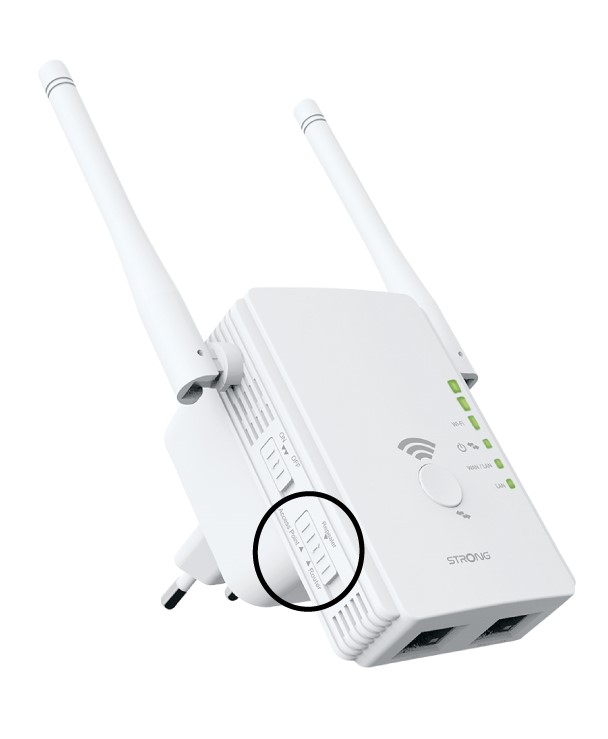
Please ensure that the Mode Selection switch on the side panel of your Universal Repeater 300 is set to router mode.
1Check the mode of the device
Check the switch on the left side of your repeater to see the functioning mode of your repeater. The switch must be set to router.
2Reset your repeater to its factory settings
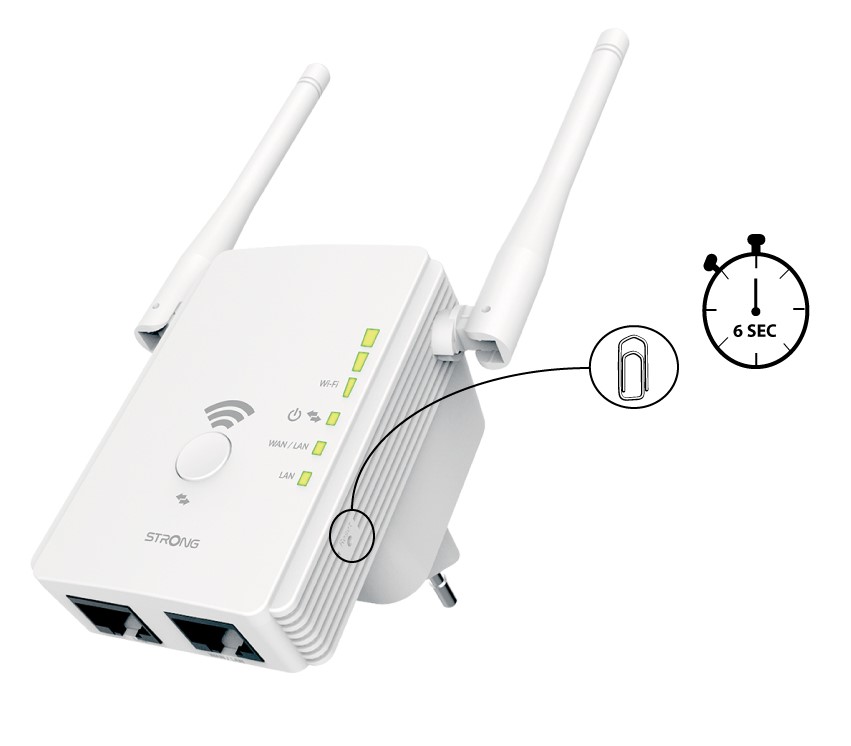
Reset your device to its factory settings by pressing the 'Reset' button with a paper-clip for 6 seconds.
3Connect your repeater to the modem
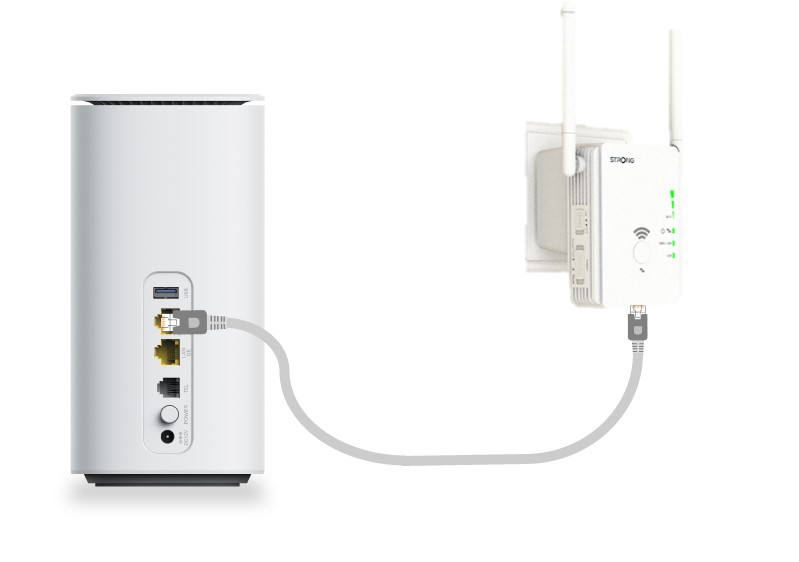
Connect your modem/router by an RJ45 Ethernet cable to the WAN/LAN port of the Universal Repeater 300.
4Connect to the Wi-Fi
Connect your Wi-Fi device to one of the default Wi-Fi network (STRONG_2.4GHz) provided by Universal Repeater 300. There is no password for the default Wi-Fi network.
5Browse to the Web UI
Type the following URL in your search bar: http://strong.ap300
6Enter your credentials
Enter your password (admin) before clicking Login.
7Wizard
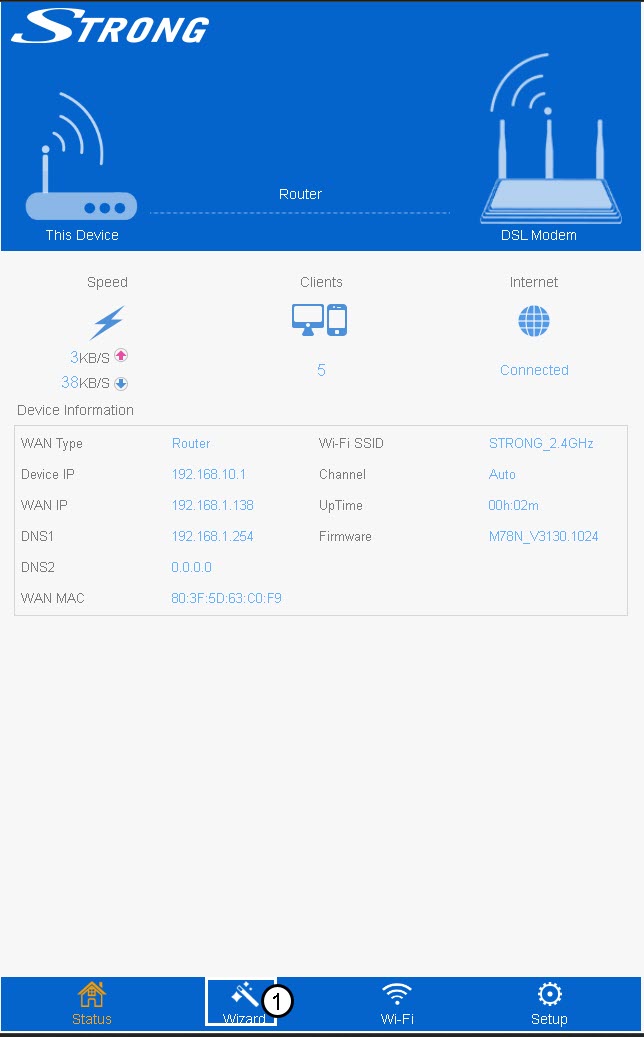
Click Wizard in the bottom menu bar.
8Set up the AP
Enter the Wi-Fi SSID and select its security type. Then, enter a Wi-Fi Password before clicking Apply.
We recommend using yhe WPA/WPA2 Mix .
9Wait during the set up
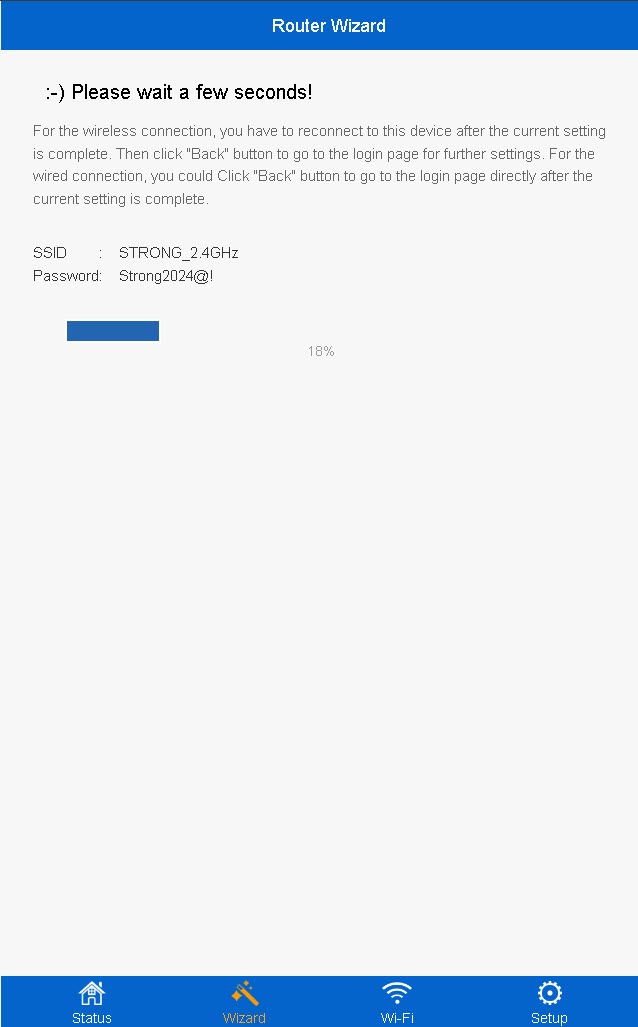
The completion percentage of the configuration will be displayed on your screen. Please wait for the configuration to be completed.
Write down the information of the new Wi-Fi network. You will need it to connect to network after the configuation.
You must connect to the new network after the configuration.
How can I set up Universal Repeater 300 as an Access Point?
Please ensure that the Mode Selection switch on the side panel of your Universal Repeater 300 is set to Access Point mode.
1Check the mode of the device
Check the switch on the left side of your repeater to see the functioning mode of your repeater. The switch must be set to router.
2Reset your repeater to its factory settings
Reset your device to its factory settings by pressing the 'Reset' button with a paper-clip for 6 seconds.
3Connect your repeater to the modem
Connect your modem/router by an RJ45 Ethernet cable to the WAN/LAN port of the Universal Repeater 300.
4Connect to the Wi-Fi
Connect your Wi-Fi device to one of the default Wi-Fi network (STRONG_2.4GHz) provided by Universal Repeater 300. There is no password for the default Wi-Fi network.
5Browse to the Web UI
Type the following URL in your search bar: http://strong.ap300
6Enter your credentials
Enter your password (admin) before clicking Login.
7Wizard
Click Wizard in the bottom menu bar.
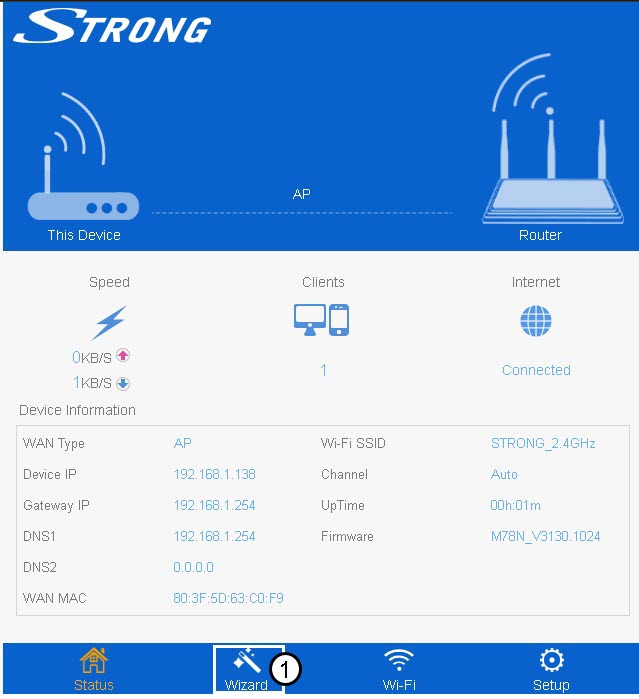
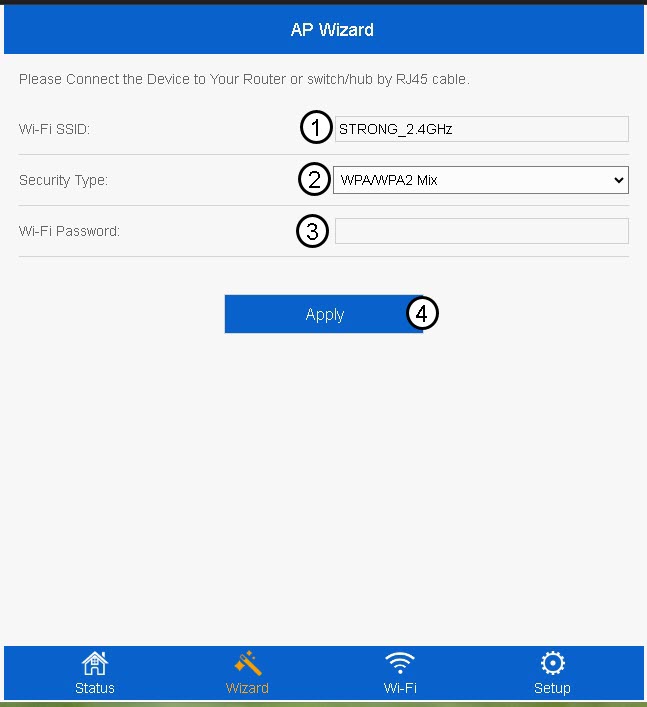
8Set up the AP
Enter the Wi-Fi SSID and select its security type. Then, enter a Wi-Fi Password before clicking Apply.
We recommend using yhe WPA/WPA2 Mix .
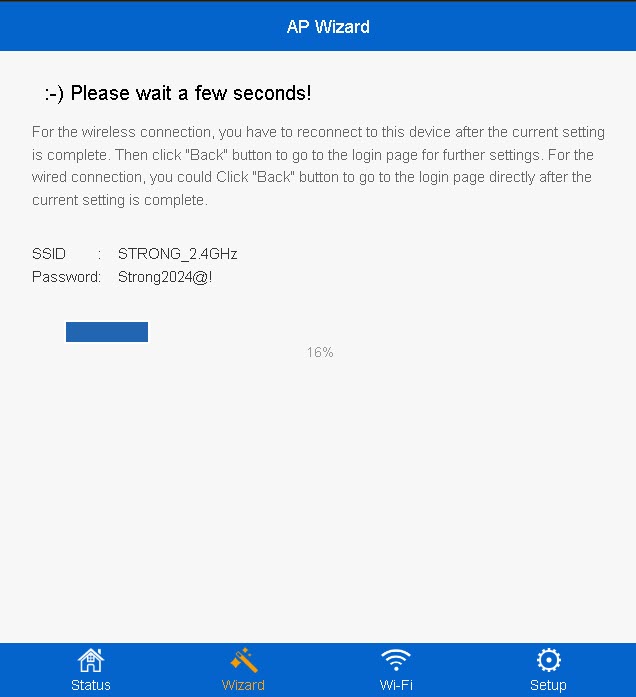
9Wait during the set up
The completion percentage of the configuration will be displayed on your screen. Please wait for the configuration to be completed.
Write down the information of the new Wi-Fi network. You will need it to connect to network after the configuation.
I cannot find my existing Wi-Fi network in the Installation Wizard of the Universal Repeater 300, why?
It is very likely that your repeater is too far from your modem/router. We recommend configuring your repeater in the same room as your modem/router and then changing its location to a different room.
- If there is enough signal, at least two of the LEDs will be green.
- If the LEDs are not green, please put your repeater in a different room.
I installed my Universal Repeater 300 as a Repeater but my broadband Internet speed is not improved, why?
Repeaters can improve the Wi-Fi coverage, performance and connectivity locally but the broadband Internet speed is defined by your subscription of your Internet Service Provider.
What is the best location for the Universal Repeater 300?
Your repeater should not only be near to your modem/router, but also to a Wi-Fi dead zone. By doing so, your repeater will pick up the signal from the modem/router and repeat it to extend the coverage of your Wi-Fi Network.

Which Wi-Fi frequencies (bands) does Universal Repeater 300 provide?
Universal Repeater 300 is a single band 2.4GHz device.
Which frequencies are used to create a connection between the router/modem and Universal Repeater 300?
Universal Repeater 300 can create a connection to your modem/router on 2.4GHz band and it repeats the Wi-Fi signal of your modem/router on 2.4GHz.