
Universal Repeater 300 V2
All questions
Credentials and Web UI access
How do I access the Web UI after the configuration?
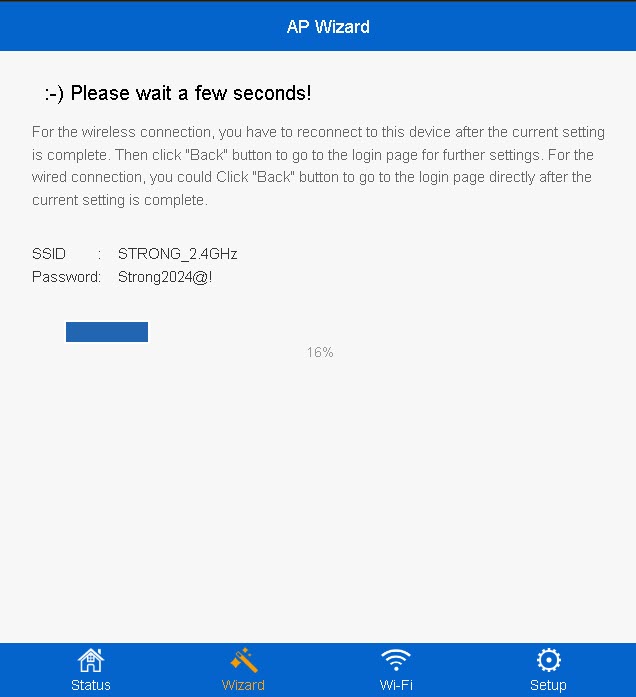
1Connect to the new Wi-Fi network of the repeater
Connect to the new Wi-Fi network of your repeater.
The information of this network was written in the summary step of the configuration wizard.
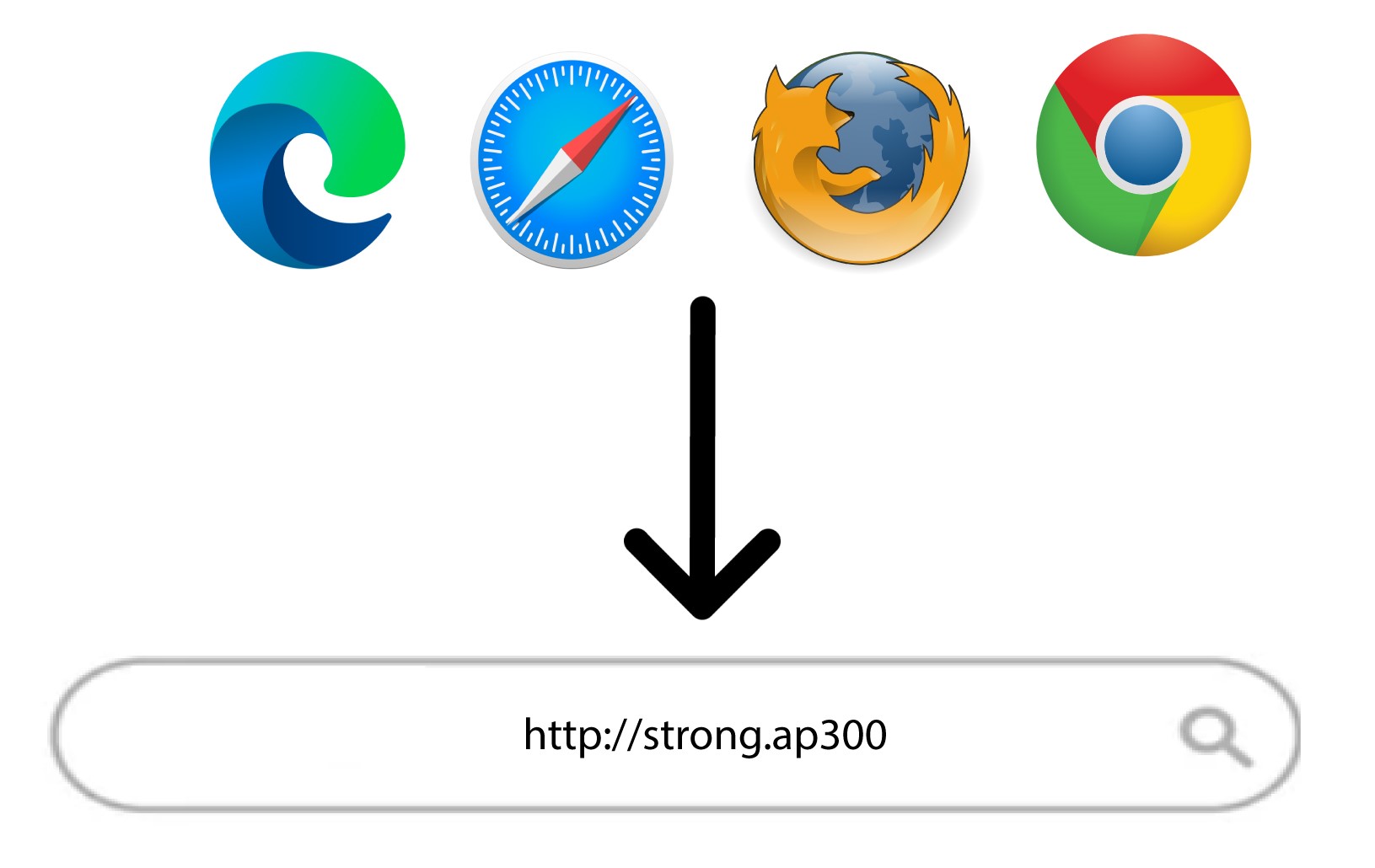
2Browse to the Web UI
Browse to the following URL: http://strong.ap300/
3Enter your credentials
Enter your administration password and click Login.
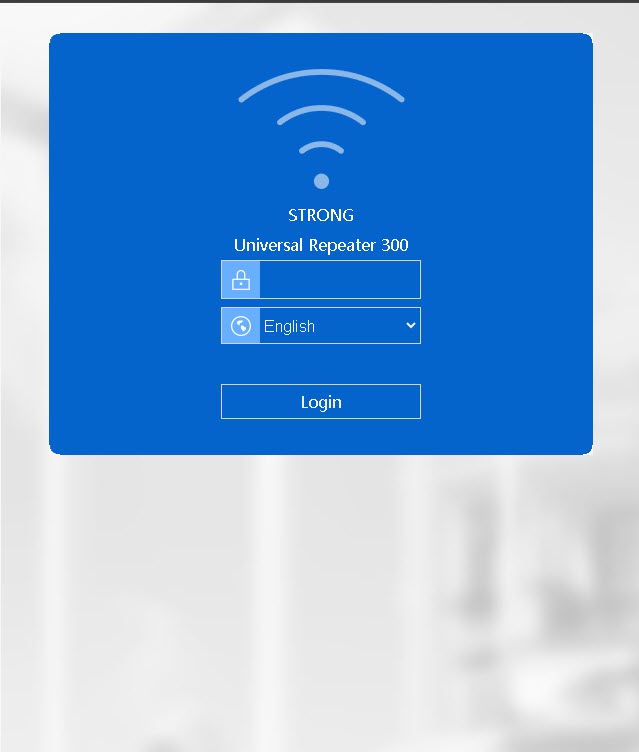

Warning: Please note that if you change the default administration password, you will have to enter the new password you have set. If you have lost this password, please reset your device to its factory settings.
How do I access the Web UI?
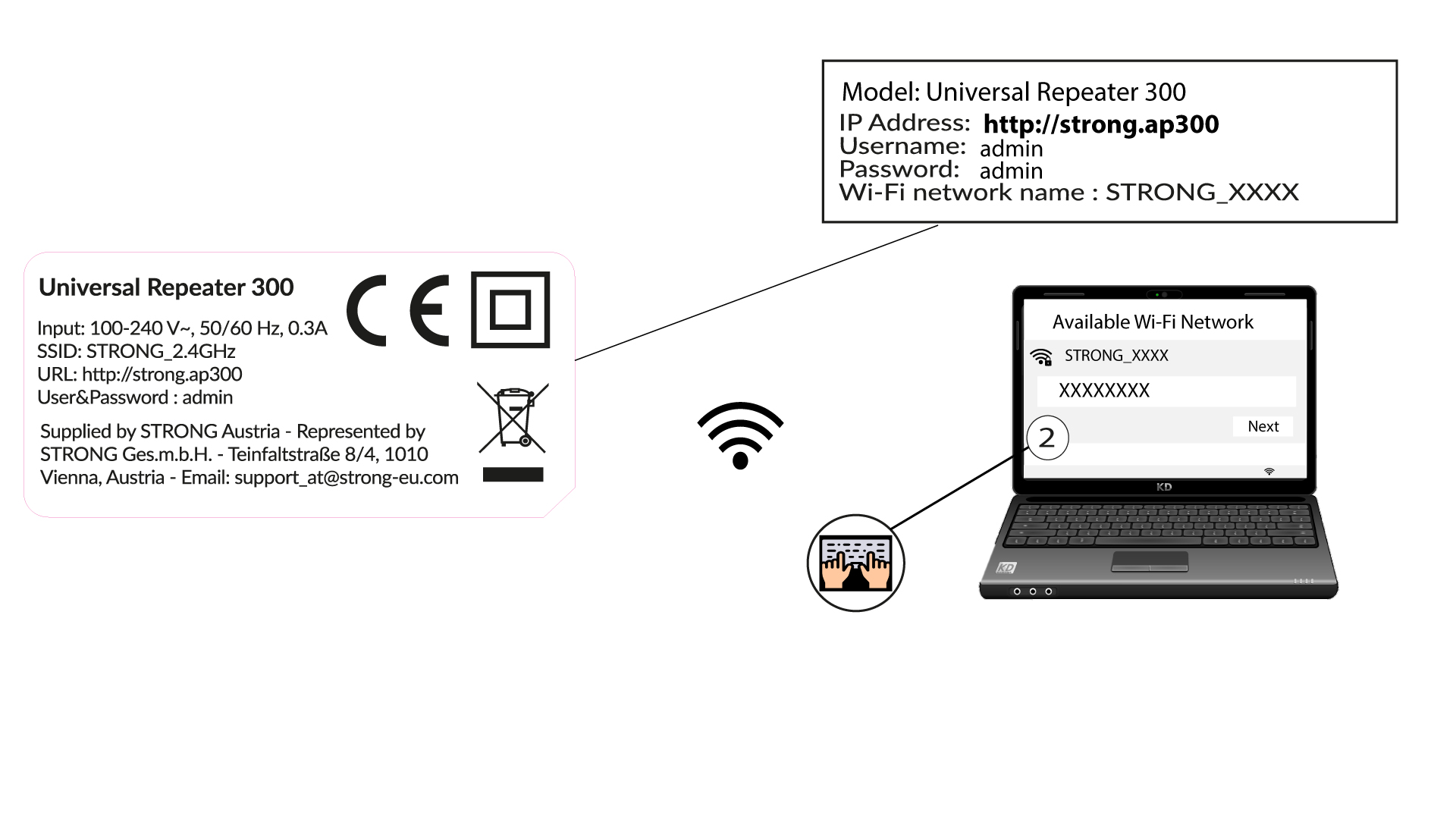
1Connect to the Wi-Fi of the repeater
Connect to the Wi-Fi of the repeater by referring to the product label.
There is no password for the Wi-Fi network of your repeater. The new Wi-Fi network information will be set during the configuration after the first connection to the UI.
2Browse to the Web UI
Browse to the following URL: http://strong.ap300/
3Login
Enter the password and click Login.
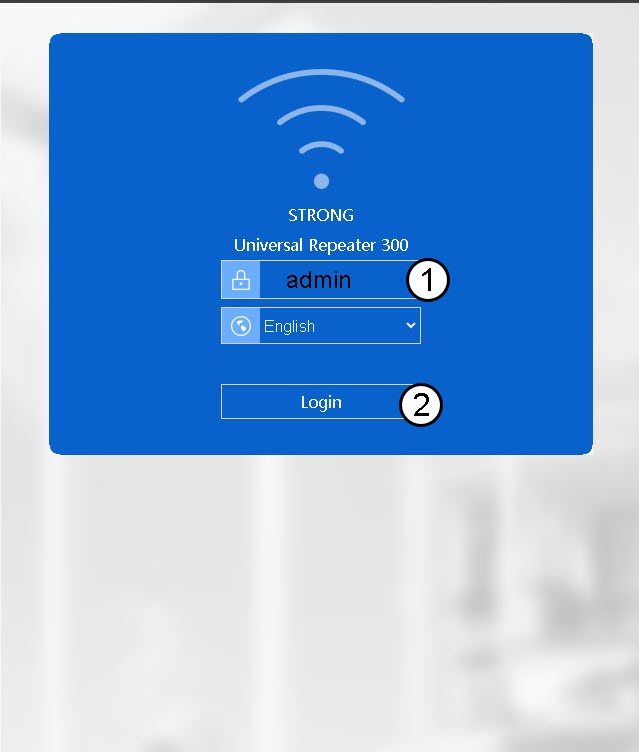
Warning: We strongly recommend changing the administration password to prevent hacking.
How do I change the default admin password of my repeater?
1Connect to the Web UI
Please refer to this procedure to connect to the Web UI.
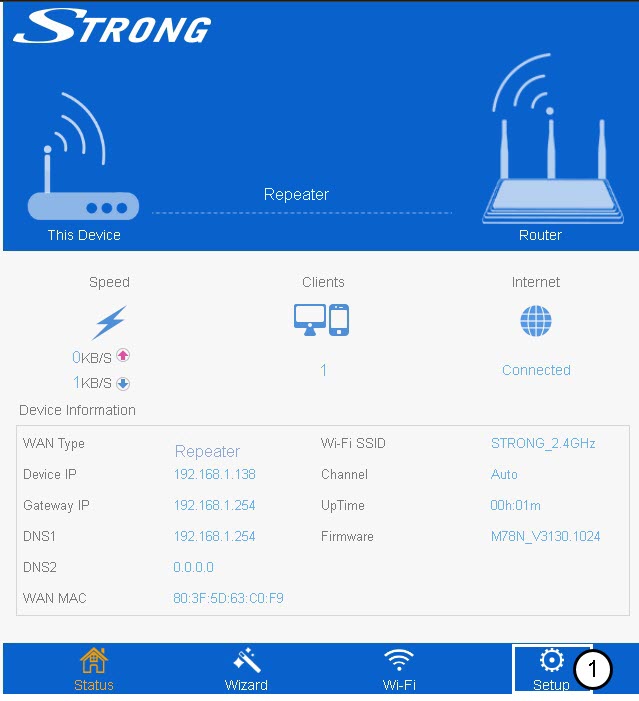
2Set Up
Click set up on the bottom bar.
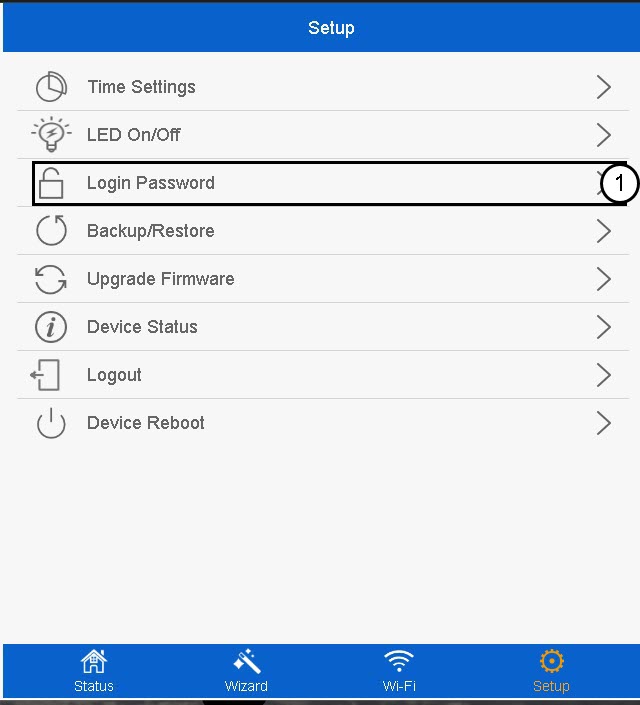
3Login Password
Click Login Password.
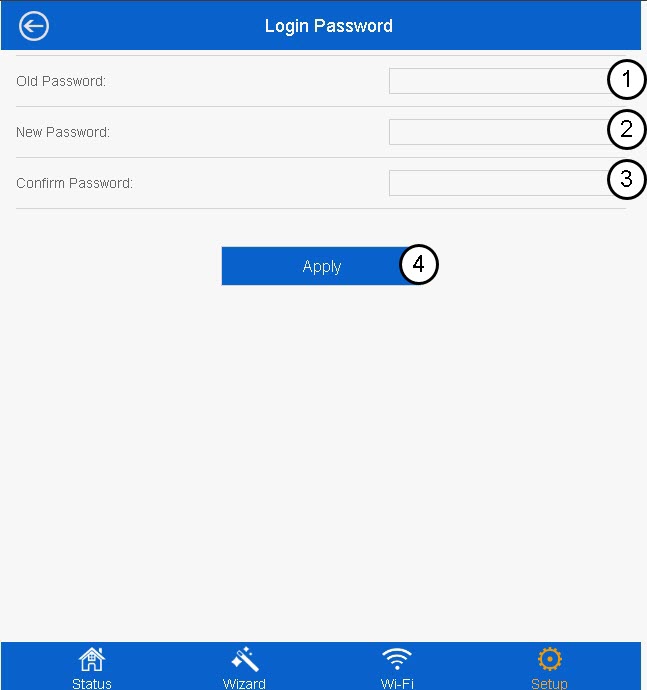
4Create the new password
Enter the following information before clicking Apply:
- Old Password: Enter the default password.
- New Password: Enter a new password
- Confirm Password: Enter the same password as in the previous field.
The new password must contain between 8 and 31 characters (lowercase, uppercase, numbers and specials characters). Only the following special characters are allowed: @ ! §% * ? &
Warning: Please write down the new administration password, you will need it to connect to the Web UI. If you forget your admin password, please reset your repeater to its default settings by referring to this procedure.
I cannot access the Web UI (http://strong.ap300) of my repeater after completing its setup, why?
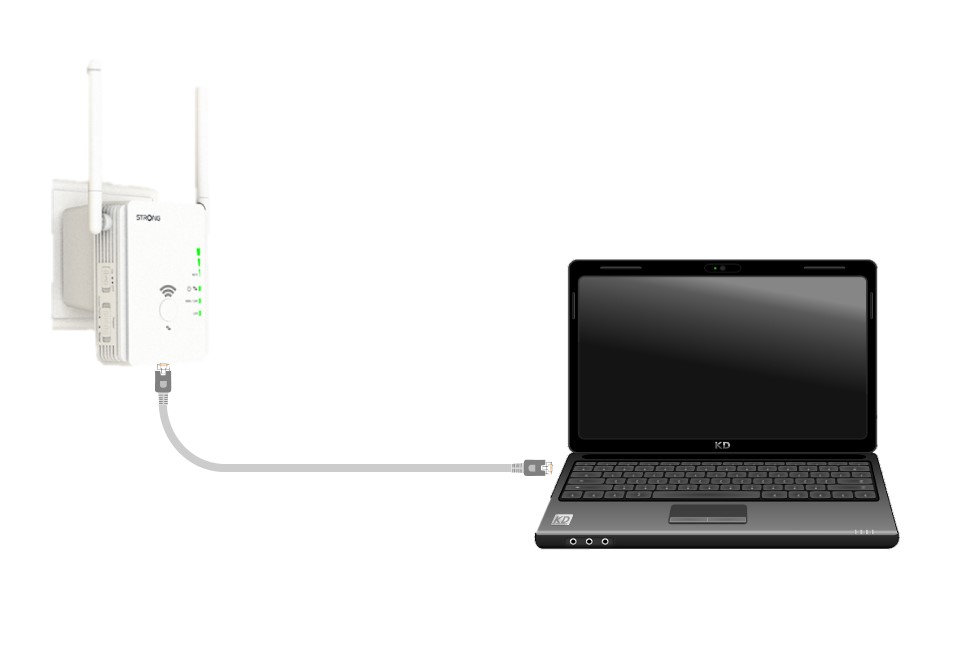
1Connect the repeater to a device with a RJ45 Port
Use a laptop and connect it to Universal Repeater 300 with a RJ45 cable.
2Browse to the IP Address of the Web UI
Enter the IP address of Universal Repeater 300 in the search bar of your web browser.
3Enter your credentials
Enter your username (admin) and your password (admin) before clicking Login.
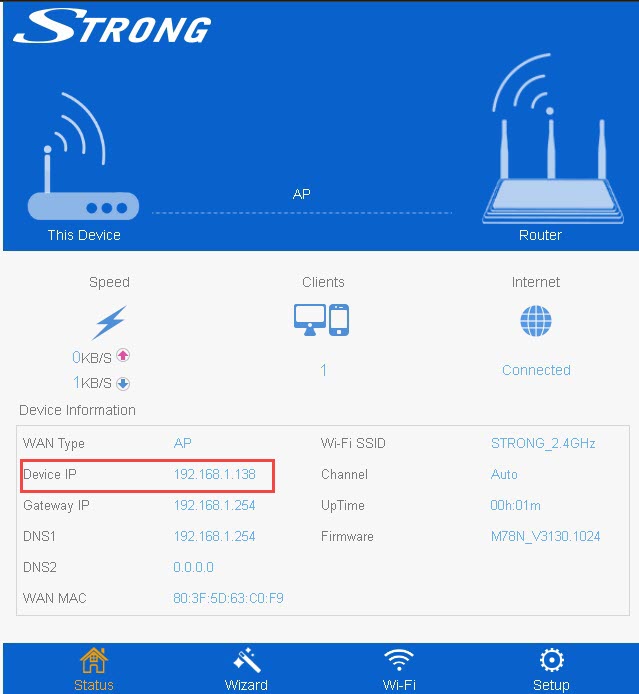
4Look for the IP address
Look for the IP Address of your repeater.
I cannot access the Web UI with the URL (http://strong.ap300) when I am setting up the device, why?
During the configuration of the repeater, please connect directly to the web UI by using its IP Address: http://192.168.10.1
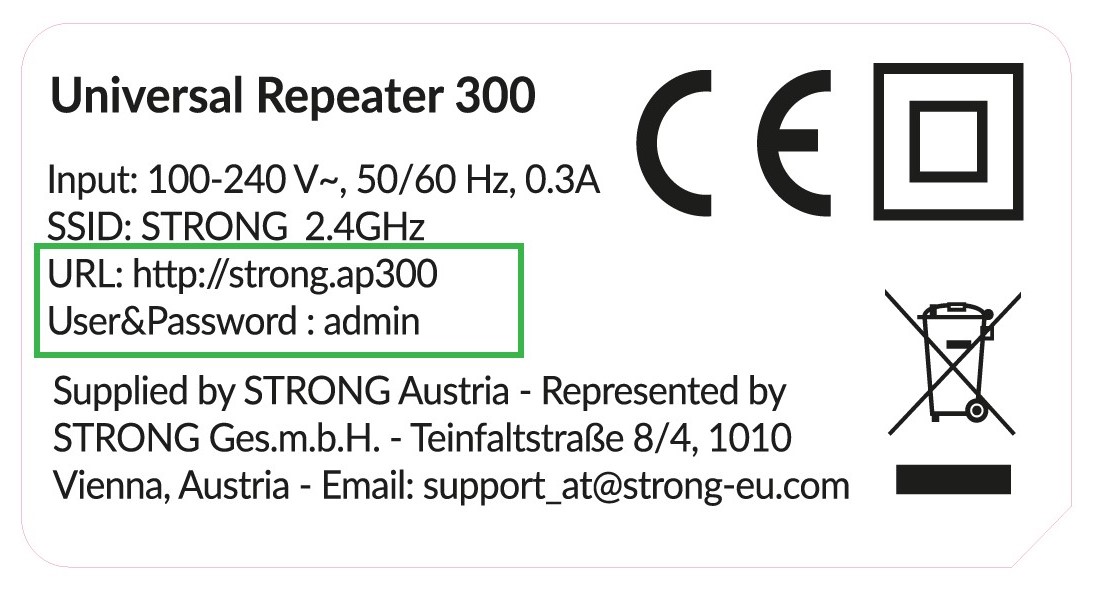
What are the credentials to access the Web UI?
You can find the credentials to access the Web UI on the product label located under your product.
What can I do in the Web UI?
The Web UI is divided into 5 sections, for more information see:
- Status: where you can see the list of connected devices (Devices), the information
of the repeater. - Wizard: where you can set up your repeater with the integrated configuration wizard.
- Wi-Fi: where you can set up the Wi-Fi Network of the repeater, see the strength of the signal and modify the band of the Wi-Fi via the advanced Settings
- Setup: where you can update the firmware, reset and reboot the device. Youcan also define the time zone, admin password and so on.
What is the IP address of Universal Repeater 300?
Before the installation, the default IP address of Universal Repeater 300 is 192.168.10.1.
After the installation, your repeater obtains its IP address from your router. Please log into the management interface of your router and check the IP address that is assigned to your Universal Repeater 300.