
Powerline 1000 Duo Mini
All questions
Powerline 1000 Duo Mini
Wi-Fi and network troubleshooting
Can I connect Powerlines of different brands to my network?
It is possible to connect powerlines with different data rates and brands as our devices use the HomePlug AV2/AV standard which makes any device compatible no matter the brand or data rates. For instance, you can connect a powerline 1000 Mini with a powerline 1000, 1200 or 1300 as they have similar data rates. That is why, we strongly recommend not to connect a powerline 1000 Mini with powerline 500 or 600 which have lower data rates as the maximum data rate is lower than the one of the powerline 1000 Mini. On the other hand, we also advise you against connecting a powerline 1000 Mini with a powerline 2000 as the data rate of the powerline 2000 will be limited to the maximum data rate of the powerline 1000. In addition, a Powerline 1000 Mini can be connected to powerlines 1000 of different brands but we cannot guarantee that it will work properly with powerlines 1000 from other brands, as there may be software differences.
Connect all your bandwidth hungry wired devices to the Internet using your existing electrical wiring!
Use the Powerline 1000 Mini Duo to connect all your bandwidth hungry wired devices to the Internet, such as an IPTV decoder, a Smart TV, an Android box, an Apple TV®, a media player, a computer, a games console … and free up your Wi-Fi network. Each Powerline 1000 Mini adapter is equipped with an Ethernet port. Connect all your network compatible devices to the Internet in minutes! No system requirements! No software to install! Plug & Play. The Powerline 1000 Kit is the best solution to stream your HD videos and movies on your fixed device players all over the house without running any cable
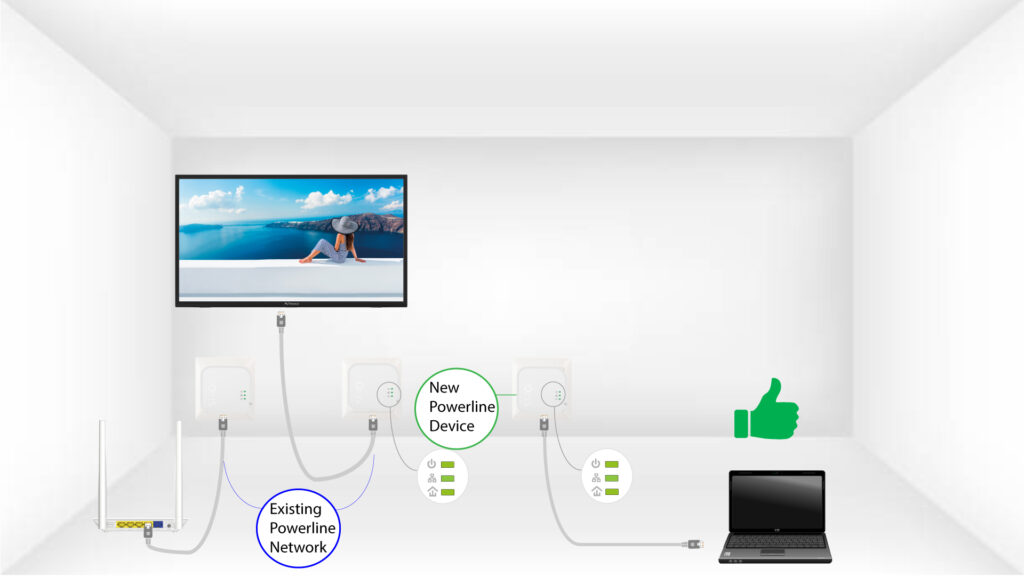
Expand your Powerline network to any room of your home by adding Powerline 1000 Mini adapters!
Congrats! You managed to install your Powerline 1000 Duo. Now, you want to extend your network to other parts of your home to connect even more devices to your network.
Just add a new Powerline 1000 Mini adapter in the room of your choice. No system requirements! No software to install! Just Plug & Play.
How many Powerline 1000 Mini can I connect to the same network?
You can connect up to eight Powerline 1000 Mini in your home within the limit of a single electric meter.
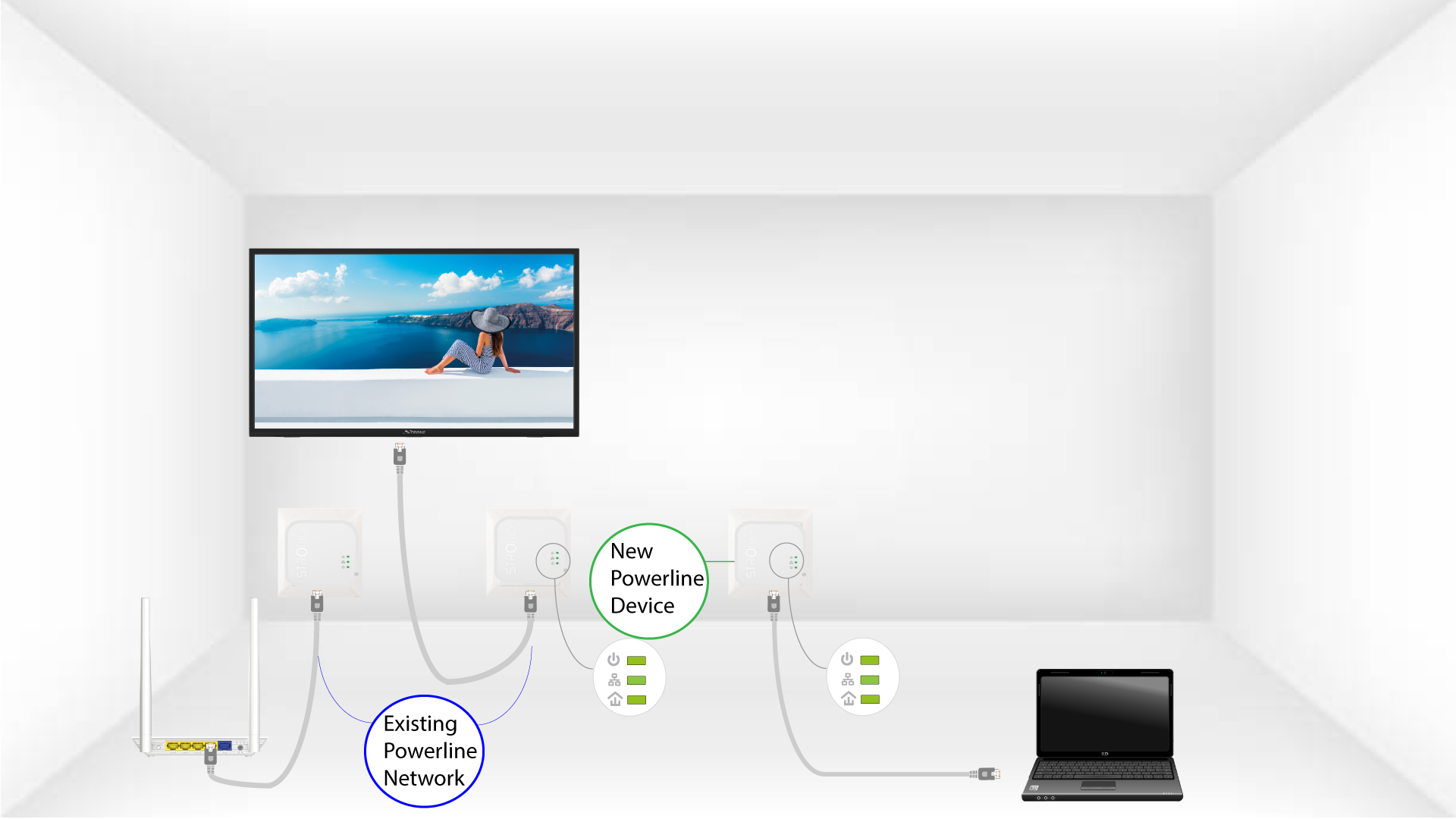
How to add a new strong powerline product to your existing powerline network with High Security Level 1?
As your existing network has been set with the High Security Level 1 configuration, adding a product is simply Plug & Play. No action is required on the product. Just plug in the new powerline product and it will be automatically added to the network.
Typically, powerline adapters are paired by sets of two or three, so if you need to add additional powerline products to your network that is configured with high security level 1, you must follow the steps below.
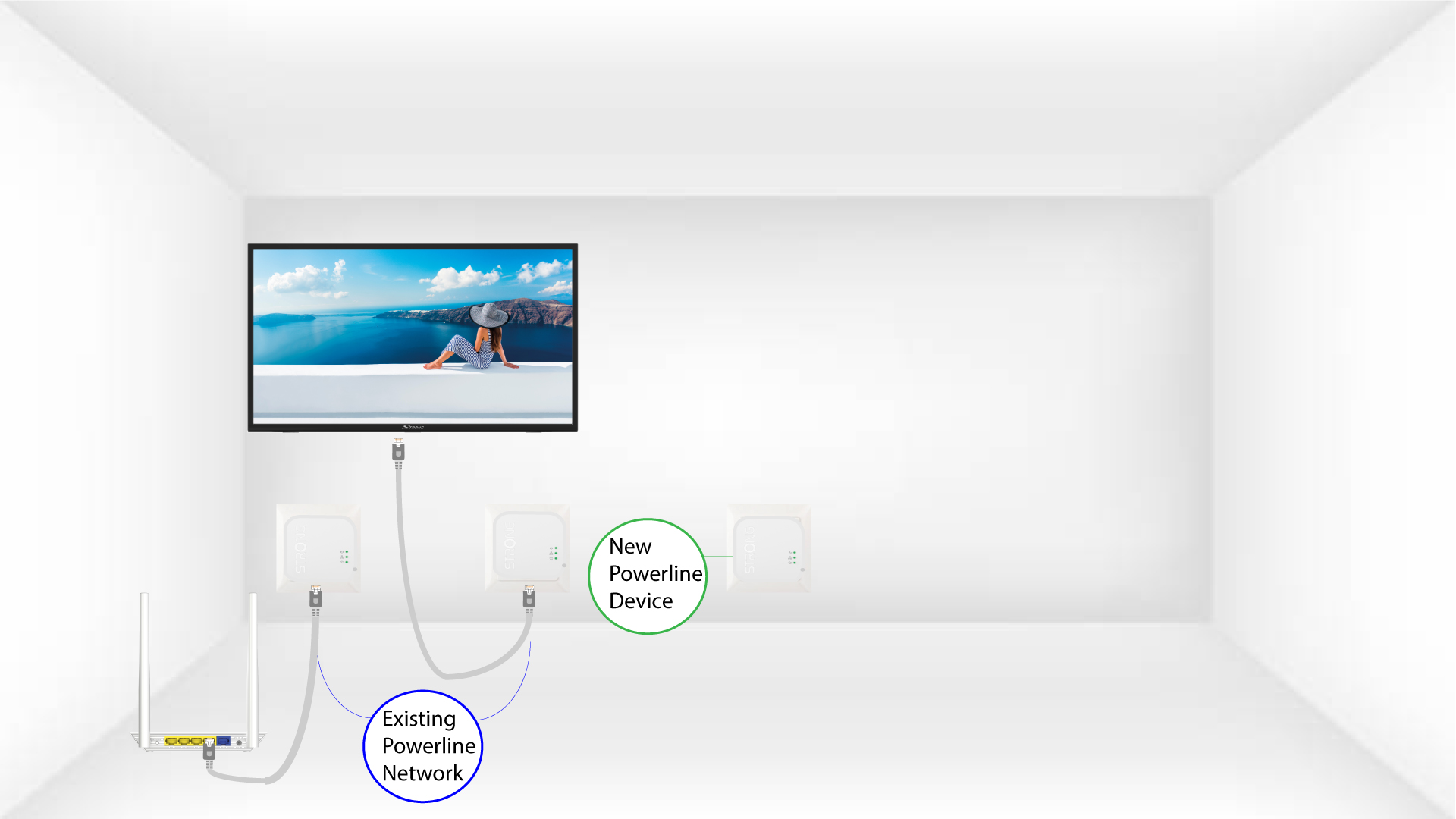
1Plug the adapter to a socket
Plug the additional device(s) in a power socket.
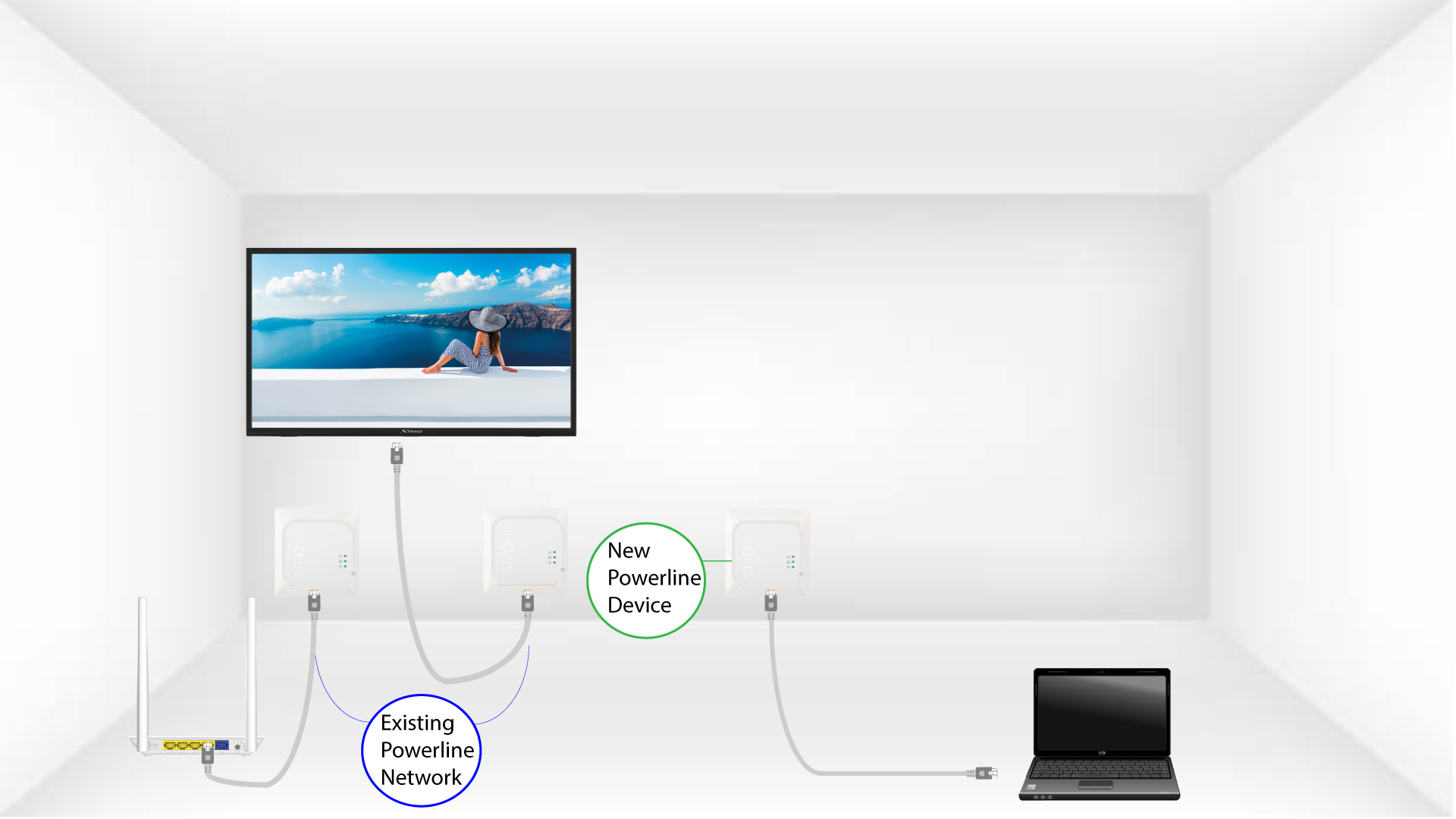
2Connect the adapters to the Internet
Connect the device to an internet router/gateway by RJ45.
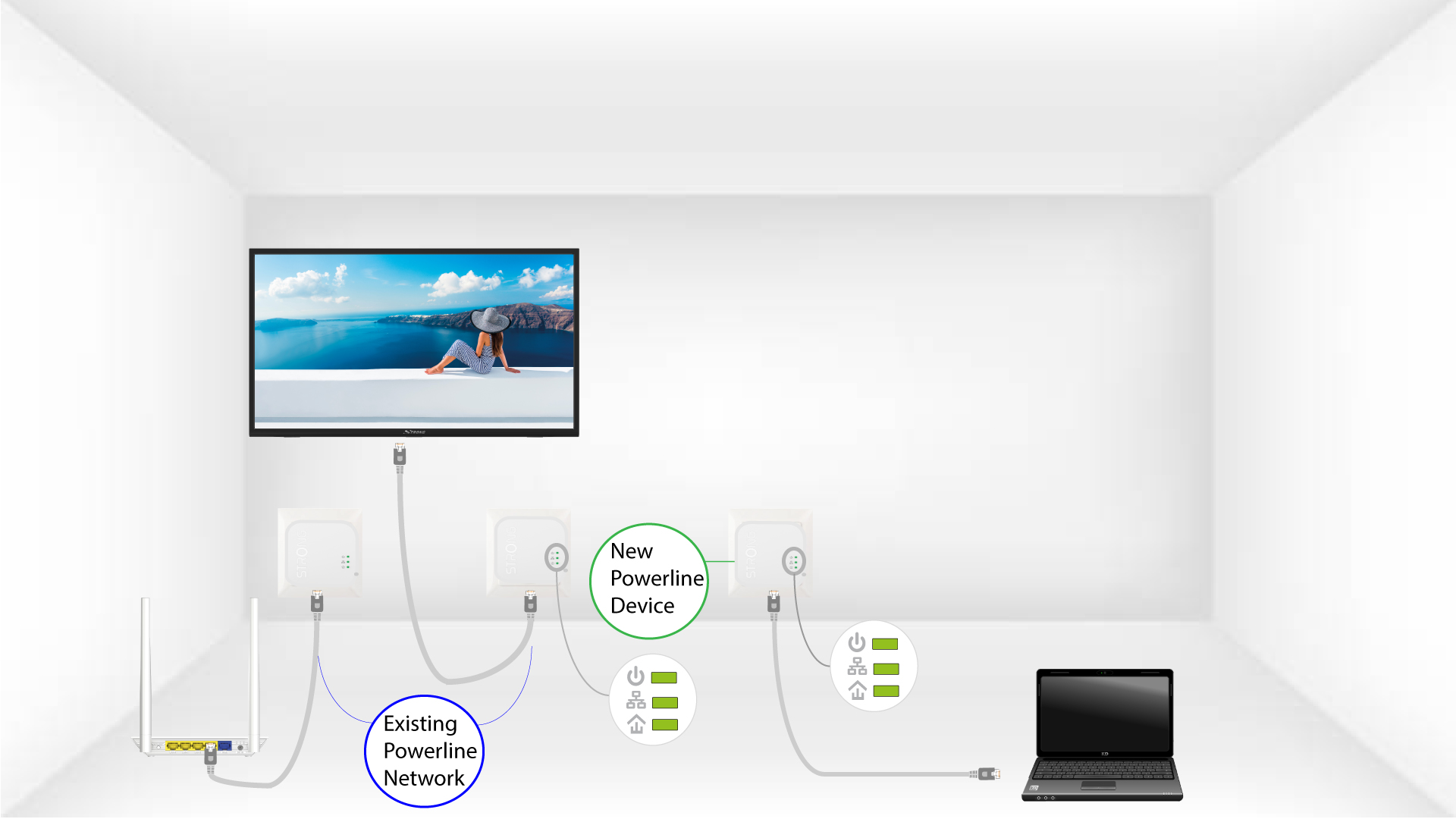
3LEDs are green
After plugging the new device, all the LEDs are green on all the devices.
How to choose the right high security level configuration for your powerline network?
When setting up your powerline network, you can choose between two different high security configurations: High Security Level 1 and High Security Level 2.
• High Security Level 1 is the high security level that is natively implemented in our powerline products. The devices of your powerline network are protected by a default encryption key that is set up during the manufacturing of the product. This level provides a high security level that is suitable for consumer usage of the product. All our powerline products share the same default encryption key which enables you to use your powerline network right after plugging your devices. And you can also add new powerline devices to your existing STRONG network at any time and without any required configuration.
With High Security Level 1, your powerline network is already highly protected which ensures that even your neighbour cannot use your connection. How is that possible? To connect to your powerline network, someone must be directly in your flat or in your house. Your powerline network is more secured than any Wi-Fi network as it only uses your existing electrical wires which completely limits the radiation and the chances to hack your network.
Even if your neighbour is also equipped with the same powerline devices that have the same default encryption key, there is not even a slim chance for them to access your network due to all the signal losses encountered between the two flats/houses. Indeed, the signal must go through the two electrical meters (yours and your neighbour’s) which causes a loss of 20 dB on each side.
• High Security Level 2: Offers you an enhanced security experience by pairing your devices and generating a new unique encryption key for your powerline network. That is why, it is the perfect solution to comply with high security requirements when working from home. This security level is amazingly easy to configure on your STRONG powerline products as you just need to press the pairing button on each device for 2 seconds one after the other after installing all your devices. Please make sure that the RJ45 Ethernet connection is working on each device that you want to pair to avoid that your powerline devices switch to standby mode.
Moreover, your devices not only use one of two high security levels defined above, but their communication is also highly secured by the 128-BIT AES data encryption.
In other words, if you want a high performant, stable and reliable network, you can use our powerline products with their high security levels. The only decision you must make is if you will go with High Security Level 1 or configure High Security Level 2, which is up to you!

How to configure new powerline products with High Security Level 2 on your existing powerline network?
Please note that if you want to add more than one new powerline product, each product must be configured one after the other by following the same process. And not simultaneously. Typically, powerline adapters are paired by sets of two so if you need to add new powerline products to your network that is configured with high security level 2, you must follow the steps below.
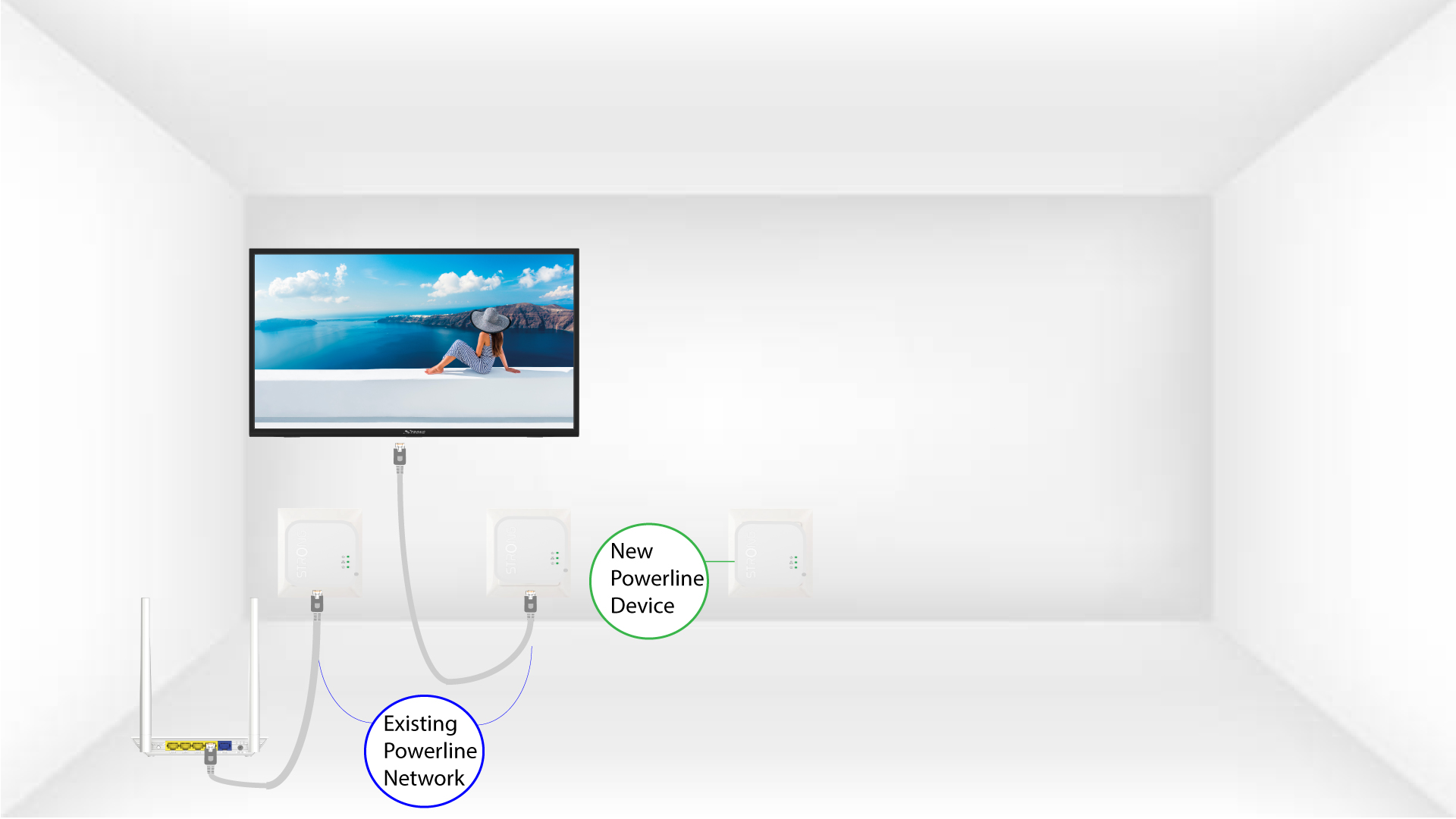
1Plug the new adapter to a socket
Plug the additional device(s) in a power socket.
2Connect the adapter to the Internet
Connect the device to an internet router/gateway by RJ45
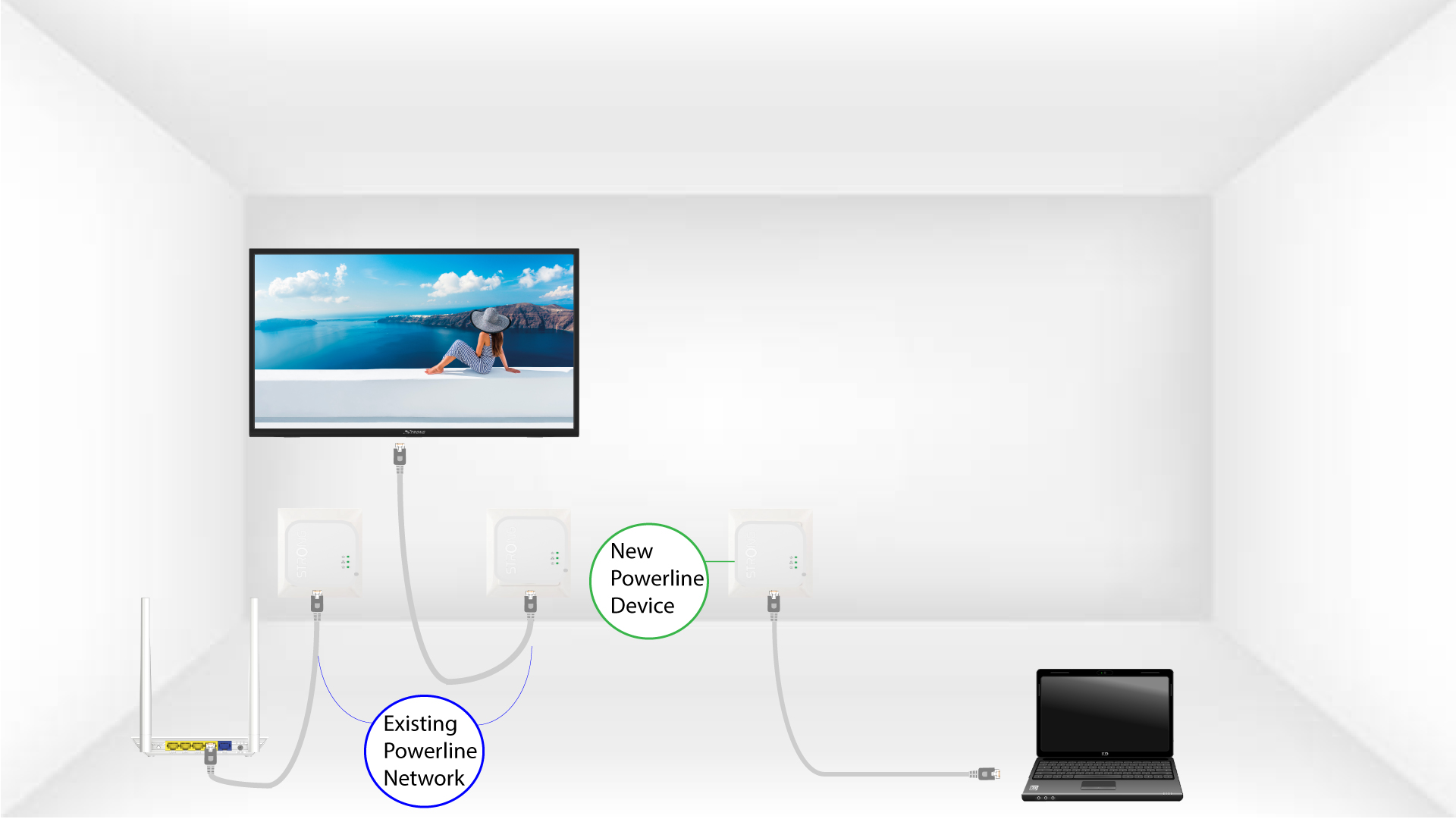
3Press the Connect & Secure button (existing adapter)
Press the “CONNECT & SECURE” button on one of the existing devices of the network for two seconds.
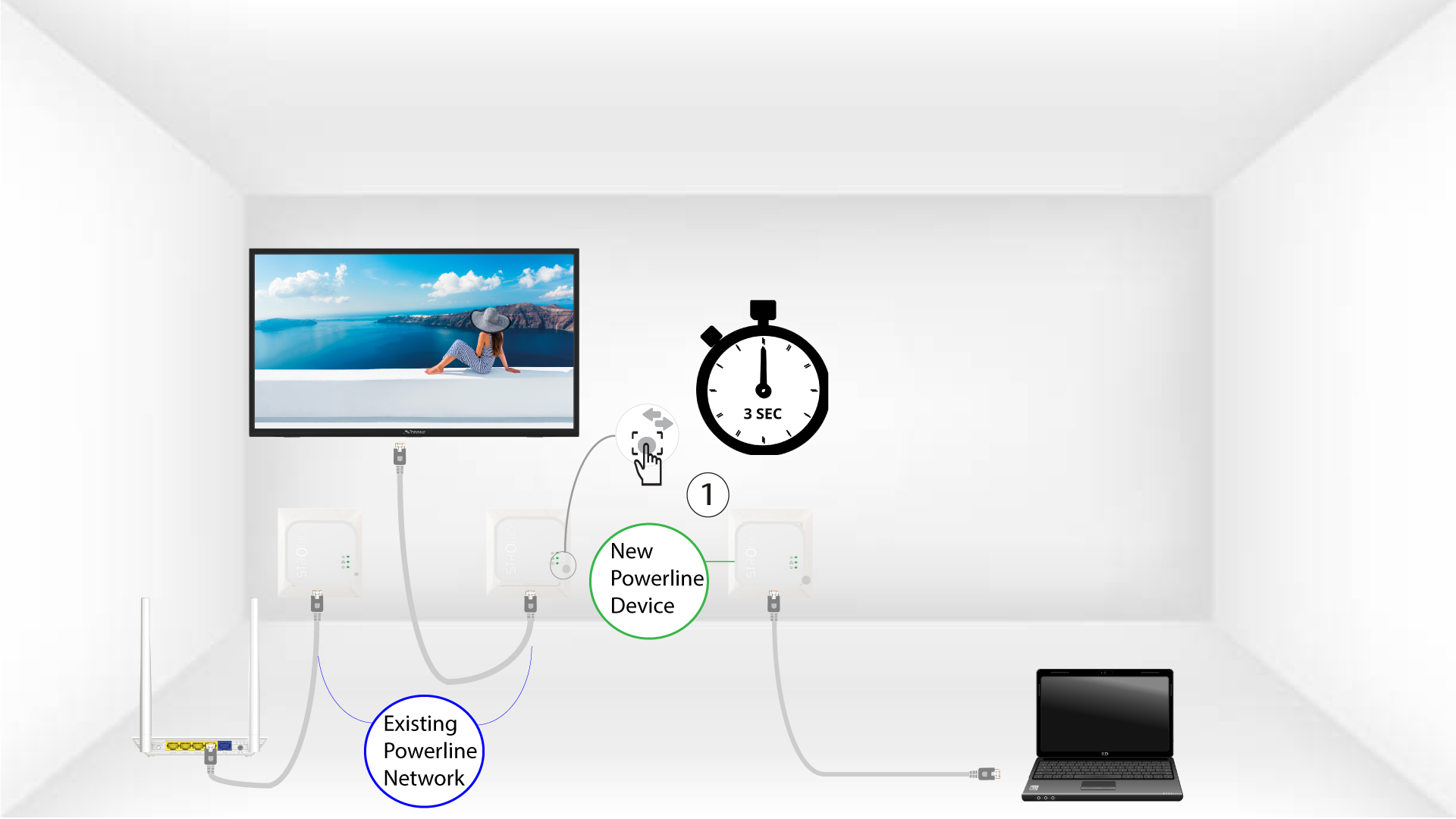
4Press the Connect & Secure button (new adapter)
Then, press the “CONNECT & SECURE” button of the new device for two seconds to add it to the network. You have up to two minutes to press the button.
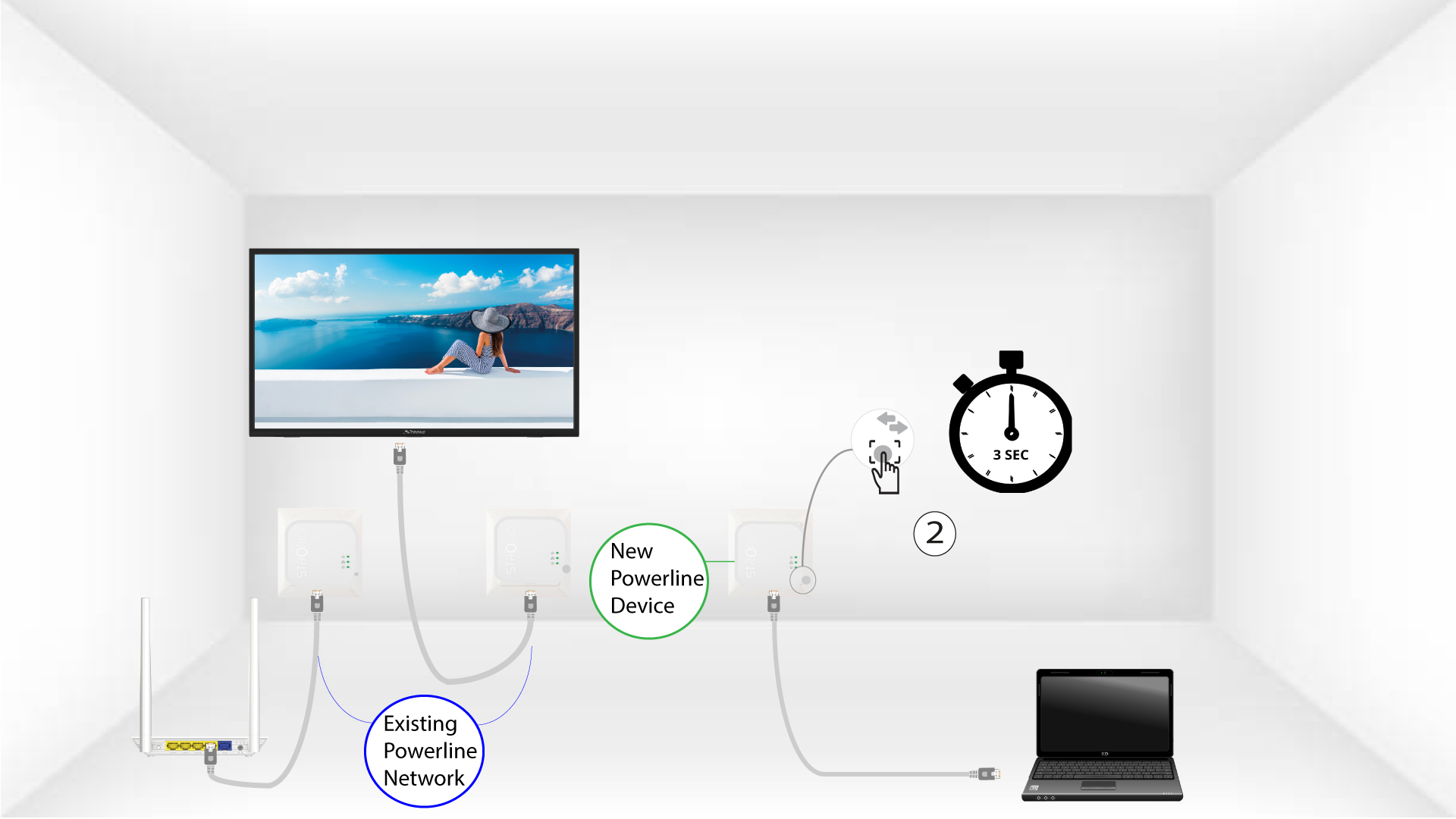
5Home LED blinks
The home LED should start blinking in green on the devices.
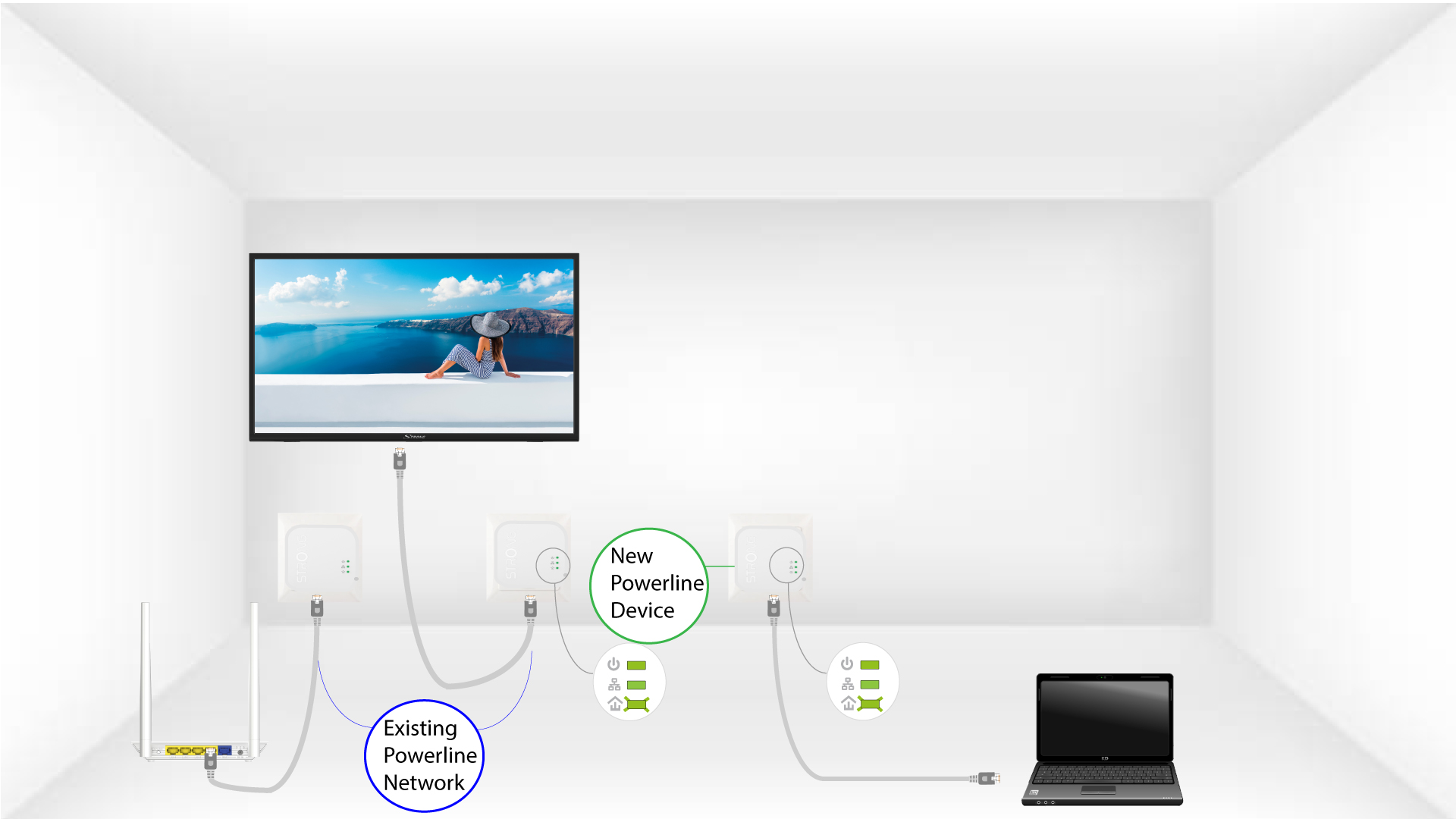
6LEDs are green
After adding the new device, the home LEDs should be green on both devices.
7The encryption key is set
Your new unique encryption key is set on the device you just configured.
How to configure your powerline network with High Security Level 1?
High Security level 1 is the default high security configuration level implemented on all our powerline products. You just have to plug your powerline devices and this high security configuration will be automatically implemented. Plug & Play. No action is required on the product.
How to set up High Security Level 2 on your powerline products?
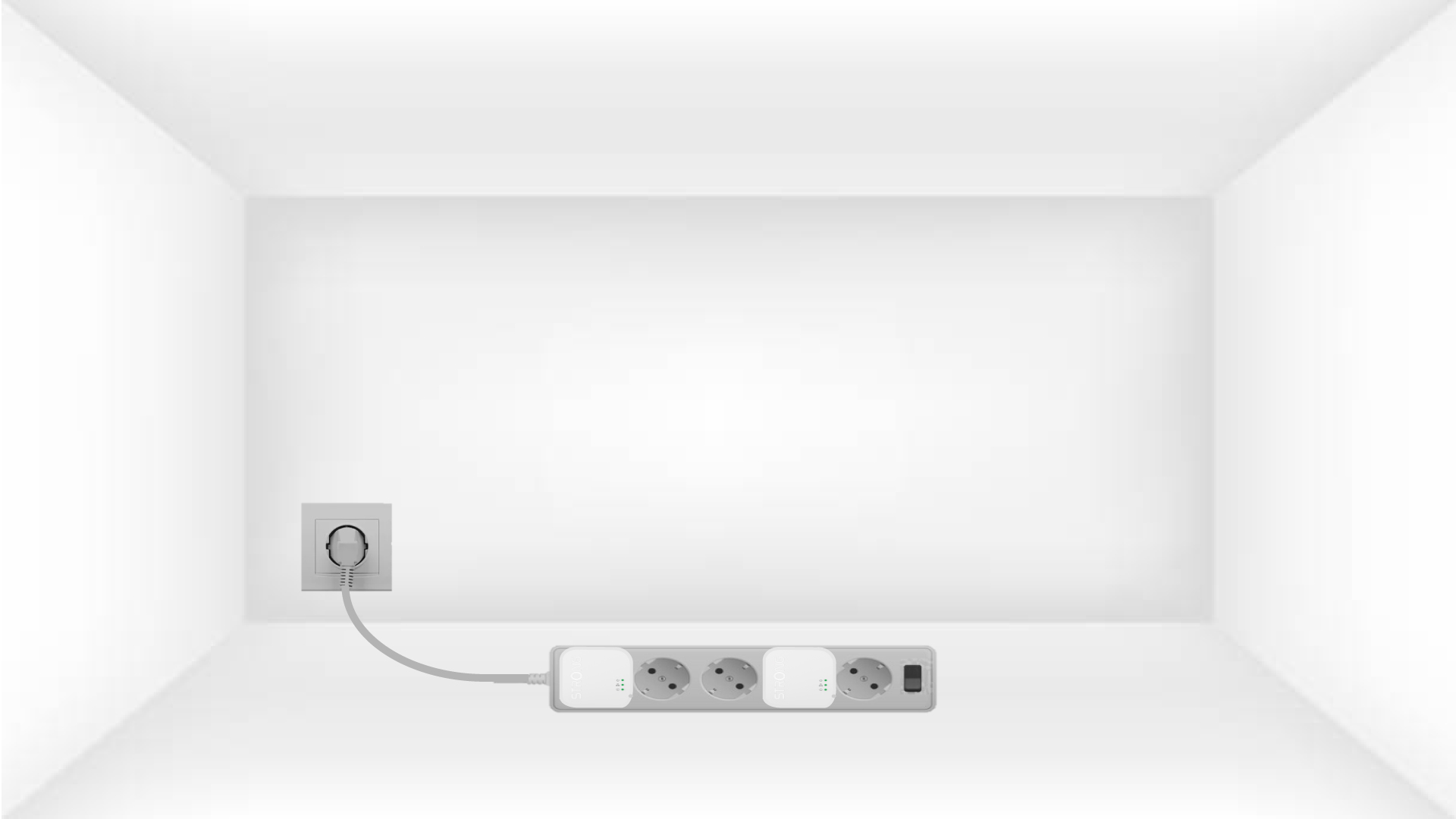
1Put the adapters on a power strip
Take a multiplug and plug all the powerline adapters on it.
2Connect the adapters to the Internet
Connect one of the adapters to the internet gateway/router with a RJ45 cable.
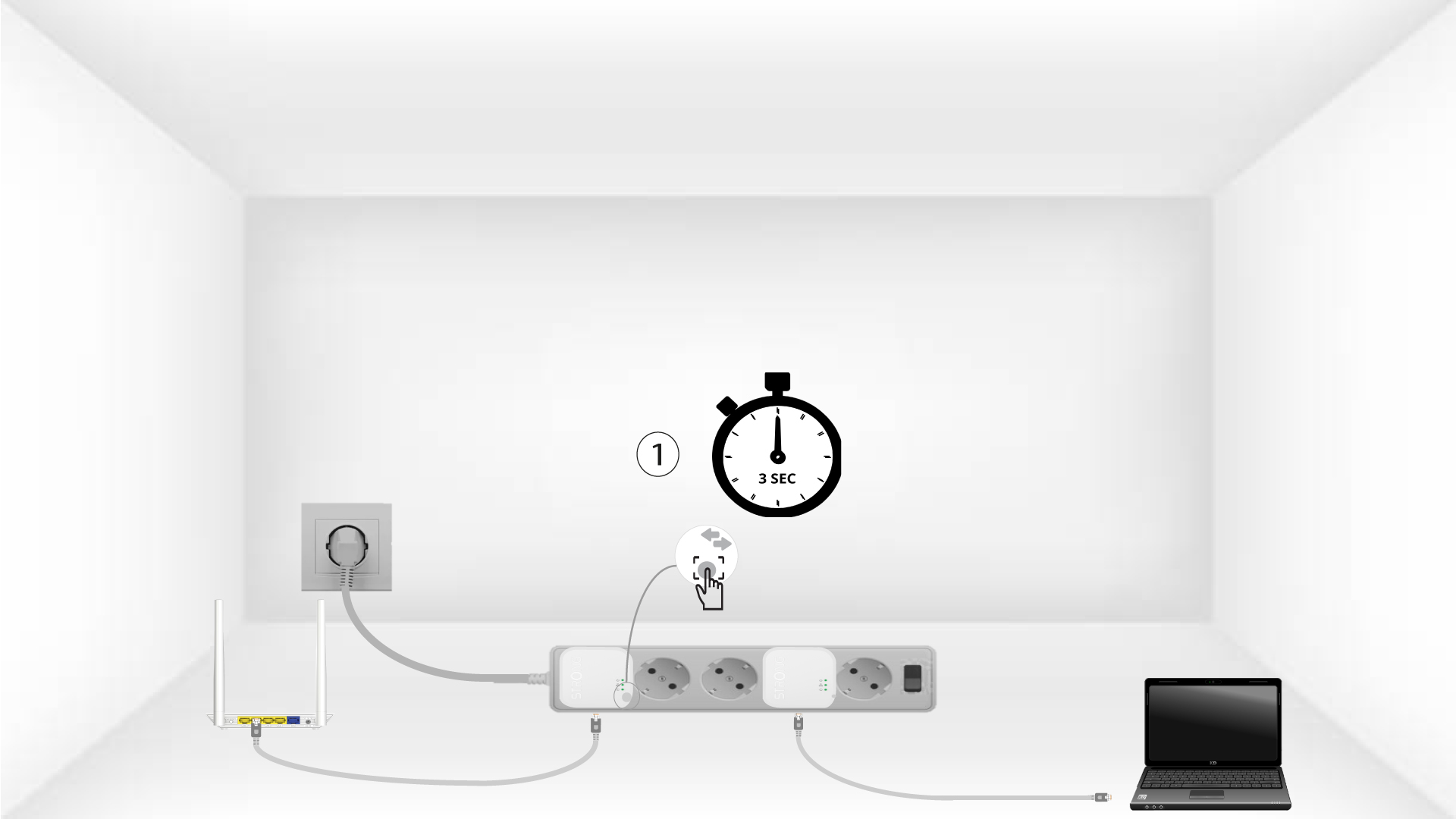
3Press the Connect & Secure button ( first adapter)
Then, press the “CONNECT & SECURE” button for 3 seconds on the first device.
4Press the Connect & Secure button (second adapter)
Press the “CONNECT & SECURE” button on the second device for 3 seconds. You have up to two minutes to do it.
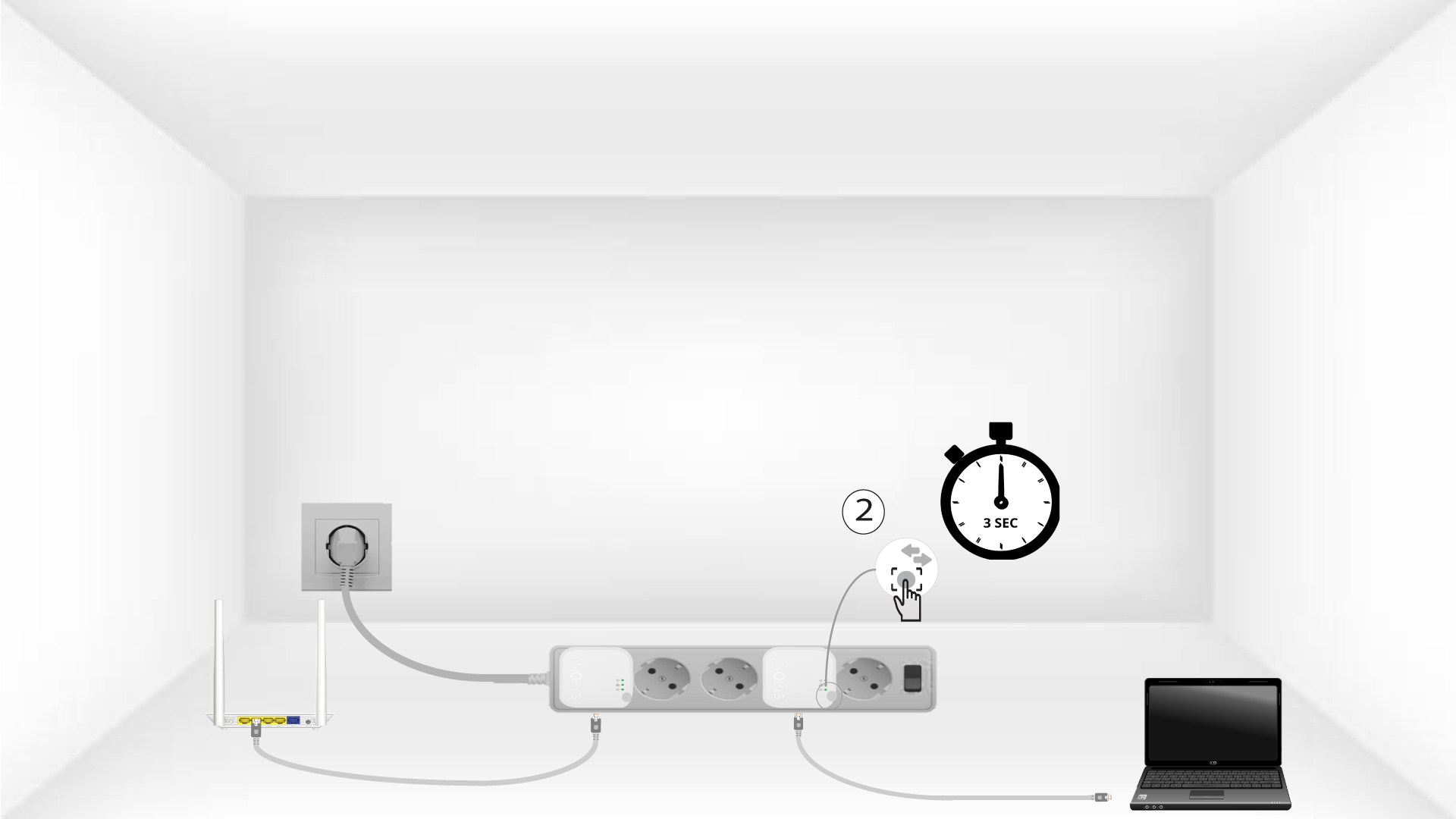
5Home LED blinks
The home led should blink on the two devices.
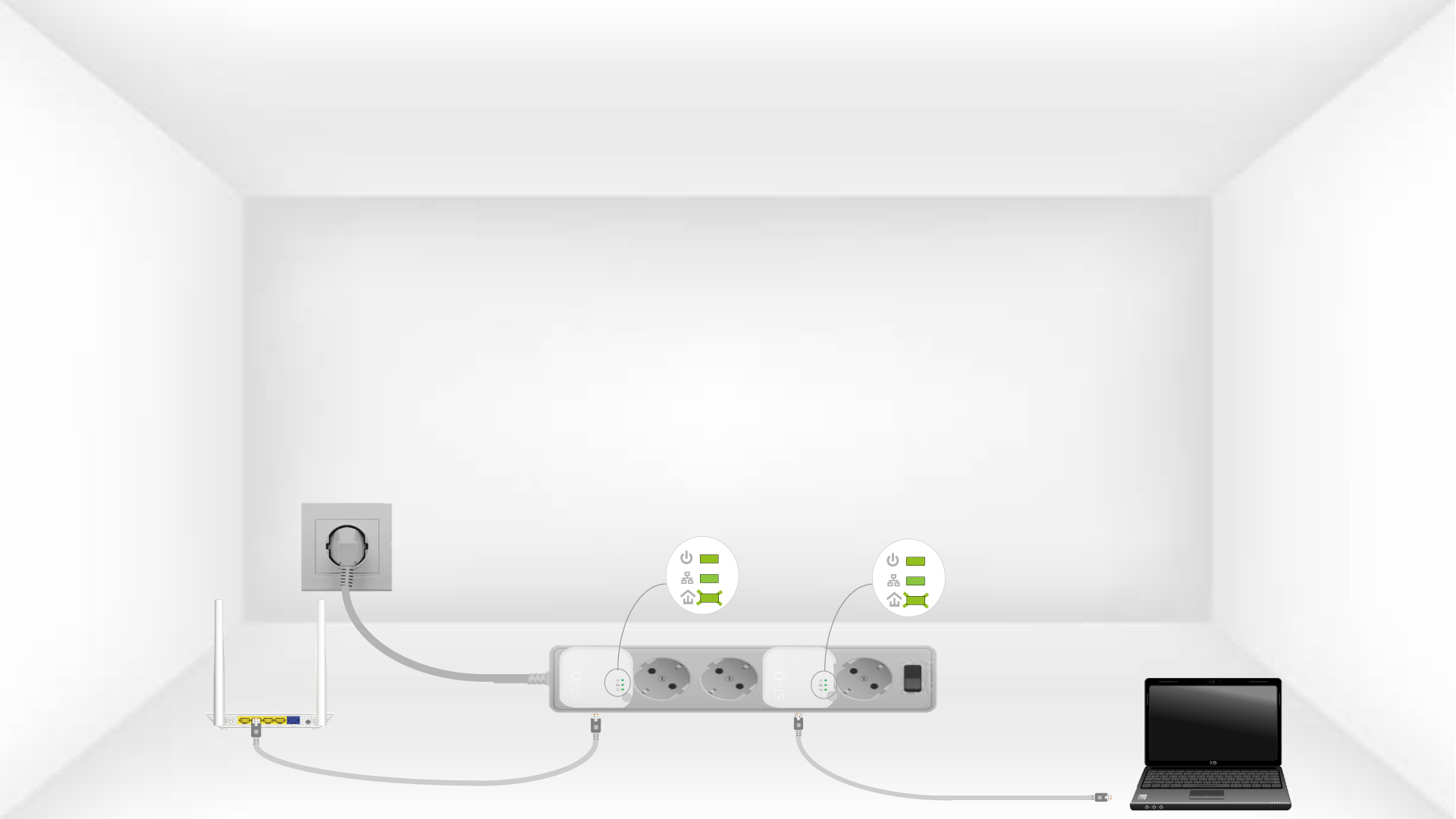
6The encryption key is set
Your unique encryption key is now set, and all the LEDs of the devices should be green.
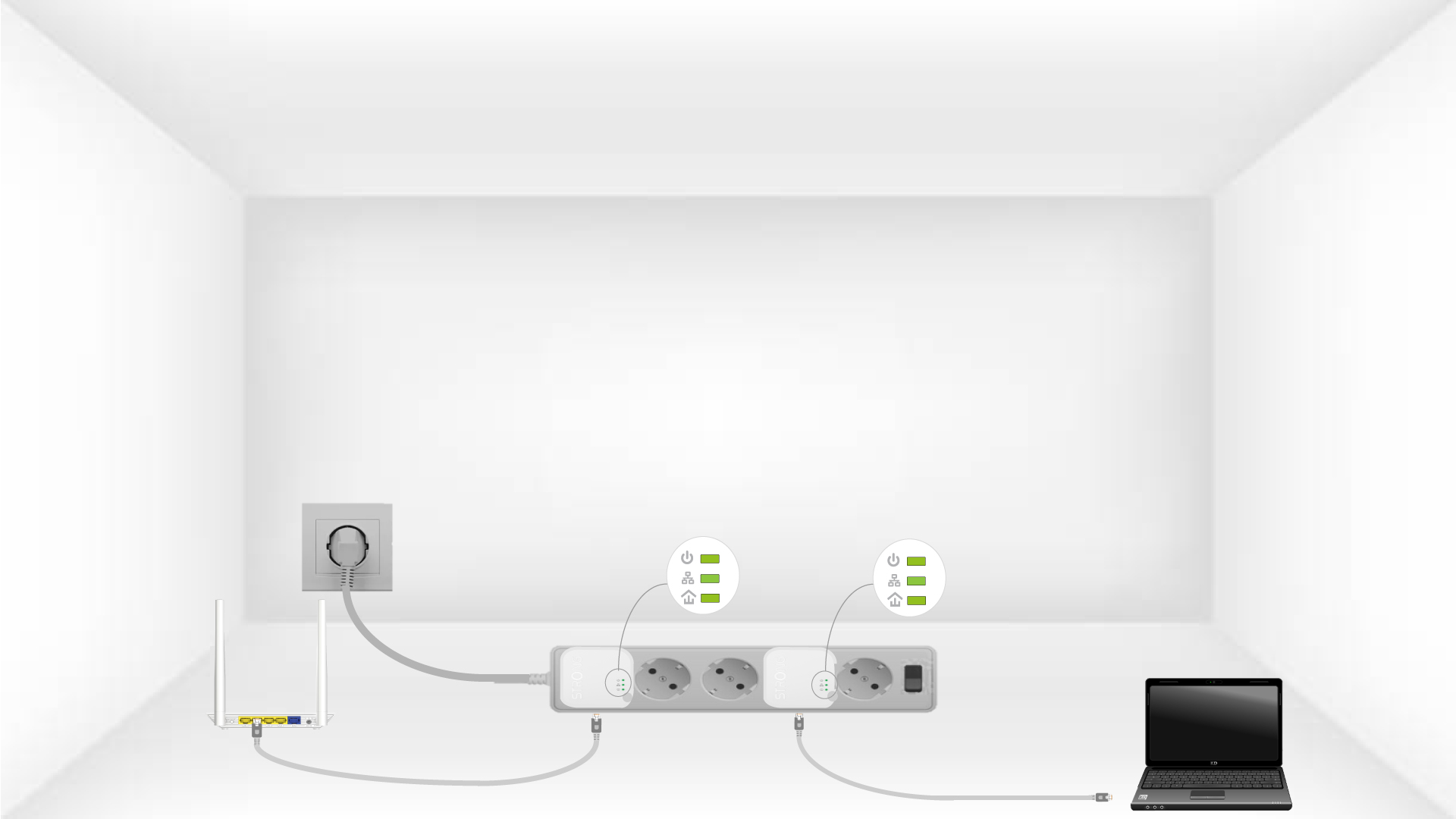
Now, you must install the adapters in the rooms where you need them. We strongly recommend not to put the adapters on a power strip.
I receive Internet via fibre, is a Powerline 1000 Mini suitable?
A Powerline 1000 Mini is sufficient, it will allow you to benefit from all the potential speed offered by your internet service provider. If you want a powerline network that matches your fibre optic speed, you must ensure that your electrical installation complies with standards and use powerlines equipped with Gigabit ports. Powerlines 1000, 1200, 1300 or 2000 are equipped with them.
The Internet speed is much lower at the output of the powerline network compared to the speed at the output of the Internet service provider's box. Why?
The data rate displayed on the Powerline 1000 (as well as all Powerline 1000 on the market) is the maximum data rate used for the transmission of signals on the link. The useful speed is lower than the maximum speed because the transmission of data always requires a significant use of the band, which reduces the available bandwidth.
The quality of your electrical installation can further reduce the available bandwidth and you will usually get less than 1000 Mbps.
An overly extensive or old electrical installation can significantly increase the data rate loss. Potentially disruptive electrical devices left plugged in unnecessarily can also significantly increase throughput losses. (e.g., telephone charger, power transformer, etc.).
For information, to transmit an HD signal, 5 Mbps is sufficient, to transmit a UHD (4K) signal, 20 Mbps is sufficient.