
Powerline 1000 Duo Wi-Fi EU V2
All questions
LEDs, buttons and ports
Create a new Wi-Fi Hotspot at a speed up to 1200 Mbps in minutes by using your existing electrical wiring and any power socket!
Do you have trouble to cover some areas of your home with Wi-Fi? Do you need Wi-Fi in your loft, garret, basement or garden?
Simply connect the Powerline 1000 adapter to your existing Internet modem through an Ethernet port and you will immediately have an Internet connection available at any power socket at a speed up to 1000 Mbps. Then by using a Powerline 1000 Wi-Fi adapter, you can create two new Wi-Fi Hotspots (2.4 GHz and 5 GHz) in the room of your choice and extend your Wi-Fi home coverage in minutes. The 2.4 GHz Wi-Fi Hotspot has a speed that goes up to 300 Mbps. The 5 GHz Wi-Fi Hotspot has a speed that goes up to 867 Mbps.
Do not waste your power outlets! Use the extra noise filtered power socket!
The Powerline 1000 adapter is equipped with an extra noise filtered power socket. Why do you need it? Because you need to connect the Powerline 1000 adapter to your modem/router in a place where very often other appliances need also a power supply. Do not waste any power outlet. Plug the Powerline 1000 adapters directly into the wall outlet and use the extra noise filtered power socket to power your appliances or to plug in a power strip. The integrated noise filter reduces electrical interference and improves the performance of the Powerline communications.
I do not have access to the Internet and/or the LED of the "home" icon does not light up
You must reset the adapters to their factory settings. To reset the adapters, please follow the steps below.
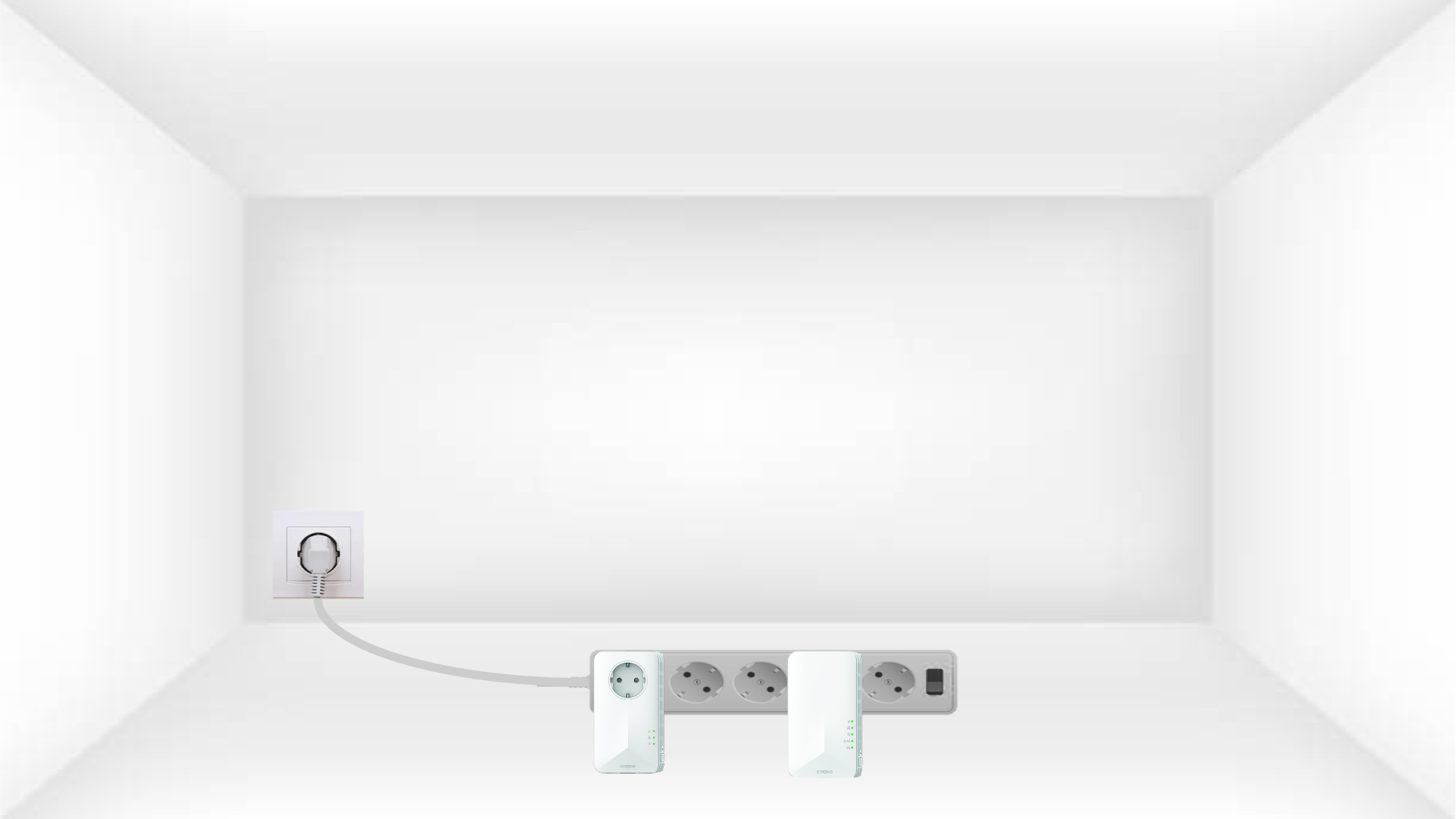
1Put the adapters on a power strip
Connect the adapters one after the other to a power strip.
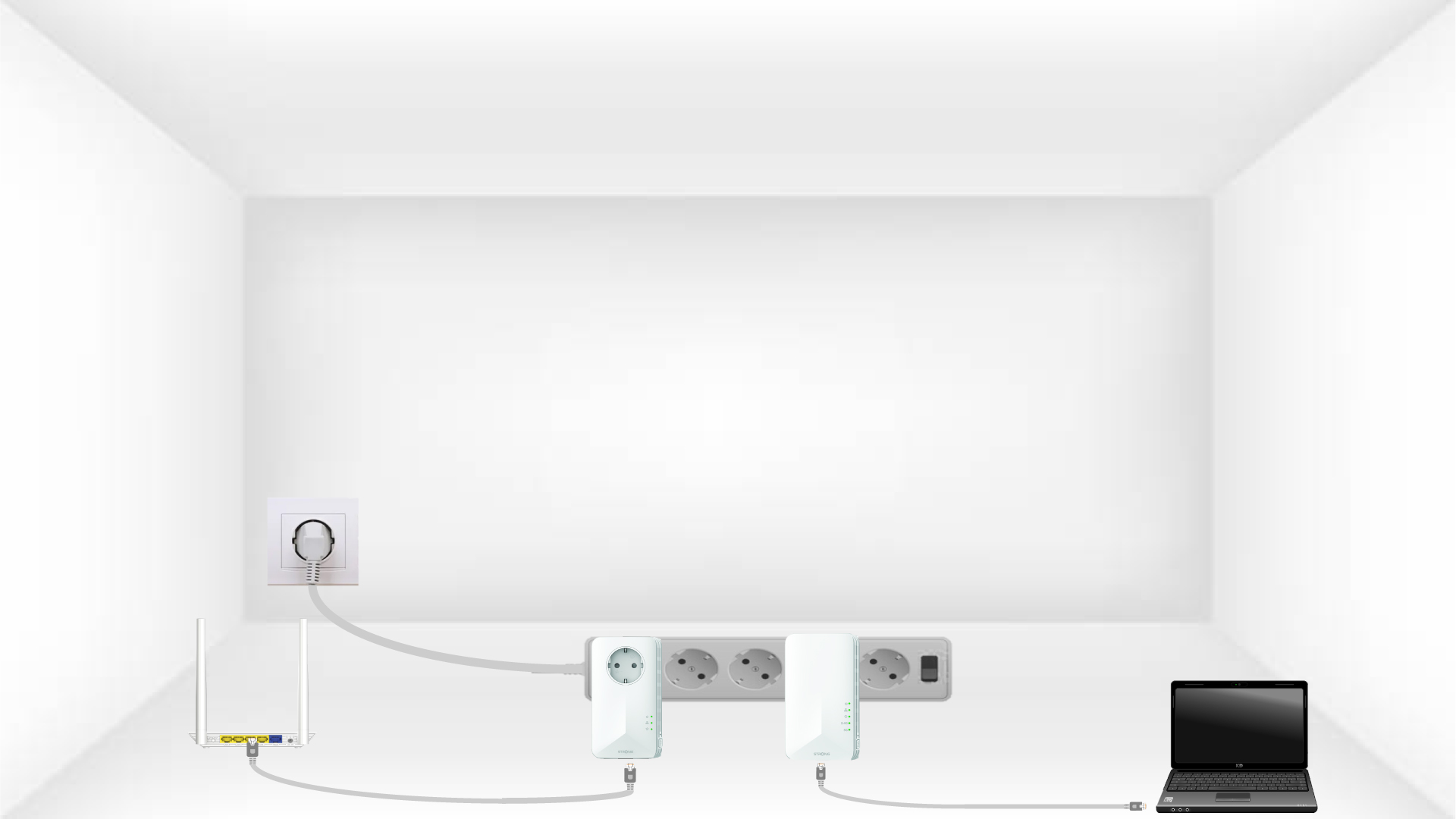
2Connect the adapters to the Internet
Connect each adapter to a working device (internet router/gateway, Android box, Smart TV, computer, etc.) with an Ethernet cable. There must be a communication between the devices otherwise the adapter will automatically go into standby mode.
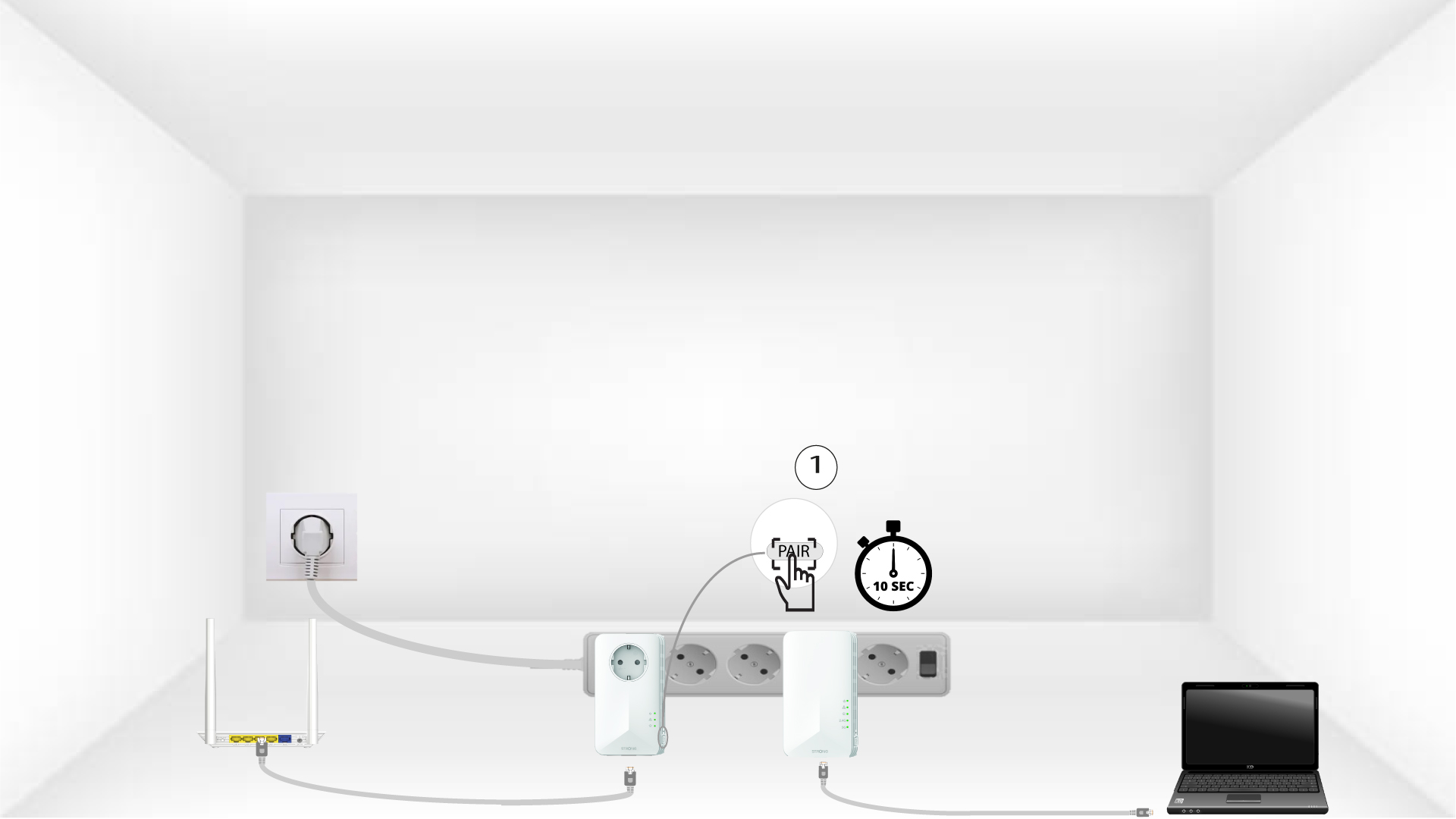
3Press the PAIR button (first adapter)
Once the adapter is plugged in and connected to the Ethernet, simply press the “PAIR” button on the right side of the device for 10 seconds.
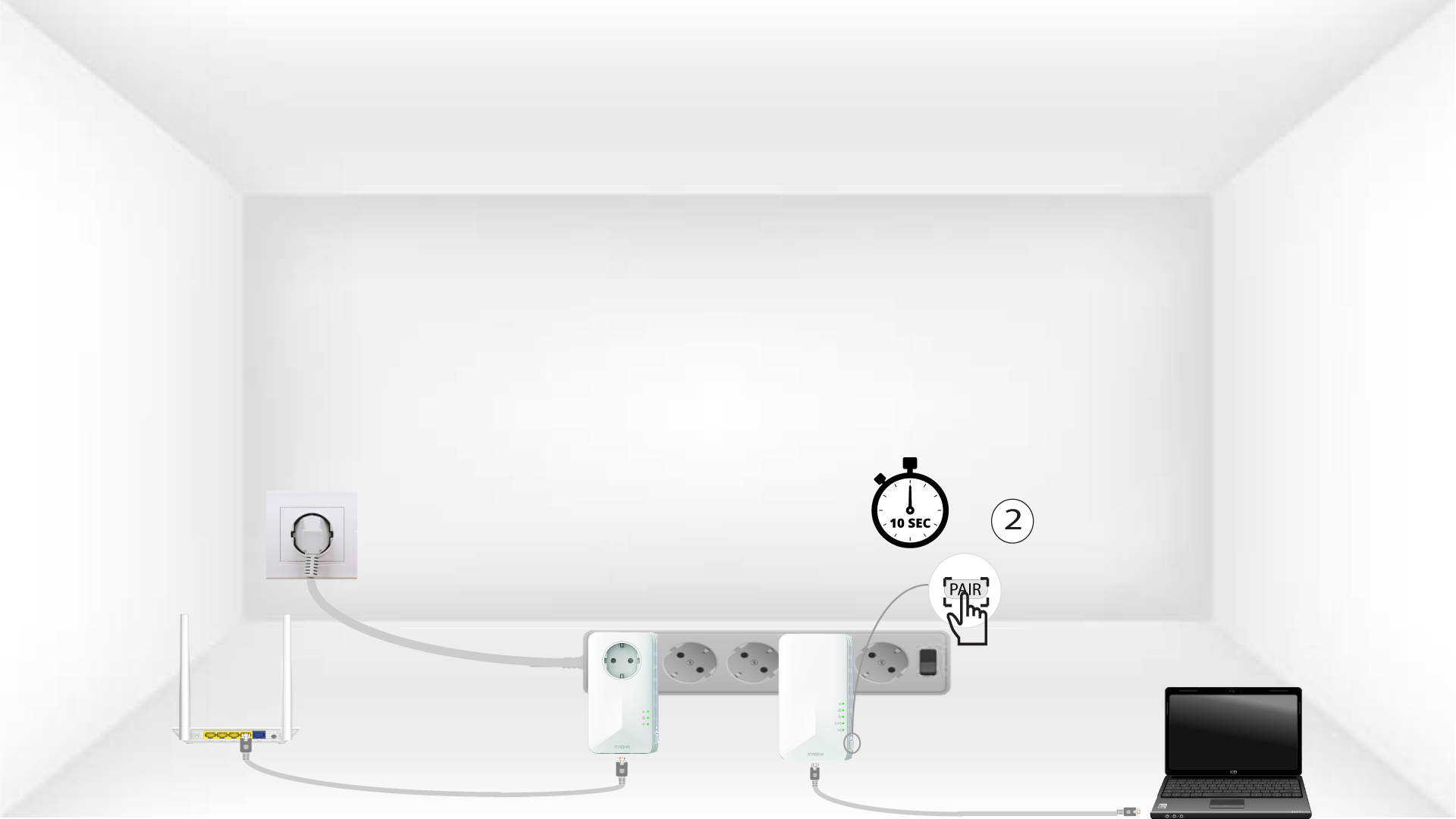
4Press the PAIR button (second adapter)
Press the “PAIR” button located on the right side of the second device for 10 seconds.
5Home LED blinks
The home LEDs should start blinking.
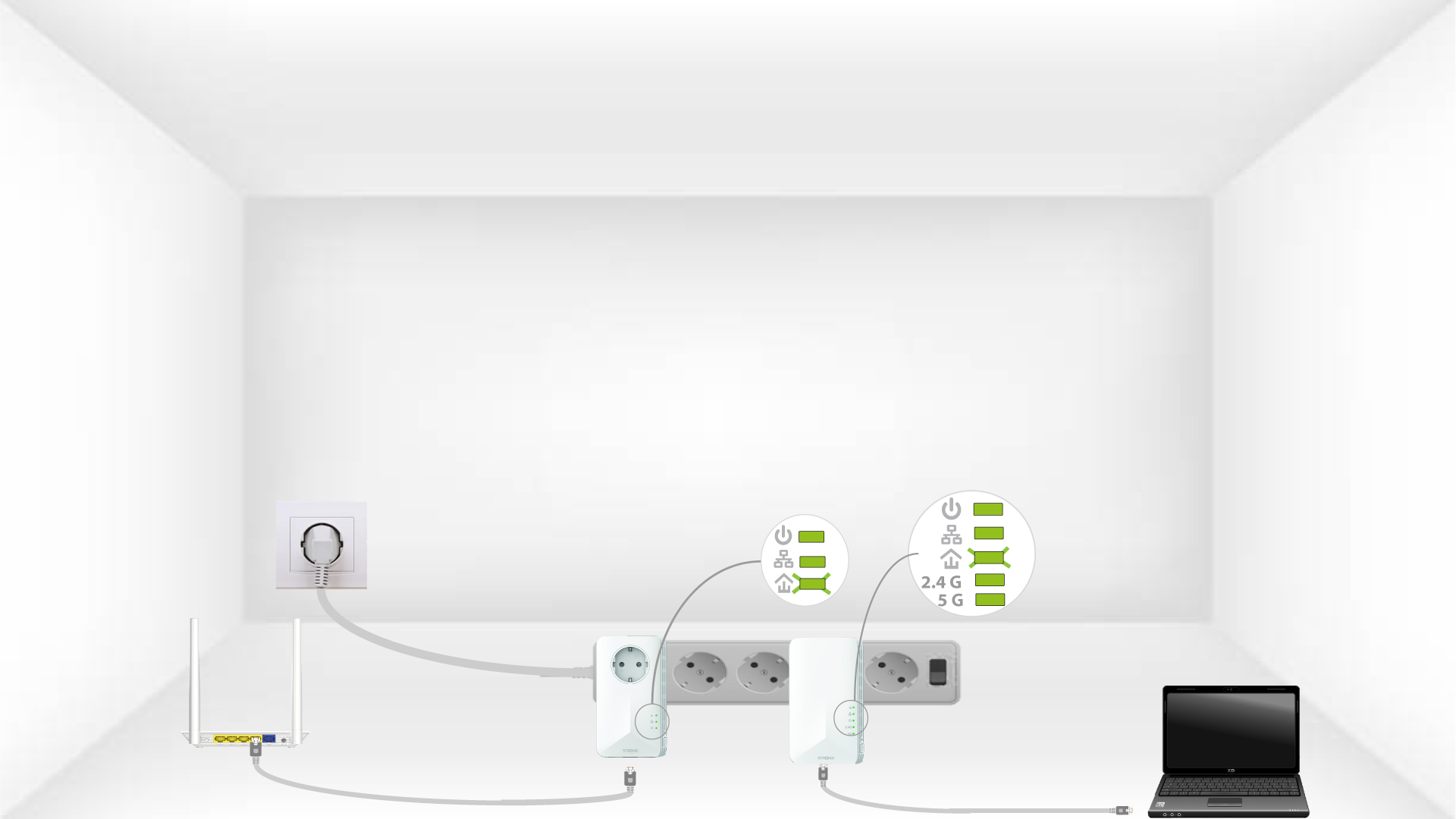
6Adapters are reset
All the LEDs must be green at the end of the operations.
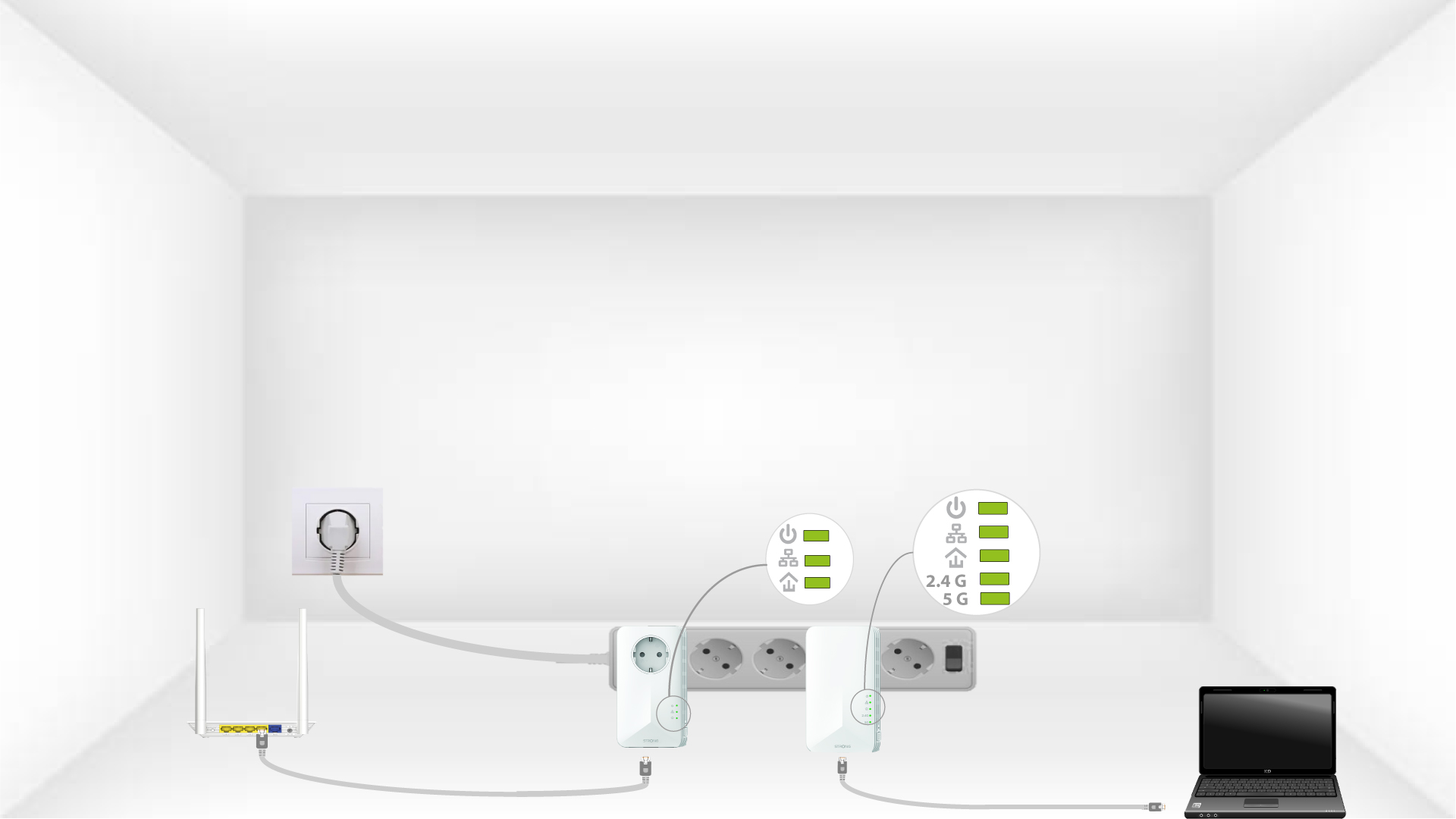
Repeat the same operation for a third powerline. You can have up to eight Powerline 1000 on the same electrical installation.
After resetting all the devices, you can put them in the room where you need them.
Internet everywhere from any power socket!
The Powerline 1000 Wi-Fi Duo which includes a powerline 1000 adapter and a powerline 1000 Wi-Fi adapter, create a high-speed home network effortlessly by using your home’s existing electrical wiring at speeds up to 1000 Mbps. No new wire is required! Connect computers, consumer electronics and network compatible devices to the Internet in any room and any floor of your home by simply using a power outlet.
The home icon LED is lit on the Wi-Fi adapter, but I cannot connect to the Wi-Fi network of the Powerline 1000.
1Connect to the powerline Wi-Fi network
To connect to the Wi-Fi Powerline for the first time, you must connect to the SSID indicated on the back of the product and use the Wi-Fi password also indicated.
Please note that the lower-case L can be confused with the upper case i, so please try the different possibilities
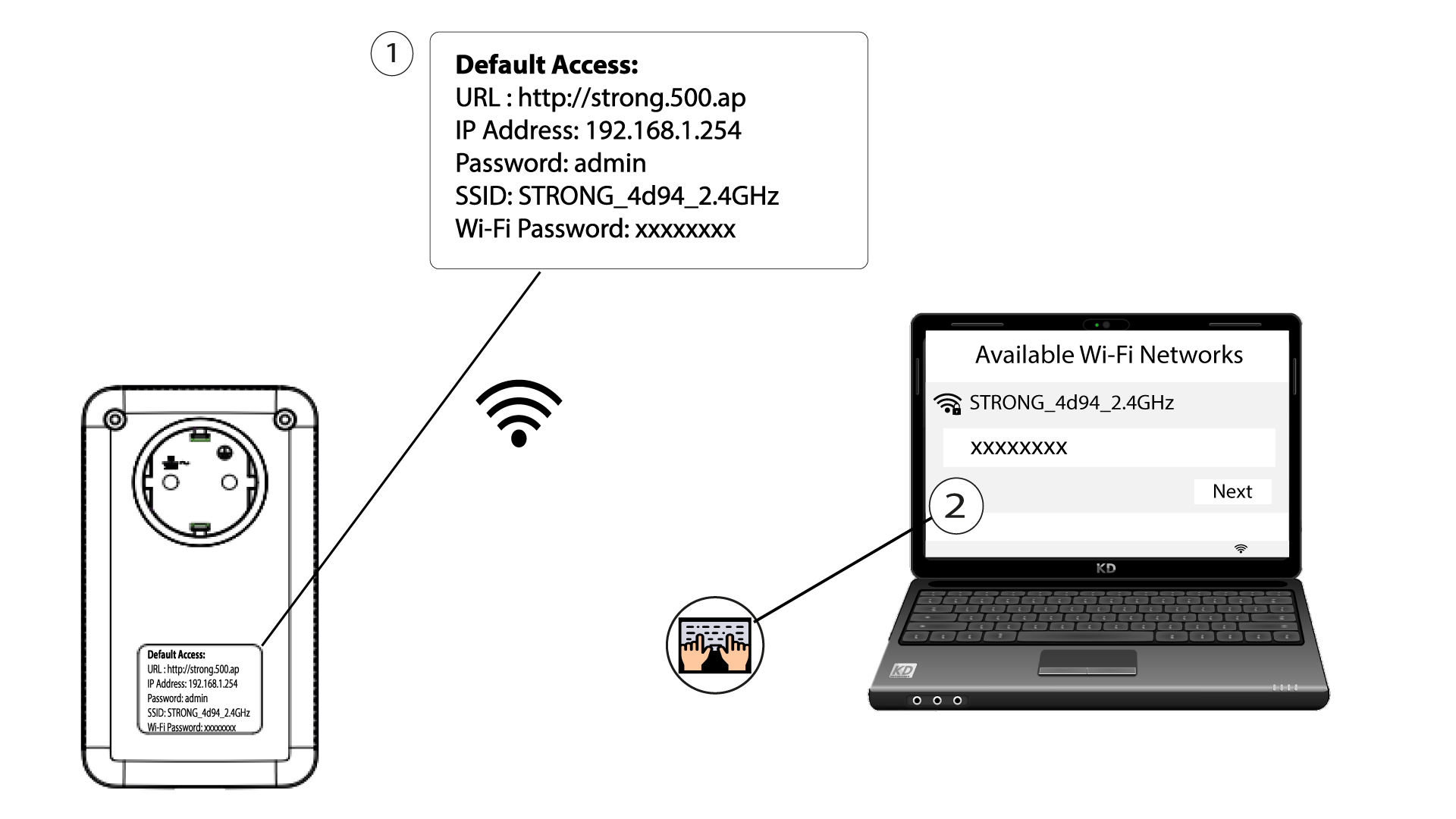
2Reset the powerline Wi-Fi adapter
If you still cannot connect to the Powerline 1000 Wi-Fi. Please, Reset the Powerline 1000 Wi-Fi by inserting and pressing a paper clip in the reset hole until the Wi-Fi LED is flashing.
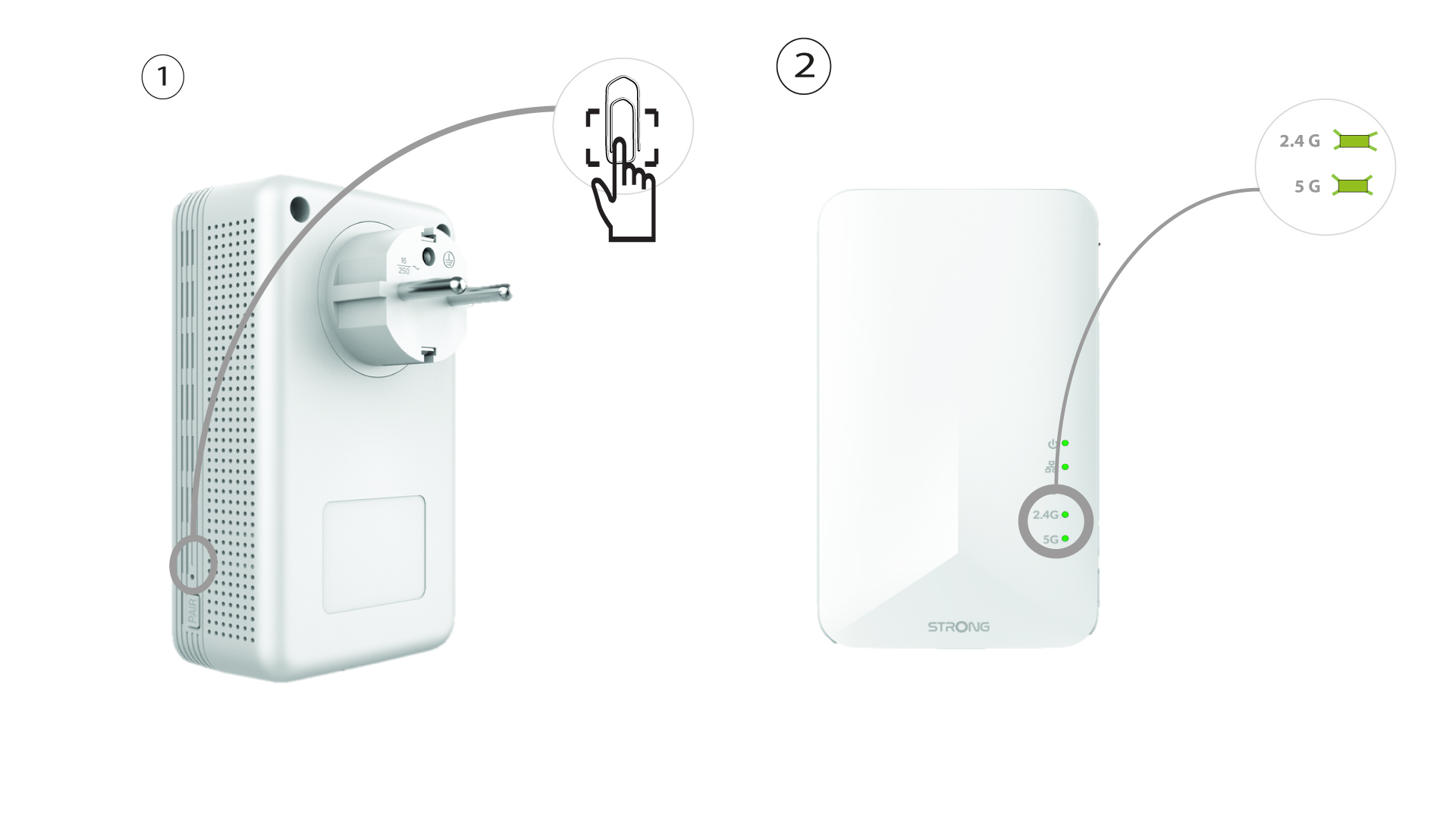
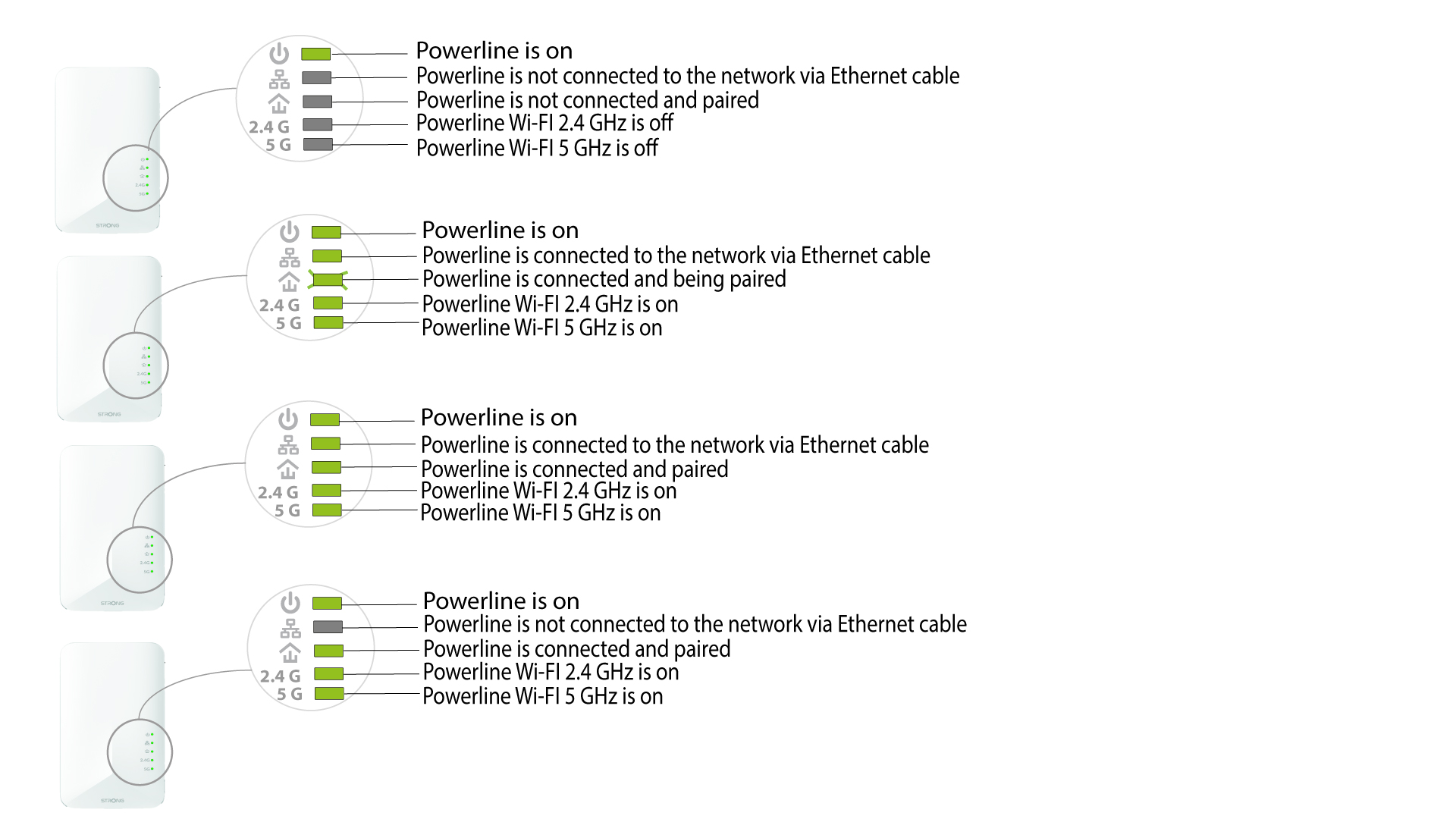
What do the icons and LEDs on the Powerline mean?
This illustration shows the different statuses of the powerline 1000 Wi-Fi adapter LEDs.
This illustration shows the different statuses of the powerline 1000 adapter LEDs.
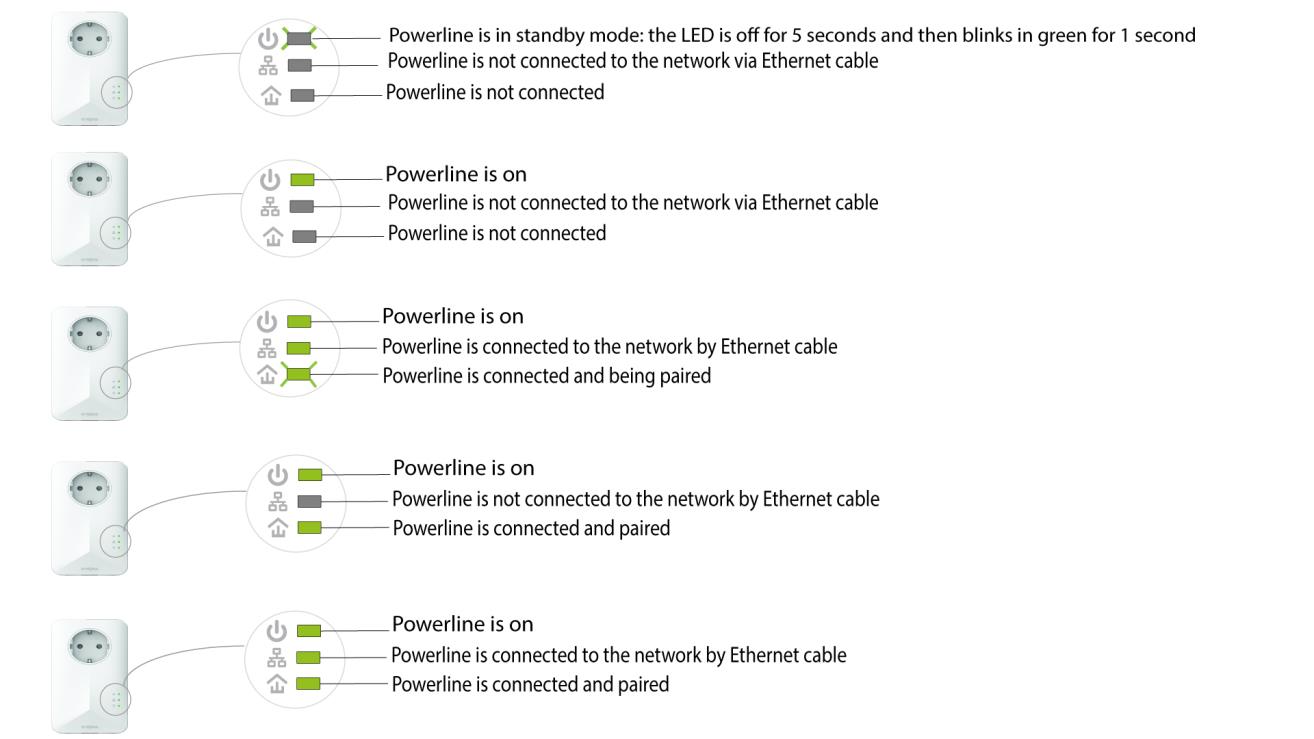
Why do the Powerlines switch off on their own?
This is normal, Powerline 1000 automatically switch to sleep mode if no activity is detected. When a signal is detected on the Ethernet port, the Powerline 1000 will turn back on. It may take a few seconds for a Powerline 1000 in standby mode to detect a new activity and turn back on.
The automatic power saving mode reduces your consumption up to 85%.