LEAP-S1
All questions
General information, support and warranty
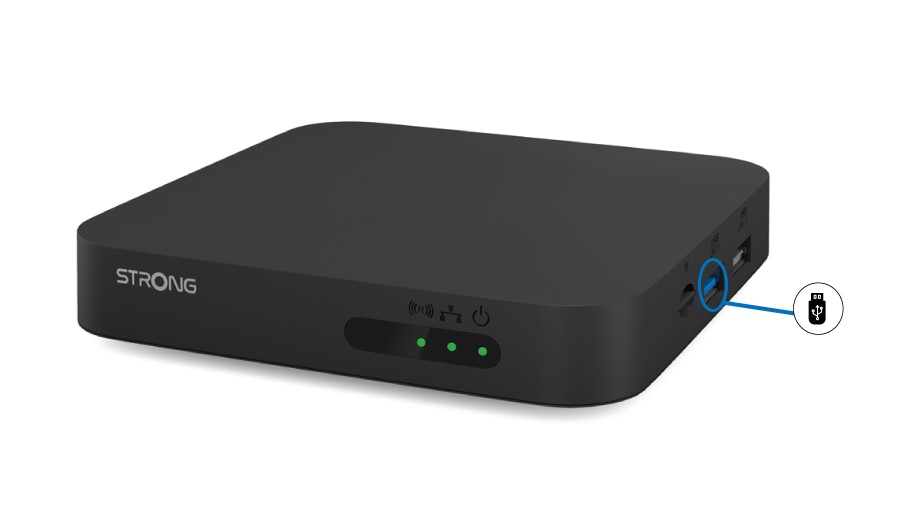
Does the LEAP S1 have a USB 3.0 port?
The LEAP S1 is equipped with 2 USB ports, only one is USB3.0, the one located in the middle on the following diagram (blue insertion tab)
How do I play and record multimedia content with the Leap S1?
1Case 1: Playingback content
The SD card port and the USB port of the Leap S1 allow the playback of multimedia files via the media player application you choose via the Play store. Search for « media player » in the Play store, a large choice is available.
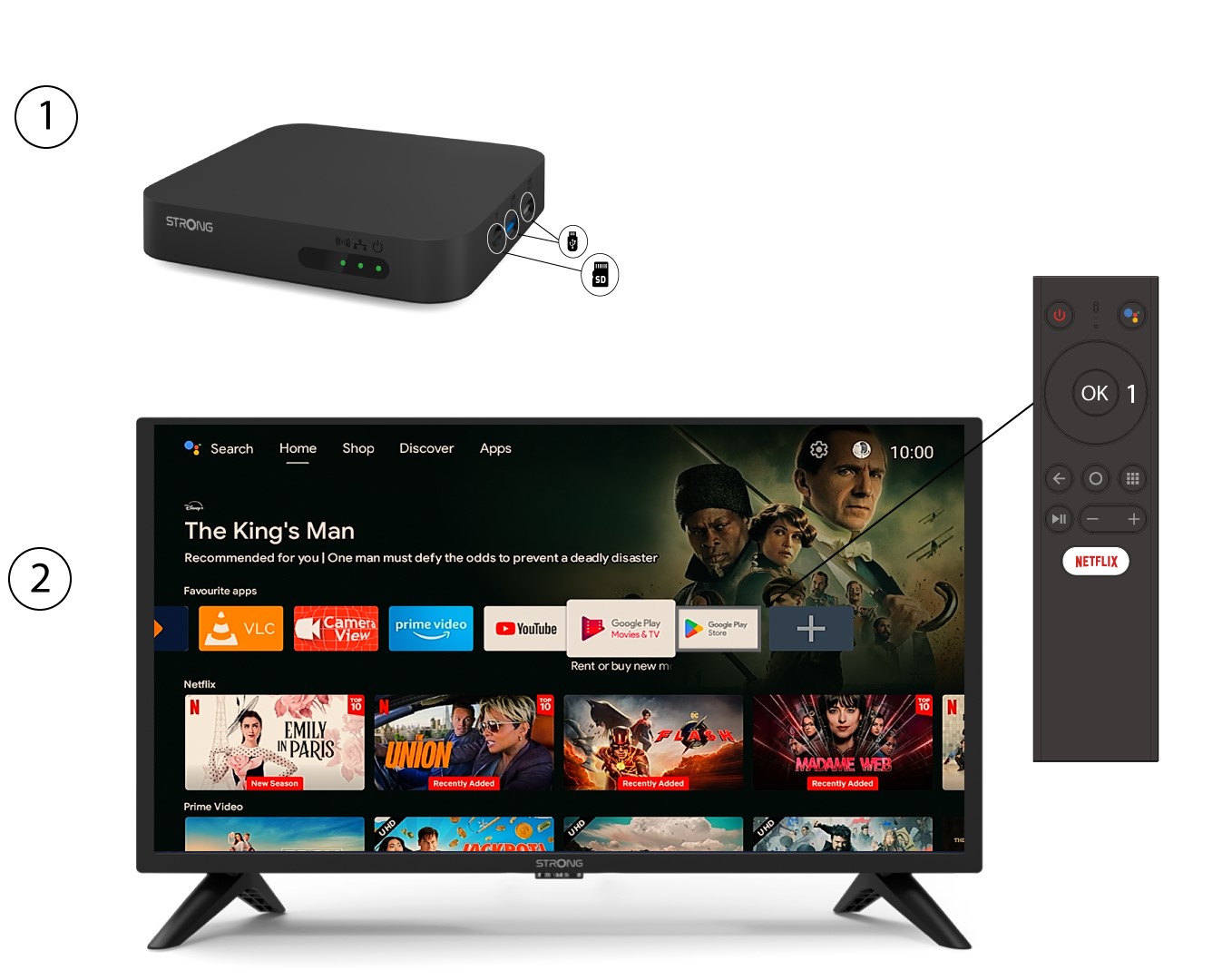
2Case 2: Recording content
The SD card and USB ports also allow you to record content using an appropriate application, search « record » in the Play store.
Also many streaming applications allow you to resume playback where you left off.
How do I troubleshoot issues on my device?
Issue | Possible Reason | Solution |
No LED of menu display after power on |
| Make sure the device is connected to the power |
No sound |
| Press the mute button to restore the sound and increase the volume. |
Failed to connect to the network |
|
|
Remote Control Failure |
|
|
Nothing is displayed on the screen |
| Make sure that HDMI/AV is selected as your TV input |
Voice search on remote is not working |
| See the Pairing Bluetooth Device section in this guide |
No Audio |
| Settings> Device Preference > Sound > Select formats Press OK to select “None” or try a “Manual” selection. |
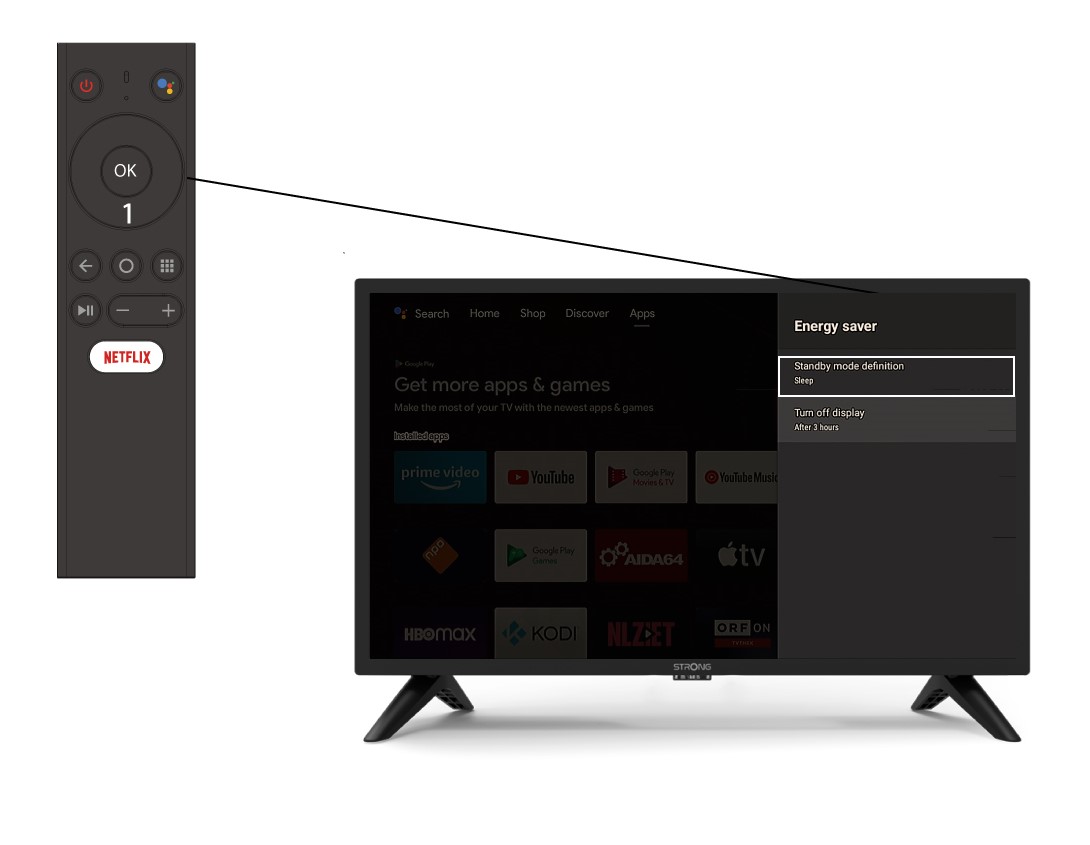
Why is the USB port inactive when the device is in standby mode ?
The Android 12 version takes into consideration the new European requirements in terms of energy saving. Under Android 12, USB ports are inactive by default when the device is in standby mode.
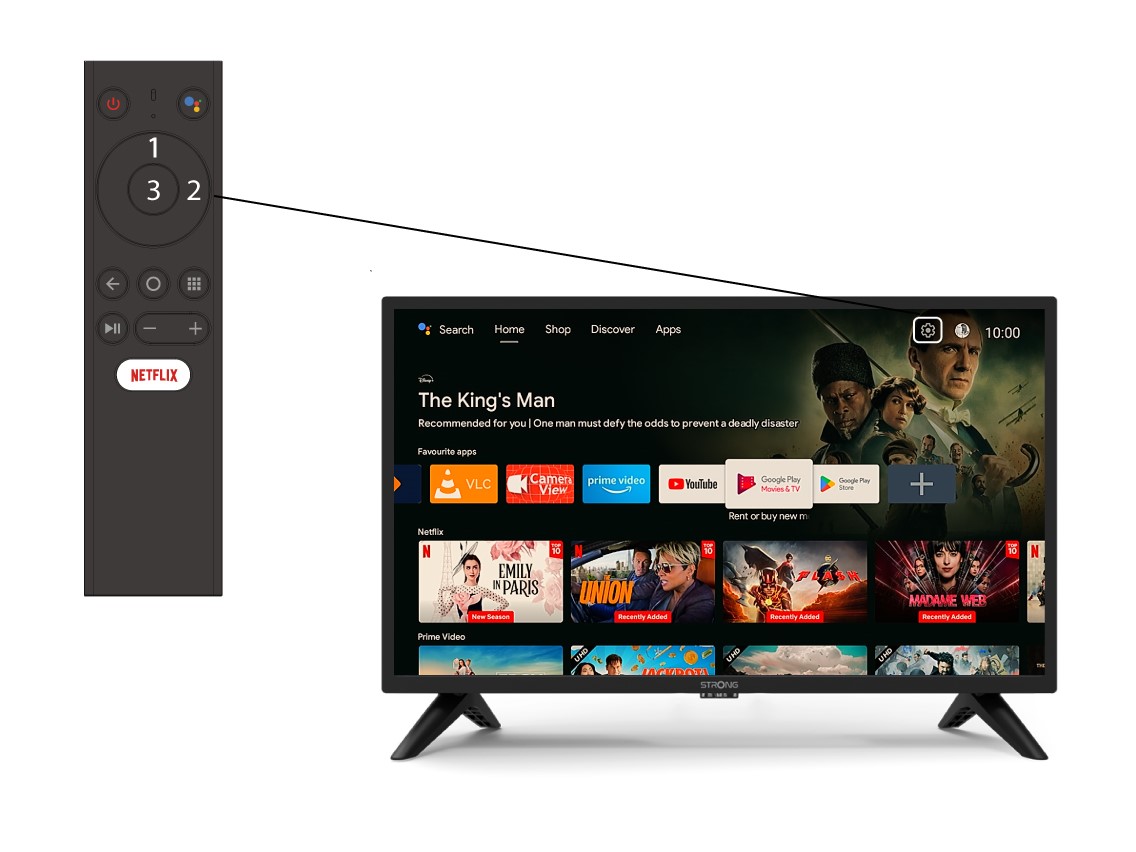
1Settings
Select the Settings Menu (Cogwheel icon) by pressing the top and right keys on your remote control and press OK.
2Devices Preferences
In the Settings Menu, select Device Preferences and press OK.
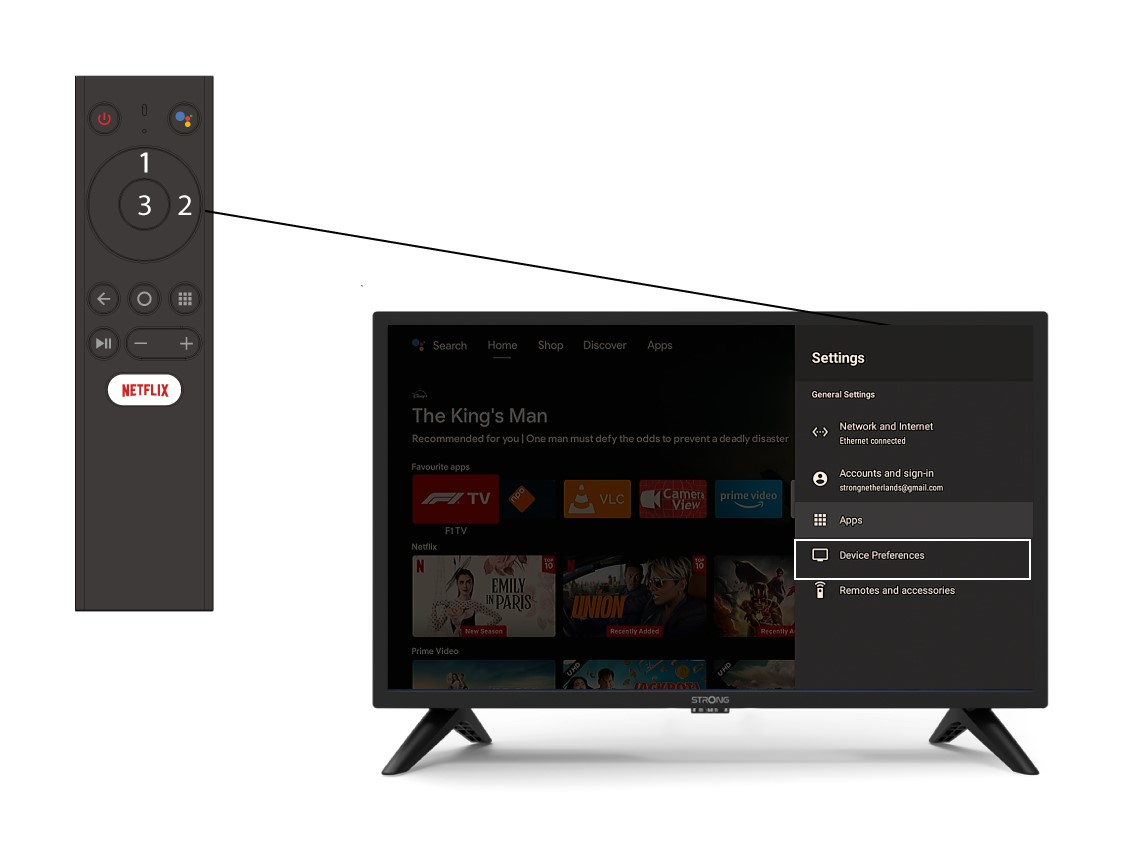
3Energy Saving
Select Energy Saving. Then in the energy saving menu, click standby mode definition and press OK.