
LEAP-S1
All questions
Apps, picture and sound
How can I add or remove an application from the home screen?
1Case 1: Adding an app
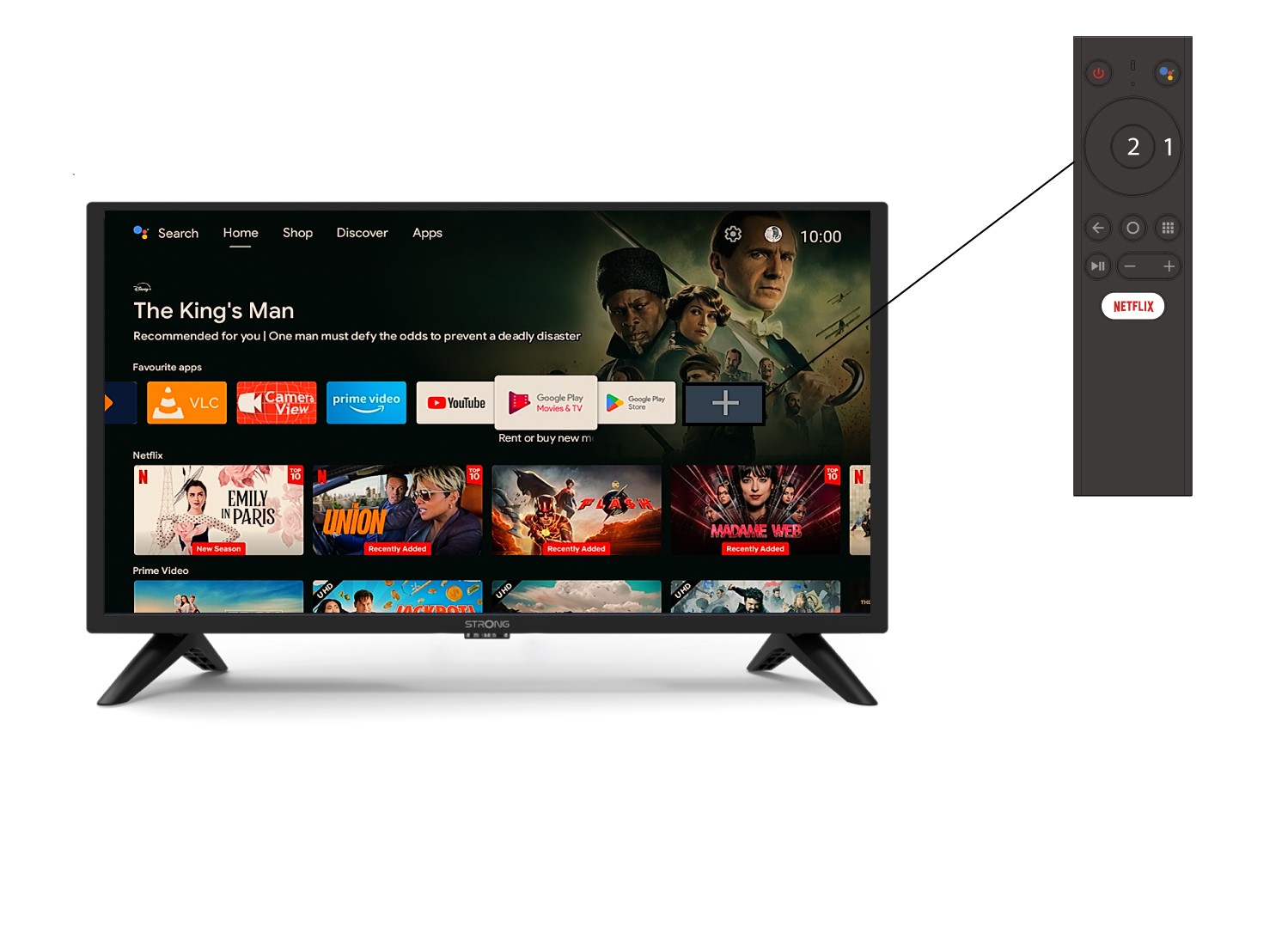
To add an application on the home screen, go to the + icon located at the end of the list of applications already on the home page, press « OK ».
2App list
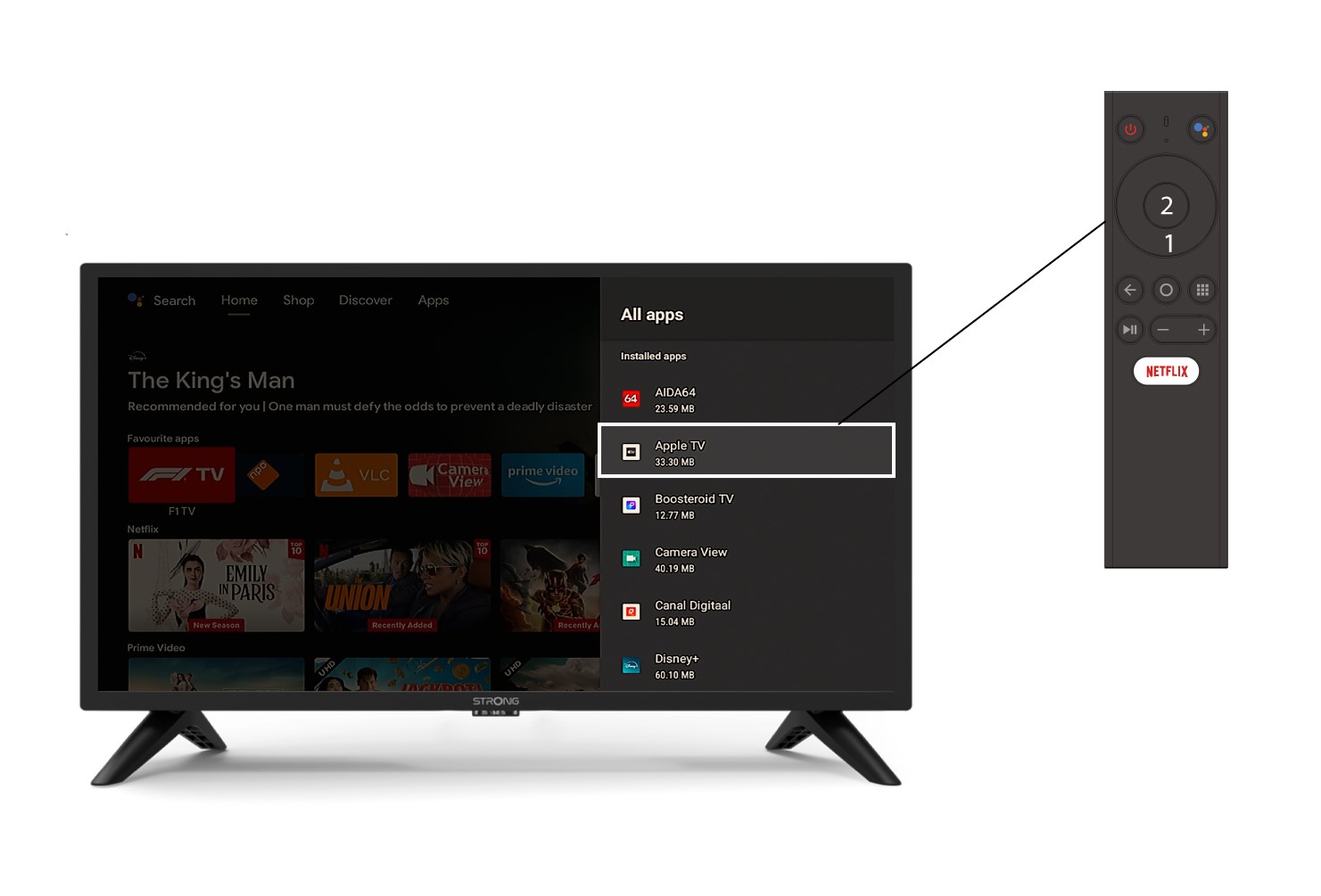
Then, the list of applications opens, select the application of your choice and press the OK button of your remote.
3Case 2: Removing an app
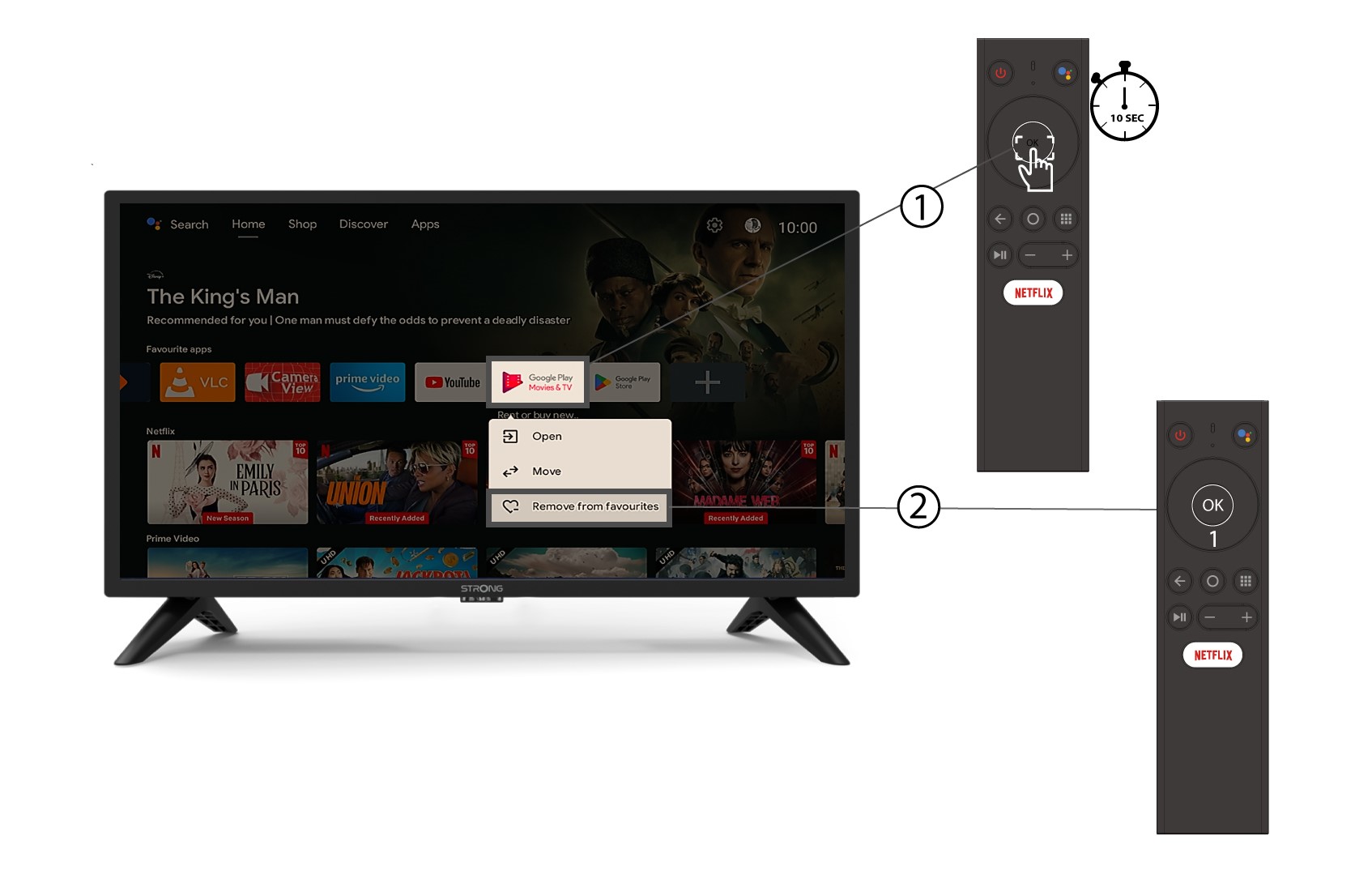
To remove an application from the home screen, in the list of applications already on the home page, go to the application you want to remove, long press the « OK » button, a window appears, select « Remove from favorites ».
Glossary of Google TV Features
How to delete an application ?
1Settings
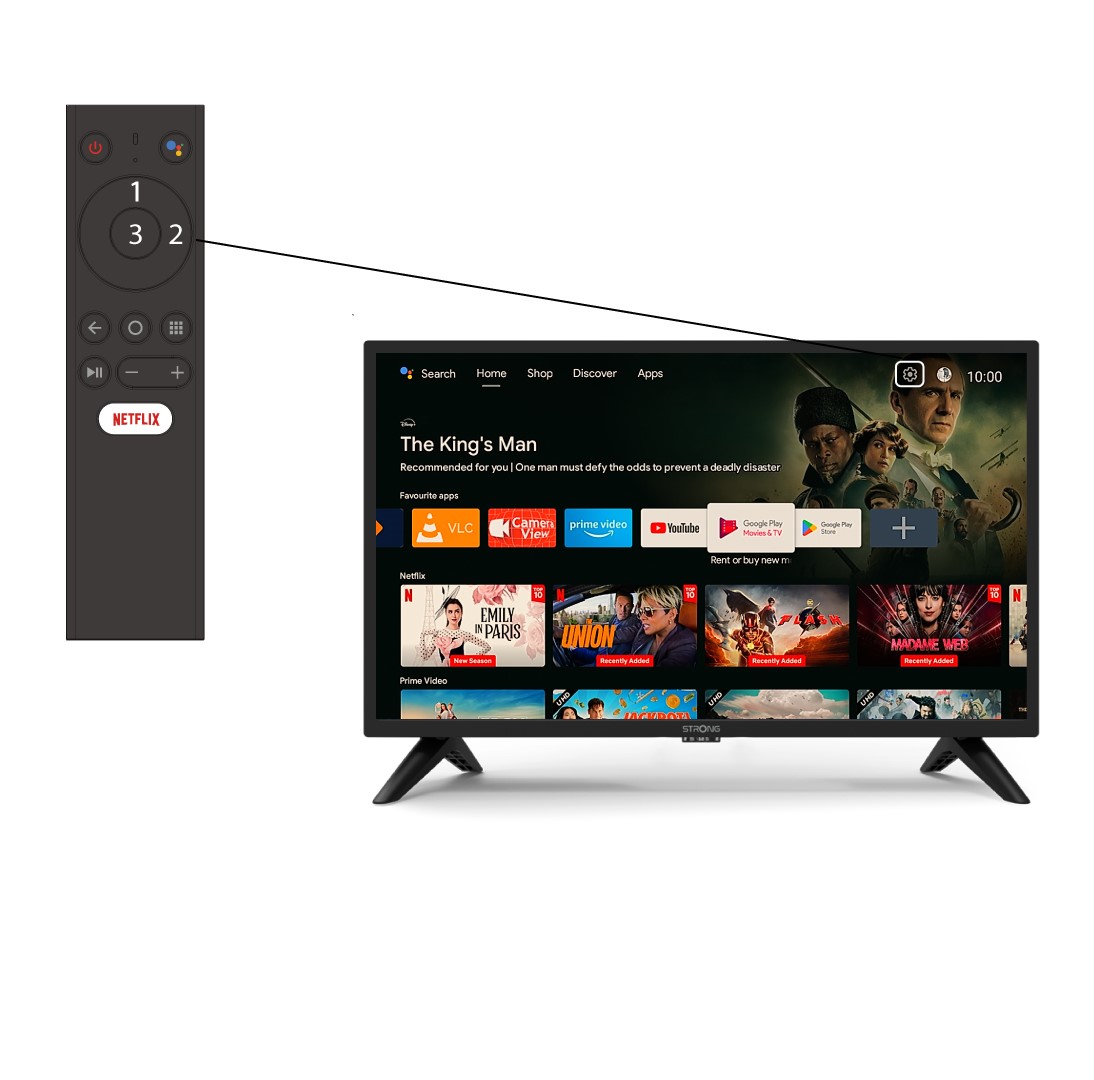
Select the Settings Menu (Cogwheel icon) by pressing the top and right keys on your remote control and press OK.
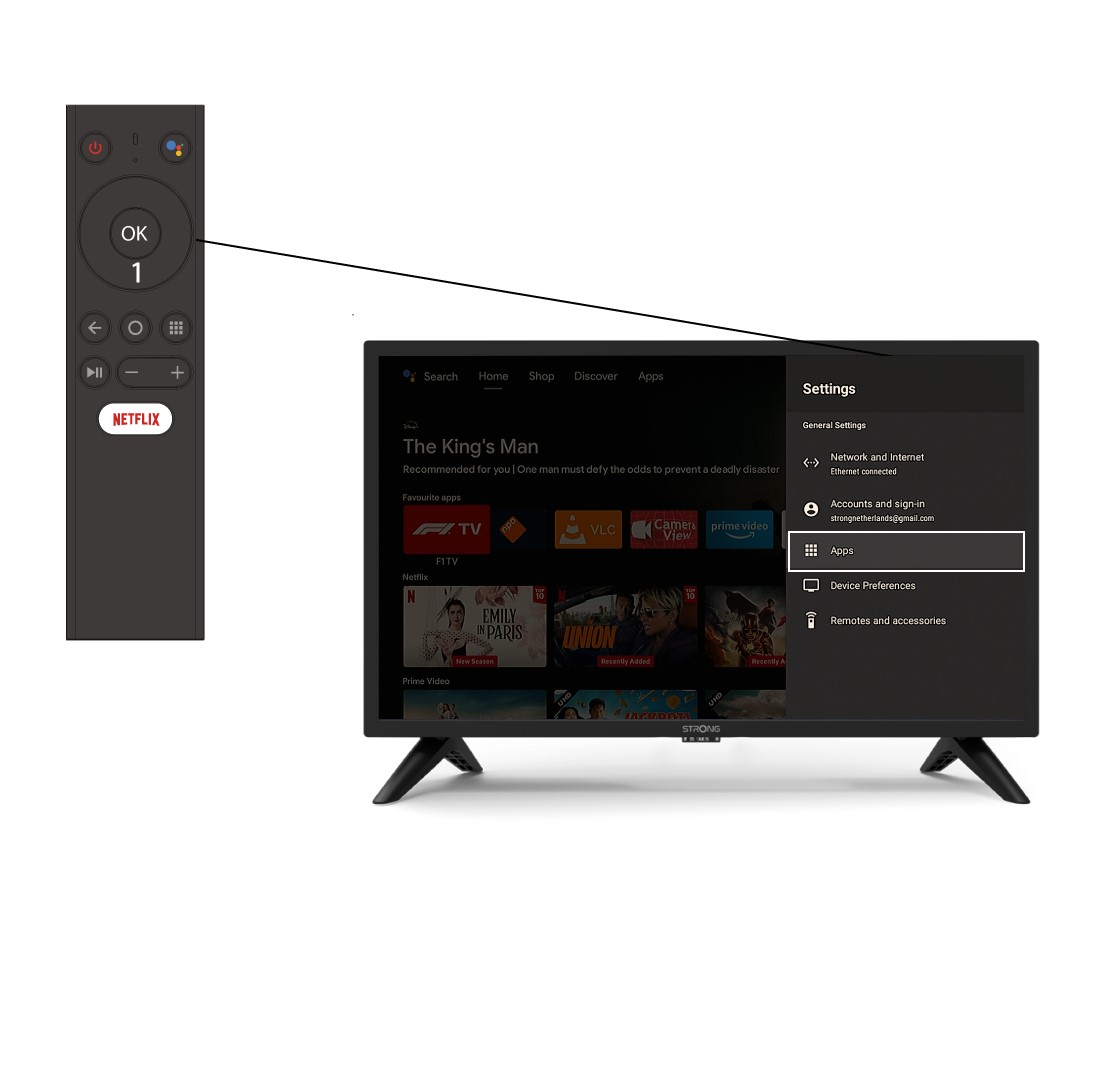
2APP
Click Apps and press OK to access the list of apps installed on your device.
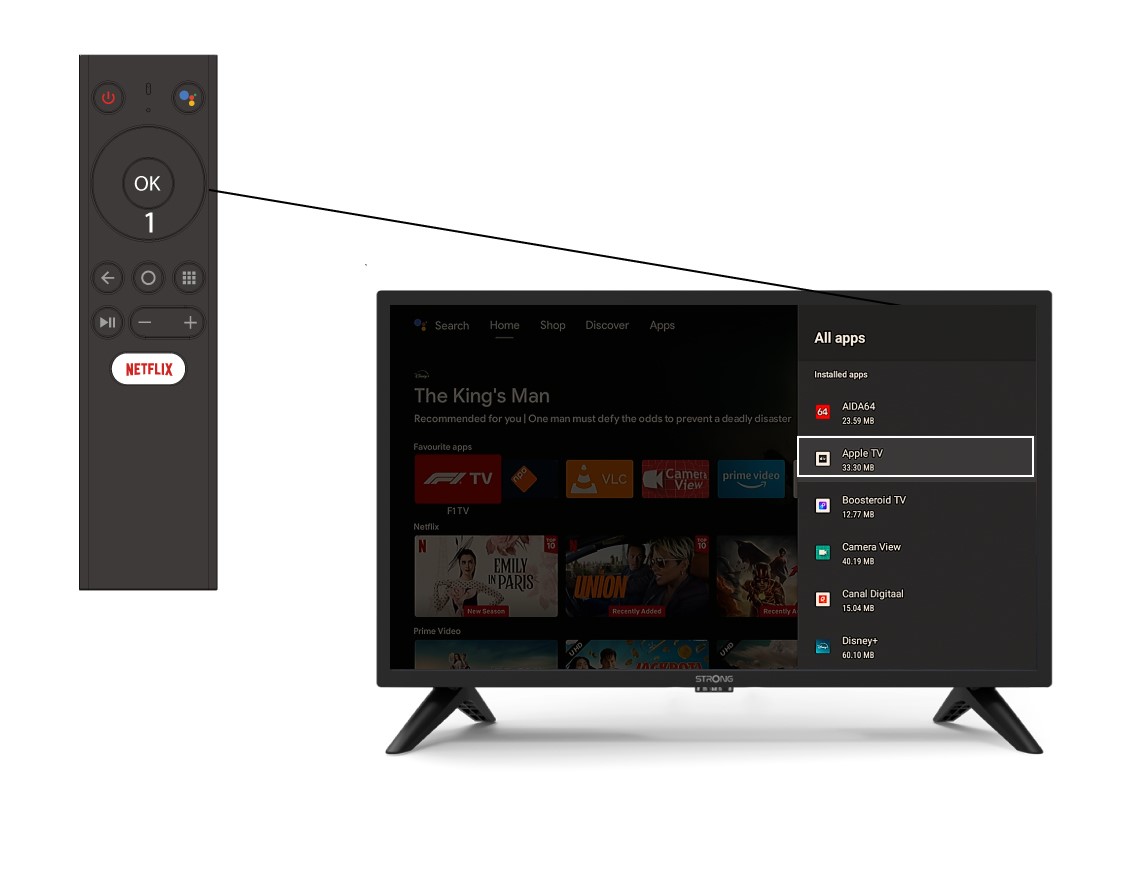
3App List
Select the App in the list and press OK.
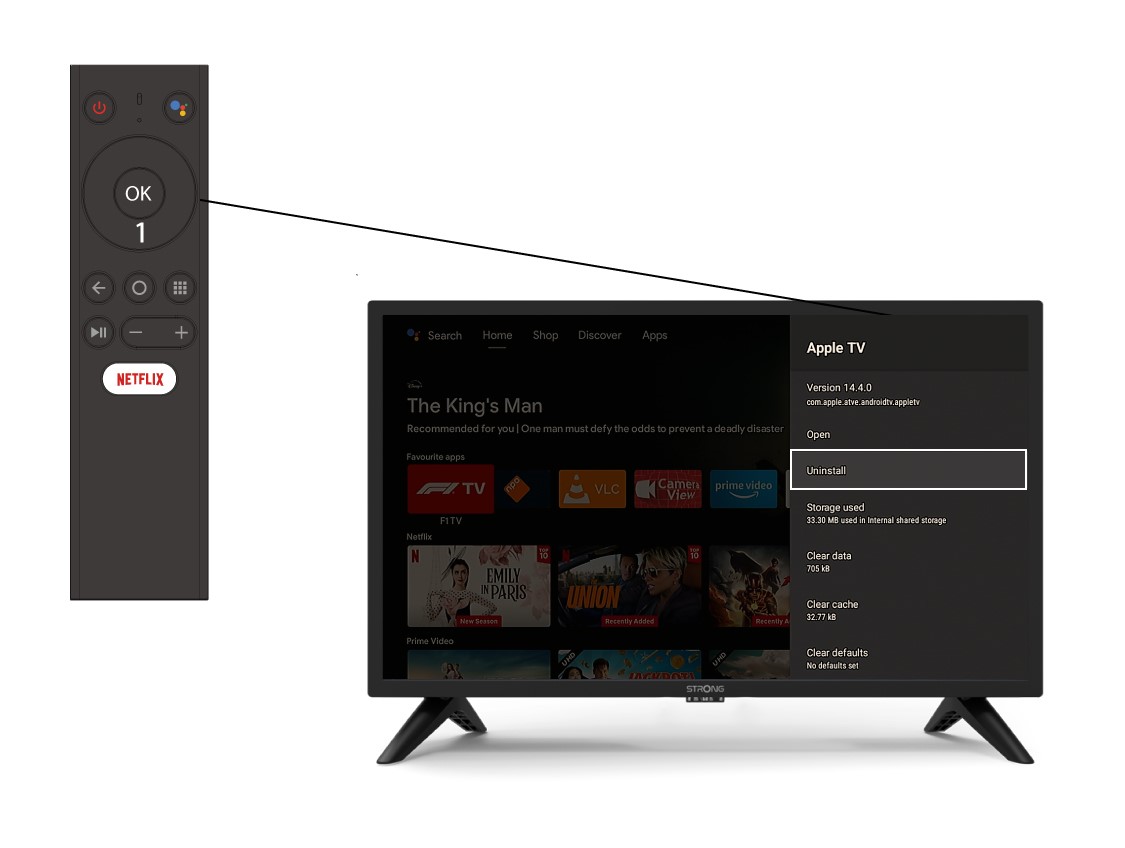
4Uninstall
Select Uninstall in the list and press OK.
Some applications are not available in Google Play Store, why ?
The LEAP S1 is an Android TV box on which you can download apps from the Google Play Store. Indeed, Android TV application and content developers are free to make their own technological choices. The LEAP S1 is certified Android TV and perfectly meets the standards required by Google. If an app that you want to install is not available in the Google Play Store, please contact their support team or contact the support team of the application that you wanted to download to troubleshoot the issue.
The image definition is not in 4K (UHD) while the content is broadcasted with this resolution, why?
The LEAP S1 is designed to transmit 4K streaming platform content. But, you must have the corresponding subscription and the connected TV must be compatible with 4K. In addition, the transmission settings must be set to the highest resolution: 4K/2160P.
By default, the LEAP S1 resolution is set to 1080P in order to be supported by most TVs.
If a 4K compatible TV is connected to the LEAP S1, there will be automatic communication via HDMI between the box and the TV to determine the maximum possible resolution.
If this communication via HDMI does not work as it should with some TVs, the issue may be maybe due to the HDMI protocol (CEC) or to an entry-level HDMI cable. In this case, the resolution is set to 1080P by default. To change this setting, you need to go to the « Display » menu and manually select the highest resolution 4K / 2160P.
Why does my S/Pdif output only provide PCM out, although I have a DD amplifier connected and a (older model) beamer or (older model) TV connected looped on HDMI ?
If there is an apparatus without a (valid) HDCP key in the HDMI chain, then all outputs from the source must fall back to the lowest quality (usually SD for video and PCM for S/Pdif). These are rules stated by the Digital Content Protection LLC. The Leap S1 is compliant with those rules.
DTS and AAC are default Off, but can be switched on in the LEAP S1’s Device Preferences Sound menu.