ATRIA Wi-Fi 5 Mesh System 1200 (2-pack)
All questions
ATRIA Wi-Fi 5 Mesh System 1200 (2-pack)
Settings and features
Can I configure a Guest Network for my Mesh network? (CASE 1: Web UI)
Yes, you can configure a Guest Network for your Mesh network.
1Access the Web UI
To connect to the Web UI, please refer to the following procedure: How do I access the Web UI?
2Wi-Fi Settings
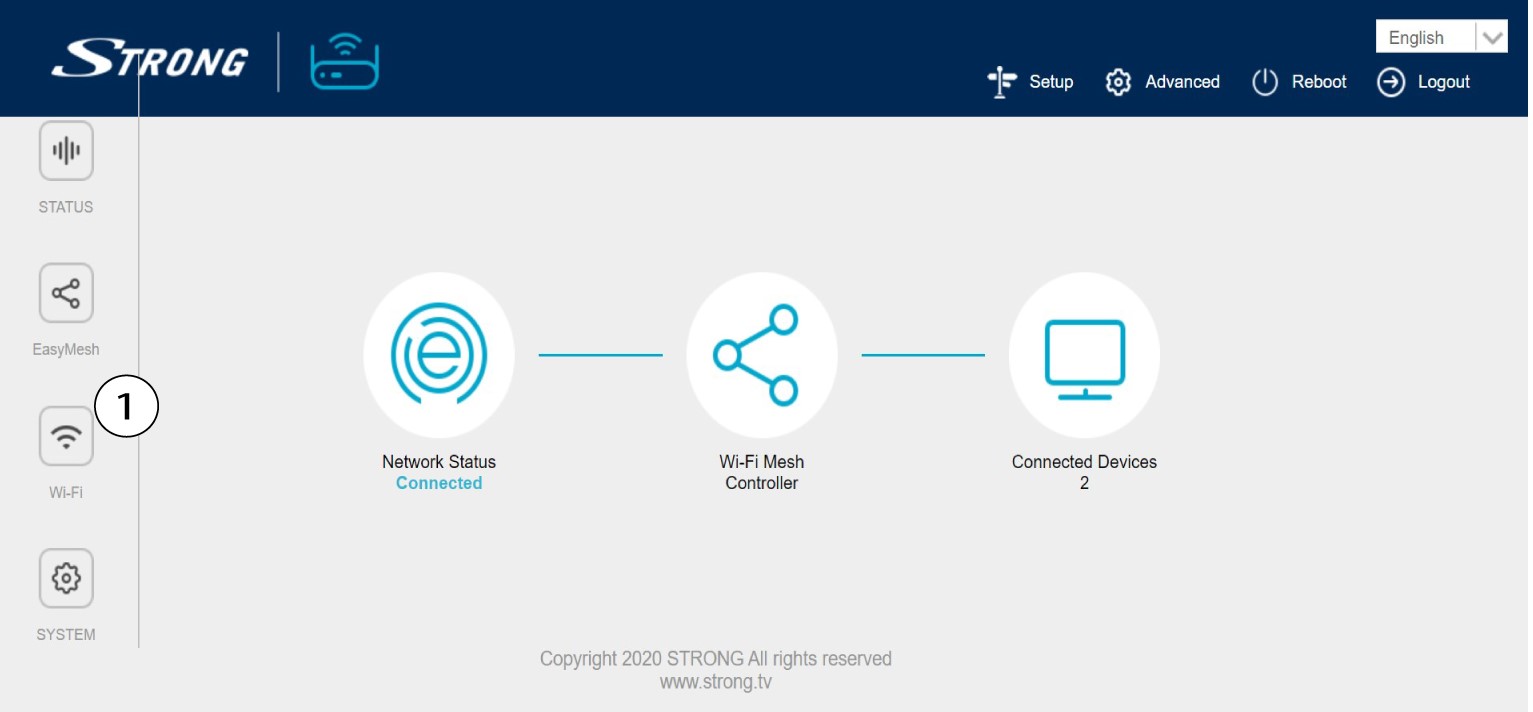
Click Wi-Fi in the left bar.
35G Guest Network
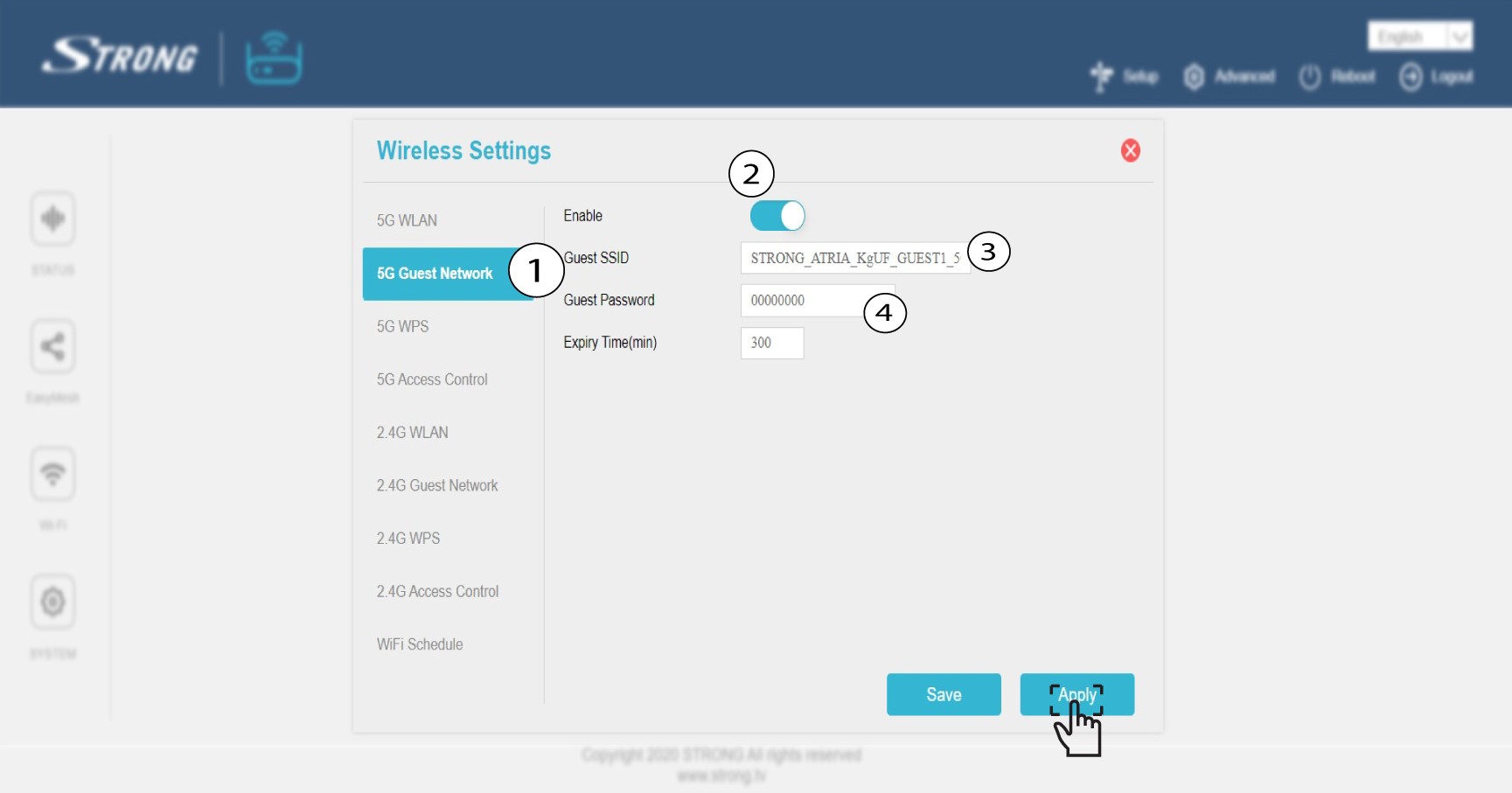
Click 5G Guest Network or 2.4 G Guest Network. Check the Enable box. You can edit the SSID and the Password for the Guest Wi-Fi Network. If you want to activate both 2.4 and 5G guest networks, check both enable boxes. Now, set to 999 999hours if you want it to last for a long time.
Click Apply.
4Write down the Guest Network information
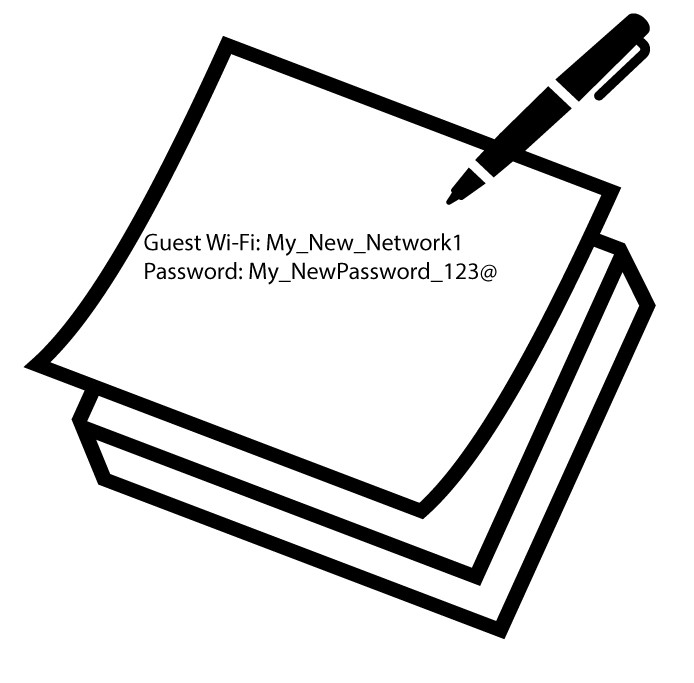
Write down the guest networks name and passwords on a piece of paper.
Can I configure a Guest Network for my Mesh network? (Case 2: App)
Yes, you can configure a Guest Network for your Mesh network.
1Access the App
To connect to the App, please refer to the following procedure: How do I use the Atria Mesh App?
2Guest Wi-Fi
Click Guest Wi-Fi.
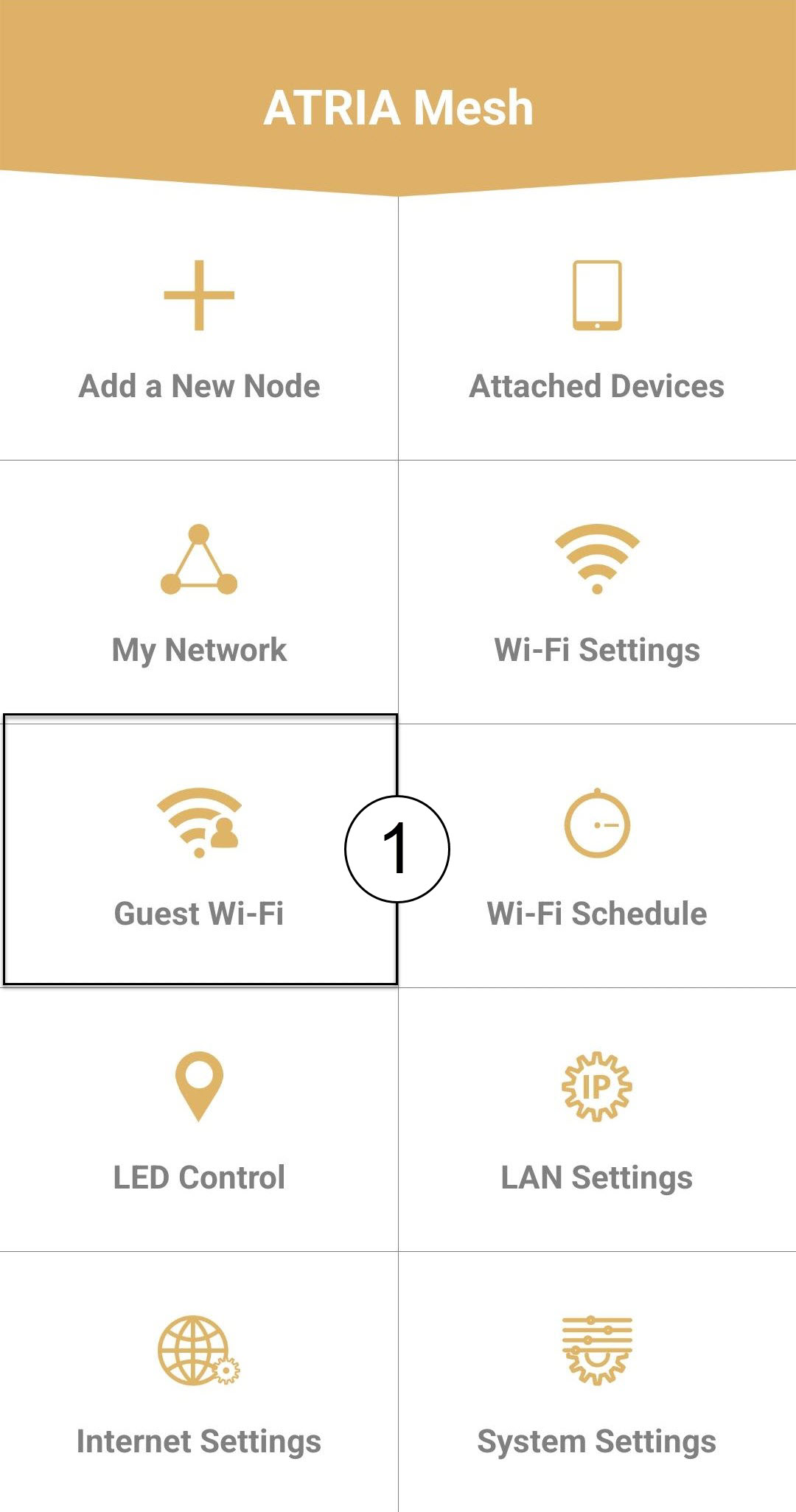
3Activate the Guest Wi-Fi
Press the toggle button of the Guest Wi-Fi Network to activate it. Then, click the SSID Wi-Fi name to change it and click the eye icon to display the password and edit it before clicking Save.
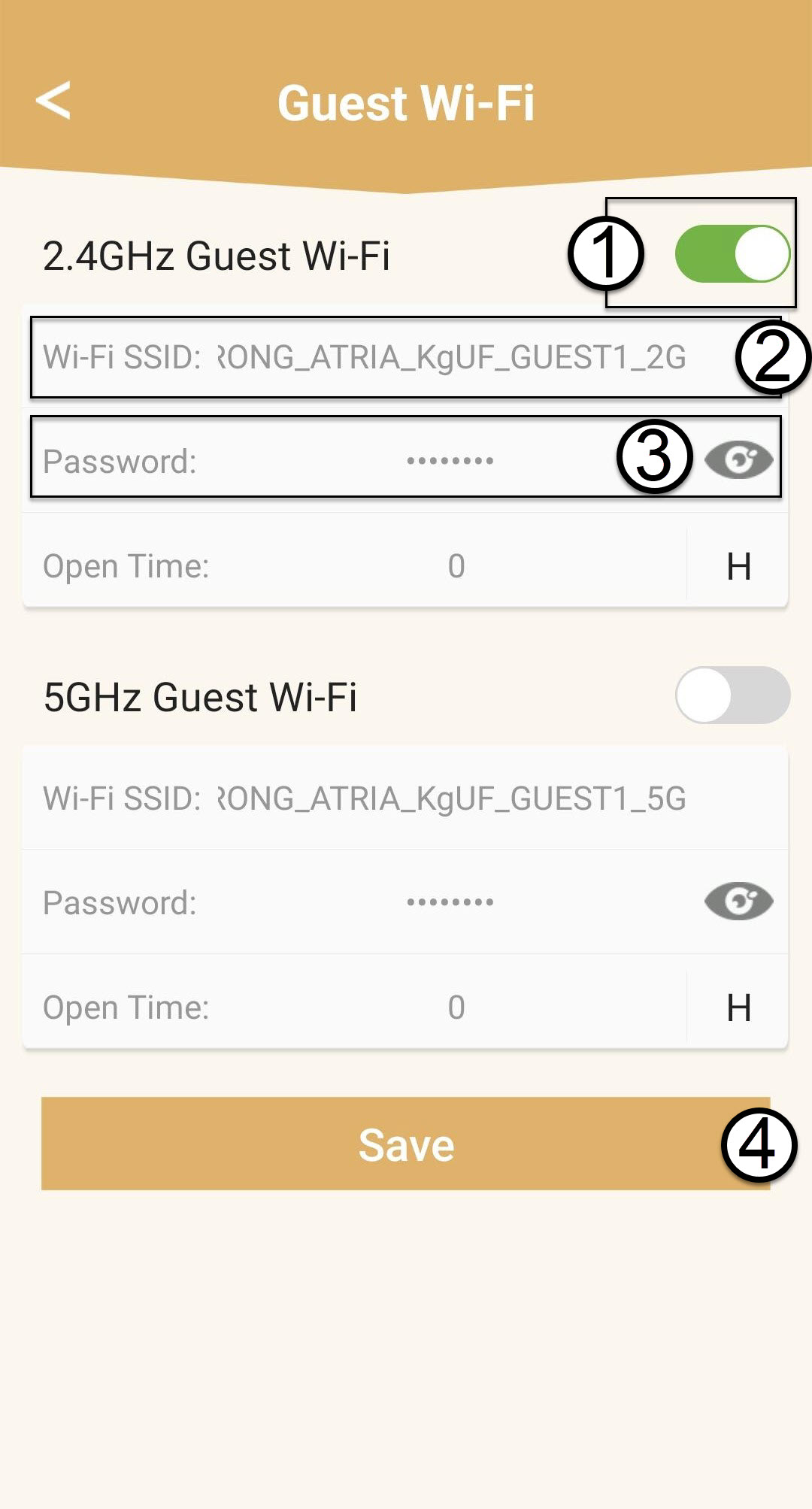
4Write down the Guest Network information
Write down the guest networks name and passwords on a piece of paper.
How can I add new Mesh units to the existing network I just configured? (CASE1: WPS Button)
How can I add new Mesh units to the existing network I just configured? (Case 1: WPS Button)
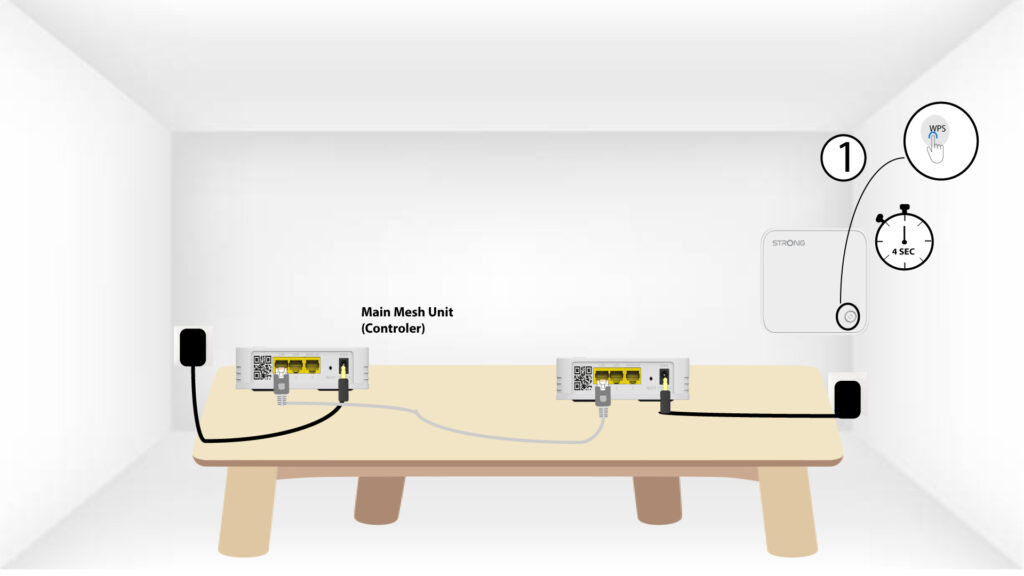
1Press the WPS button on the main mesh unit
To do so, press the WPS button for 5 seconds on the Mesh unit that is connected to your router/modem by RJ45.
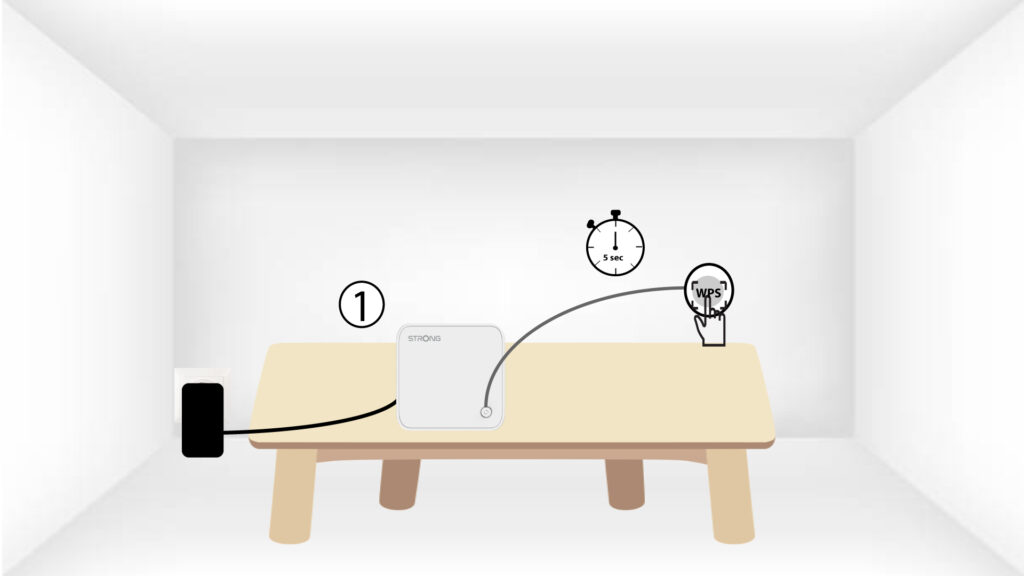
2Press the WPS button on the mesh unit
Then, press the WPS button on the new mesh unit for 5 seconds.
How can I set/allocate a static IP address for my Atria Mesh 1200 unit? (App)
It can be interesting to set a static IP for you mesh controller to have an easier access to the Web
UI on your network in the Atria Mesh app.
You can also allocate dedicated IP Addresses to the devices connected on your mesh network in
the Web UI.
1Connect to the Wi-Fi of your mesh
To do so, connect to the Wi-Fi of your mesh network.

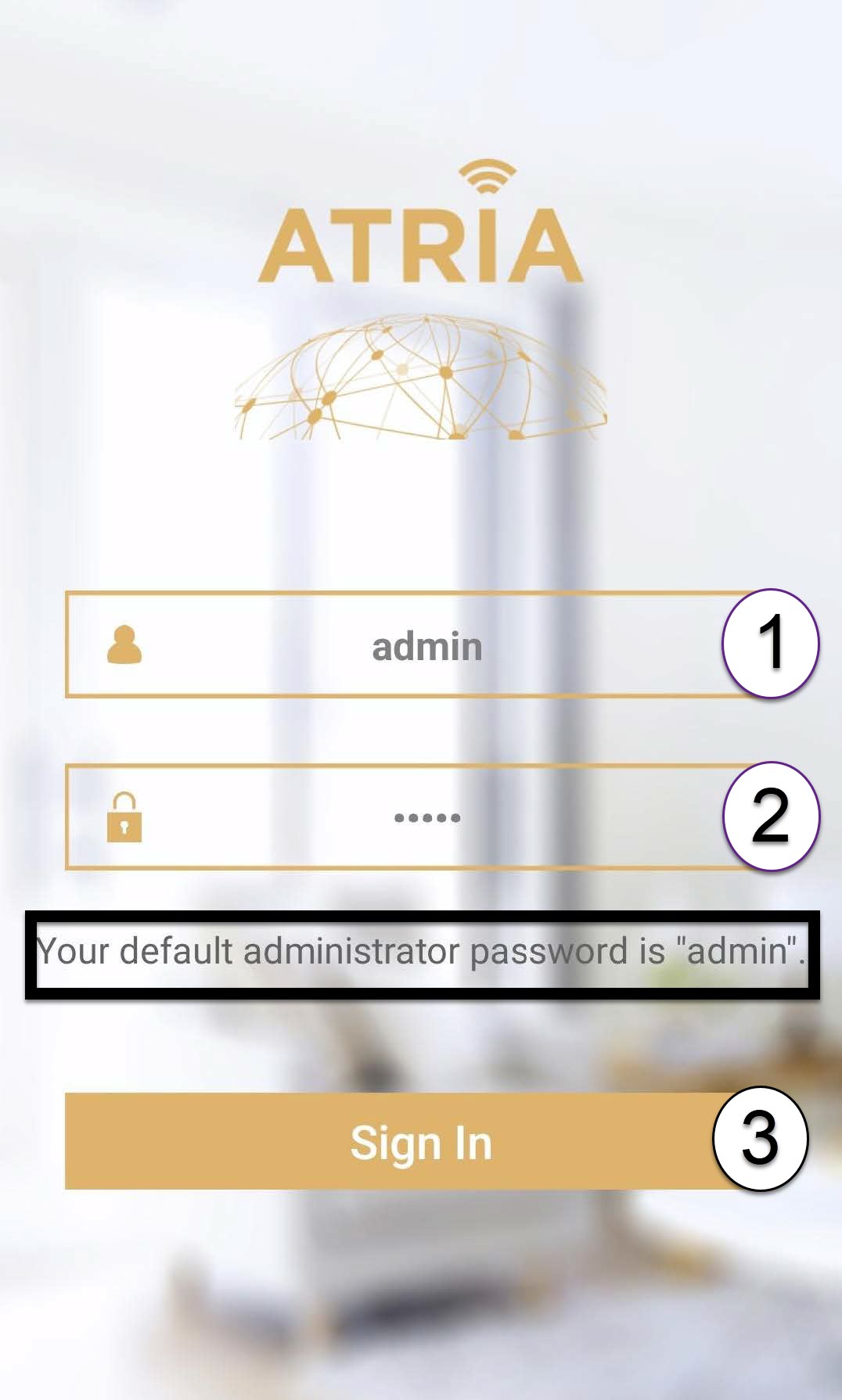
2Access the App
Connect to the Atria Mesh App.
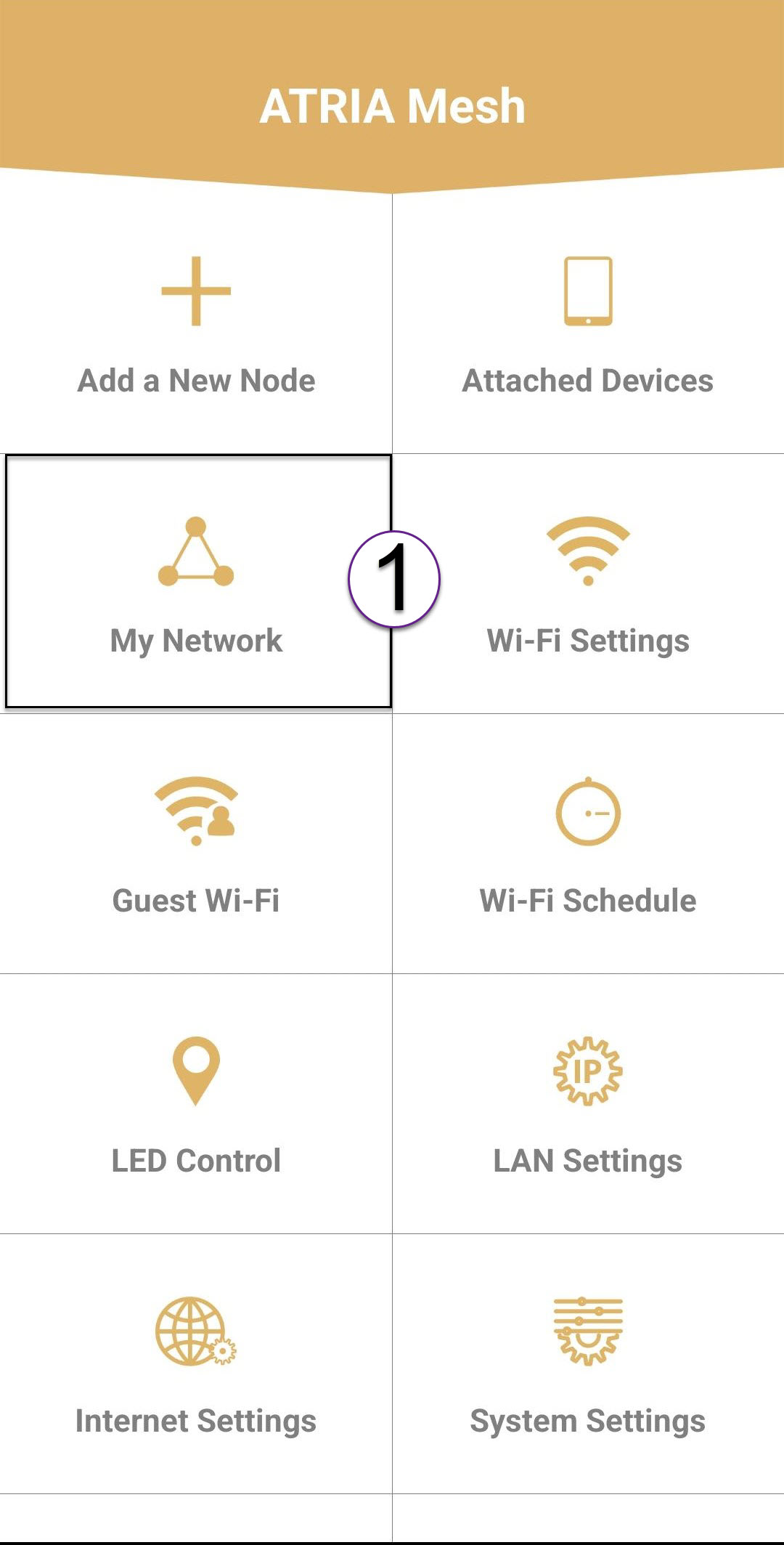
3Network
Click My Network.
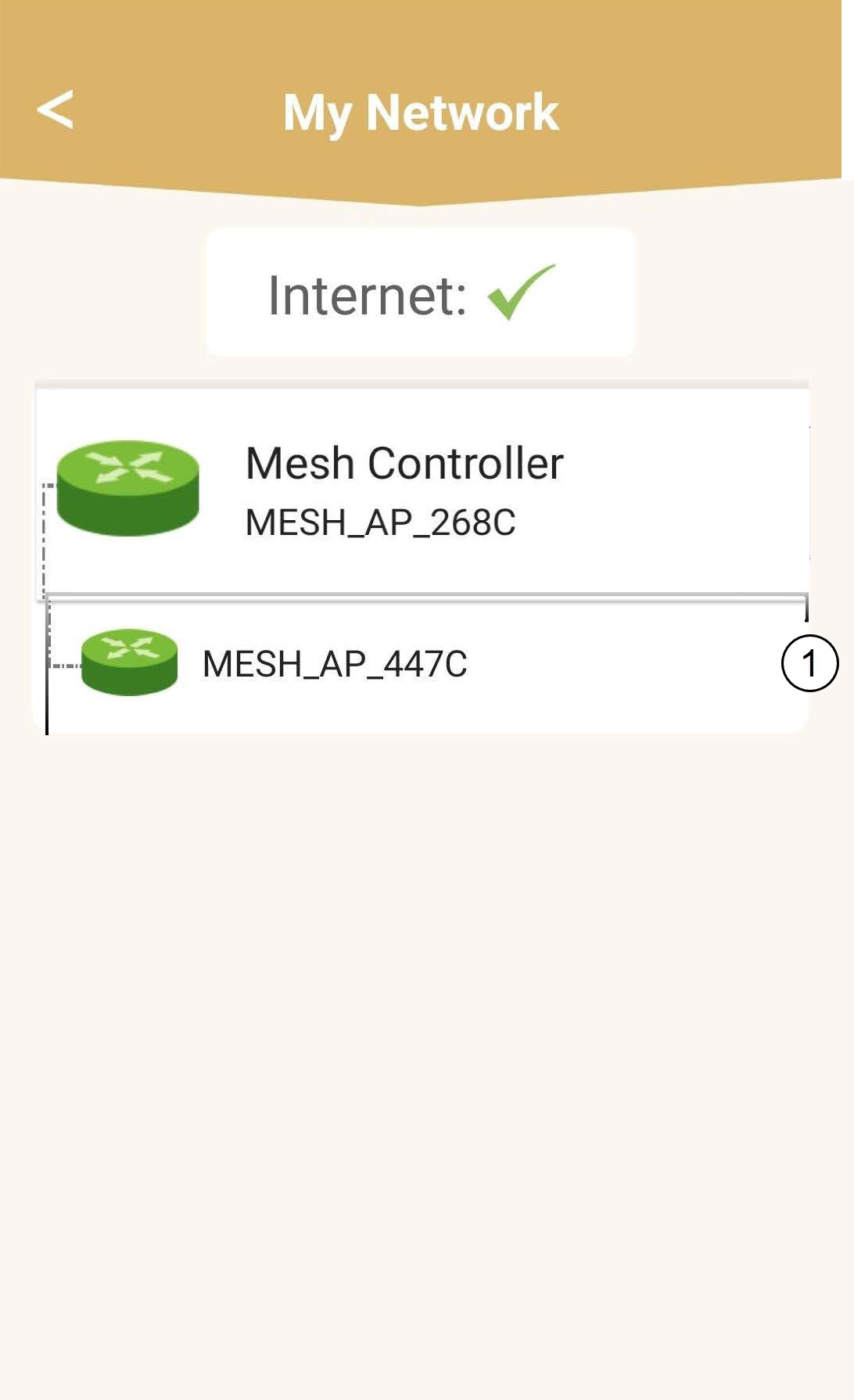
4Select the main mesh unit
Click the Name of the Mesh Agent in the list.
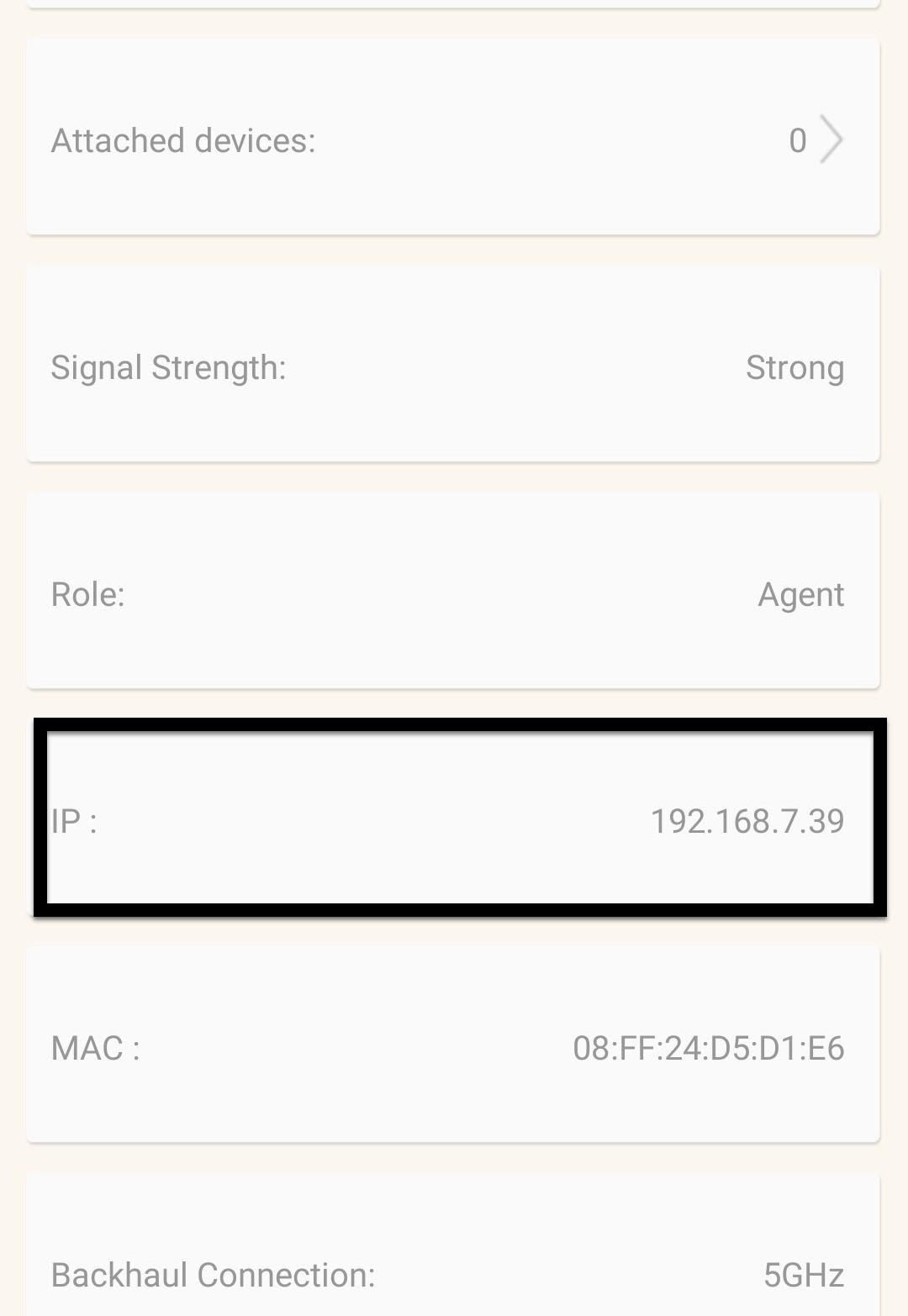
5Find the IP Address
Identify its IP Address and MAC Address.
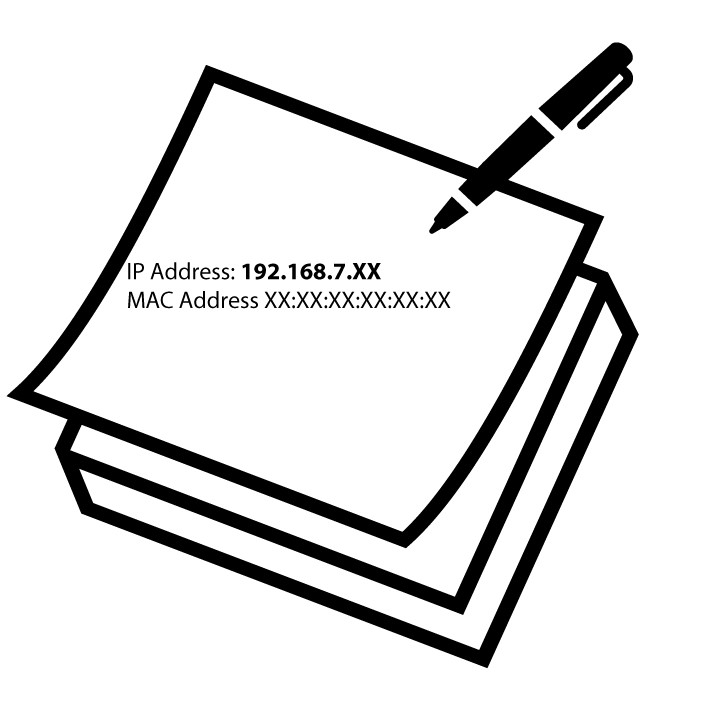
6Write down the IP Address
Write down the IP Address and MAC Address.
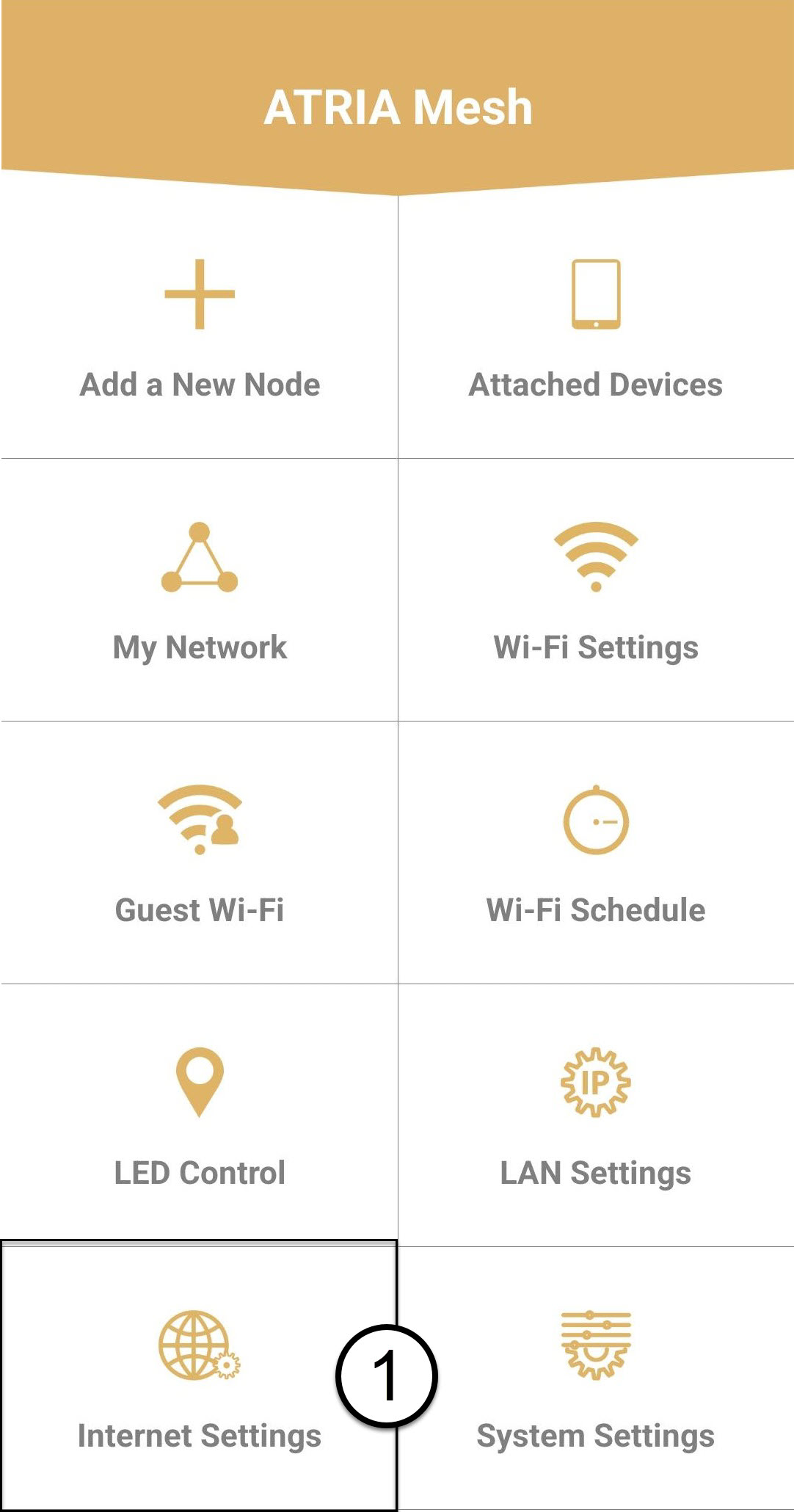
7Internet Settings
Click Internet Settings.
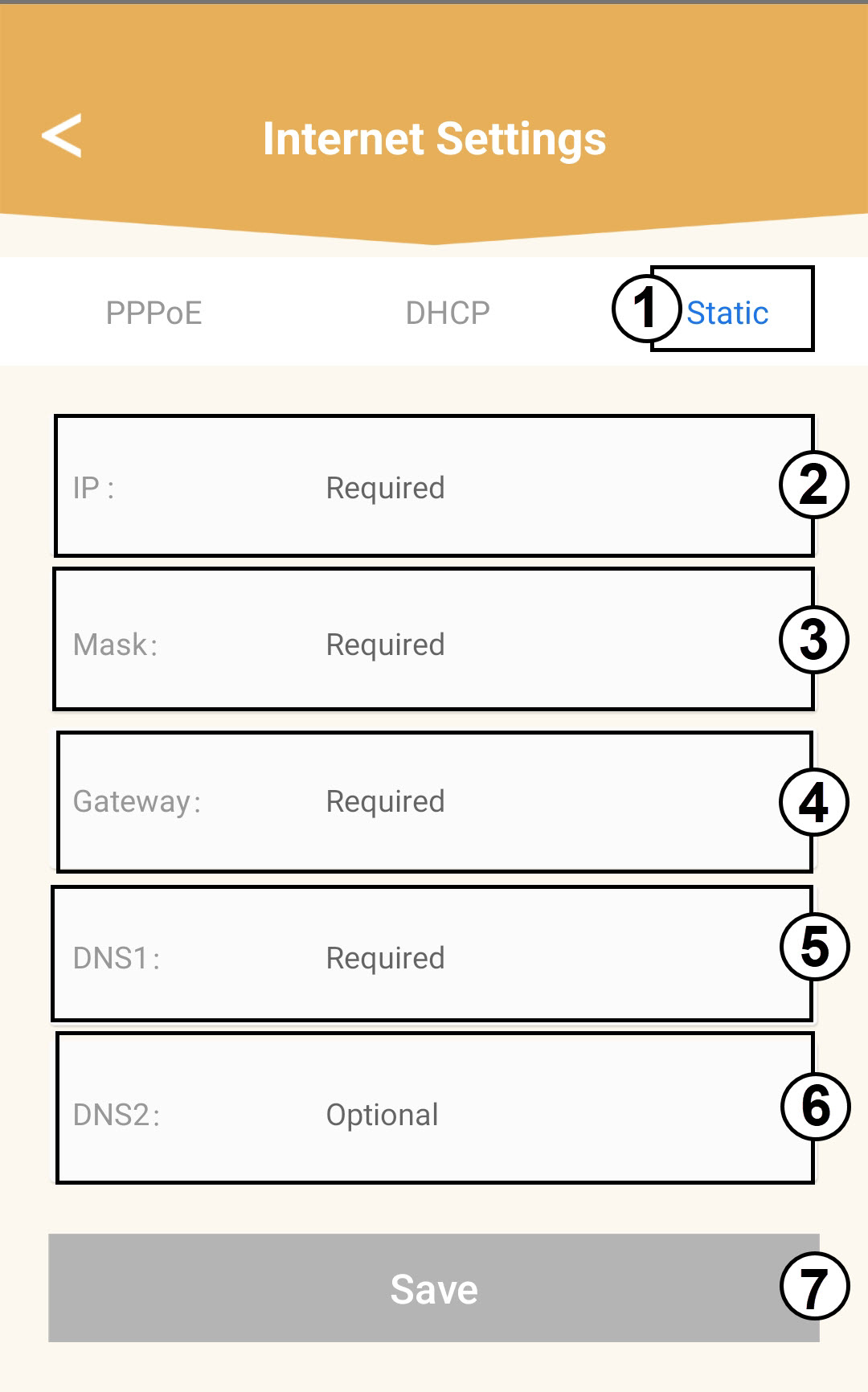
8Static IP
Select Static IP. Enter the following information before clicking Save:
o IP: Enter the IP Address of the Agent
o Mask: The field is automatically populated with the appropriate value
o Gateway: The field is automatically populated with the appropriate value
o DNS1: Enter the primary DNS address (you can find this information in the Web UI :
Network > LAN -> Enable Manual DNS)
o DNS2: Enter the secondary DNS address (you can find this information in the Web UI
: Network > LAN -> Enable Manual DNS)
How can I set/allocate a static IP address for my Atria Mesh 1200 unit? (Web UI)
1Connect to the Wi-Fi of your mesh
To do so, connect to the Wi-Fi of your mesh network.
2Browse to the Web UI
Browse to the Web UI IP Address.
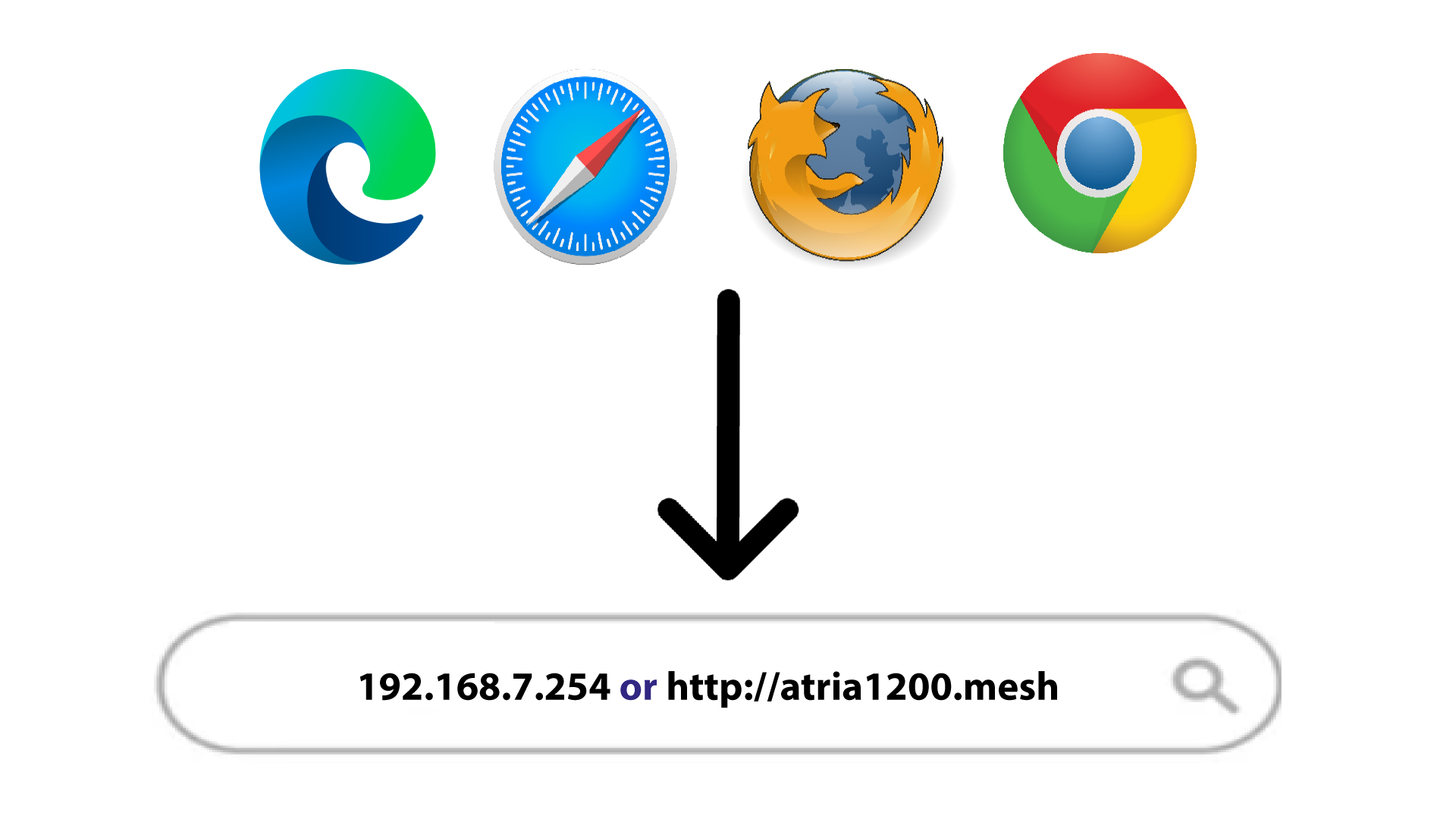
3Access the Web UI
Connect to the Web UI.
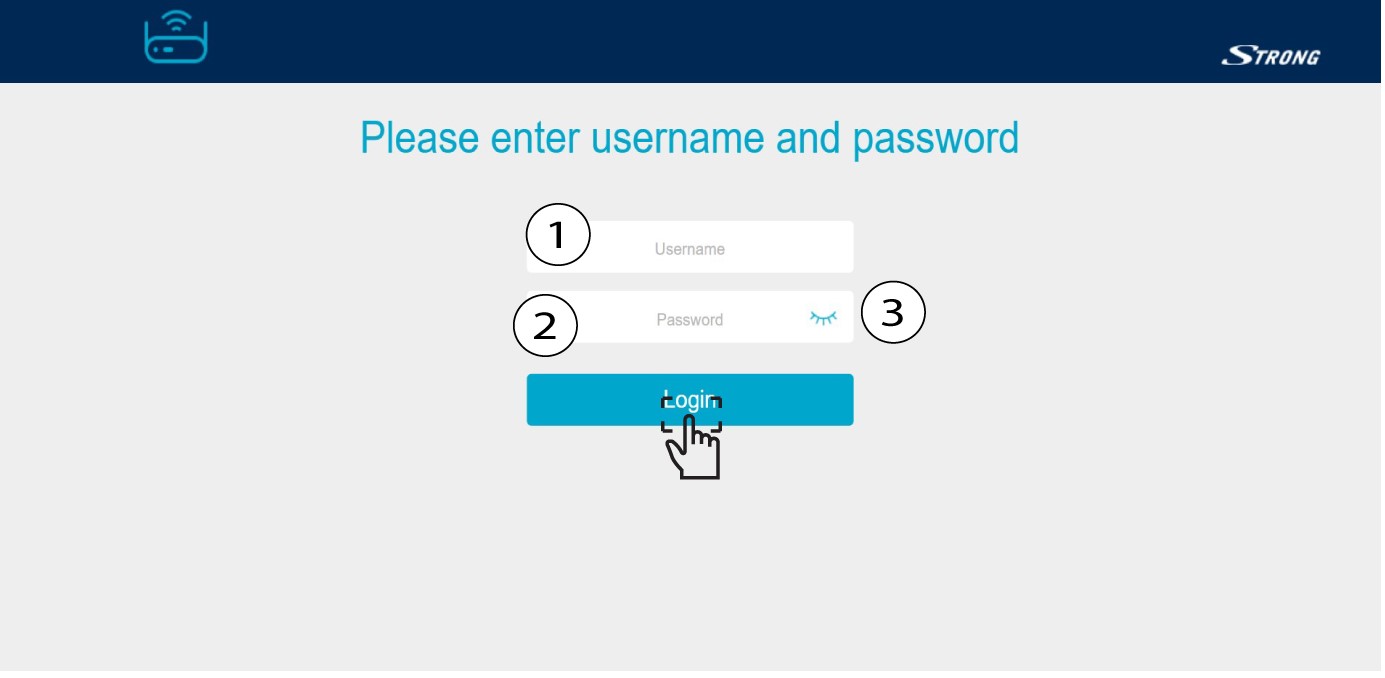
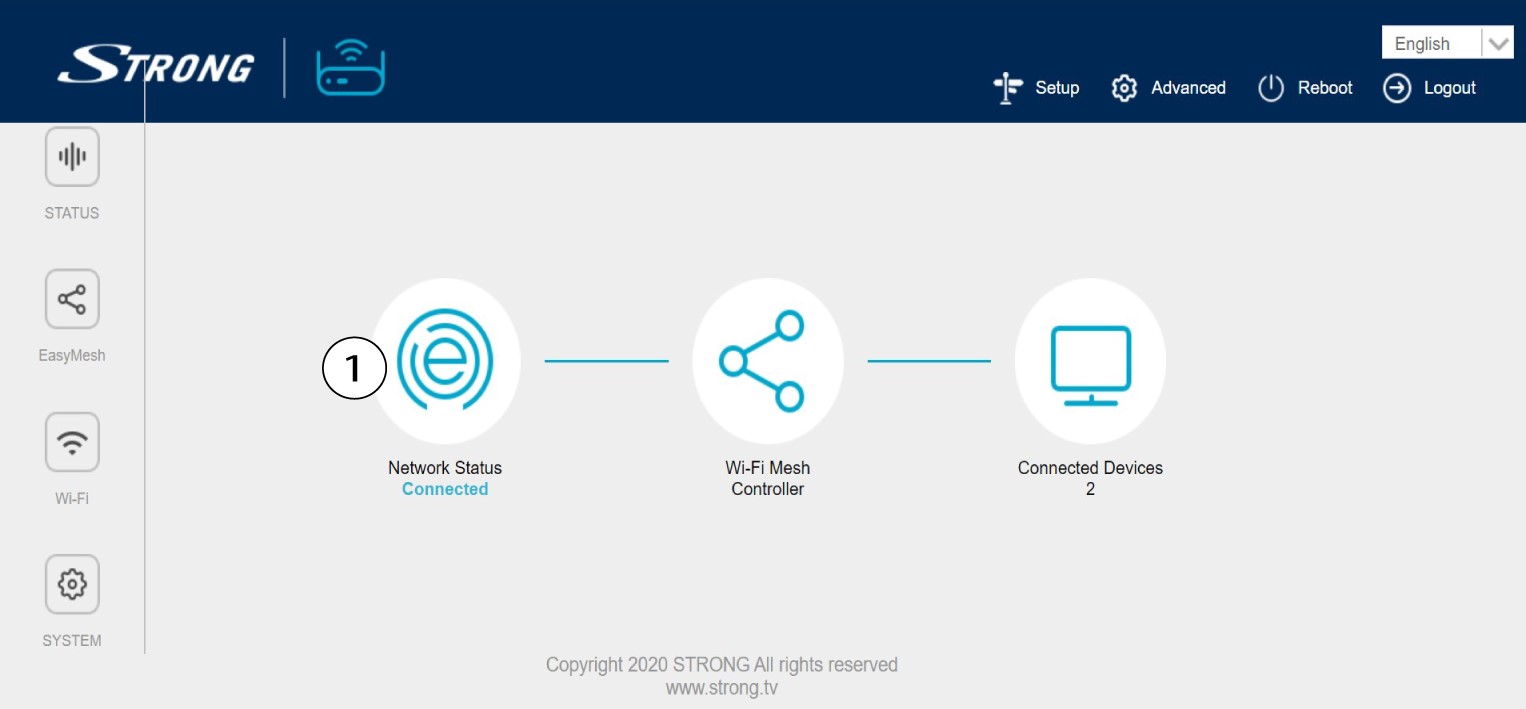
4Network Status
Click Network Status.
5Network Settings
In the Network Settings, click WAN IPv4 and, in WAN MODE, select Static IP. Then, click Apply.

How do I configure my Wi-Fi mesh network (Case 1 : WPS Button)
To configure your Mesh network please refer to the QIG provided in the box of your product.
1Plug in the device
You must plug in the mesh unit to turn it on (there is no power button on the device) and connect it to
your modem by using a RJ45 cable.

2Wait during the configuration
Then, you must wait for a few minutes for the device to configure itself.
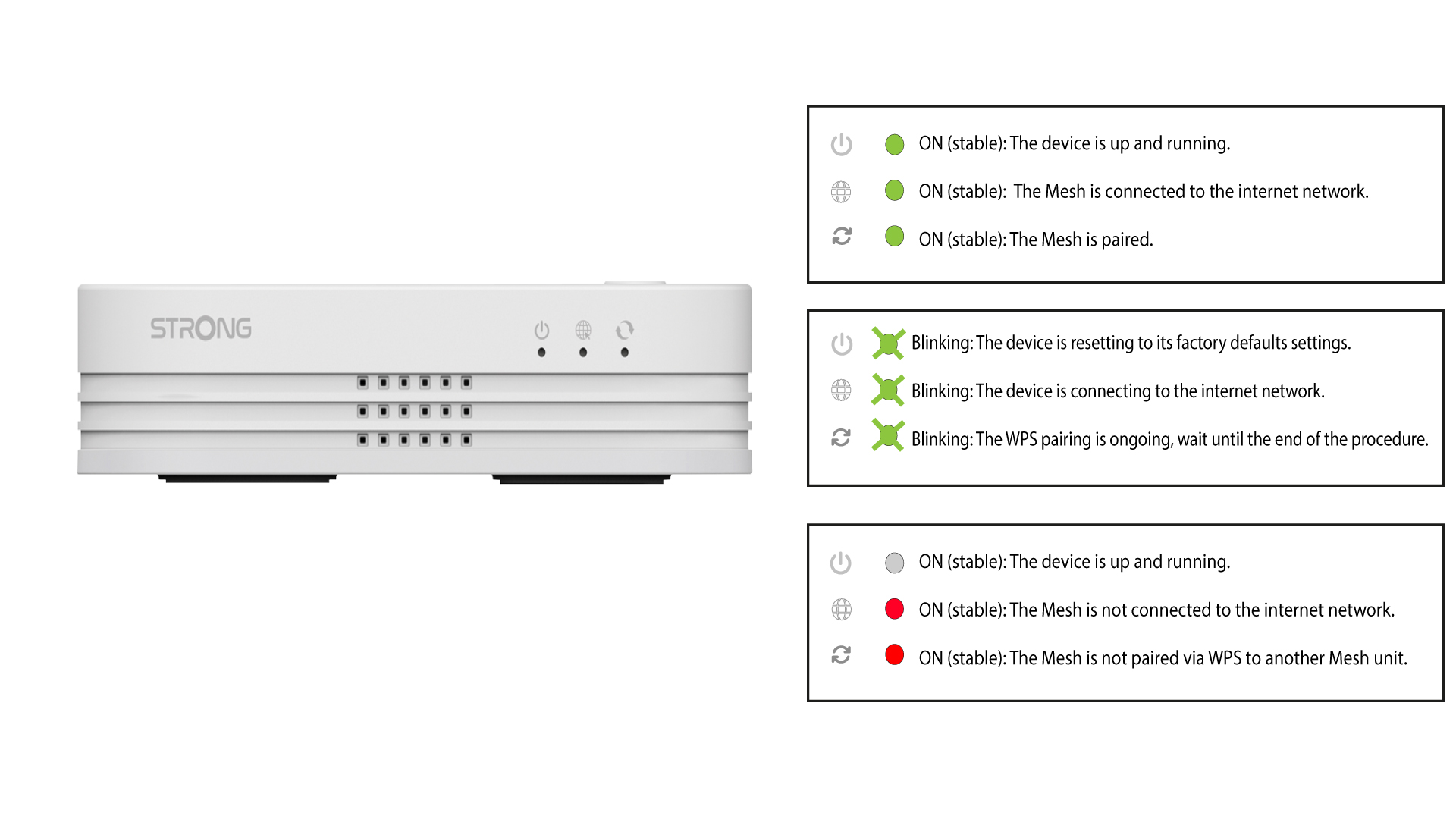
3Plug in the second device
You must plug-in the second mesh unit.
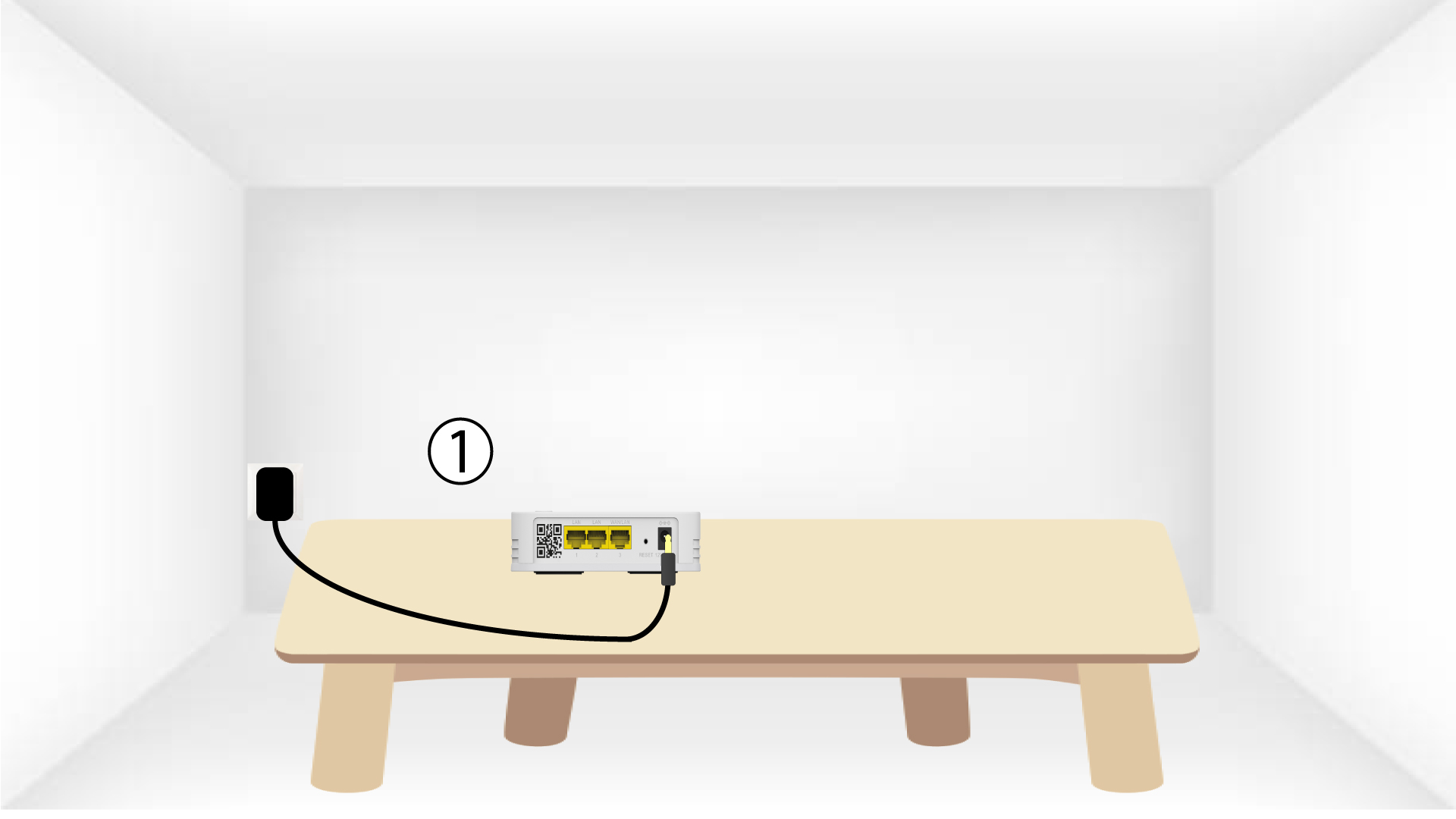
4Activate the WPS on the main mesh
Press the WPS button for at least 4 seconds on the Mesh unit that is connected to your modem/router.
The LED will blink in green after activating the WPS.
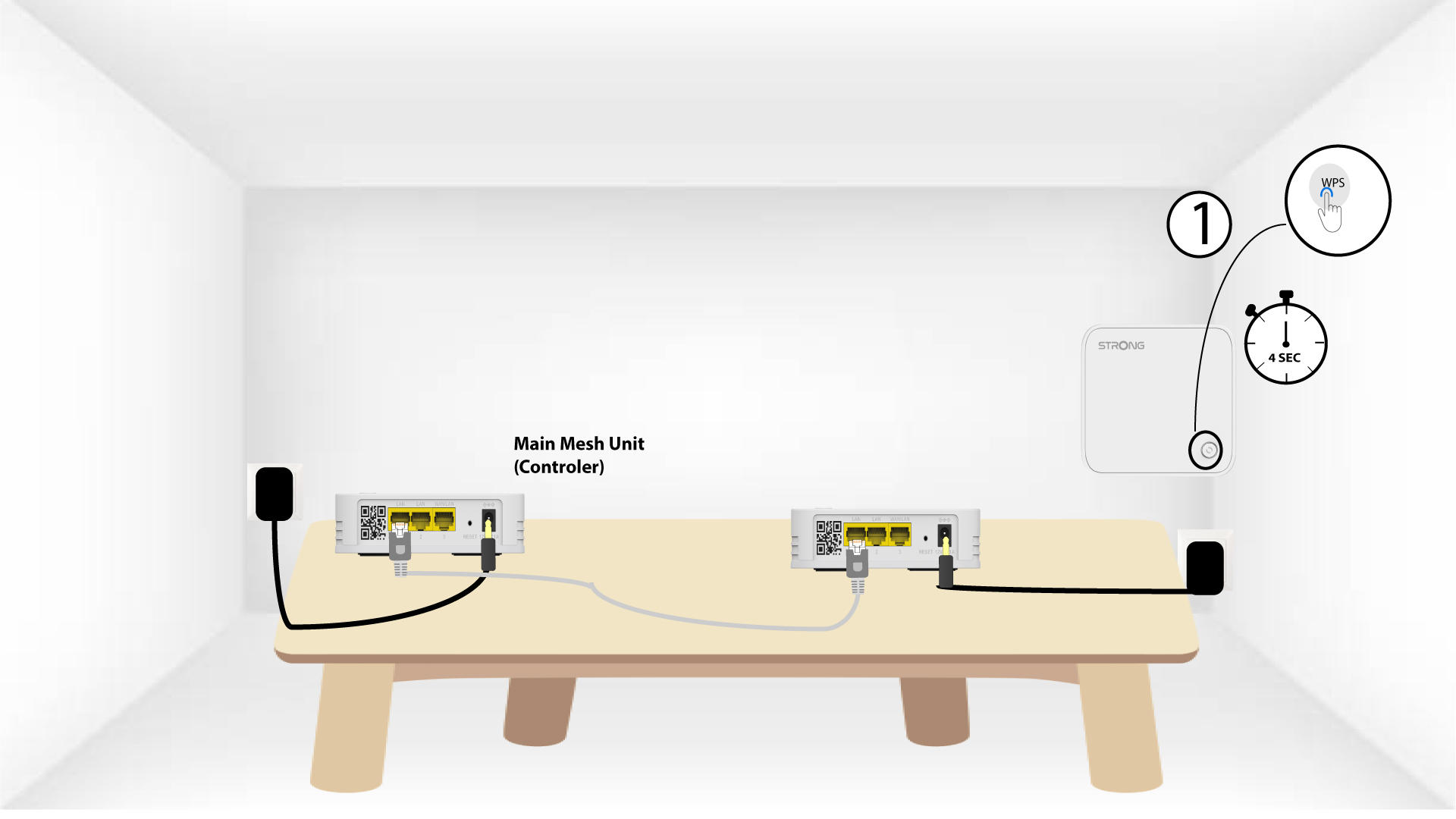
5Activate the WPS on the second mesh
Press the WPS button for at least 4 seconds on the second Mesh unit.
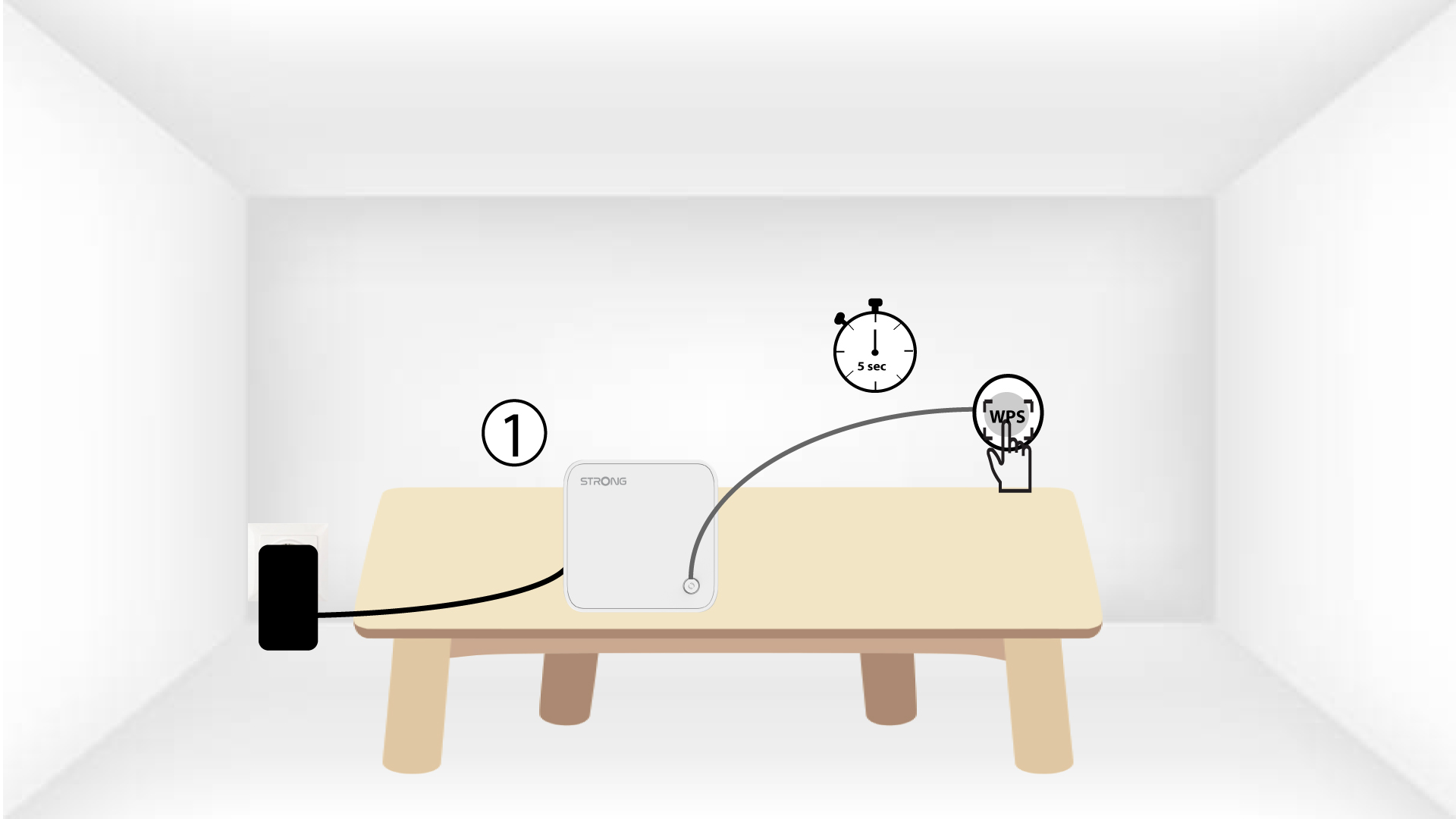
6Devices are pairing
Lorem ipsum dolor sit amet, consectetur adipisicing elit. Culpa enim esse excepturi nemo nesciunt officia officiis optio.
How do I use the WPS function?
It is very easy to activate the WPS on your router.
1Activate the WPS on your main mesh unit
To do so, press the WPS button on the Mesh unit that is connected to your router/modem by RJ45.
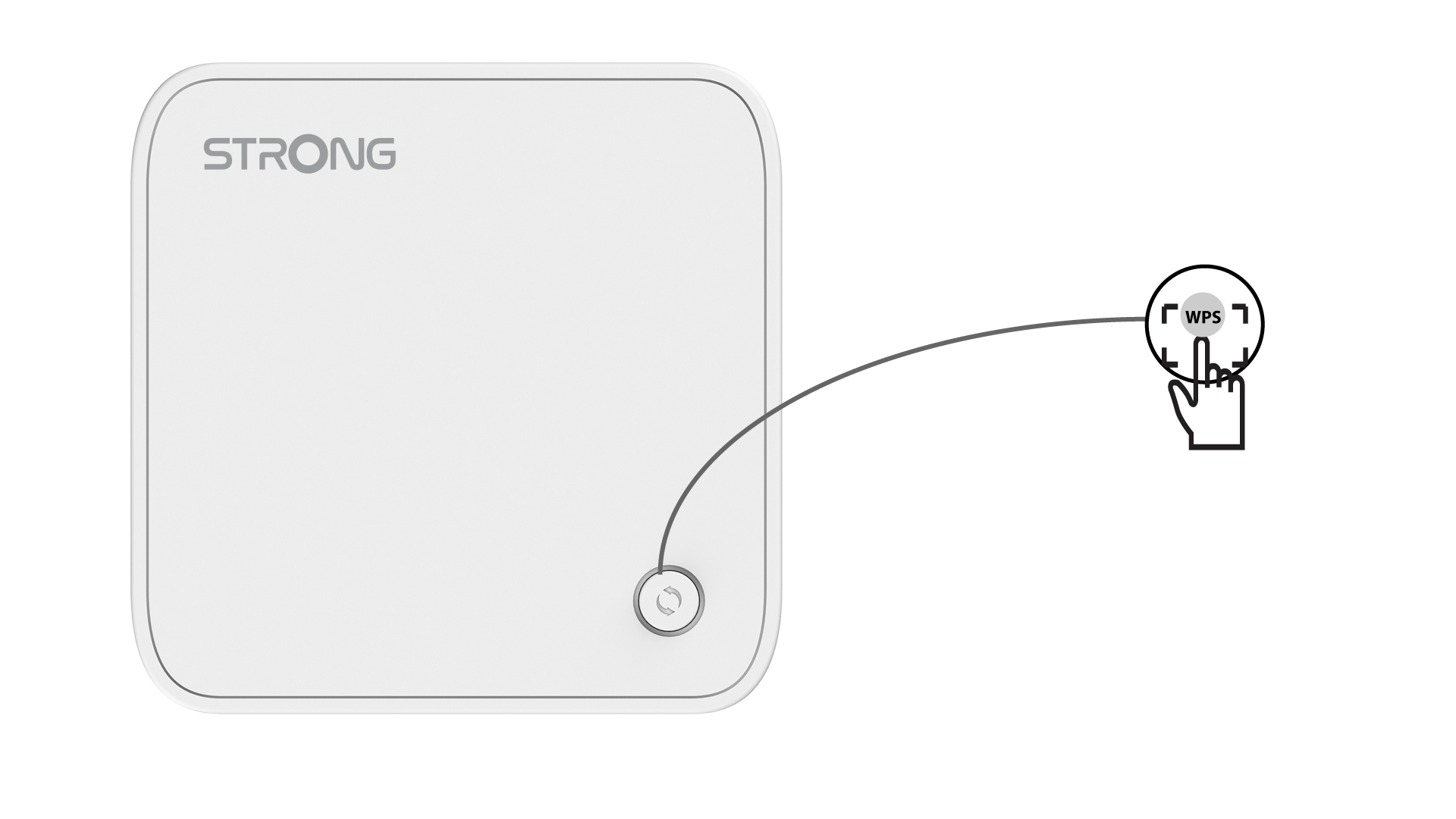
2Internet Settings
Now go the the Network selection of your device (phone, computer, printer, etc.) and the new device added to the network should appear, and you can now connect to its network.