
ATRIA Wi-Fi 5 Mesh System 1200 (2-pack)
All questions
ATRIA Wi-Fi 5 Mesh System 1200 (2-pack)
Credentials and Web UI access
Where can I find the SSID (Wi-Fi Network Name) and Wi-Fi password of my Mesh Network?
You can find the information of each Wi-Fi networks of the mesh units on the label located under the product.

How can I access the Web UI of the different Mesh units?
1Connect to the Wi-Fi of the mesh
Connect to the Wi-Fi of the main mesh unit.

2Browse to the Web UI IP Address
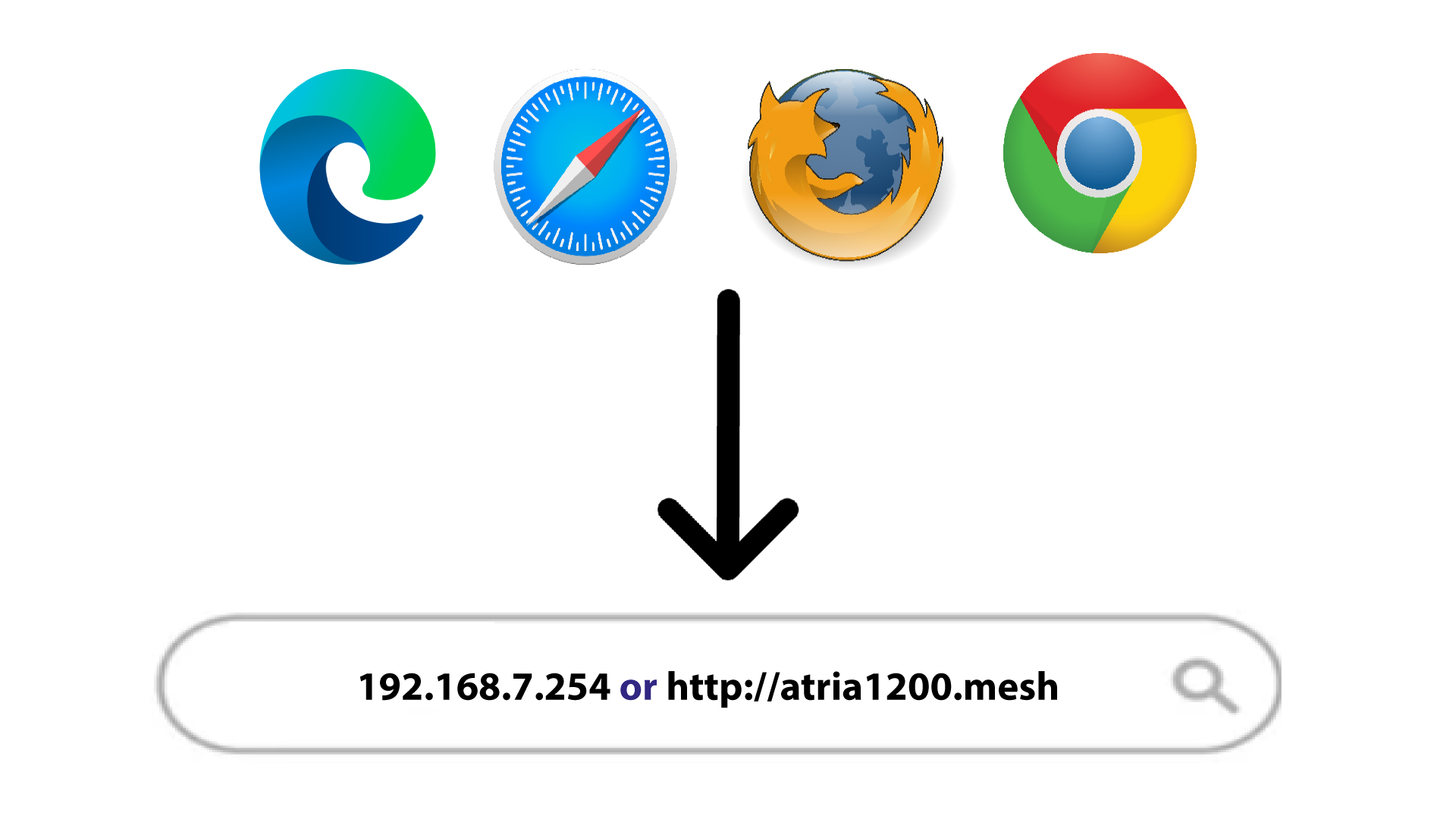
Then, you must browse to the Web UI IP address
3Easy mesh Settings
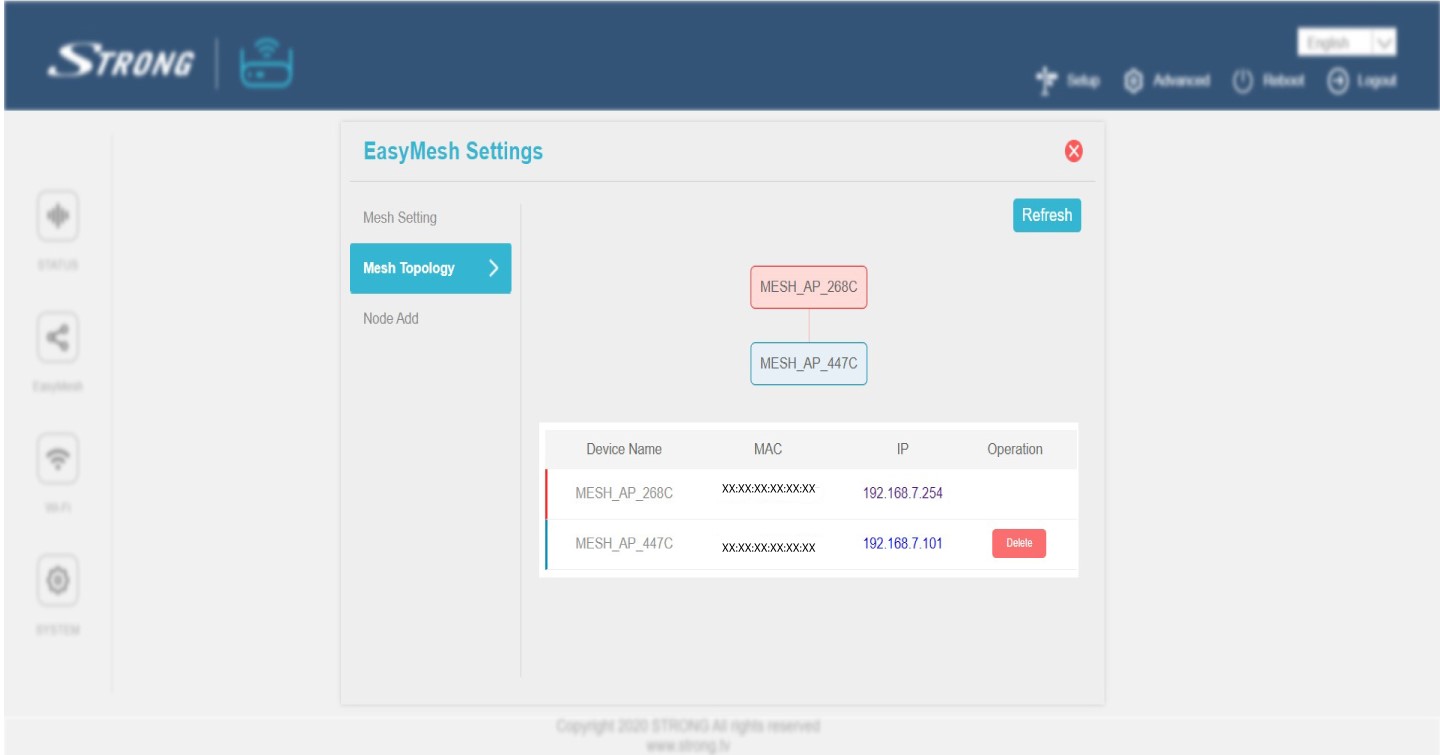
Click on Easy Mesh in the left bar.

4Mesh Topology
Then, all the IP addresses of the Mesh units of your network are displayed in the Mesh Topology.
5Write down the IP Addresses
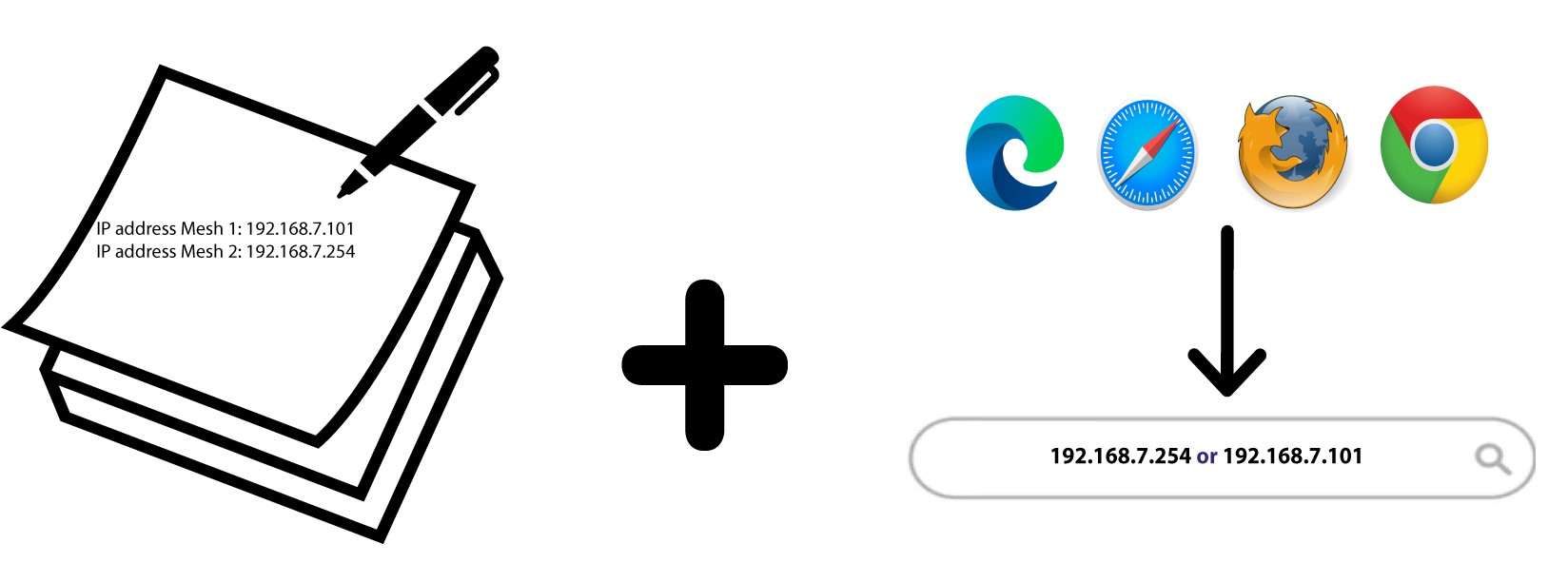
Write down the IP Addresses on a piece of paper. Then, type them in your browser to access the Web UI.
How do I access the Web UI?
To access the Web UI, you must be connected to the Wi-Fi of your device after plugin the Mesh to the power plug and to your internet box.
1Connect to the Wi-Fi of your mesh
To do so, enter the SSID (Wi-Fi Network Name) and Wi-Fi password of the router in your device:
2Browse to the IP Address
Then, enter the following IP address in your browser: 192.168.7.254 or type the following address : http://atria1200.mesh
3Enter your credentials
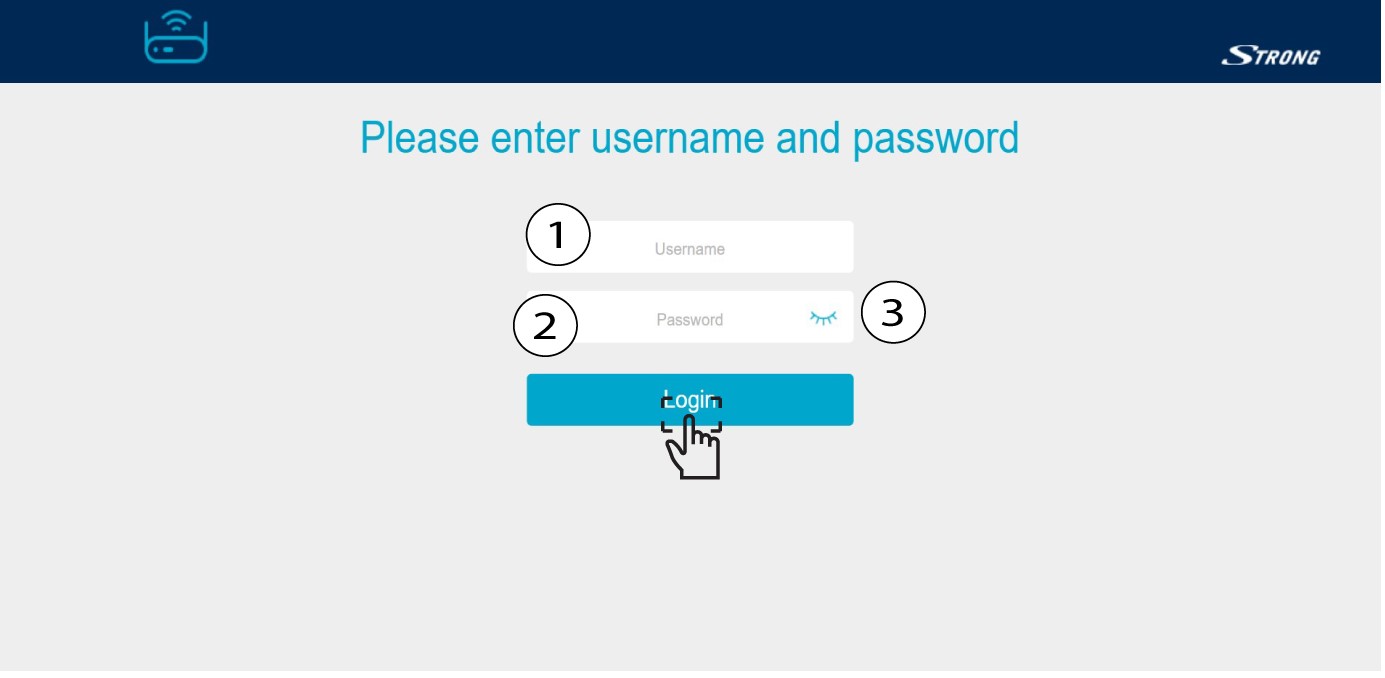
You must enter the Username (admin) and Password (admin). Then, click Login.
Warning: Please note that after the first connection, you will create your personal admin password, which means that the password written on the product label will not work any more.
How do I change the SSID (Wi-Fi Network name) and the password of my Wi-Fi mesh network ? (CASE 1: App)
How do I change the SSID (Wi-Fi Network name) and the password of my Wi-Fi mesh network ? (CASE 1: Web UI)
1Accessing the App
To connect to the App, please refer to this procedure : How do I use the Atria Mesh App?
2Wi-Fi Settings
Click on Wi-Fi Settings.

3Change the Wi-Fi Network Information
Enter a new SSID Wi-Fi and click the eye icon to display the password and change the password before
clicking Save.
Please note that you need to enter a password between 8 and 32 characters containing uppercase, lowercase, number and at least one special character (@, $, !, %, *, ?, &)
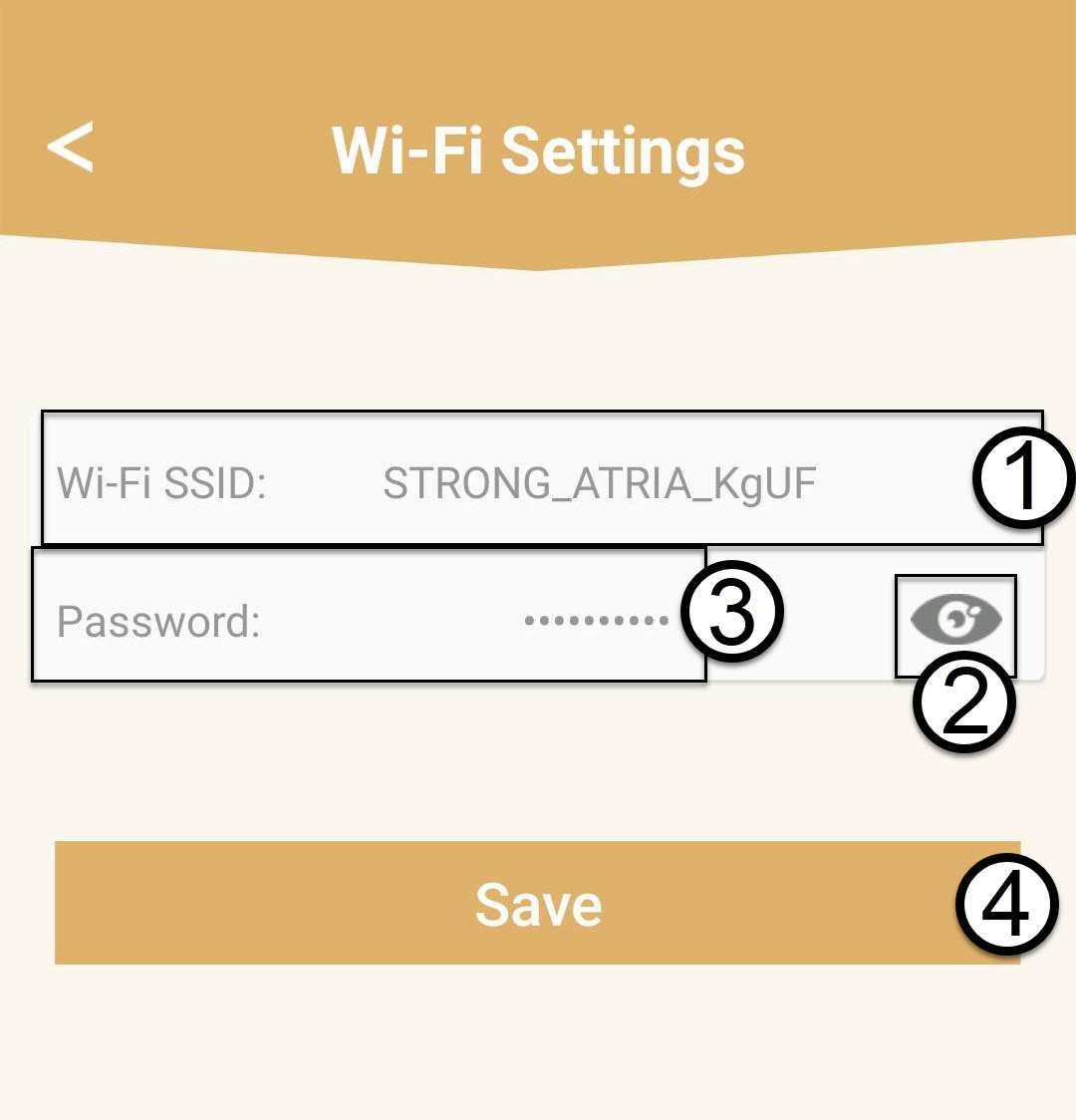
4Write down the new network information
Write down the new network information on a piece of paper.

How do I change the SSID (Wi-Fi Network name) and the password of my Wi-Fi mesh network ? (CASE 1: Web UI)
1Accessing the Web UI
To connect to the Web U,I please refer to this procedure : How do I access the Web UI?
2Wi-Fi Settings
Click on Wi-Fi in the left bar.
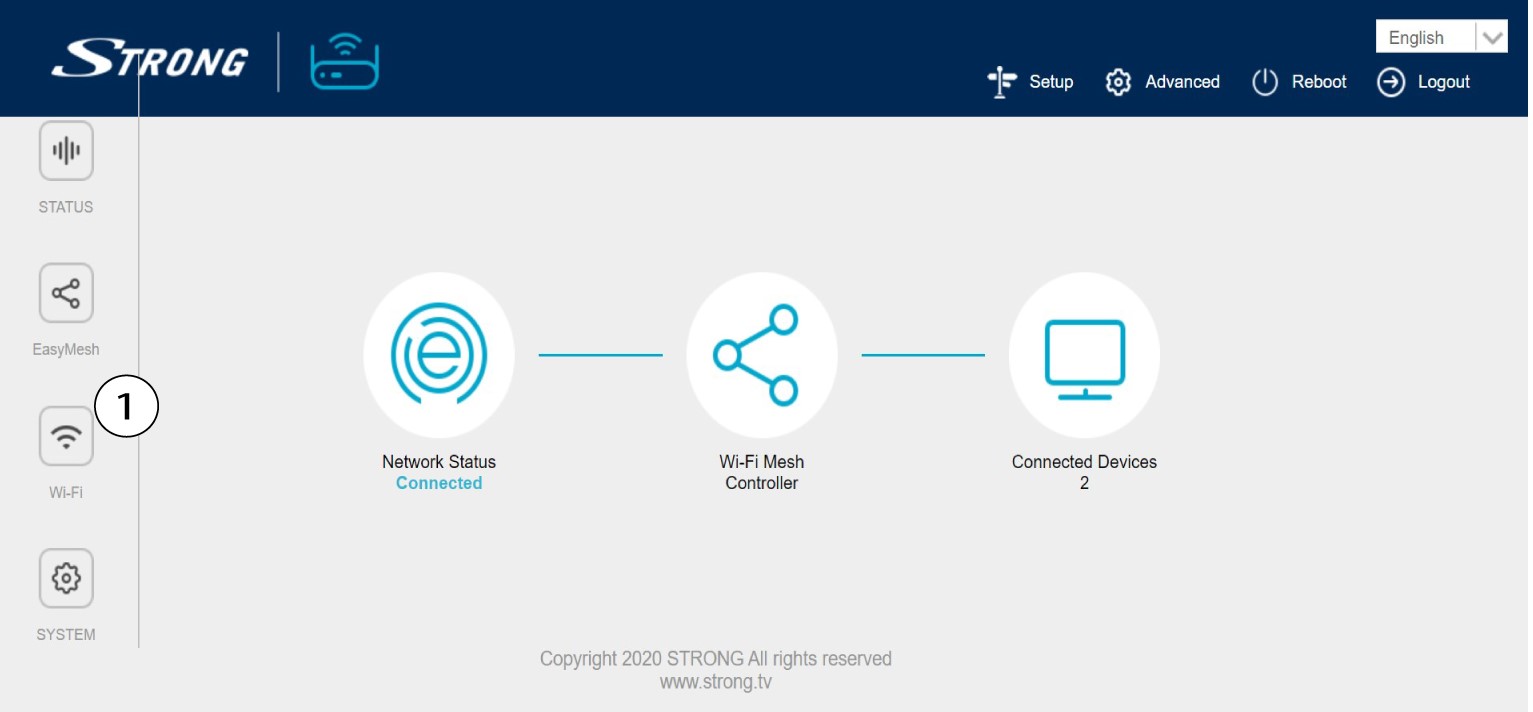
3Change the Wi-Fi Network Information
Click 5 G WLAN or 2.4 G WLAN. Then, enter the following information before clicking Apply:
o SSID: Enter a new network name
o Wi-Fi Key: Enter a new password. (check the display box to confirm that you wrote the right
password that you wanted)
Please note that you need to enter a password between 8 and 32 characters containing uppercase, lowercase, number and at least one special character (@, $, !, %, *, ?, &)

4Write down the new network information
Write down the new network information on a piece of paper.
How to change the administration password (Web UI)
1Connect to the Wi-Fi of your mesh
To do so, enter the SSID (Wi-Fi Network Name) and Wi-Fi password of the router in your device:
2Browse to the IP Address
Then, enter the following IP address in your browser: 192.168.7.254 or type the following address : http://atria1200.mesh
3Enter your credentials
You must enter the Username (admin) and Password (admin). Then, click Login.
4System Settings
You are now on the main page of the Web UI. You may need to change the administration password of the Web UI after your first connexion, to do so please refer to the following instructions. To do so, click System in the left bar.
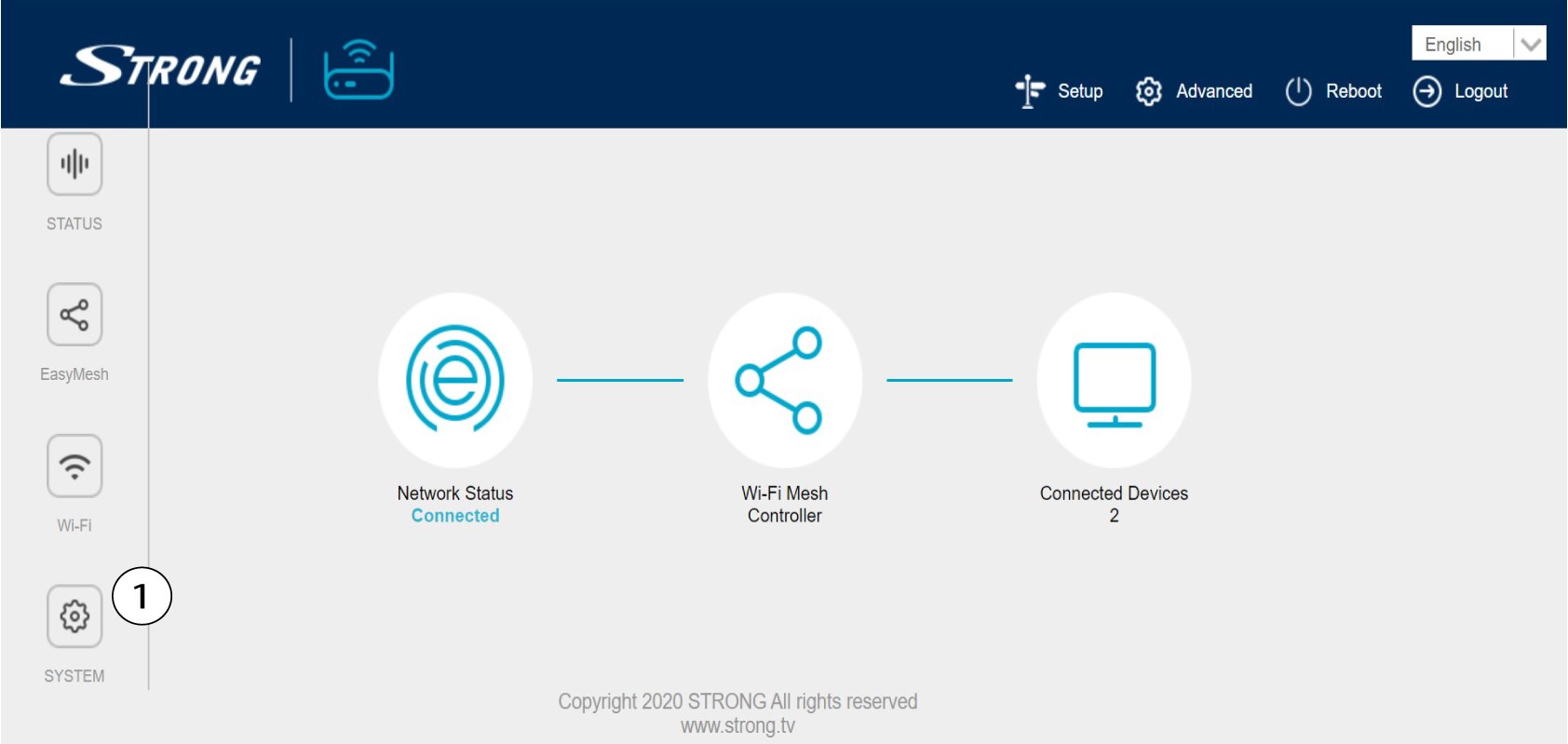
5Edit the admin password
Enter the following information before clicking Confirm:
o Old Password: Enter the old administration password
o New Password: Enter a new password.
o Confirm Password: Enter the same password as in the previous step.
Warning: Please note that you need to enter a password between 8 and 32 characters containing uppercase, lowercase, number and at least one special character (@, $, !, %, *, ?, &)
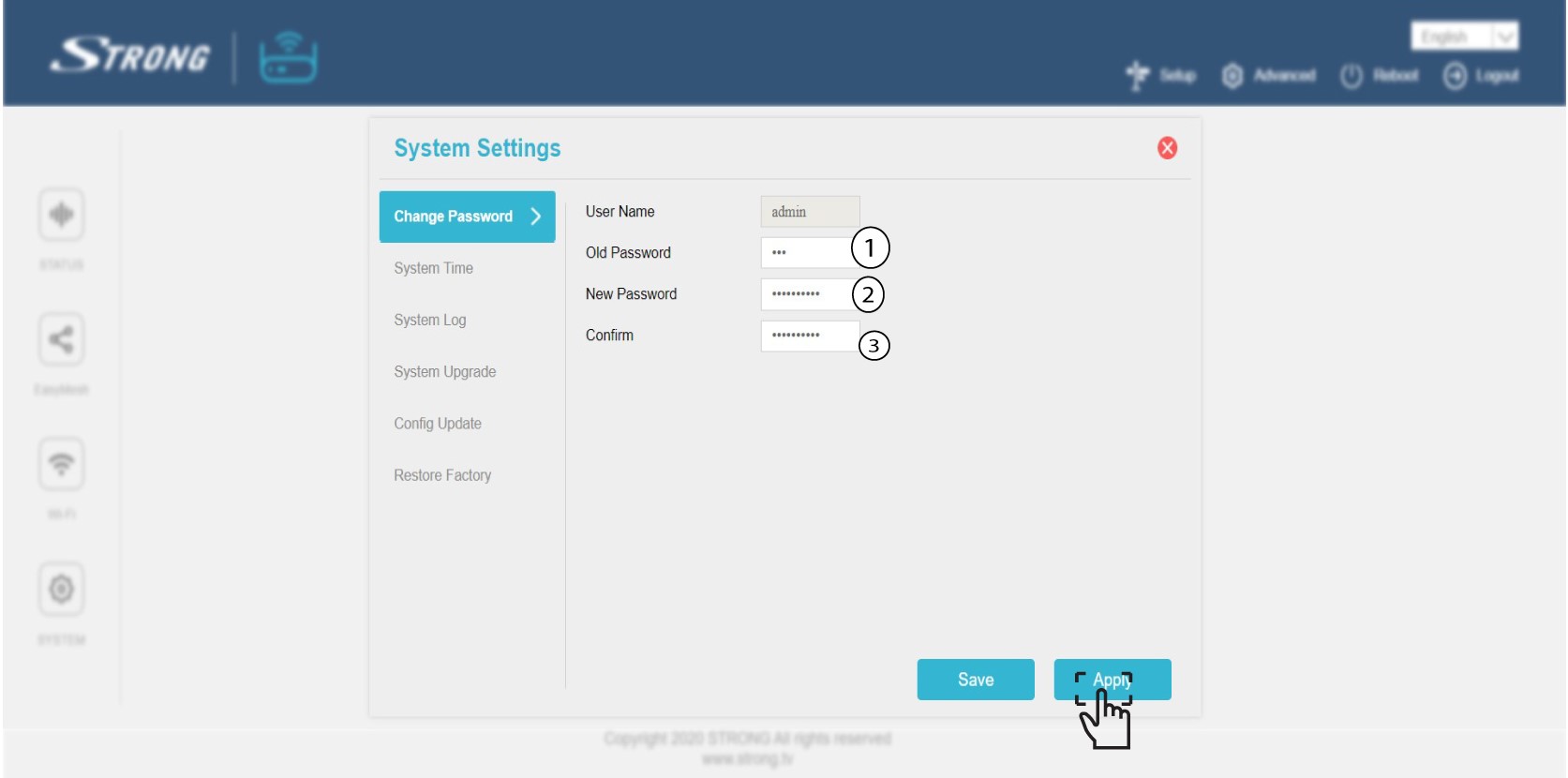
6Write down the new password
Write down the new password on a piece of paper and tape it under your mesh.
I forgot the Wi-Fi password of my Mesh network, how I can find it?
The default Wi-Fi password is located under your device, however, if you already changed it, you may need to restore the Mesh 1200 to its default factory settings.
1CASE 1: Network Information in the Web UI
To connect to the Web UI, please refer to this procedure : How do I access the Web UI?
2Wi-Fi Settings
Click Wi-Fi in the left bar.
32.4G WLAN
Then in 5G WLAN or 2.4G WLAN, the name of your Wi-Fi is displayed in the SSID field, and you can
see the password of this Wi-Fi by checking the Display box on the right side of the Wi-Fi Key field.
4Write Down the information
Write down the password on a piece of paper.
1CASE 2: Network Information in the App
To connect to the Web UI please refer to this procedure : How do I use the Atria Mesh App?
2Wi-Fi Settings
Click Wi-Fi in the left bar.
3Display the password
Click the eye icon to display the password.

4Write Down the information
Write down the password on a piece of paper.
What can I do in the Web UI?
The Web UI is divided into 10 sections:
- Status: Where you can find all the information about the Mesh device and network.
- Easy Mesh: Where you can access the Mesh settings, the Mesh topology and add a new node.
- Wi-Fi: where you choose between 2.4G and 5G network, set up multiples SSID, the WPS,
manage the internet access of the different mac address, modify the SSID and Wi-Fi Passwords,
setup different guest networks and access a Schedule for the Mesh Network activation. - System: where you can change the admin password for the Web UI, the time zone of your
device, check the logs, update the system or the config and restore the device to its factory
default settings. - Network Status: Where you can change the operating mode, access the WAN IPv4 and IPv6
settings, the LAN Ipv4 and IPv6 settings and access the advanced features such as the UPnP or a IGMP Snooping and Proxy. - Wi-Fi Mesh : Where you can access the Mesh settings, the Mesh topology and add a new node.
- Connected devices: Where you can see all the devices that are connected to your Mesh
Network, either Wired or Wireless. - Setup : Where you can change the password for the Web UI or the SSID and Wi-Fi Password
of your Mesh Network. - Advanced: Where you can access the ALG, IP filter, URL filter, MAC filter, DDNS, DMZ and
port forwarding settings. - Reboot : Where you can restart and reboot your device if you encounter a bug or an issue with
your network

Where can I find the credentials to access the Web UI?
The credentials to access the Web UI are located under your Mesh 1200. By default, the Username and Password for the Web UI are 'admin'.
To connect to the Web UI and change the administration password, please refer to : How do I access the
Web UI?
If you changed the administration password and cannot access the Web UI, please reset your device to its factory settings by following this procedure: How do I reset my Mesh units to the factory settings?
