
LEAP UNA | FHD Android TV with HDR10+
All questions
Apps, picture and sound
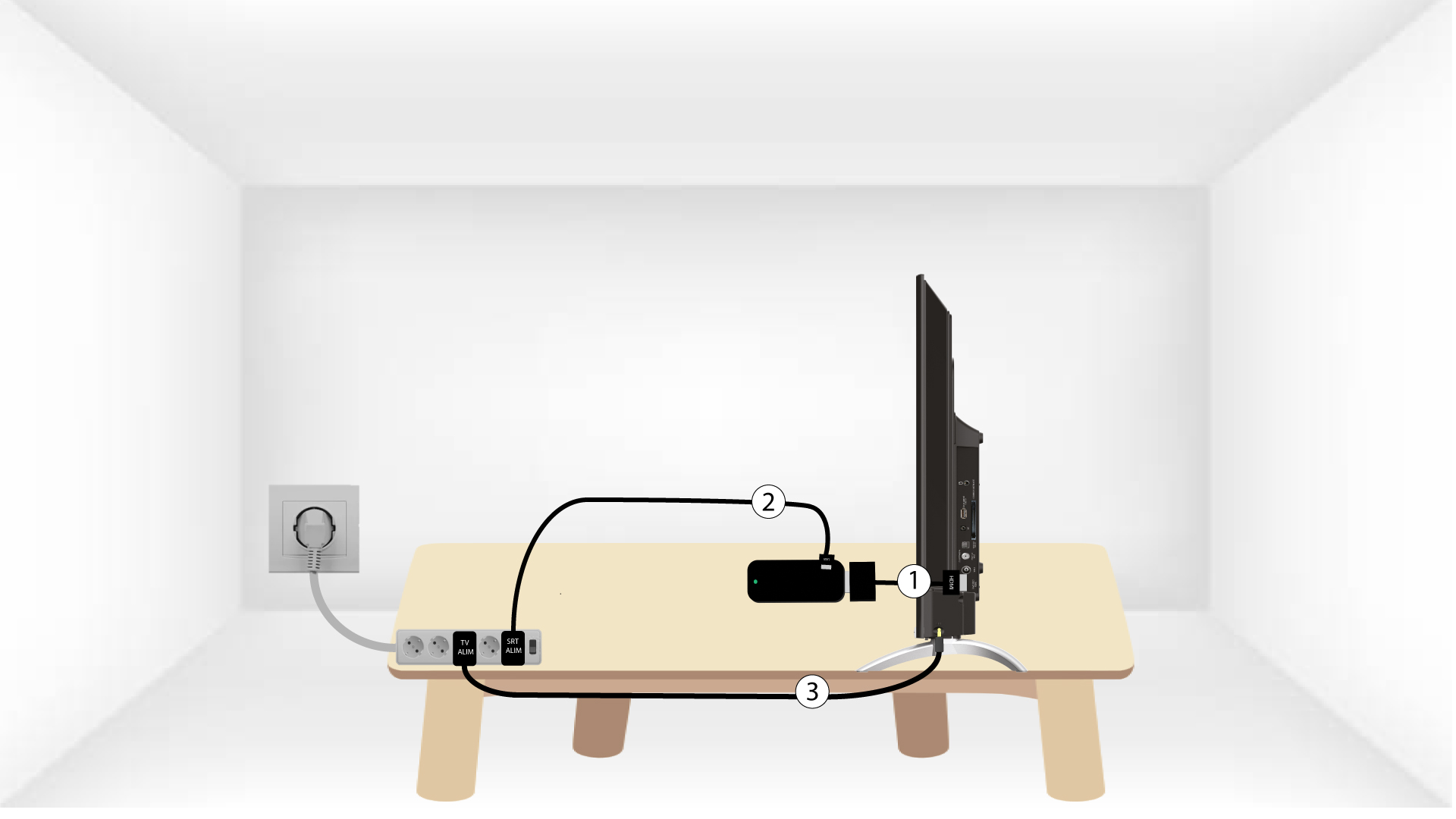
How do I connect my LEAP UNA to my TV?
Put the HDMI stick and the HDMI Cable together and connect it to the HDMI port of your TV (1). Then, insert the USB cable in the SRT41 and plug it in (2) and plug in your TV (3).
What video resolution does the LEAP-UNA support?
The LEAP-UNA supports up to 2K Full HD (1080p60). It does not support 4K UHD output. Supported resolutions: 480i, 480p, 576i, 576p, 720p, 1080i, 1080p24, 1080p30, 1080p60.
Note: The LEAP-UNA supports HDR10 and HDR10+ for compatible content. Dolby Vision is not supported on this model.
How do I adjust the video resolution?
- Go to Settings > Device Preferences > Display & Sound > Display > Screen resolution.
- Select the resolution that matches your TV (e.g. 1080p, 720p).
Note: The LEAP-UNA outputs a maximum resolution of 1080p60 (Full HD / 2K). It does not support 4K UHD output.
What HDR formats are supported?
The LEAP-UNA supports HDR10 and HDR10+. Dolby Vision is not supported on this model. HDR content is decoded automatically when the streaming application and TV both support it.
There is no sound.
- Press Mute on the remote to toggle mute off.
- Press VOL+ to increase the volume.
- Go to Settings > Display & Sound > Advanced sound settings and set the format to Auto or Off (PCM stereo).
There is no sound or the audio format is wrong.
- Check that the TV is not muted (press Mute on the remote to toggle).
- Increase the volume using VOL+ on the remote.
- Go to Settings > Device Preferences > Display & Sound > Advanced sound settings and set the audio format to Auto, or select Off to force PCM stereo output — useful if your TV or soundbar does not support Dolby Digital passthrough.
How do I enable CEC to control the TV with the LEAP-UNA remote?
- Go to Settings > Device Preferences > Display & Sound > CEC control.
- Enable CEC switch, Volume control, and Auto Language as desired.
- Also enable CEC on your TV (often labelled Anynet+, Bravia Sync, SimpLink, EasyLink, or HDMI-CEC depending on your TV brand).
How do I cast content from my phone or tablet to the TV?
- Open a Google Cast-compatible app on your Android phone, tablet, or in the Chrome browser.
- Tap the Cast icon within the app.
- Select LEAP-UNA from the list of available devices.
- To stop casting, tap the Cast icon again and select Stop casting.
Note: Your phone/tablet and the LEAP-UNA must be on the same Wi-Fi network for casting to work.
How do I configure the screen saver and energy saver?
- Screensaver: Settings > Device Preferences > Screen saver. Set the inactivity time before the screensaver starts.
- Energy saver: Settings > Device Preferences > Energy saver. Set the inactivity time before the screen turns off. Default: 3 hours. Options: 15 min, 30 min, 1, 3, 4, 8, 12, 24 hours or Never.
How do I use Google Assistant on the LEAP-UNA?
Press the microphone / voice button on the remote and speak your command. The remote must be paired via Bluetooth for voice to work.
- Search: "Play Squid Game on Netflix" / "Open YouTube" / "Search for action movies".
- Control: "Pause" / "Louder" / "Turn off".
- Information: "What is the weather in Paris?" / "How far is the moon?".
Note: To disable Google Assistant entirely: Settings > Device Preferences > Google Assistant > Off. The microphone button on the remote will no longer work for voice commands.
Is a Google account required?
Yes. A Google account is required to access the Google Play Store, install apps, and use personalised features. The setup can be completed directly on the TV using the remote, without a smartphone.
How do I add or switch Google accounts?
- Go to Settings > Account & sign-in.
- Select Add account to add a new Google account, or select an existing account to switch.
How do I manage or uninstall an application?
- Go to Settings > Apps.
- Select the app.
- Choose Uninstall, Force stop, or Clear cache as needed.
An application crashes or runs slowly.
- Go to Settings > Apps, select the app, and clear its cache.
- Uninstall and reinstall the app from Google Play Store.
- Free up storage: uninstall unused apps. The LEAP-UNA has 8 GB of internal storage.