Universal Repeater 300S
All questions
Universal Repeater 300S
Reset, reboot and firmware update
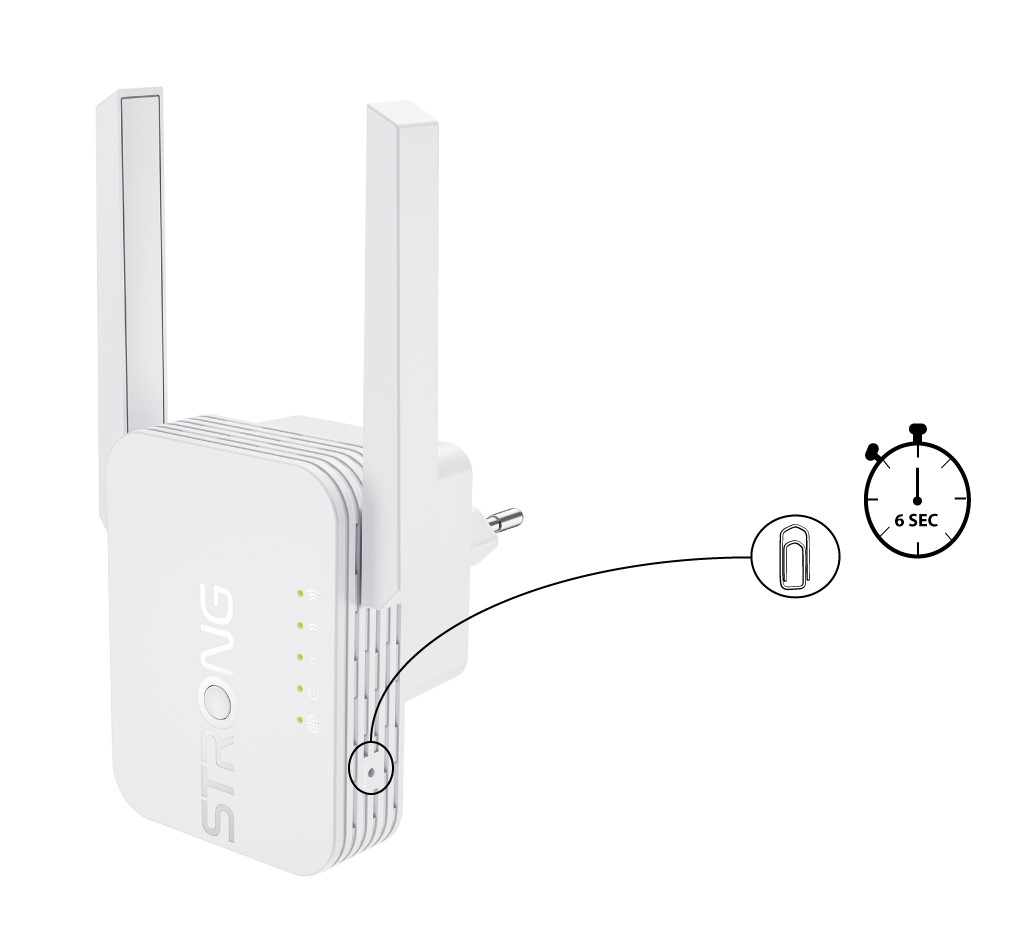
How do I reset my repeater to its factory settings? (Reset Button)
Reset your device to its factory settings by pressing the "Reset" button with a paper-clip for 6 seconds.
How do I reset my repeater to its factory settings? (Web UI)
1Connect to the Web UI
Please follow this procedure to connect to the UI after the configuration.
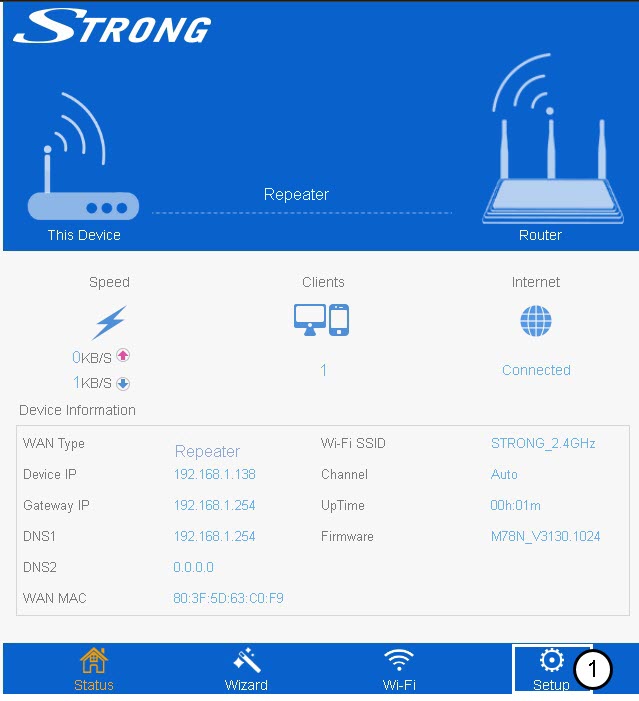
2Setup
Click Setup.
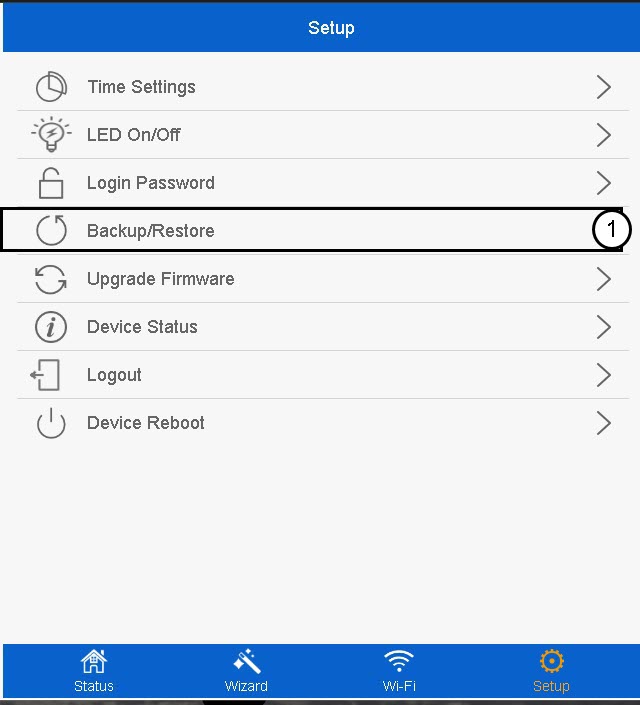
3Backup & Restore
Click Backup/Restore.
4Reset to default settings
Click Reset.
Please wait for the reset to be completed.
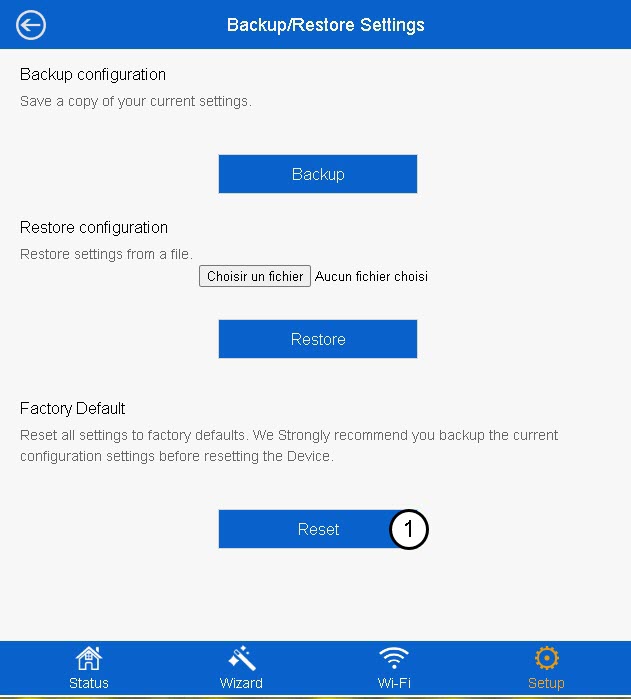

Warning: Please note that all the customized settings configured that was done on your network will be erased. You will need to reconfigure tour network from scratch by connecting with the default credentials written under the product label.
How do I update the firmware of my repeater?
1Browse to the download section on https://www.strong-eu.com/
Before the update, you must go to the download section of our website to see if there is a new software version available.
2Download
To access the downloads, Click Assistance and Download in the top bar and its submenu.

3Select your product reference
Once, you have browsed to the Downloads page, click Home Networking and repeater and click the product reference.
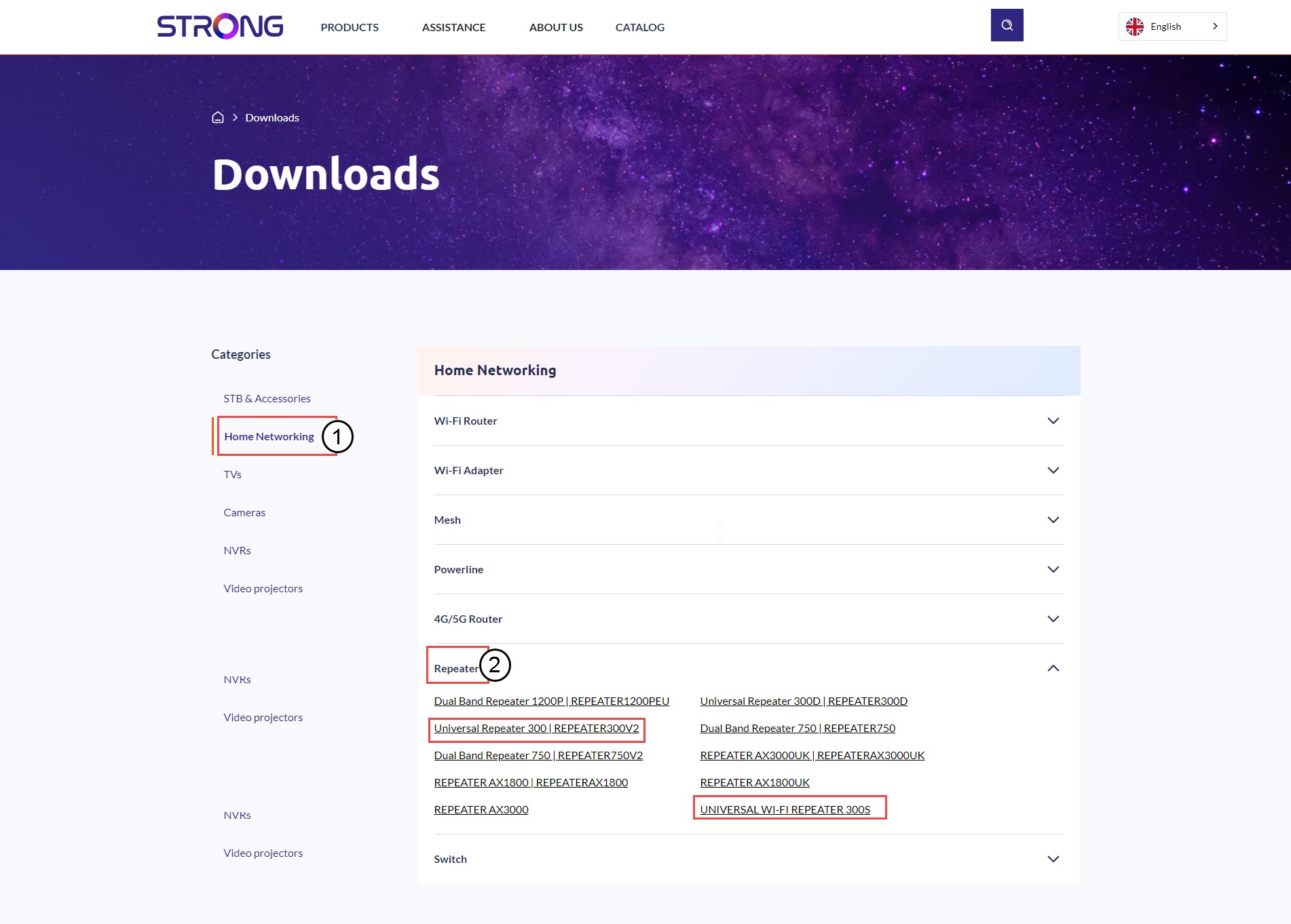
4Firmware Section
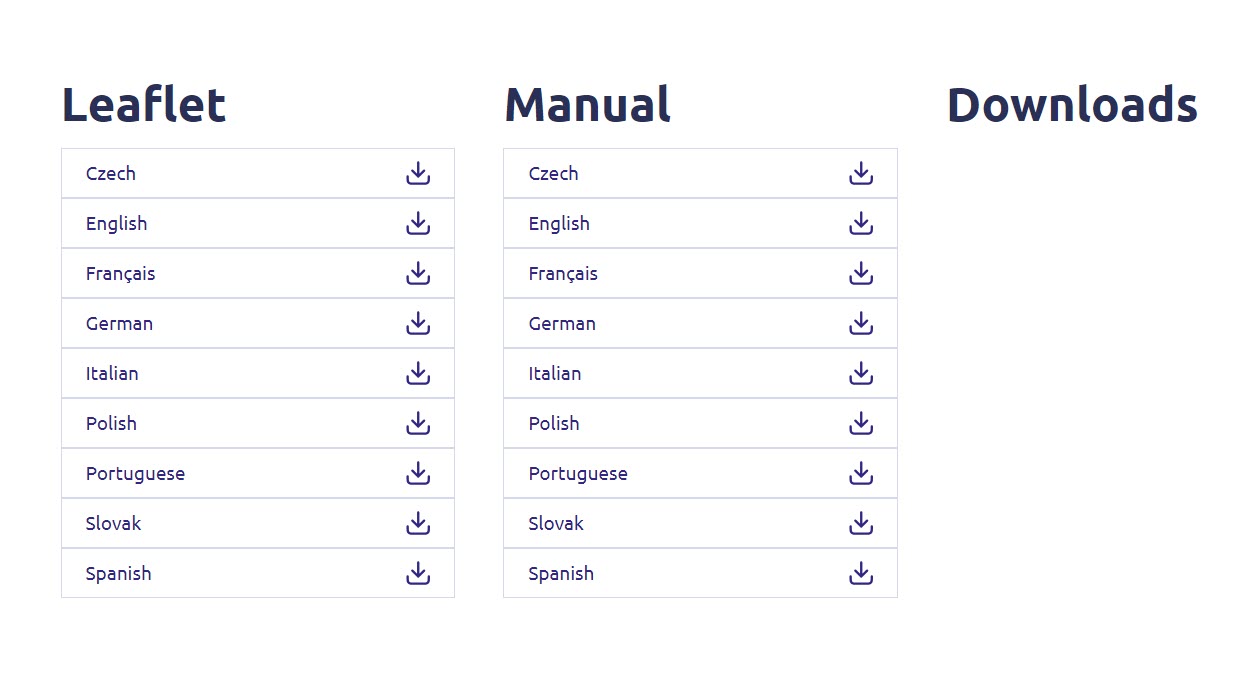
On the page below, you will find the new software version under the firmware section.
If you do not see a firmware section on the download page, it means that there is no new software version available.
5Connect to the Web UI
Follow this procedure to connect to the Web UI.
6Setup
Click Setup.
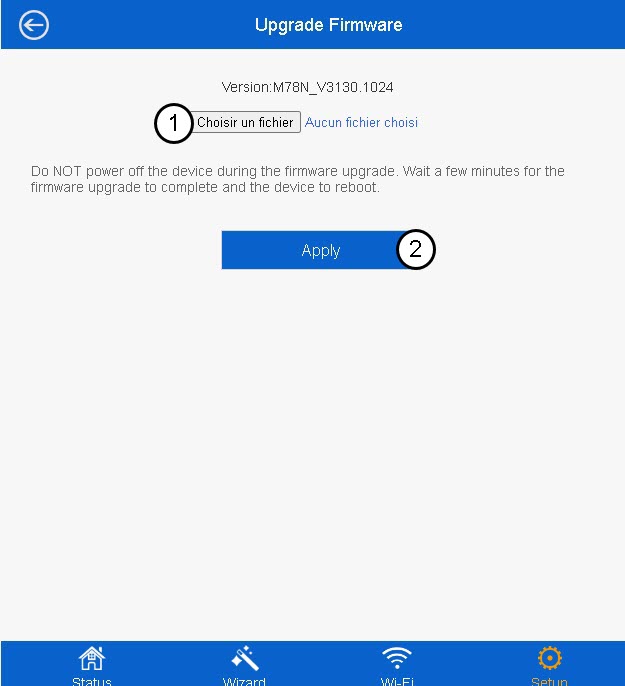
7Upgrade Firmware
Click Upgrade Firmware.
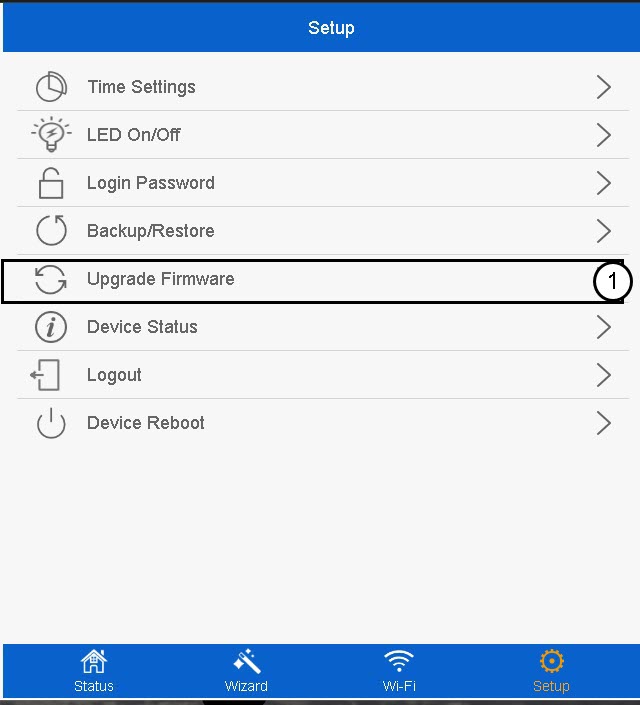
8Select the firmware file
Select the firmware file on your device and click Apply.