4G AIRHOME 200 Mini router with Detachable 4G antennas
All questions
4G AIRHOME 200 Mini router with Detachable 4G antennas
Reset, reboot and firmware update
How do I reset my router to its factory settings?
Sometimes, it is possible that your device is not working properly and that you don’t have internet access. In this case, we suggest resetting your device to its factory settings and updating its firmware again afterwards if necessary.
You have two ways to do it, you can reset the device by pressing the reset button or doing it in the Web UI.
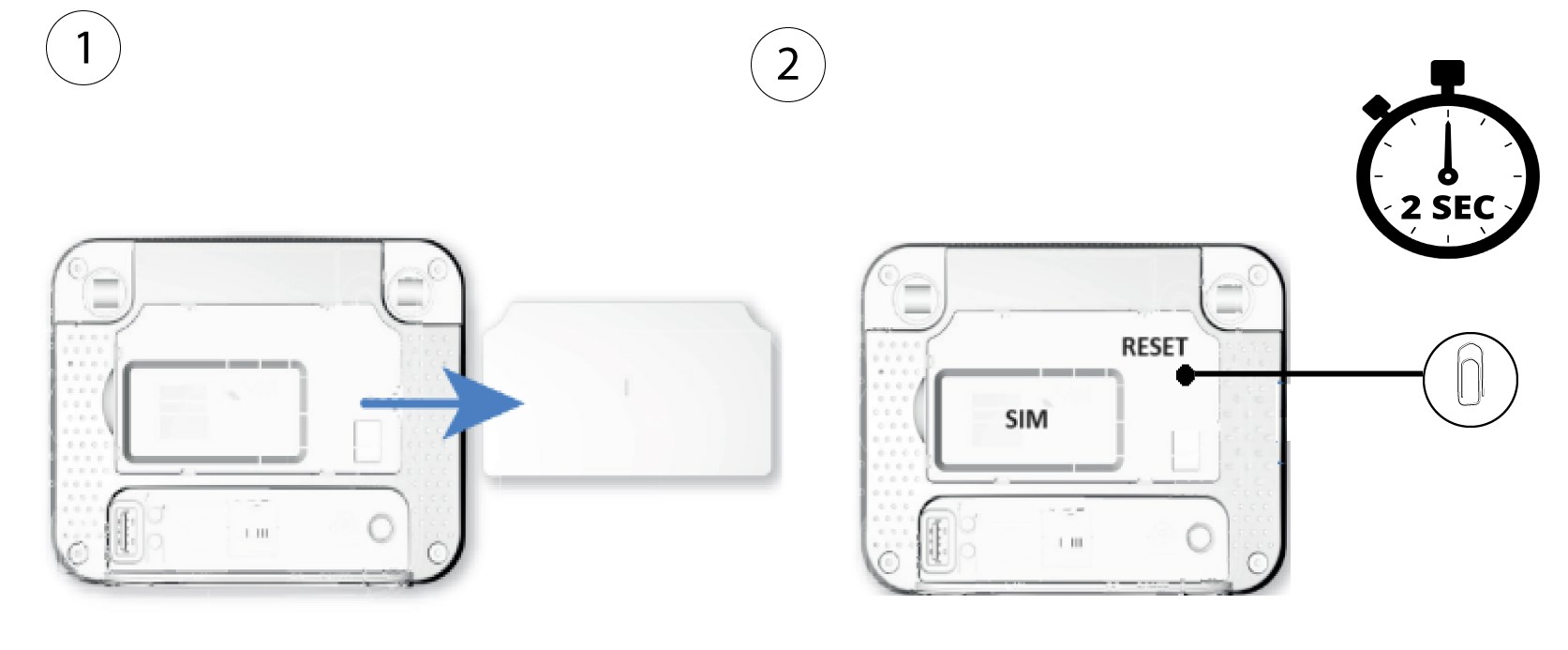
1Case 1: Reset button.
To do so, remove the cover on the rear side of the router and press the RESET Button for 2 seconds with a paperclip.
1Case 2: Reset in the Web UI
You must connect to the Web UI to reset your router, follow the procedure below:
2Firmware Update
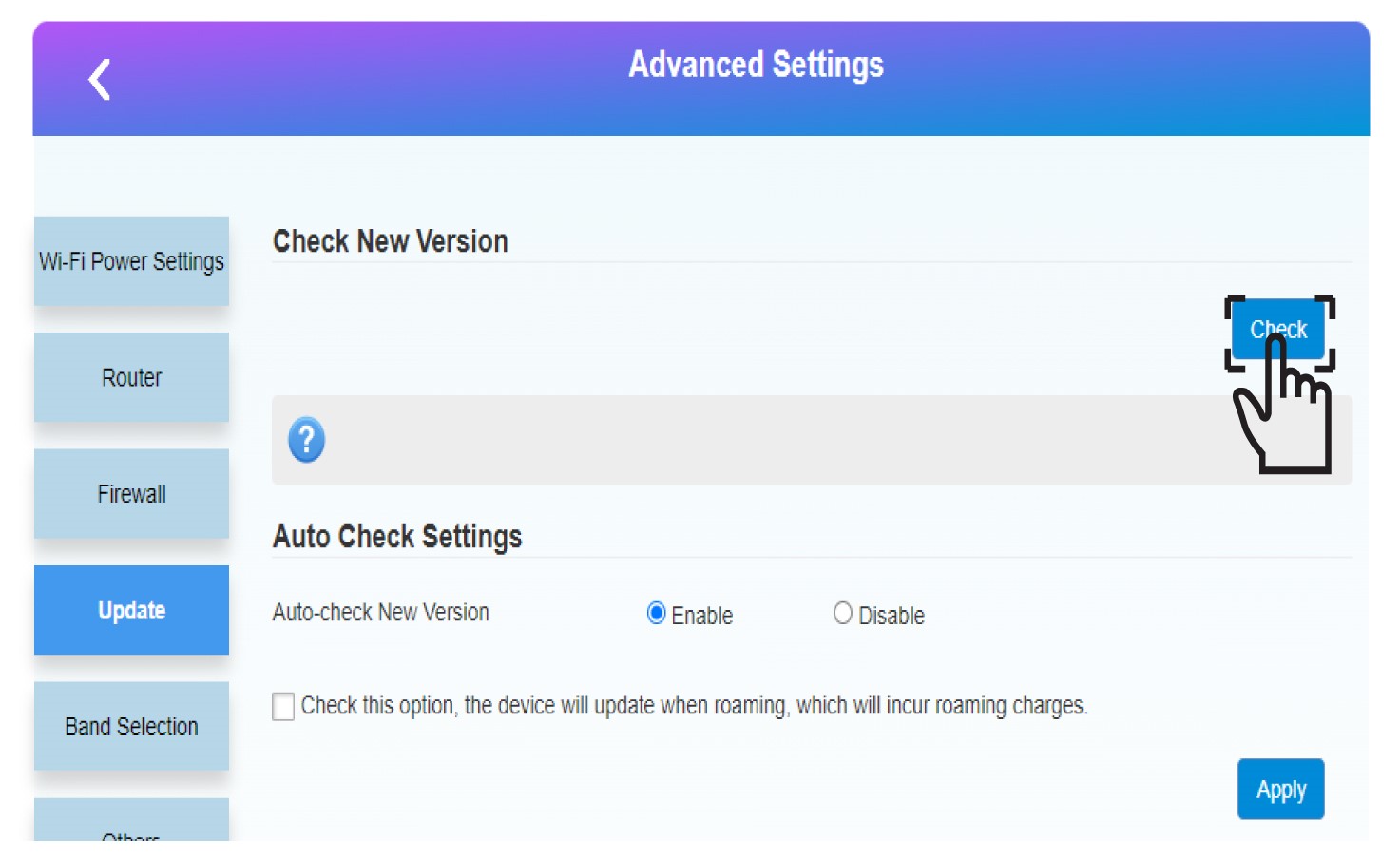
Then, click Firmware Update.

3Reset Factory Settings
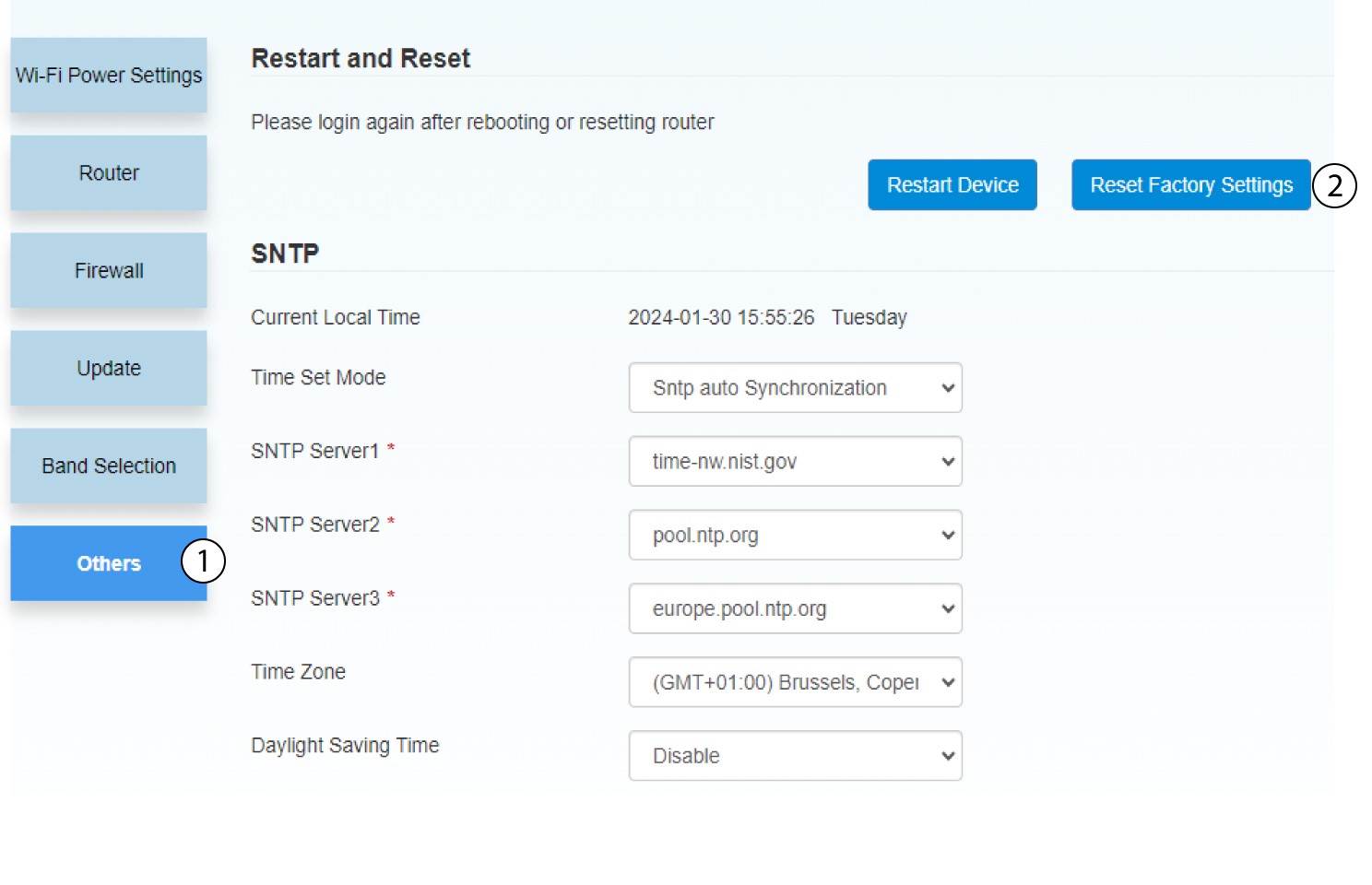
Click Others. In the Restart and Reset section, click reset Factory Settings.
4Pop up message
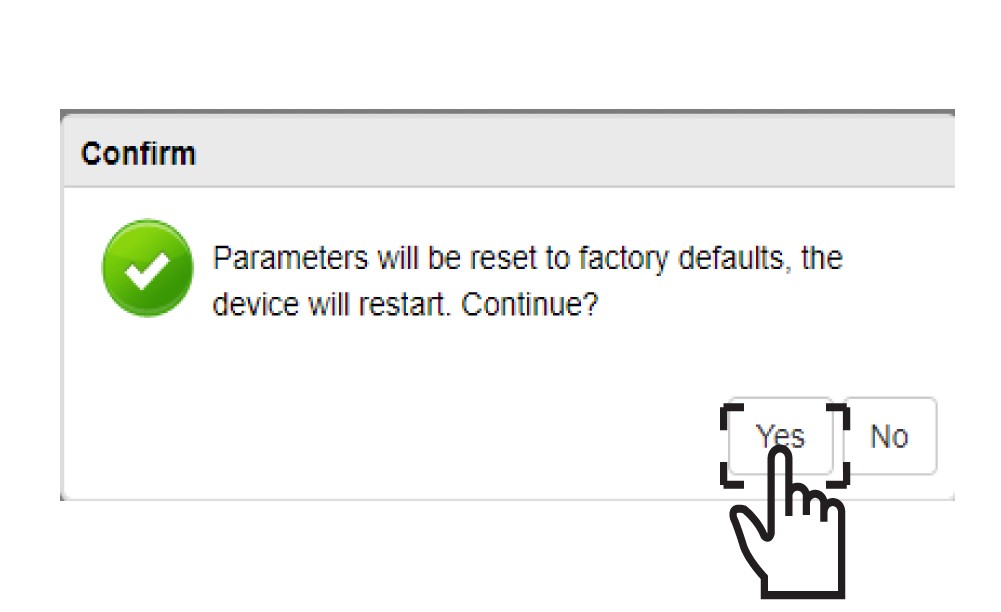
Click YES in the pop-up message.
How do I update the Firmware of the device?
When you are connected to the Web UI, you must check the firmware version used by your device by using the online upgrade option in the Web UI. By doing so, the latest firmware version will be installed. If your router is not up to date, please refer to the procedure bellow to update your firmware.
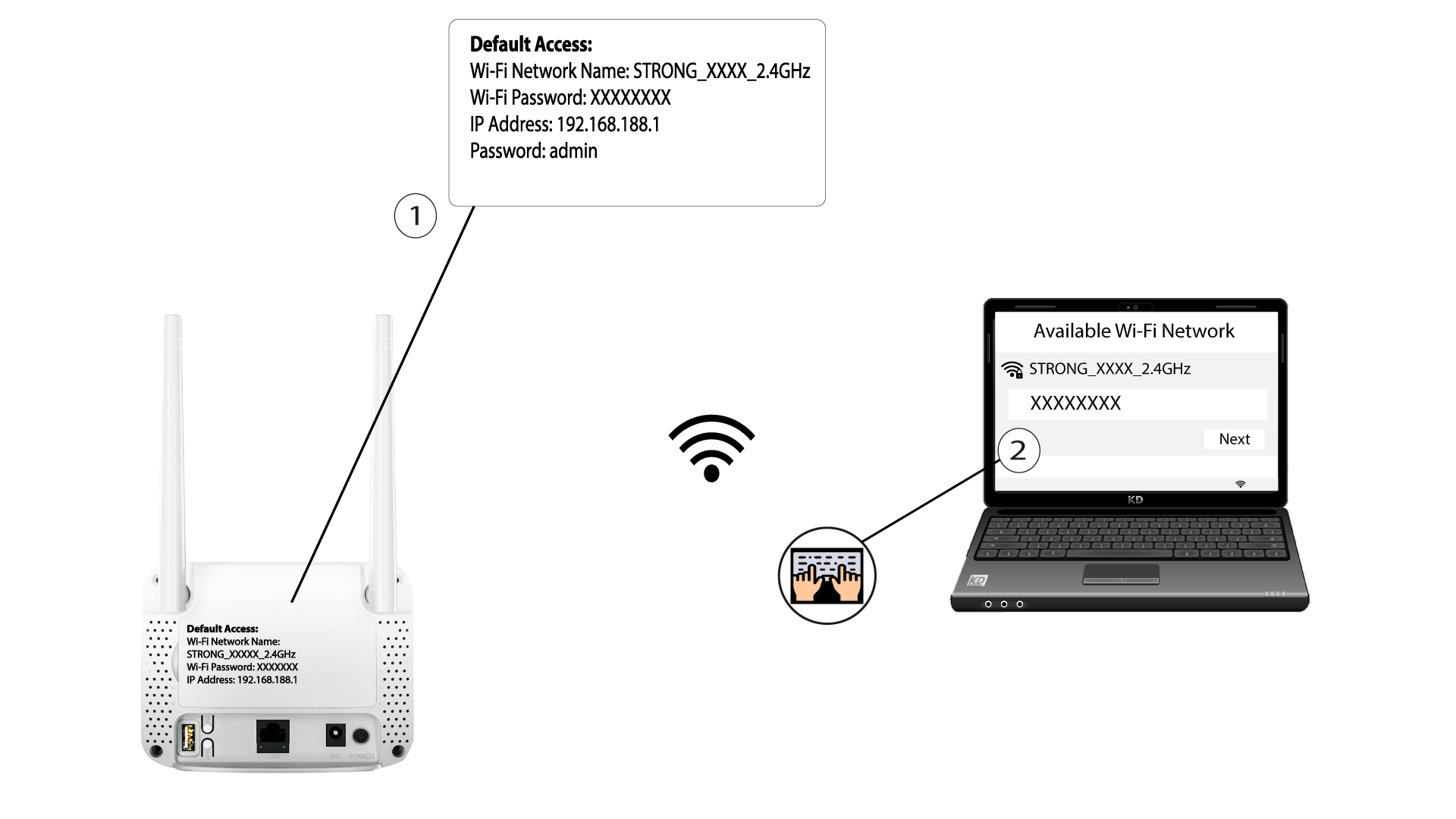
1Connect to the Wi-Fi Network of your router
To update the firmware of the device, you must connect to the Wi-Fi of your router.
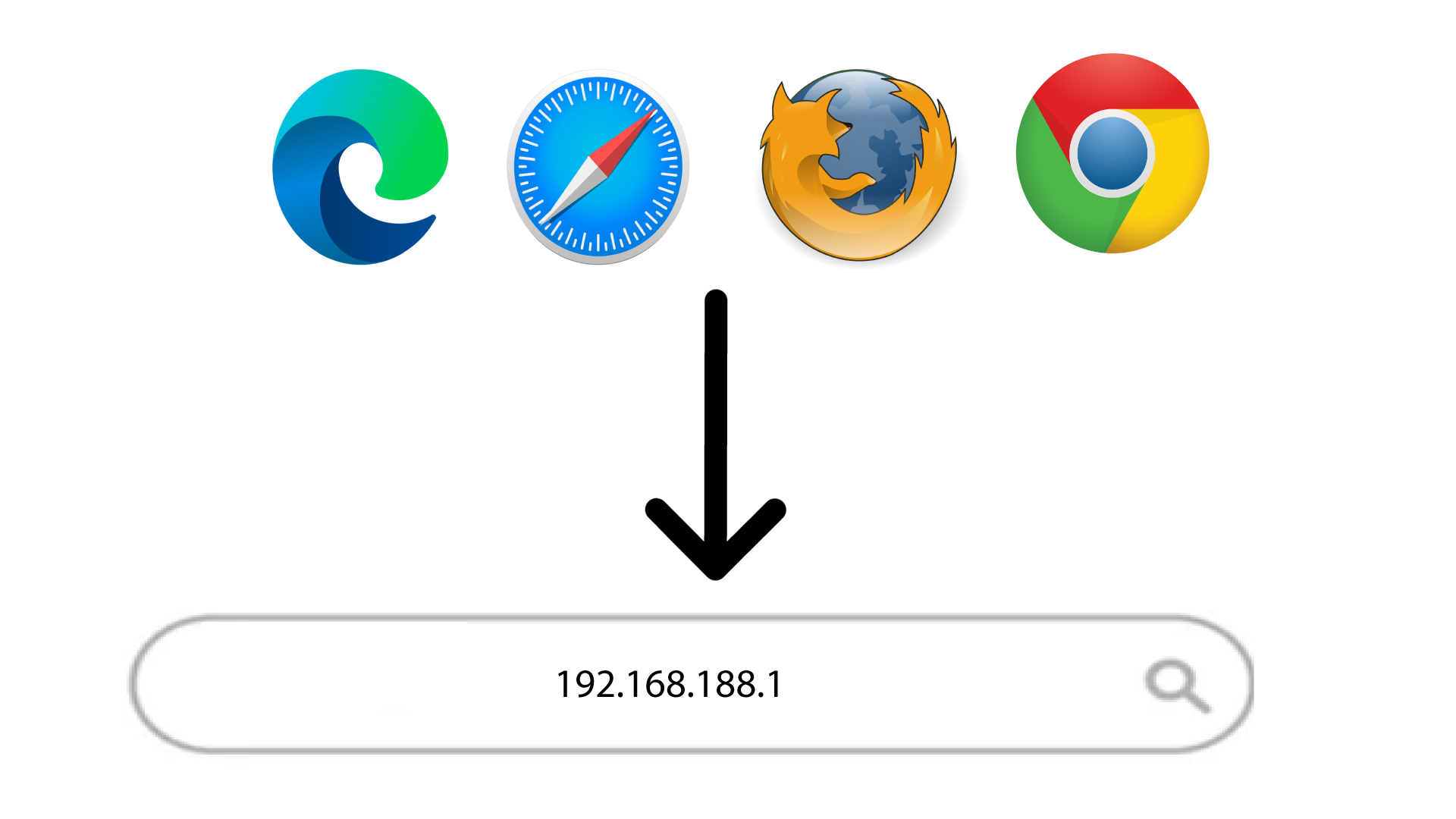
2Browse to the Web UI IP Address
Then enter the following IP address: 192.168.188.1 in your browser.
3Enter your credentials
You must enter the Password.

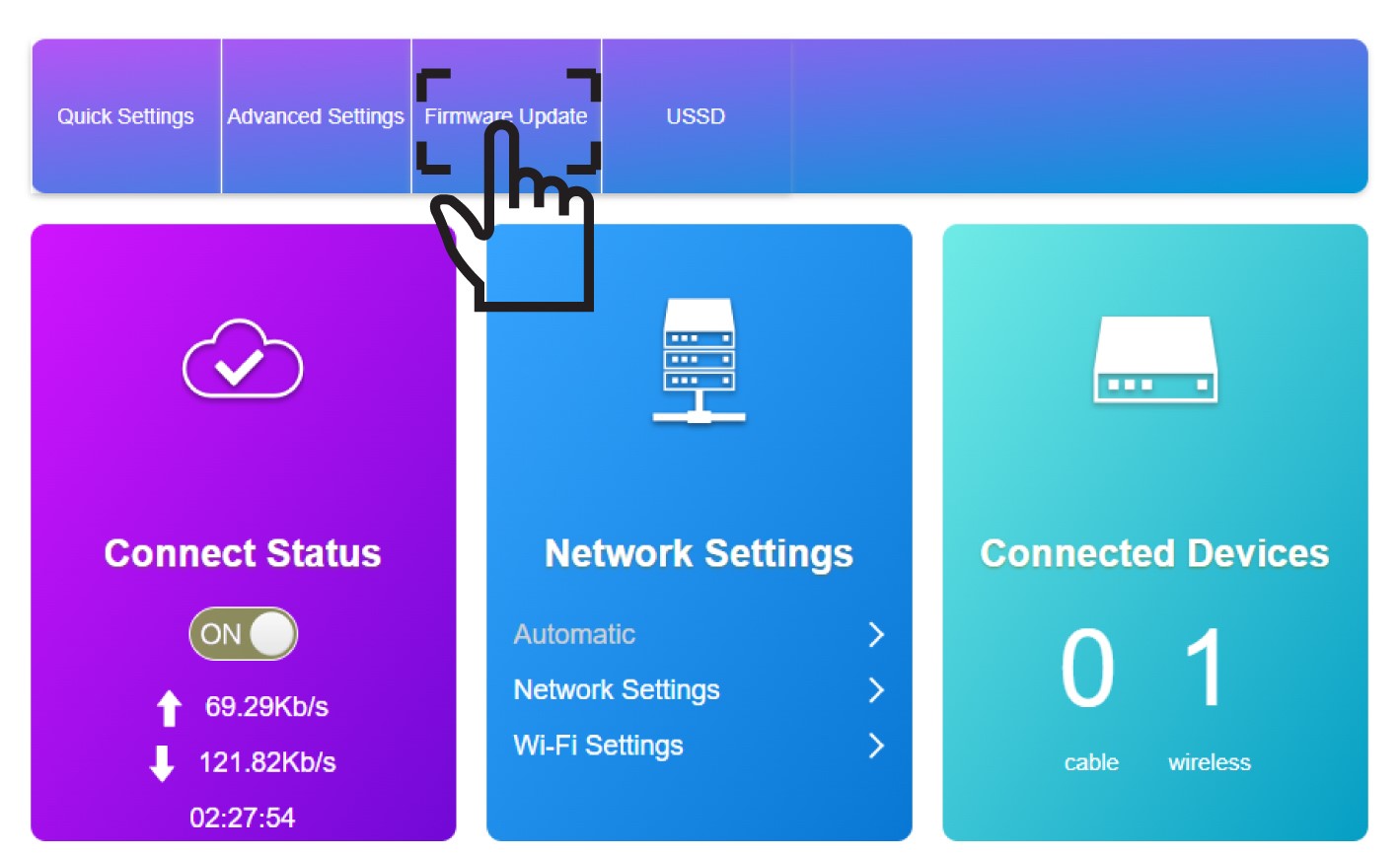
4Firmware update
Click Firmware Update.
5Start the update
Click Check in the Check New Version section. The latest version of the software will be automatically downloaded, and you will have to reconnect to the Wi-Fi network to enter your PIN code.