PLW600SDUOEU
All questions
PLW600SDUOEU
Why is my 2.4GHz Wi-Fi experiencing interruptions, and how can changing the channel to 1, 6, or 11 help?
To minimize interference, we recommend changing your Wi-Fi channel to 1, 6 or 11. These channels are spaced far enough apart to avoid overlapping with each other, which reduces the chances of interference from other networks and devices operating nearby. By selecting one of these channels, you can improve the stability and performance of your Wi-Fi connection.
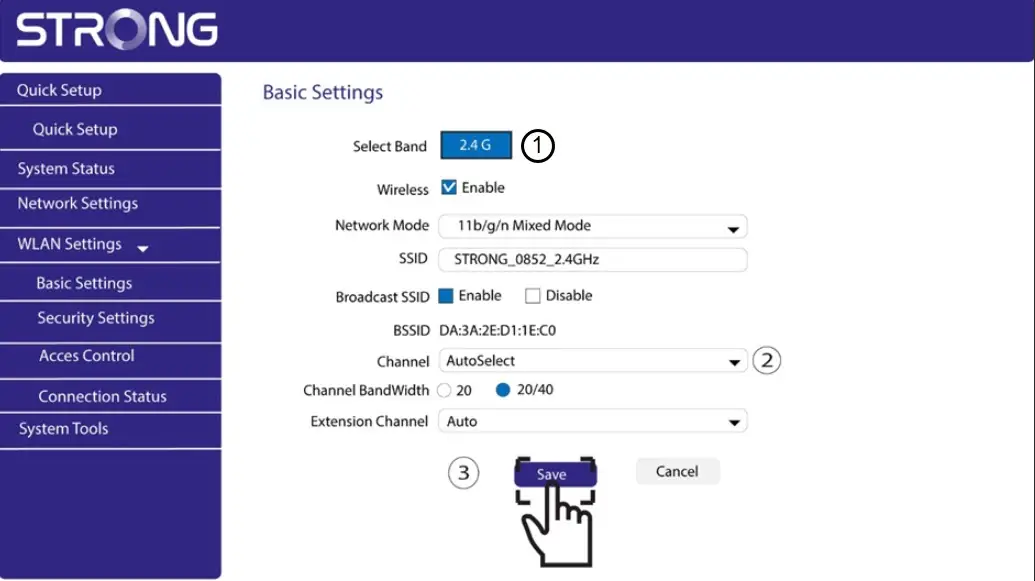
To change the channel, access your Powerline Wi-Fi device settings through its web interface, go to WLAN Settings > Basic Settings and choose channel 1, 6 or 11.
1Connect to the Wi-Fi
Enter the SSID and password of the Powerline Wi-Fi adapter on your device.

2Enter the web interface address
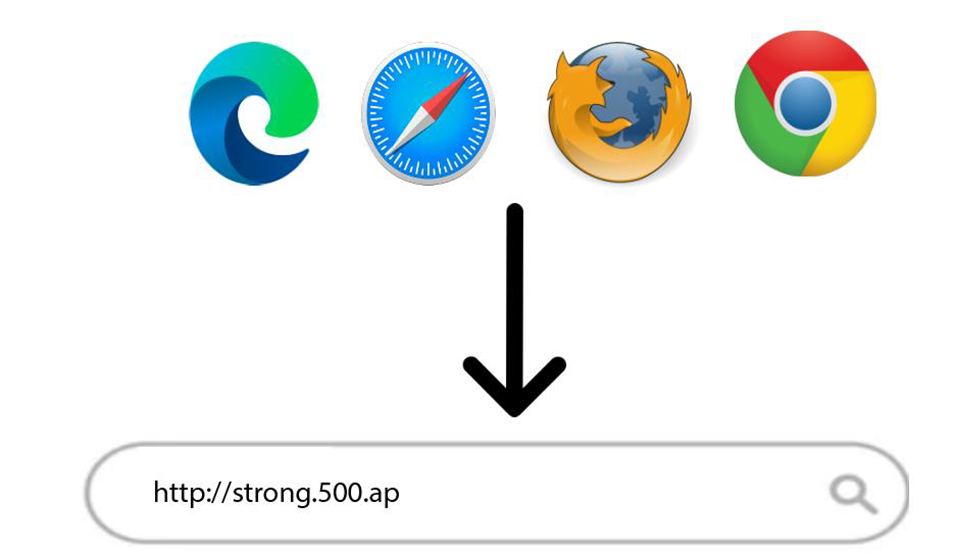
Enter the following address in your browser: http://strong.500.ap
3Log in
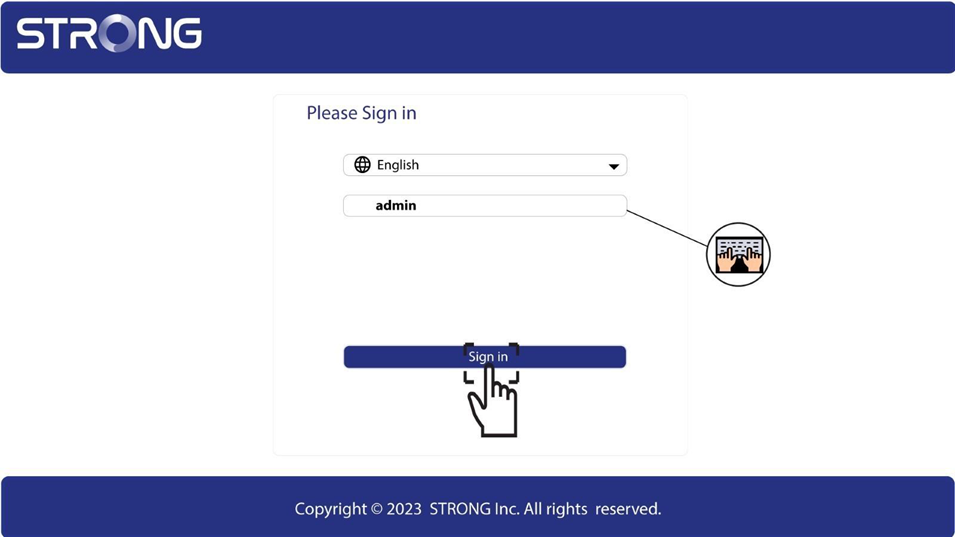
Once on the login page, enter the username admin, then click Sign in.
4WLAN Settings
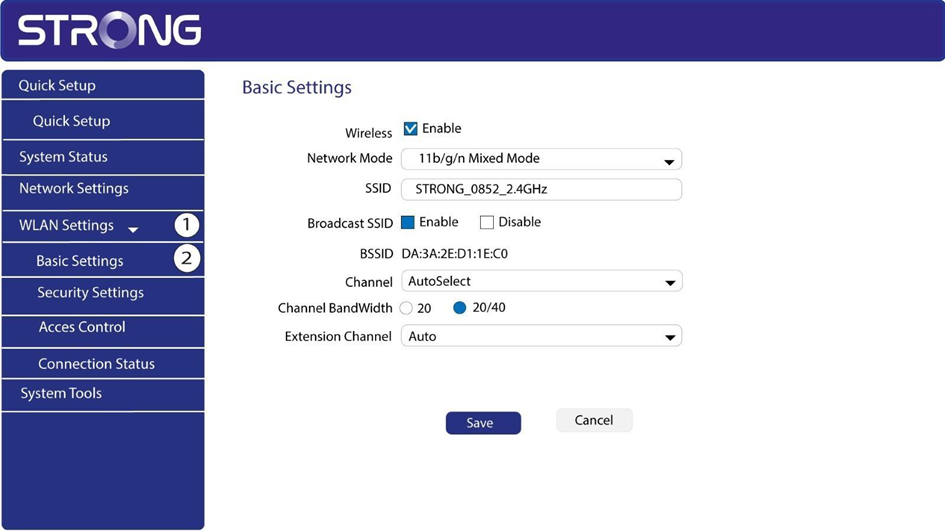
Click WLAN Settings, then Basic Settings.
5Select the channel
Select the 2.4G network band. Then, select channel 1, 6 or 11 in the drop-down list and click Save.