
Repeater AX3000
All questions
Repeater AX3000
Wi-Fi and network troubleshooting
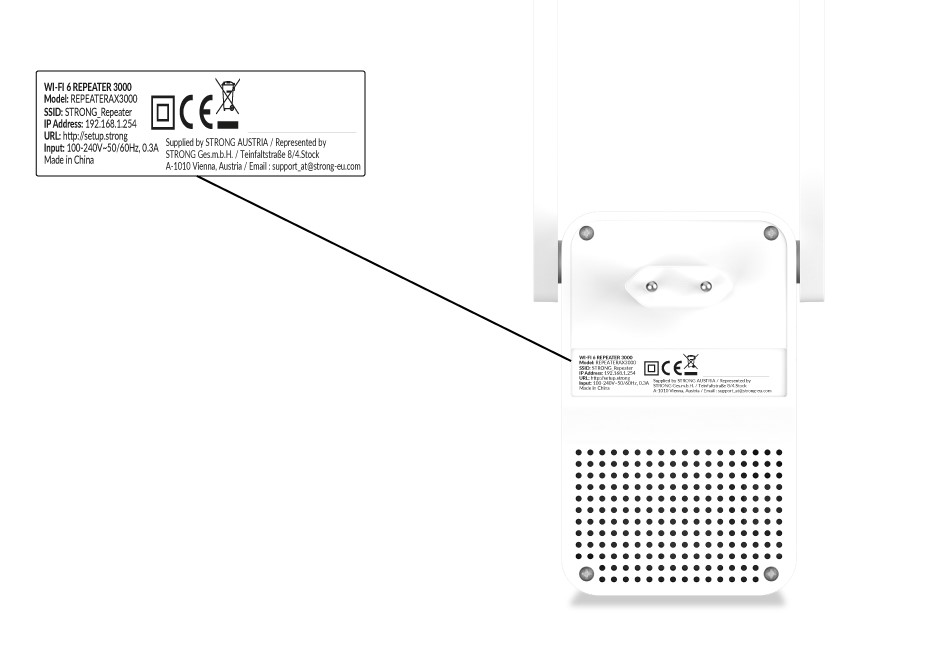
Where can I find the Wi-Fi Network Information of my repeater?
You can find the information for the Wi-Fi Network on the product label, located under your repeater.
How do I configure my repeater as an access point ?
1Connect to the Web UI
Follow one of the procedures below to connect to the Web UI:
- How do I connect to the Web UI of the repeater? (RJ45 Cable)
- How do I connect to the Web UI of the repeater? (Wi-Fi)
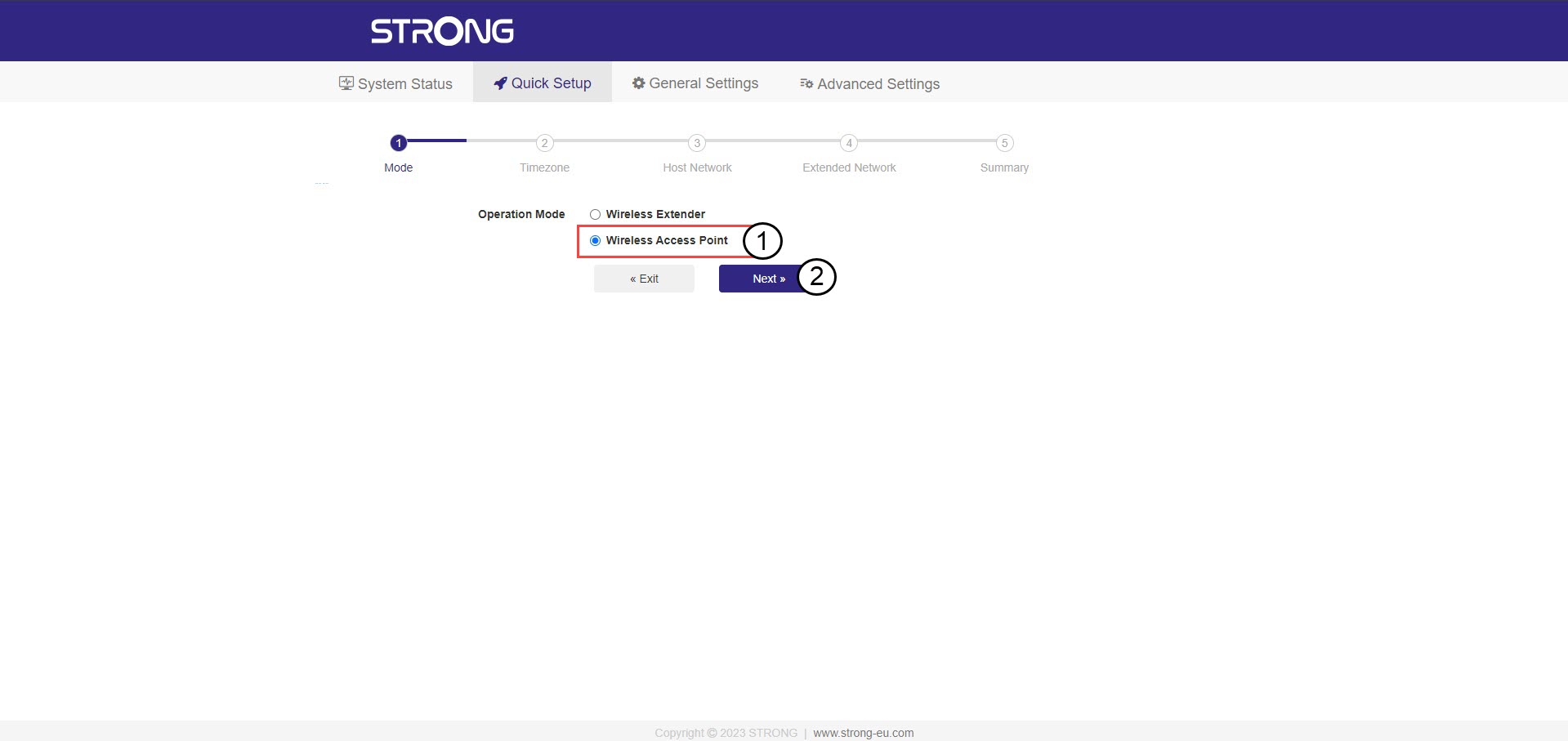
2Select the mode for your repeater
The repeater set up wizard will open. Select Wireless Access Point and click Next.
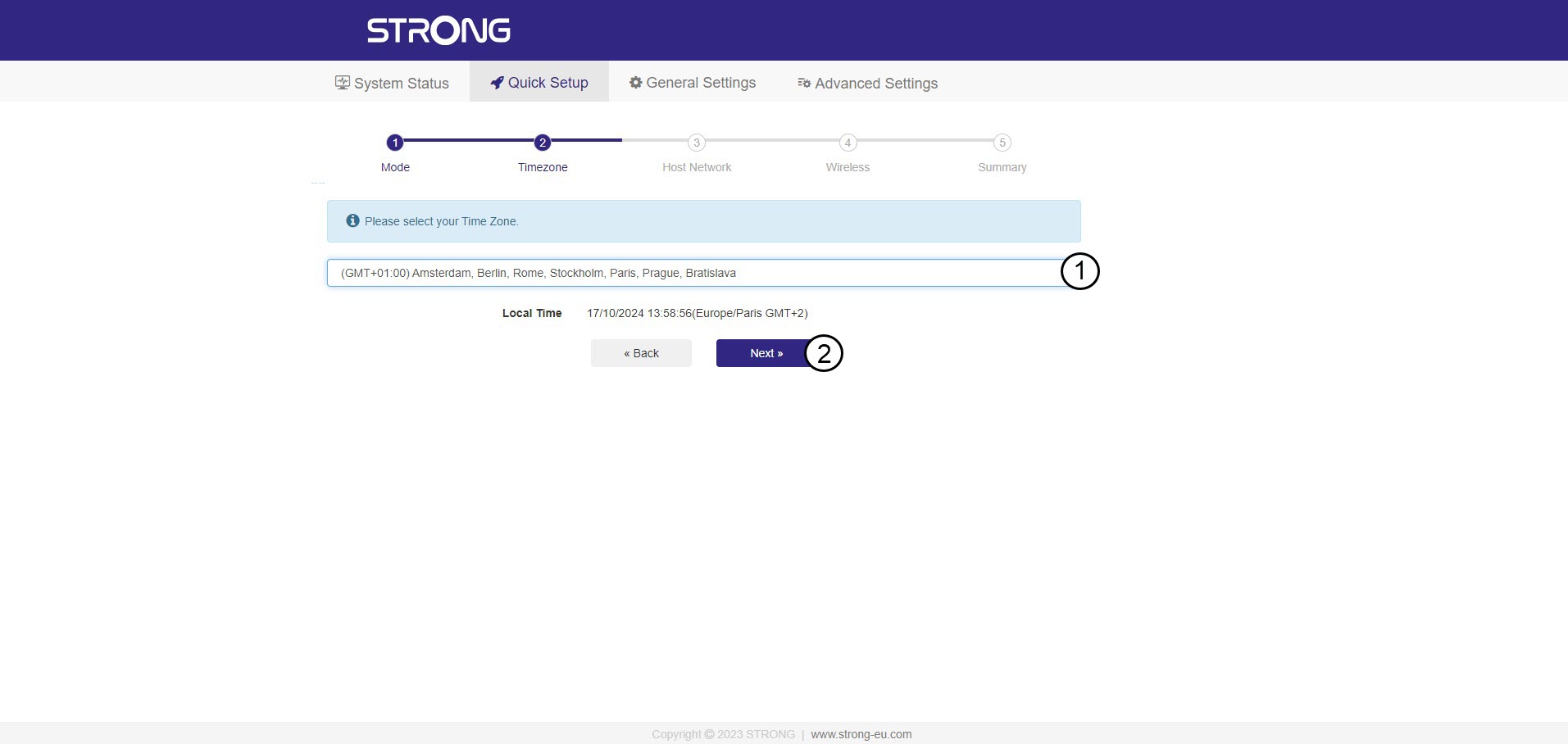
3Select the time zone
Select the Time Zone from the list if the one that is automatically detected is incorrect and click Next.
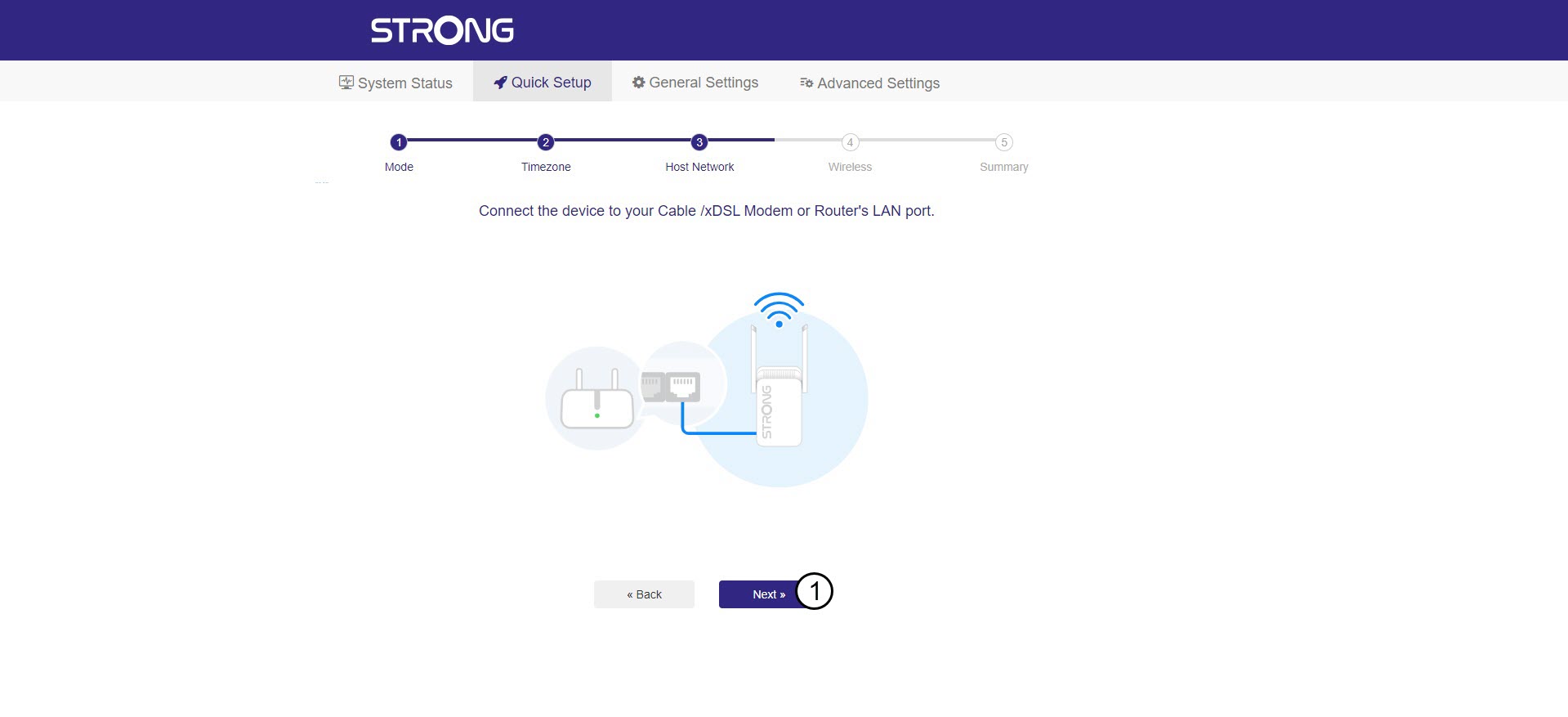
4Scanning the available network
Connect your repeater to your modem/router by plug-in a RJ45 cable in the WAN/LAN port.
Then, click Next.
5Enter the password for the Wi-Fi host network
Check the password of the new Wi-Fi networks and click Next.
You can click the eye icon to display the password that you are typing.
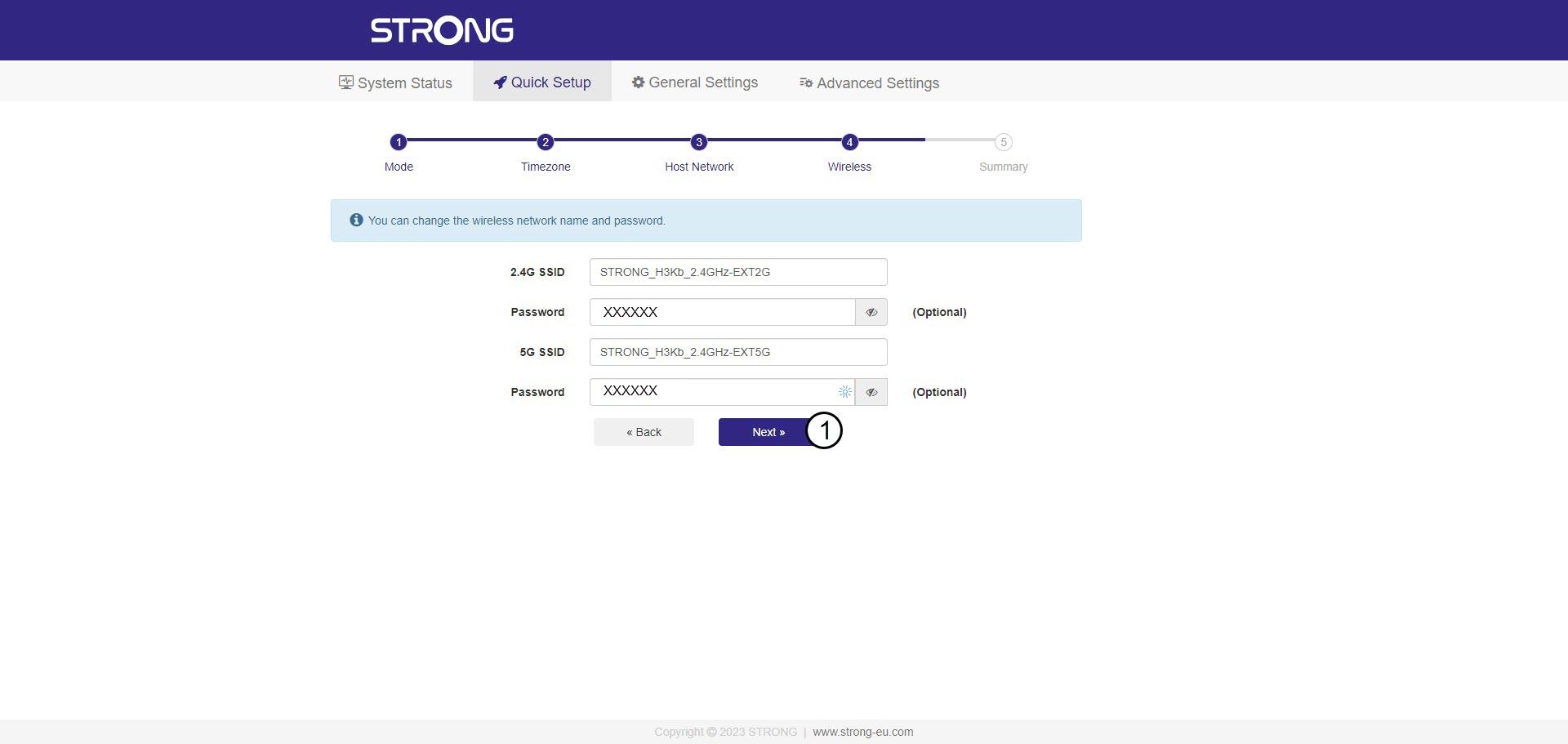
6Confirm the configuration
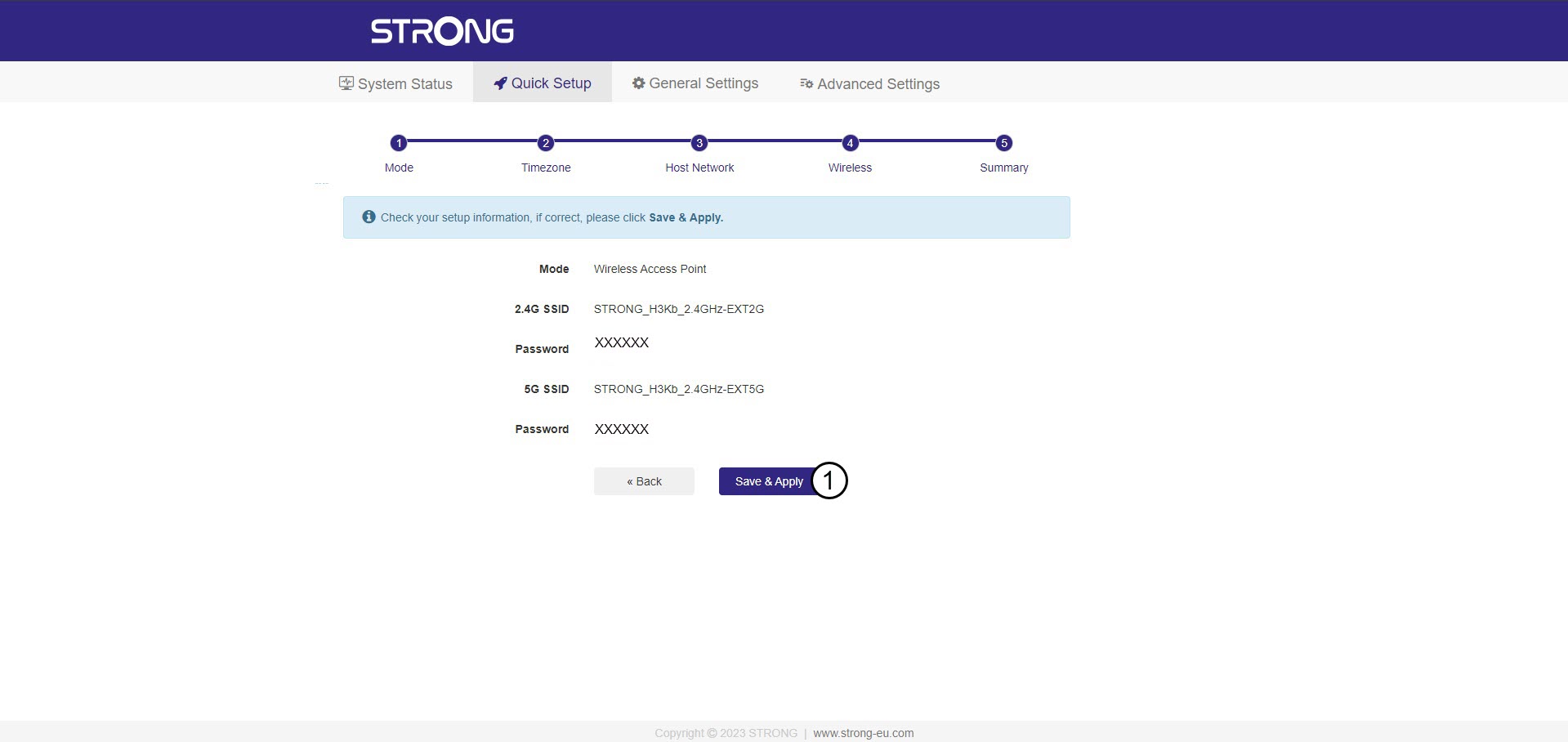
A summary of the new networks' information is displayed. Click Save & Apply.
Write donw the new network information. You will need it to connect to the UI.
7Wait during the configuration
Please wait while the repeater is configuring.


Warning: After the configuration, you will need to connect to the new networks that were created.
How do I configure my repeater?
Before configuring your repeater, please check the following procedure to determine the location of your repeater: What is the best location for my repeater?
1Connect to the Web UI
Follow one of the procedures below to connect to the Web UI:
- How do I connect to the Web UI of the repeater? (RJ45 Cable)
- How do I connect to the Web UI of the repeater? (Wi-Fi)
2Select the mode for your repeater
The repeater set up wizard will open. Select Wireless Extender and click Next.

3Select the time zone
Select the Time Zone from the list if the one that is automatically detected is incorrect and click Next.

4Scanning the available network
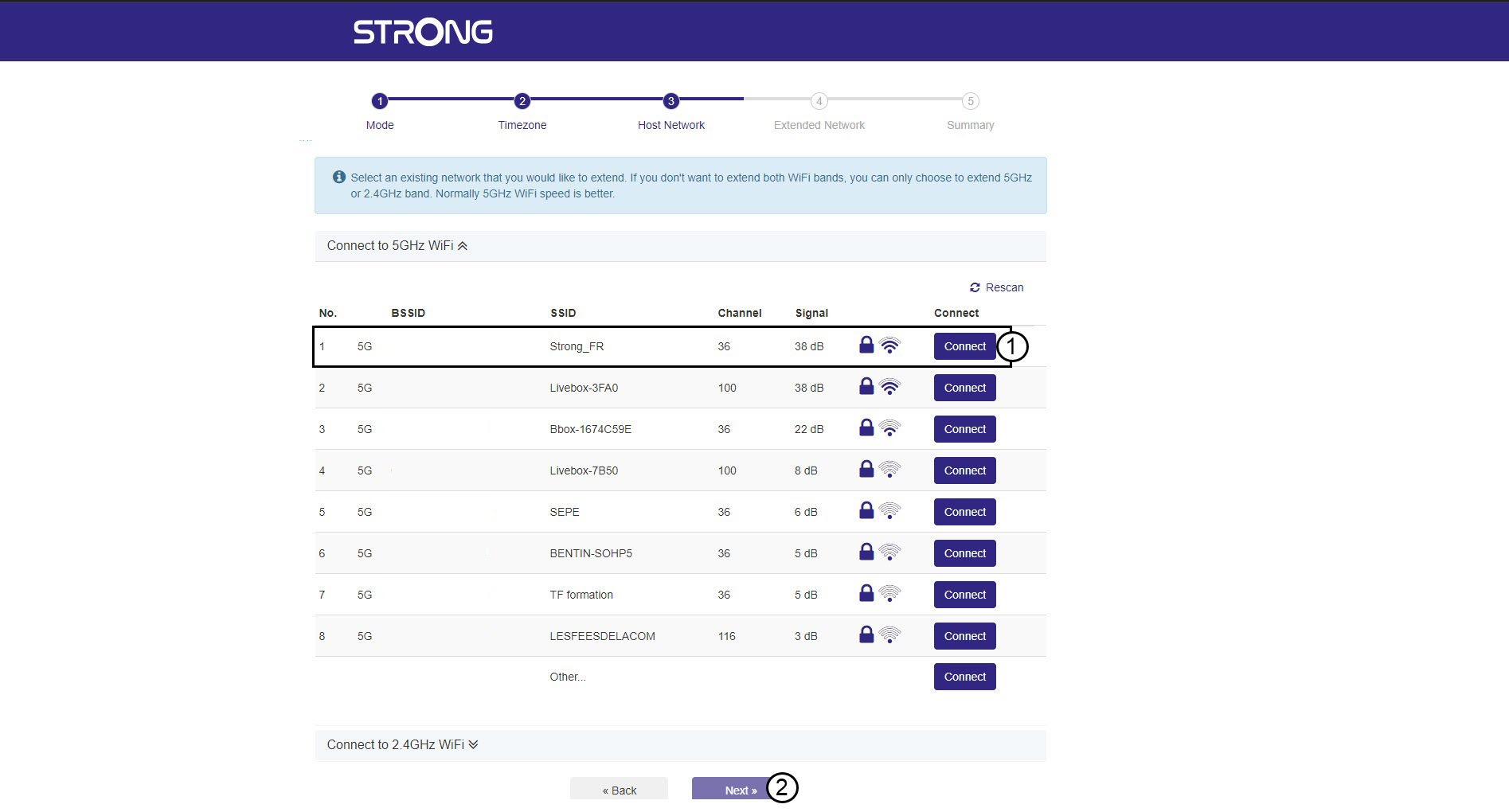
Your repeater will perform a scan of all the available 2.4G and 5G Wi-Fi Networks to determine the host network. Select the Wi-Fi Network Name of your router. Then, Click Connect and Next.
5Enter the password for the Wi-Fi host network
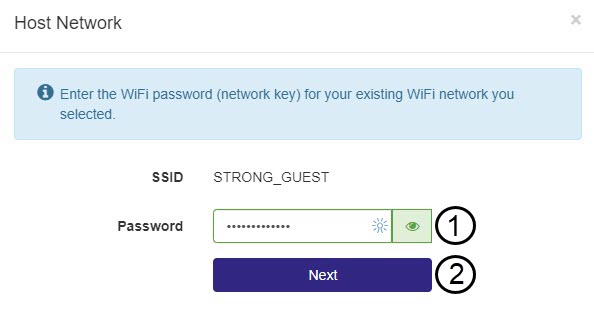
Enter the Wi-Fi password of your router and click Next.
You can click the eye icon to display the password that you are typing.
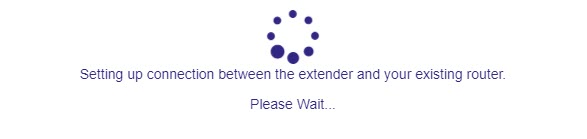
6Wait during the configuration
Please wait while the repeater is configuring.
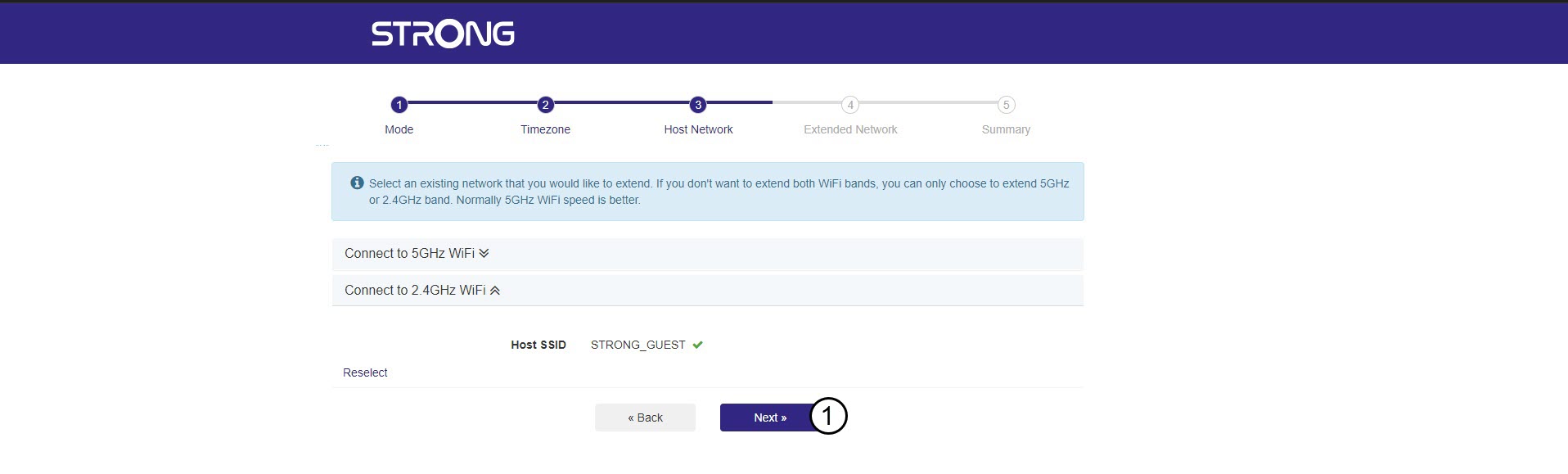
7Confirm the configuration
Click Next to confirm the configuration.
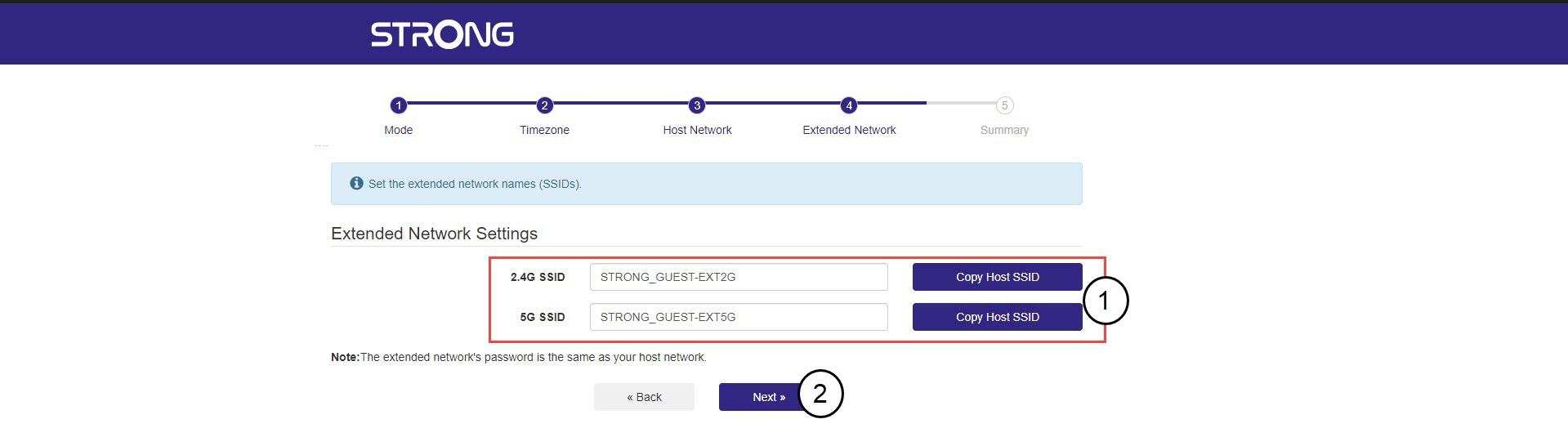
8Write down the networkinformation
Write down the new Wi-Fi Networks information and click Next.
I cannot find my existing Wi-Fi network in the installation wizard of the repeater, why?
It is very likely that your repeater is too far from your modem/router. We recommend configuring your repeater in the same room as your modem/router and then changing its location to a different room.
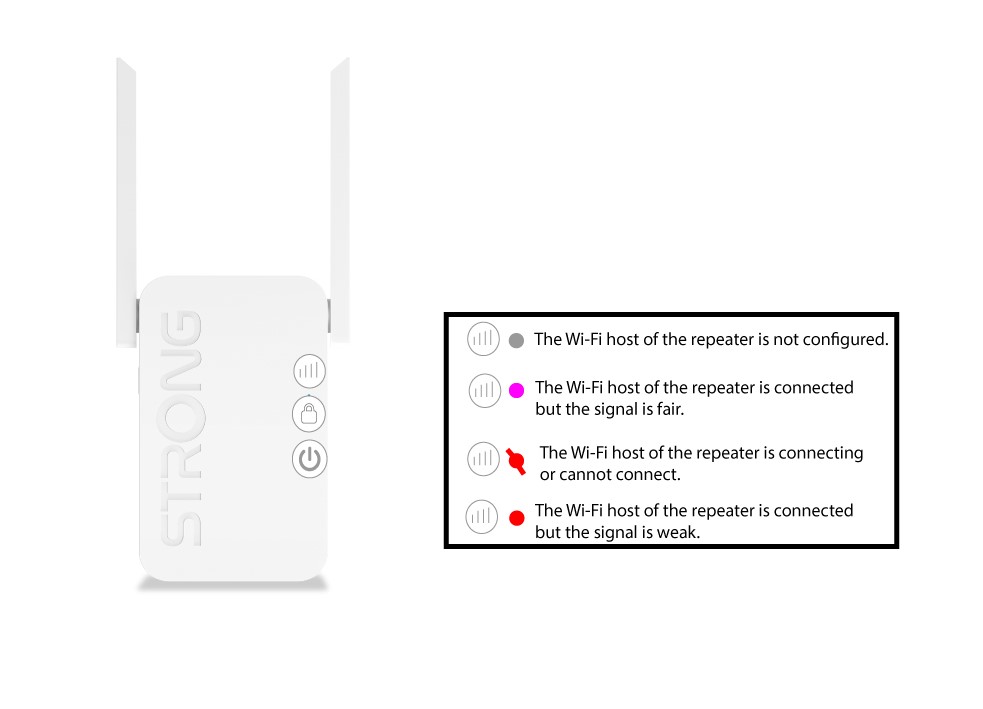
WARNING: Please note that on your repeater if the network LED is lit in grey, red,
purple or blinks in red the signal of the Wi-Fi host is too low.
I configured my repeater as an extender, but my broadband internet speed is not improved, why?
I configured my repeater as an extender but my broadband internet speed is not improved, why?
Repeaters can improve the Wi-Fi coverage, performance and connectivity locally but the broadband Internet speed is defined by your subscription of your Internet Service Provider.
What are the new Wi-Fi Networks information after the configuration?
Once the configuration is finished, you will see the following screen: The name of the new Wi-Fi networks and their information are written.
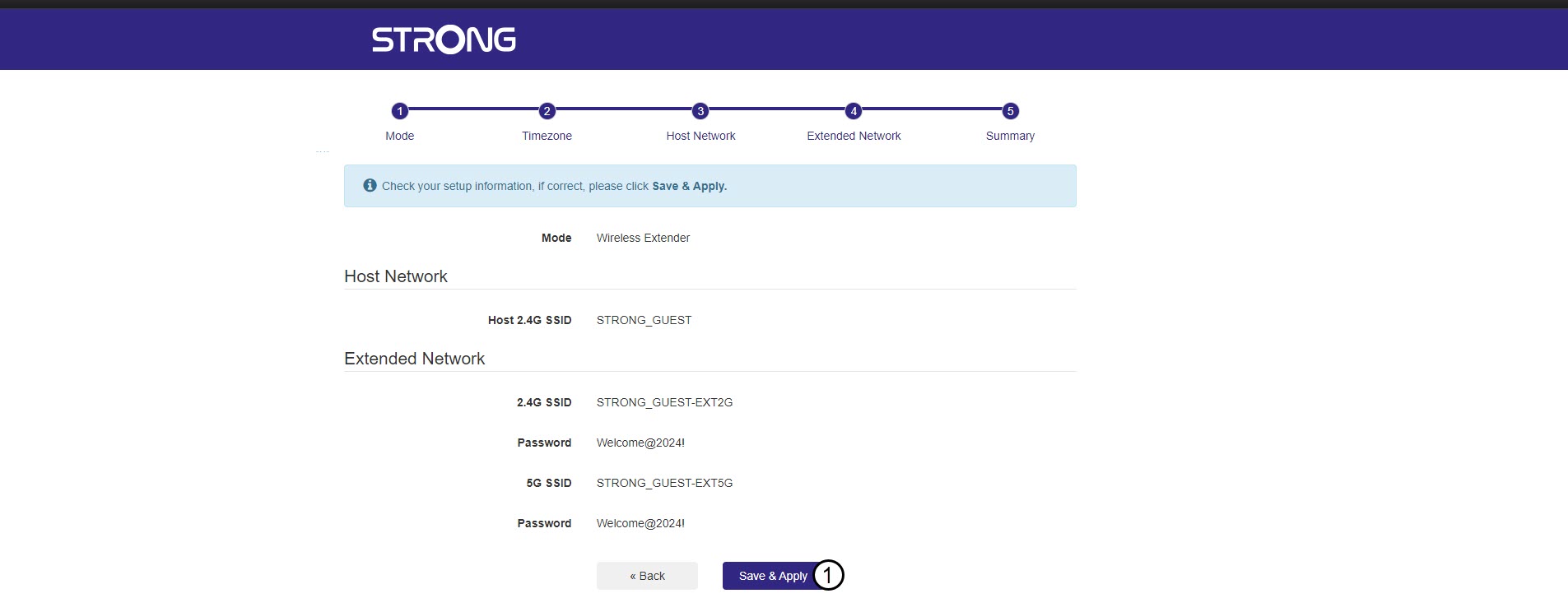
Warning: Please write them down. The default passwords of the two Wi-Fi networks of the repeater are identical to the password of the host Wi-Fi network you selected during the configuration.
What is the best location for my repeater?
Your repeater should not only be near to your modem/router, but also to a Wi-Fi dead zone. By doing so, your repeater will pick up the signal from the modem/router and repeat it to extend the coverage of your Wi-Fi Network.

Which Wi-Fi frequencies (bands) does the repeater provide?
The repeater is dual-band which means that it uses the 2.4G and 5G bands. In other words, after the
configuration, the repeater will create two Wi-Fi networks.