4G AIRHOME 310 med aftagelige 4G-antenner
Alle spørgsmål
4G AIRHOME 310 med aftagelige 4G-antenner
Hvordan kan jeg kontrollere og redigere APN-indstillingerne fra min udbyder?
Hvis enheden ikke automatisk genkender dit SIM-kort, skal du logge ind på webgrænsefladen for at kontrollere APN-indstillingerne og redigere dem, hvis det er nødvendigt. Du kan finde din udbyders APN-indstillinger direkte på udbyderens hjemmeside, eller du kan anmode om dem hos udbyderens kundeservice.

Advarsel: Hvis dit mobilnetværk leveres af en virtuel mobilnetværksoperatør (MVNO), skal du kontakte deres kundeservice for at få de relevante APN-oplysninger.
- En MVNO tilslutter sig en anden mobilnetoperatørs netværk for at levere dækning til dig, hvilket afhænger af, hvor du befinder dig.
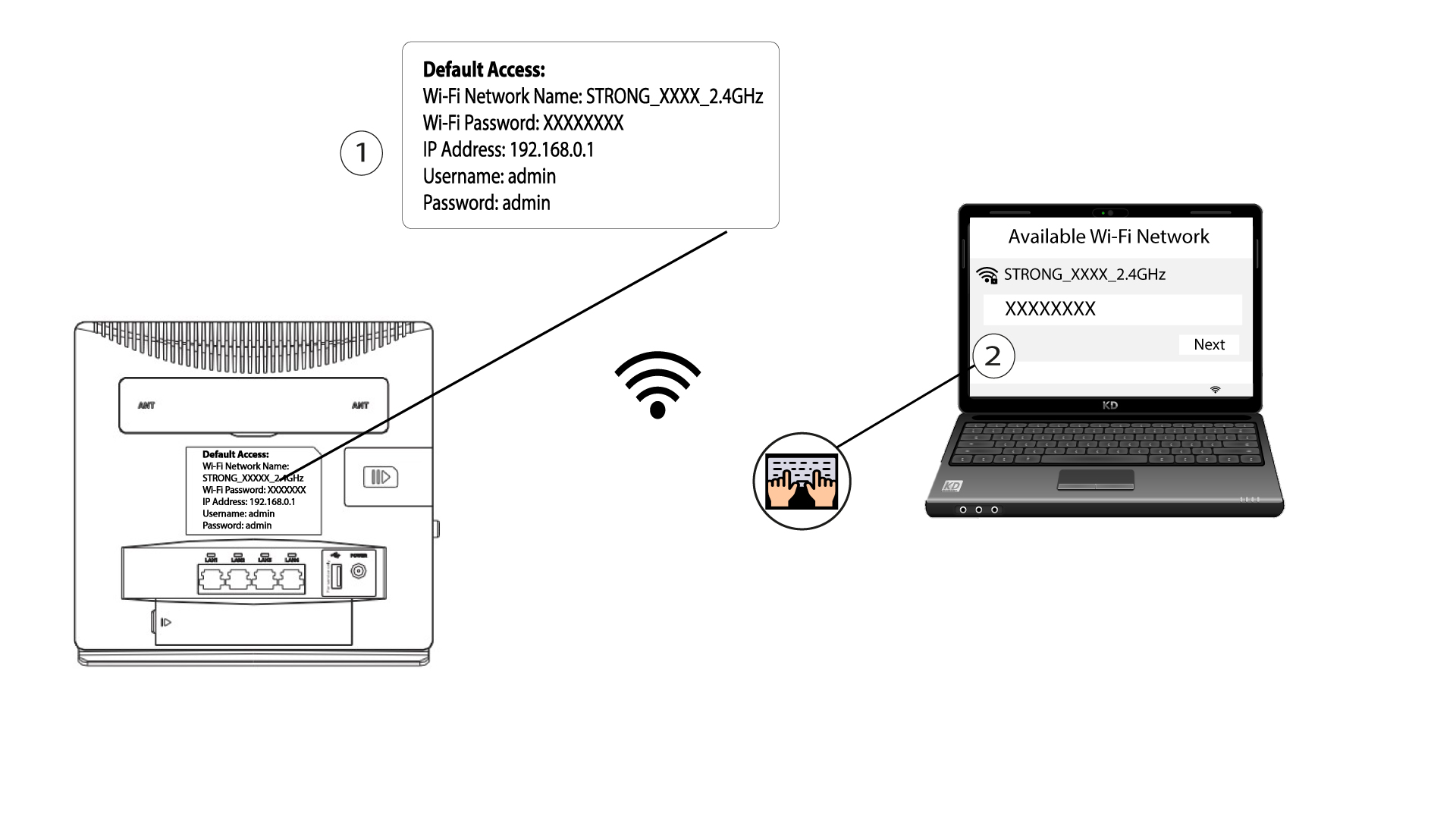
1. Opret forbindelsetil routerens Wi-Fi-netværk
Du skal oprette forbindelse til webgrænsefladen. For at gøre dette skal du indtaste routerens SSID og adgangskode på din enhed.
2Gåtil IP-adressen for webgrænsefladen
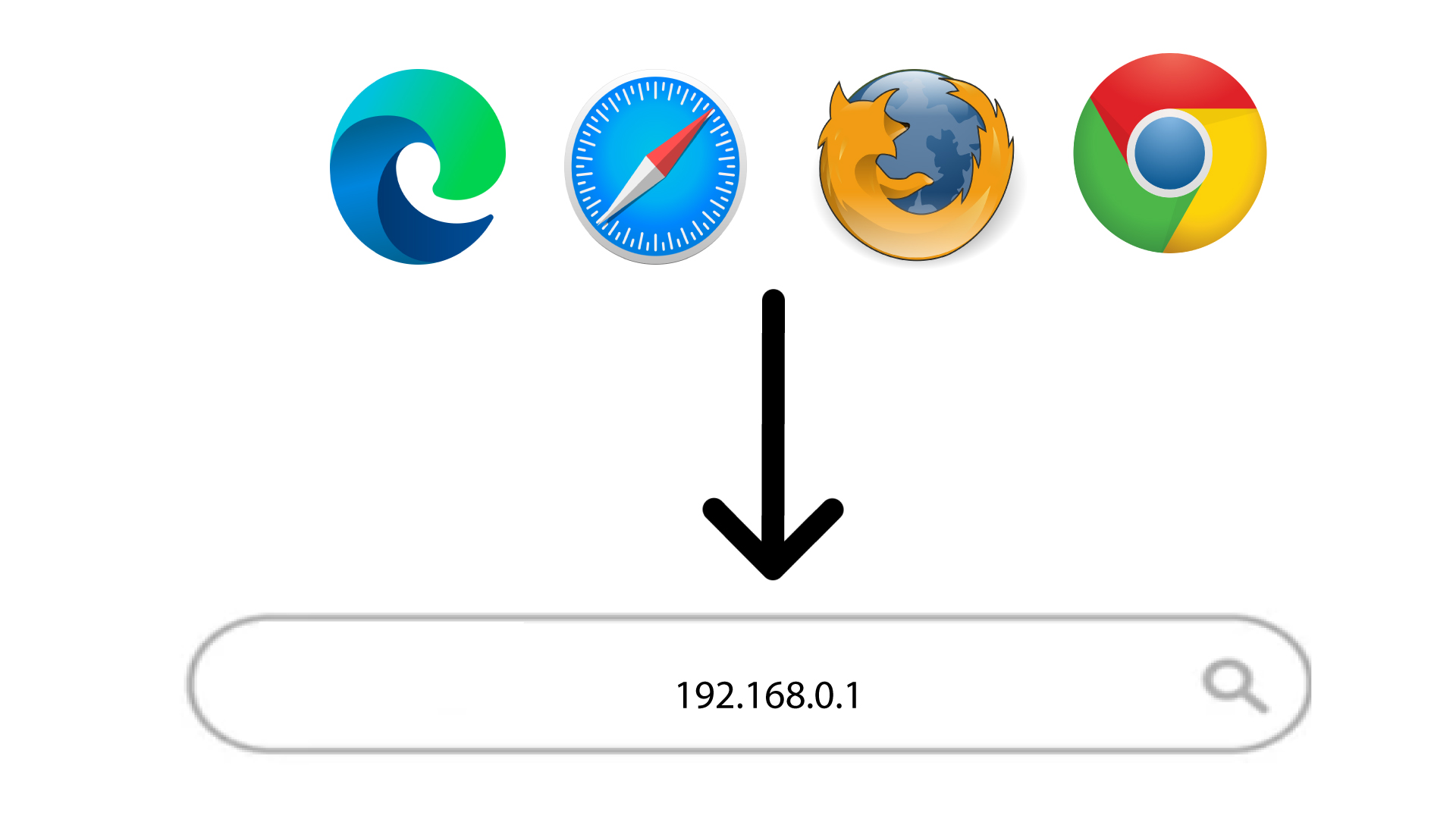
Indtast derefter følgende IP-adresse i din browser: 192.168.0.1
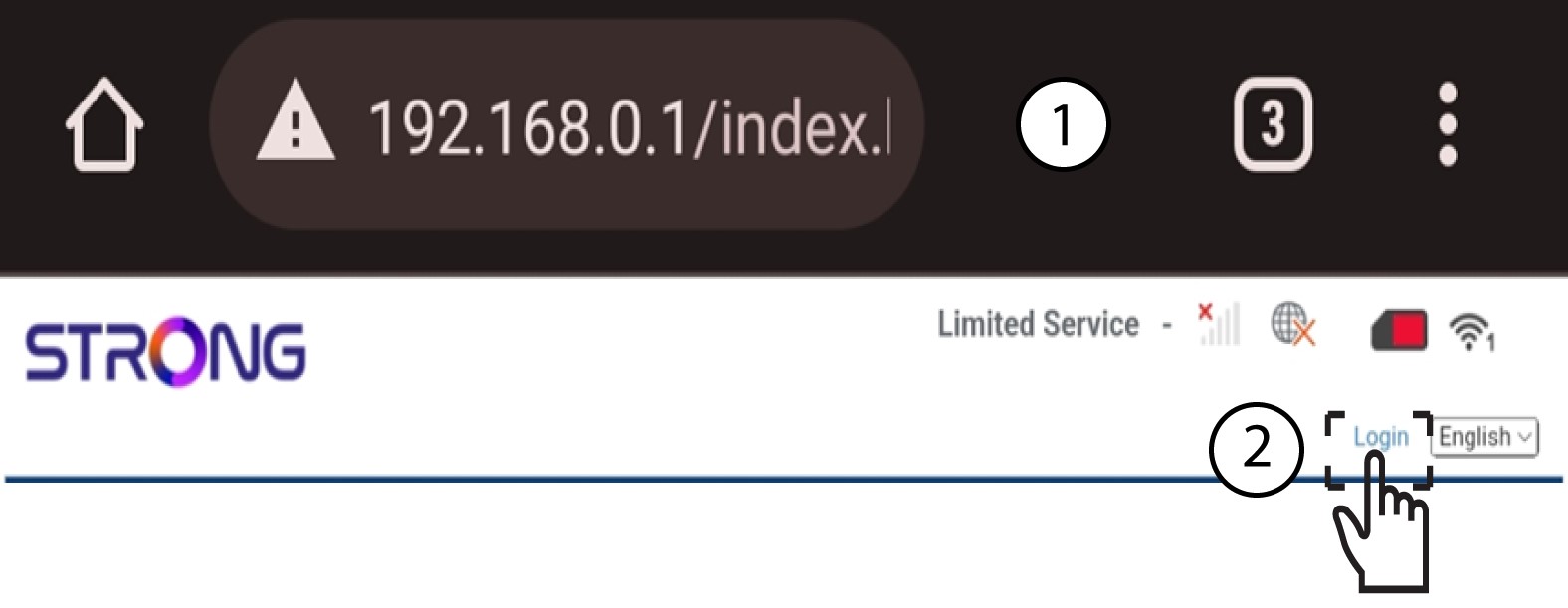
3Login
Når du har indtastet IP-adressen, skal du klikke på »Login«.
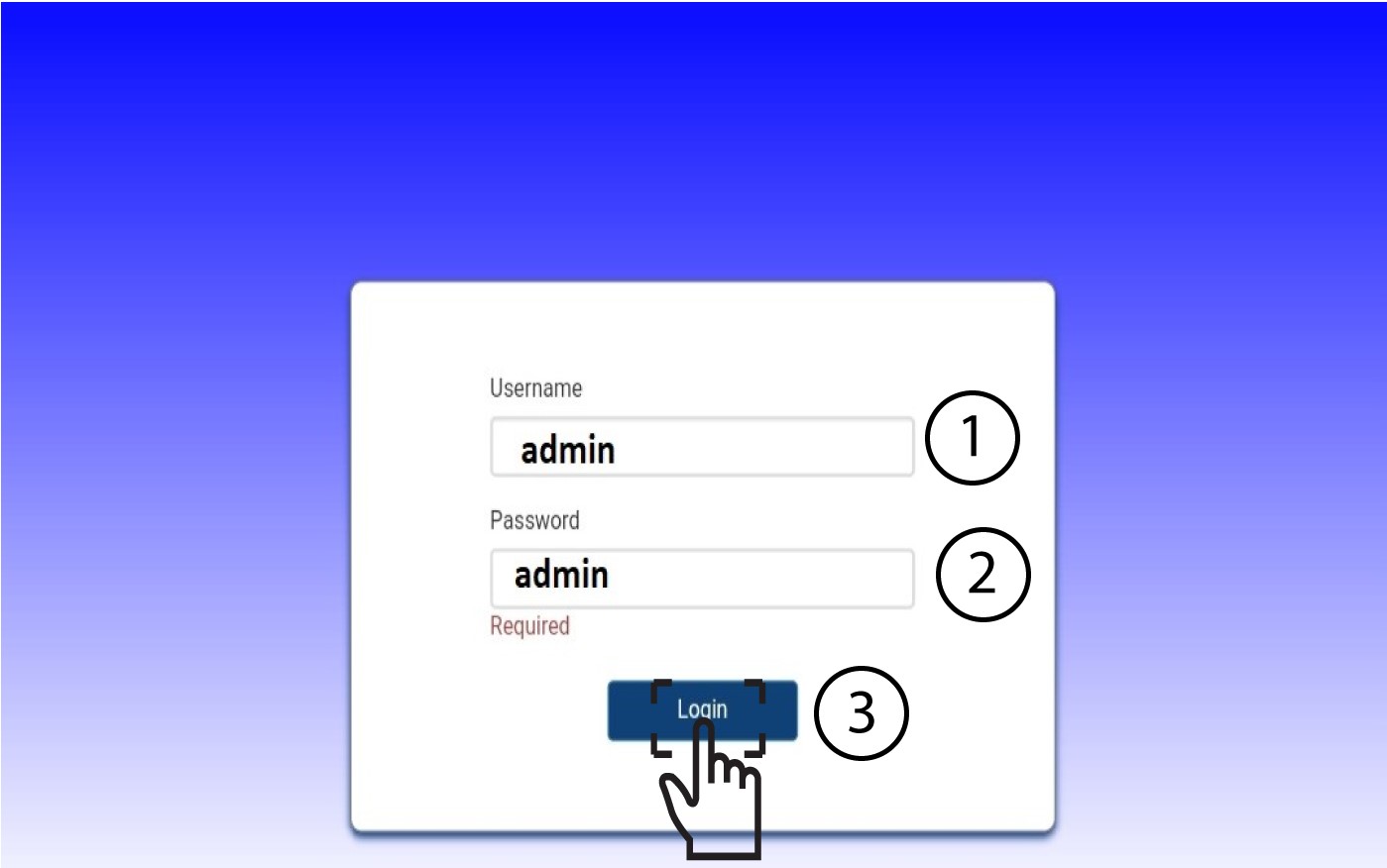
4Indtastdine loginoplysninger
Du skal indtaste brugernavn og adgangskode. Klik derefter på »Log ind«.
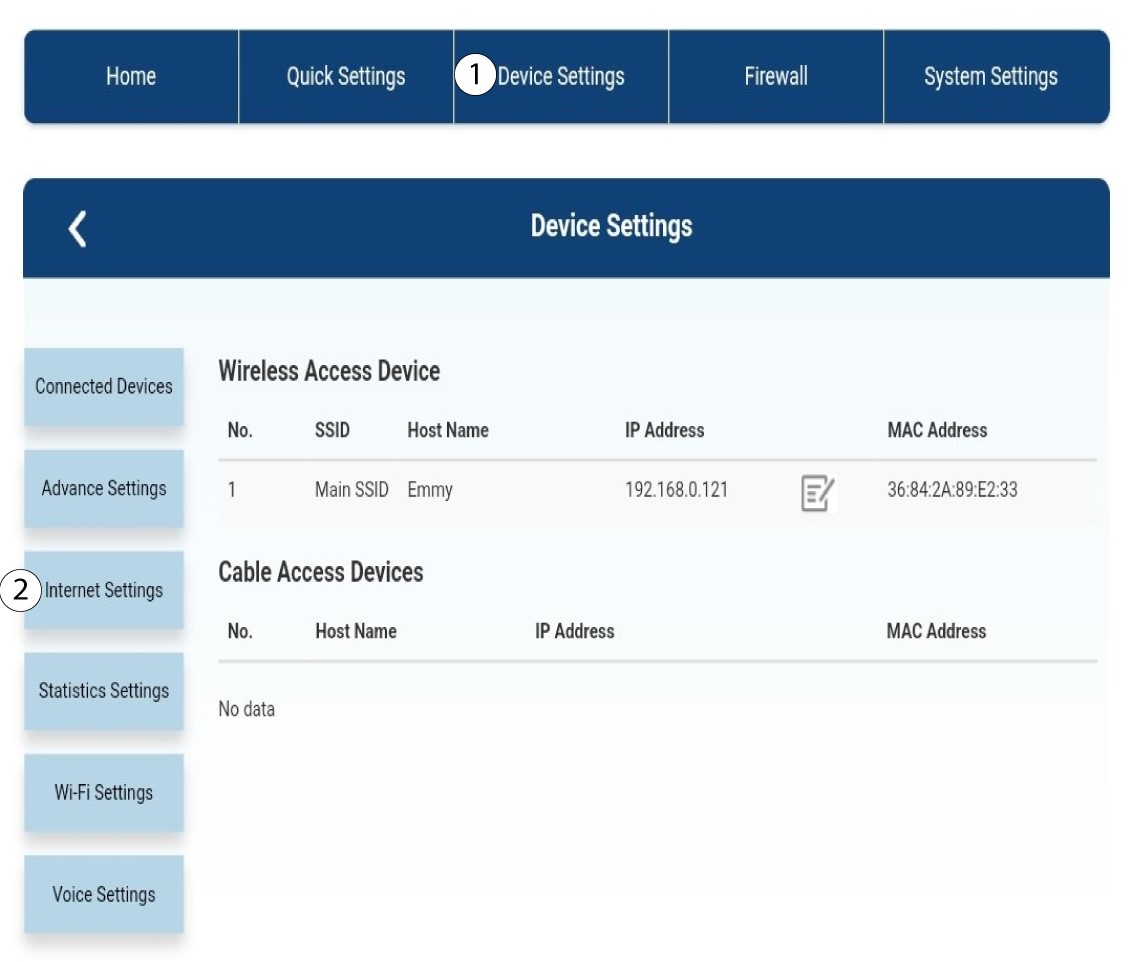
5. Internetindstillinger
Klik på »Enhedsindstillinger « og derefter på »Internetindstillinger«.
6APN-indstillinger
Klik på APN.
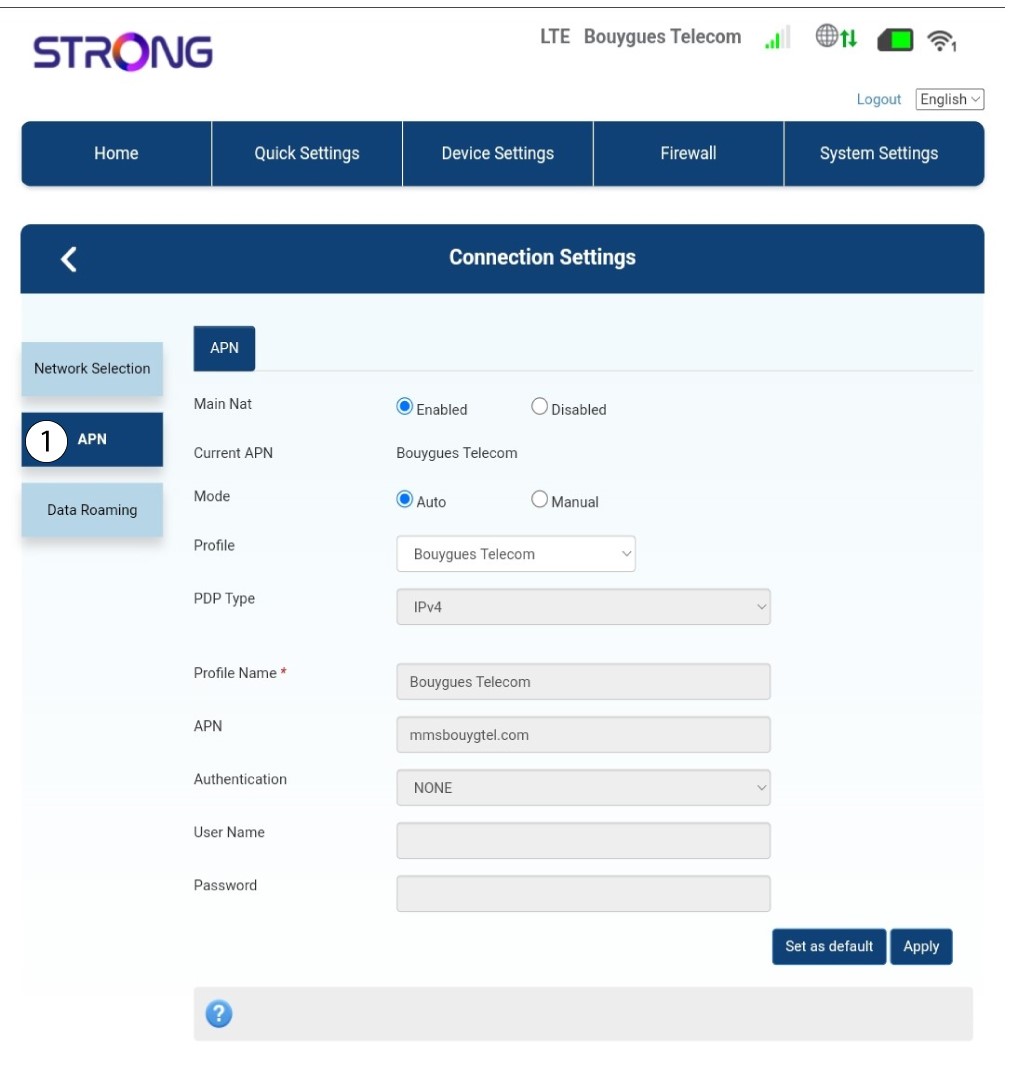
7FindAPN-indstillingerne for din udbyder
Find APN-indstillingerne på din udbyders hjemmeside. Du skal notere følgende oplysninger:
- Navn
- APN
- Brugernavn
- Adgangskode
- Godkendelsestype
8Redigeroplysningerne, hvis konfigurationen ikke er korrekt
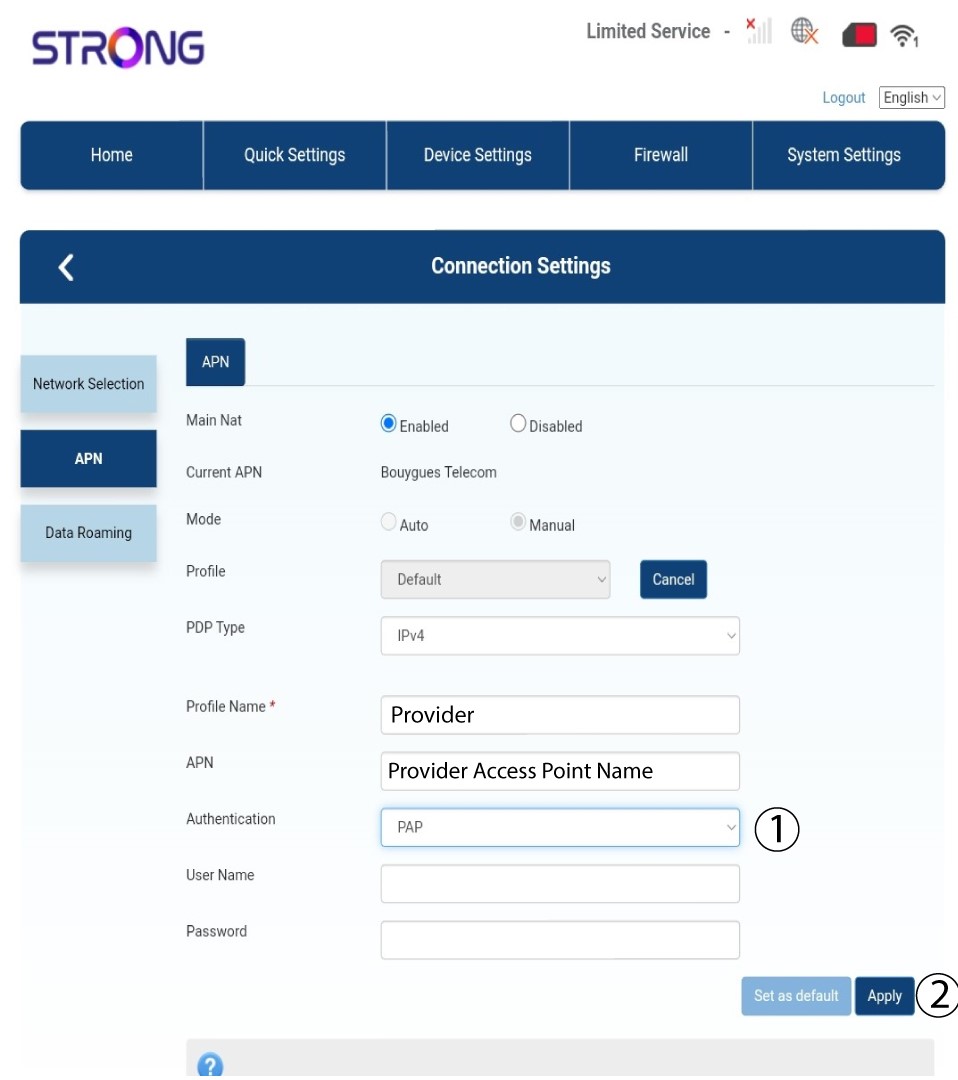
Hvis oplysningerne er forkerte, skal du klikke på »Manuelt« og derefter på »Tilføj nyt«.
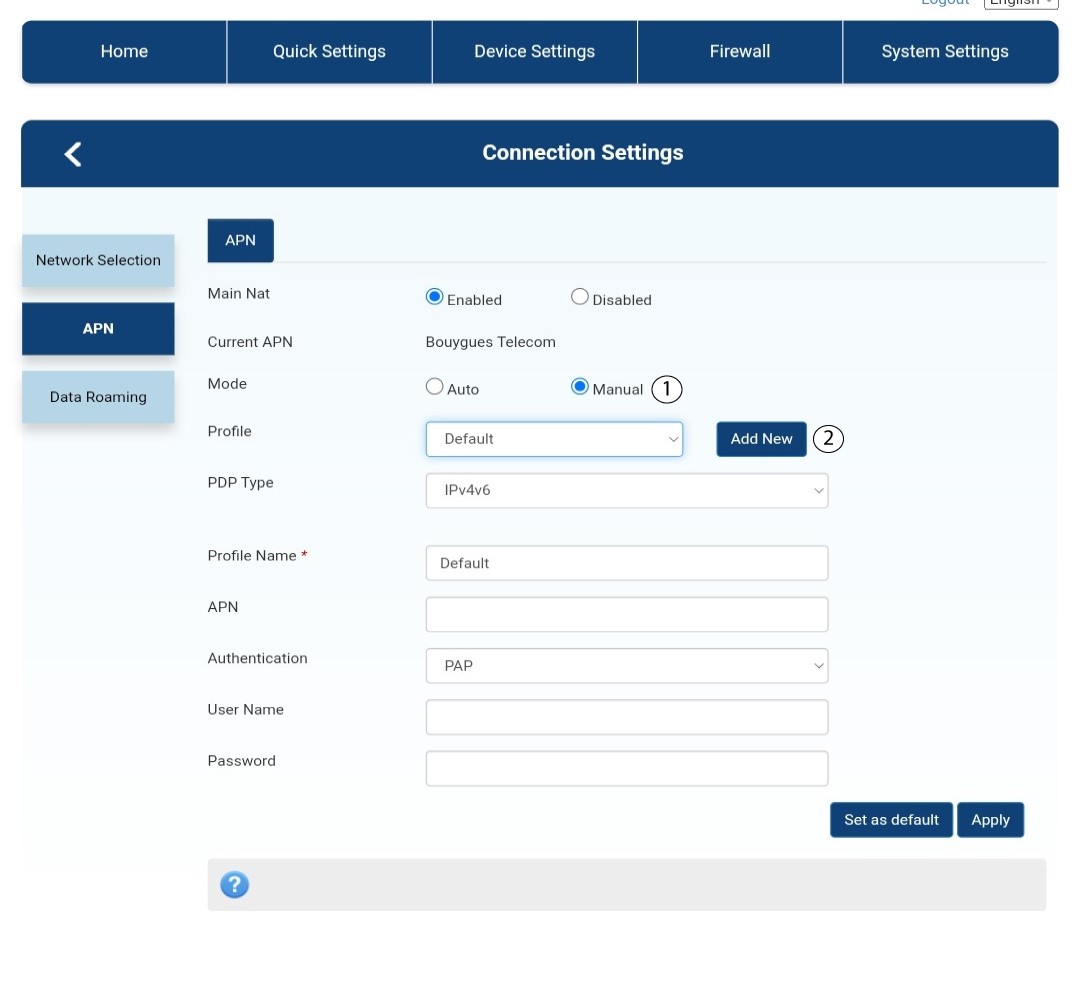
9PDP-typen
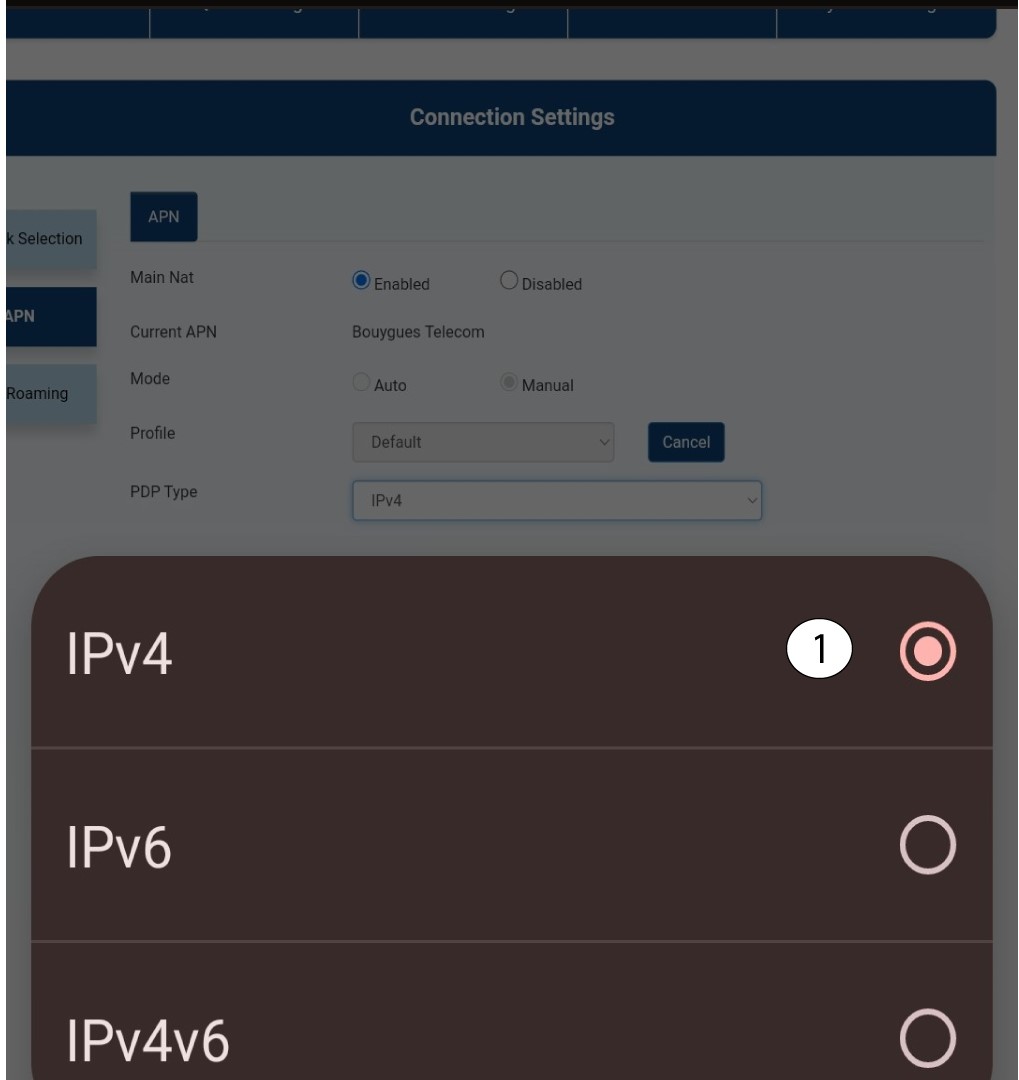
I feltet »PDP-type« skal du vælge den korrekte APN-type blandt IPv4, IPv6 eller IPv4v6. I vores tilfælde er PDP-typen IPv4.
10Indtastoplysninger om din tjenesteudbyder
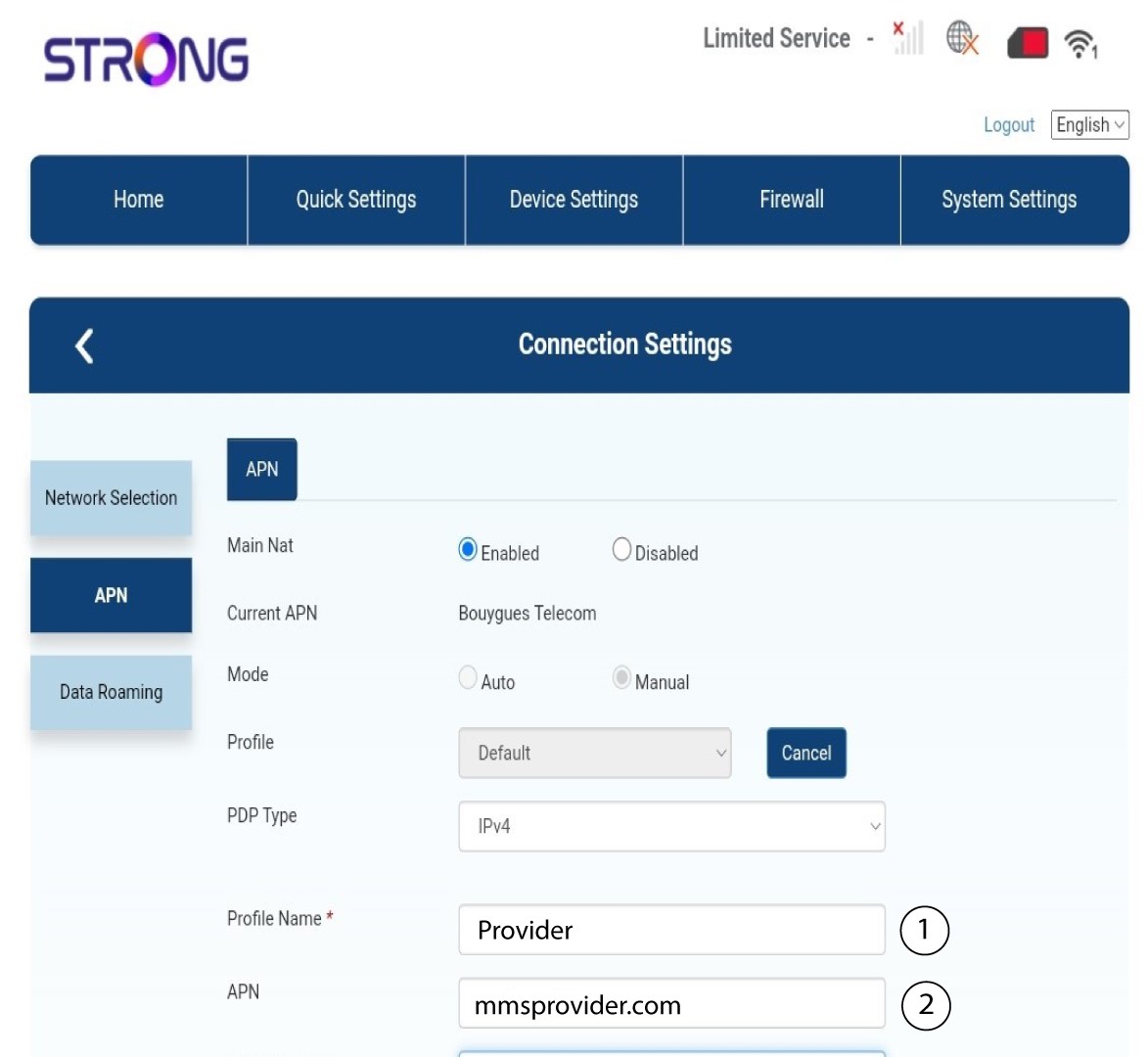
Indtast navnet på din tjenesteudbyder i feltet »Profilnavn« (maks. 14 tegn, inklusive mellemrum). Indtast derefter APN-adressen i feltet »APN «.
11Godkendelsestype
Vælg den godkendelsestype, som din udbyder har defineret for dit APN, blandt følgende værdier, og klik på »Anvend«:
• NONE
• CHAP
• PAP