
ATRIA Wi-Fi 5 Mesh 2100 (add-on)
Alle spørgsmål
ATRIA Wi-Fi 5 Mesh 2100 (add-on)
Hvordan konfigurerer jeg mit Wi-Fi- Mesh -netværk?
For at konfigurere dit Mesh -netværk henvises der til den hurtigstartvejledning (QIG), der findes i produktets » boks «.
1TILFÆLDE1: Brug af WPS-knappen
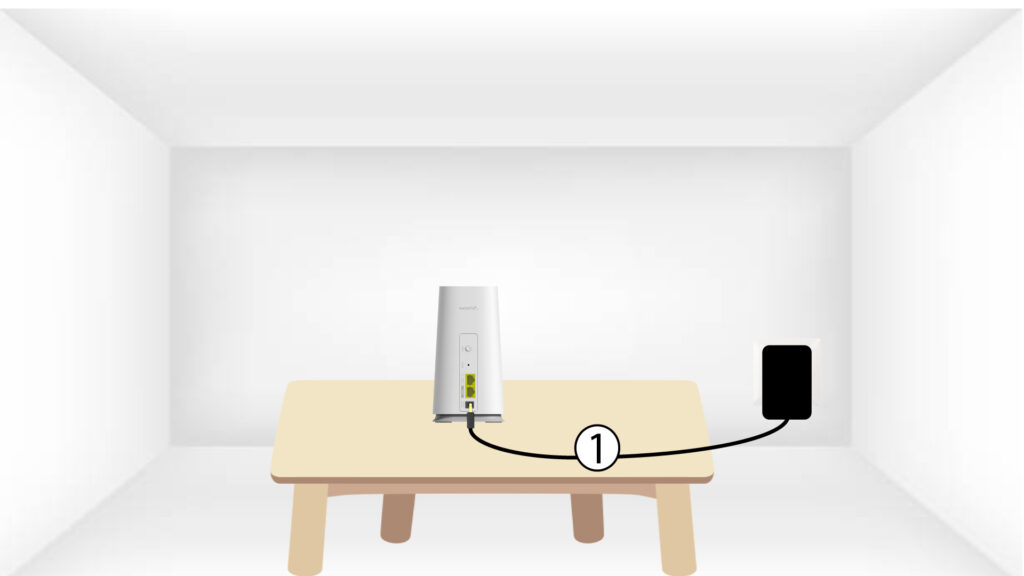
Du skal sætte stikket i stikkontakten mesh for at tænde enheden (der er ingen tænd/sluk-knap på enheden) og tilslutte den til dit modem ved hjælp af et RJ45-kabel.
2Ventpå konfigurationen
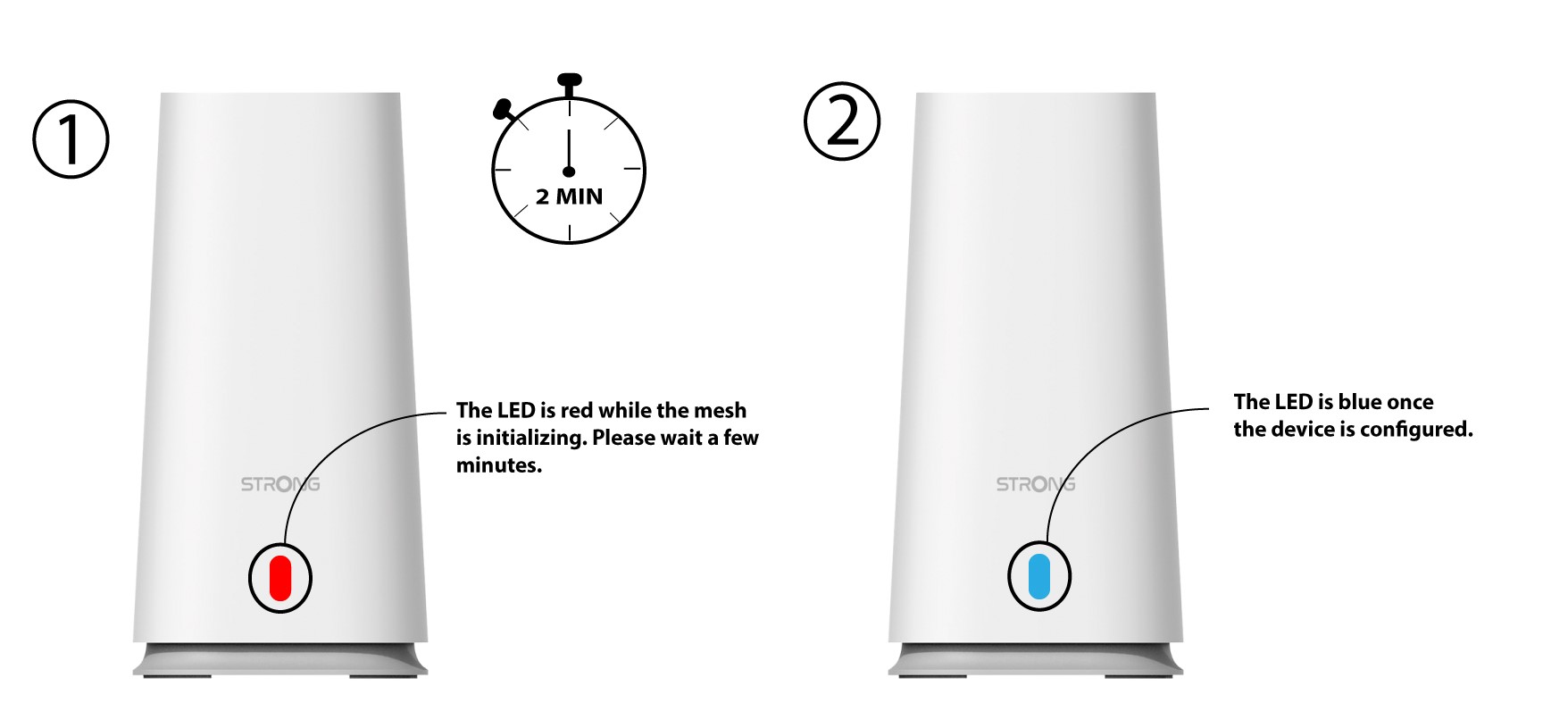
Derefter skal du vente et par minutter, indtil enheden har konfigureret sig selv.
3Second- Mesh -enhed
Du skal tilslutte den anden enhed fra mesh .
4LED
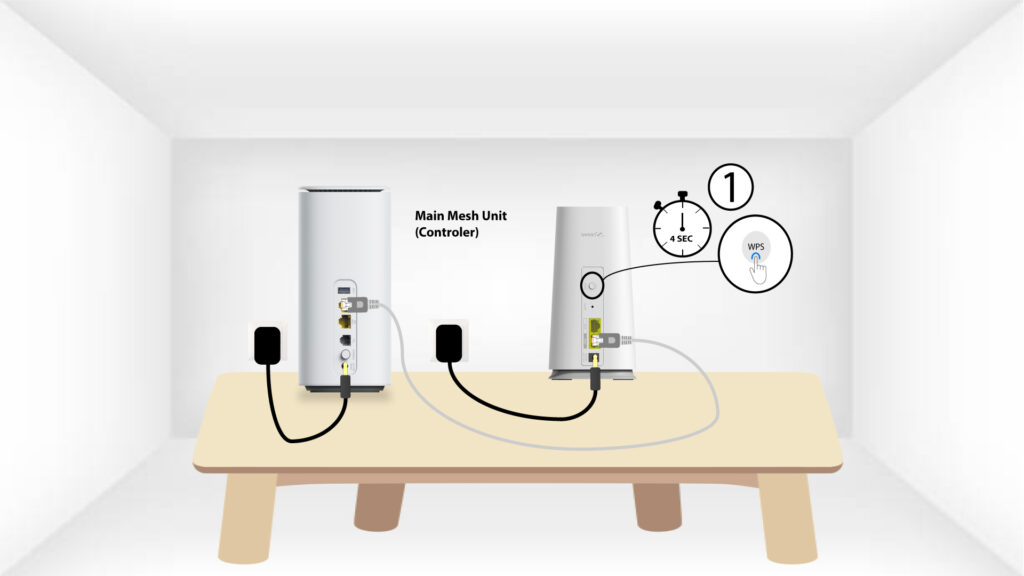
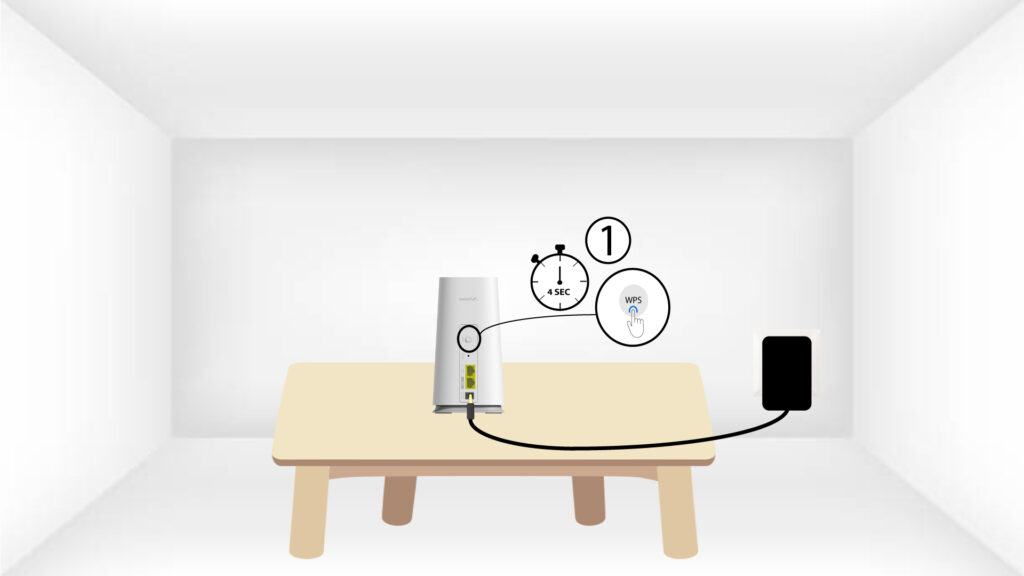
Tryk på WPS-knappen i mindst 4 sekunder på den enhed fra Mesh , der er tilsluttet dit modem/din router.
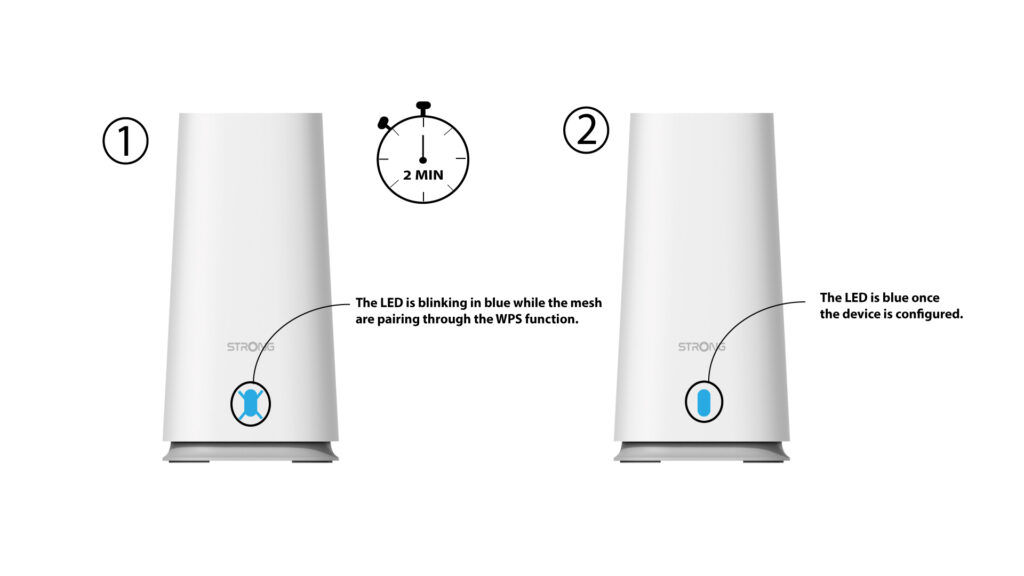
LED’en vil blinke blåt, når WPS er aktiveret.
5WPS, det andet Mesh
Tryk på WPS-knappen i mindst 4 sekunder på den anden » Mesh «-enhed.
6LED-parring
Når enhederne parres, blinker LED’en blåt. Vent venligst et par minutter, indtil parringsprocessen er afsluttet.
Når enhederne er parret, lyser LED’erne blåt på begge enheder.
1TILFÆLDE2: Brug af Ethernet-kabel
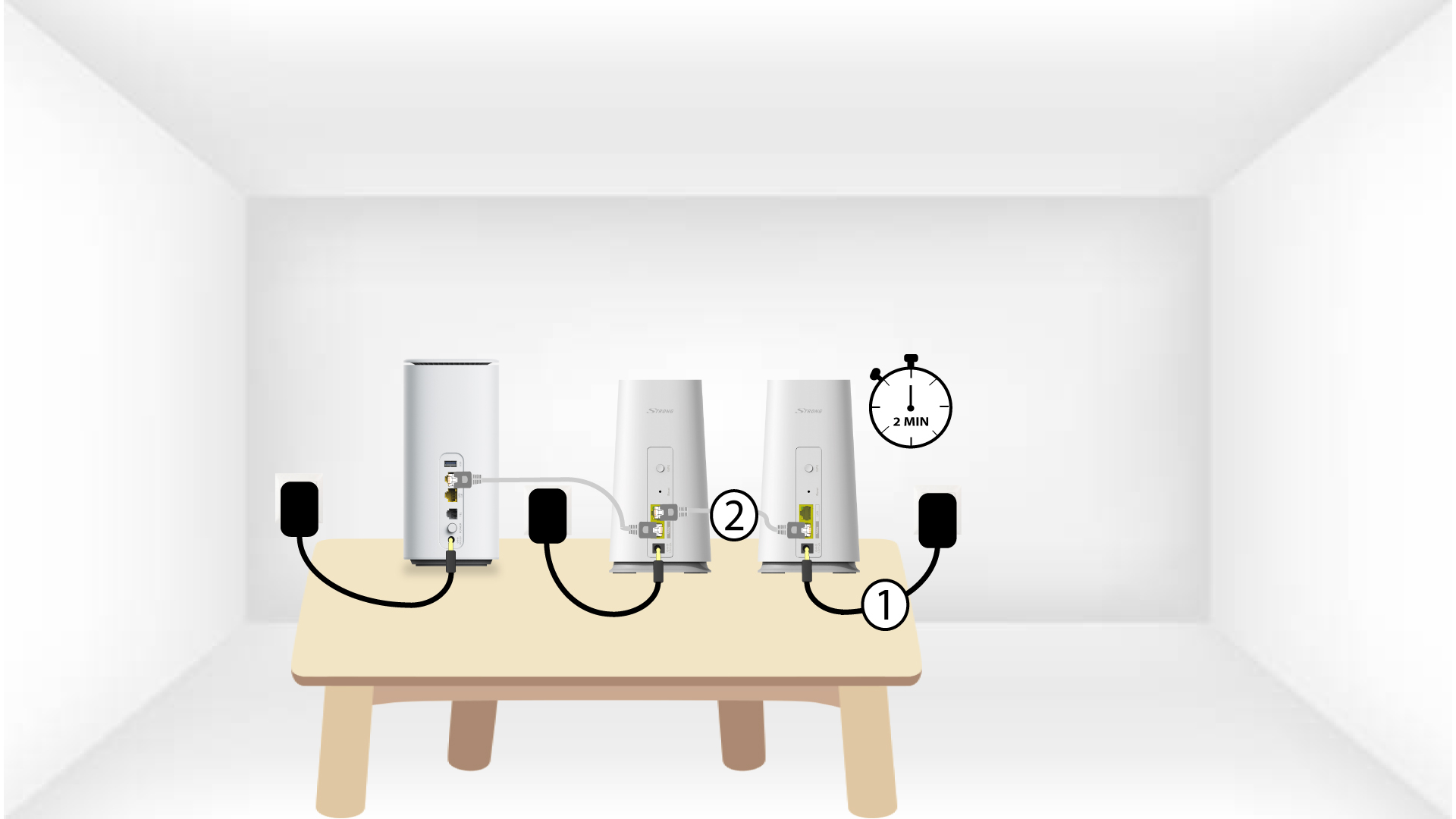
Du skal sætte stikket i stikkontakten mesh for at tænde enheden (der er ingen tænd/sluk-knap på enheden) og tilslutte den til dit modem ved hjælp af et RJ45-kabel.
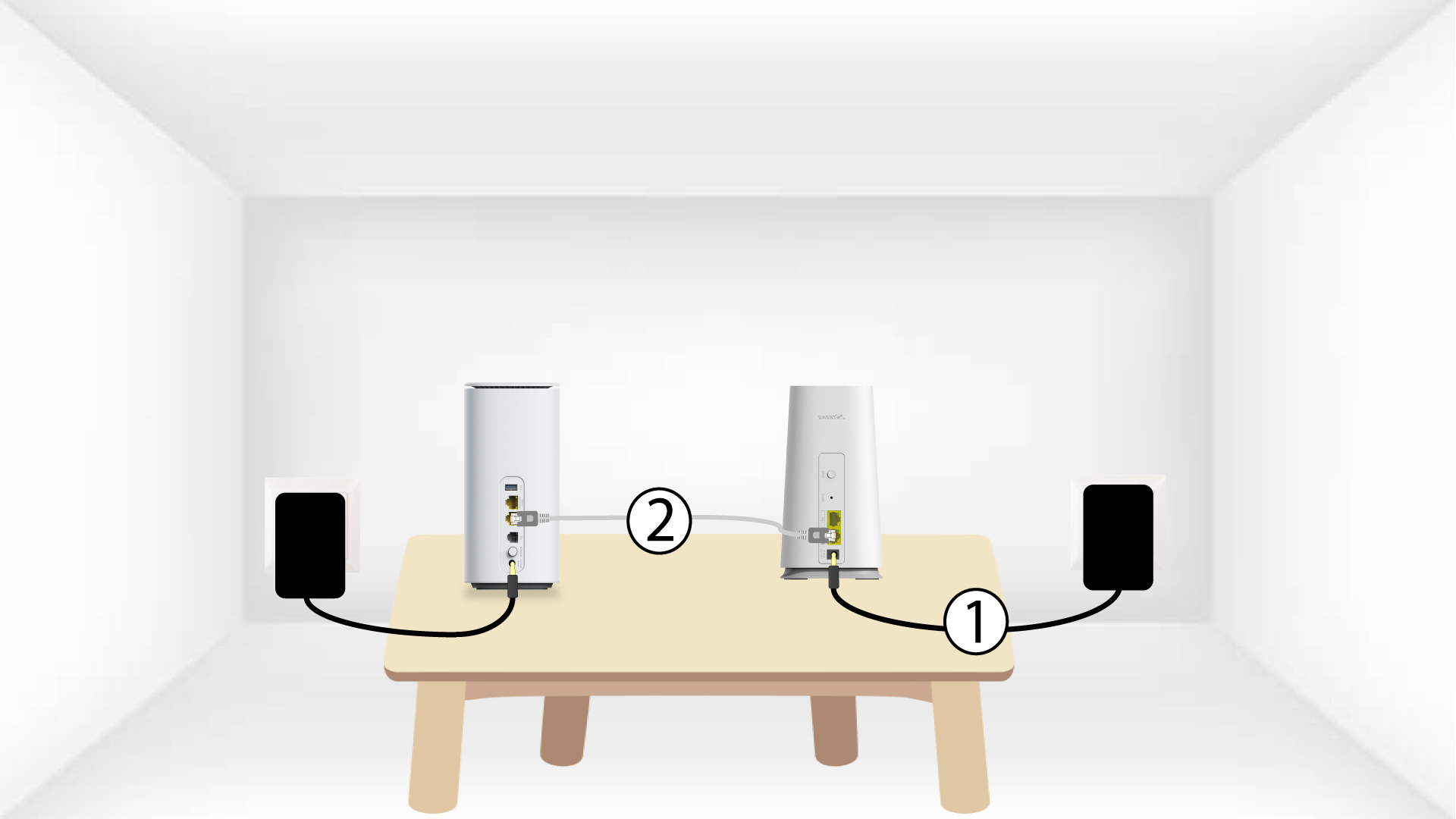
2. Sætden anden Mesh i stikket på hoveddelen Mesh
Du skal sætte stikket i den anden mesh -enhed for at tænde den og derefter forbinde den til hoved mesh -enheden (LAN-porten) ved hjælp af et RJ45-kabel.
3Second- Mesh -enhed
Vent et par minutter, indtil begge enhederne på mesh har fundet internetkonfigurationen. Når LED’erne på begge enheder lyser blåt, er de konfigureret.
Du skal fjerne RJ45-kablet fra den sekundære mesh -enhed og trække stikket ud for at installere den i det rum
, hvor du ønsker at bruge den.