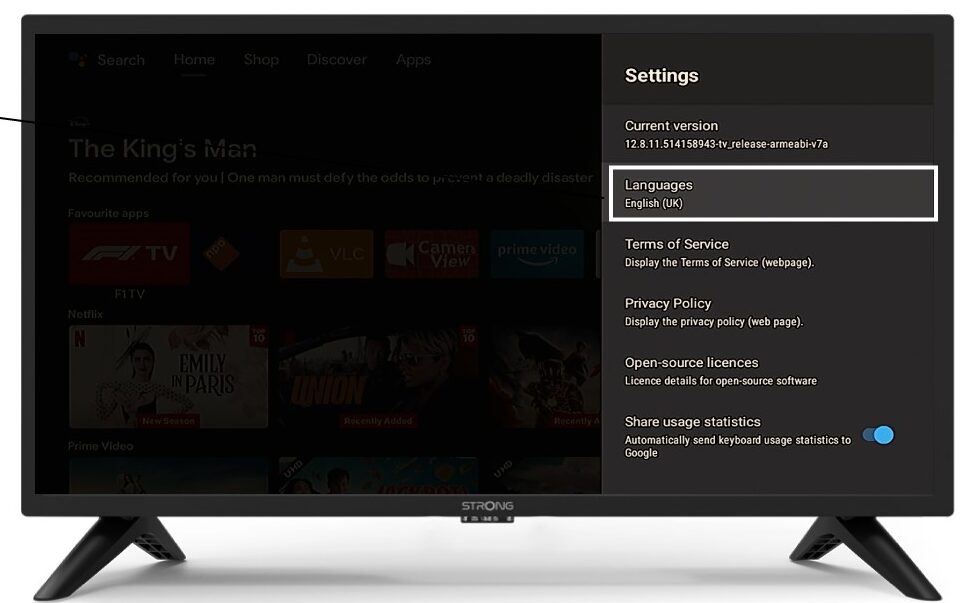
LEAP 41 | 4K Google TV med HDR10+
Alle spørgsmål
LEAP 41 | 4K Google TV med HDR10+
Jeg har tilsluttet et AZERTY-tastatur via USB, men det genkendes som et QWERTY-tastatur. Hvorfor?

Advarsel: Vær opmærksom på, at det er Google, der fastlægger, hvilke tastaturlayouter der understøttes til eksterne tastaturer. Derfor er dit tastaturlayout muligvis ikke understøttet. I så fald anbefaler vi, at du kontakter producenten af dit tastatur for at høre, om der findes en app, der kan gøre dit tastatur kompatibelt.
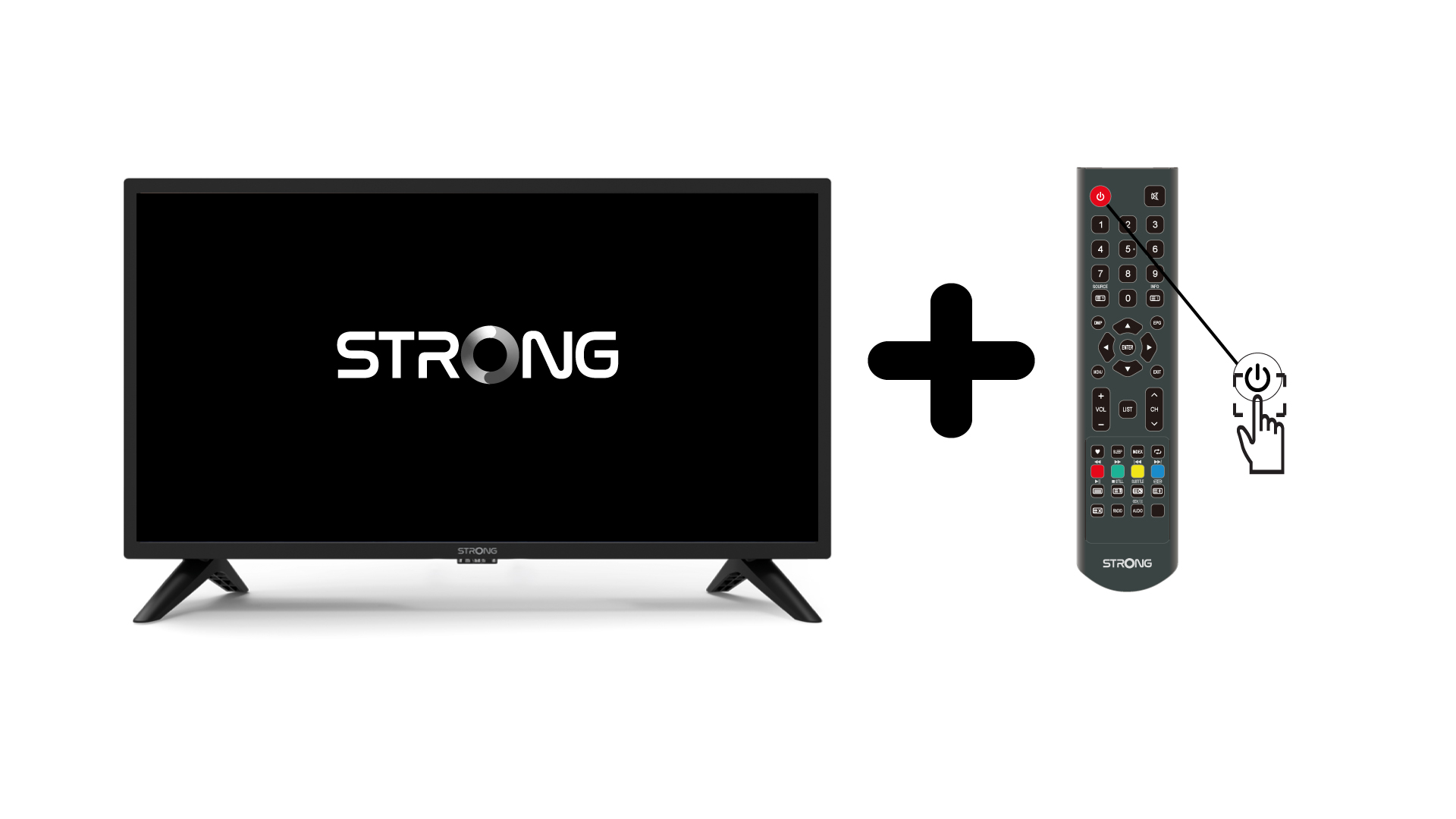
1. Tændfor tv’et og enheden
Tænd for dit tv og din enhed.
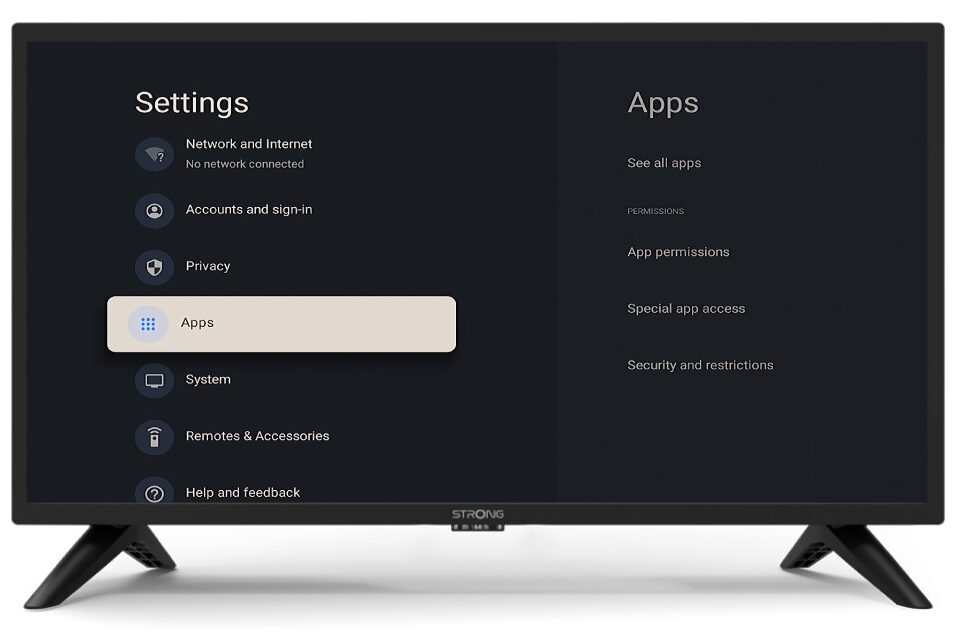
2Indstillinger
Tryk på knappen »Indstillinger« på fjernbetjeningen (tandhjulsikonet). Menuen »Indstillinger« vises nu på tv-skærmen.
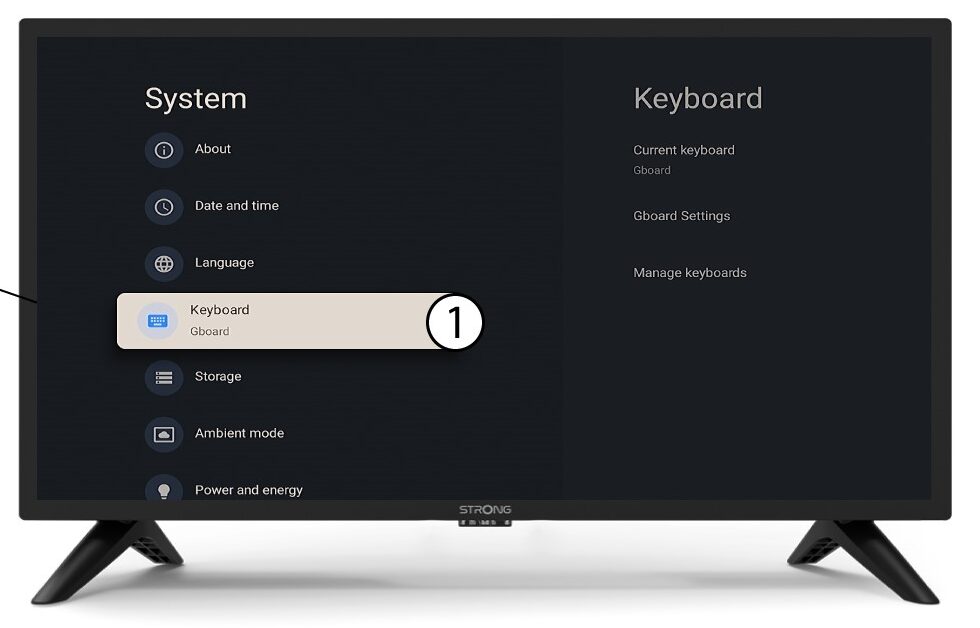
3Tastatur
Vælg »Tastatur« i menuen »Indstillinger«, og tryk på OK -knappen på fjernbetjeningen.
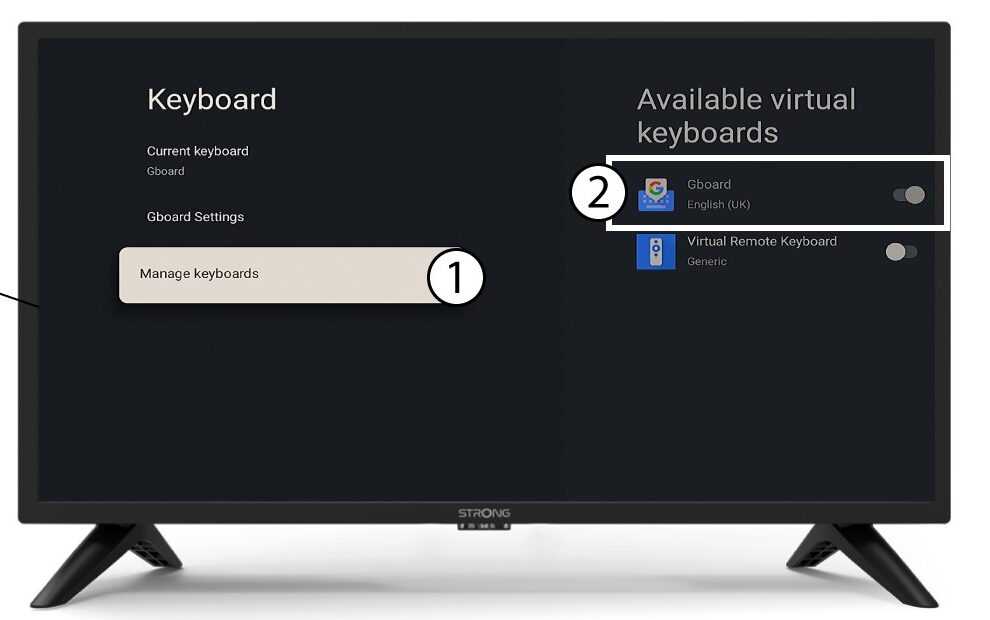
4Manage-tastatur
Klik på »Administrer tastatur«. Klik derefter på vippeknappen for at deaktivere det.
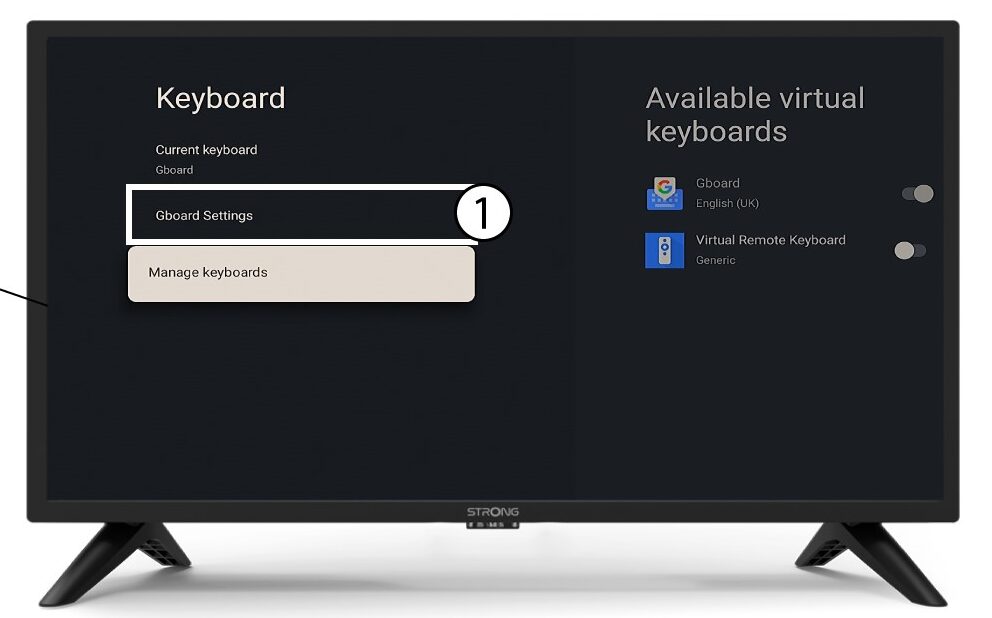
Indstillinger for 5Gboard
Klik på »Gboard-indstillinger«, og tryk på OK.
6sprog
Klik på »Sprog«, og tryk på OK på fjernbetjeningen. Vælg derefter sproget.