
4G+ AIRHOME 710 UK with detachable 4G+ antennas
All questions
4G+ AIRHOME 710 UK with detachable 4G+ antennas
Credentials and Web UI access
How do I access the Web UI?
To access the Web UI, you must be connected to the Wi-Fi of your device after positioning the SIM card in the slot.
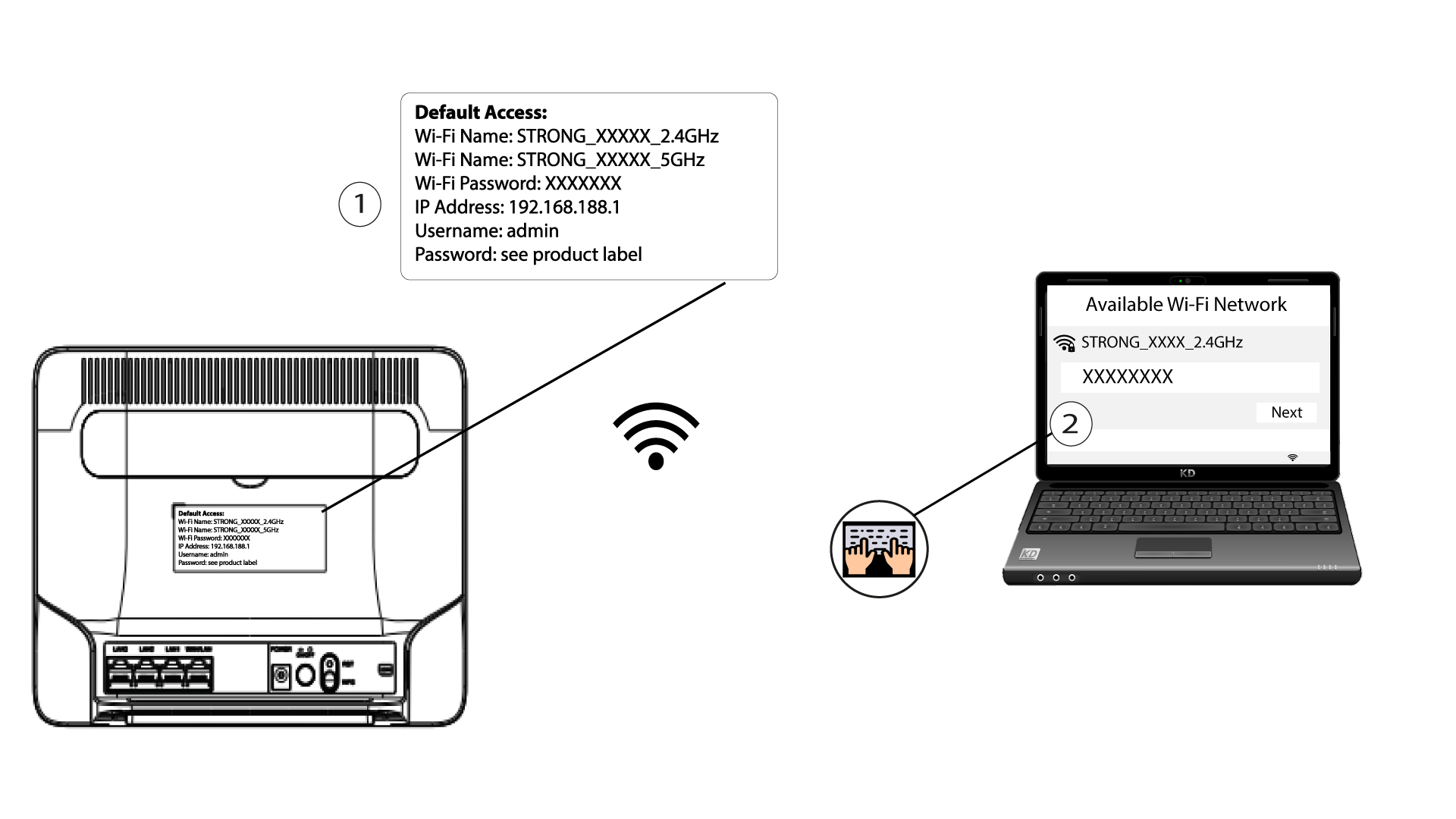
1Connect to the Wi-Fi Network of your router
To do so, enter the SSID (Wi-Fi Network Name) and Wi-Fi password of the router in your device:
2Browse to the Web UI IP address
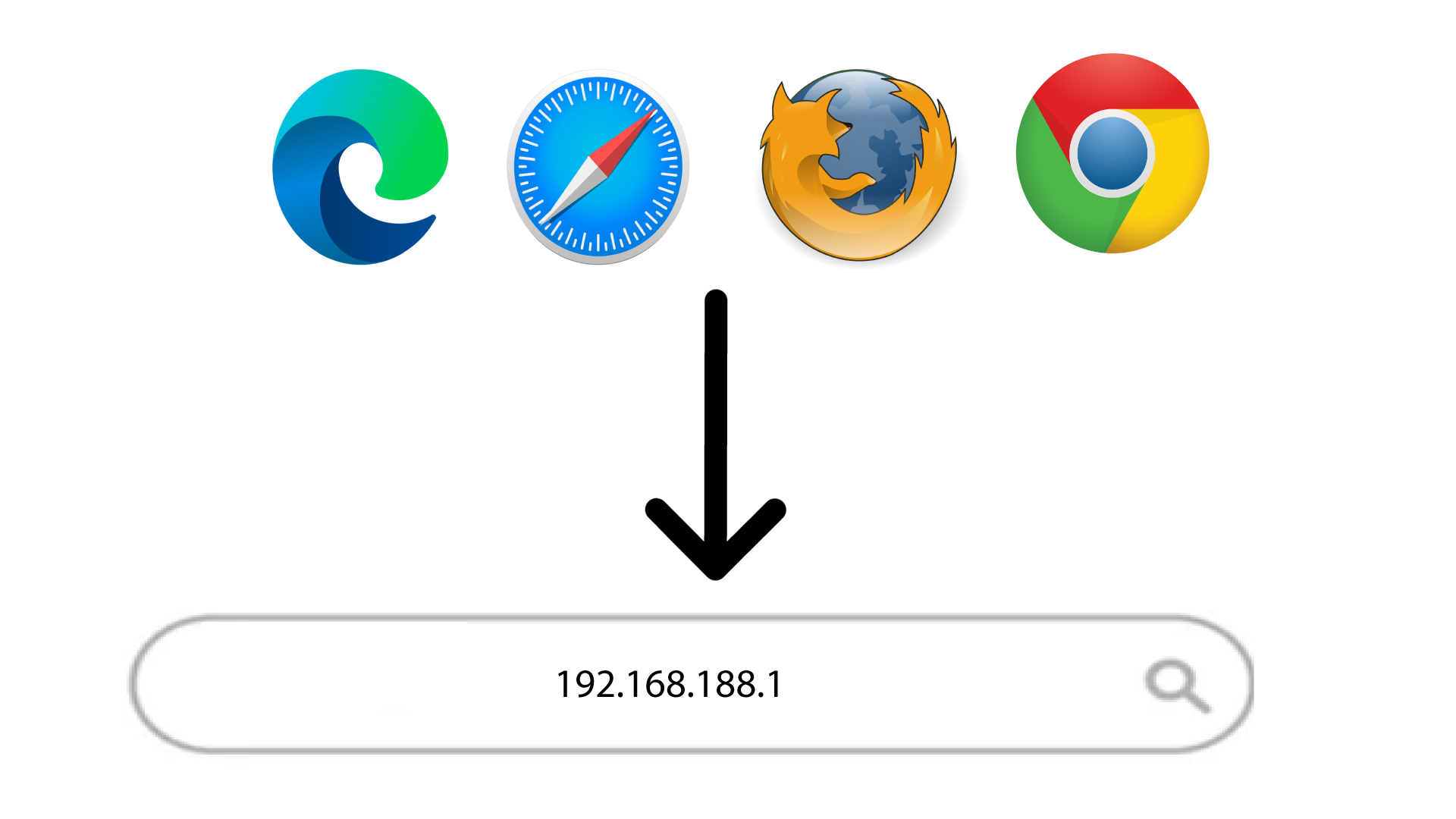
Then, enter the following IP address in your browser: 192.168.188.1
3Look for your credentials to connect to the Web UI
To find your credentials, please refer to the label located behind your device.

4Connect to the Web UI
You must enter the username and password and click login.
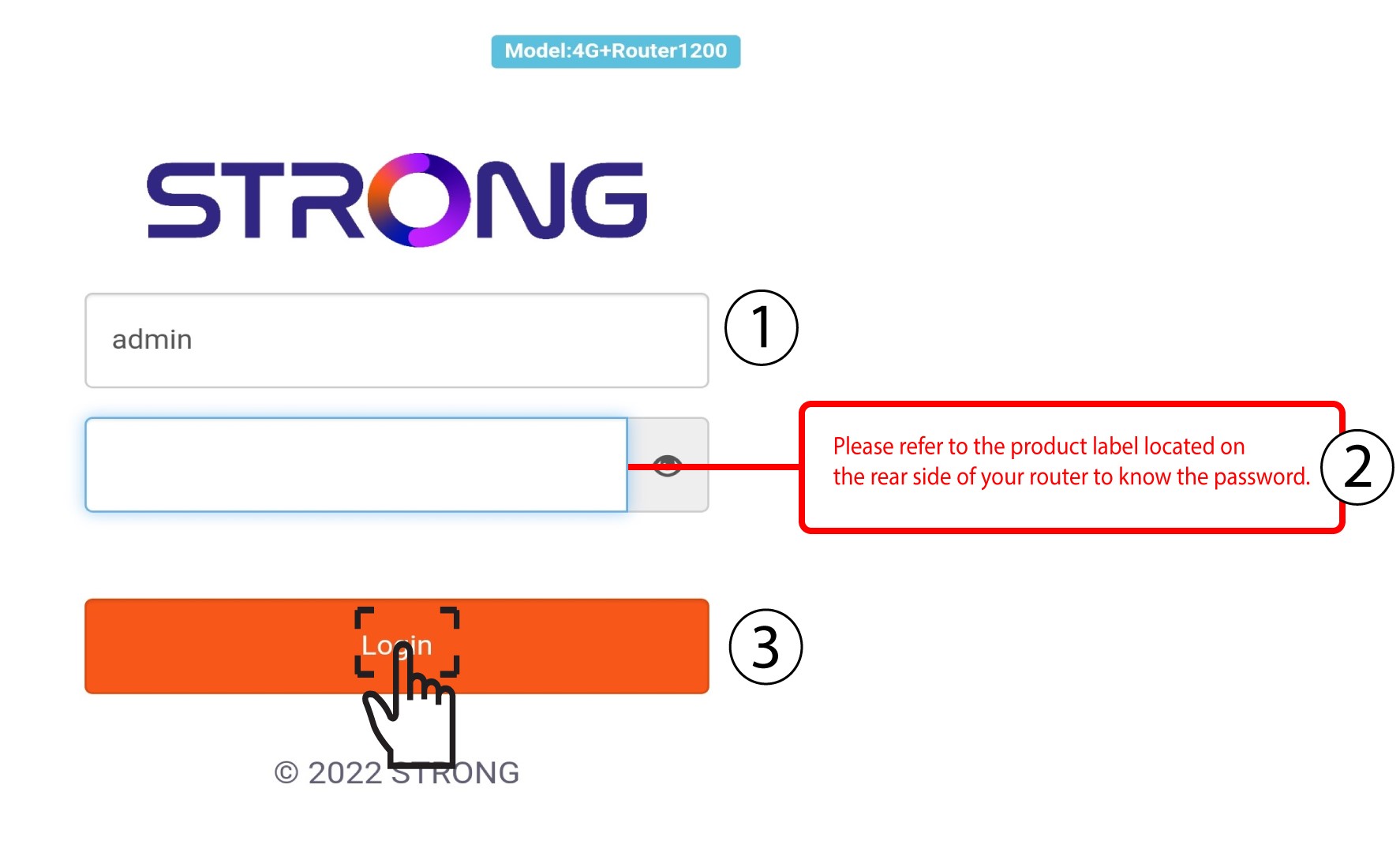

If the default administration password is set to admin, you must change it after the first connection to secure the access to the router and prevent hacking.
How do I change the SSID (Wi-Fi Network Name) and Wi-Fi password?
The 4G+ Router 1200 is a dual-band router, you can edit the information of your 2.4 GHz and 5 GHz Wi-Fi network.
1Connect to the Wi-Fi Network of your router
To change the SSID (Wi-Fi Network Name) and Wi-Fi password, you must be connected to the Wi-Fi of your device.
2Browse to the Web UI IP Address
Then enter the following IP address: 192.168.188.1 in your browser.
3Find your credentials for the Web UI
To find your credentials, please refer to the label located behind your device.
4Enter your credentials
You must enter the Username and Password. Then, click Login.
5Wi-Fi Settings
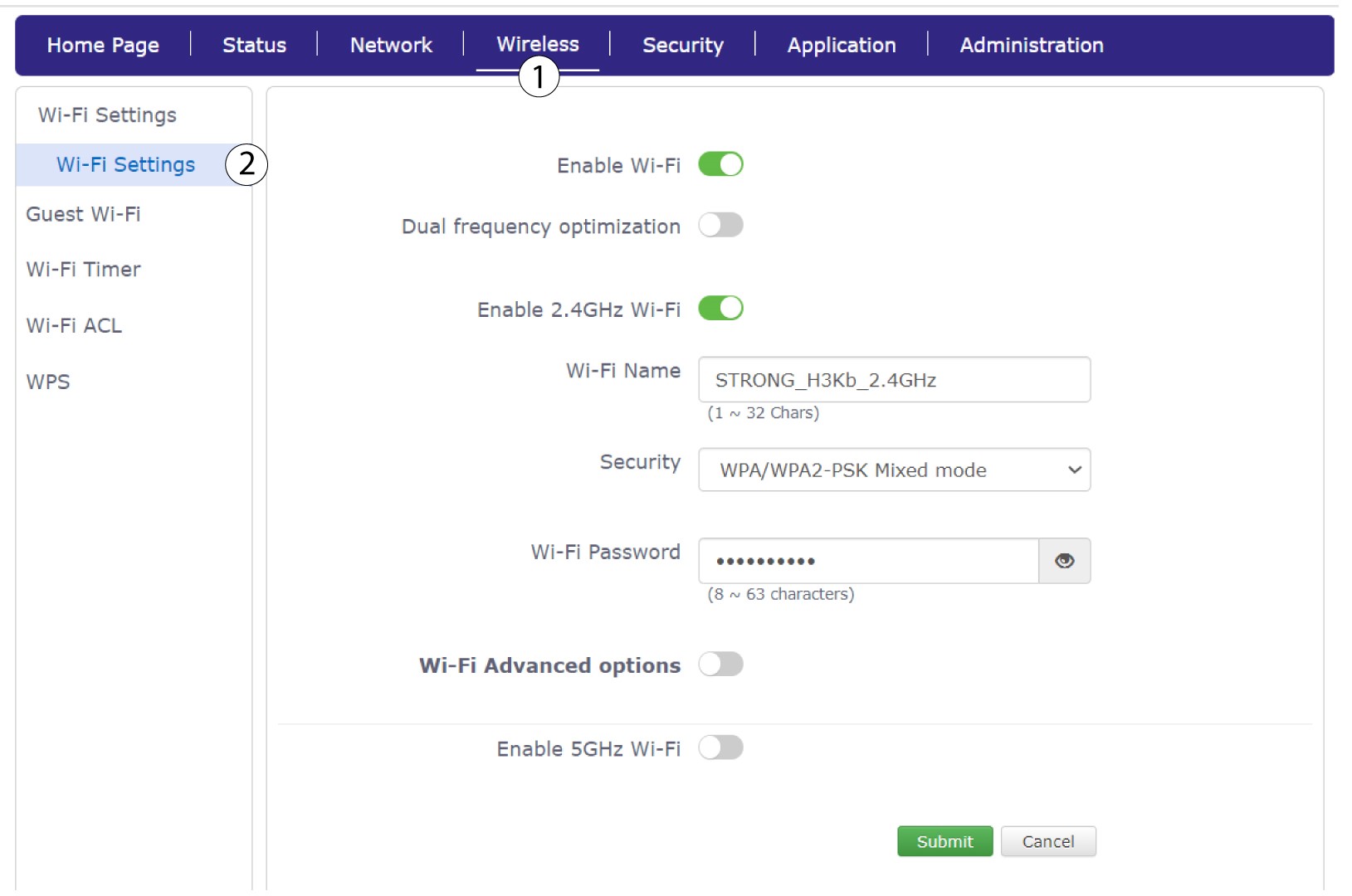
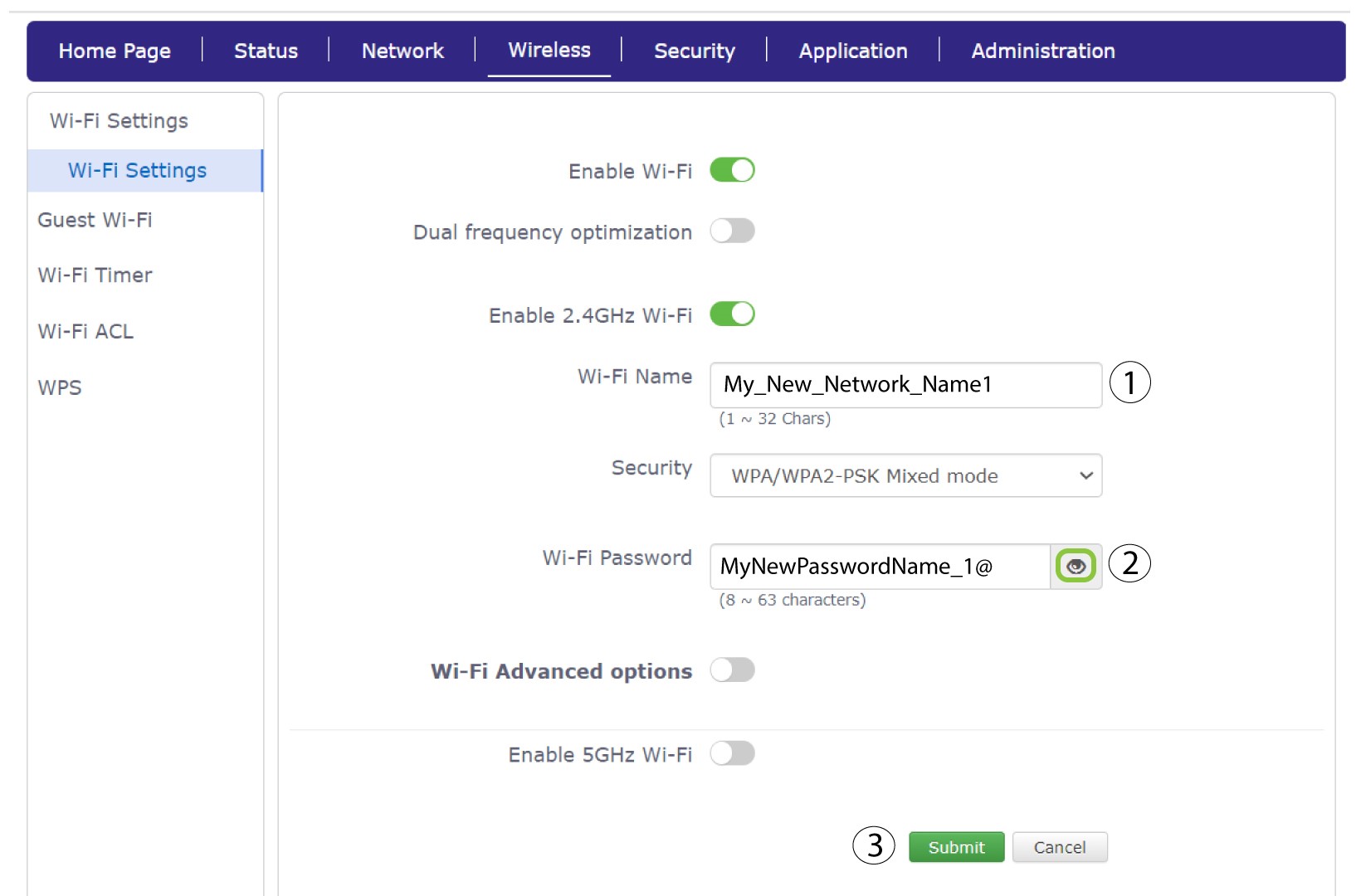
Click Wireless and select Wi-Fi Settings.
6Enter the new network information
Change the name entered in the Wi-Fi Name field and click the eye icon next to the Wi-Fi Password field. Then change the password entered in the Wi-Fi Password field and click Submit to save the changes.
7Write down the new network information
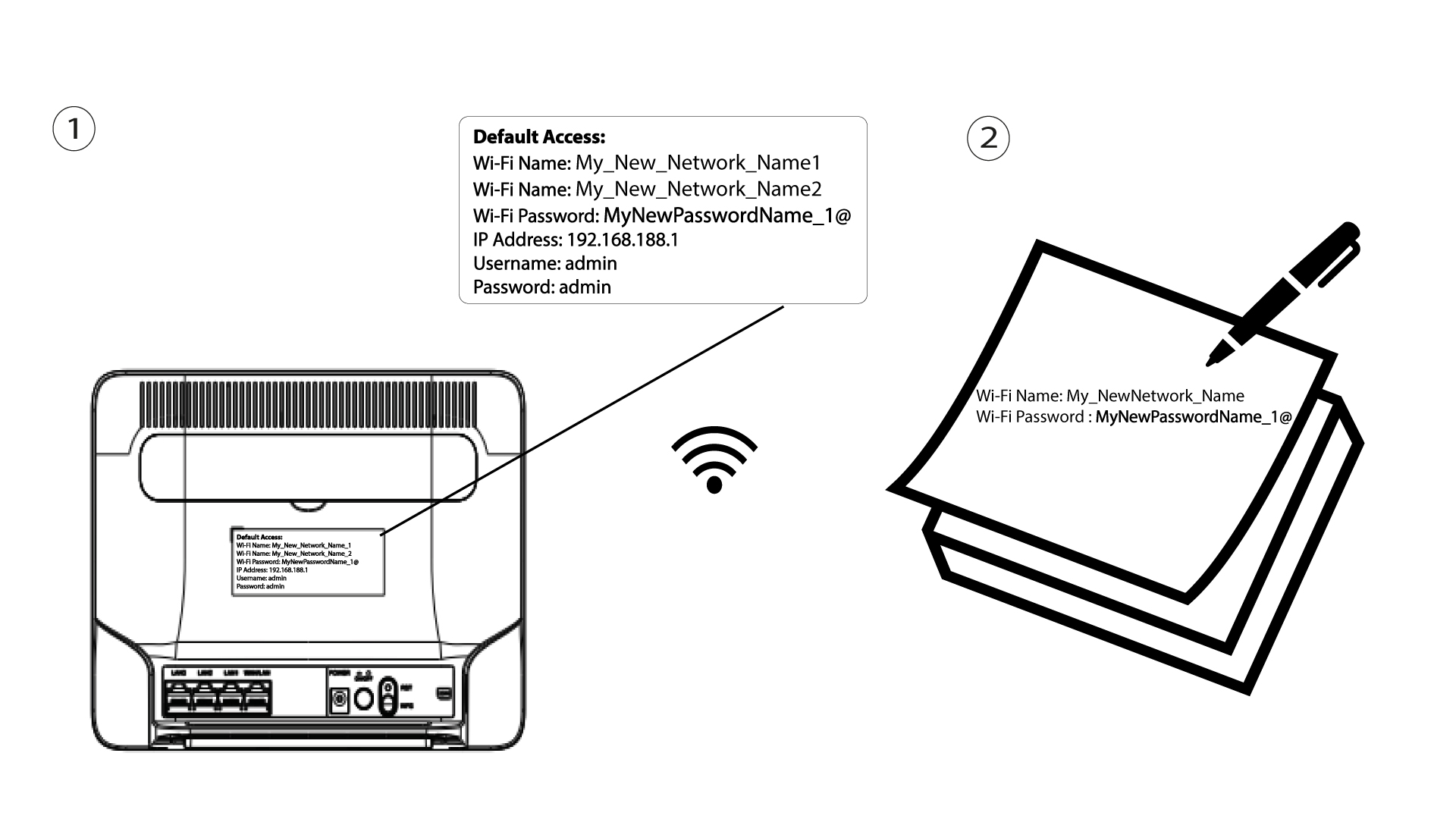
Write your new SSID (Wi-Fi Network Name) and Wi-Fi password on a paper and tape it to the router.
How do I change the admin password?
Please note that it is not possible to change the administration username. You can only change the password.
1Access the Web UI
To connect to the Web UI please follow the guidelines written in: How do I access the Web UI?
2User Management
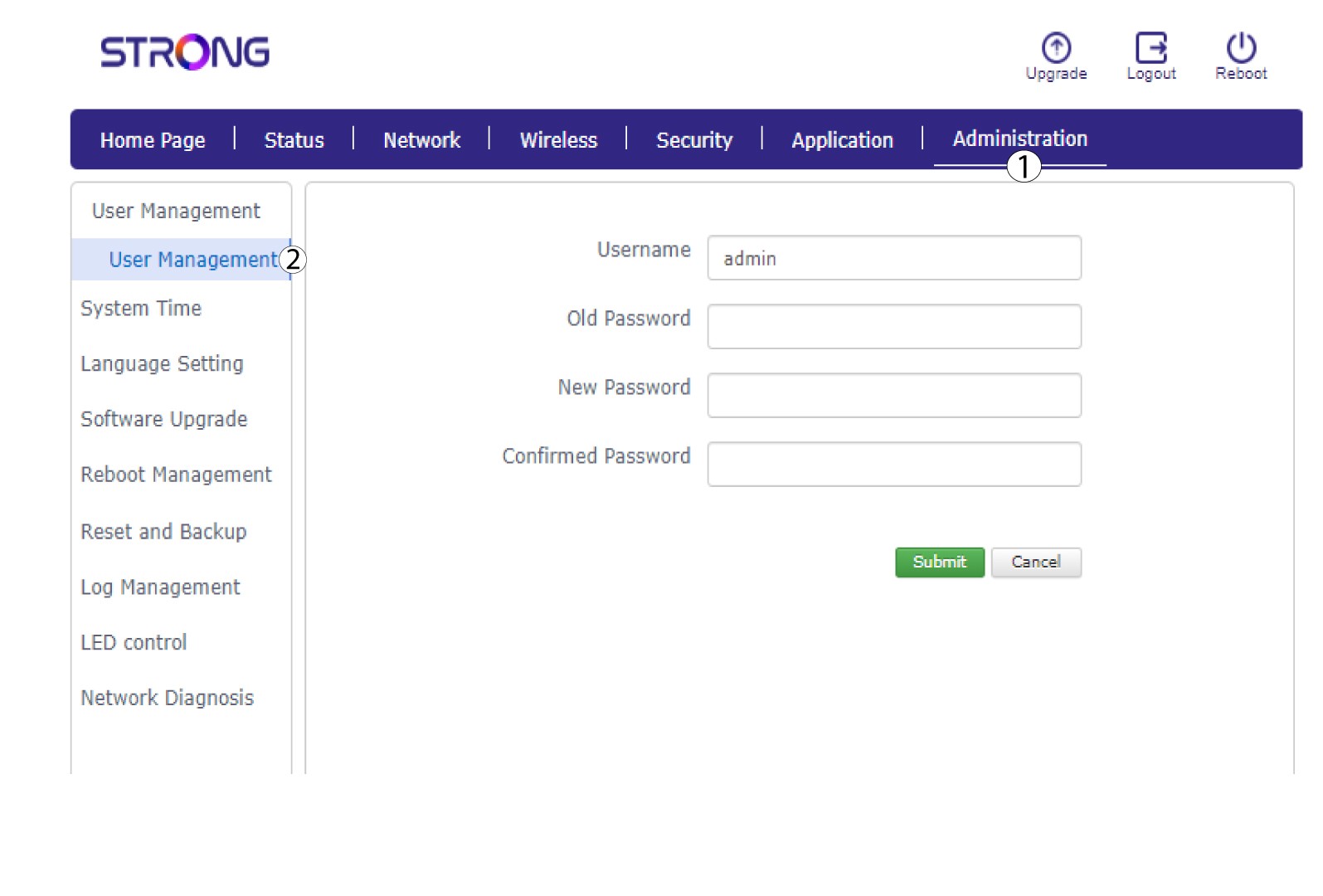
Once this is done, click Administration and UserManagement.
3Enter the new password
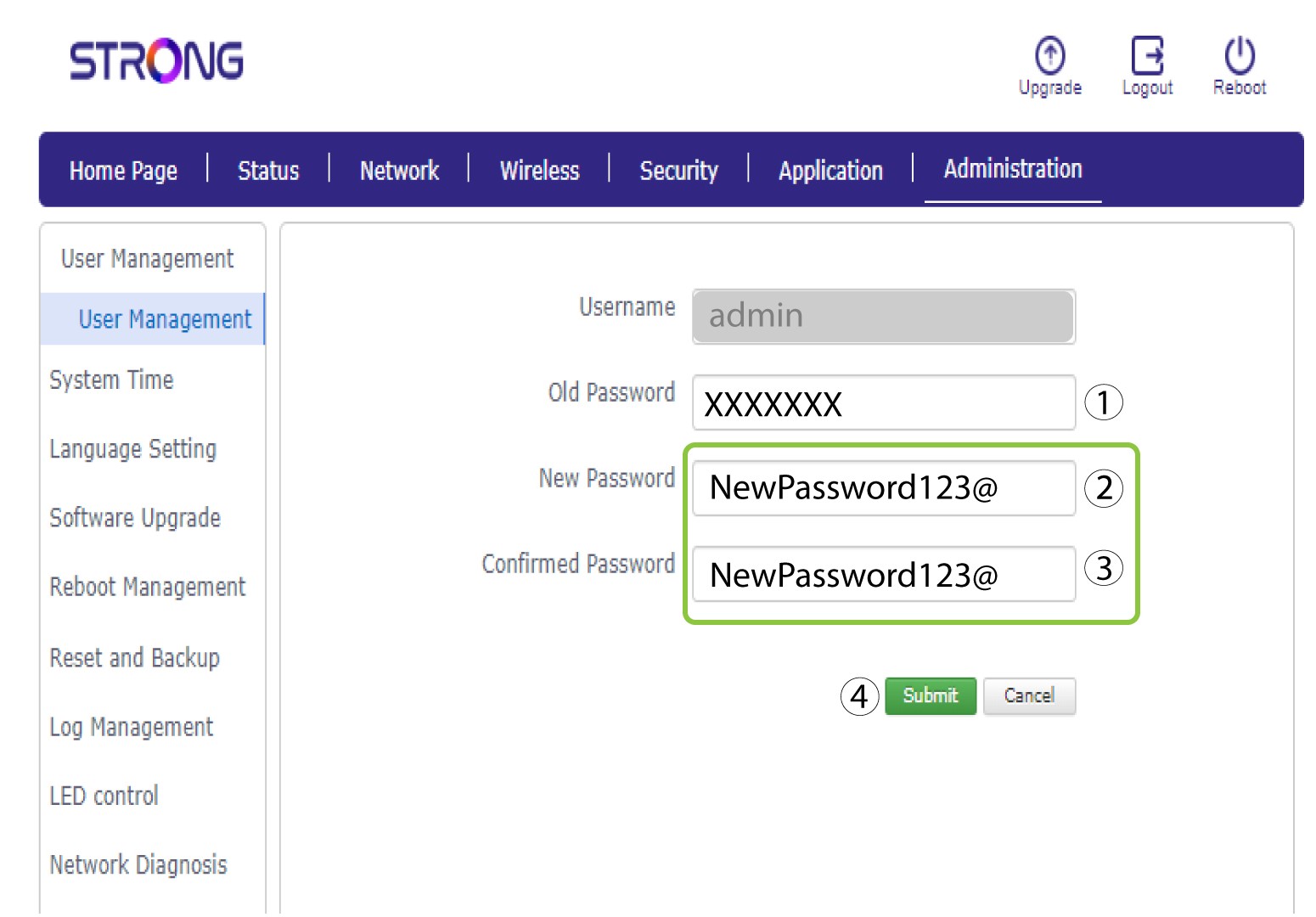
Enter the following information in the fields before clicking Submit:
• Old Password: Enter the current password that you used to connect to the Web UI.
• New Password: Enter a new password to connect to the Web UI.
• Confirmed Password: Enter the same password as in the New Password field.
What can I do in the Web UI?
The Web UI is divided into 7 sections:
• Home Page: where you can see the status of your connection, SIM Card and PIN Code.
• Status: where you can see the information about the device, Internet, LAN and wireless connections.
• Network: where you can set up the APN, change or enter the PIN code, WAN, LAN and Speed Limit.
• Wireless: where you can set up WPS and Wi-Fi ( SSID (Wi-Fi Network Name) and Wi-Fi password change, guest Wi-Fi, etc.)
• Security: where you can set up a firewall, URL/MAC filters, IP filters and parental/service control.
• Application: where you can set up DNZ, DDNS, UPnP settings and IGMP.
• Administration: where you can update the firmware, change the username and password, languages, reboot the device, reset to factory settings, etc.

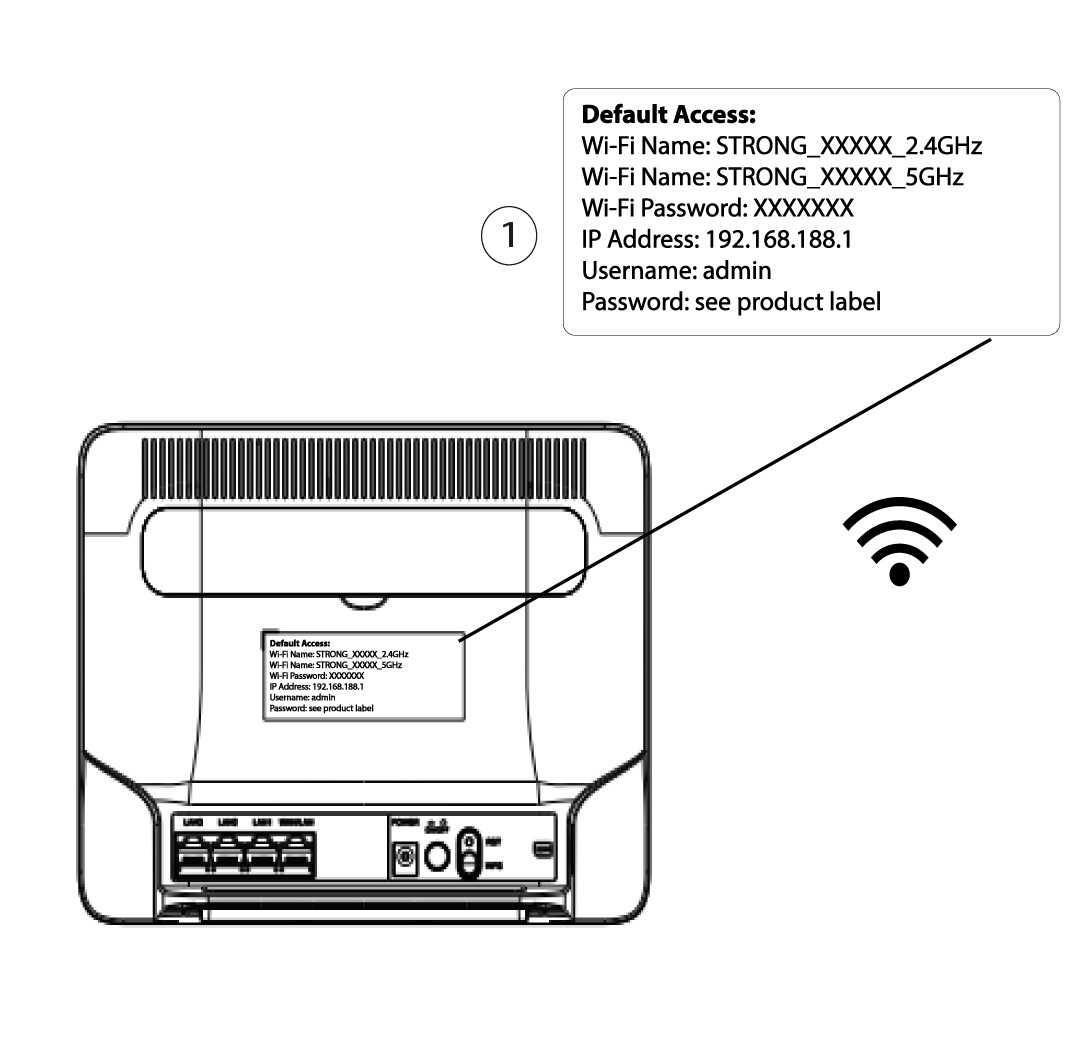
Where are the SSID (Wi-Fi Network Name) and Wi-Fi Password written?
To find the password of your device, you can look at the back of the device, the information will be written.
Why is there a QR Code on the rear side of the router?
The QR Code located on the rear side of your router is designed to simplify your connection to the Wi-Fi Network of your 4G Router. If you open your smartphone and scan the QR Code, you will be automatically connected to the Wi-Fi of your 4G Router.