4G+ AIRSPOT 510 Mobile Wi-Fi
All questions
Credentials and Web UI access
How do I access the Web UI for the first time?
To access the Web UI, you must be connected to the Wi-Fi of your 4G PORTABLE HOTSPOT 900 WITH A DISPLAY after positioning the SIM card in the slot.
1Connect to the Router’s Wi-Fi Network
To do so, enter the SSID (Wi-Fi Network Name) and Wi-Fi password of the router in your device.

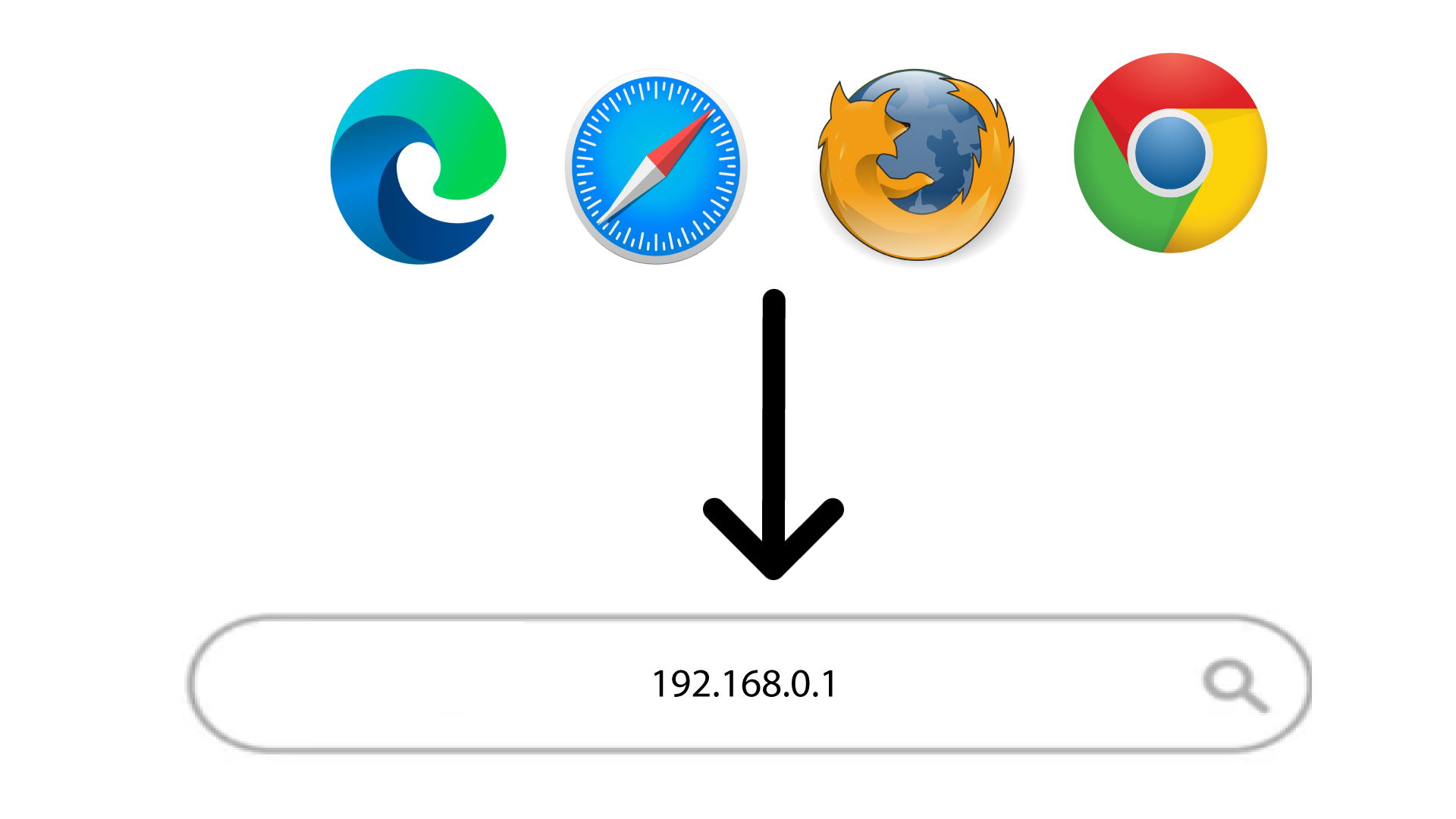
2Open the Web UI Login Page
Then, enter the following IP address in your browser: 168.0.1
3Set Up Your Admin Password
Once you have browsed to the IP address, you must set up your admin password. To set the new password, enter the following information before clicking OK:
- New Password: Enter a password that contains at least 8 characters and includes a combination of uppercase, lowercase, numbers, and special characters. Only the following special characters are allowed: @$%*&.
- Confirm New Password: Enter the same password as in the previous field.
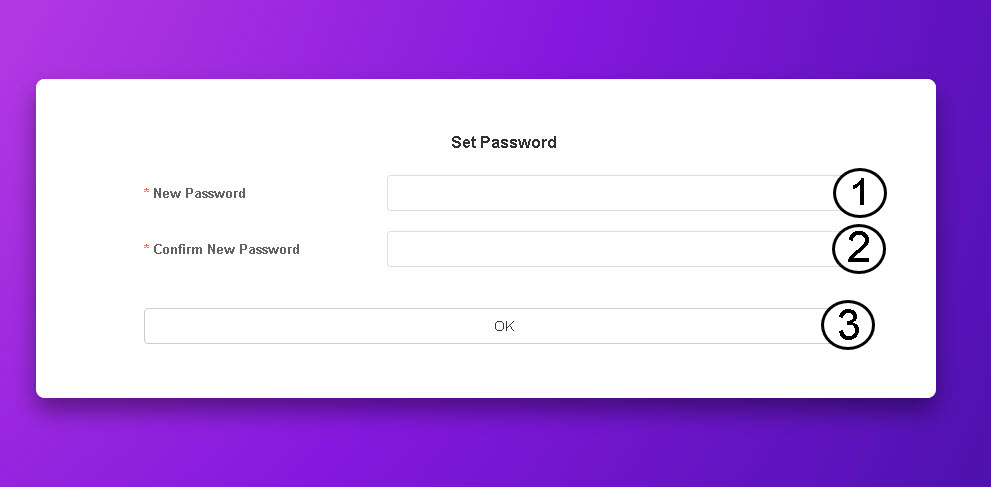
TIP: To display your password, click the eye icon.
How do I access the Web UI?
To access the Web UI, you must be connected to the Wi-Fi of your 4G PORTABLE HOTSPOT 900 WITH A DISPLAY after positioning the SIM card in the slot.
1Connect to the Router’s Wi-Fi
To do so, enter the SSID (Wi-Fi Network Name) and Wi-Fi password of the router in your device.
2Access the Web Interface
Then, enter the following IP address in your browser: 168.0.1
3Log in to the Web UI
Once you have browsed to the IP address, you must enter your password before clicking Login.
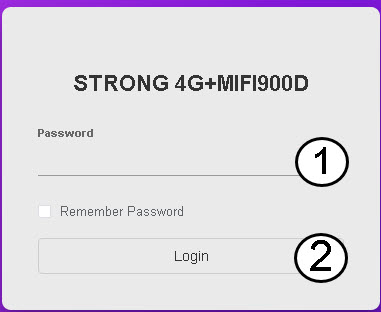
TIP: To display your password, click the eye icon.
How do I change the SSID (Wi-Fi Network Name) and Wi-Fi Password ? (Web UI)
1Access the Web UI
Please follow the steps listed here to connect to the web UI: How do I access the Web UI?
2Go to Wi-Fi Settings
Click Wi-Fi and 5 GHz Wi-Fi Settings.
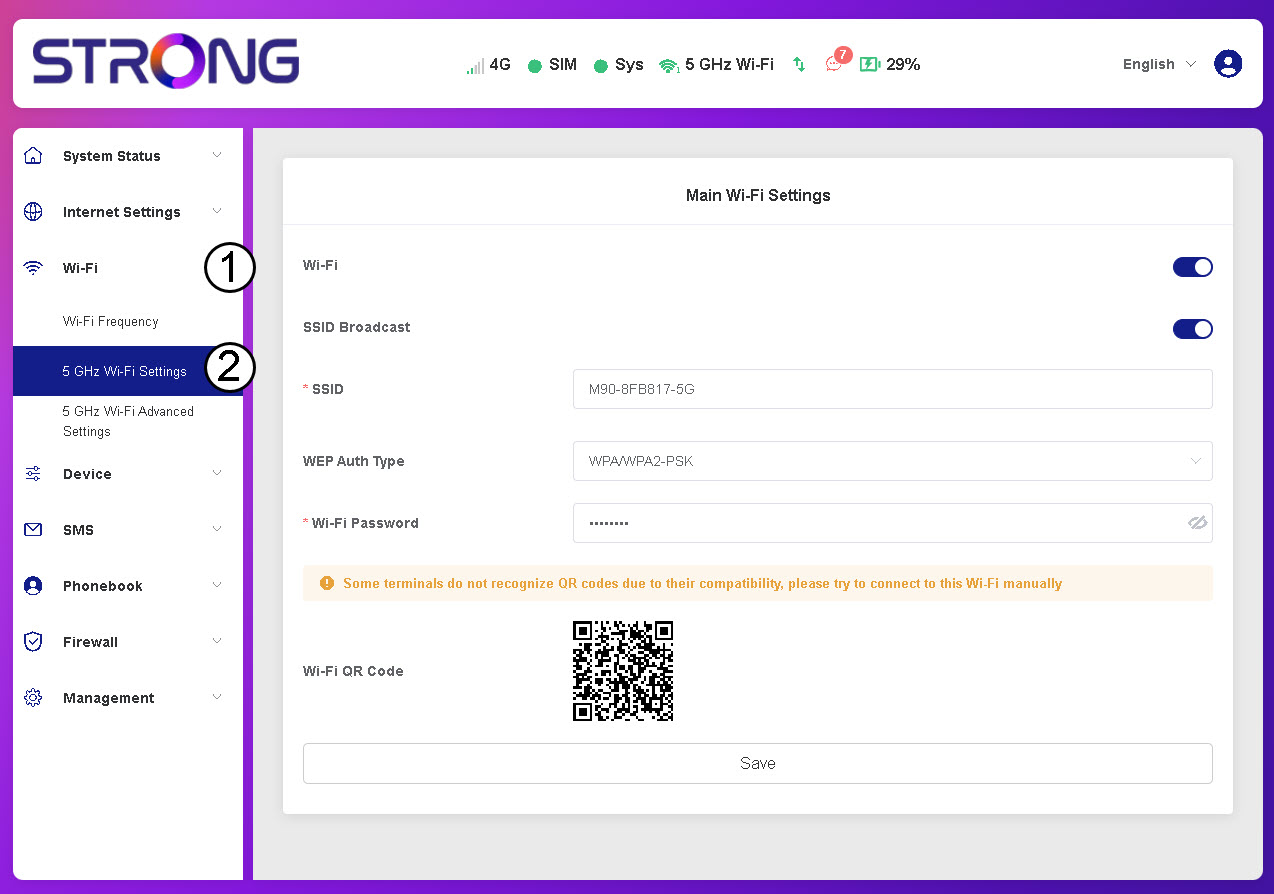
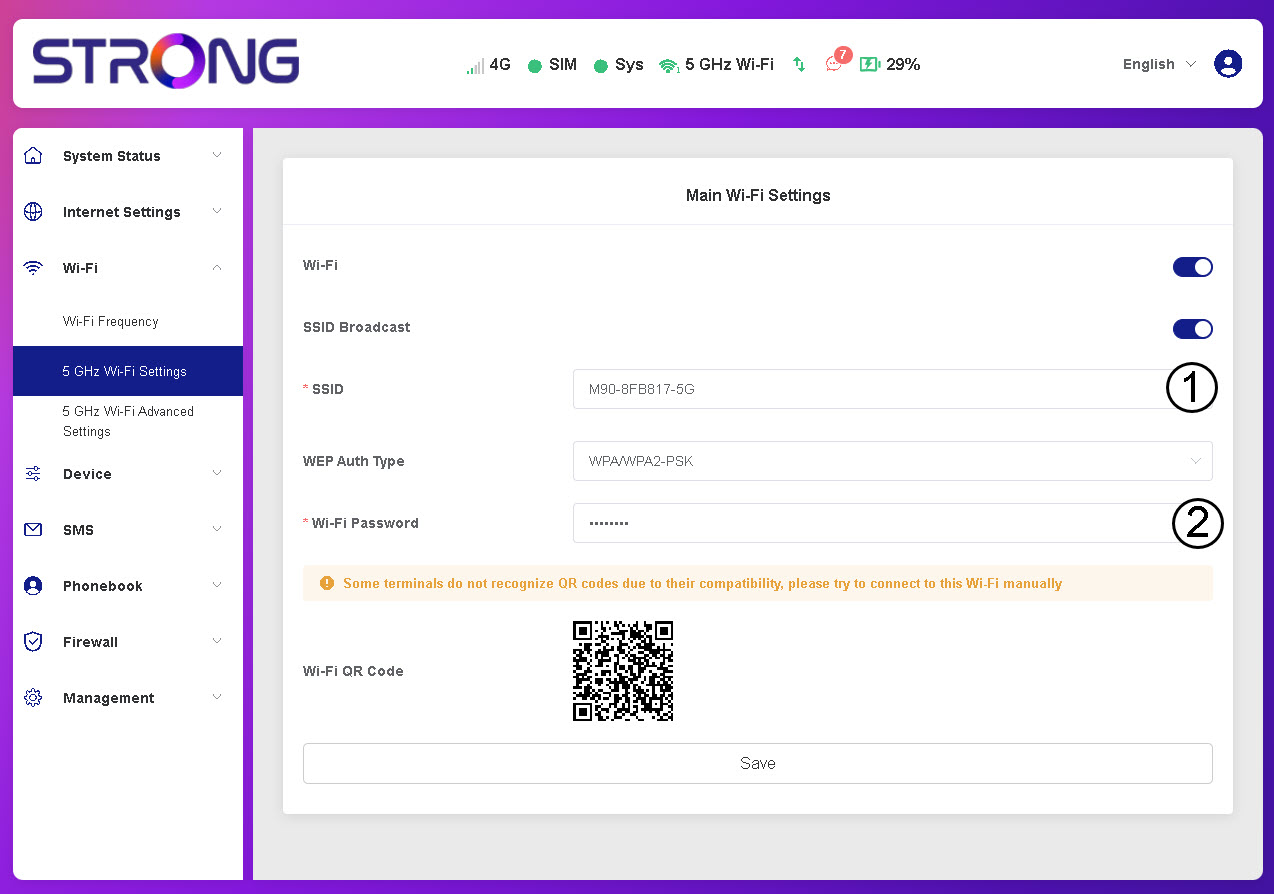
3Edit Network Name and Password
Edit the SSID and Wi-Fi Password and click Save.
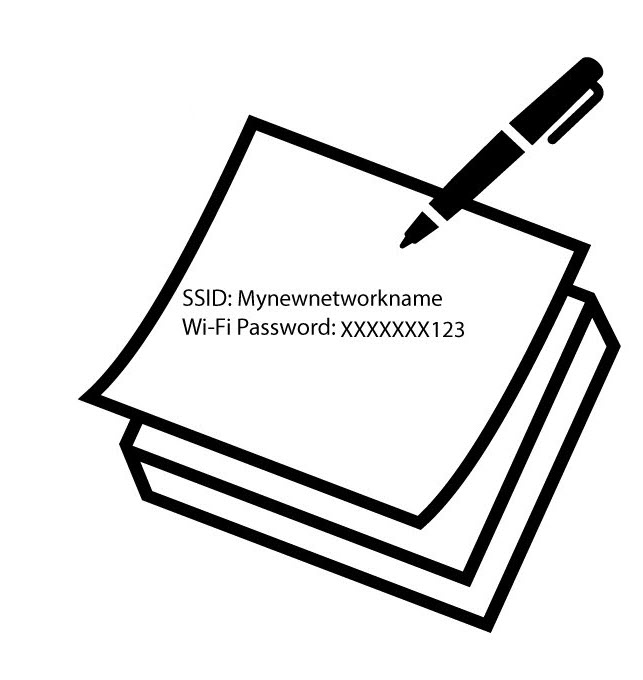
4Save Your New Credentials
Write down the new network information.
How do I change the admin password?
1Access the Web UI
To access the web UI please refer to How do I access the Web UI?
2Navigate to Password Settings
In the Management section, click System Settings and Change Password.
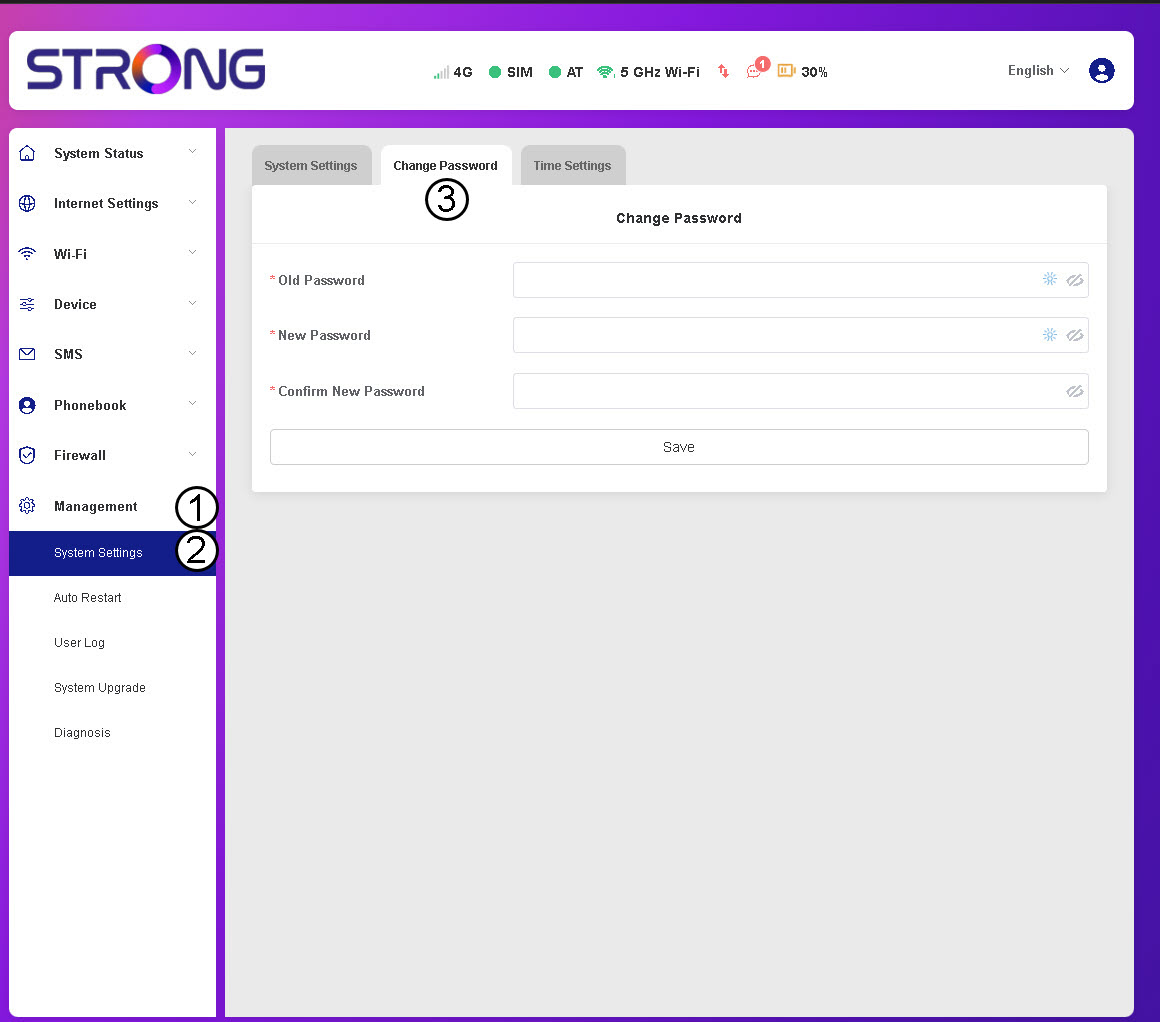
3Enter Password Information
Then, enter the following information before clicking Save:
- Old Password: Enter your current password.
- New Password: Enter a password that contains at least 8 characters and includes a combination of uppercase, lowercase, number and special characters. only the following special characters are allowed: @$%*&.
- Confirm New Password: Enter the same password as in the previous field.


WARNING: If you have forgotten your current password, you will need to reset the device to its factory settings.
How do I deactivate my PIN code?
Once you have inserted your SIM card and entered the PIN code using the Mi-Fi’s LCD screen, the PIN code is automatically deactivated.
You can check if the PIN code is deactivated by following the steps below:
1Access the web interface
Connect to the web UI.
2Navigate to SIM PIN settings
Click Internet Settings, then select SIM card PIN code.
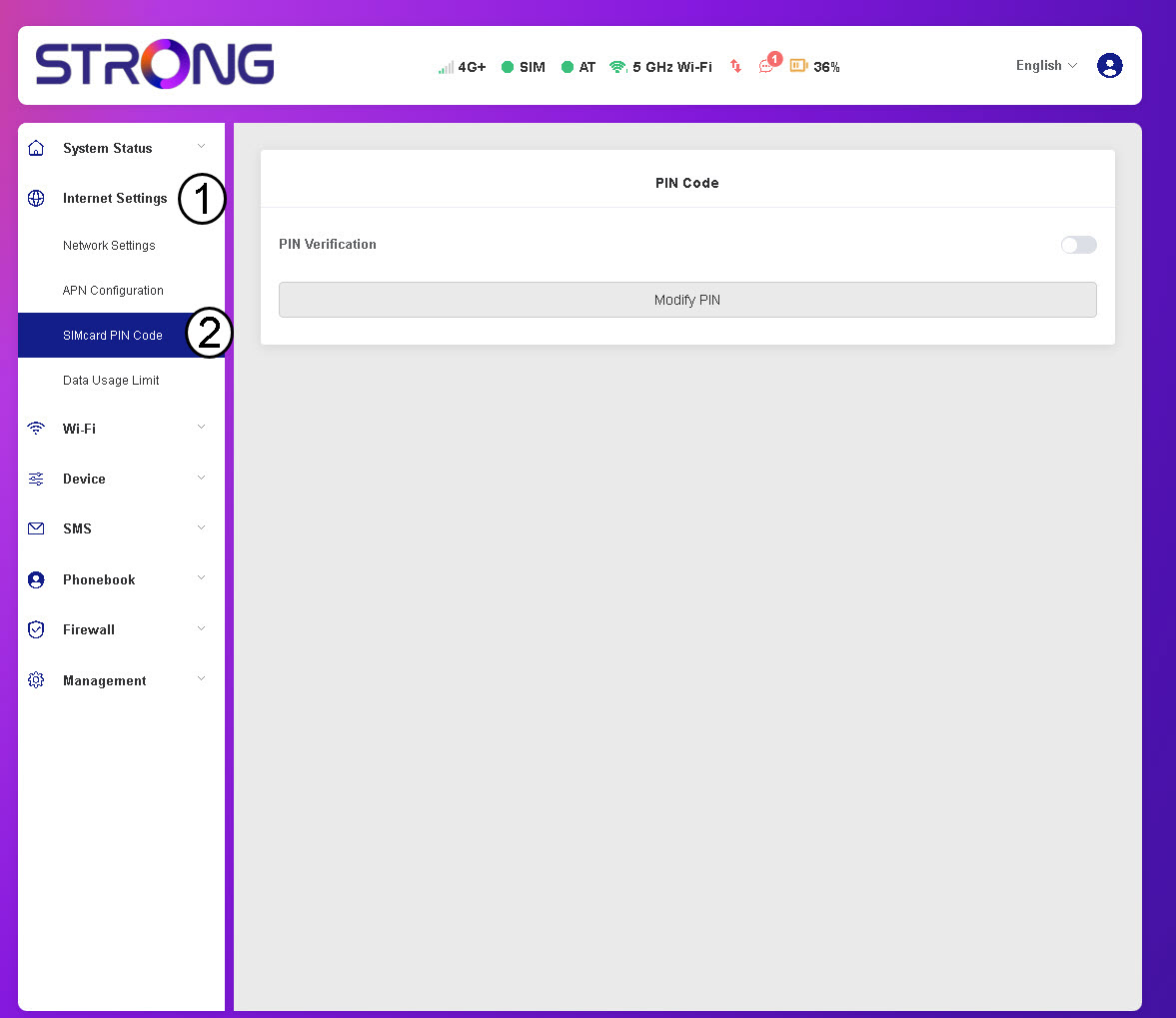
3Check PIN status
Verify that the PIN verification toggle is grey, indicating the PIN code is deactivated.

How do I enter my PIN code? (Web UI)
After inserting your SIM card and entering its PIN code from the LCD screen of the Mi-Fi, the PIN code is automatically deactivated.
You can check if the PIN code is deactivated by following the steps below:
- To access the Web UI, follow the steps written here: How do I access the Web UI?
- Enter the PIN code and click Continue.

What can I do in the Web UI?
In the Web UI, you can set up various parameters:
- System Status: You can see the information for the DHC, network and device as well as the list of connected devices.
- Internet Settings: You can manage the SIM card PIN code, the network mode, network APN, network settings and define a data usage limit.
Wi-Fi: You can change the frequency band of your network as well as the Wi-Fi network
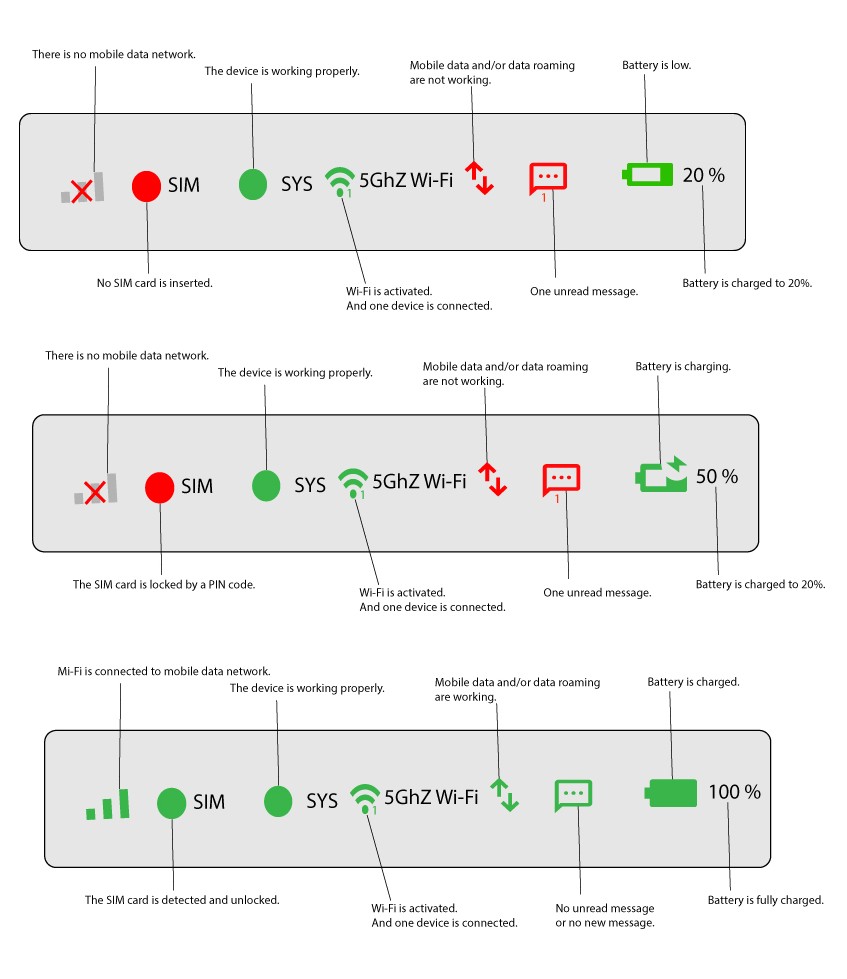
What is the meaning of the statuses in the top bar of the Web UI?
In the top bar of the Web UI, you can see the different statuses regarding your connection, Wi-Fi network, and battery.