
FALKY SOLAR BATTERY CAMERA
All questions
Camera, NVR and recording
How do I configure active deterrence (siren, strobe, automatic response)?
Manual deterrence (immediate, on-demand):
- Siren: Live view > Page 2 > Siren button. Tap to start, tap again to stop.
- White Light: Live view > Page 2 > Light button. Manually illuminates the area.
- Audio Warning + Strobe: Live view > Page 2 > Audio Warning and Strobe Light button. Triggers simultaneous audio warning and rapid LED strobe.
Automatic deterrence on detection (no manual action needed):
Go to Settings (⚙) > Alarm Management > Alert Linkage. Configure the camera to automatically trigger LED lights, the siren, or Audio Warning + Strobe whenever a detection occurs. You can set a schedule to limit activation to specific hours (e.g. night only).
Tips: For night-time intruder deterrence, the recommended setup is: AI Human Detection on + Alert Linkage set to Audio Warning + Strobe. This ensures the camera only reacts to confirmed human presence.
How do I set up the camera for the first time?
- Charge the battery fully before outdoor installation: connect the supplied USB-C cable to a standard 5 V / 1 A USB charger (not included). The charge indicator LED lights red while charging and turns blue when complete (~5–7 hours from empty).
- Insert a microSD card if you want local recording (Class 10, 256 GB max, FAT32 — not included). Power the camera off first (hold POWER 3 seconds), insert the card, then power back on.
- Download the Protect by STRONG app and create a free account. Verify your email.
- Grant all requested permissions: Notifications (critical), Microphone (intercom), Bluetooth and Location (pairing only).
- In the app, tap + or Add Device. Power on the camera (hold POWER 3 seconds). Hold RESET for 4–5 seconds until the status LED blinks red slowly — pairing mode is active.
- Select your 2.4 GHz Wi-Fi network, enter the password, and confirm. The app completes the connection automatically (30 seconds to 2 minutes).
Warning: The FALKY2K-S supports 2.4 GHz Wi-Fi ONLY (Wi-Fi 6 / 802.11ax). It will NOT connect to 5 GHz networks. SSID and password: 24 characters maximum each.
Tips: You can also scan the QR Code printed on the camera label (tap the QR Code icon in the app), or use Bluetooth-assisted pairing (Battery Camera WIFI+BT) if Bluetooth is available on your phone.
How do I connect the camera to a new Wi-Fi network?
Changing Wi-Fi requires a full re-pairing:
- In the app, go to camera Settings (⚙) > Device Information > Delete device.
- On the camera, hold RESET for 4–5 seconds until the LED blinks red slowly.
- Follow the pairing procedure (see 'How do I set up the camera for the first time?') with the new Wi-Fi credentials.
Warning: You must be physically in a location where both the old and new Wi-Fi networks overlap, or the camera must already be within range of the new network before starting.
'SD card not detected' / How does recording work?
If the card is not detected: power the camera OFF (hold POWER 3 seconds), remove and reinsert the card firmly, then power back on. Check: Class 10 minimum, 256 GB maximum, formatted as FAT32 (not exFAT or NTFS). Never insert or remove the card while powered on.
Two recording modes in Settings (⚙) > Recording Management:
- Event Recording (default, recommended): records only when a detection event occurs. Strongly recommended for battery operation.
- All Day Recording: continuous 24/7 recording. Requires permanent USB-C or solar power — drains battery rapidly without an external power source.
Tips: The free cloud plan stores 6-second clips per event for 30 days automatically — even without a microSD card, you always have short video evidence of recent events.
Night vision: Infrared mode vs Full Color mode — which should I use?
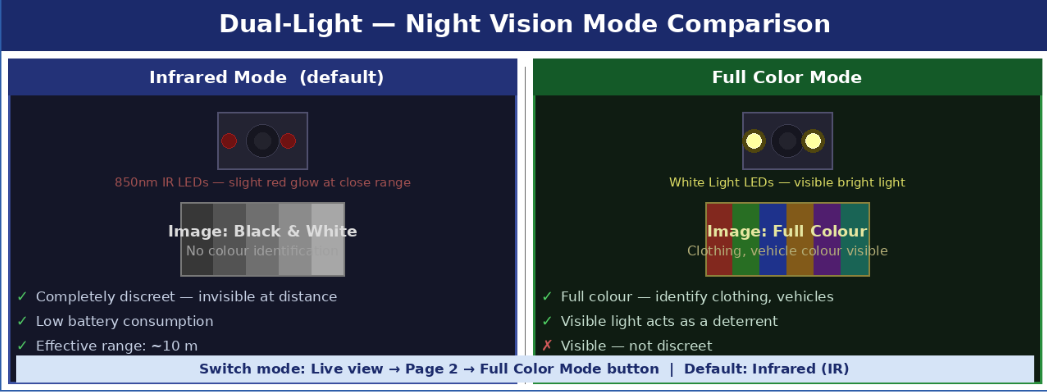
The FALKY2K-S has two independent night vision systems. The default mode (Infrared) is recommended for most installations. Switch to Full Color mode when colour identification is your priority.
IR mode works automatically at night — no configuration needed. Full Color mode must be manually activated: Live view > Page 2 (swipe left) > Full Color Mode button.
Warning: The White Light LEDs in Full Color mode are physically bright and visible — they will illuminate the area and alert anyone in the camera's field of view. Do not use Full Color mode if discreet surveillance is required.
The camera is offline / How do I reset it?
- Restart the camera: hold POWER for 3 seconds to turn off, wait 10 seconds, hold POWER again for 3 seconds to turn on. Wait for the status LED to become solid blue.
- Restart your home router/Internet box.
- If still offline after restart: hold RESET for 4–5 seconds (LED blinks red) and re-pair the camera (see 'How do I set up the camera for the first time?').
- If the camera still appears in the app: go to Settings (⚙) > Device Information > Delete device to remove it manually before re-adding it.
Warning: A factory reset (RESET 4–5 seconds) erases ALL settings including Wi-Fi credentials.
The intercom does not work / No sound from the camera
- No microphone permission: phone Settings > Apps > Protect by STRONG > Permissions — enable Microphone. Without it, you cannot speak through the camera.
- Speaker disabled: camera Settings (⚙) > Sound Settings — confirm Speaker is enabled. When the speaker is off, intercom, siren, and audio warnings are all unavailable.
- Microphone muted on camera: check that Sound Settings > Microphone is enabled.
- Remember: the intercom is half duplex — hold the button to speak, release to hear. You cannot speak and listen simultaneously.
The live view takes several seconds to load / Camera is offline
A delay of 2–5 seconds before the video stream begins is completely normal. The FALKY2K-S enters deep PIR sleep mode between detections to maximise battery life, and requires a few seconds to wake up when you open the Live view.
If the live view never loads or shows a black screen:
- Check the camera status in the app home screen. If it shows 'offline', the camera has lost its Wi-Fi connection — restart (POWER off then on).
- Check your phone's Internet connection is working.
- Force-close the Protect by STRONG app and reopen it.
- If the camera shows 'offline' persistently after a restart, press RESET and re-pair (see 'How do I set up the camera for the first time?').
Tips: The intercom on the FALKY2K-S is HALF duplex (walkie-talkie style): hold the button to speak, release to listen. Only one person can transmit at a time.