
4G AIRHOME 310 with Detachable 4G antennas
All questions
4G AIRHOME 310 with Detachable 4G antennas
Settings and features
How do I connect my devices with the WPS?

You can use the WPS function to set up the Wi-Fi connection between your router and your computers (Linux/Windows) for instance. It is not possible to connect mobile phone by using the WPS. To connect your phone to the Wi-Fi easily, please scan the QR code located on the rear side of your router, it will automatically connect you to the network without entering the Wi-Fi Password.
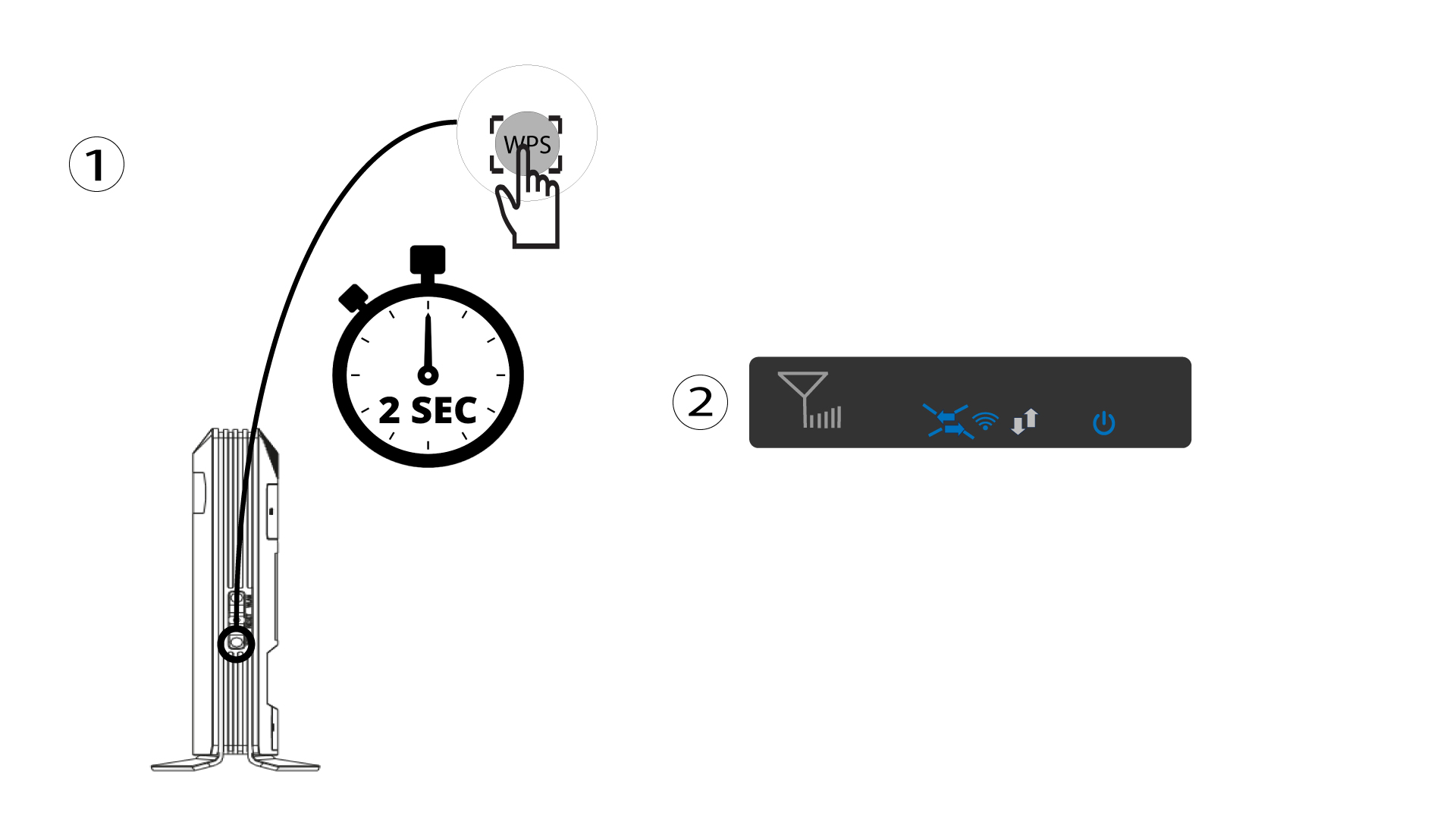
1Press the WPS button
Press the WPS button for 2 seconds to allow any compatible device in your home to automatically to connect to the Wi-Fi network of the router. Once it is activated, the horizontal arrows will blink in blue.
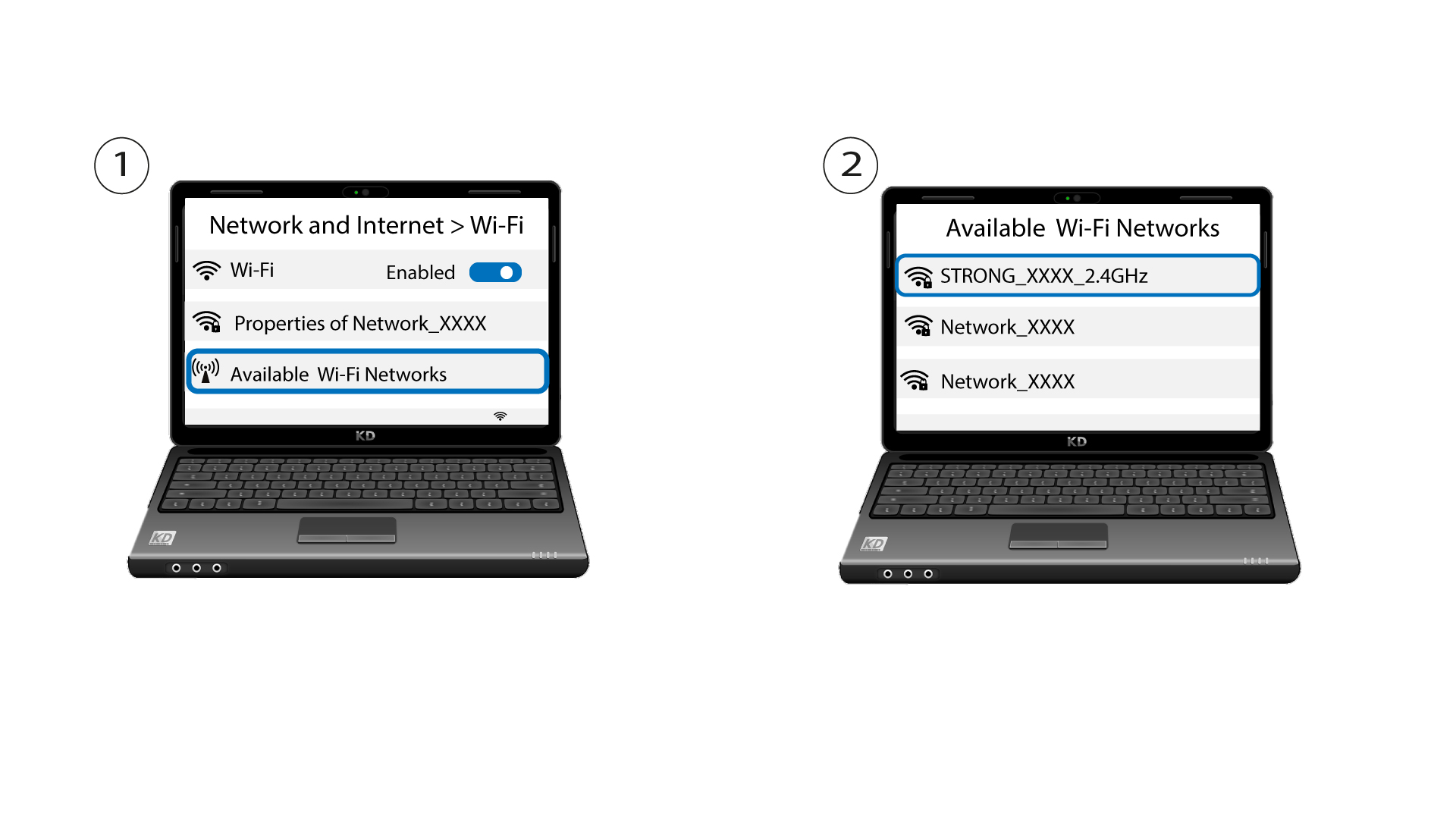
2Select the Wi-Fi Network in the available networks
Go the Wi-Fi settings of your computer or phone and click on the name of the router to select it.
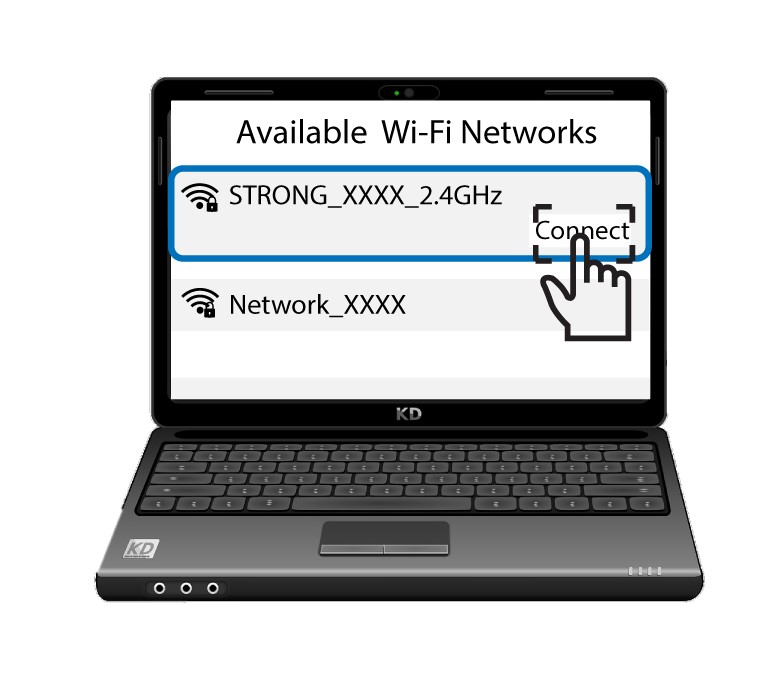
3Connect to the Wi-Fi
Then, click the connect button.
How do I deactivate the Wi-Fi?
If you prefer to use your router by connecting it directly to your device with an Ethernet cable, it is possible to deactivate the Wi-Fi.
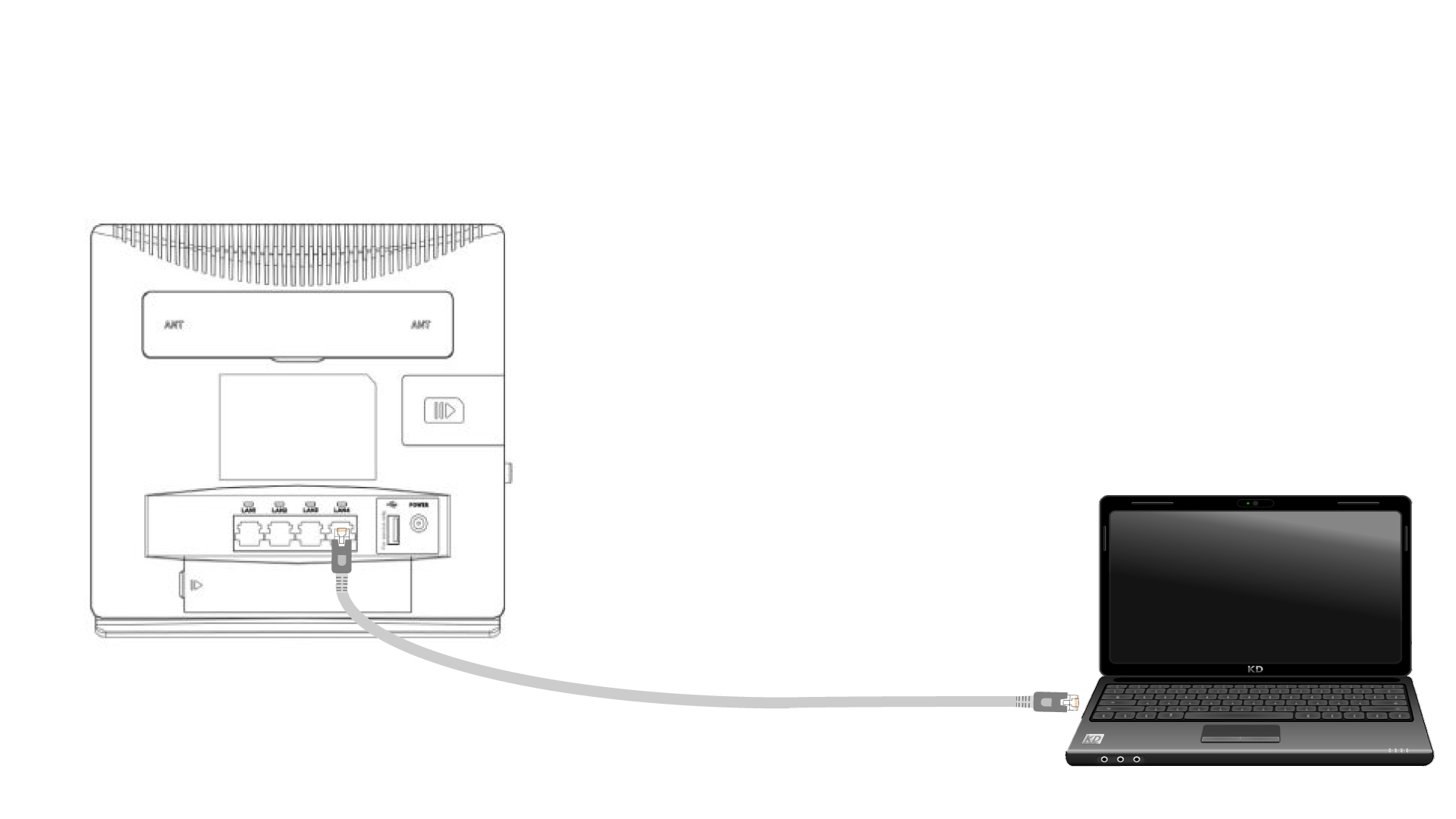
1Connect to the router with an Ethernet cable
Plug a RJ45 cable on the router to access the Web UI, follow the procedure below to connect to the Web UI (after step 2):
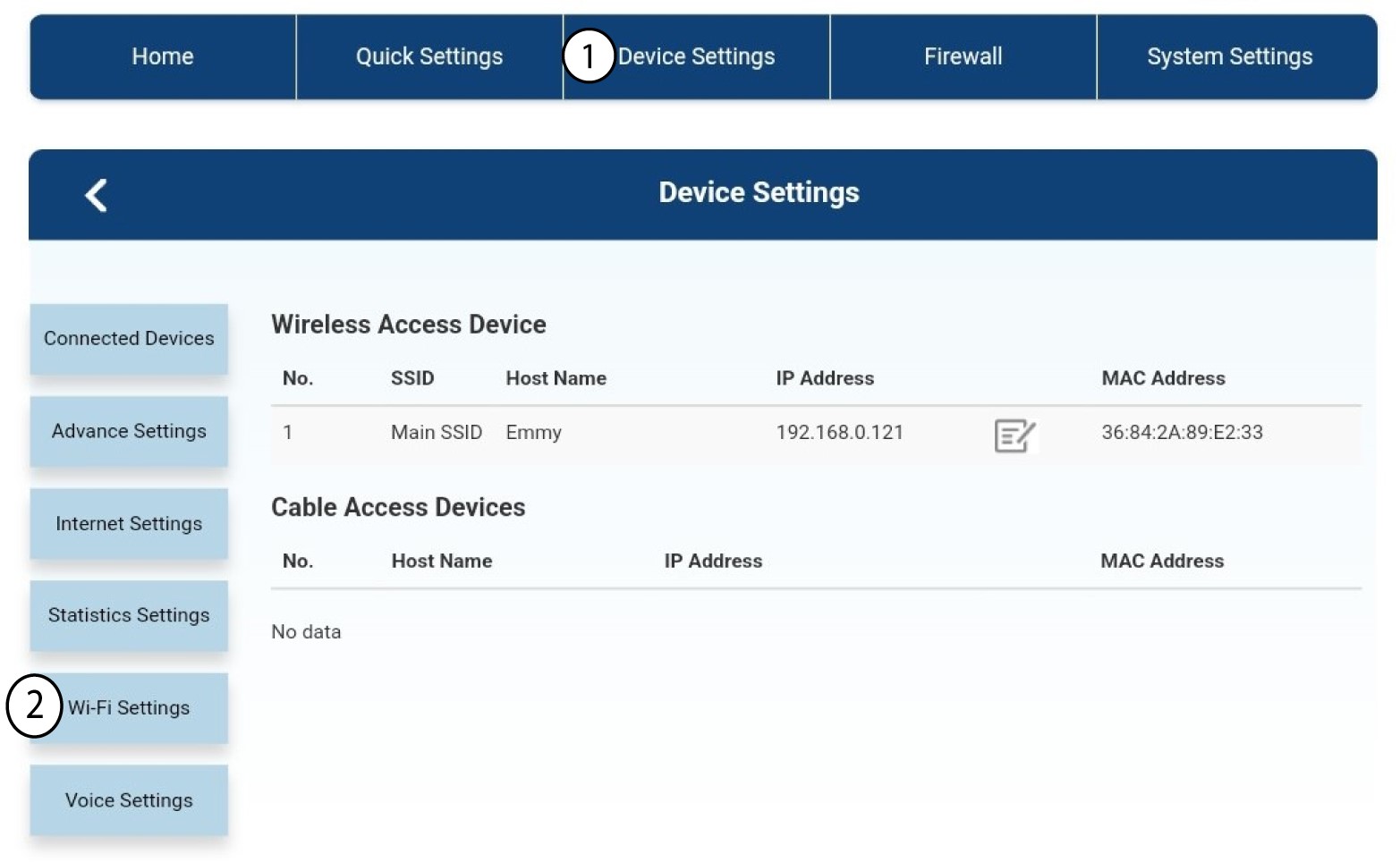
2Wi-Fi Settings
Then, click Device Settings and after that select Wi-Fi Settings.
3Deactivate Wi-Fi
In Wi-Fi Settings, select Wi-Fi Switch. Then, click the Disabled box and the Apply button.
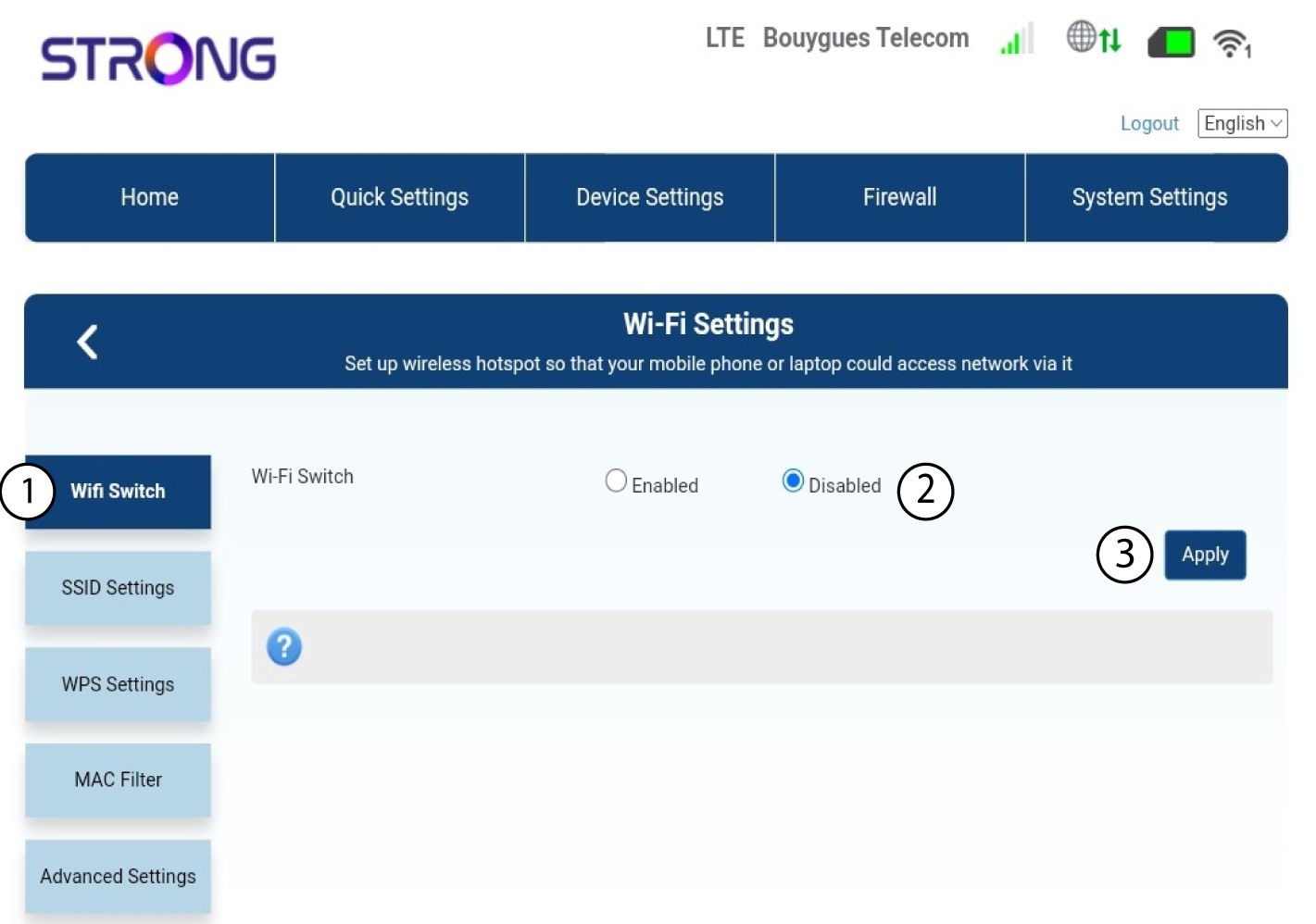
The Wi-Fi network of the router is deactivated. All the devices that were previously connected to the network will be automatically disconnected. To reactivate the Wi-Fi , you must go in the Web UI or you can also restore the router to its factory settings.