LEAP 41 | 4K Google TV with HDR10+
All questions
Apps, picture and sound
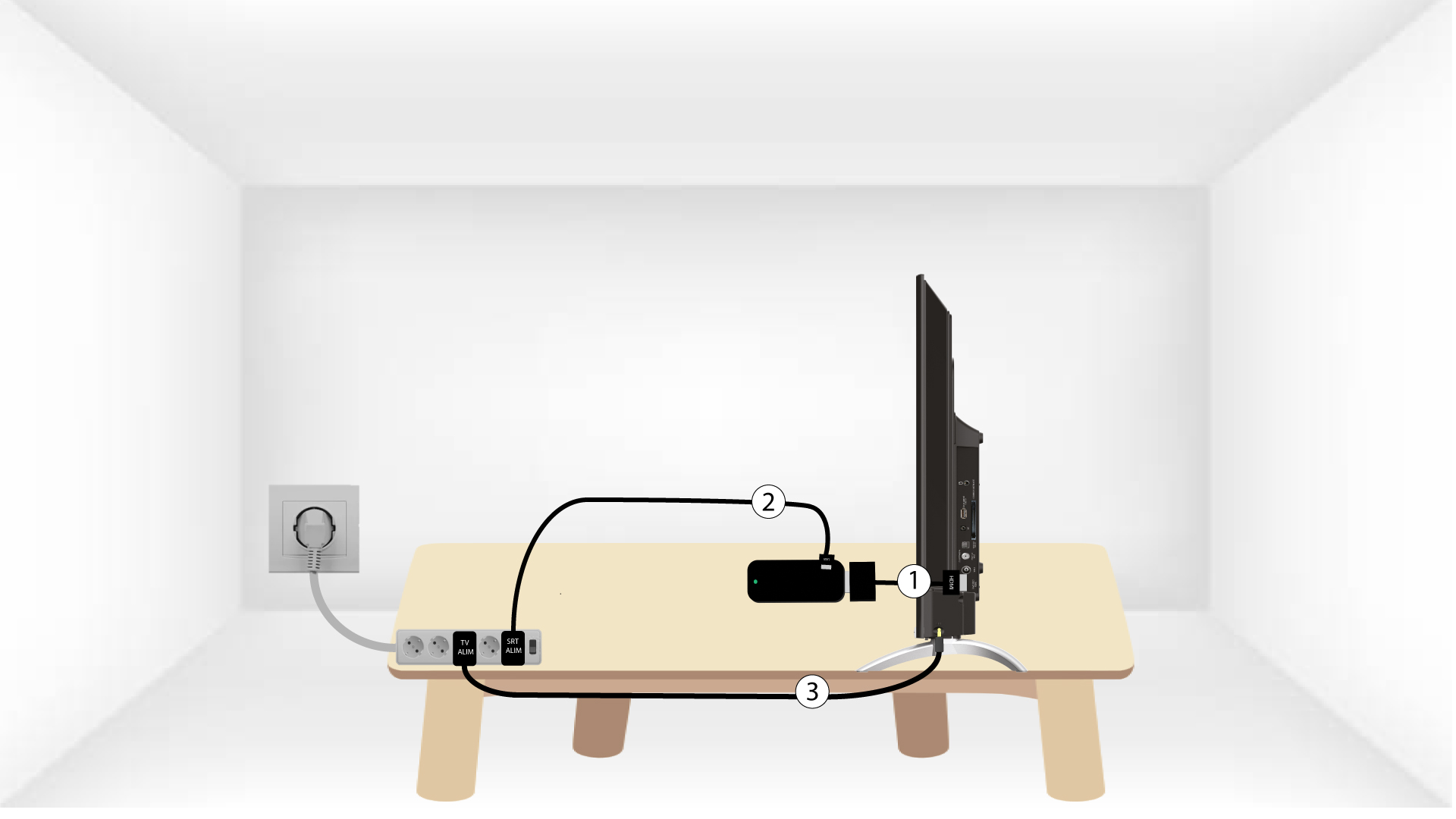
How do I connect my SRT 41 to my TV?
Put the HDMI stick and the HDMI Cable together and connect it to the HDMI port of your TV (1). Then, insert the USB cable in the SRT41 and plug it in (2) and plug in your TV (3).
How do I delete an application?
1Settings
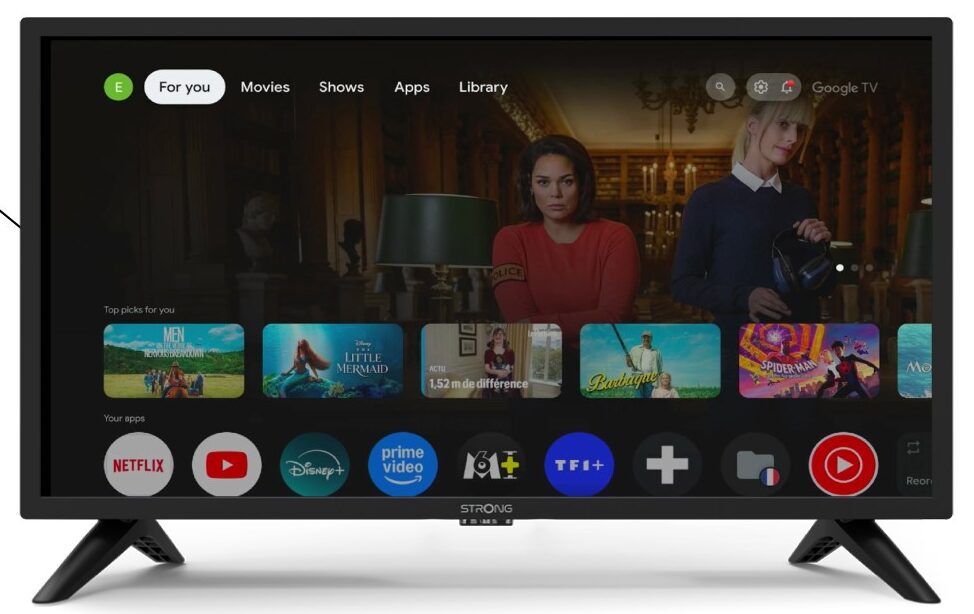
Press the Settings button on the remote control (Cogwheel icon). The Settings menu will be displayed on your TV screen.
2Apps
In the settings, select Apps.

3All apps
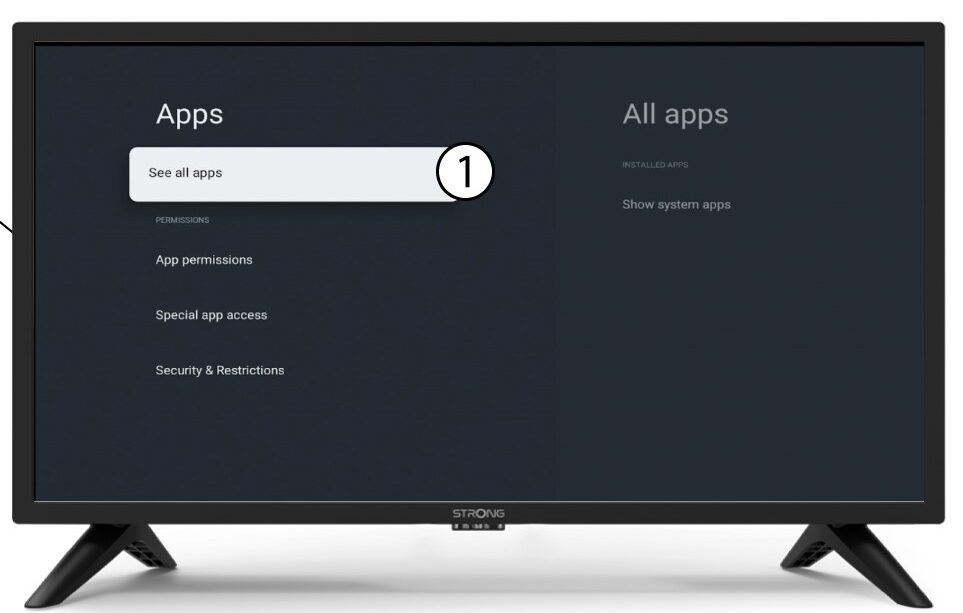
Select See all apps.
4Select the app to delete
Select an app in the list.
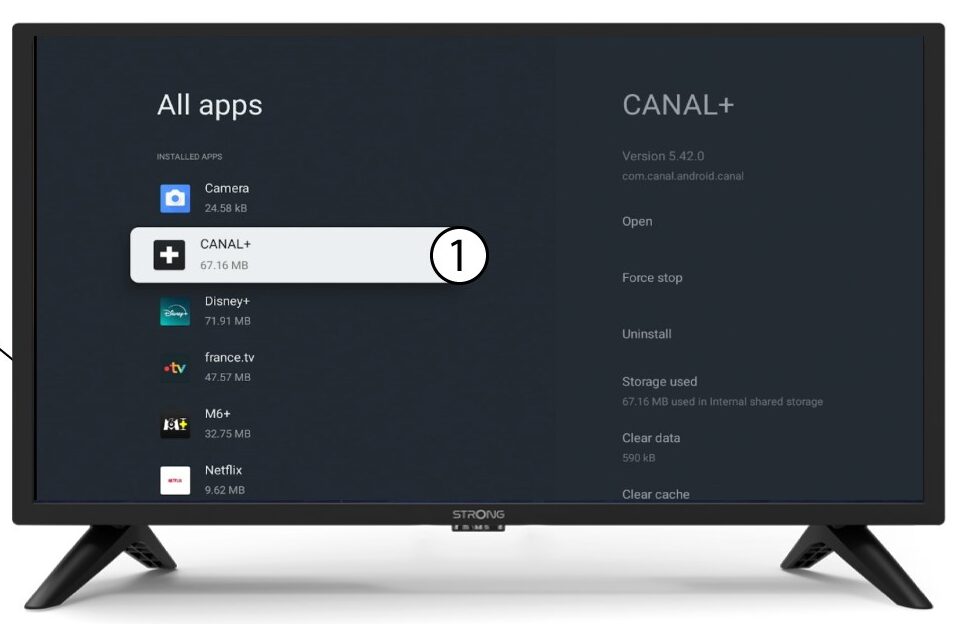
5Uninstall
Select Uninstall.
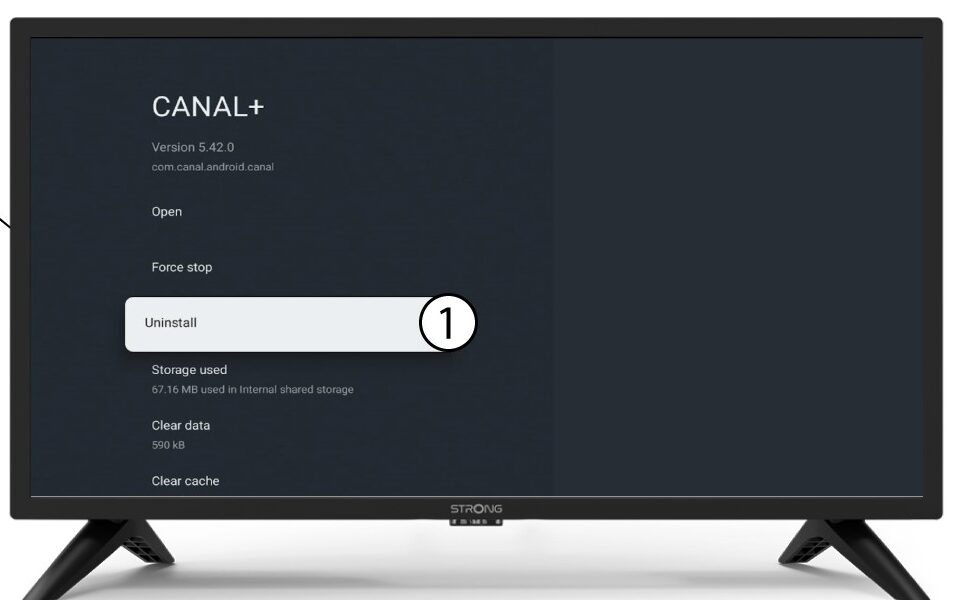
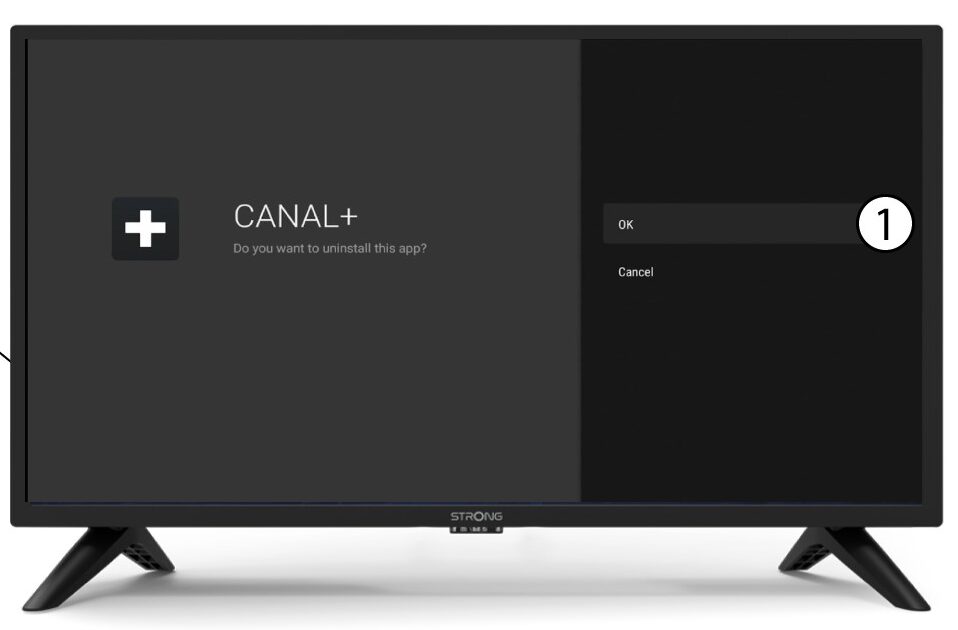
6Confirm deletion
Select OK.
How do I reconfigure the volume settings of my SRT 41 when my volume level is too low?
Tips: If the volume level of your SRT 41 is too low, you can follow the procedure below to reset the parameters of your SRT 41. During the installation of your SRT 41, you can set up the volume control to be handled by HDMI-CEC. When this option is enabled, your SRT 41 remote can be used to adjust the volume level of your TV. You can activate or deactivate this feature in the display and sound settings of your TV. The default volume level of your SRT 41 is set up to a certain level, and it can be either too low. If the volume is
too low, it is better to deactivate this option. How can you activate or deactivate this feature?
1Settings
In this case, press the Settings button on your Google remote and press OK.
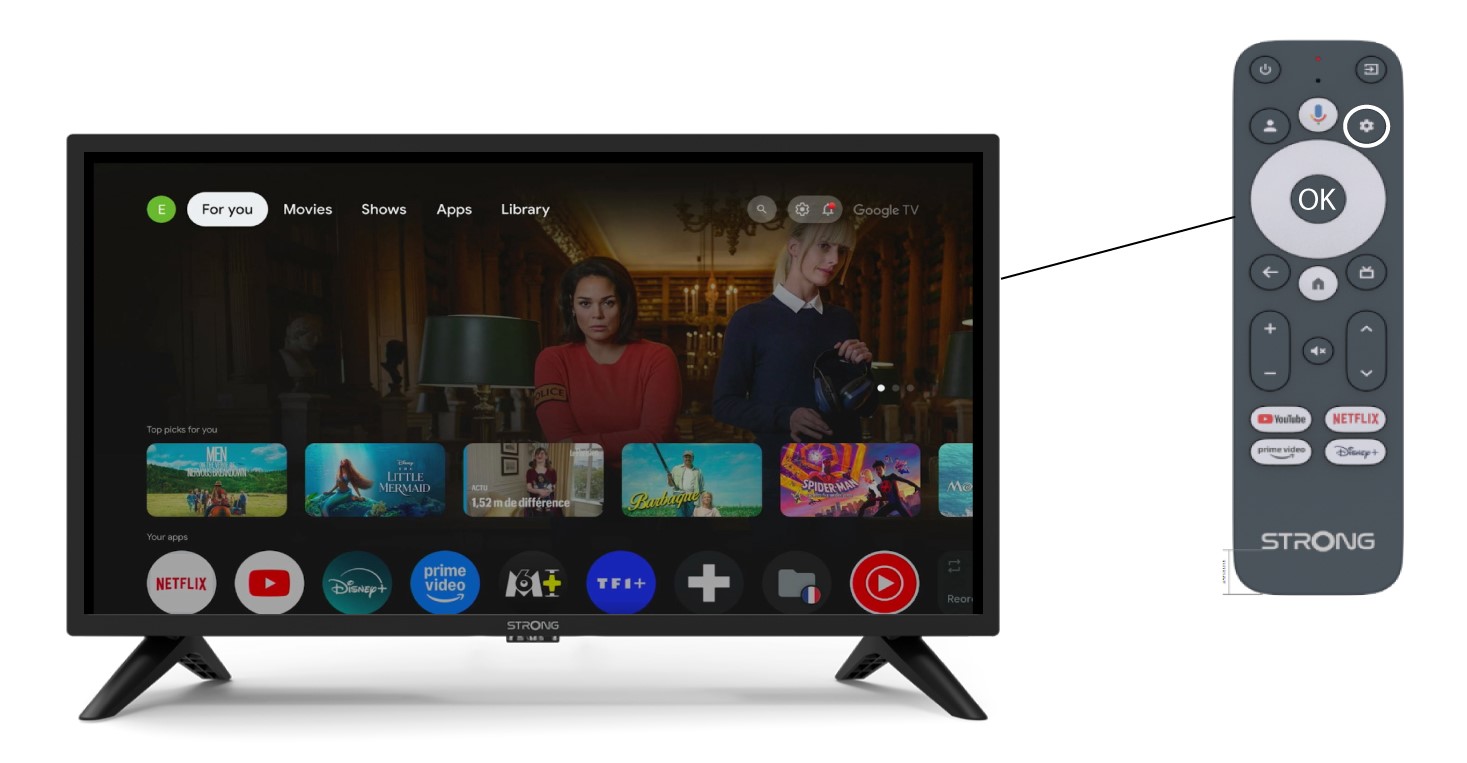
2Display and Sound
In the Settings page displayed on your screen, select “Display and sound”.
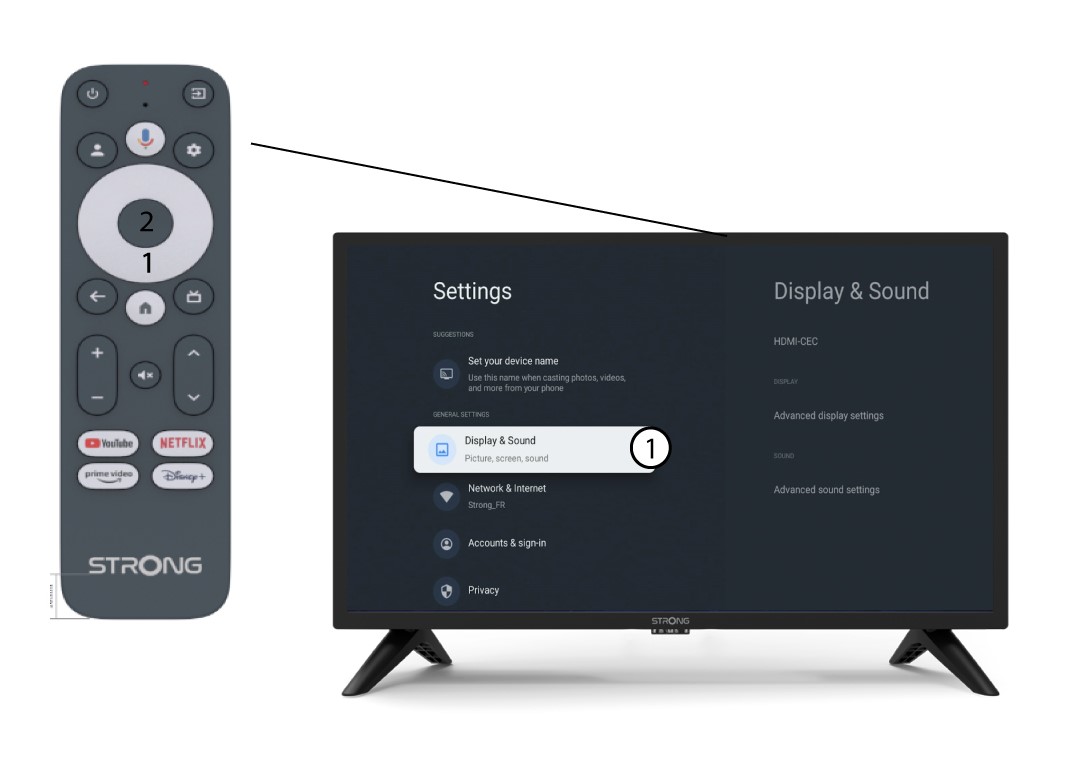
3HDMI CEC
Then, press the right navigation button and select “HDMI-CEC”.
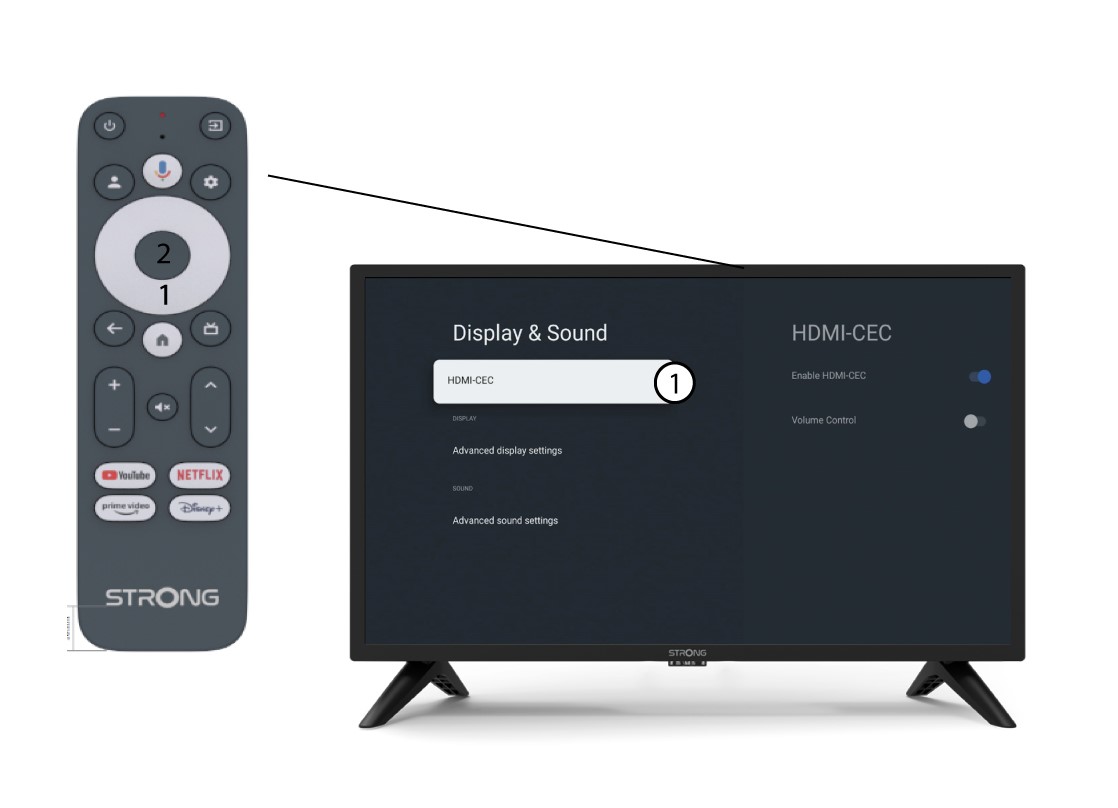
4Volume Control
Select “Volume Control” and press the OK button to switch OFF this feature.
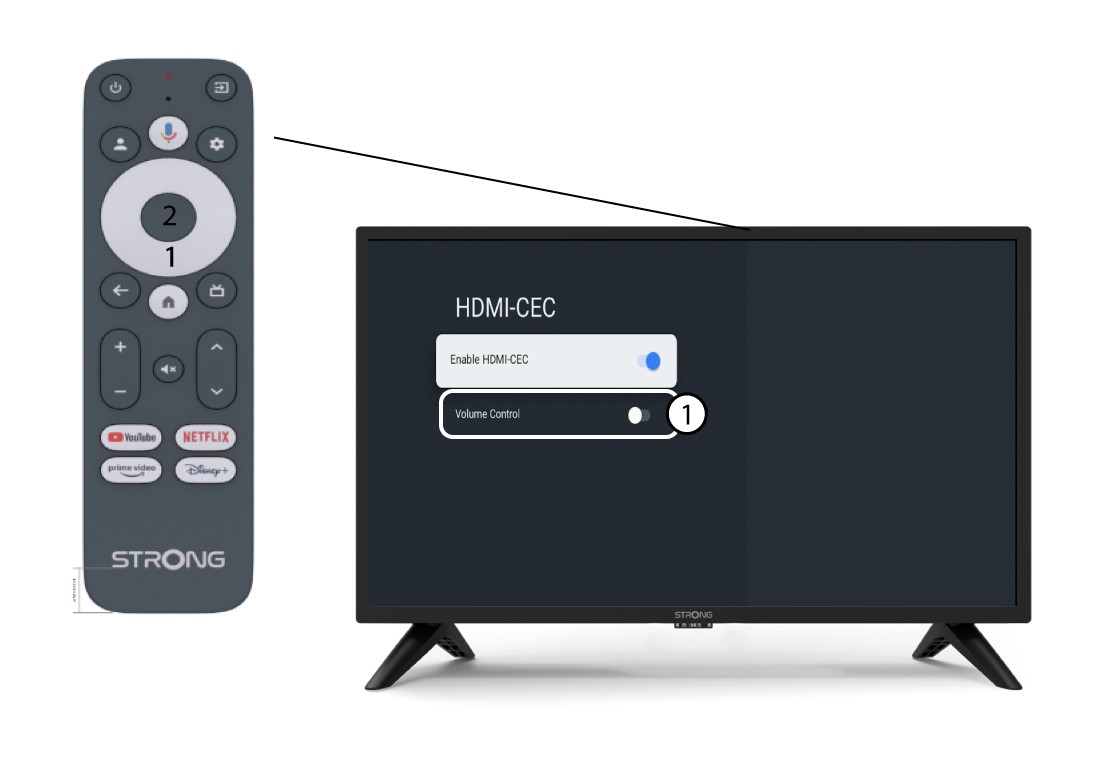
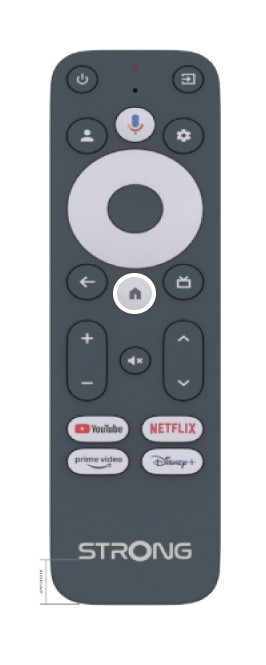
5Home screen
Press the HOME button to go back to the home screen.
The volume adjustment can now be done again with SRT 41 remote control.
I don't have a 4K (UHD) image, even though the content is broadcasted at this resolution. What can I do?
The SRT 41 is designed to transmit 4K streaming platform content. You must have the corresponding subscription and the connected TV must be 4k compatible and the transmission parameters must be set to the highest 4K/2160P resolution.
The box’s default resolution is 1080P. This is because most TV models support it.
If a 4K-compatible TV is connected to the device, there will be automatic communication via HDMI between the box and the TV to determine the maximum possible resolution.
If you find that this communication via HDMI with certain TVs doesn’t work as it should, the cause may be the HDMI protocol (CEC) or an entry-level HDMI cable, which is very often the case.
Resolution is then maintained at 1080P. In this case you need to go to the « Display » menu and manually select the highest resolution 4k / 2160P.
Why I cannot find the Google Play Store on the home page?
The SRT 41 is “Google TV” certified. The apps displayed on the home page of the SRT 41 are set by Google TV and are not editable on our part. In fact, the Google Play Store is directly available on the home screen in another form. You can access it by going to “applications” where you will find your applications, the “Google Play Store”
search engine and the “Play Store” suggestions.
Why can't I get Dolby sound from the Spdif optical digital audio output?
The SRT 41 does not directly render DTS or DD formats via the optical audio output, but the PCM
format rendered enables all DTS/DD digital amplifiers to decode the signal and render this format.
In other words, the signal at the SPDIF output is given back raw, and your digital audio amplifier will
decode the DD or DTS signal if it has the capacity to do so..
Why is it still impossible to control the volume level after deactivating the volume control option?
If you still cannot control the volume with the SRT 41 remote control, please follow the instruction
below to “forget” the TV in the remote control settings.
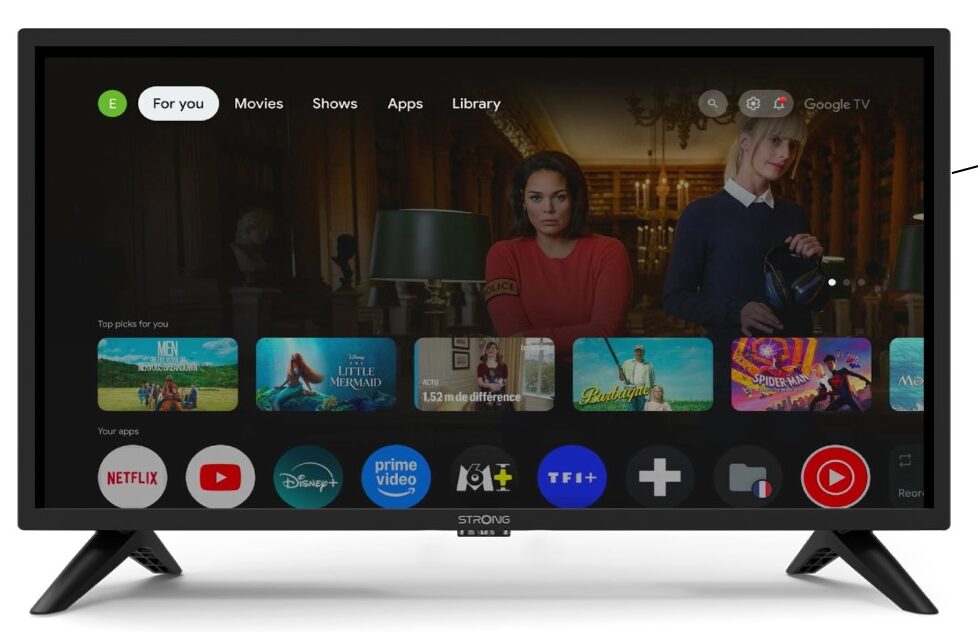
1Settings
Press the Setting button and press the OK.
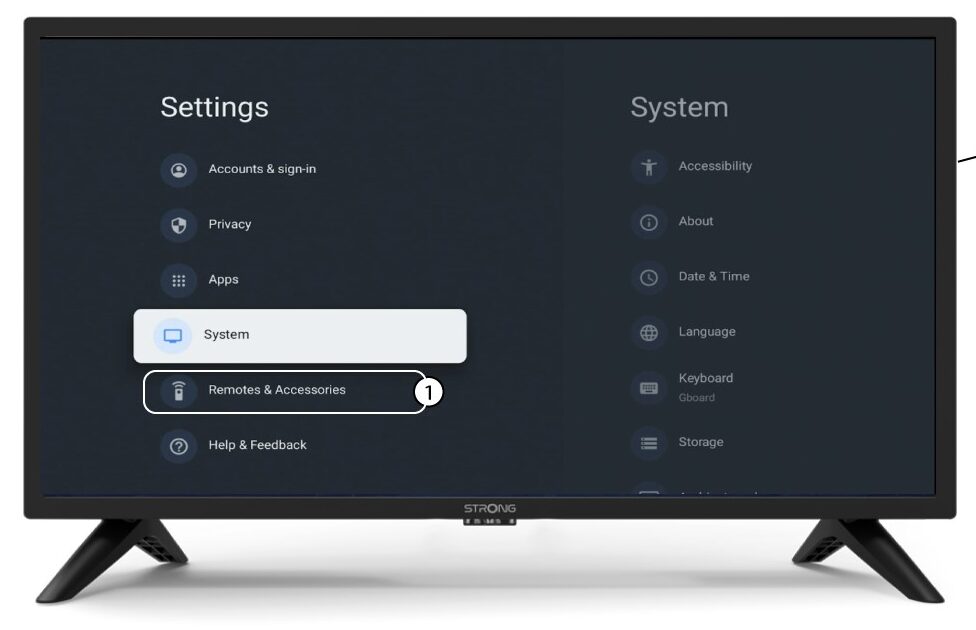
2Remote & Accessories
In the Settings page, select Remote & Accessories.
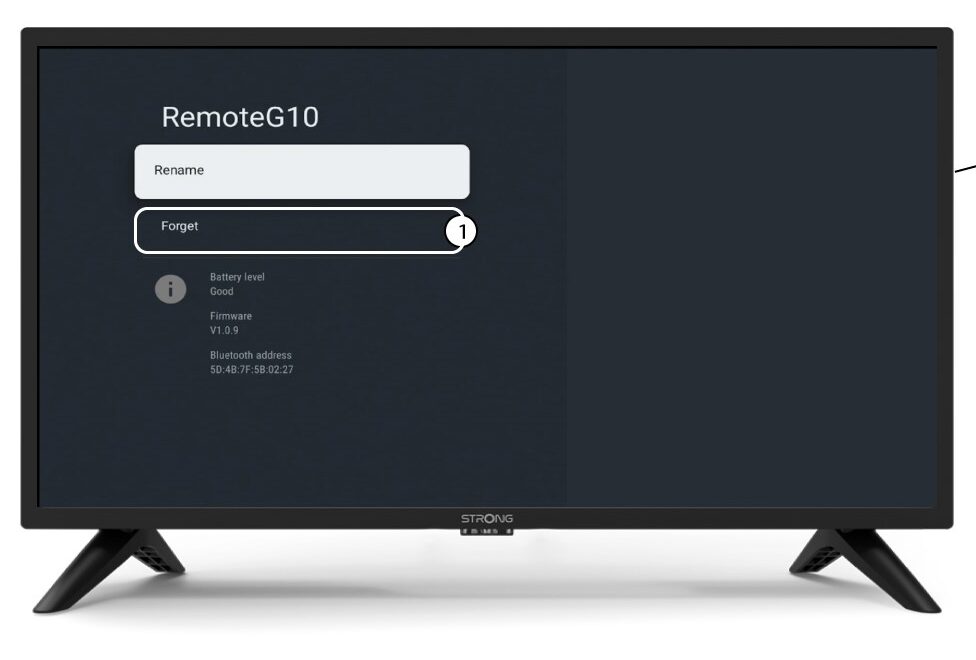
3Select your remote in the list of devices
Select your remote name in the list of accessories.

4Remove the remote from the device list
Then, select Forget.
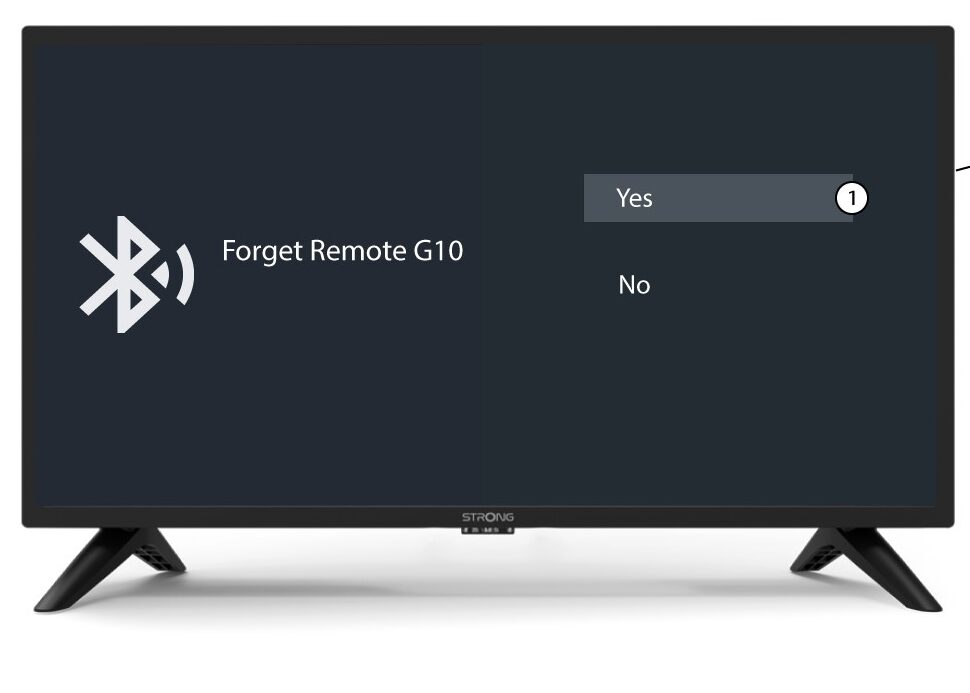
5Confirm the delition
Select Yes on the page.