
LEAP 41 | 4K Google TV with HDR10+
All questions
Remote control and accessories
How do I pair my remote control?
For this model, the remote control is paired during the boot stage of the device. Follow these steps:
1Remove the main power
Unplug the power cable of the device.
2Wait 5 seconds
Wait 5 seconds before reconnecting the power.
3Insert the main power
Plug the power cable back in.
4Wait for the Google logo
The device boots. Wait until the Google logo is shown on the screen.
5Press BACK and HOME
On the remote, press the BACK and HOME buttons at the same time for 5 seconds, until the LED on the remote blinks.
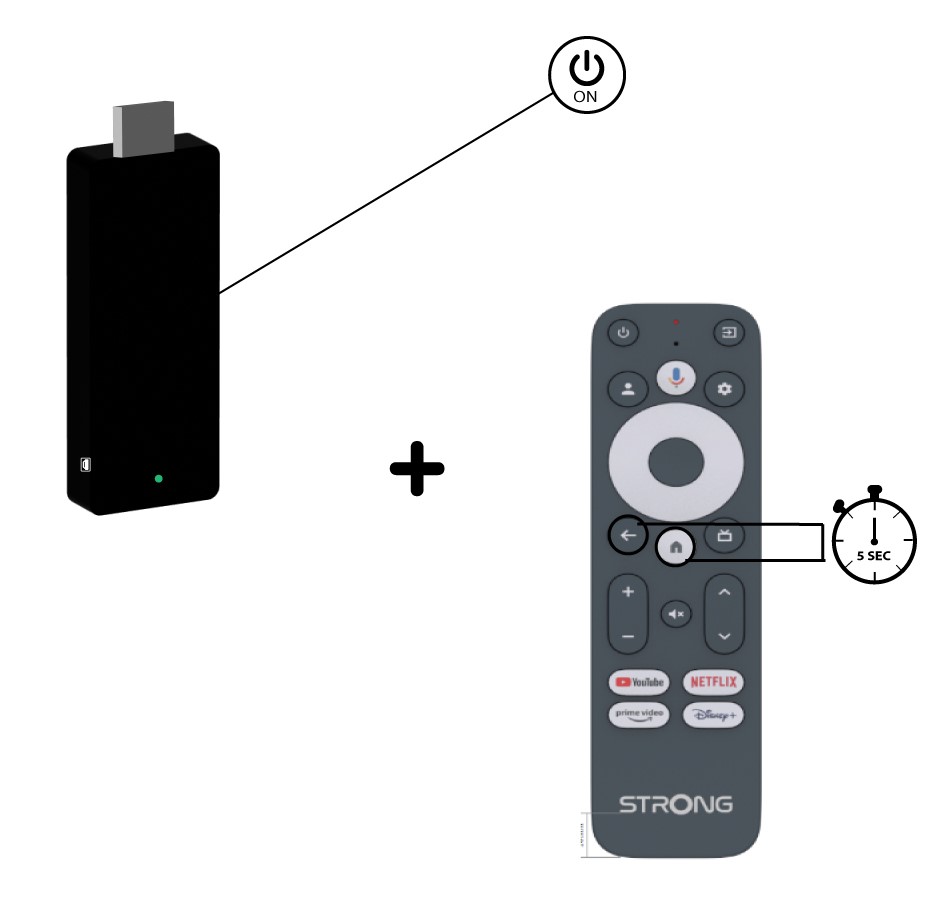
6Confirm the pairing
If the remote is detected, a pairing screen is displayed with a confirmation. The device then goes automatically to the Home screen and can be used.
How do I update my remote control?

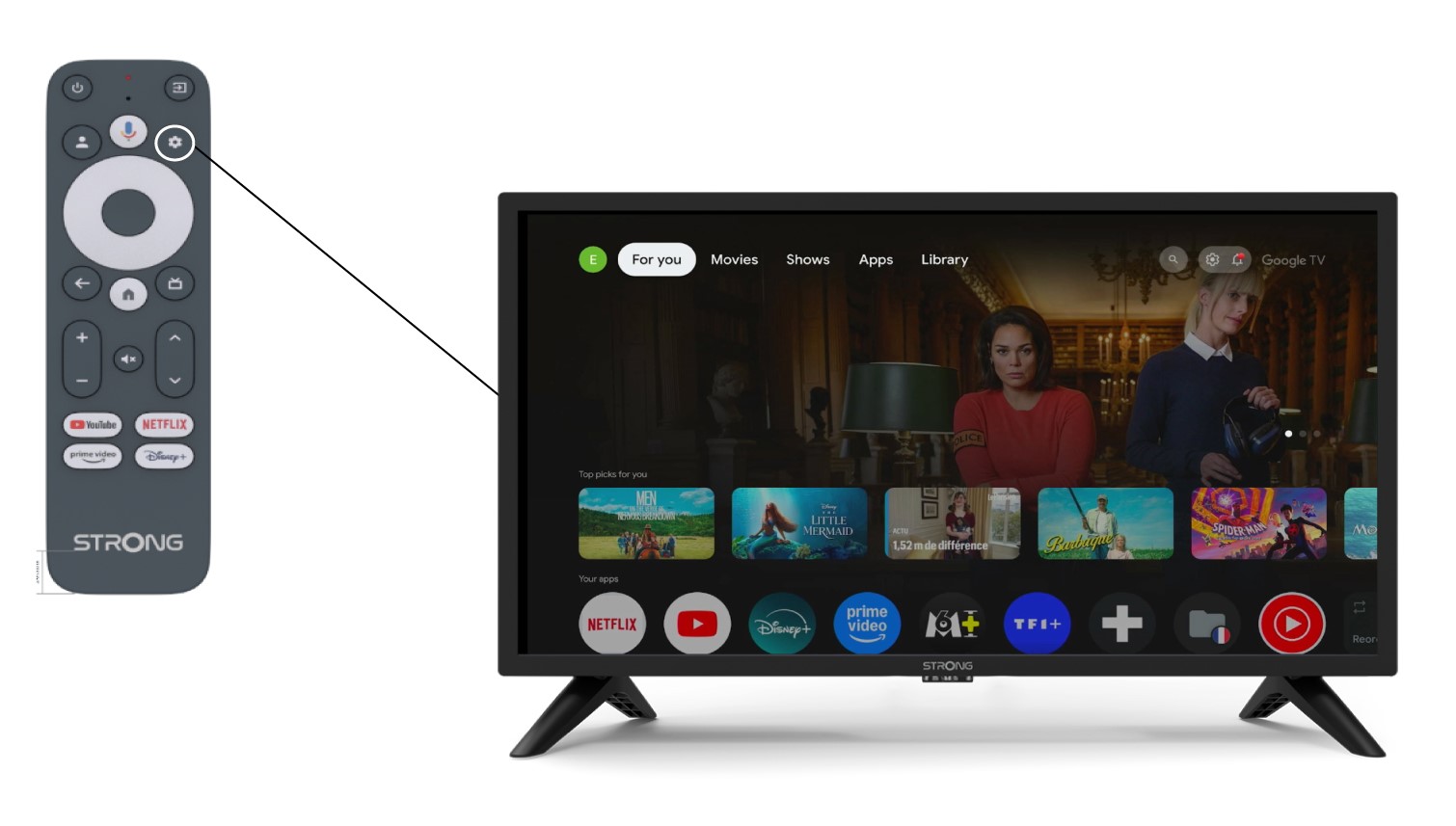
Warning: After configuring your device, you can see a message in the left section of your TV screen in the settings that advises you to update your remote control
1Settings
In the Settings page, select Remote & Accessories.
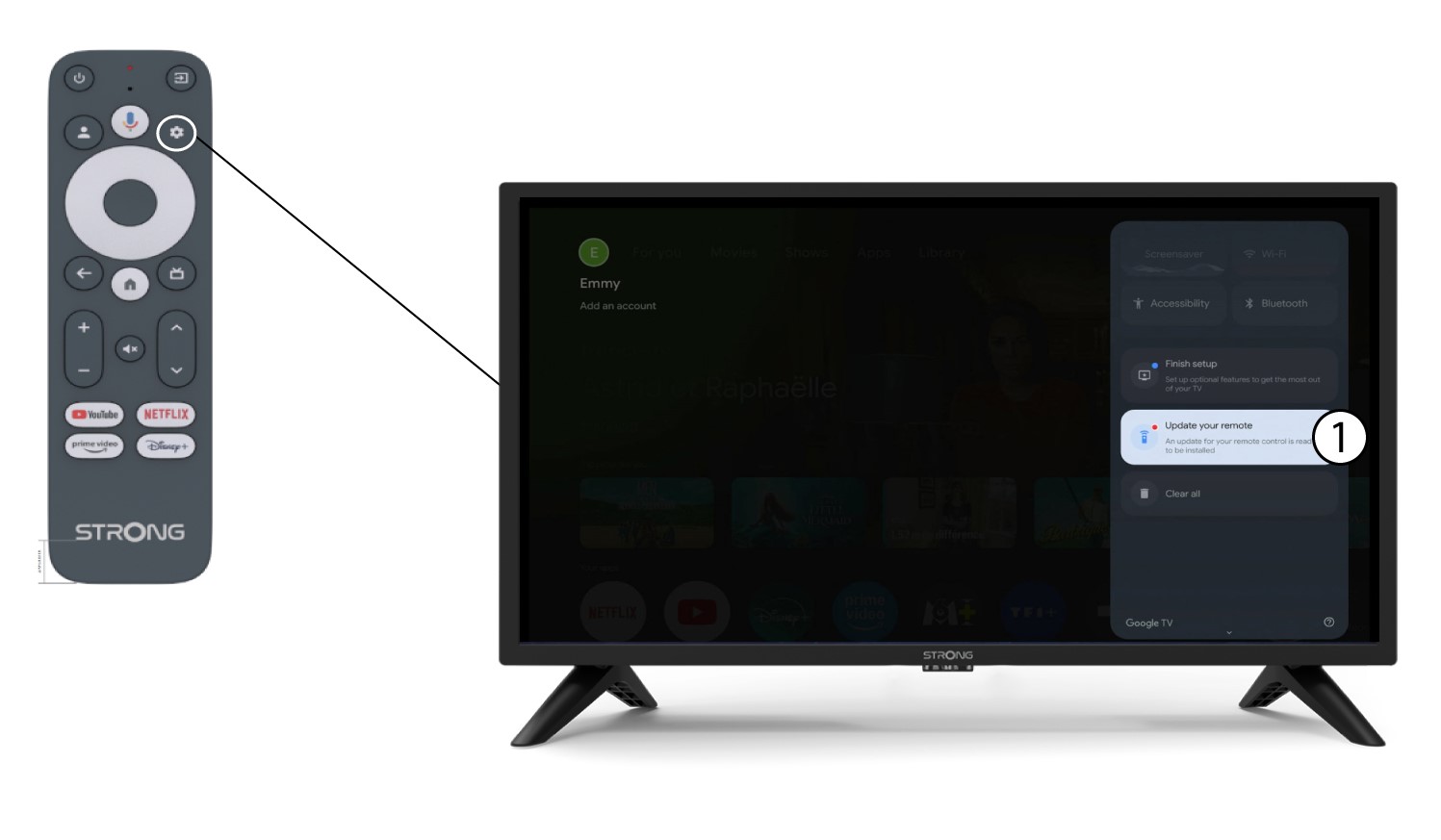
2Update your remote control
Select update your remote control in the menu.
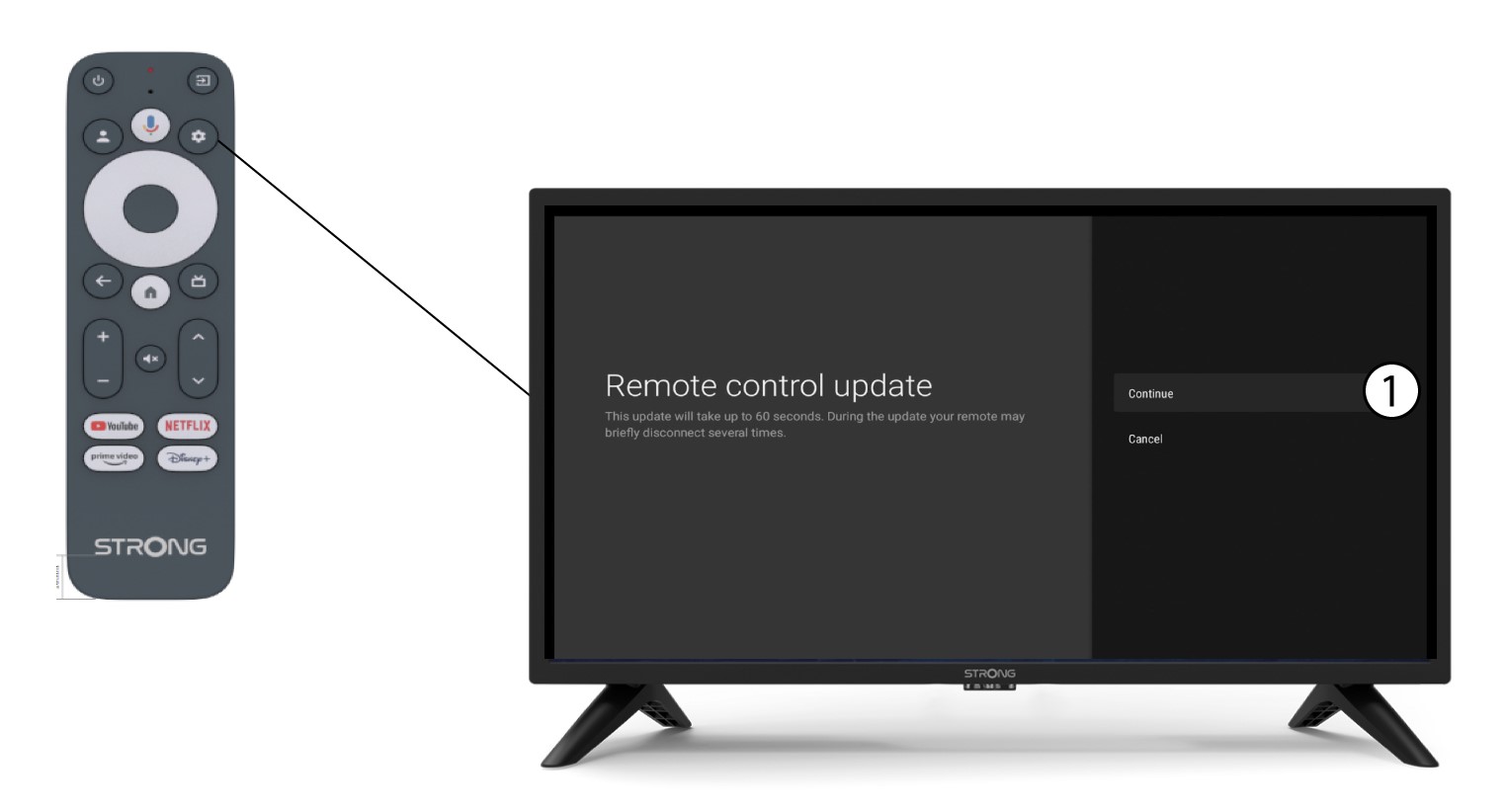
3Confirm the update
Click Continue.
Wait for the update to finish.
I have connected an AZERTY keyboard via USB, but it is recognized as a QWERTY keyboard, why?
Warning: Please note that supported keyboard layouts for external keyboards are defined by Google. Therefore, your keyboard layout may not be supported. In this case, we encourage you to contact your keyboard manufacturer to see if there is an app that would make your keyboard compatible.
1Turn on the TV and the device
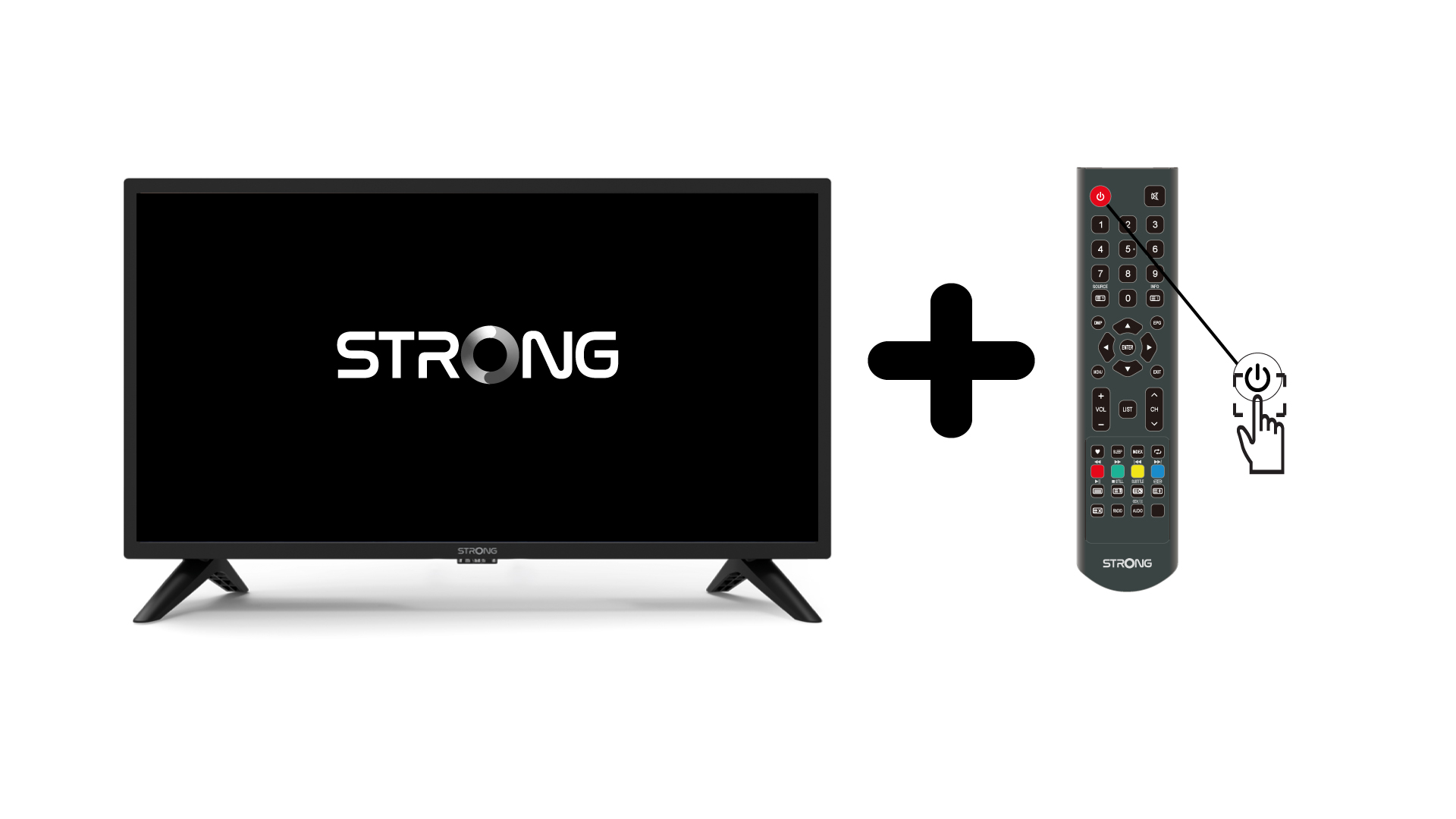
Turn on your TV and your device.
2Settings
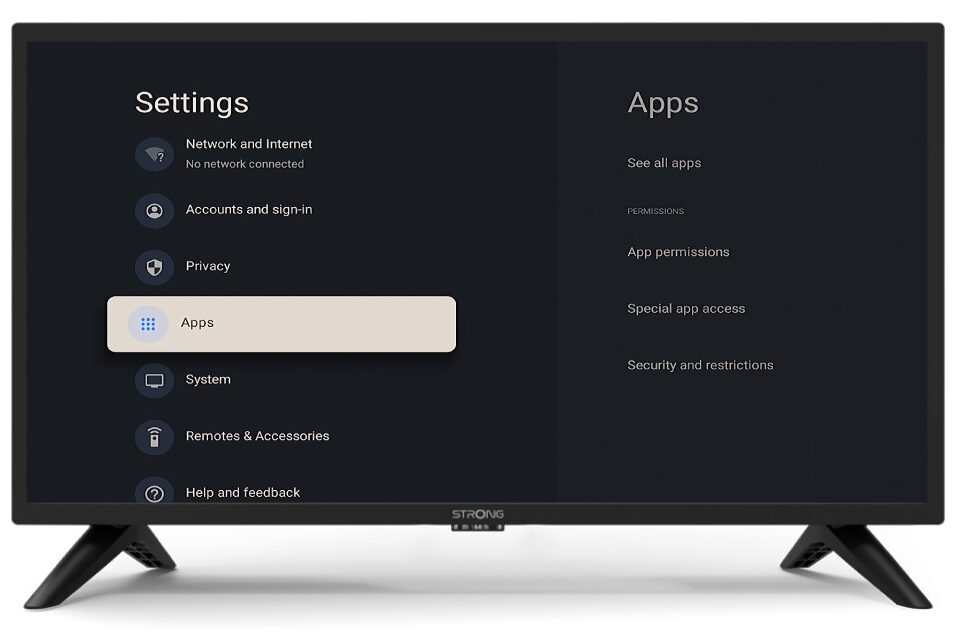
Press the Settings button on the remote control (Cogwheel icon). The Settings menu will be displayed on your TV screen.
3Keyboard
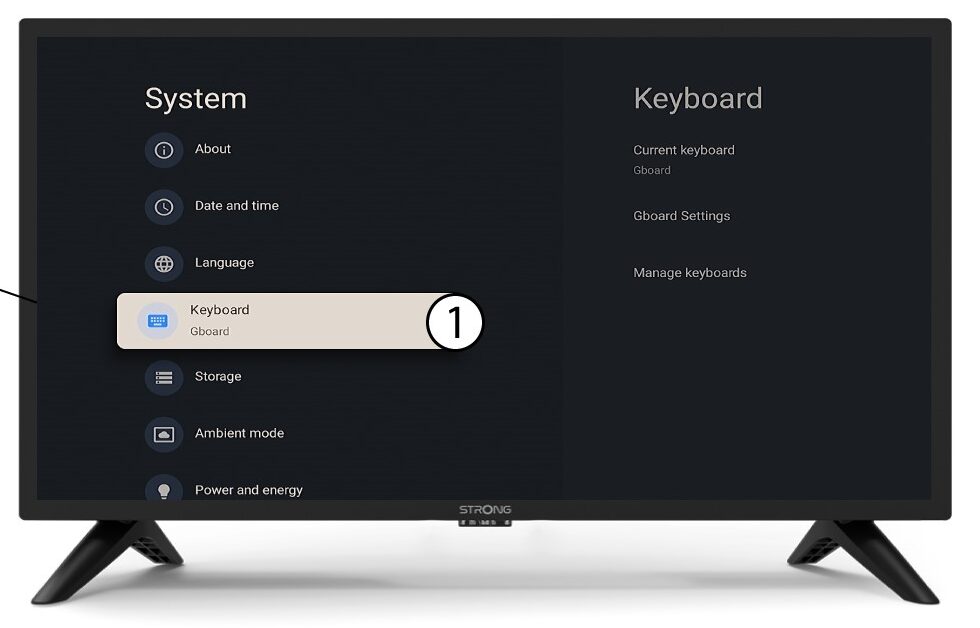
Select Keyboard in the Settings Menu and press the OK button on your remote control.
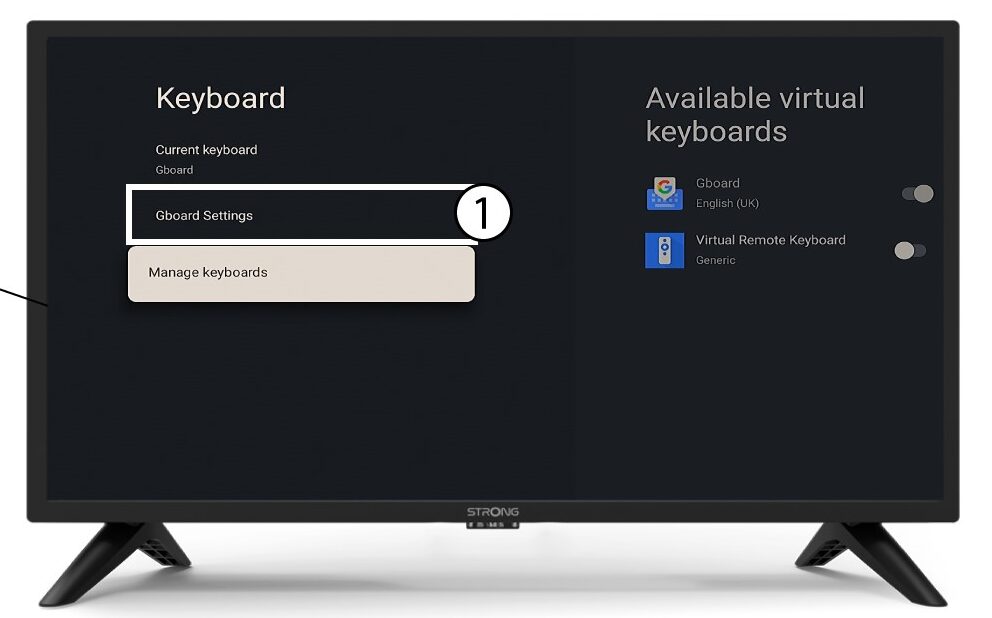
4Manage Keyboard
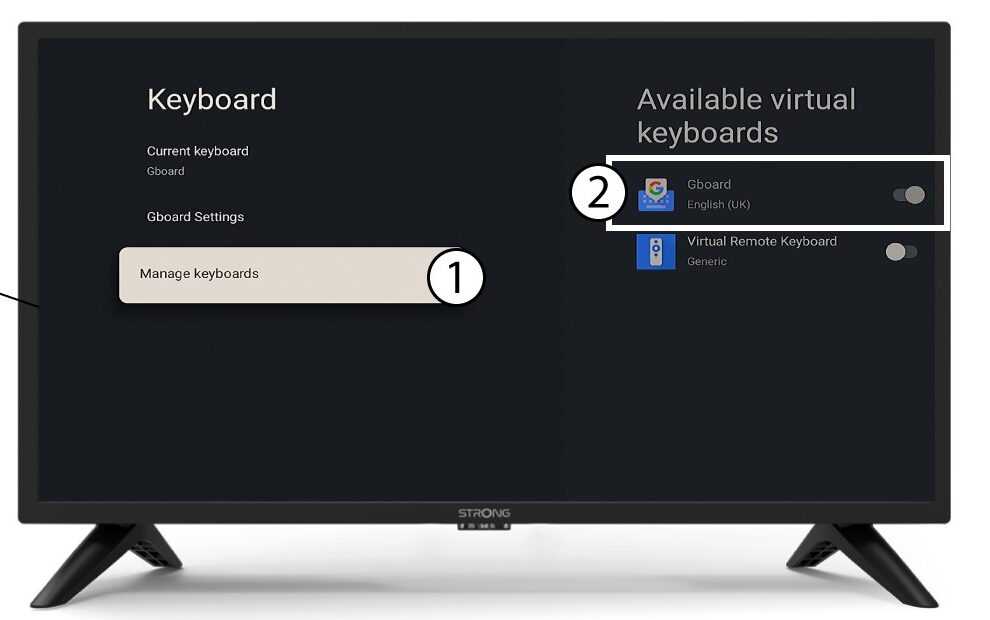
Click Manage Keyboard. Then, click the toggle button to deactivate it.
5Gboard Settings
Click Gboard Settings and press OK.
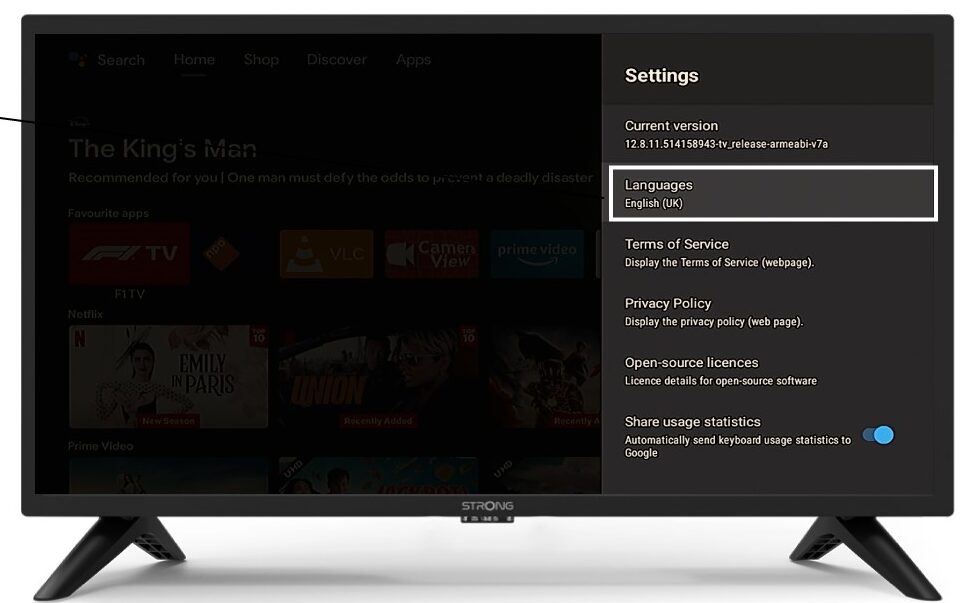
6Languages
Click Languages and press OK on the remote control. Then, select the language.
The remote control does not work after checking the batteries, why?
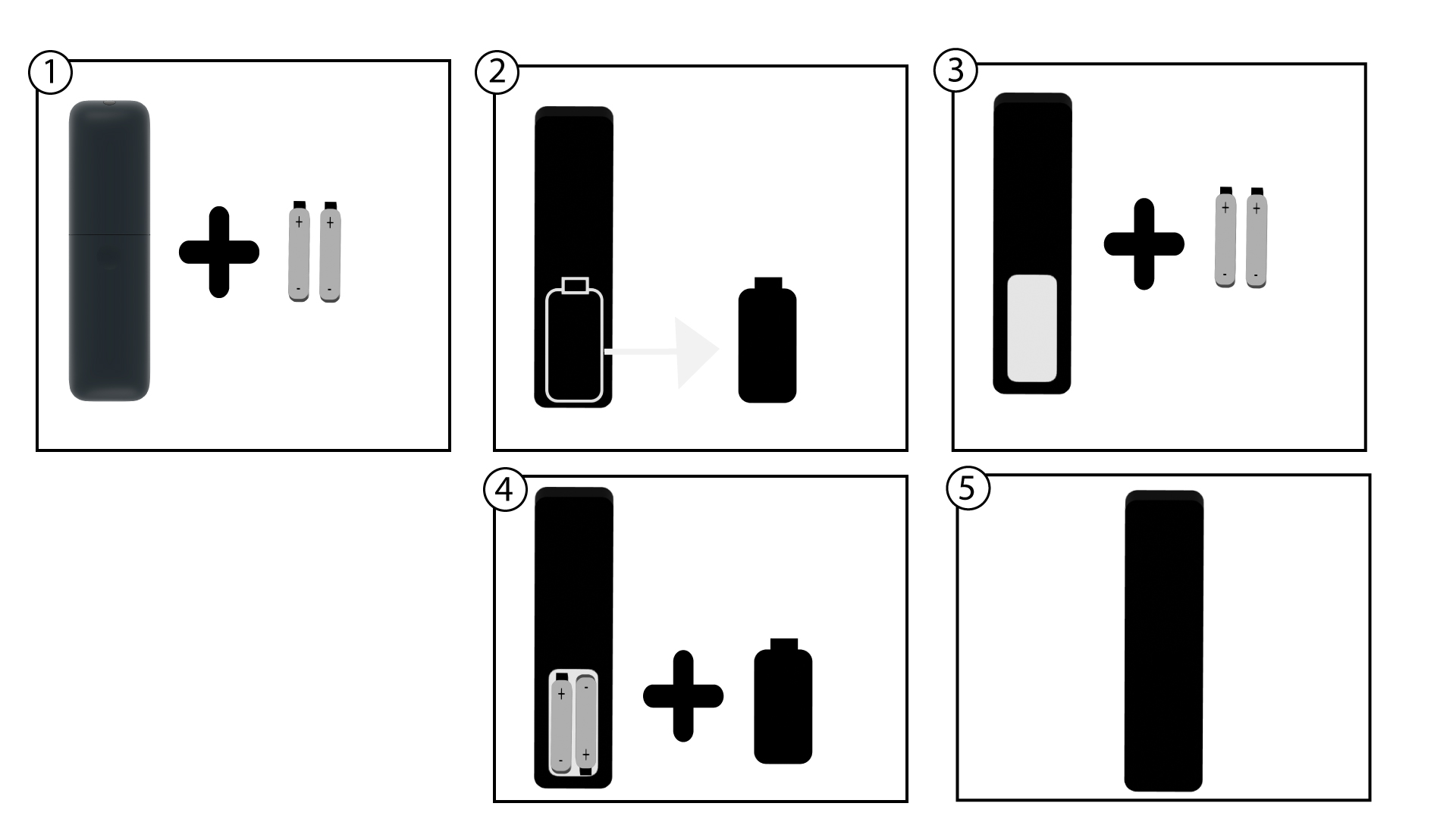
1Change the batteries
It is possible that the batteries are not working any more. Please change the batteries.
2Reboot the SRT 41
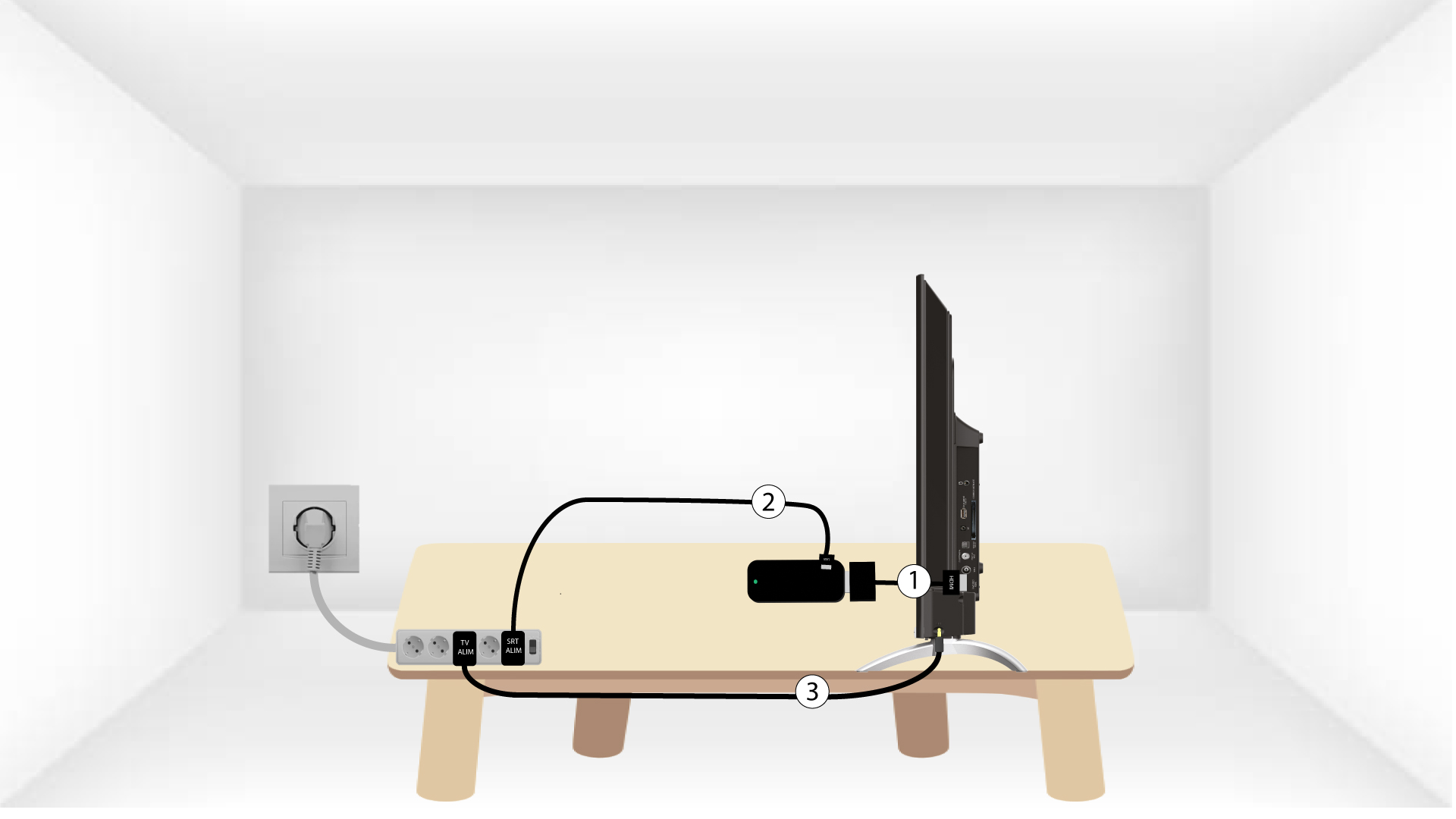
Reboot the SRT 41 by unplugging the power cable located on the right side of the device.

3Plug in the SRT 41
Then, plug in the cable and turn on the device.
4Pair the remote control
You must pair the remote control with the device again after the reboot. Wait until the Google logo is shown on the screen, then press the BACK and HOME buttons at the same time for 5 seconds, until the LED on the remote blinks.
