
LEAP NEVE | 4K Google TV with Dolby Vision
All questions
Apps, picture and sound
How do I connect the LEAP NEVE to my TV?
Plug the device in the HDMI port of your TV (1), then plug the power cable on the device(2).
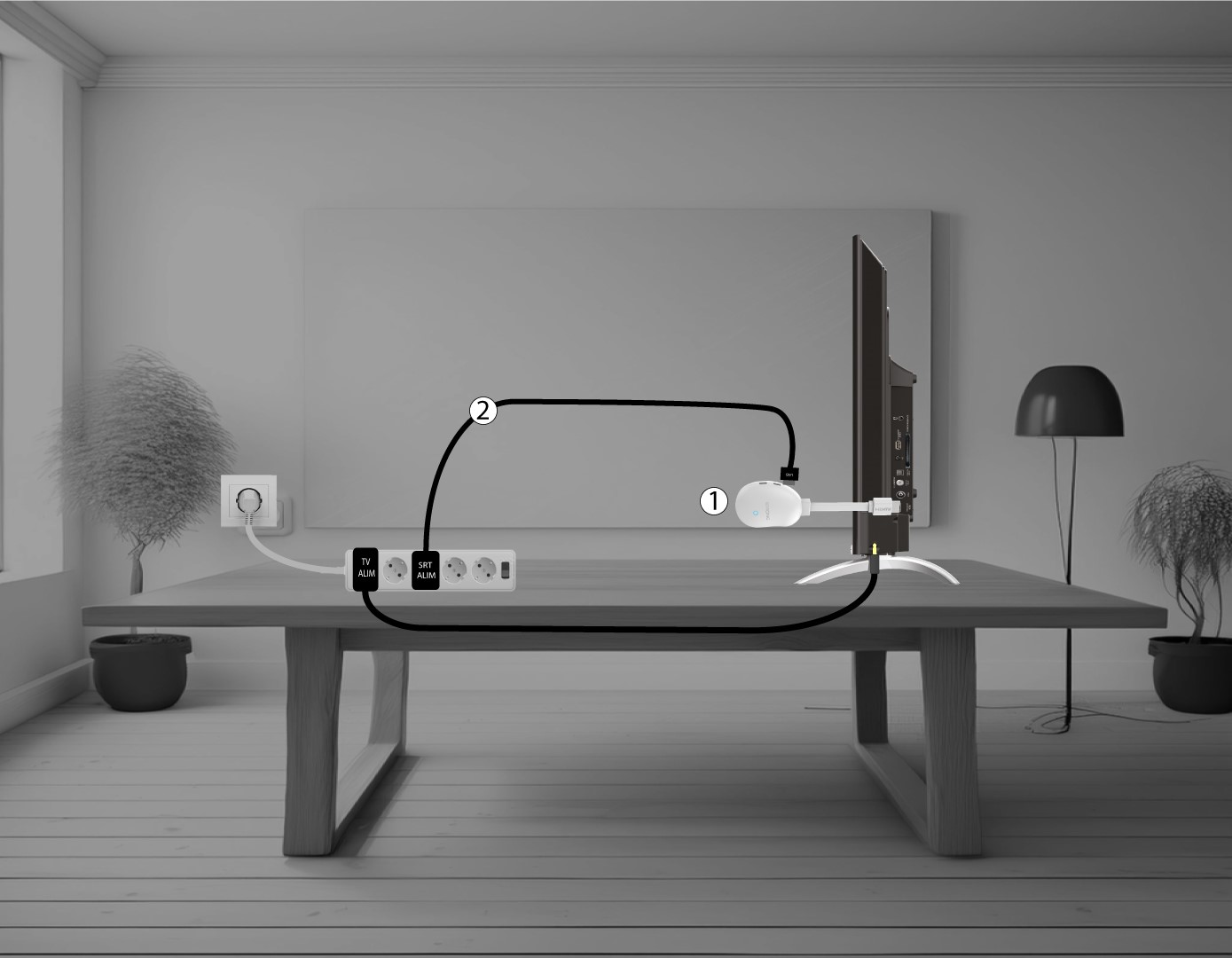
How do I connect the LEAP-NEVE to my TV?
- Connect the LEAP-NEVE to your TV using the supplied HDMI cable.
- Plug the power adapter into the LEAP-NEVE.
- Turn on your TV and select the correct HDMI input.
The screen remains black.
- Make sure the correct HDMI input is selected on the TV.
- Try another HDMI cable.
- Restart the LEAP-NEVE.
What should I do if there is no sound?
- Check the volume on both the TV and the LEAP-NEVE.
- Check the audio settings.
- Try a different HDMI cable.
How do I adjust the video resolution?
1Open Settings
Open Settings.
2Select Display
Select Display.
3Choose resolution
Choose the resolution that matches your TV.
I don't have a 4K (UHD) image, even though the content is broadcasted at this resolution. What can I do?
The SRT 41 is designed to transmit 4K streaming platform content. You must have the corresponding subscription and the connected TV must be 4k compatible and the transmission parameters must be set to the highest 4K/2160P resolution.
The box’s default resolution is 1080P. This is because most TV models support it.
If a 4K-compatible TV is connected to the device, there will be automatic communication via HDMI between the box and the TV to determine the maximum possible resolution.
If you find that this communication via HDMI with certain TVs doesn’t work as it should, the cause may be the HDMI protocol (CEC) or an entry-level HDMI cable, which is very often the case.
Resolution is then maintained at 1080P. In this case you need to go to the « Display » menu and manually select the highest resolution 4k / 2160P.
Is a Google account required?
Yes. A Google account is required to access the Google Play Store and install applications.