
No items found.
LEAP NEVE | 4K Google TV with Dolby Vision
No items found.
All questions
No items found.
No items found.
Reset, reboot and firmware update
How do I reboot my device?
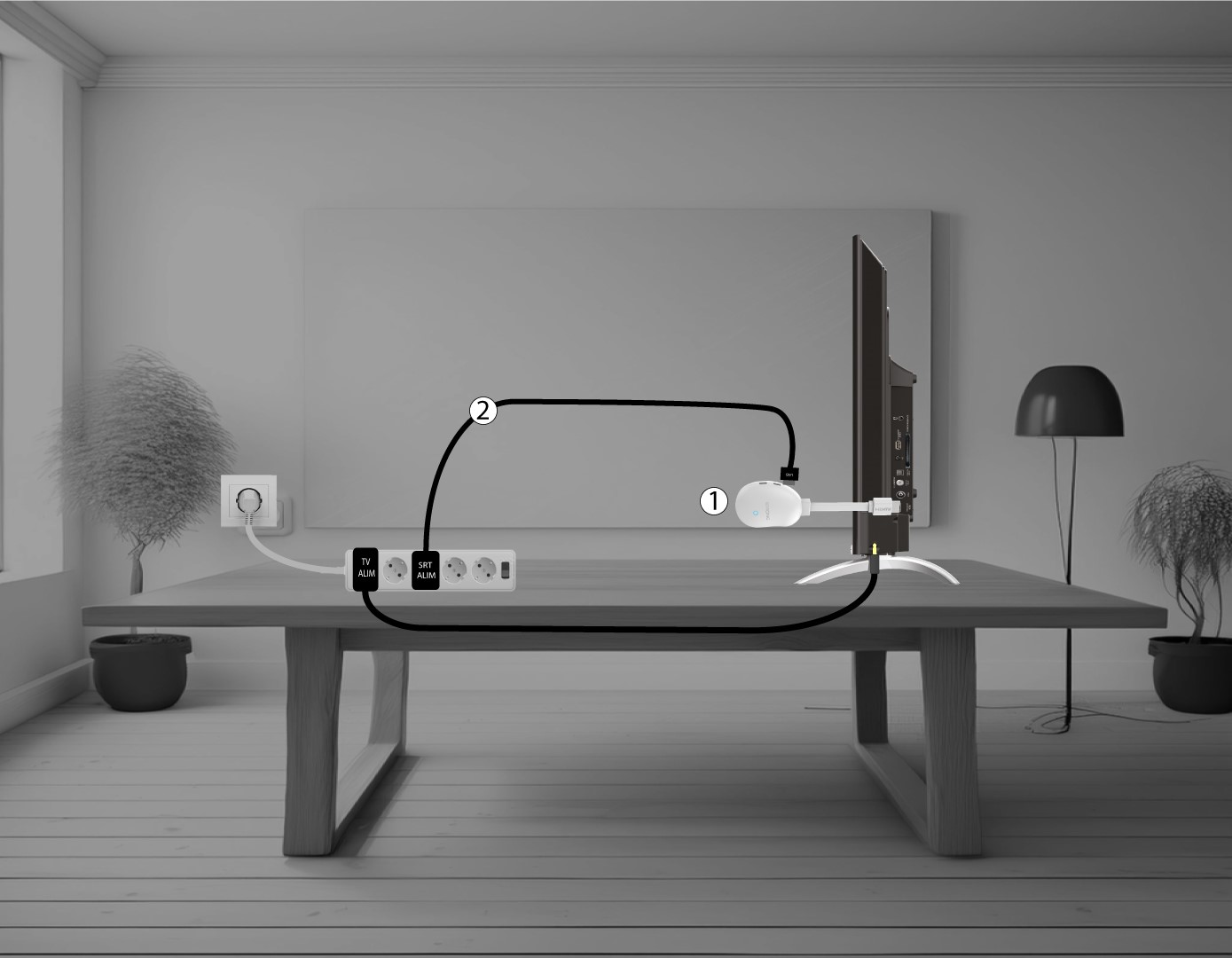
1Disconnect the LEAP NEVE from your TV
Disconnect the HDMI Stick from the TV (1) and the USB cable from the LEAP NEVE(2).
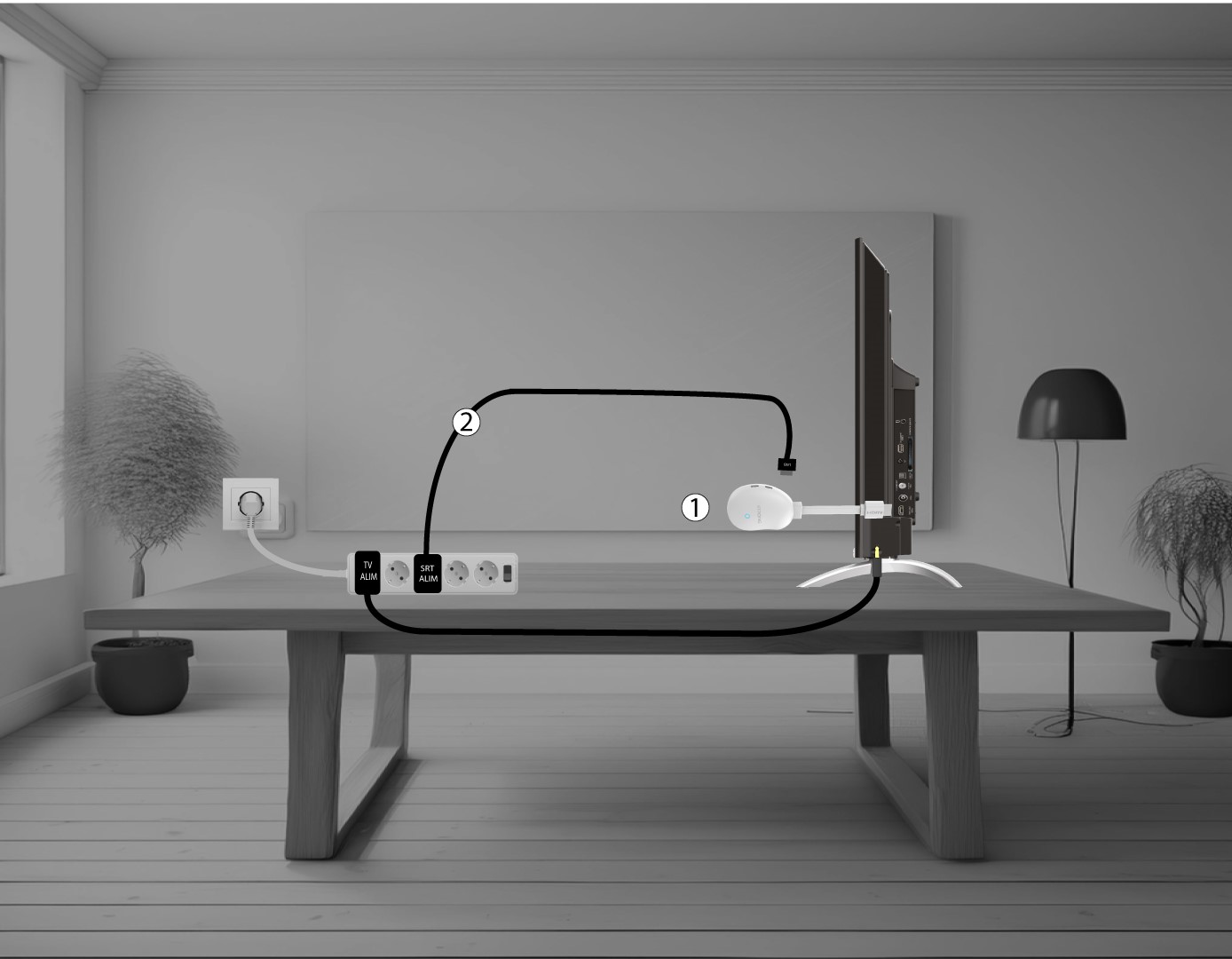
2Connect the LEAP NEVE to your TV
Reconnect the HDMI stick to the TV (1) and the USB cable (2).
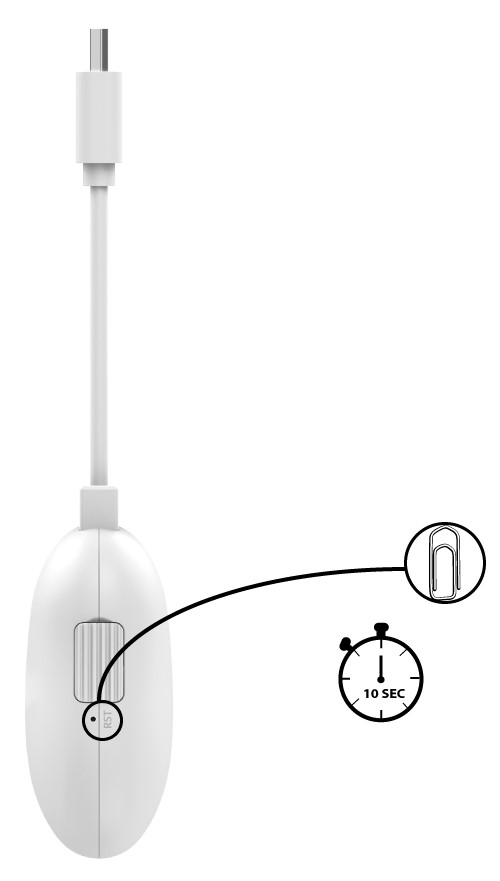
How do I reset my device to its factory settings? (reset button)
Press the reset button for 10 seconds.
How do I update my device?
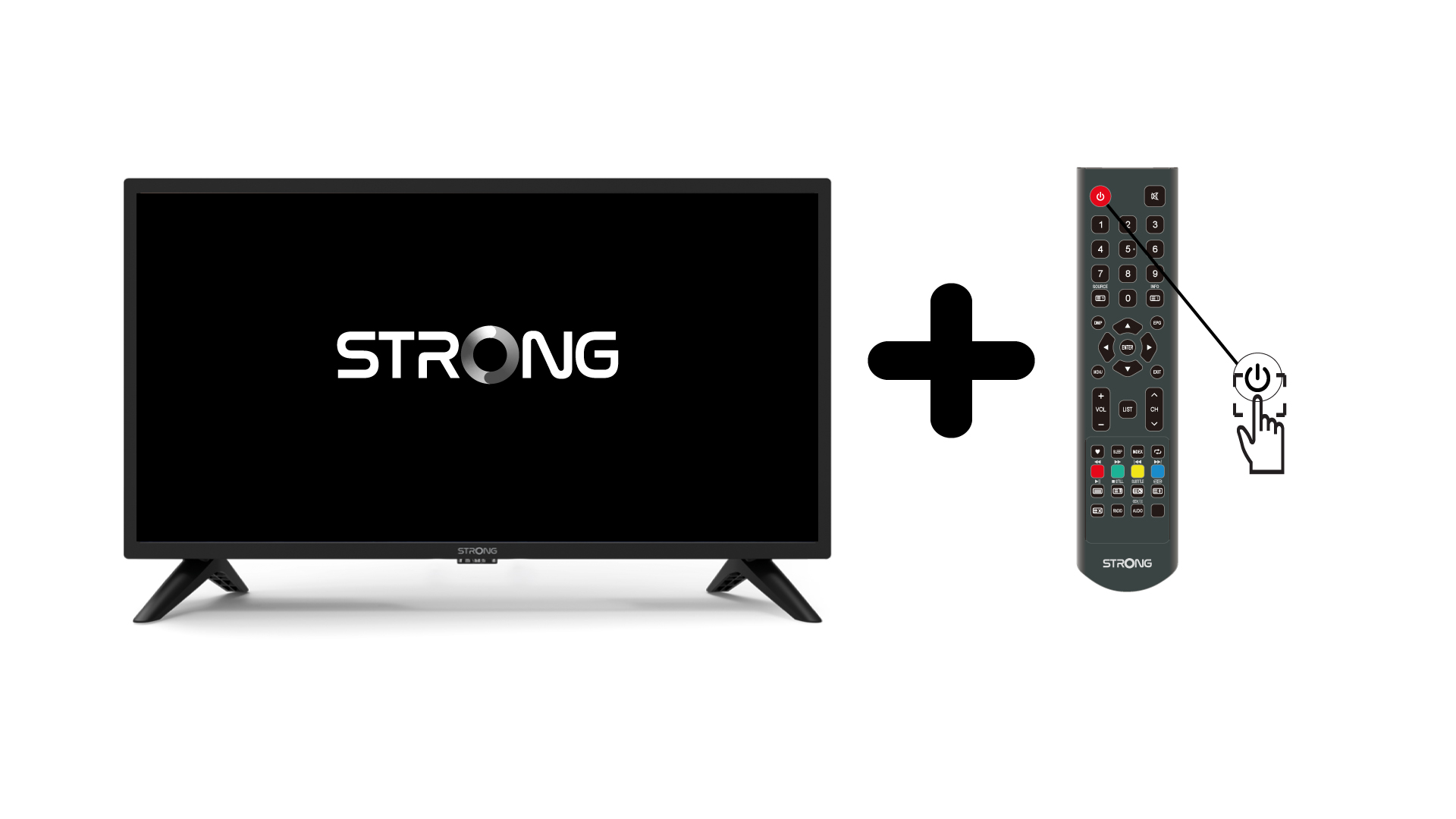
1Turn on the TV and the device
Turn on your TV and your device.
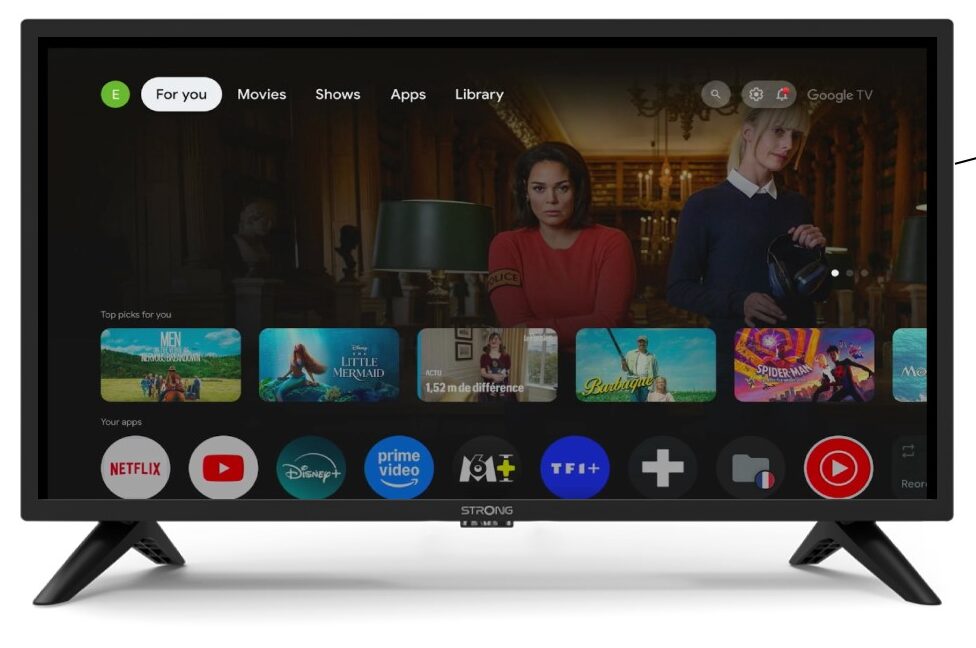
2Settings
Browse to the settings on the home page of your device.
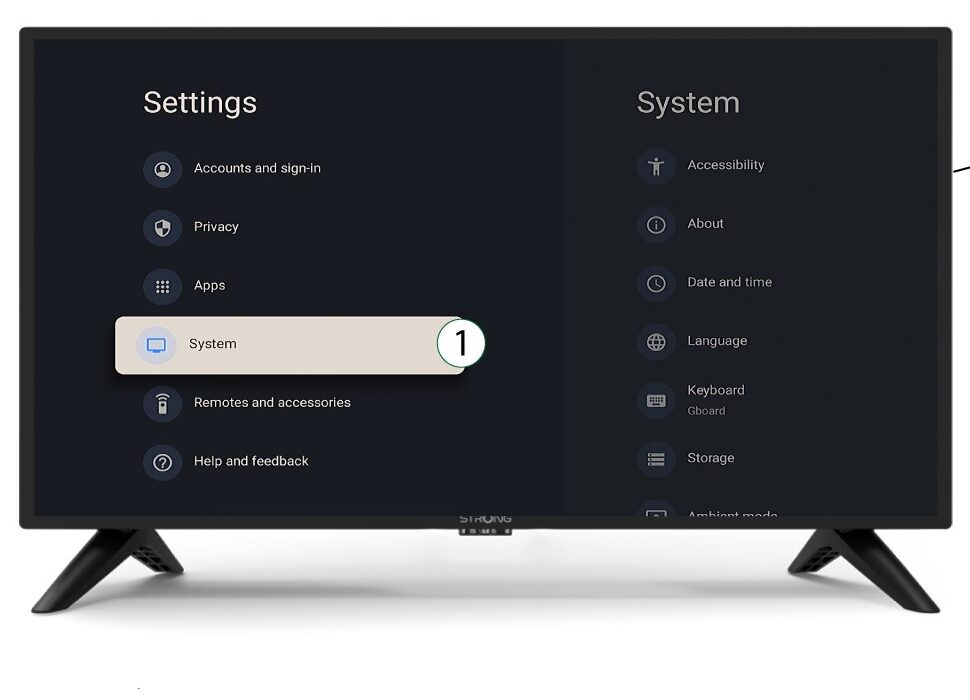
3System
In the Settings Menu, select System and press OK.
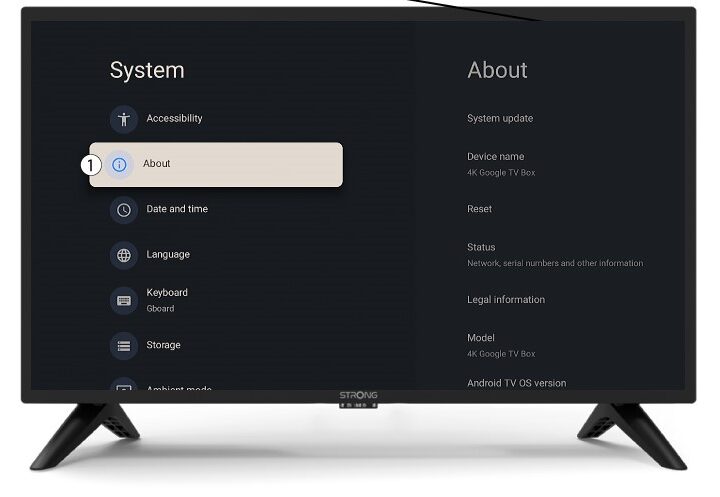
4About
Select About in the system menu and press OK.
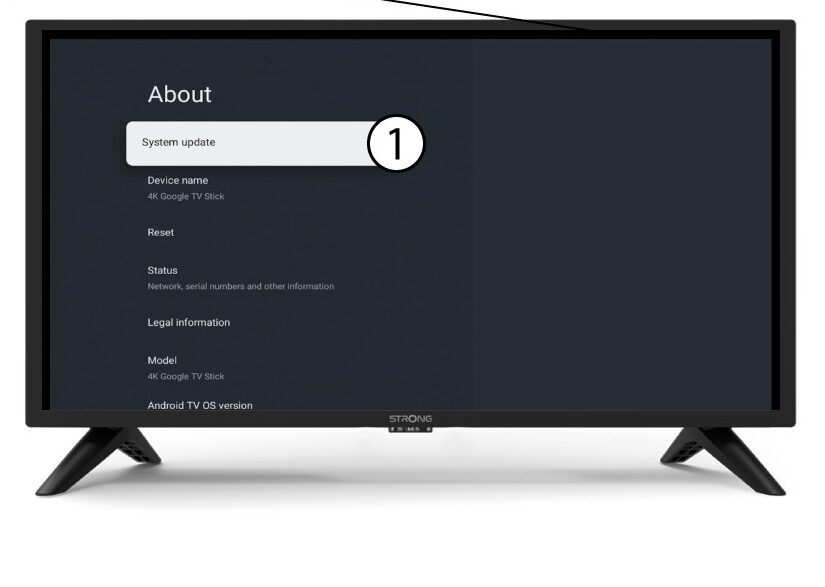
5System update
Select System Update.
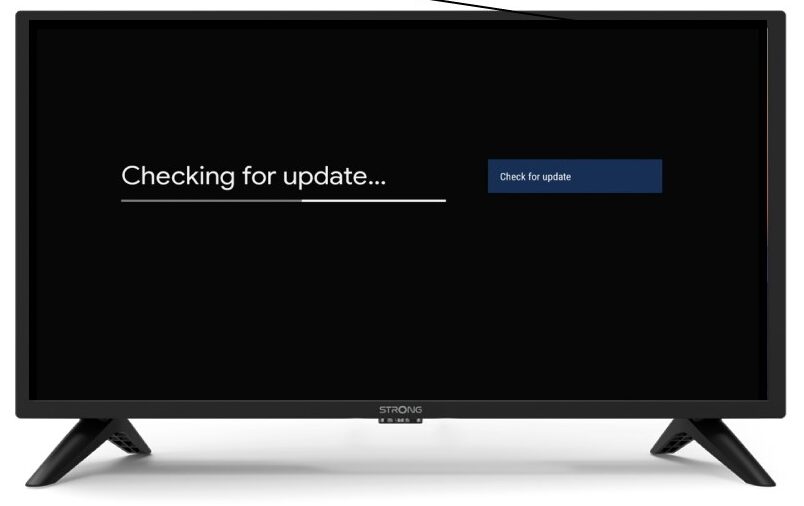
6Scanning to find new software version
A scan will be launched to check if you have the latest update. Please wait while it is performed. The new software version will be downloaded automatically.
The LEAP-NEVE does not turn on. What should I do?
- Check that the power adapter is properly connected.
- Try a different power outlet.
- Unplug the device for 10 seconds, then plug it back in.