
Dual Band Repeater 1200
All questions
Credentials and Web UI access
How do I connect to the Web UI after settings up my device?
How do I connect to the Web UI after setting up my device?
Follow the procedure below to access the Web UI.
1Connect to the Repeater
You must connect to the repeater by RJ45 or one of the Wi-Fi networks created after the configuration.
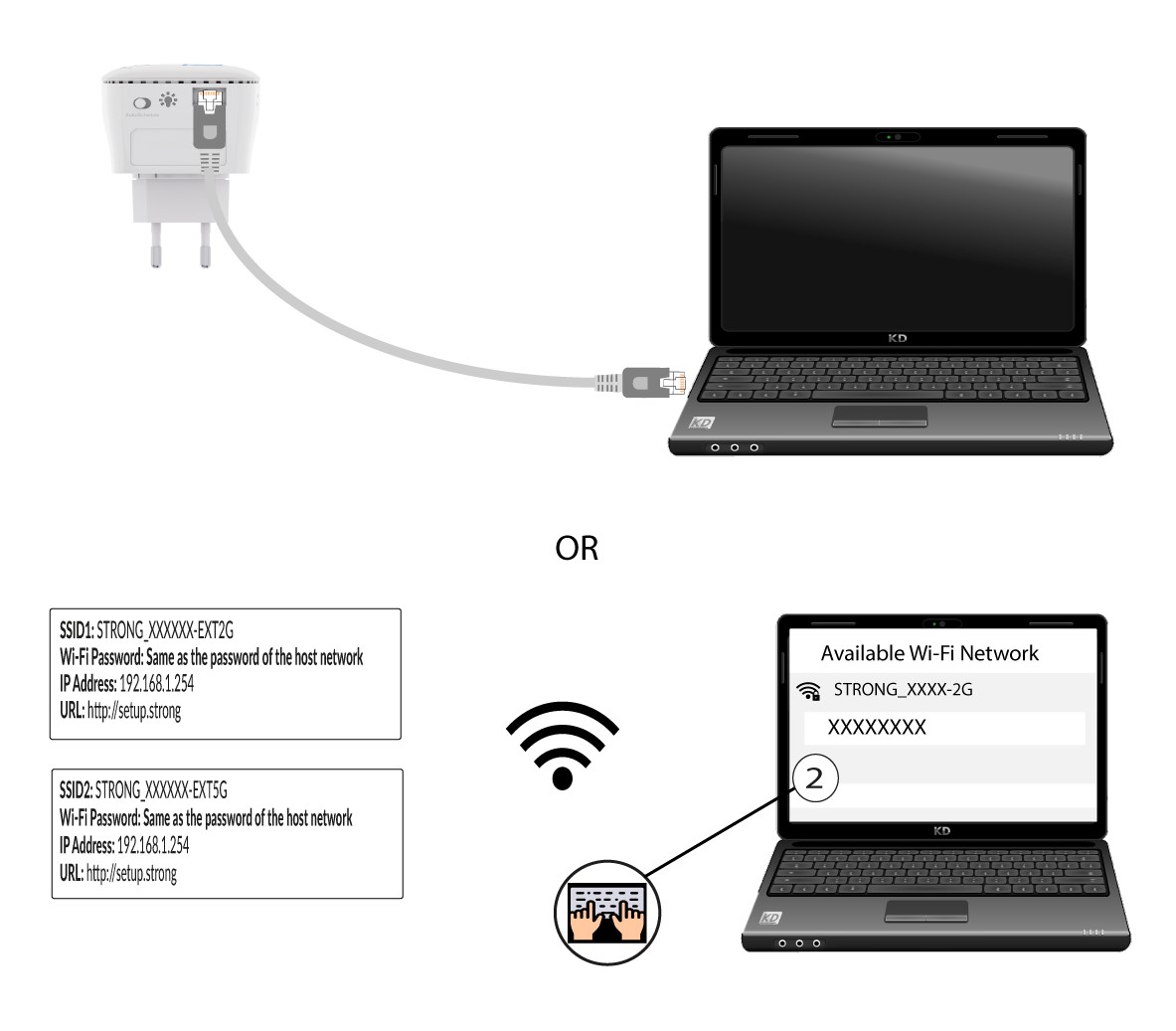
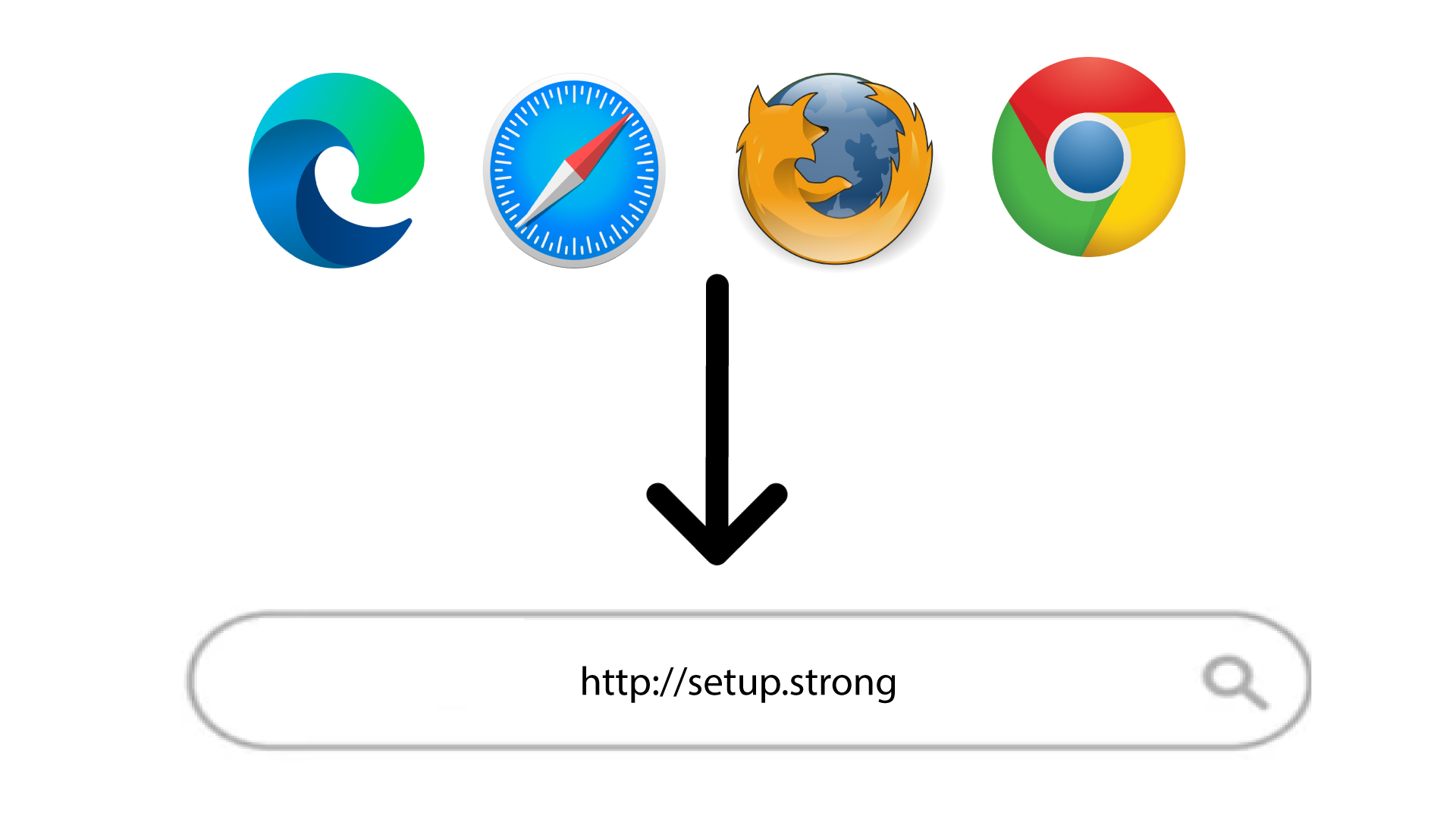
2Open the Web UI
Enter the URL to access the Web UI in your browser
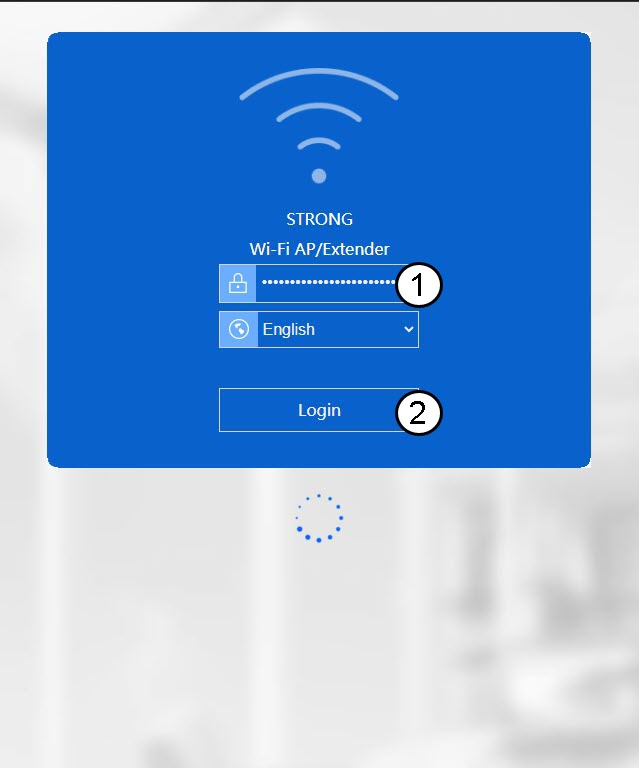
3Log In
Enter your administration credentials.
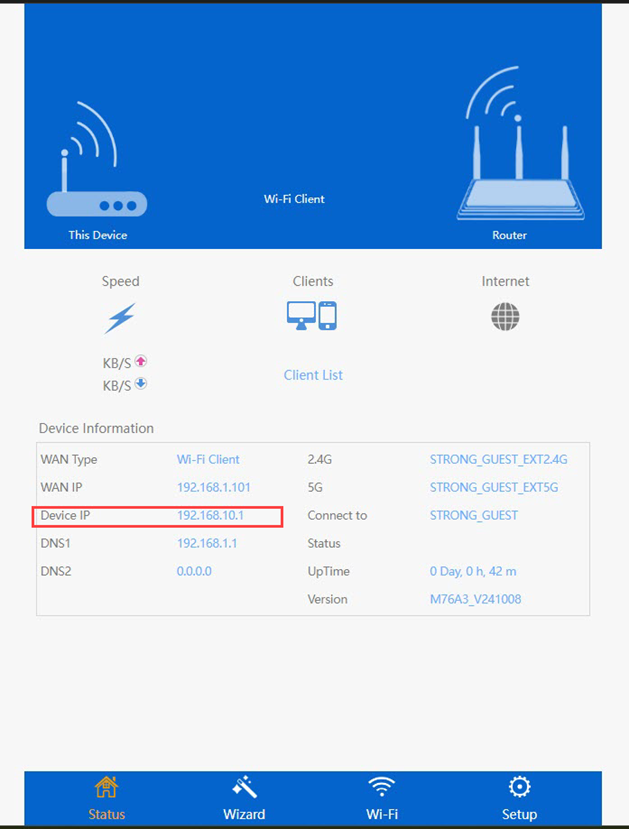
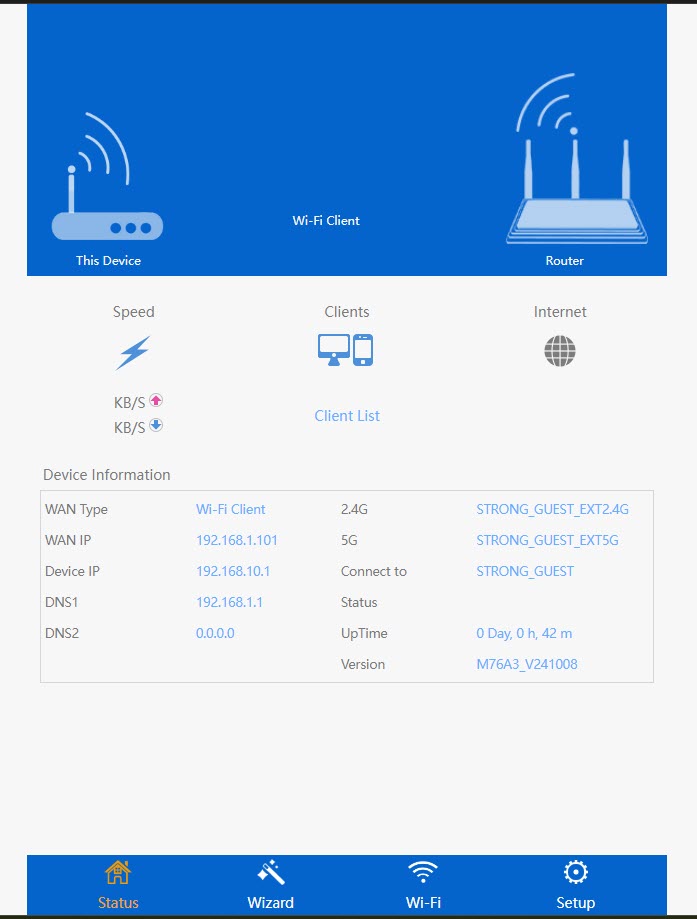
4Find the IP Address
In the device information, look for the IP address of the repeater
How do I connect to the Web UI of the repeater for the first time? (RJ45 Cable)
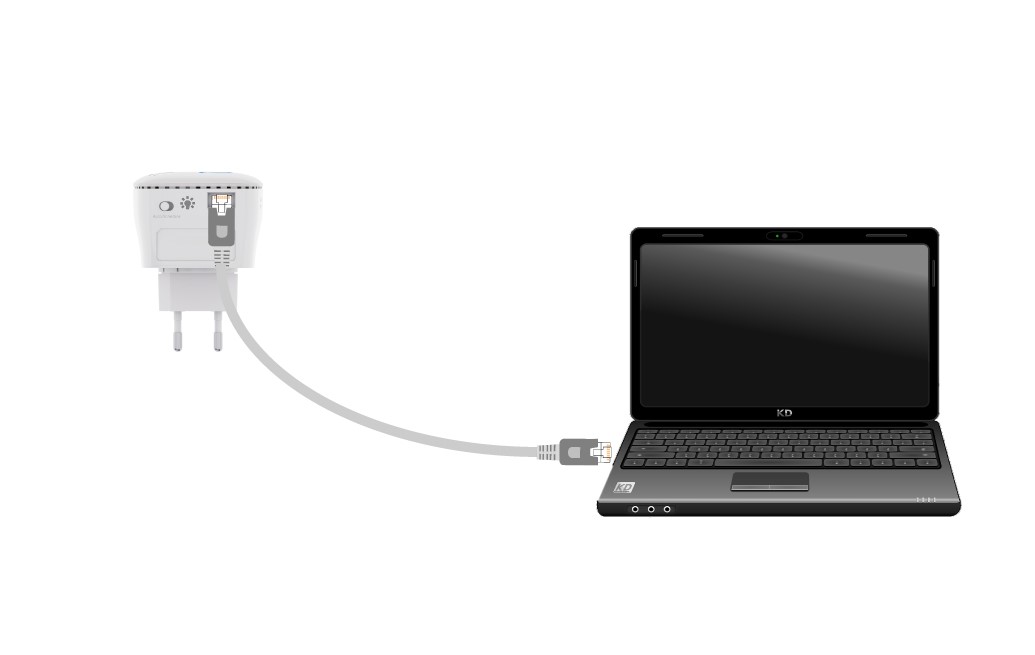
1Connect the Repeater via RJ45 Cable
Connect your repeater to a computer via RJ45 cable.
2Access the Repeater Interface
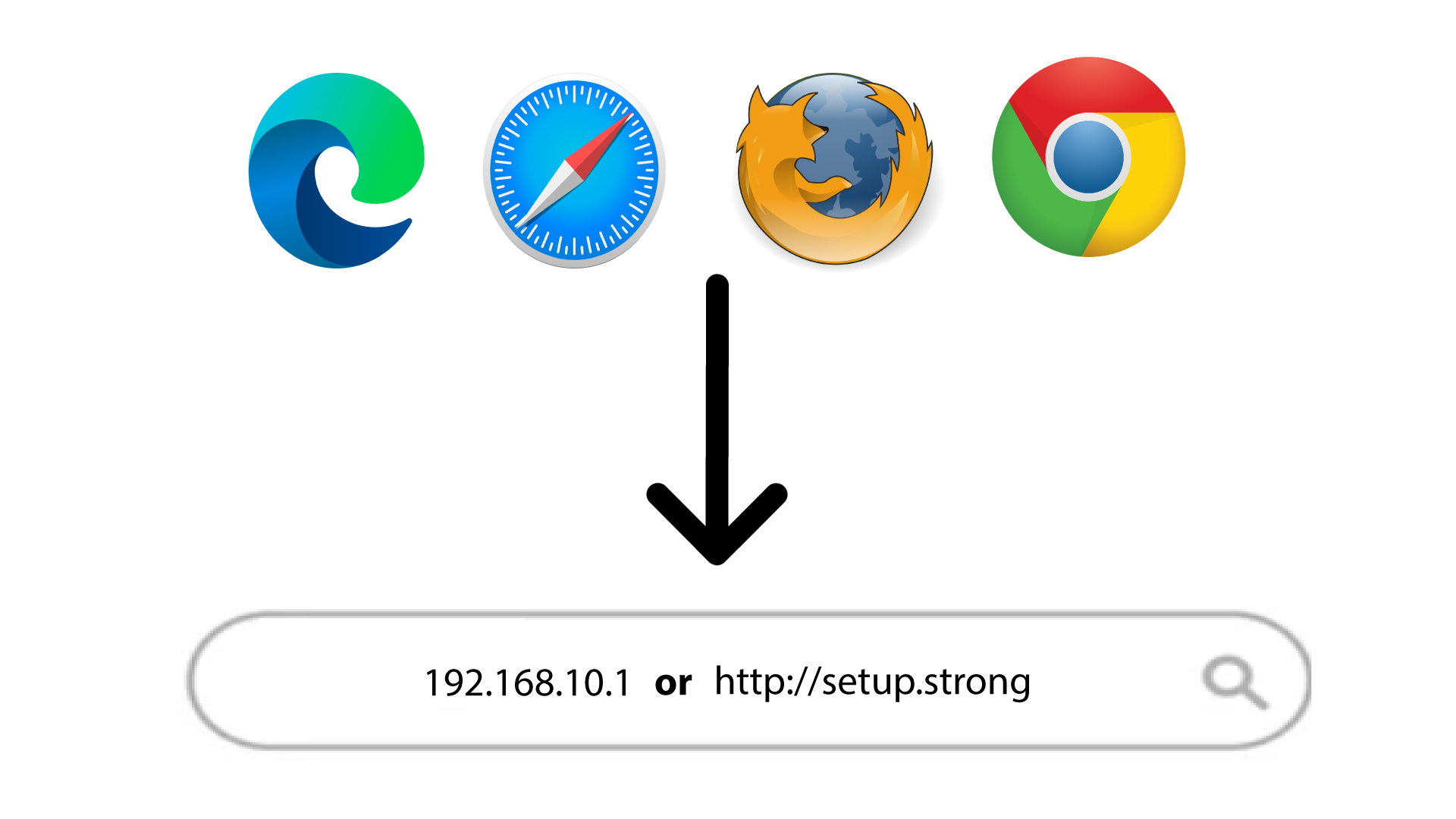
Type the IP Address or the URL in your browser.
3Set Your Admin Password
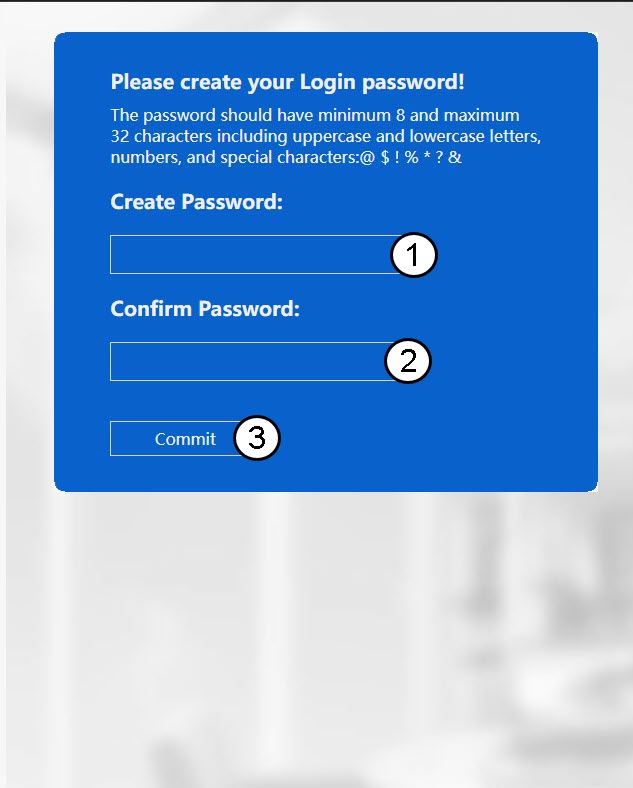
Create your admin password and click Commit.
How do I connect to the Web UI of the repeater for the first time? (Wi-Fi)
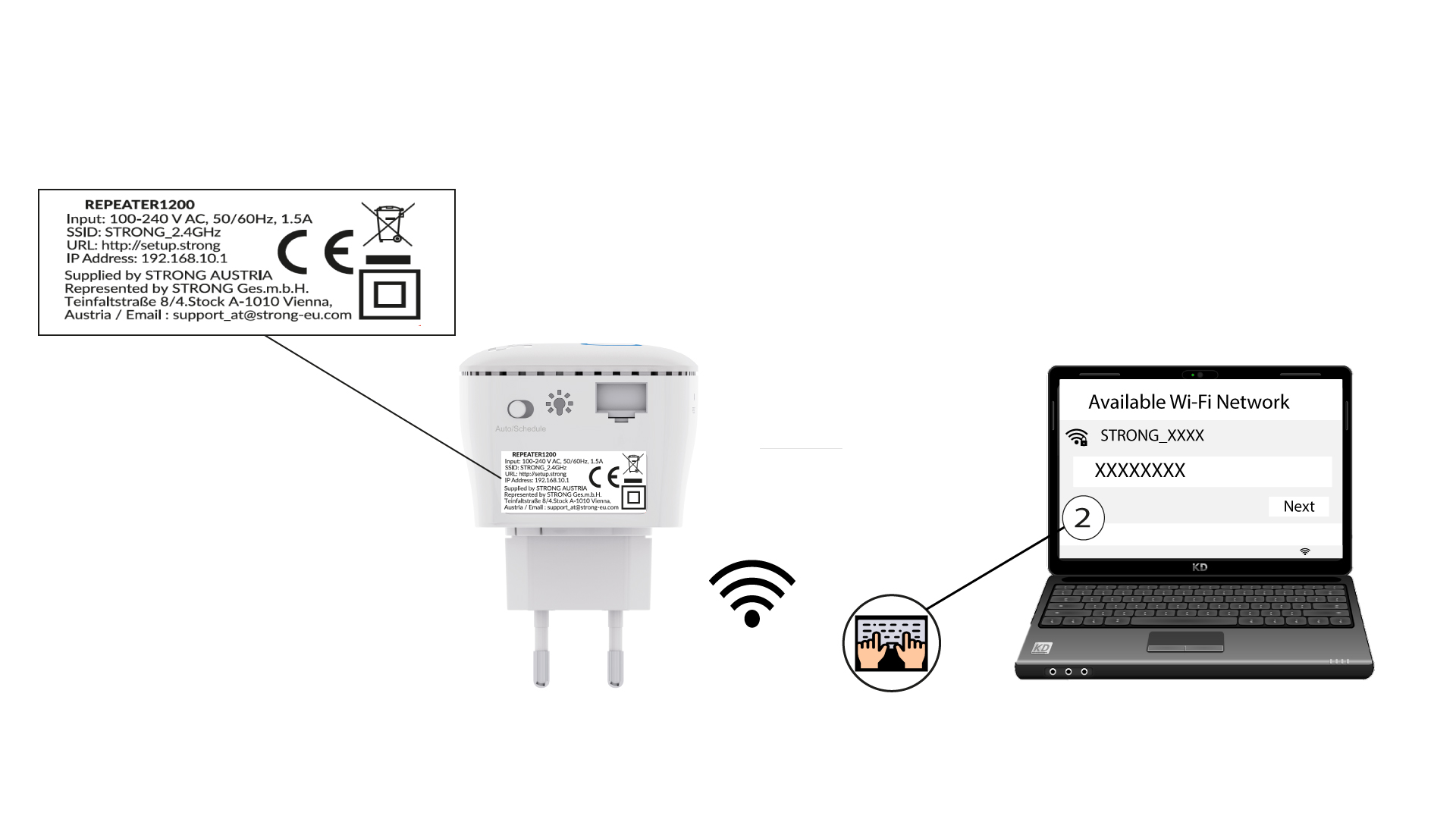
1Locate and Connect to the Repeater’s Network
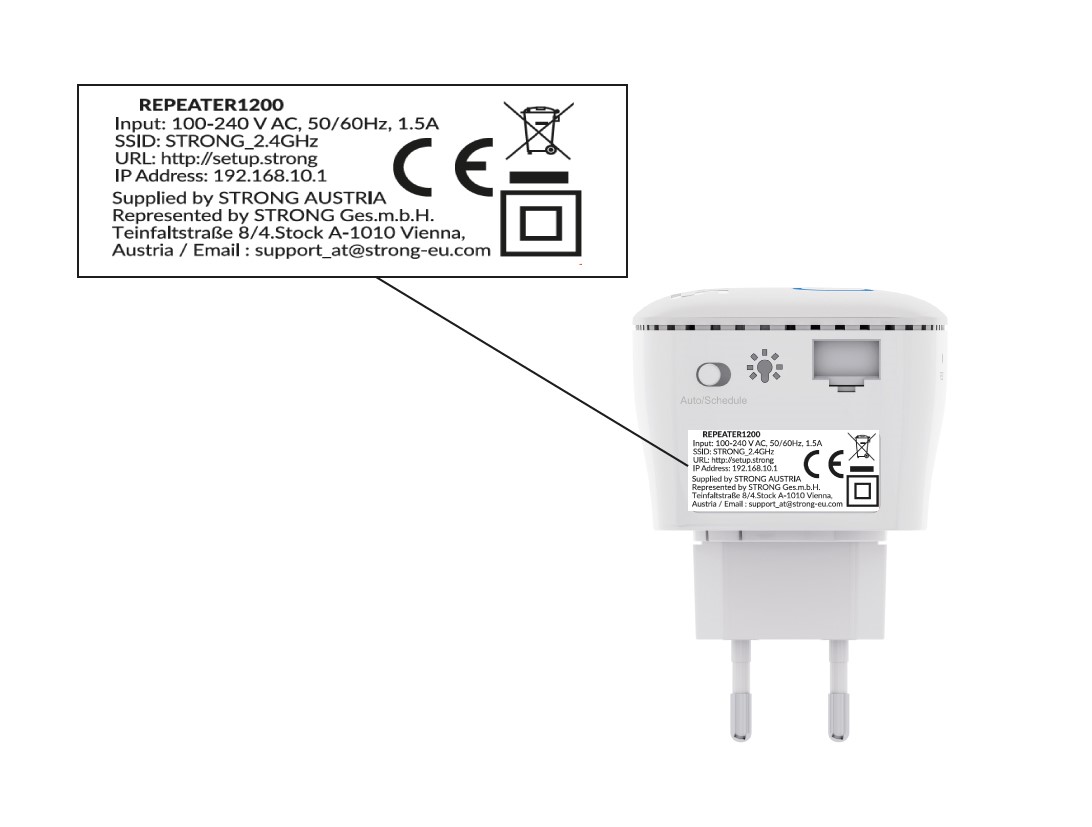
Find the network information of your repeater on the product label, located under the repeater. Select the Network in the available network list and connect to it.
2Access the Repeater Web Interface
Type the IP Address or the URL in your browser.
3Set Up Your Admin Password
Create your admin password and click Commit.
How do I set up a new administration password?
1Connect to the Repeater
You must connect to the repeater by RJ45 or to one of the Wi-Fi networks created after the configuration.
2Access the Web UI
Enter the URL of the Web UI in your browser.
3Log In to the Web Interface
Enter your administration credentials.
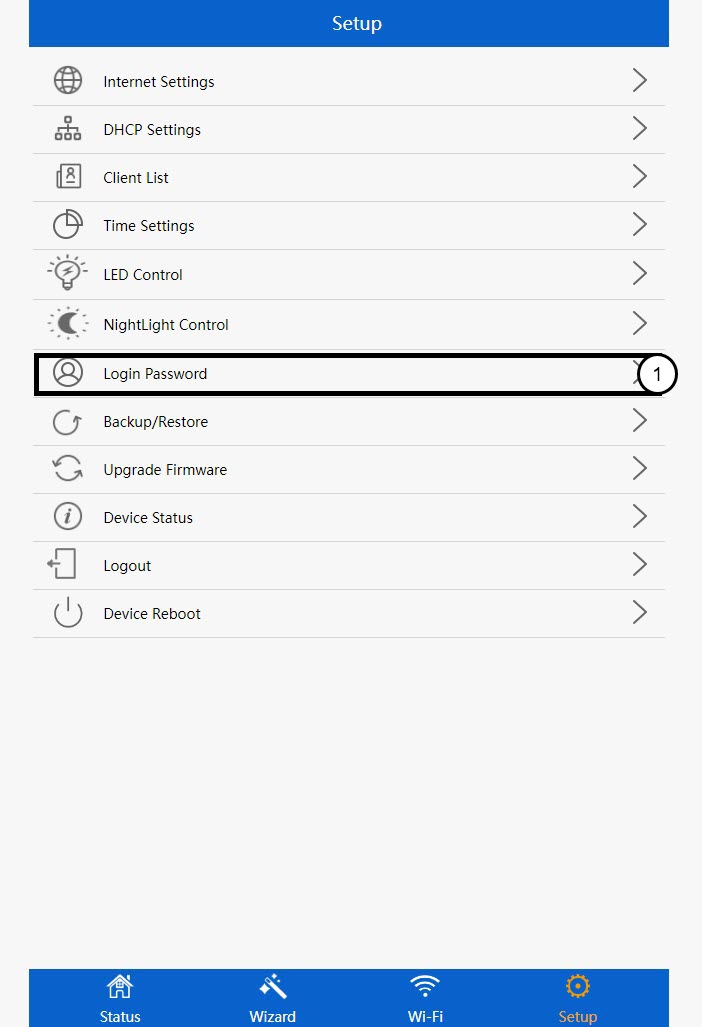
4Open the Setup Menu
Click Setup.
5Access the Login Password Settings
Click Login Password.
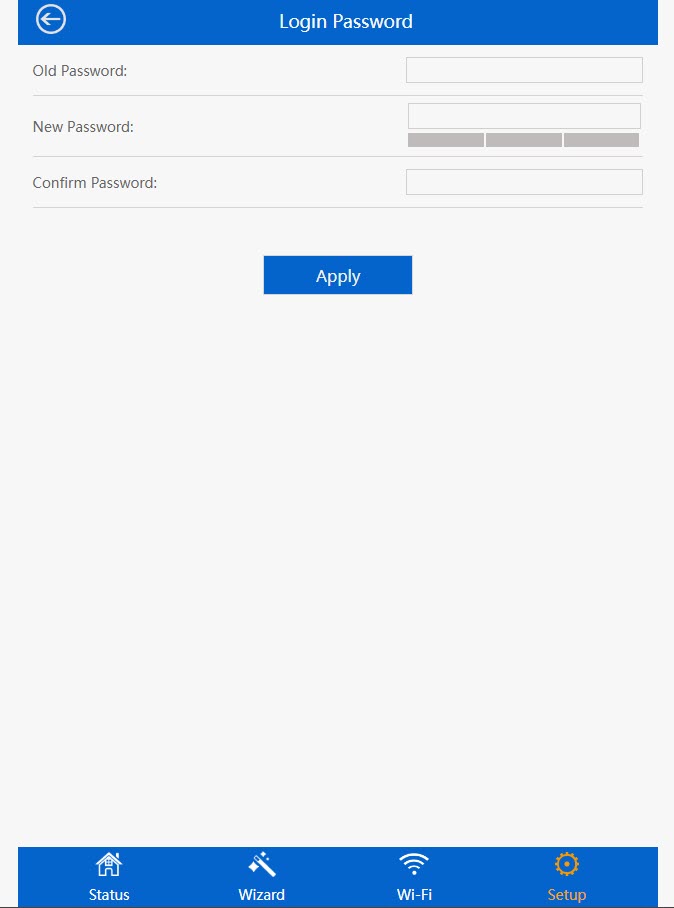
6Change the Admin Password
Enter the following information before clicking Save & Apply:
- Old Password: Enter the default administration password (admin).
- New Password: Enter a new password.
- Confirm Password: Enter the same password as in the previous field.
I cannot access the Web UI (http://setup.strong) after setting up my repeater, why?

Warning: Normally, you cannot connect to the Web UI after the set up because the connection information are changed. Indeed, two Wi-Fi networks are created when the set up is completed. You must connect to one of these networks to access the Web UI.
Follow the procedure below to access the Web UI.
1Connect to the Repeater
You need to connect to the repeater by RJ45 or to connect to one of the Wi-Fi networks that was created after the configuration.
2Access the Web Interface
Enter the URL to access the web UI in your browser
3Log In to the Web UI
Enter your password and click Login.
4Find the Repeater’s IP Address
In the device information, look for the IP address of the repeater
TIP: The IP address of your repeater changes once it is configured to the Wi-Fi host.
I cannot access the Web UI with the URL (http://setup.strong) during the configuration, why ?
During the configuration of the repeater, you must connect directly to the IP Address indicated on the product label of the repeater.
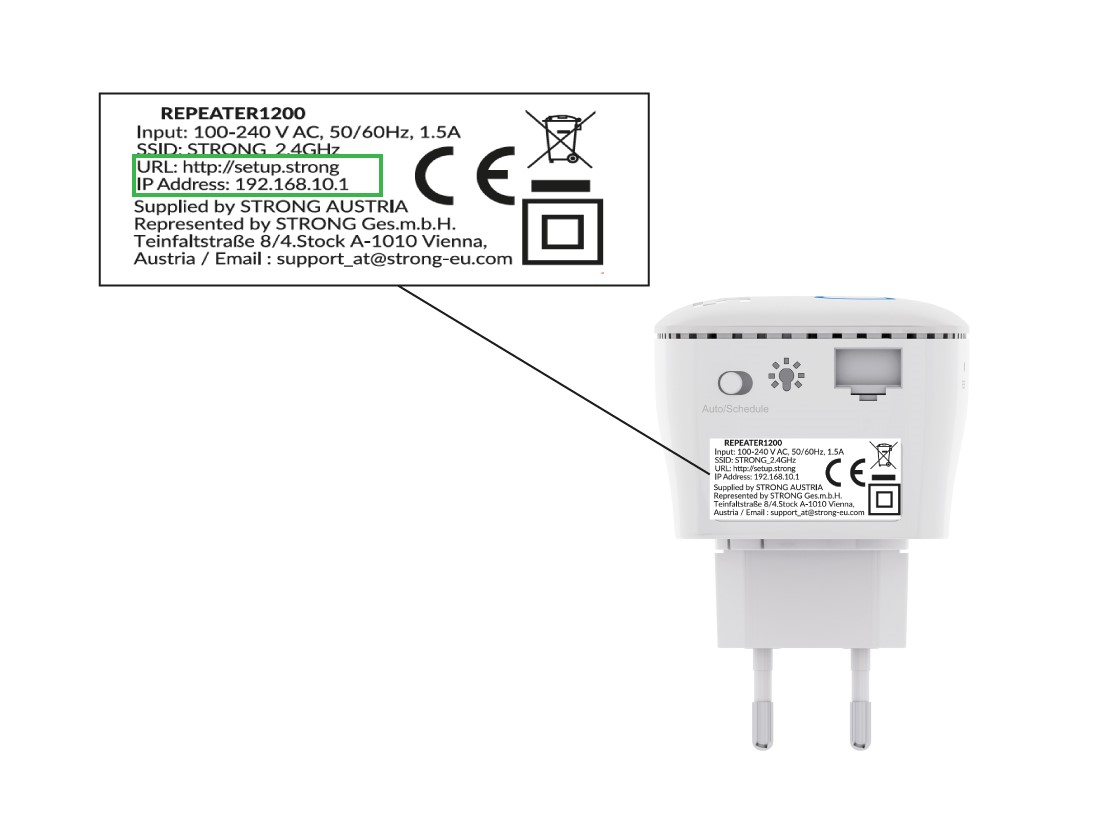
Warning: Once the configuration is completed a new IP address will be allocated to your repeater. You will not be able to access the web UI through this IP address.
What are the credentials to connect to the Web UI?
When you connect to the Web UI for the first time, you must set up an administration password. You will have to enter this password every time that you want to access the Web UI.
Warning: If you forgot your administration password, please reset your device to its factory settings by referring to this procedure How do I reset my repeater to its factory settings? (Reset Button)
What can I do in the Web UI?
The Web UI is divided into 5 sections, for more information, see:
· Status: where you can see the list of connected devices (Devices), the information of the host network (Host Network), the 2.4G Wireless network (Wireless 2.4G), the 5G Wireless network (Wireless 5G), and the LAN Network (LAN). You can also view the system log (System)
· Wizard: where you can set up your repeater as an access point or a repeater with the integrated configuration wizard.
· Wi-Fi: where you can set the connexion with the host network and the repeater Wi-Fi network information
· Setup: where you can update the firmware, reset, and reboot the device. You can also define the time zone, admin password, and so on...
What is the IP address of my repeater?
Before setting up your repeater its default IP address is the one written under the product.
Once the repeater is configured you can find the IP Address of the repeater in the LAN settings.
This IP Address is allocated automatically and changes. If you want to have a Static IP for your LAN network, please refer to How do I set a static IP for my repeater?