
PLW600MDUO
All questions
PLW600MDUO
Can I disable the Wi-Fi function of the Wi-Fi module so that it works as a simple Powerline?
Yes, it is possible to disable the Wi-Fi. To do so, please follow the steps below.
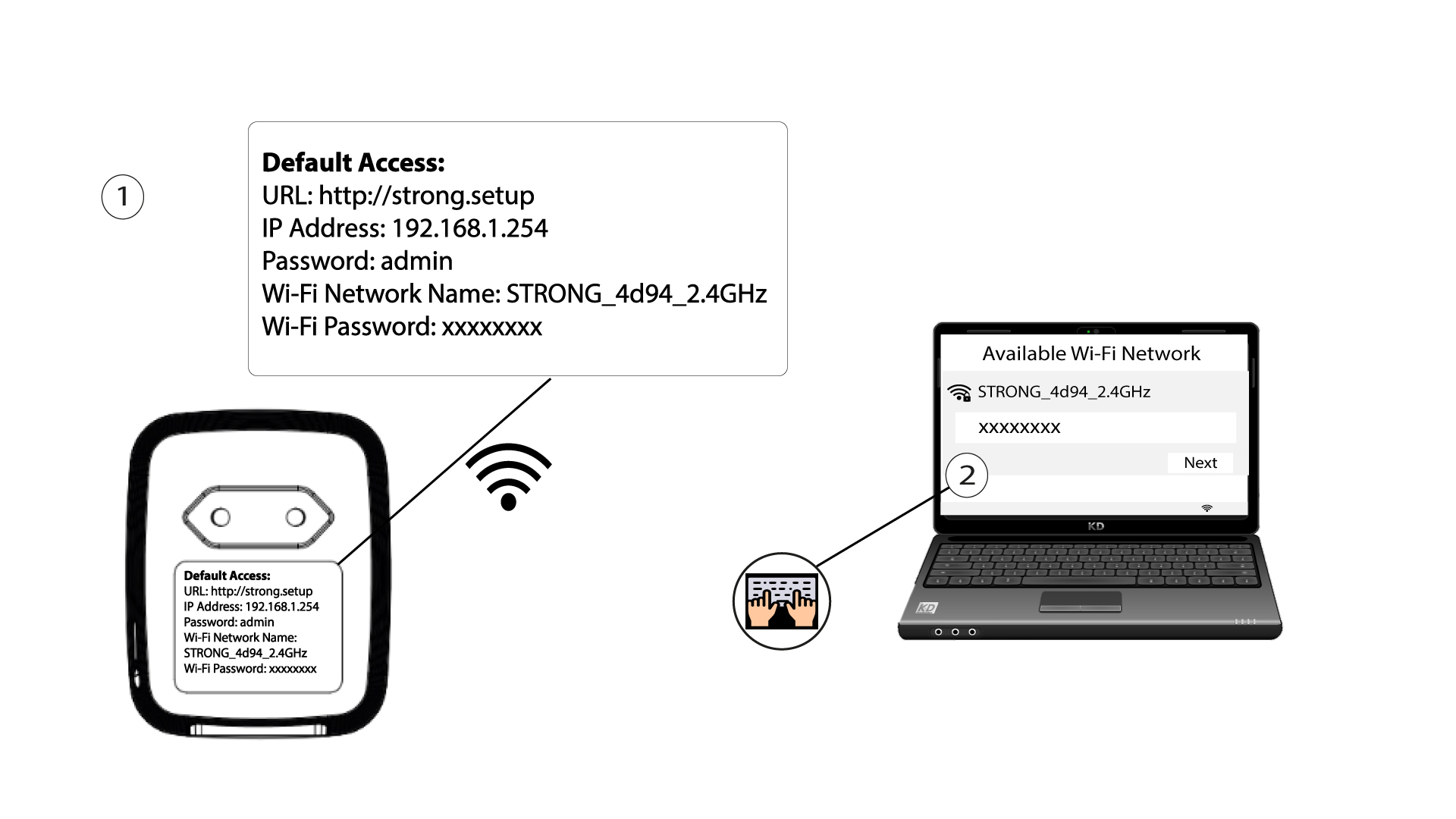
1Connect to the Powerline Wi-Fi network
Connect to the Wi-Fi of the Powerline.
2Browse to the web interface
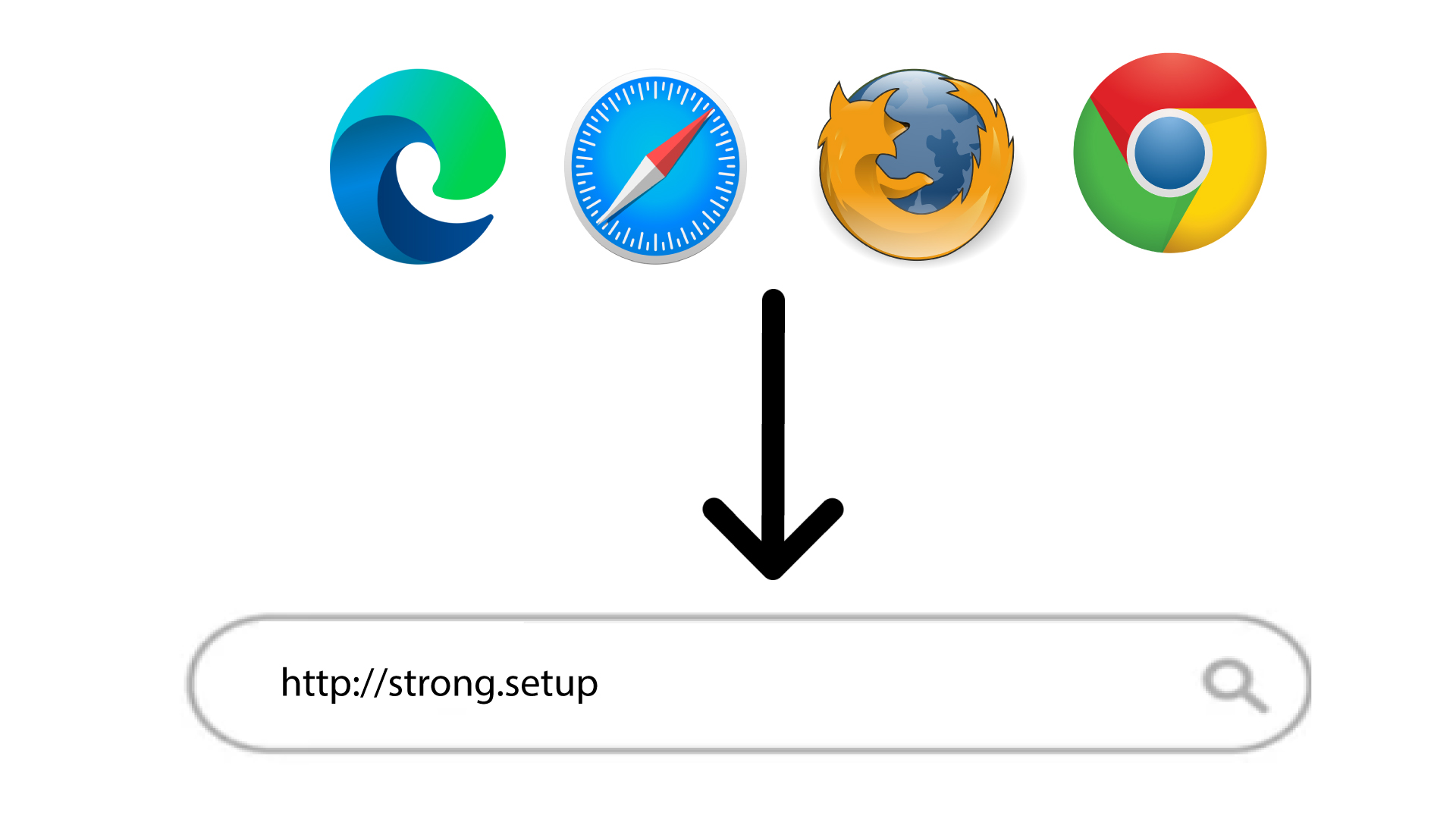
Connect to the user interface of the Powerline Wi-Fi module via Wi-Fi by typing http://setup.strong in the address bar of your Internet browser. The interface should appear.
3Log in
Enter the login password you created at your first connection. If this is your first login, you are asked to create one: it must contain at least 8 characters, including uppercase and lowercase letters, numbers and special characters (@ $ ! % * ? &). Enter it in Create Password and Confirm Password, then click Commit.
4WLAN Settings
Click WLAN Settings, then select Basic Settings.

5Deactivate Wi-Fi
Clear the Enable checkbox on the Wireless line, according to your needs, and click Save.


Please note that to reactivate Wi-Fi via the module's user interface, you will have to connect via an RJ45 cable. The other solution for reactivating Wi-Fi is to reset the Powerline Wi-Fi adapter by using a paper clip until the LEDs flash. All the devices that were connected to the Wi-Fi will be automatically disconnected.