
PLW600MDUO
All questions
PLW600MDUO
How do I change the SSID name and password of the Powerline 600 Mini Wi-Fi network?
1Connect to the Wi-Fi
Connect to the Wi-Fi of the Powerline 600 Wi-Fi Mini.
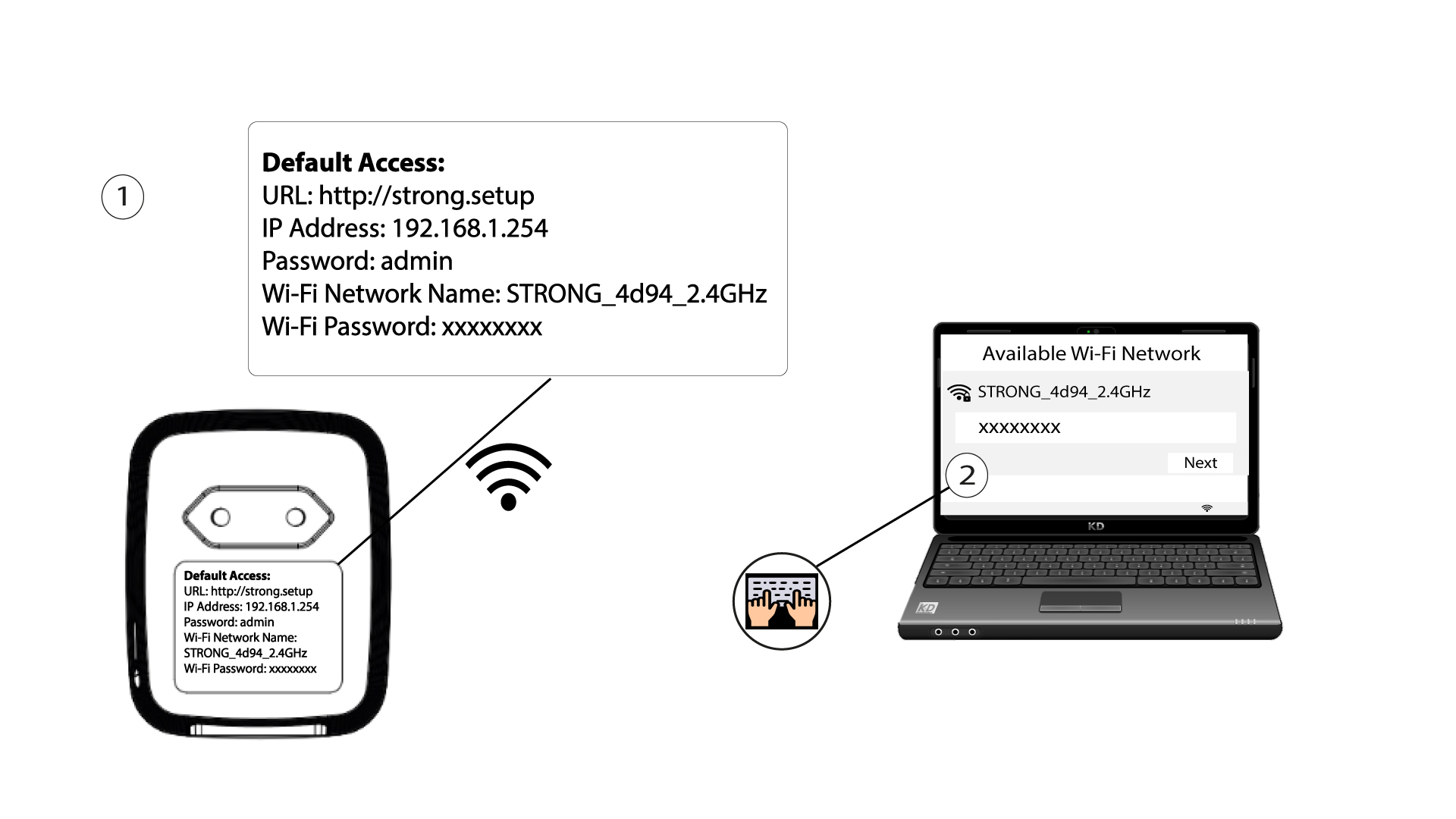
2Browse to the web interface
Access the user interface by entering the URL http://setup.strong in the address bar of your Internet browser.
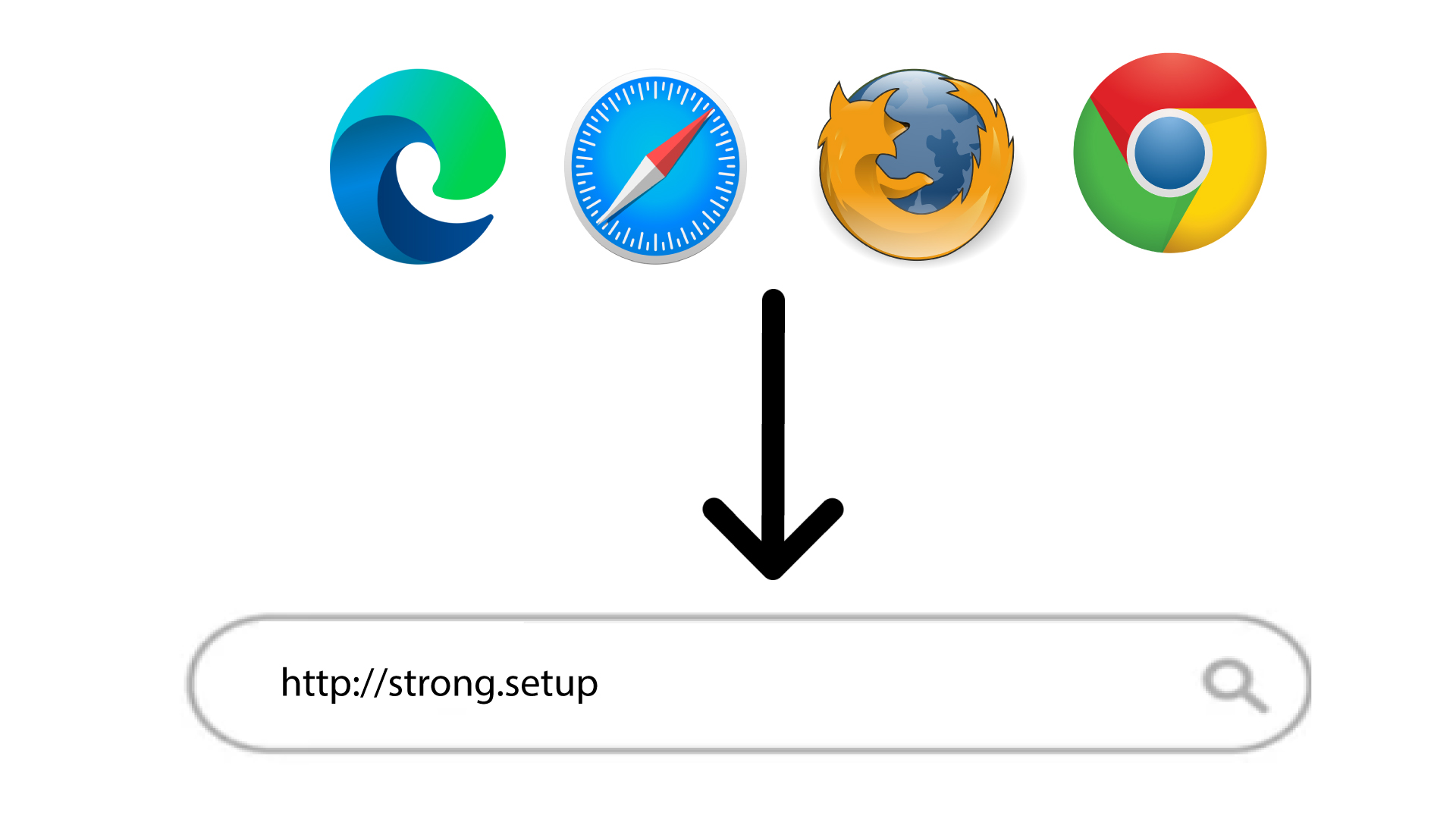
3Log in
The first time you log in, you are asked to create your login password. It must contain at least 8 characters, including uppercase and lowercase letters, numbers and special characters (@ $ ! % * ? &). Enter it in Create Password and Confirm Password, then click Commit. For later logins, enter this password.
4Quick Setup
Go to the menu, select Quick Setup, then click Access Point (AP) and click NEXT.
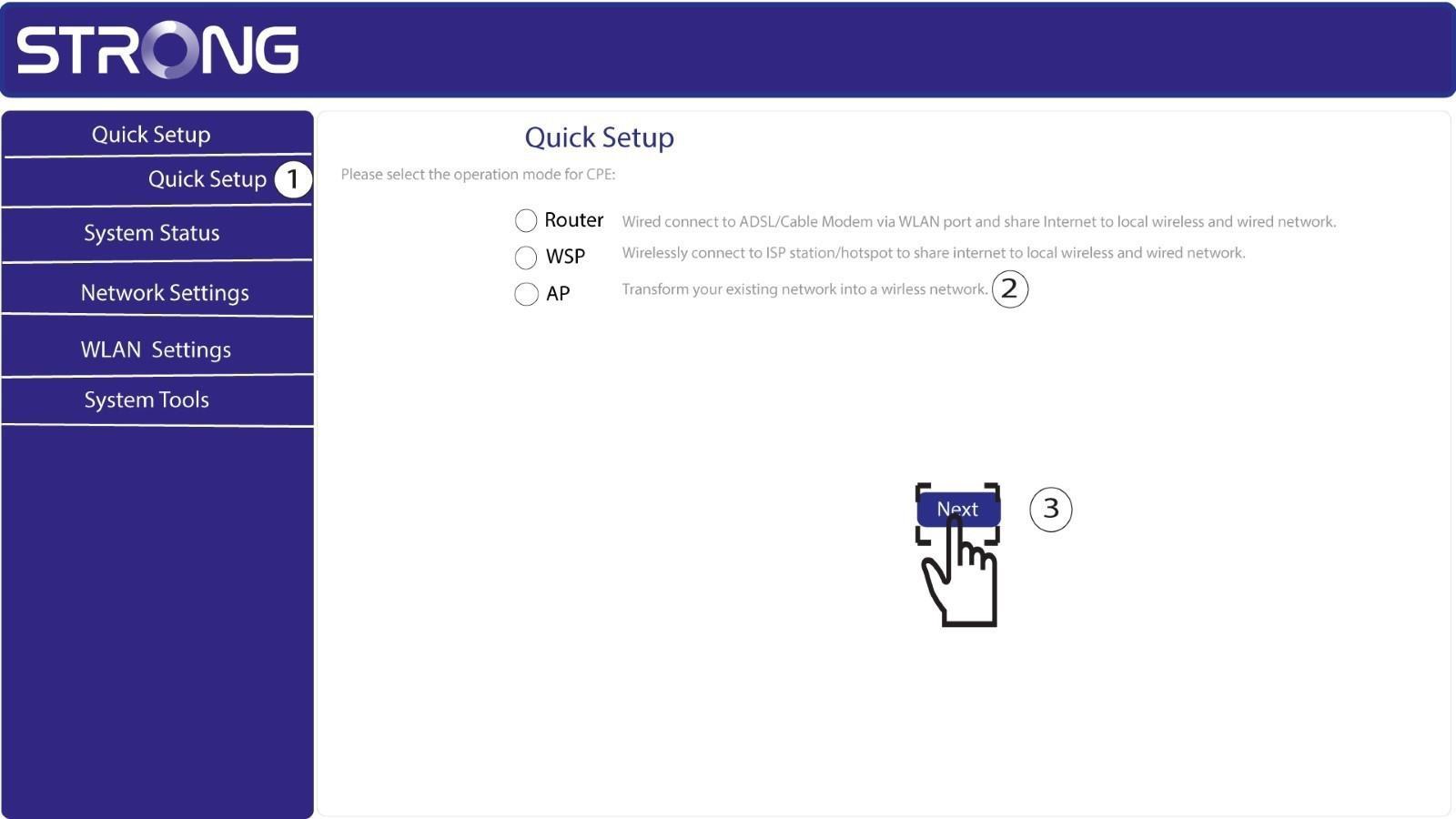
5Enter the new network information
Edit the SSID and the Pass Phrase. When defining the new pass phrase, please avoid using the uppercase I and the lowercase l as they can easily be mixed up. We also advise you to create a pass phrase made of alternating uppercase letters, lowercase letters and numbers. When your edits are finished, click NEXT to save.
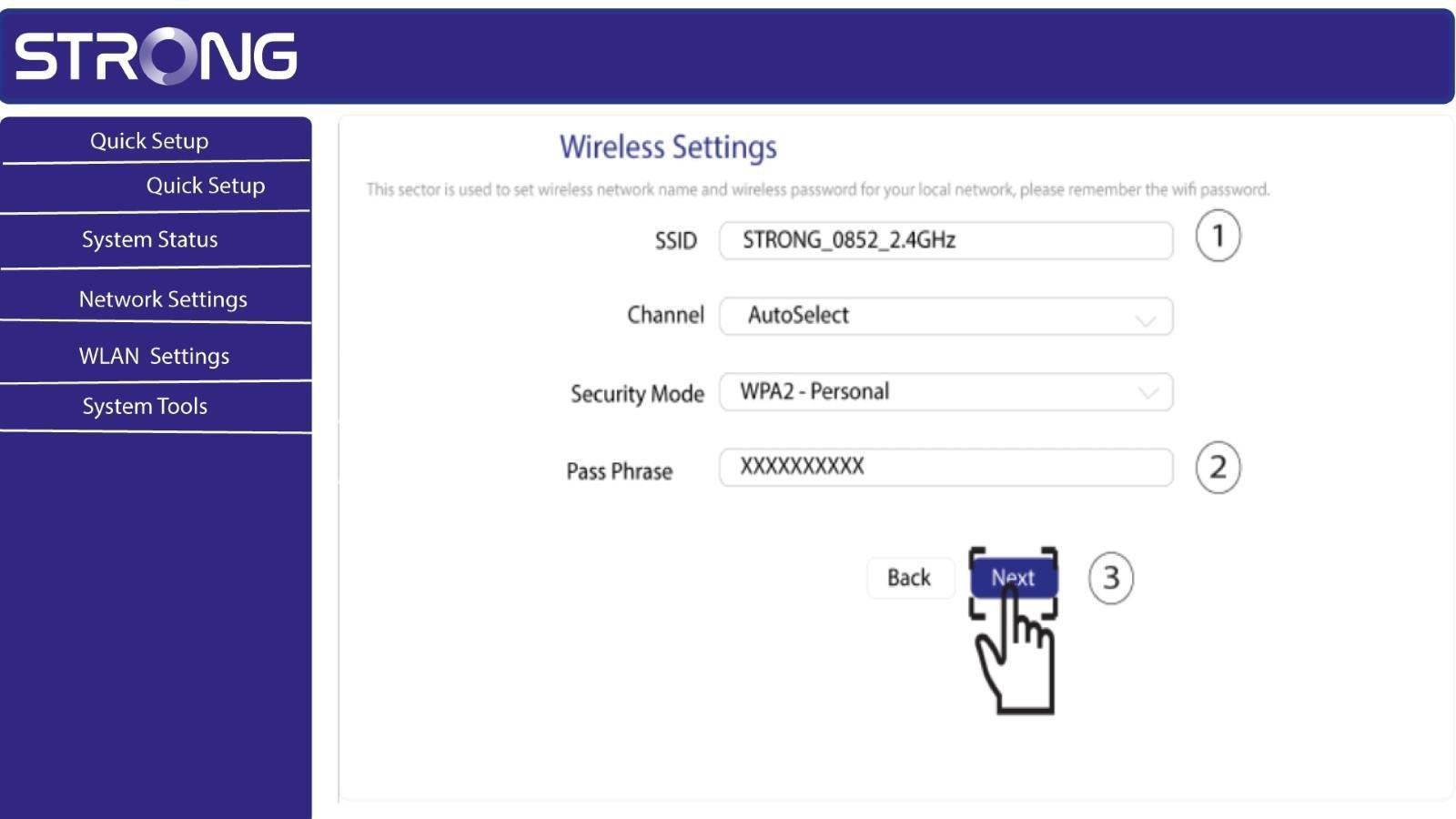
6Write down the new network information
Please write down the new SSID and Pass Phrase on paper, then reconnect all your devices to the Powerline 600 Duo Wi-Fi Mini using the new settings.
