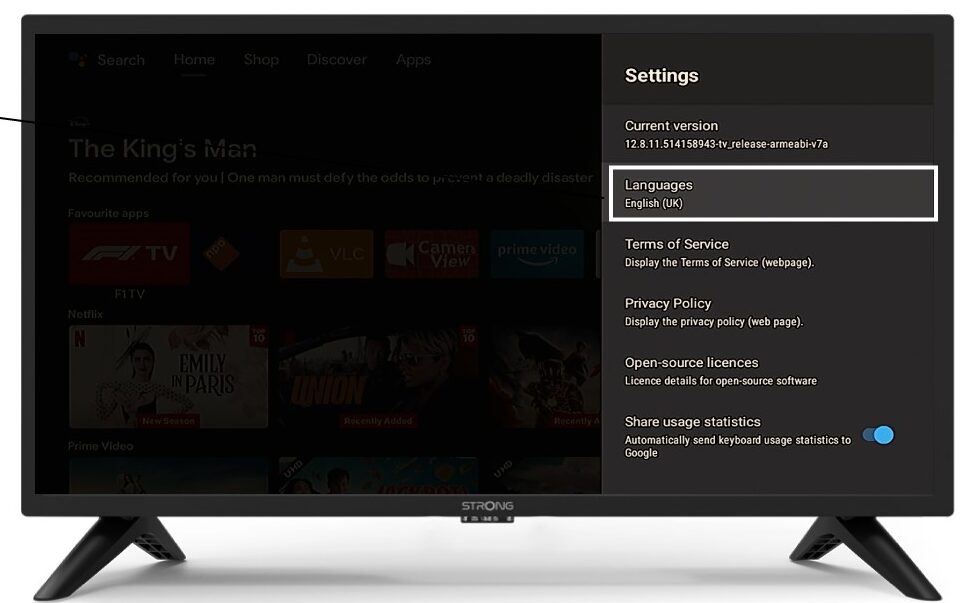
LEAP 41 | 4K Google TV HDR10+ támogatással
Minden kérdés
LEAP 41 | 4K Google TV HDR10+ támogatással
Csatlakoztattam egy AZERTY billentyűzetet USB-n keresztül, de a rendszer QWERTY billentyűzetként ismeri fel. Miért van ez?

Figyelem: Felhívjuk figyelmét, hogy a külső billentyűzetek esetében a támogatott billentyűzetkiosztásokat a Google határozza meg. Ezért előfordulhat, hogy az Ön billentyűzetkiosztása nem támogatott. Ebben az esetben javasoljuk, hogy vegye fel a kapcsolatot a billentyűzet gyártójával, és érdeklődjön, van-e olyan alkalmazás, amely biztosítaná a billentyűzet kompatibilitását.
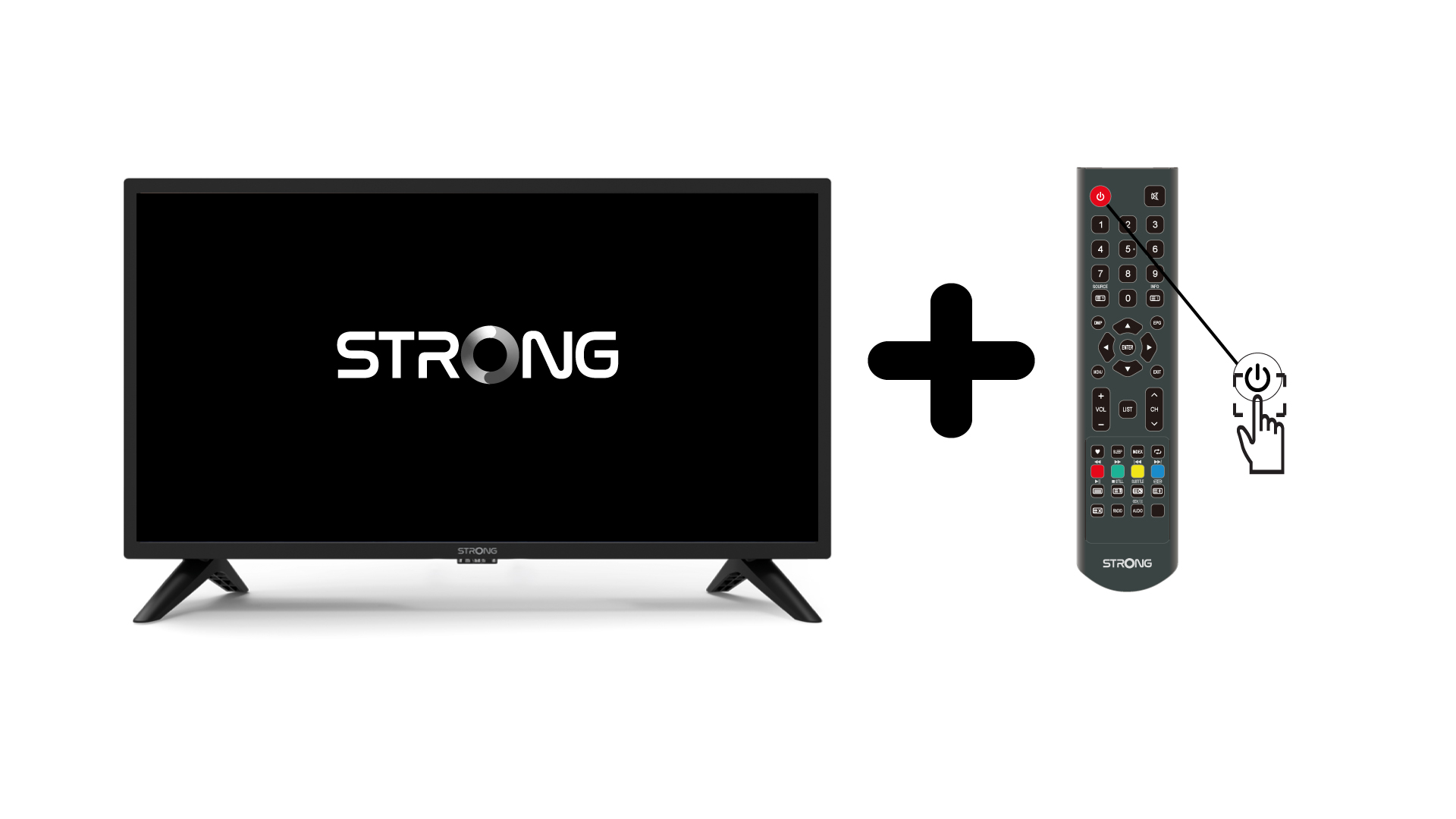
1. Kapcsoljabe a tévét és a készüléket
Kapcsolja be a tévét és a készülékét.
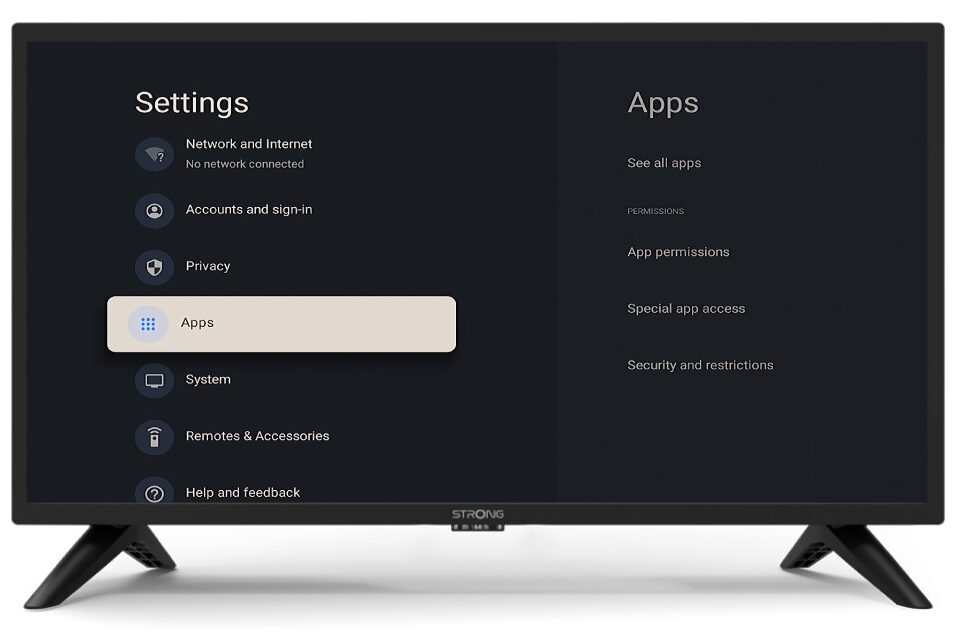
2. Beállítások
Nyomja meg a távirányítón a Beállítások gombot (fogaskerekes ikon). A Beállítások menü megjelenik a tévéképernyőn.
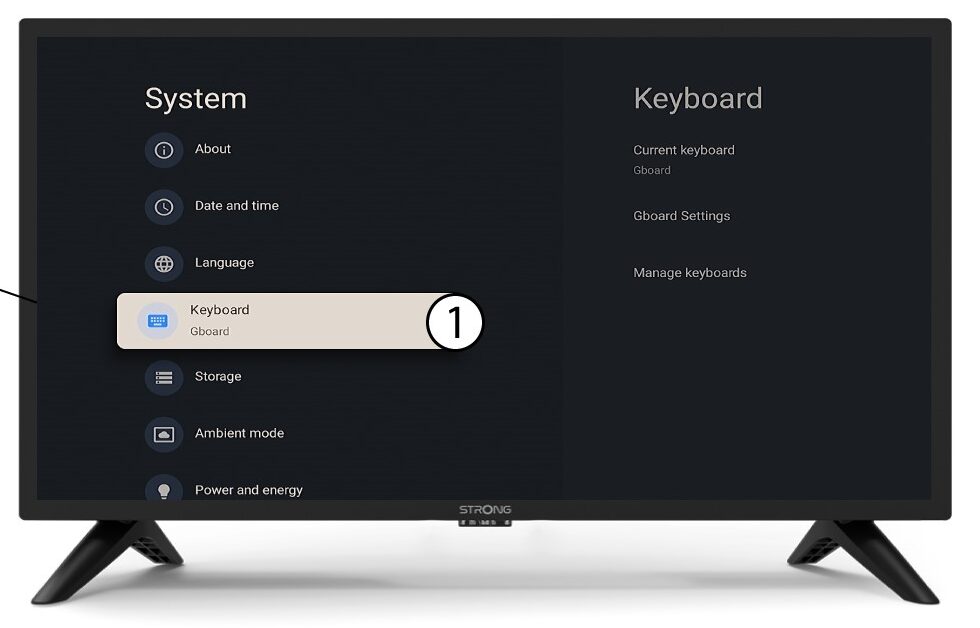
3Billentyűzet
Válassza ki a „Billentyűzet” menüpontot a Beállítások menüben, majd nyomja meg a távirányító OK gombját.
4Managebillentyűzet
Kattintson a „Billentyűzet kezelése” gombra. Ezután kattintson a kapcsoló gombra a funkció kikapcsolásához.
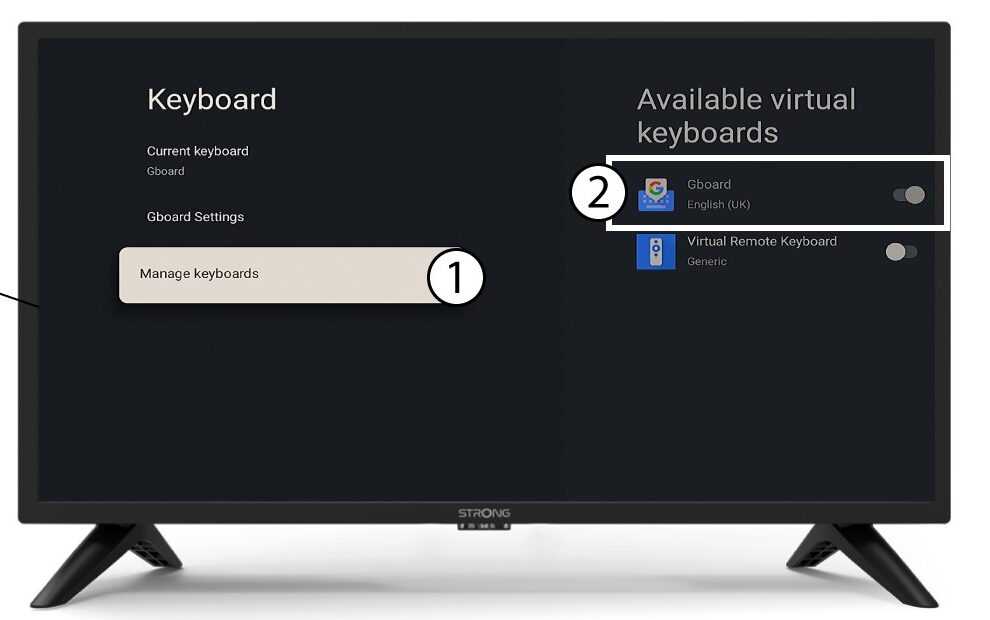
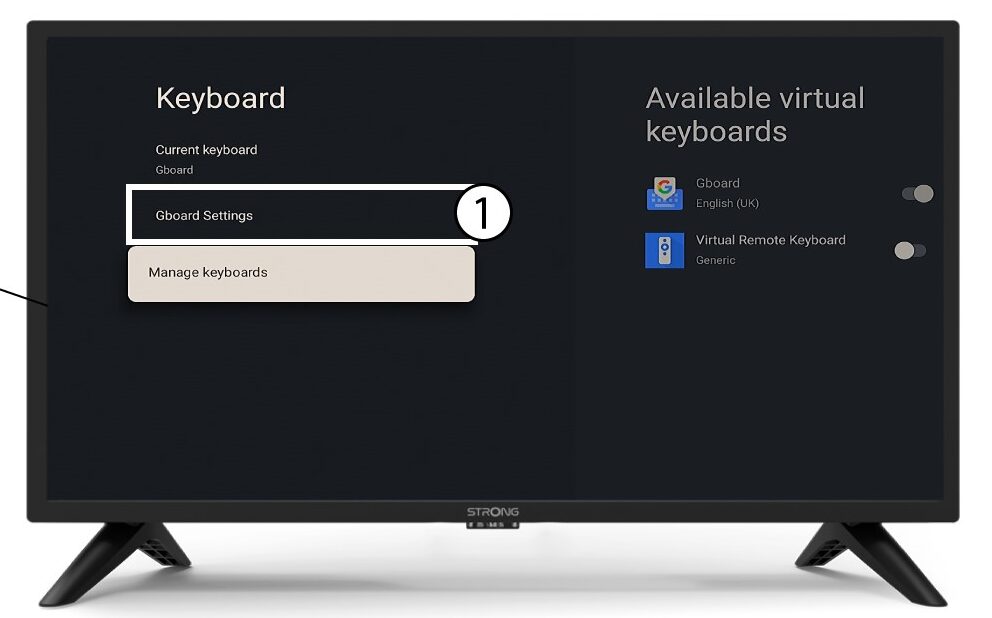
5Gboardbeállítások
Kattints a „Gboard beállítások” elemre, majd nyomd meg az „OK” gombot.
6 nyelv
Kattintson a „Nyelvek” menüpontra, majd nyomja meg az OK gombot a távirányítón. Ezután válassza ki a nyelvet.