ATRIA Wi-Fi 6 Mesh 3000 UK 2-pak)
Alle spørgsmål
ATRIA Wi-Fi 6 Mesh 3000 UK 2-pak)
Hvordan kan jeg indstille en statisk IP-adresse eller tildele en dedikeret IP-adresse til min Atria Mesh AX3000-enhed?
Det kan være en god idé at tildele en statisk IP-adresse til din mesh -controller, så du lettere kan få adgang til webgrænsefladen på dit netværk via Atria-appen Mesh .
Du kan også tildele dedikerede IP-adresser til de enheder, der er tilsluttet dit mesh -netværk, via webgrænsefladen.
1. Tilfælde1: Konfigurer en statisk IP-adresse til mesh -controlleren i Atria Mesh -appen
Du skal oprette forbindelse til Wi-Fi-netværket » mesh « på din enhed og åbne Atria-appen.

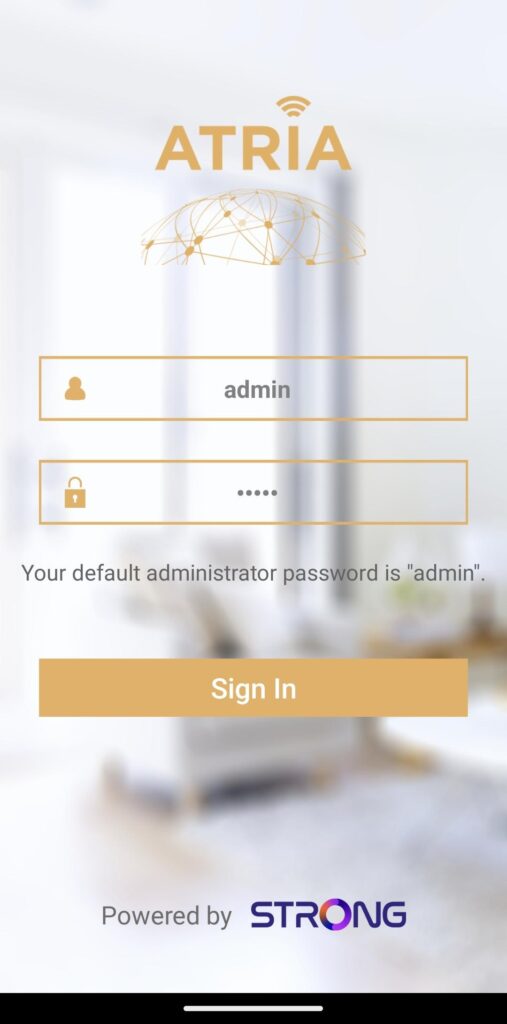
2Indtastdine loginoplysninger
Indtast brugernavn og adgangskode (admin/admin), før du klikker på »Log ind«.
3.Internetindstillinger – Statisk
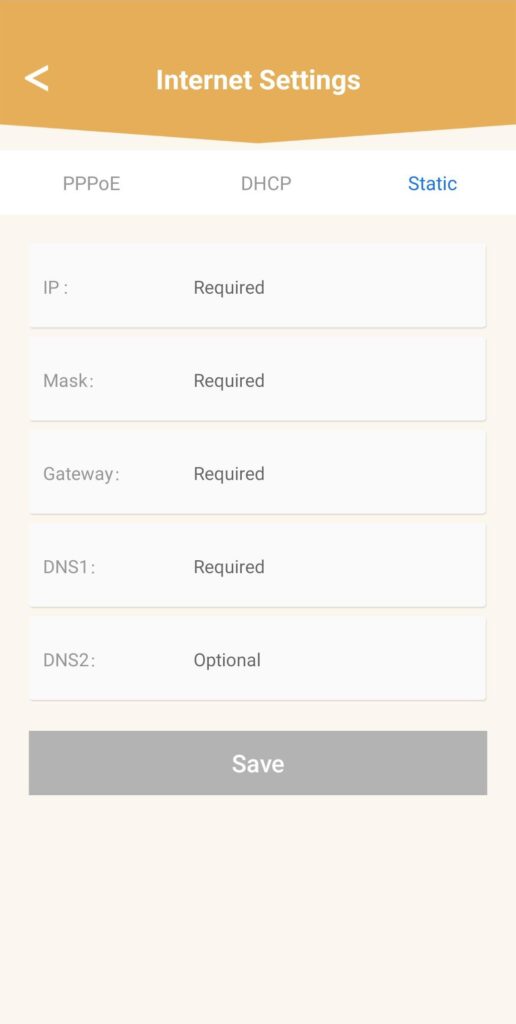
Klik på »Internetindstillinger« og »Statisk«. Du skal indtaste følgende oplysninger, før du klikker på »Gem«:
• IP: Indtast den IP-adresse, du vil tildele til mesh.
• Maske: Feltet udfyldes automatisk på baggrund af den IP-adresse, der blev indtastet tidligere.
• Gateway: Feltet udfyldes automatisk på baggrund af den IP-adresse, der blev indtastet tidligere.
• DNS1: Indtast den primære DNS-adresse for udbyderen af din internet boks.
• DNS2: Indtast den sekundære DNS-adresse for udbyderen af din internet boks.
1Tilfælde2: Tildel en dedikeret IP-adresse til dine mesh -agenter/enheder i webgrænsefladen
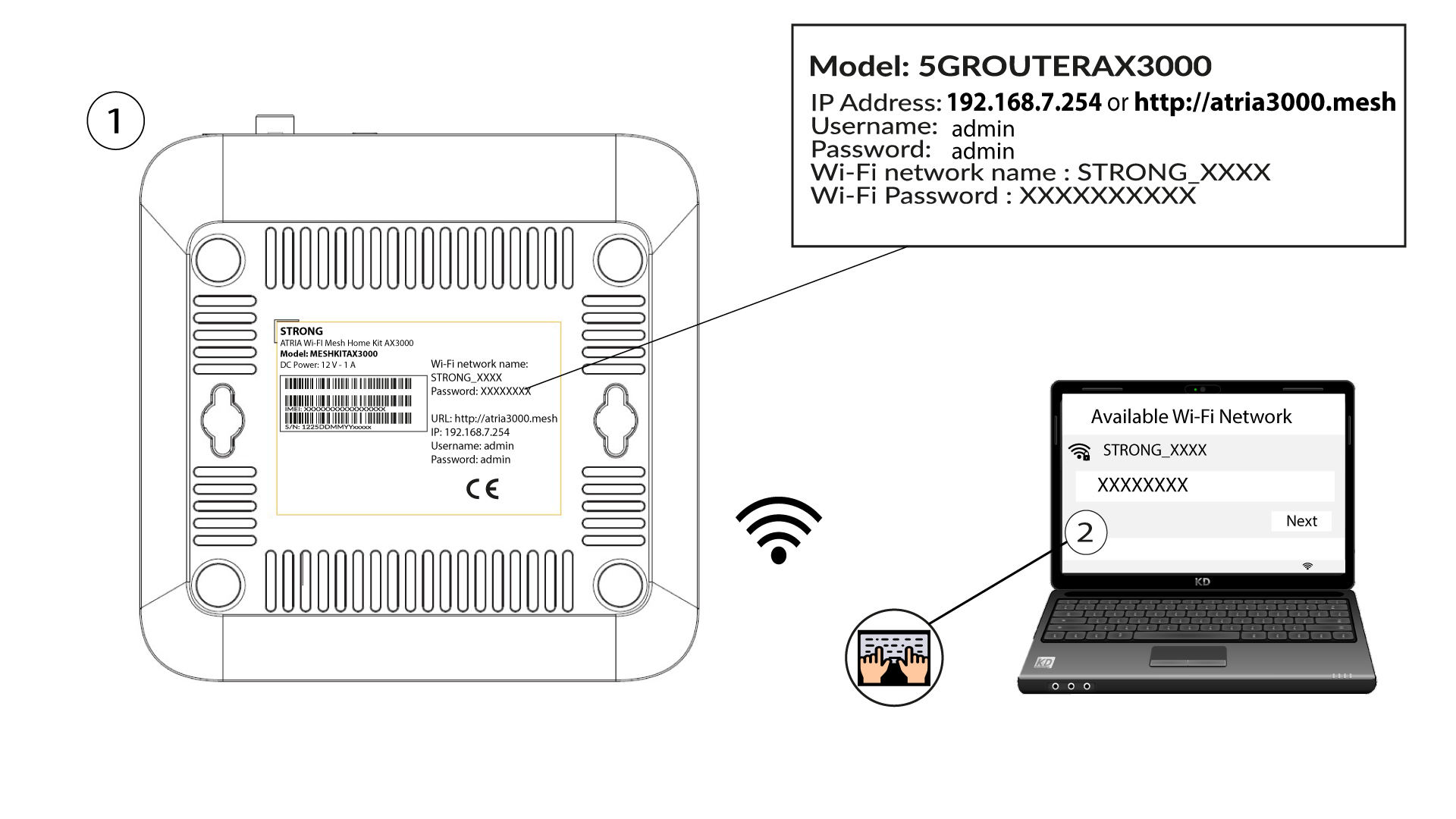
For at gøre dette skal du indtaste routerens SSID (Wi-Fi-netværksnavn) og Wi-Fi-adgangskode på din enhed:
2Gåtil IP-adressen for webgrænsefladen
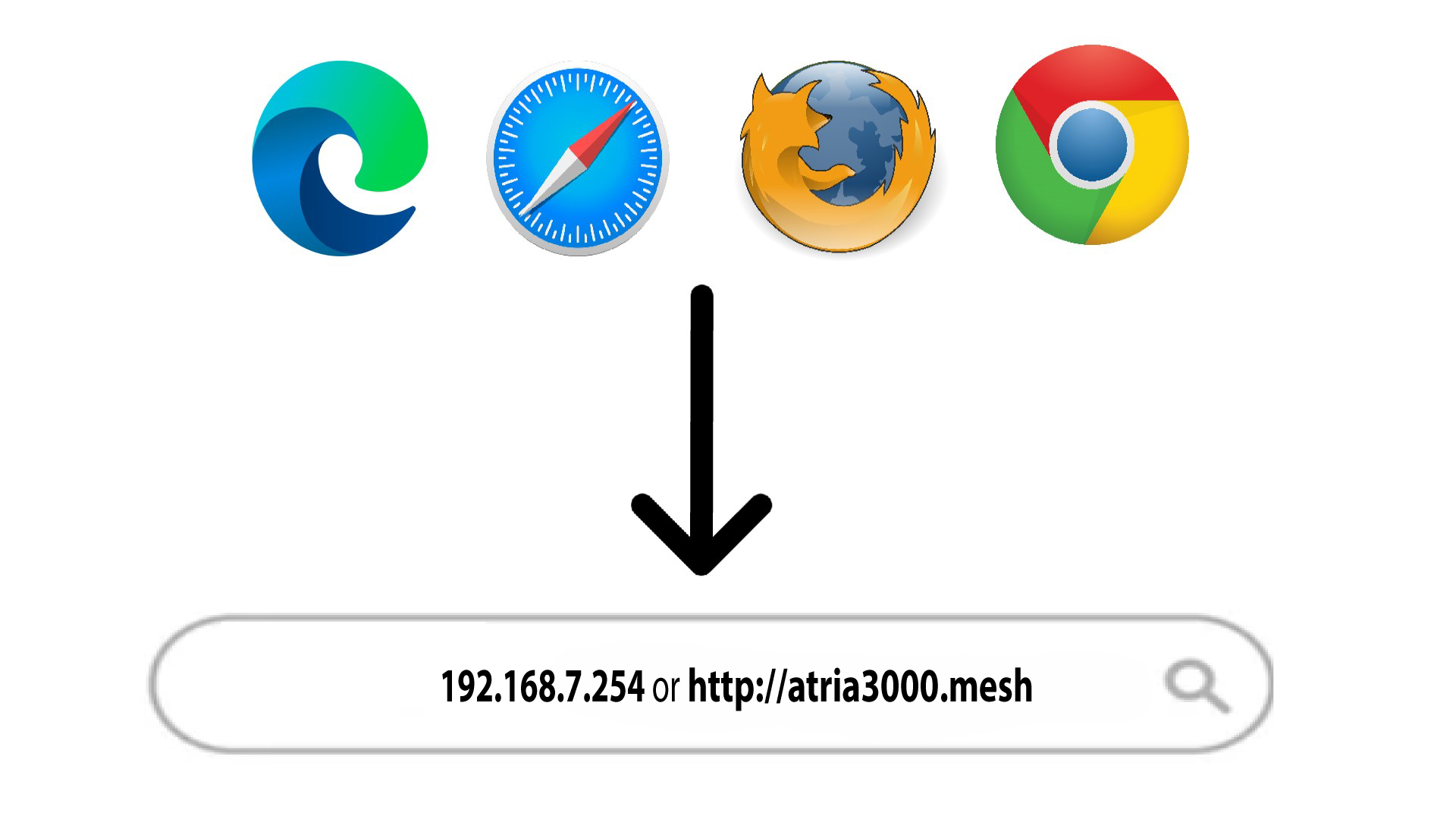
Indtast derefter følgende IP-adresse i din browser: 192.168.7.254, eller skriv følgende adresse: http://atria3000.mesh
3Indtastdine loginoplysninger
Du skal indtaste brugernavnet (admin) og adgangskoden (admin) (bemærk, at du efter den første login skal oprette din egen personlige administratoradgangskode, hvilket betyder, at den adgangskode, der står på produktetiketten, ikke længere vil fungere). Klik derefter på »Login«.

4.IPv4-konfiguration
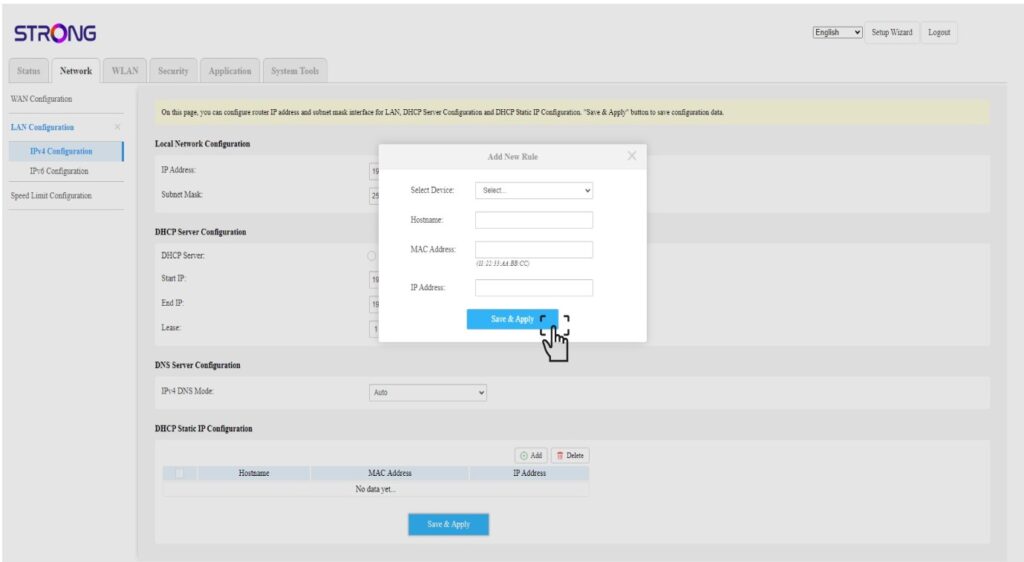
Klik på »Netværk«, »LAN-konfiguration « og »IPv4-konfiguration«.

5 Tilføjen IPv4-adresse
Klik på »Tilføj« i konfigurationen af statisk IP-adresse via DHCP. Indtast derefter følgende oplysninger, inden du klikker på »Gem og anvend«.
• Vælg enhed: Vælg enhedens navn på listen.
• Værtsnavn: Feltet udfyldes automatisk med enhedens navn.
• MAC-adresse: Feltet udfyldes automatisk med enhedens MAC-adresse.
• IP-adresse: Feltet udfyldes automatisk med den statiske IP-adresse, der er tildelt enheden