
ATRIA Wi-Fi 6 Mesh System 3000 (2-pack)
All questions
Settings and features
Can I configure a Guest Network for my Mesh network? (Case 1: Web UI)
To access the Web UI, you must be connected to the Wi-Fi of your device after connection the RJ45 cable in the WLAN port of your device and of the internet box.
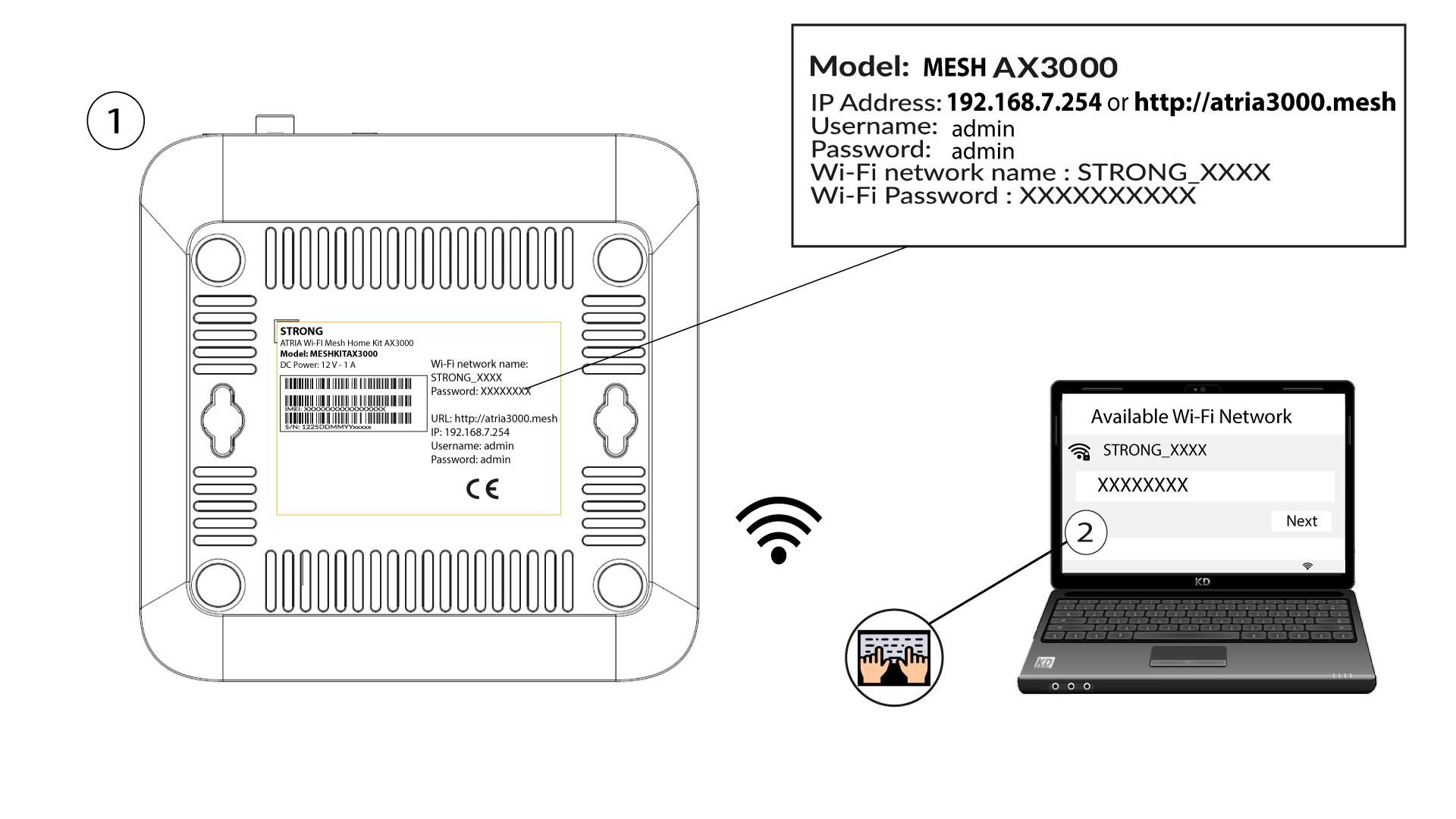
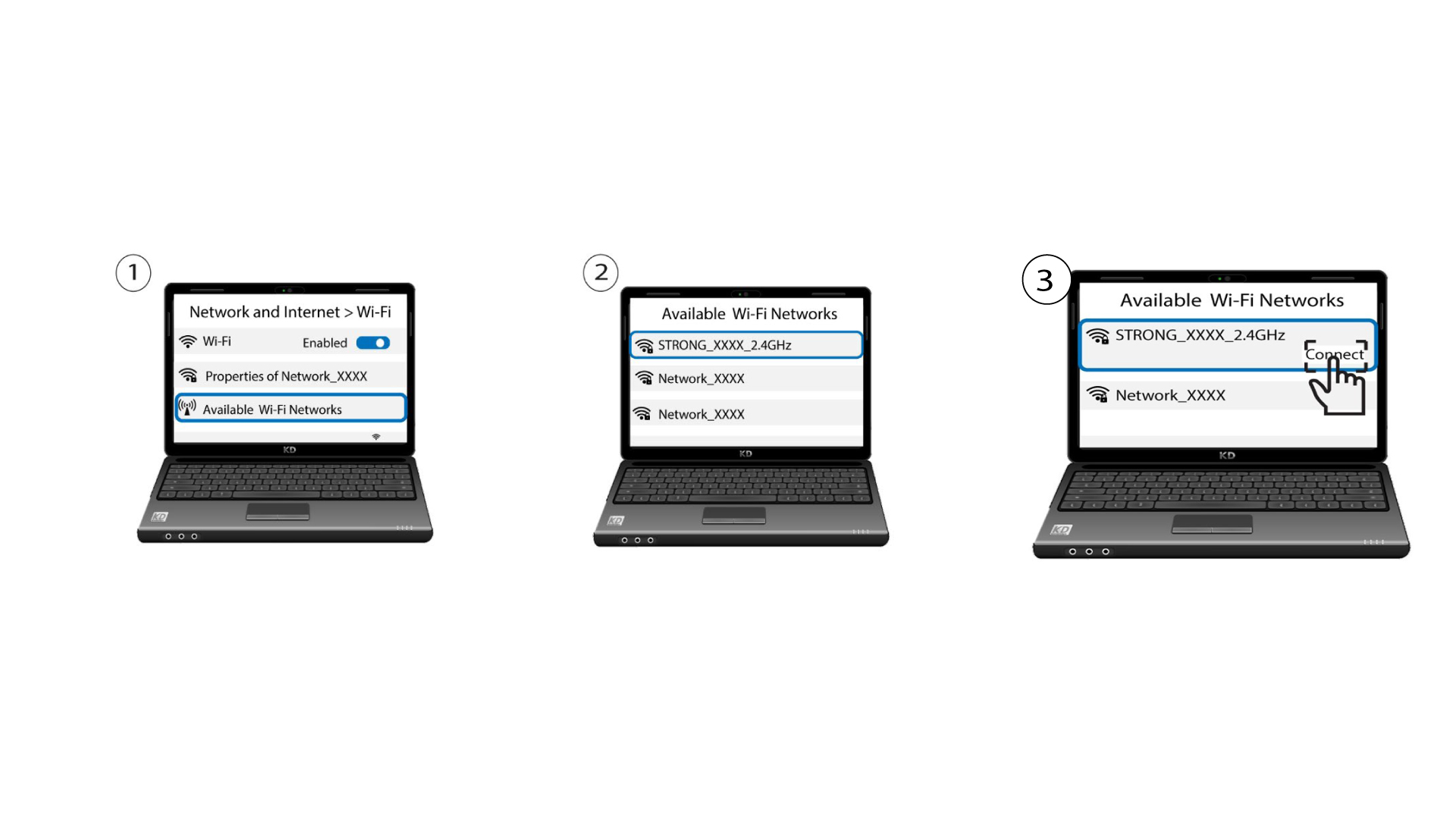
1Connect to the Wi-Fi of the device
To do so, enter the SSID (Wi-Fi Network Name) and Wi-Fi password of the router in your device:
2Browse to the Web UI IP Address
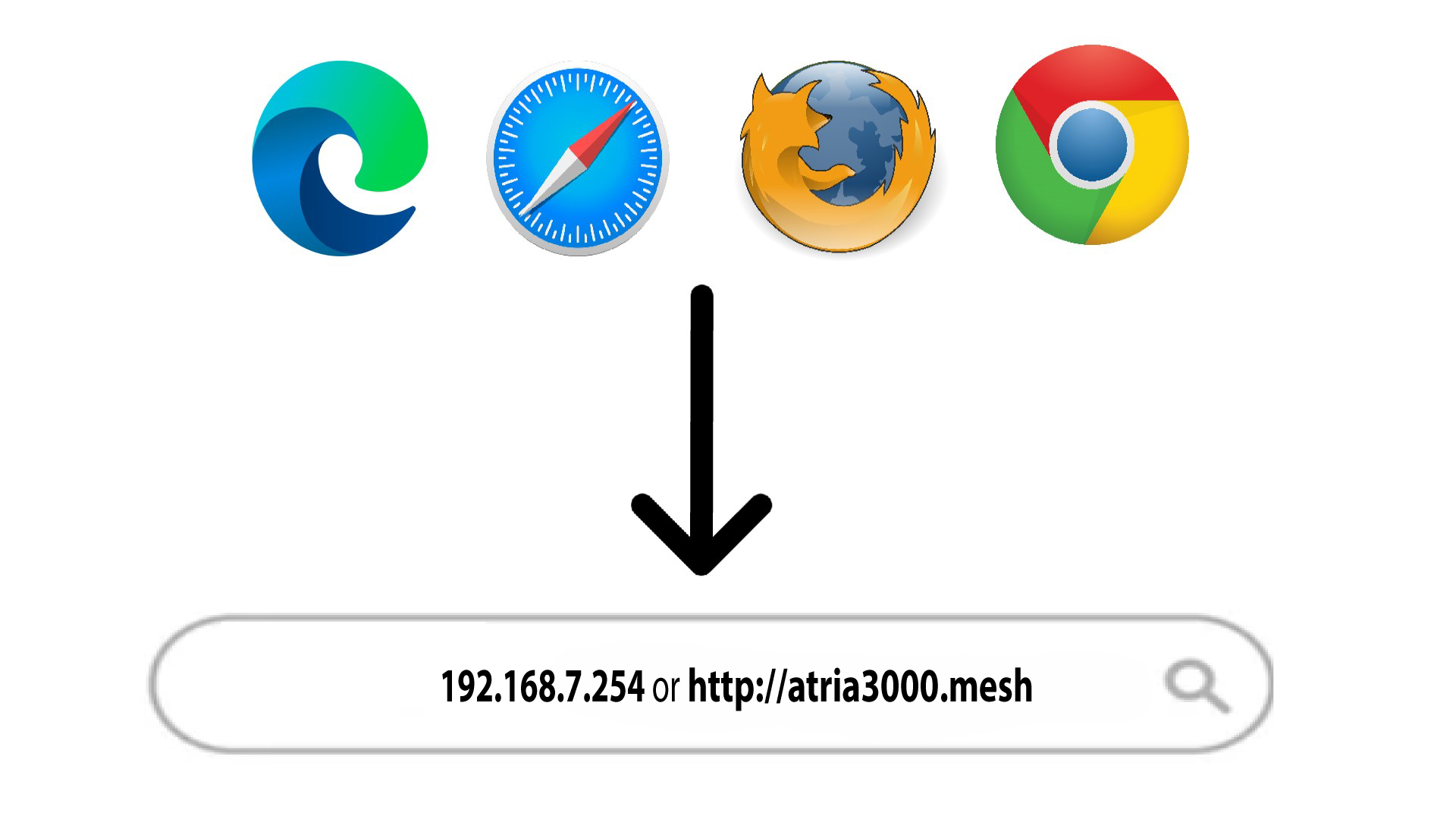
Then, enter the following IP address in your browser: 192.168.7.254 or type the following address : http://atria3000.mesh
3Enter your credentials
You must enter the Username (admin) and Password (admin) (please note that after the first connection you will create your personal admin password which means that the password written on the product label will not work any more). Then, click Login.

4WLAN 2.4G and 5G
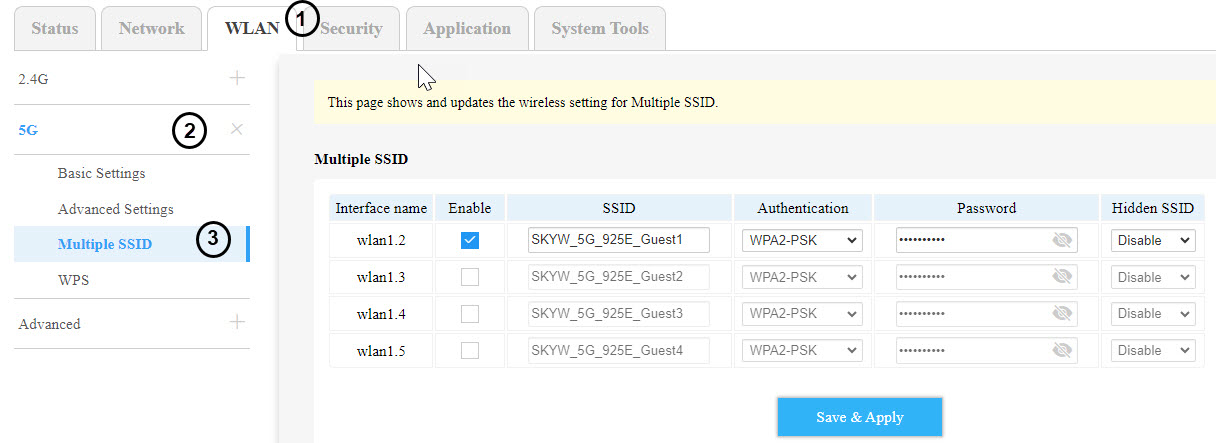
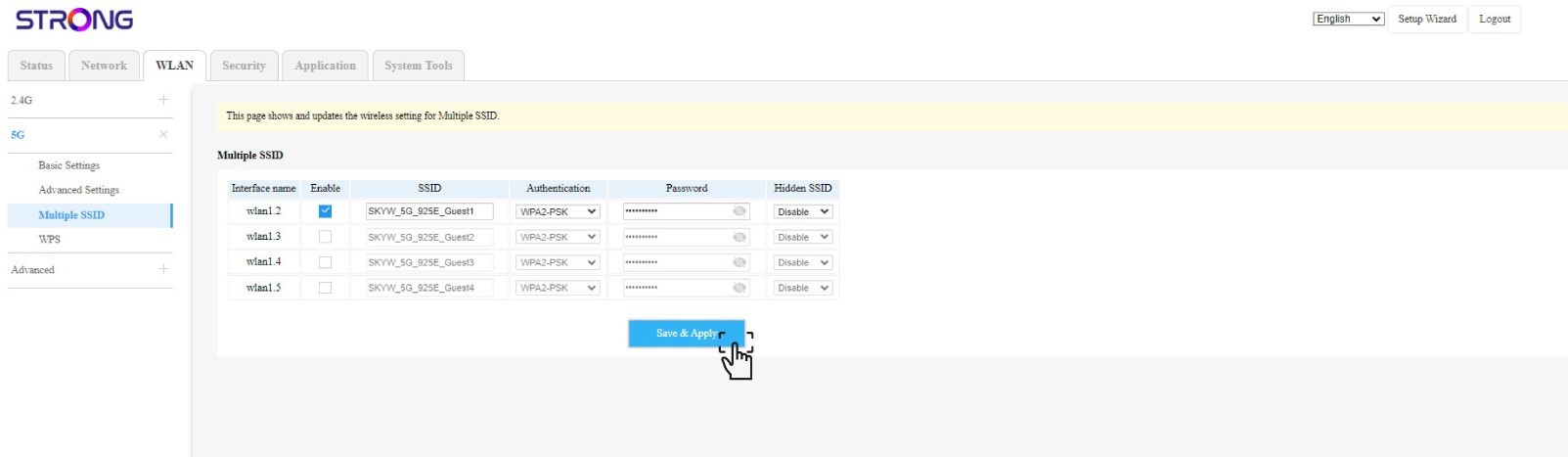
Then click WLAN in the top bar, go to the 2.4G or the 5G section depending on which network type you are on and then, click in Multiple SSID.
5Multiple SSID set-up
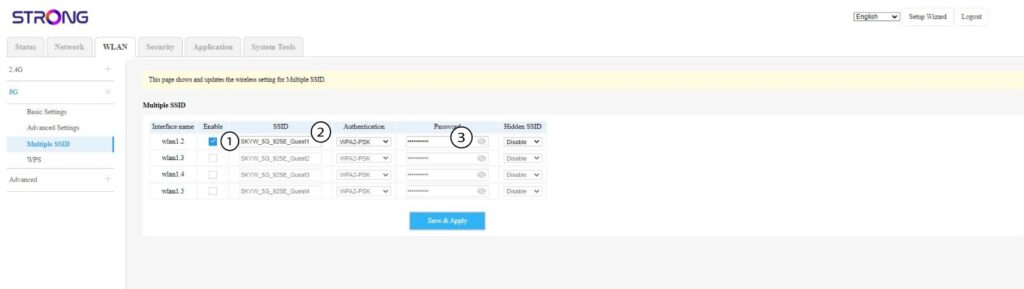
Now, click on Enable for the new Guest Wi-Fi you want to add to the network, you can modify the SSID (Wi-Fi Network Name) and set-up a unique Password. You can also choose the Authentication type and hide the SSID if you want to.
6Save the modifications
Click Save & Apply.
7Check the new Wi-Fi Network
The new guest network is now visible in the Wi-Fi Network list of your devices.
Can I configure a Guest Network for my Mesh network? (Case 2: Atria App)
To access the Web UI, you must be connected to the Wi-Fi of your device after connection the RJ45 cable in the WLAN port of your device and of the internet box.
1Case 2: Atria App
Download the application for smartphone 'ATRIA MESH' on the App Store or the Google Play Store.

2Enter your credentials
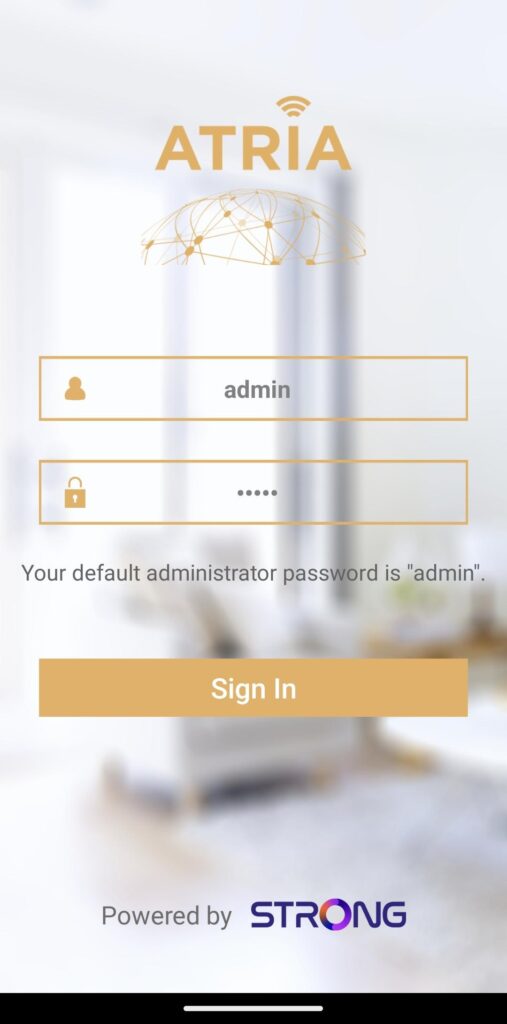
Then you need to be connected to the Wi-Fi of the Mesh with your smartphone and then login to the app with your credentials that should be 'admin' and 'admin' if you did not changed it.
3Guest Wi-Fi
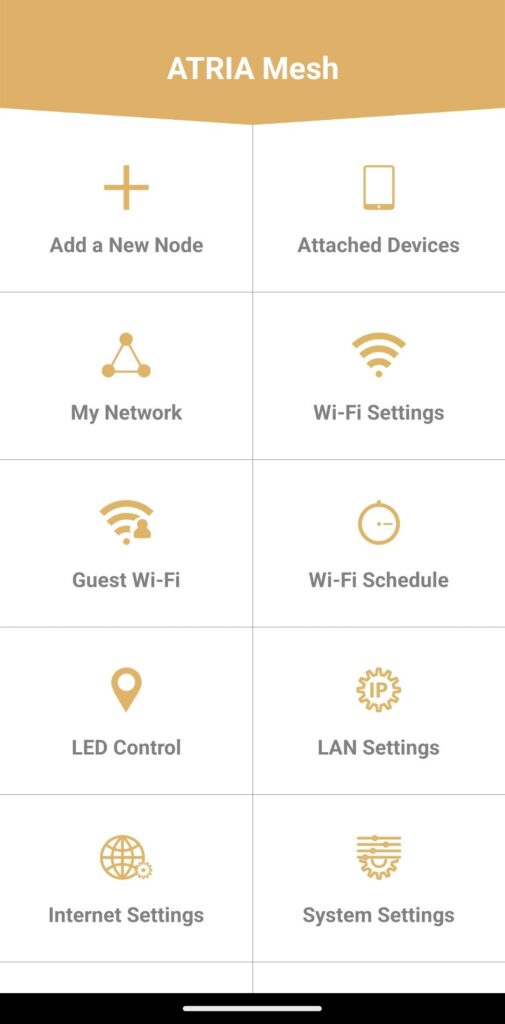
Now you are on the main page, click on Guest Wi-Fi.
4Set-up a Guest Wi-Fi
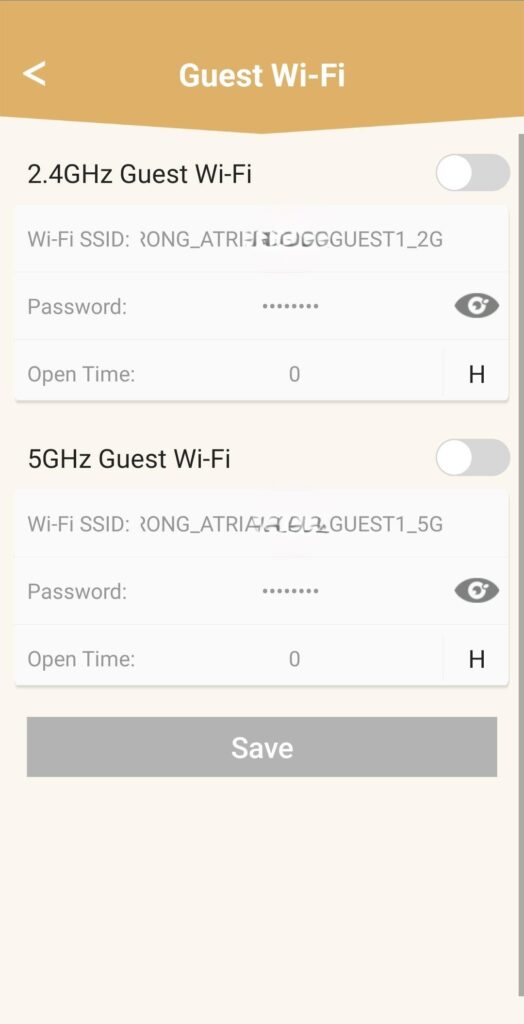
Then here, you can add a 2.4GHz or 5GHz Guest Wi-Fi Network.
• Press the toggle button of the network you want.
• Set up a unique SSID (Wi-Fi Network Name) and a unique Password.
• Then you can choose a time planning for when you want the Guest Wi-Fi to be active or not in Open Time.
• Click on Save.
5Check the new Wi-Fi Network
The new guest network is now visible in the Wi-Fi Network list of your devices.
How can I set a static IP address or allocate a dedicated IP Address for my Atria Mesh AX3000 unit?
It can be interesting to set a static IP for you mesh controller to have an easier access to the Web UI on your network in the Atria Mesh app.
You can also allocate dedicated IP Addresses to the devices connected on your mesh network in the Web UI.
1Case 1: Set up a static IP for the mesh controller in the Atria Mesh App
You must connect to the Wi-Fi of the mesh on your device and open the Atria application.
2Enter your credentials
Enter the username and password (admin/admin) before clicking Sign In.
3Internet settings - Static
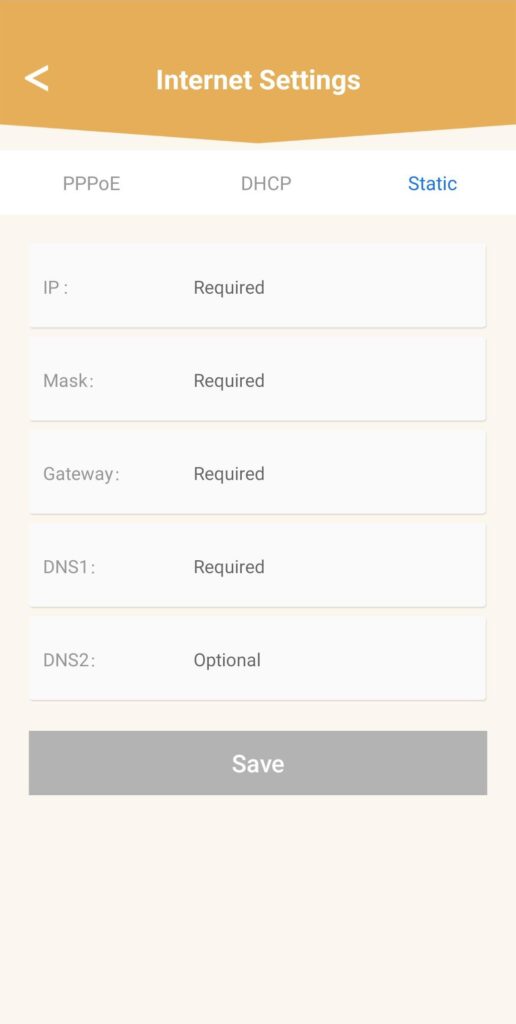
Click Internet settings and Static. You must enter the following information before clicking Save :
• IP: enter the IP address that you want to assign to the mesh.
• Mask: the field is automatically populated based on the IP address entered before.
• Gateway: the field is automatically populated based on the IP address entered before.
• DNS1: Enter the main DNS address of the service provider of your internet box.
• DNS2: Enter the secondary DNS address of the service provider of your internet box.
1Case 2: Allocate a dedicated IP address to your mesh agents/devices in the Web UI
To do so, enter the SSID (Wi-Fi Network Name) and Wi-Fi password of the router in your device:
2Browse to the Web UI IP Address
Then, enter the following IP address in your browser: 192.168.7.254 or type the following address : http://atria3000.mesh
3Enter your credentials
You must enter the Username (admin) and Password (admin) (please note that after the first connection you will create your personal admin password which means that the password written on the product label will not work any more). Then, click Login.
4IPv4 configuration
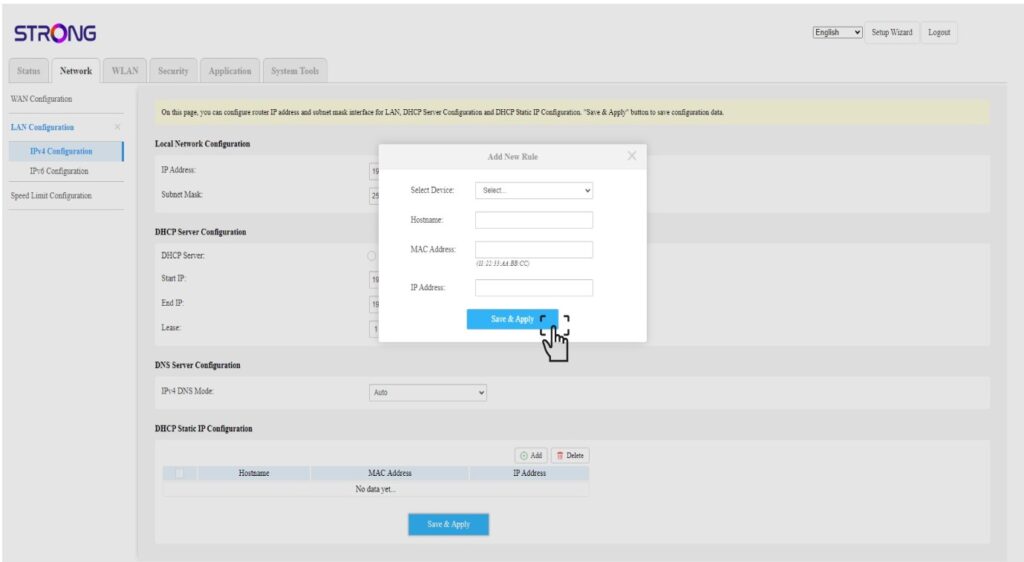
Click Network, LAN configuration and IPv4 Configuration.

5Add a IPv4
Click Add in the DHCP Static IP Configuration. Then enter the following information before clicking Save & Apply.
• Select device : select the device name in the list.
• Hostname: the field is automatically populated with the device name.
• MAC Address : the field is automatically populated with the MAC Address of the device.
• IP Address : the field is automatically populated with the static IP Address allocated to the device
How do I use the WPS function?

Warning: You can use the WPS function to set up the Wi-Fi connection between your router and your computers, smartphones and/or your printer, for instance.
It is very easy to activate the WPS on your router.
1Mesh
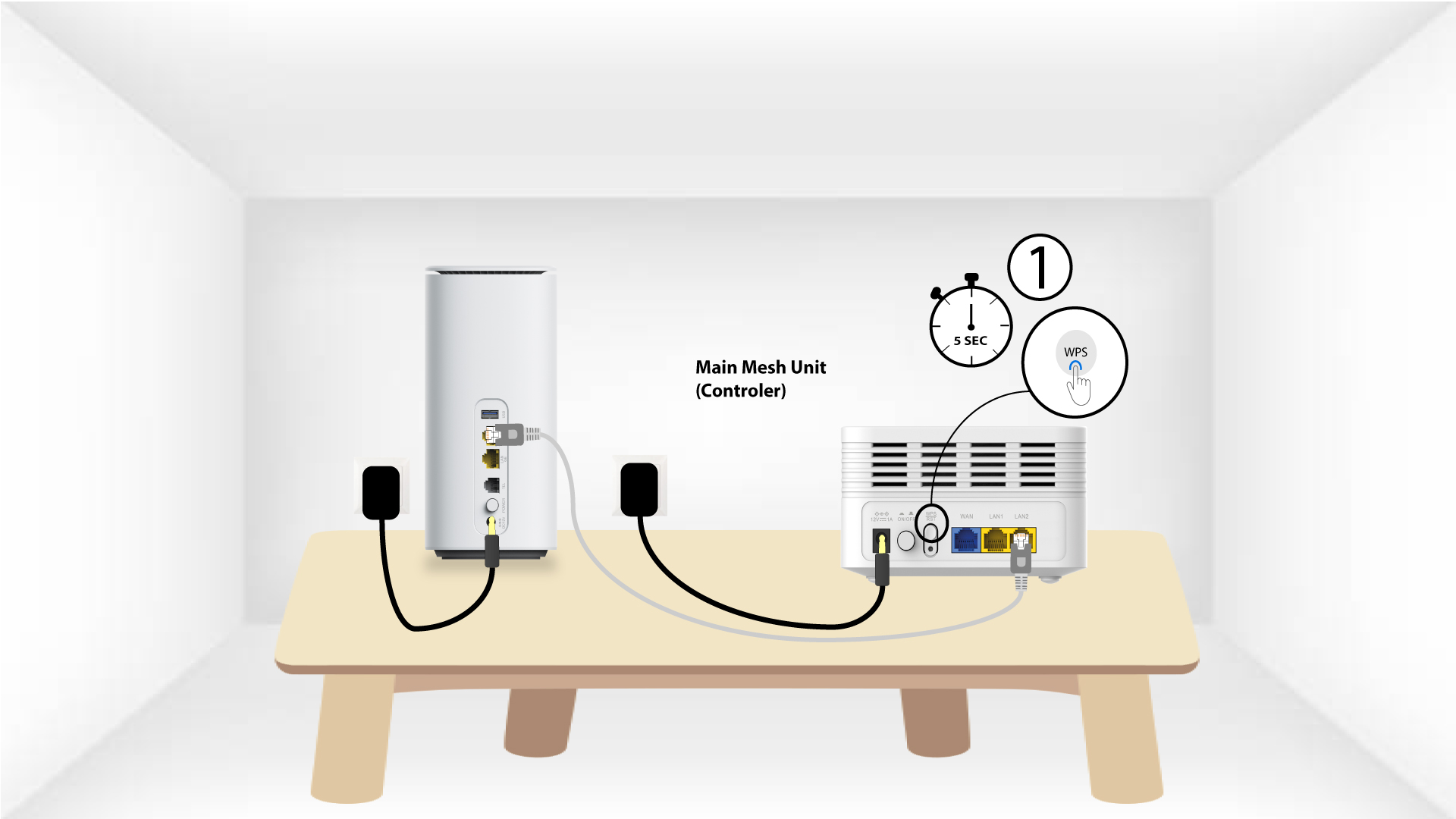
To do so, press the WPS button for 5 seconds on the Mesh unit that is connected to your Mesh Network.
2Network selection
Now go the the Network selection of your device (phone, computer, printer, etc.) and the new device added to the network should appear and you can now connect to its network.