
ATRIA Wi-Fi 6 Mesh System 3000 (2-pack)
All questions
Credentials and Web UI access
How can I access the Web UI of the different Mesh units?
To access the Web UI of the different mesh units you first need to:
1Connect to the Wi-Fi of the device
To do so, enter the SSID (Wi-Fi Network Name) and Wi-Fi password of the router in your device:
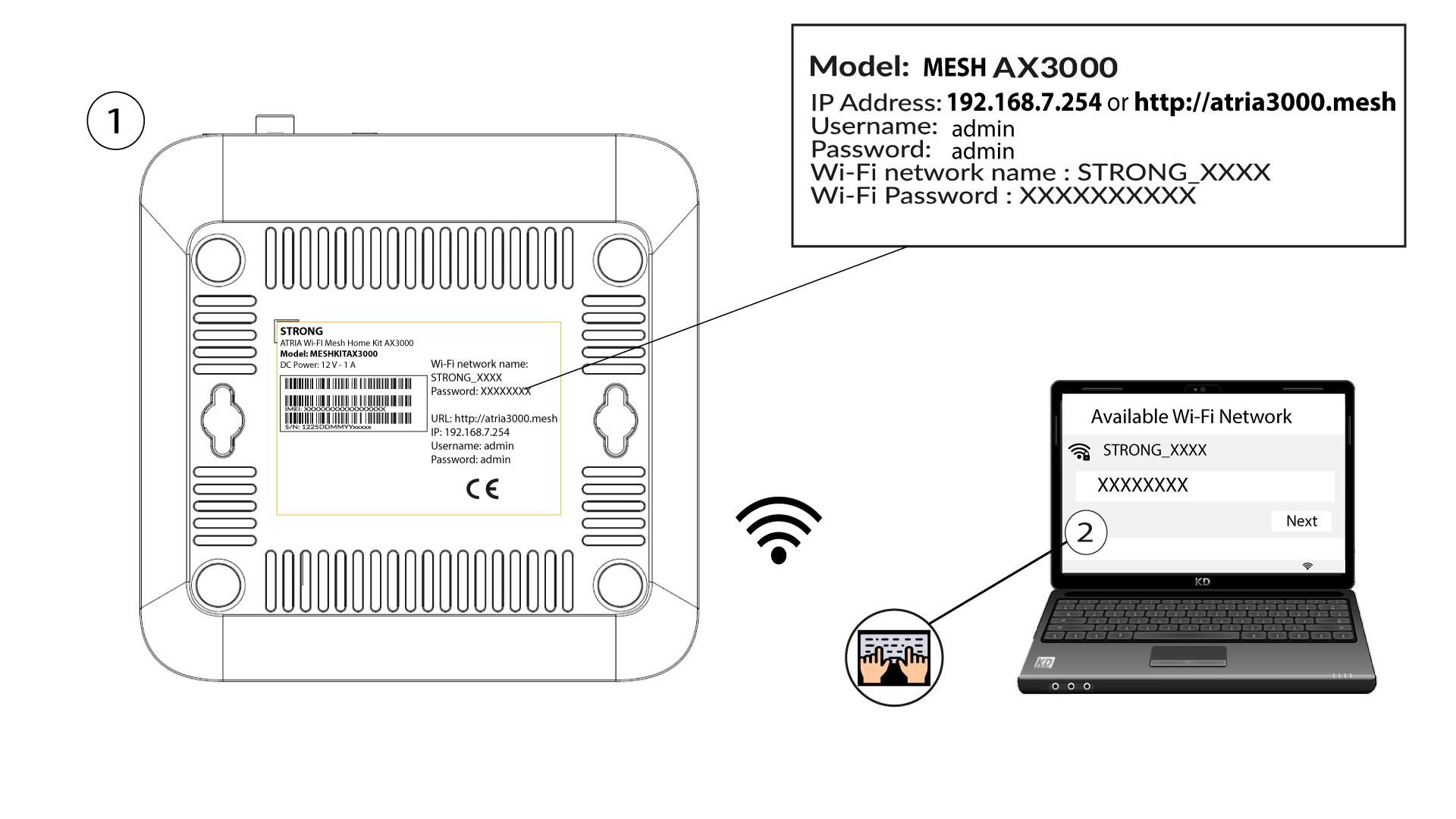
2Browse to the Web UI IP Address
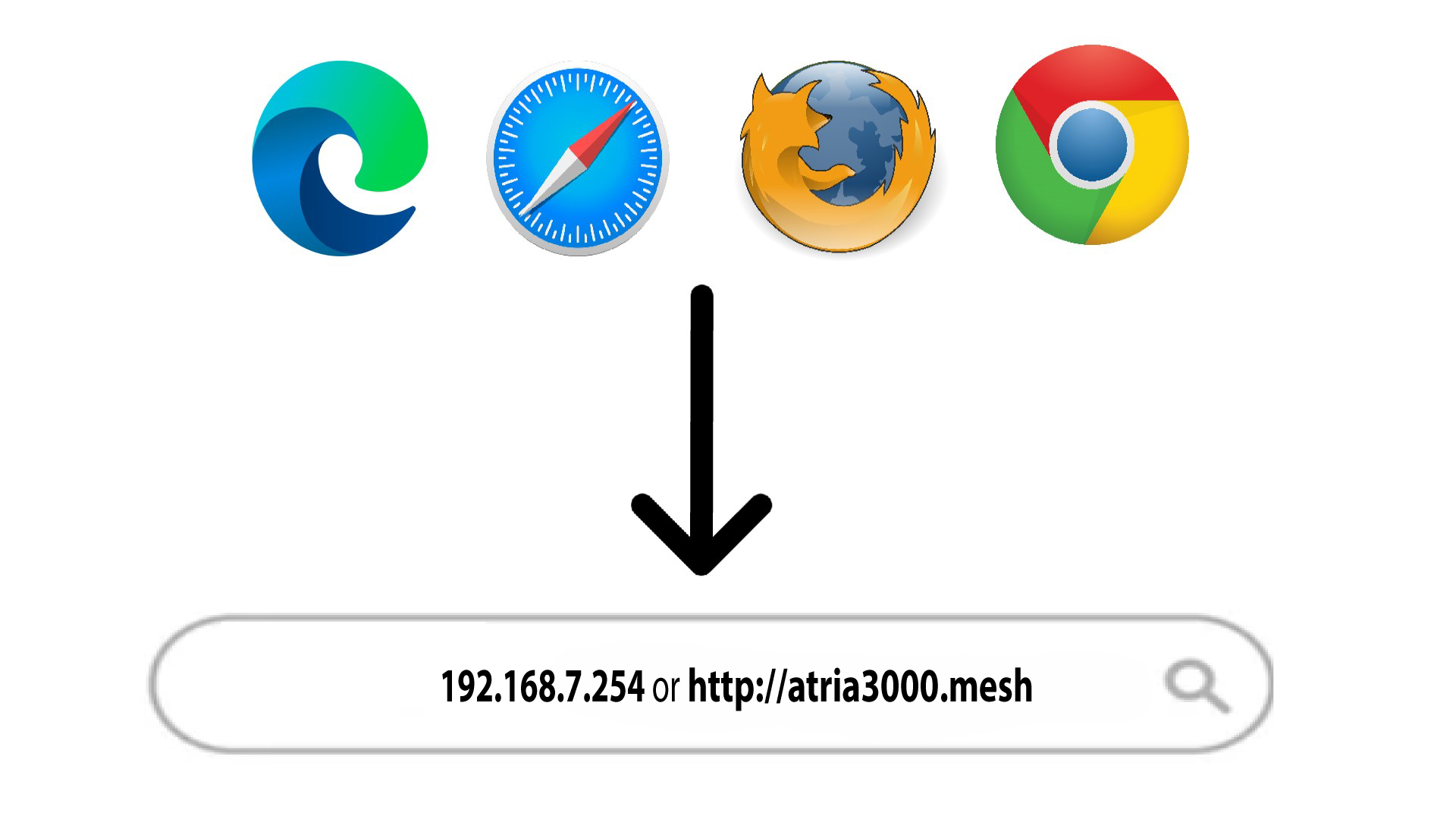
Then, enter the following IP address in your browser: 192.168.7.254 or type the following address : http://atria3000.mesh
3Enter your credentials
You must enter the Username (admin) and Password (admin) (please note that after the first connection you will create your personal admin password which means that the password written on the product label will not work any more). Then, click Login.

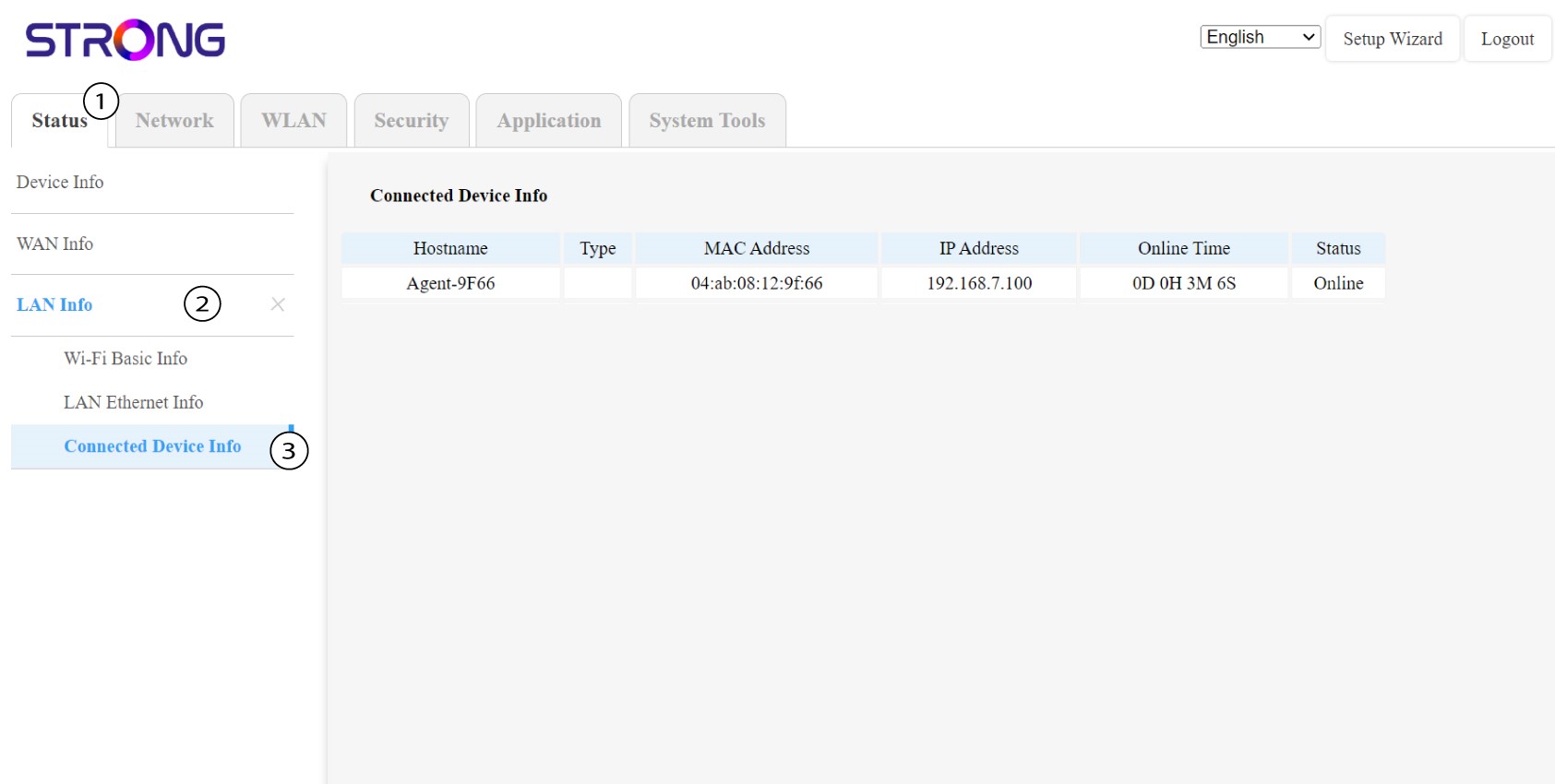
4LAN Info
Click Status and LAN Info. Then in the connected device information look for the IP Address of the additional mesh units that are called Agent xxxx.
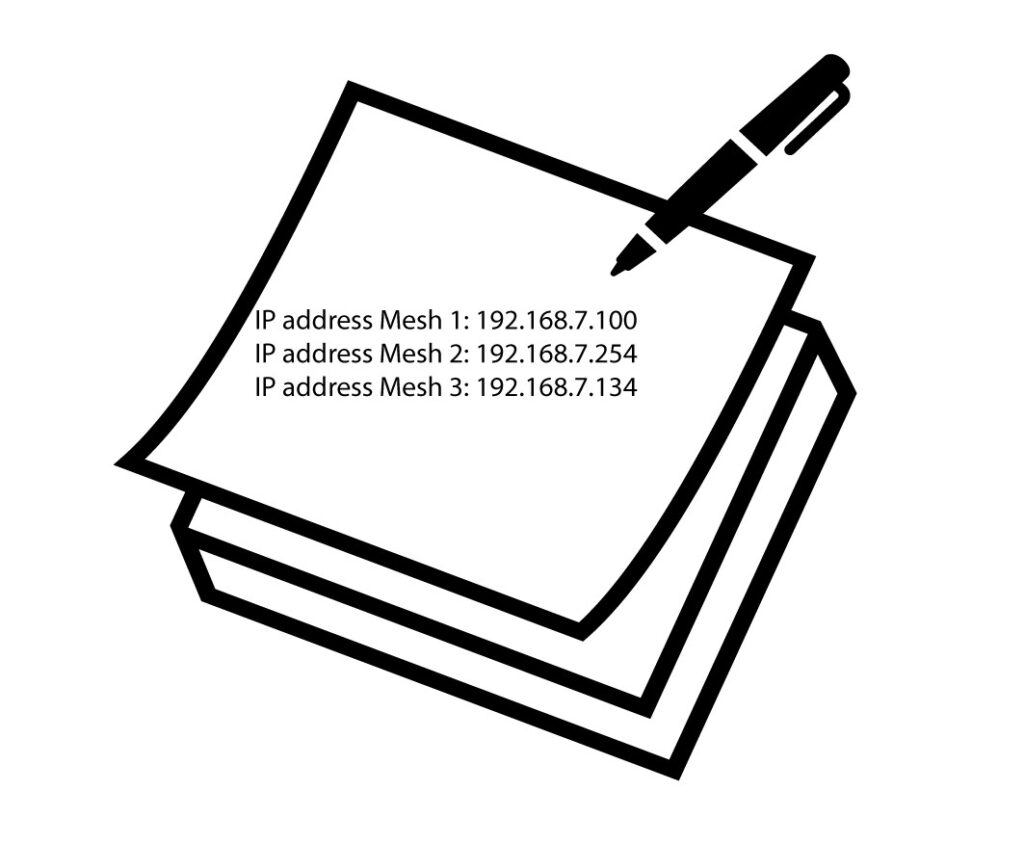
5Write down the information
Write down the IP address of each Mesh units.
6Secondary Mesh unit IP addresses
Enter the IP address of the mesh unit in your browser.
7Enter your credentials
Then enter the credentials (admin/admin).
Tip: please rename the different mesh units by following this format:
ATRIA MESH MAIN – ROOM NAME
ATRIA MESH – ROOM
How do I access the Web UI?
To access the Web UI, you must be connected to the Wi-Fi of your device after connection a Ethernet cable to the WLAN port of your internet box and in the WLAN port of the Mesh unit.
1Connect to the Wi-Fi of the device
To do so, enter the SSID (Wi-Fi Network Name) and Wi-Fi password of the router in your device:
2Browse to the Web UI IP Address
Then, enter the following IP address in your browser: 192.168.7.254 or type the following address : http://atria3000.mesh
3Enter your credentials
You must enter the Username (admin) and Password (admin) (please note that after the first connection you will create your personal admin password which means that the password written on the product label will not work any more). Then, click Login.
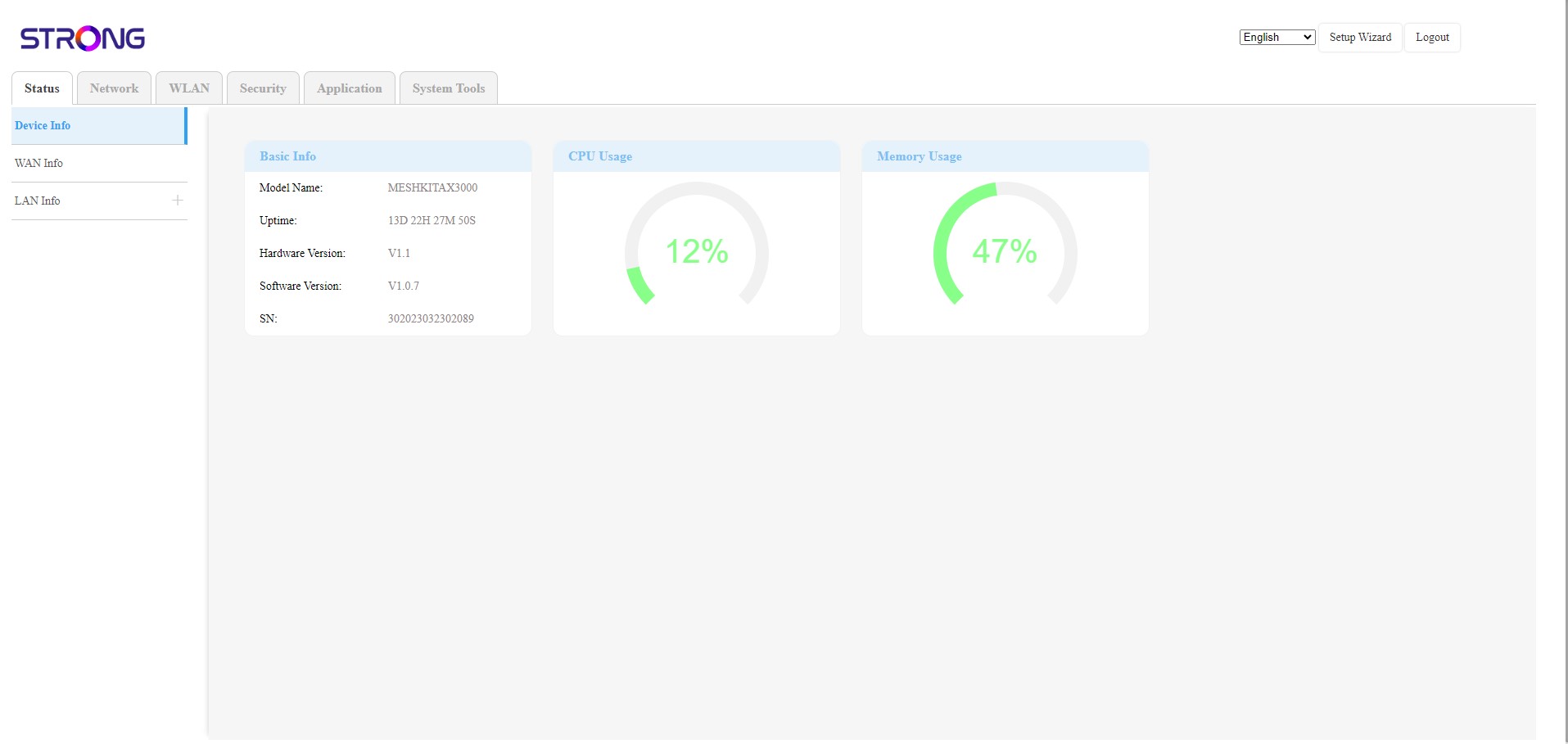
4Main page
You are now on the main page of the Web UI. You may need to change the password for the Web UI after your first connexion, to do so please do the following instructions.
I cannot access the Web UI, why?
There are several reasons why you cannot access the Web UI :
• The main Mesh unit is not connected to the Ethernet Network of your internet box via a RJ45 cable.
• Your device is not connect the Wi-Fi network of the mesh unit.
• You are not entering the right credentials, by default those are 'admin' and 'admin' for the Username and the Password. If you changed it and don't remember it, you can reset your Mesh unit to its default factory settings.
• Your device is not update and you need to reset it to its factory settings.
I forgot the Wi-Fi password of my Mesh network, how I can find it?
How do I create or modify the Wi-Fi password of my Mesh network?
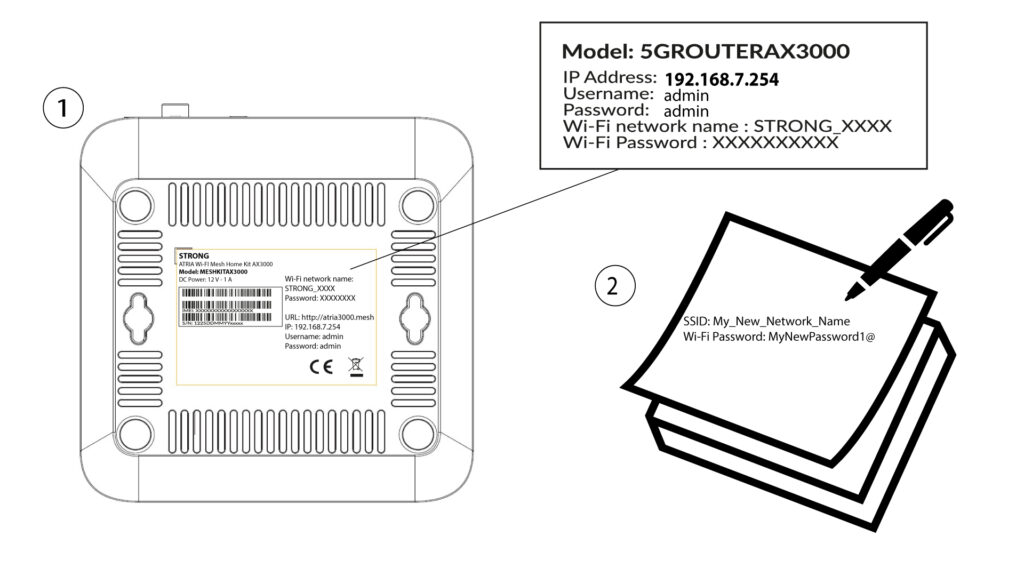
1Default Password location
The default Wi-Fi password is located under your device, however, if you already changed it, you may need to restore the Mesh AX 3000 to its default factory settings.
To do so please refer to the following section : How do I reset my Mesh units to the factory settings?
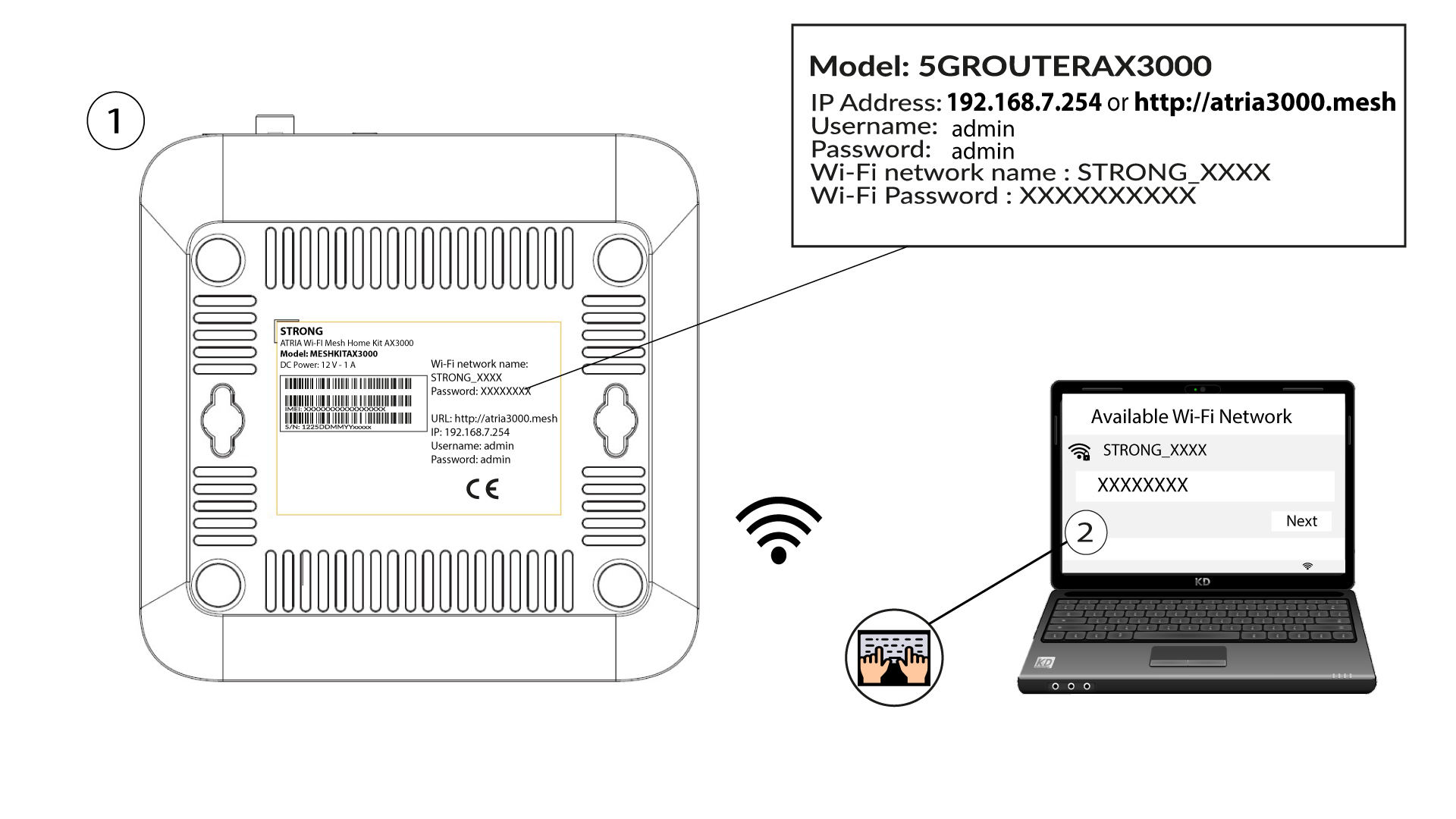
Once this is done, you can modify the Wi-Fi default password to your own personal password
1Connect to the Wi-Fi of the device
To do so, enter the SSID (Wi-Fi Network Name) and Wi-Fi password of the router in your device:
2Browse to the Web UI IP Address
Then, enter the following IP address in your browser: 192.168.7.254 or type the following address : http://atria3000.mesh
3Enter your credentials
You must enter the Username (admin) and Password (admin) (please note that after the first connection you will create your personal admin password which means that the password written on the product label will not work any more). Then, click Login.
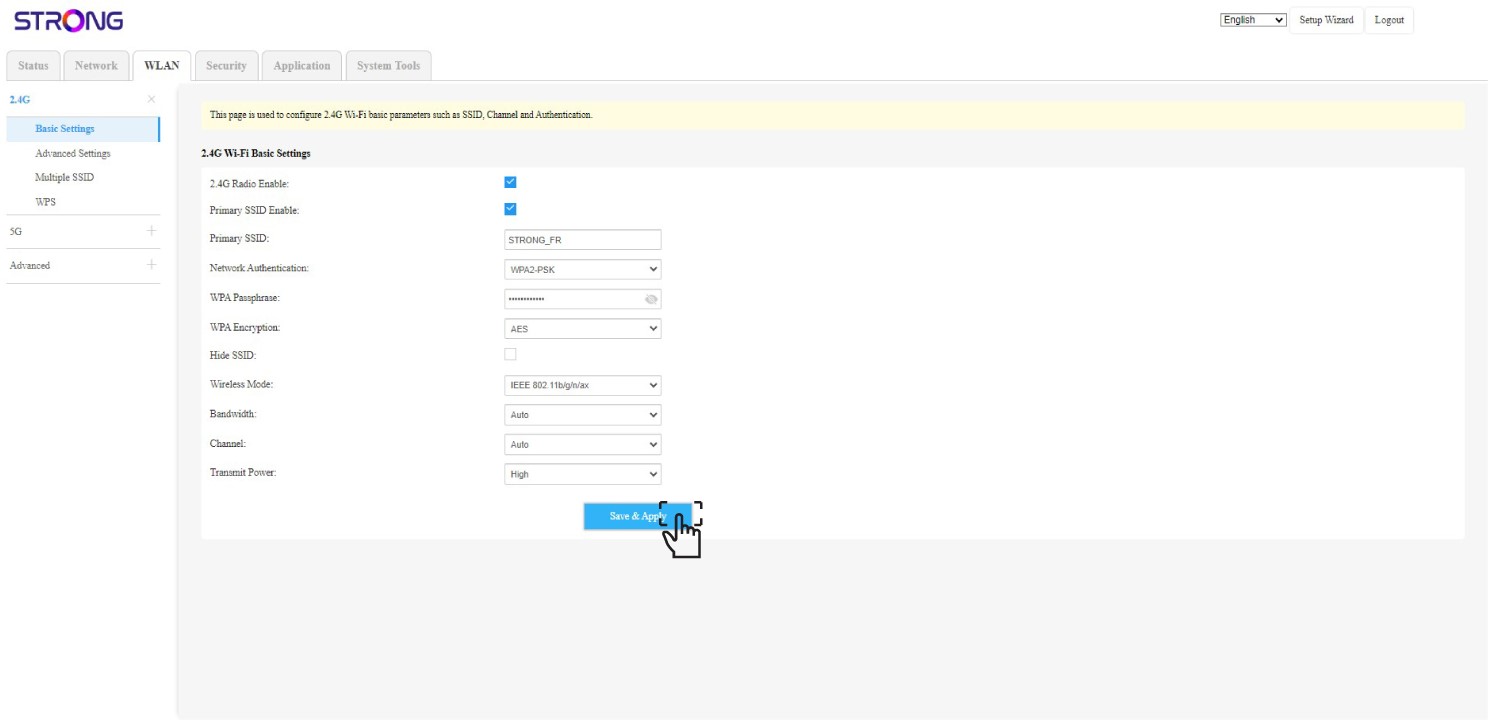
4WLAN 2.4G and 5G
Then, click WLAN in the top bar and go to 2.4G or 5G depending on which network type you are connected on. Then, go to Basic Settings.
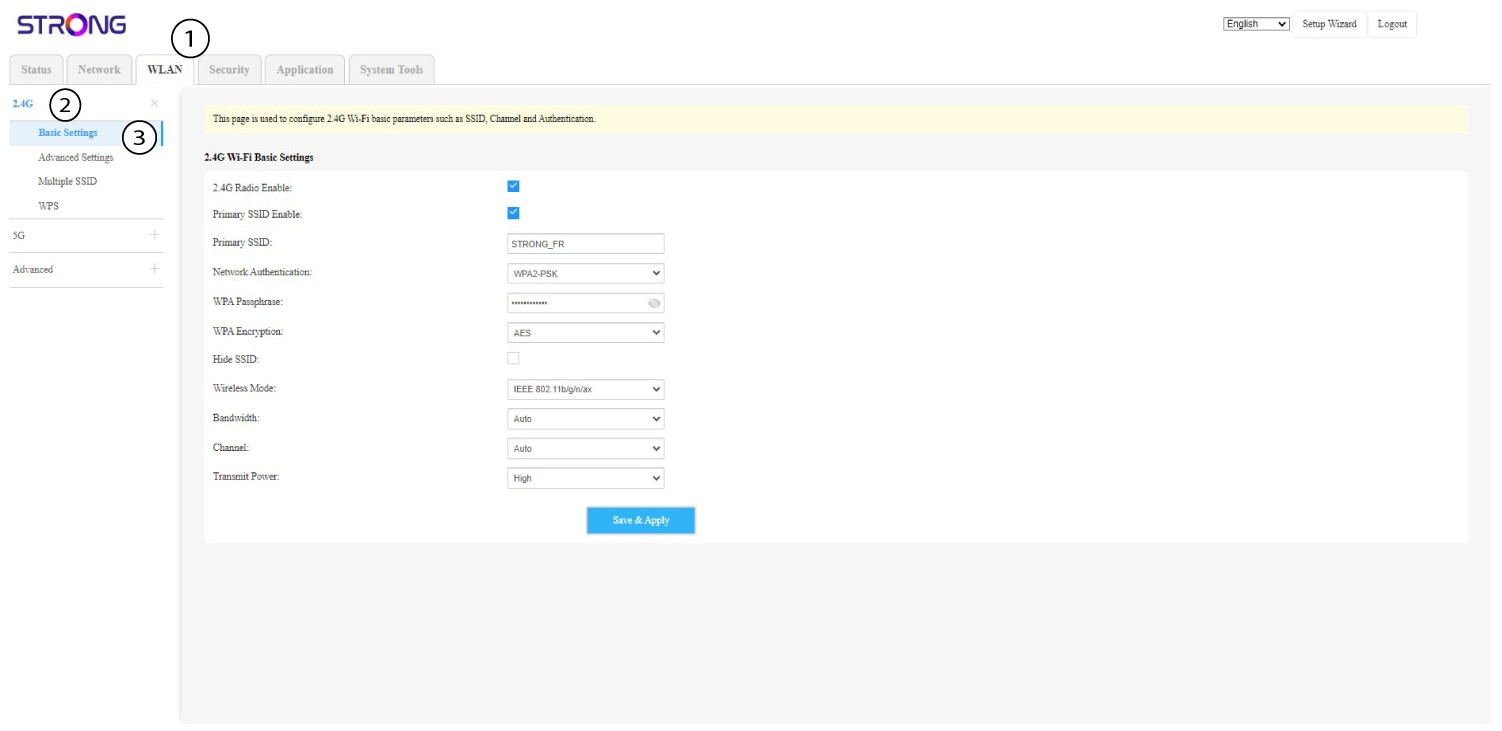
5Change password
Now, you can change the password in the WPA Passphrase section. You can check if your wrote the right one thanks to the little eye icon option.
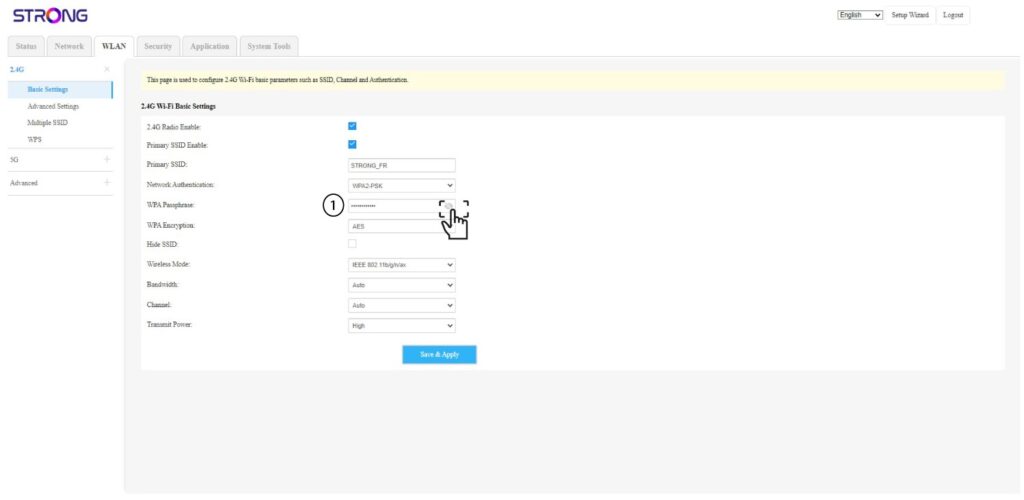
6Write it down
Write down the new password on a piece of paper and tape it to your device.
7Save the modifications
Click Save & Apply.
What can I do in the Web UI?
1Connect to the Wi-Fi of the device
The Web UI is divided into 6 sections:
• Status: Where you can find all the informations about the Mesh device and Network.
• Network: where you can configure the WAN, the LAN settings (IPv4 / IPv6) and set up a Speed Limit.
• WLAN: where you choose between 2.4G and 5G network, set up multiples SSID, the WPS, manage the internet access of the different mac address, modify the SSID and Wi-Fi Passwords and set up a Mesh.
• Security: where you can set up a firewall, DoS Settings, URL/MAC filters, IP filters, parental/service control and Schedule the Mesh Network activation.
• Application: where you can configure the NAT settings (ALG, DMZ, Port Forwarding), a VPN, the SNTP (Time zone), a VPN, a Dynamic DNS, the UPnP and access the IPTV Configuration.
• System Tools: where you can change the login credentials, reboot the device, update the firmware, save and restore a backup, reset to factory settings, manage the LEDs, access the logs and launch diagnostics.
Where can I find the SSID (Wi-Fi Network Name) and Wi-Fi password of my Mesh Network?
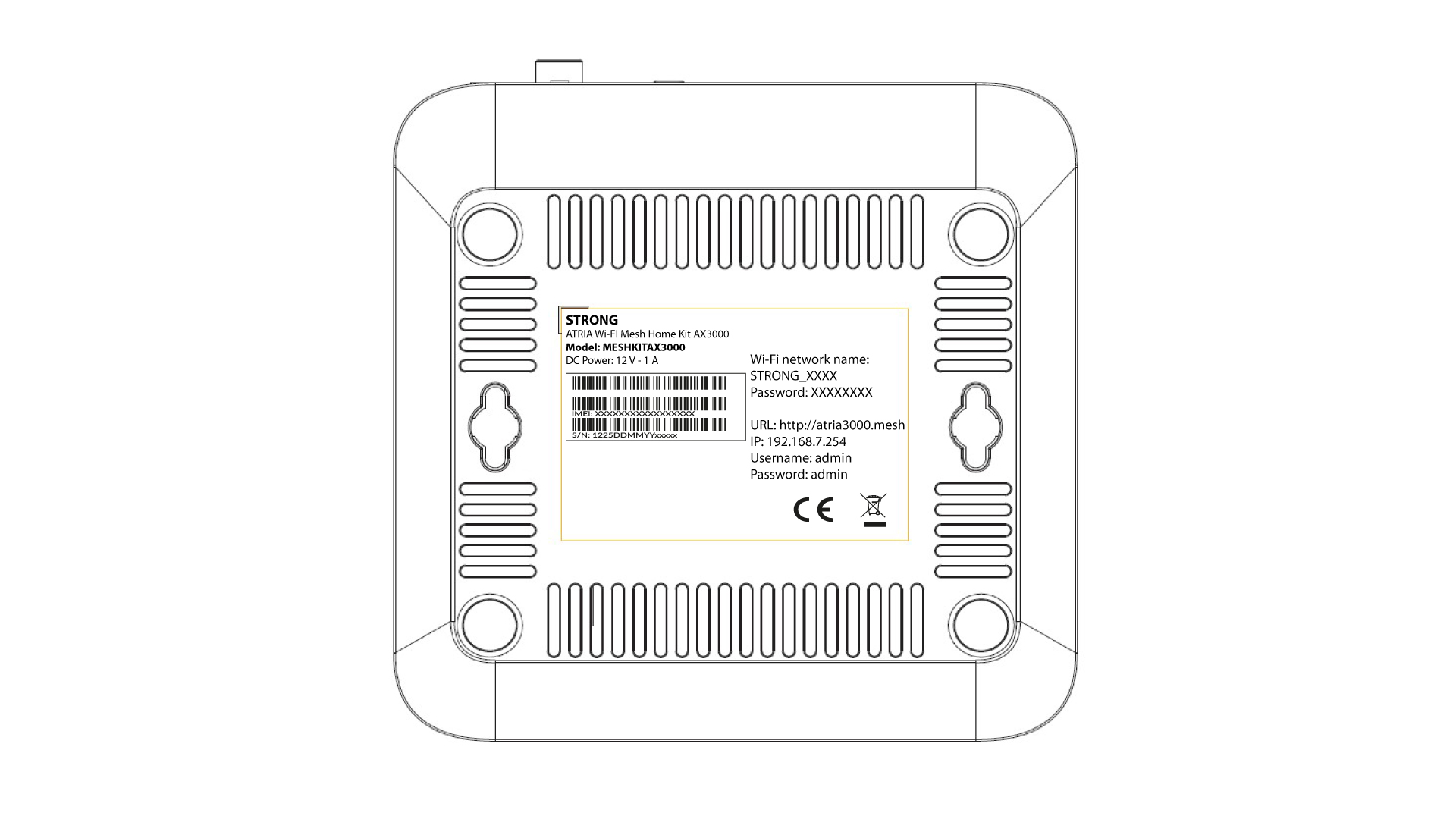
1Find the information
You can find the information of each Wi-Fi networks of the mesh units on the label located under the product.
Where can I find the credentials to access the Web UI?
1Credentials on the Mesh
The credentials to access the Web UI are located under your Mesh AX3000. By default the Username and Password for the Web UI are 'admin'.