
ATRIA Wi-Fi 6 Mesh System 3000 (2-pack)
All questions
Wi-Fi and network troubleshooting
Can I connect my Mesh nodes via the Ethernet cable?
Yes, it is possible to connect your Mesh nodes via an Ethernet cable (RJ45). Any device can be connected via RJ45 to any mesh unit of your Mesh network.

Warning: The main Mesh must be connected to the internet box of your service provider via a RJ45 cable.
How can I add new Mesh units to the existing network I just configured?
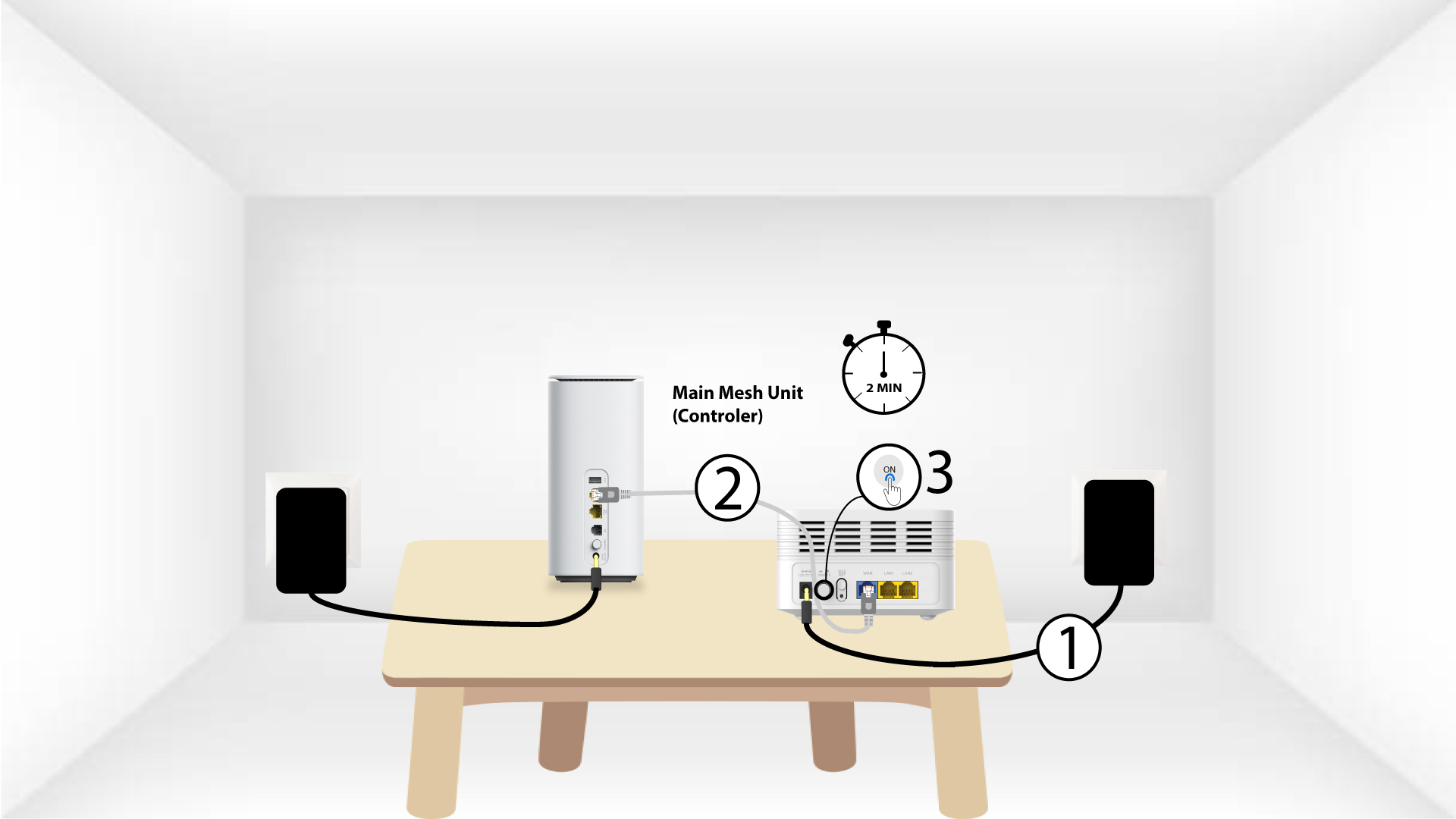
1WPS Button main Mesh
To do so, press the WPS button for 5 seconds on the Mesh unit that is connected to your router/modem by RJ45.
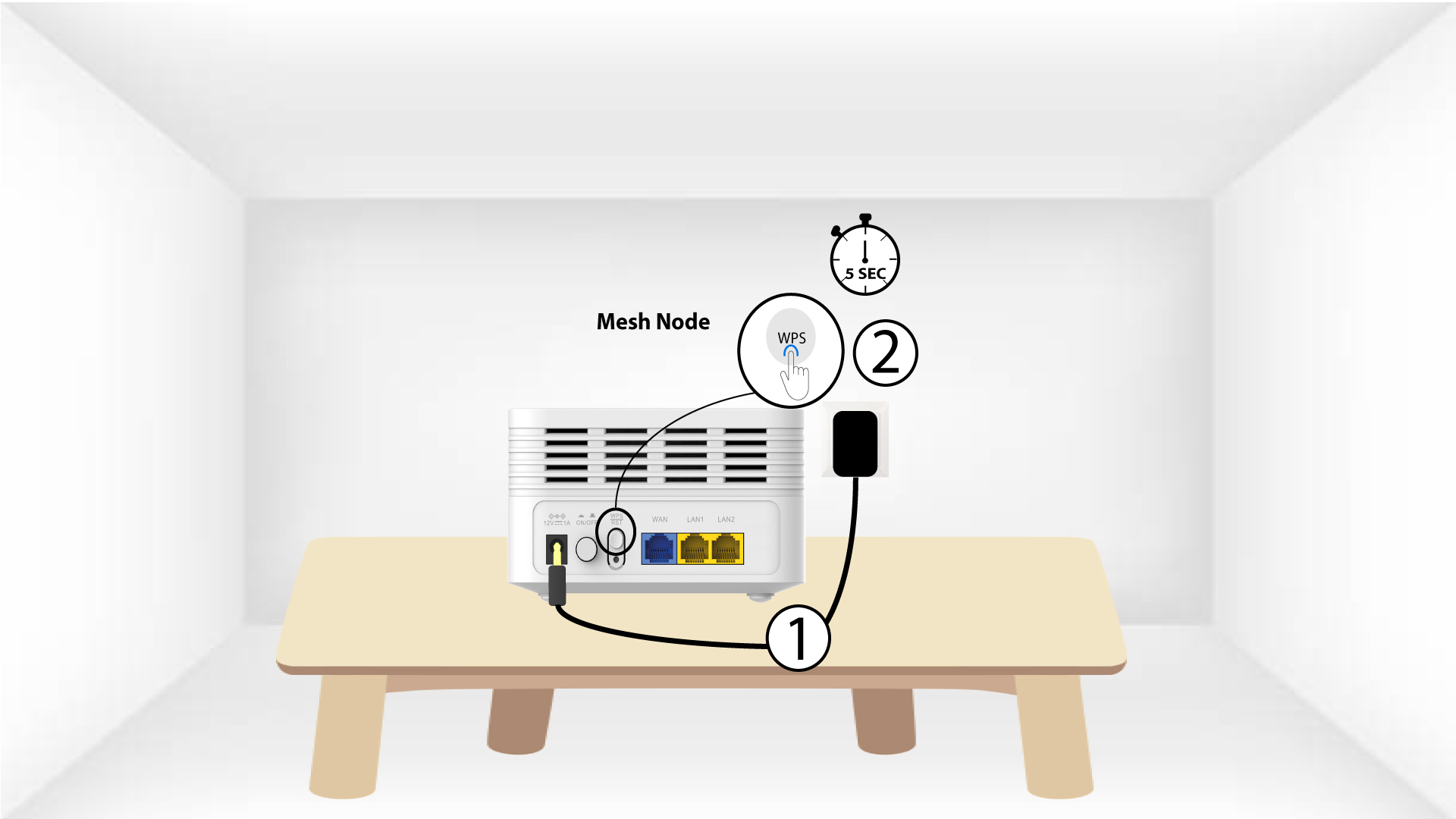
2WPS button secondary Mesh unit
Then, press the WPS button on the new unit for 5 seconds.
How can I have 2 different Wi-Fi Network with my Mesh?
You have different options to have several Wi-Fi Networks with your mesh units:
• You can set up your mesh unit as access points instead of mesh nodes.
• You can deactivate the band steering option of your device that creates a single Wi-Fi Network for the 2.4G or 5G bands.
• You can also configure a guest network.
We advise you to set up a guest network if you need to have several Wi-Fi networks at home.
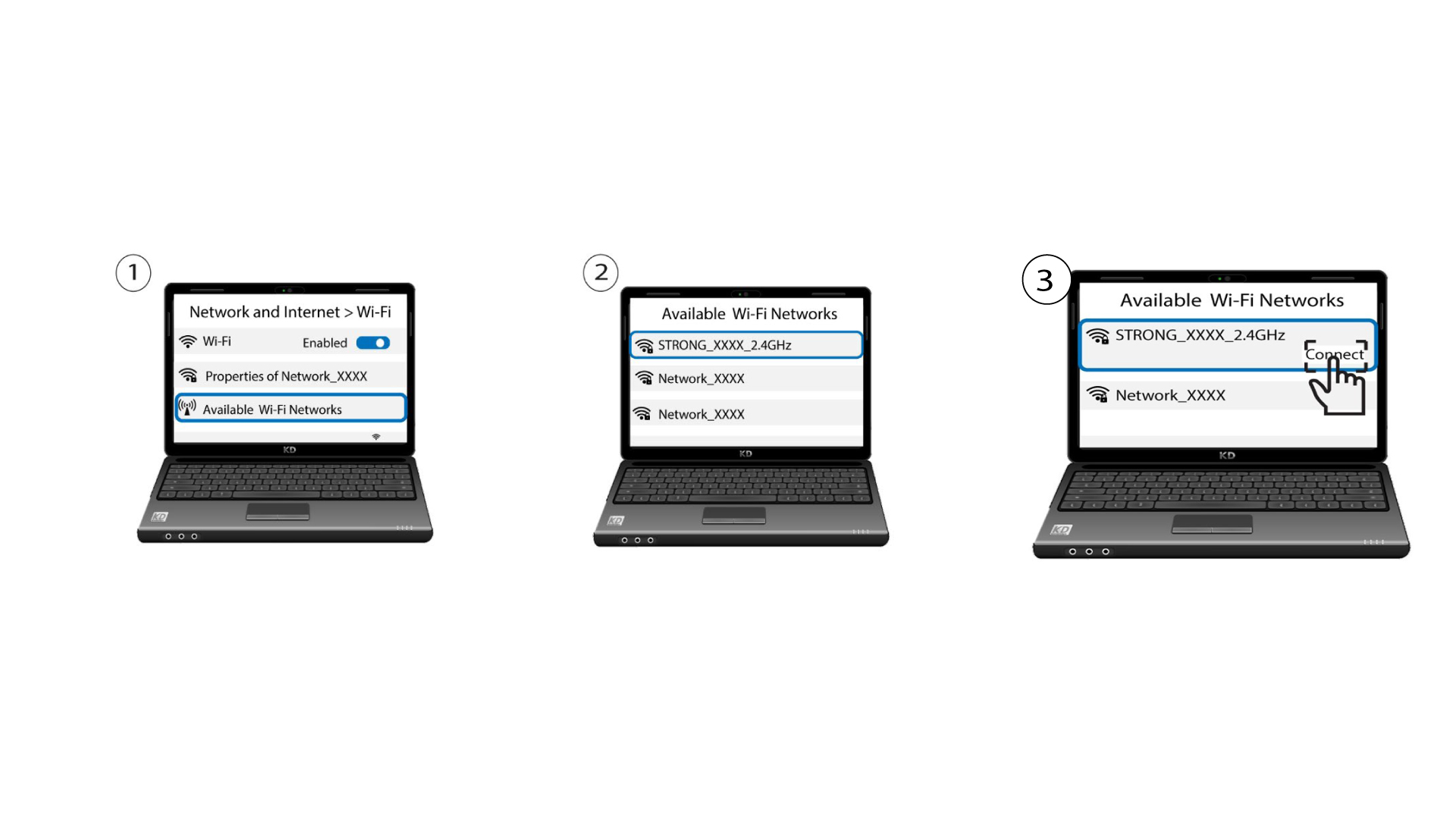
1Different SSID check
Then you should see 2 different SSID (Wi-Fi Network Name) in the Wi-Fi list of your devices.
How can I identify the IP addresses of the different Mesh units of my Network?
To find the IP addresses of the different Mesh units of your Network you first have to connect to the Web UI or in the app while being connected to the Mesh Network.
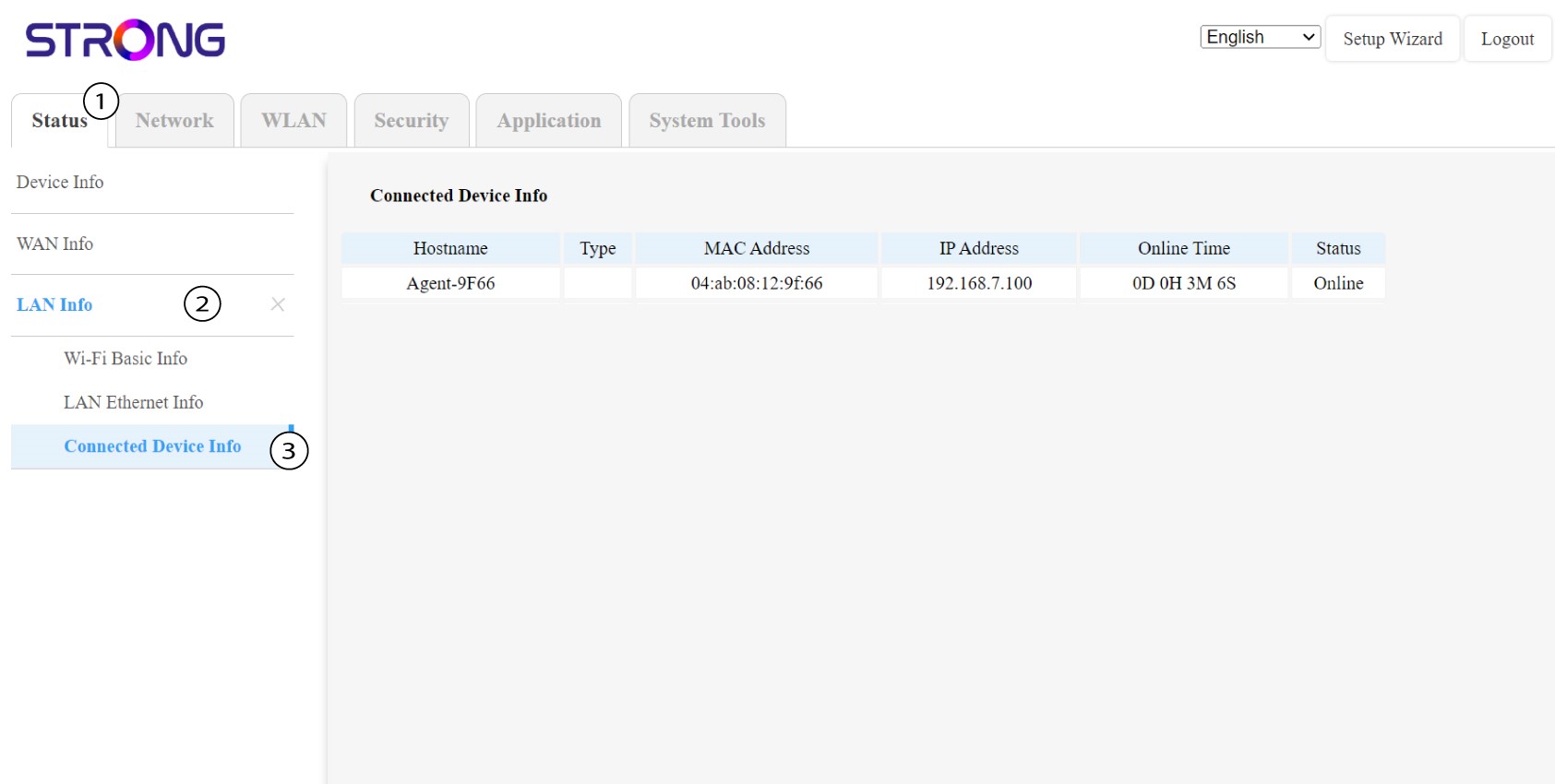
1Case 1: Web UI
In the Web UI, in Status, LAN Info and Connected Info you can see the IP address of a Mesh named 'agent' and write it down.
1Case 2: App
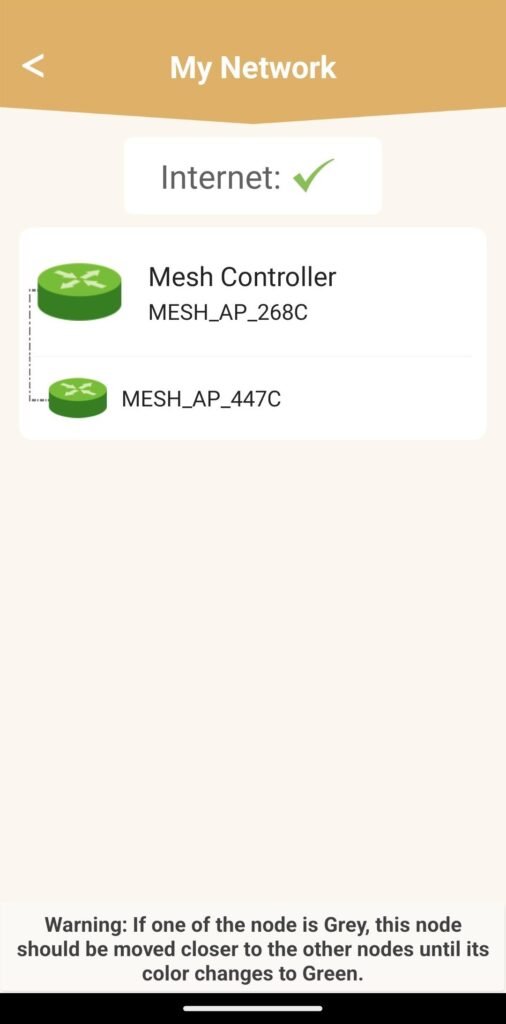
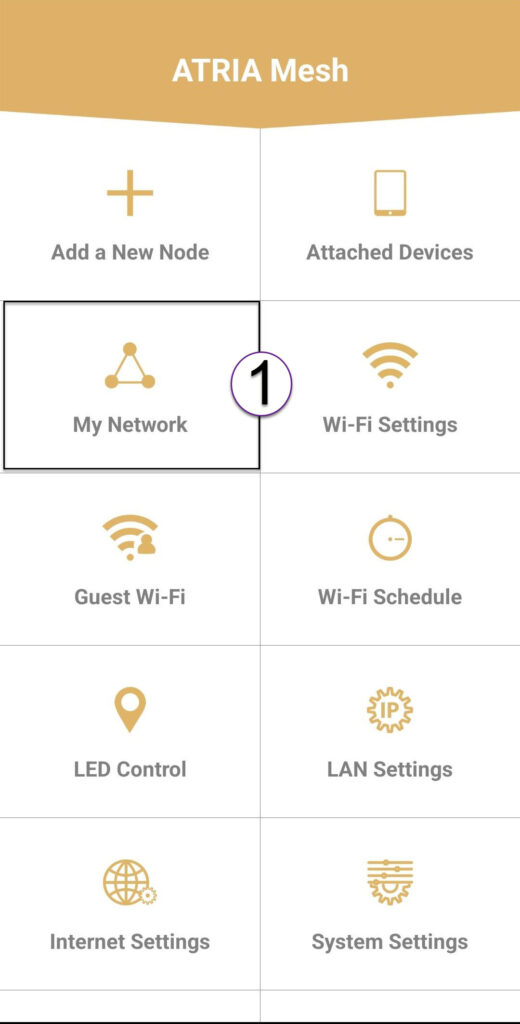
In the Atria App, go to My Network then click on the name of the device you are looking for and write down its IP address.
How do I configure my Wi-Fi mesh network
Warning: To configure your Mesh network please refer to the QIG provided in the box of your product.
Please note that you need to repeat this operation for each Mesh unit you wish to add to your Mesh network.
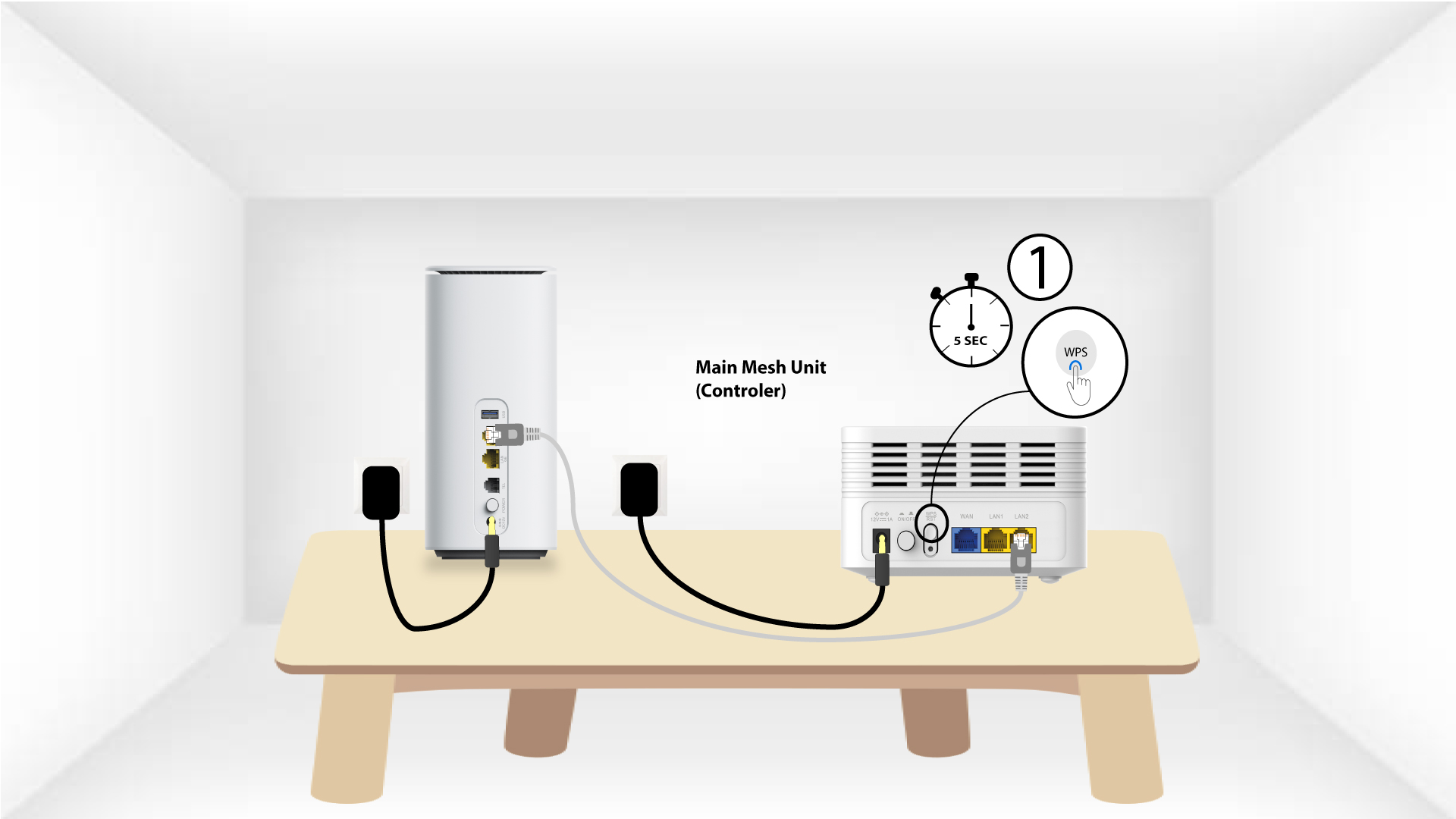
1Case 1: WPS Button
You must plug in the Mesh unit and connect it to your modem by using an RJ45 cable before pressing the power button.
2Main Mesh WPS
Press the WPS button on the mesh connected to your modem for 5 seconds.
3Second Mesh unit WPS
Plug the second Mesh unit to a socket and press the WPS button for 5 seconds.
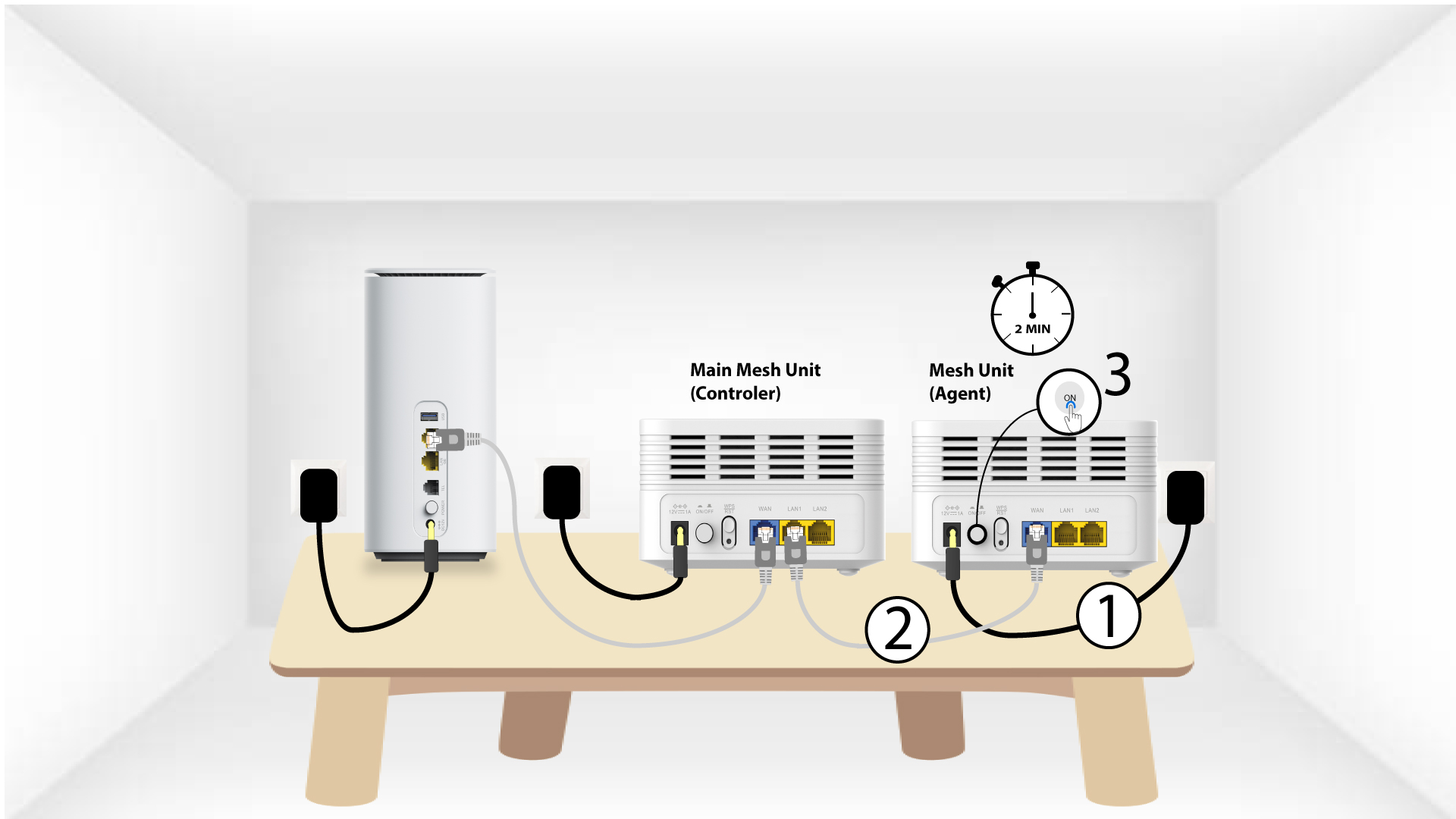
1Case 2: Ethernet cable (RJ45)
You must plug in the Mesh unit and connect it to your modem by using an RJ45 cable in the WLAN port before pressing the power button.
2Ethernet cable in LAN ports of both Mesh
Plug the Main Mesh Unit (Controler) to the Mesh Unit (Agent) via RJ45 in both LAN port of both 2 Mesh.
How do I use the Atria Mesh App?
How do I use the AtriaMesh App?
1Atria Mesh App
Download the application for smartphone 'ATRIA MESH' on the App Store or the Google Play Store.

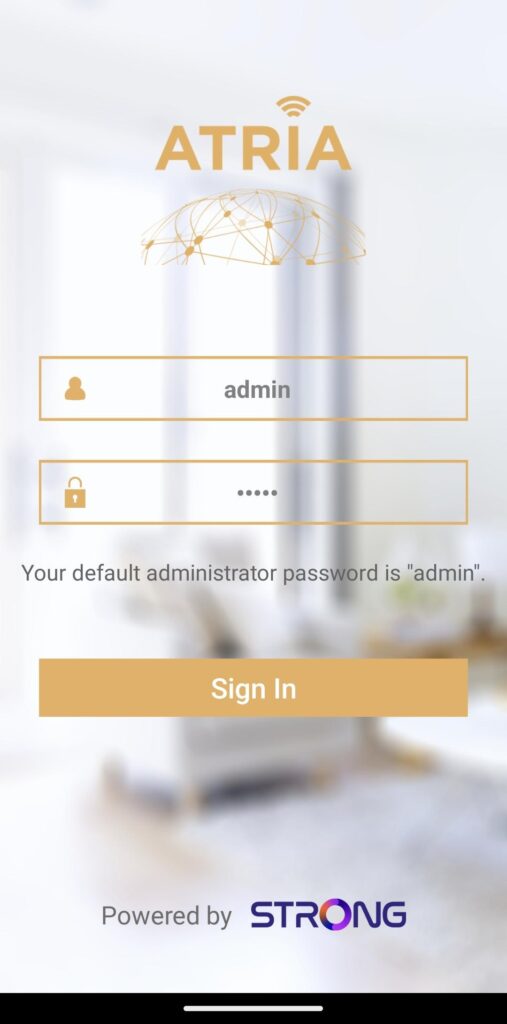
2Credentials
Then you need to be connected to the Wi-Fi of the Mesh with your smartphone and then login to the app with your credentials that should be 'admin' and 'admin' if you have not changed it.
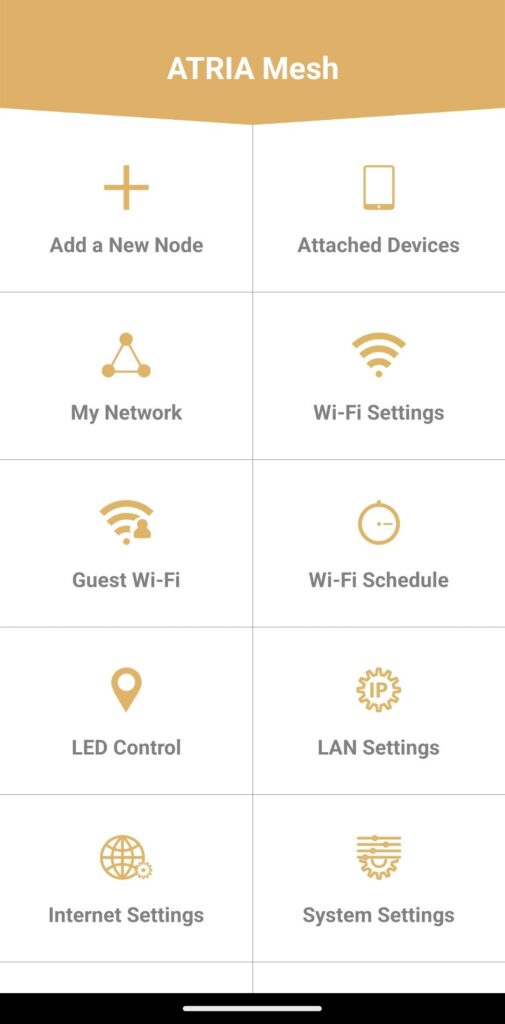
3Main Menu
Now you are on the main page.
• Add a New Node: Where you can add a new Mesh unit to your Mesh Network.
• Attached Devices: Where you can check which devices are connected to your Mesh Network.
• My Network: Where you can check all the Mesh units connected to your Mesh Network.
• Wi-Fi Settings: Where you can edit and modify the SSID (Wi-Fi Network Name) and Password of your Wi-Fi Mesh Network.
• Guest Wi-Fi: Where you can set-up and configure a 2.4GHz or a 5GHz Guest Wi-Fi.
• Wi-Fi Schedule: Where you can schedule a time period activation for your Wi-Fi Network.
• LED Control: Where you can turn ON or OFF the LEDs of your Mesh unit.
• LAN Settings: Where you can enable or disable a DHCP.
• Internet Settings: Where you can configure a DHCP Connection, a manual DNS, a PPPoE and set-up a Static IP.
• System Settings: Where you can modify the Administration User name and Password to access the App.
How many Mesh units can I use in a Mesh network?
You can use up to 6 Mesh units simultaneously in your Mesh network.
The main one connected to your internet box and the 5 others paired via WPS to the main Mesh unit.
Warning: For a maximum coverage, put the mesh units in the rooms where the Wi-Fi signal is good, all the LEDS must be green.
How many Wi-Fi networks are available on my mesh network ?
Your Mesh network only has one main Wi-Fi network once the mesh agents and controller are paired together.
If you need to have additional Wi-Fi networks, you can configure Guest Wi-Fi networks.
How should I organize my Mesh Network to optimize my Wi-Fi network?
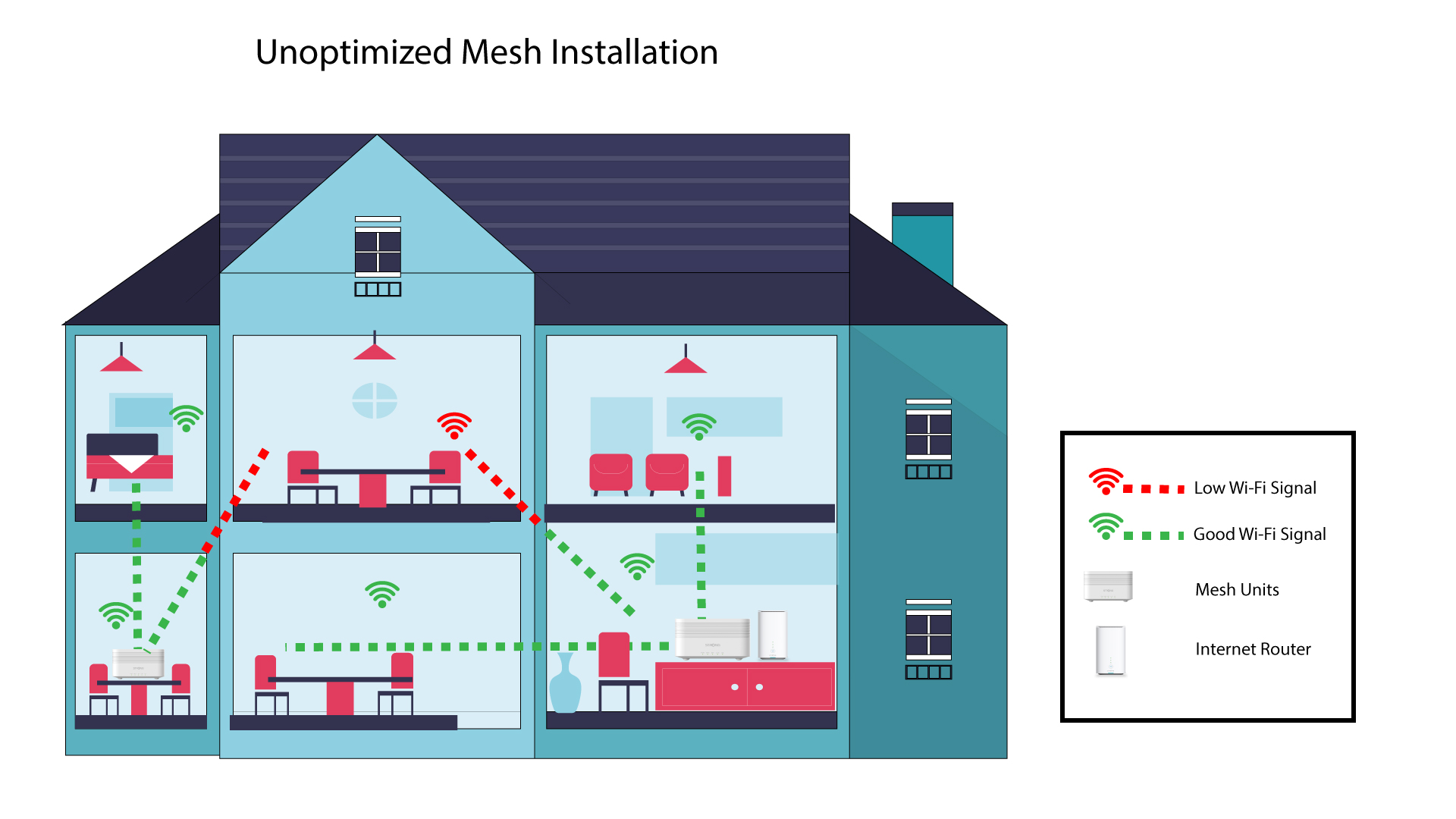
To optimize you coverage you should install the mesh in the location where you have coverage issues in order to cover the widest area possible in your home. Please make sure that the mesh units are not located in a room where there is a load bearing wall, as the wall is thicker the Wi-Fi signal can have issues getting through it.
1Coverage
The following schema shows Wi-Fi coverage inside a house where mesh nodes are not located in the right area of the house to have a proper coverage.
2Disposition
The following schema shows Wi-Fi coverage inside a house where mesh nodes are located in the right area of the house to have a proper coverage.
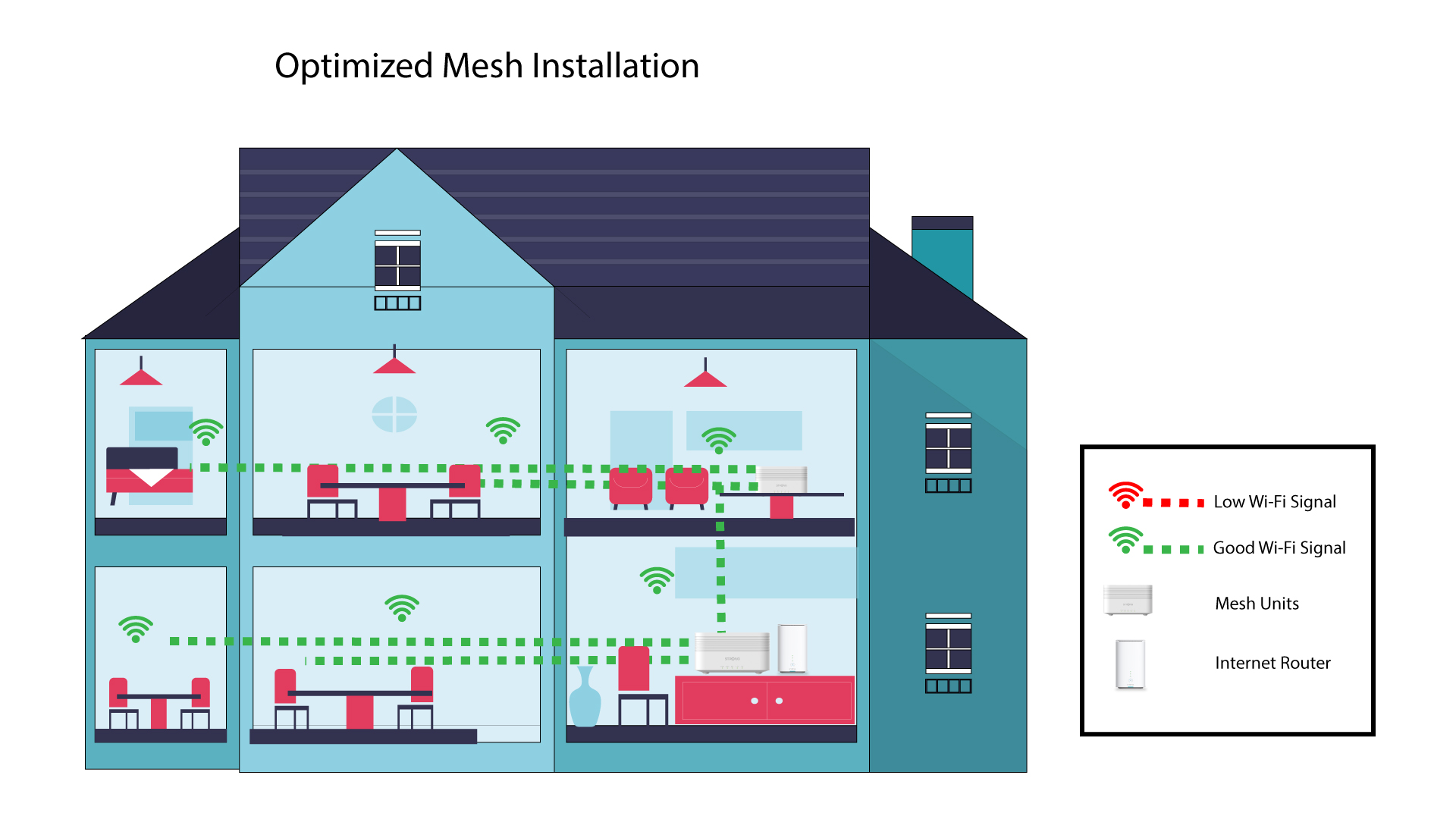
If you have a big house, you can install several mesh units to cover all the rooms.
You can see if the coverage provided by your mesh nodes in your home is OK in the app.
1Atria App coverage
To do so, connect to the Wi-Fi of your Mesh and go to the App on your device.
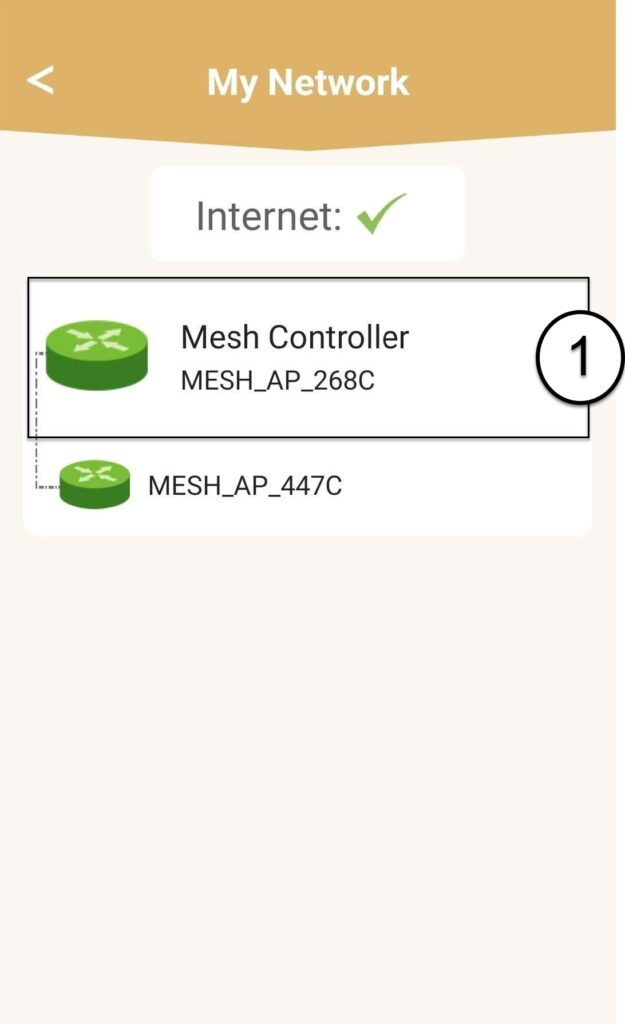
Then, click My Networks.
2Mesh Unit info
Click on the name of the mesh unit to access its information
3Rename the units
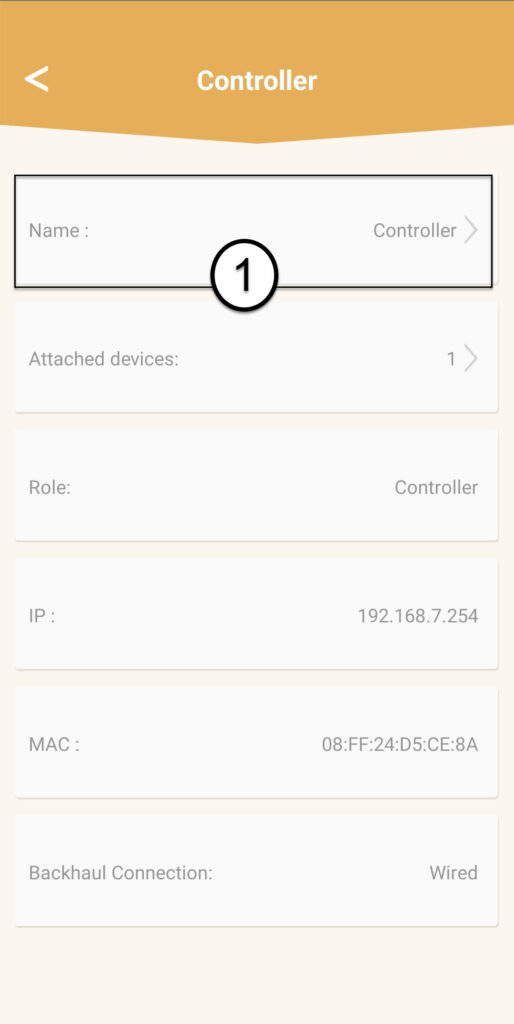
Click on the name field and enter a new name:
• The mesh controller should be named like this: MeshAX3000-Main-Nameoftheroom
• The mesh agents should be named like this: MeshAX3000-Nameoftheroom
Warning: If the mesh unit appears in grey it means that it is not providing enough coverage and that you should adjust its location to optimize the mesh network.
How to properly configure the MESH KIT AX3000 in Bridge mode?
When using your ISP router as the main router (NAT enabled) and the MESH KIT AX3000 in Bridge (Access Point) mode, please follow the configuration guidelines below to ensure stable operation.
Bridge mode configuration
Bridge mode must be configured only on the Master node (the unit connected to the ISP router).
The secondary node automatically receives its configuration from the Master node.
It is not necessary to configure Bridge mode separately on both nodes.
Correct Ethernet backhaul connection
The correct cabling topology is:
ISP Router (LAN) → (WAN) Master Node
Master Node (LAN) → (WAN) Second Node
Important:
The Ethernet cable from the ISP router must be connected to the WAN port of the Master node.
The Ethernet cable between the two mesh nodes must be connected from the LAN port of the Master node to the WAN port of the Second node.
LAN-to-LAN connections between nodes may cause instability or network issues.
If WiFi freezes or devices disconnect
If devices freeze or disconnect while using Bridge mode:
First verify that Bridge mode and cabling are correctly configured as described above.
Adjust WiFi channels on the Master node only:
5 GHz: channels 36 or 52 are recommended
2.4 GHz: channels 1, 6, or 11 are recommended
The Second node will automatically synchronize its settings with the Master node.
Following this configuration ensures proper operation and minimizes connectivity issues in Bridge mode.
I cannot access the internet after configuring my Mesh network, why?
There are several reasons why you cannot access internet after configuring your Mesh Network:
• The RJ45 cable is not properly connected to the internet box or the main Mesh or in the wrong port.
• The internet connexion from the internet box is not working properly.
• The main Mesh did not succeed to retrieve the network informations of the internet box.
• The Mesh units are not paired together.
It takes too much time to have my Mesh Home ATRIA MESH AX3000 unit operational, is there something wrong?
After plug-in your first mesh unit and connecting it to the router it usually takes up to two minutes for the router to identify the WAN/LAN IP address and connect to it. Once the mesh unit is ready its LED will be blue.
Then, plug-in the second mesh unit in a different room, the LED will be red. You must press the WPS of the first mesh unit for 5 seconds and then the WPS button of the second mesh unit for 5 seconds. Wait for approximately one minute for the devices to pair. Once the devices are paired, the LEDs are blue.
• If the pairing process does not work, please reset the two units to their factory settings by pressing the reset button of each unit.
Please refer to the following FAQ to see how to reset your mesh network: How do I reset my Mesh units to the factory settings?
• If the LED is still red on the first mesh unit, please check that the RJ45 cable is connected to the right Ethernet port: WAN port (mesh unit). If you put the cable in one of the LAN ports the mesh unit will not be able to retrieve the information of the main internet network, so it will not be connected to the internet.
Please refer to the following FAQ to see how to configure your mesh network: How can I add new Mesh units to the existing network I just configured?