2K+ КАМЕРА SMART HOME
Усі питання
2K+ КАМЕРА SMART HOME
Як додати камеру в додаток
Як додати камеру в додатку?
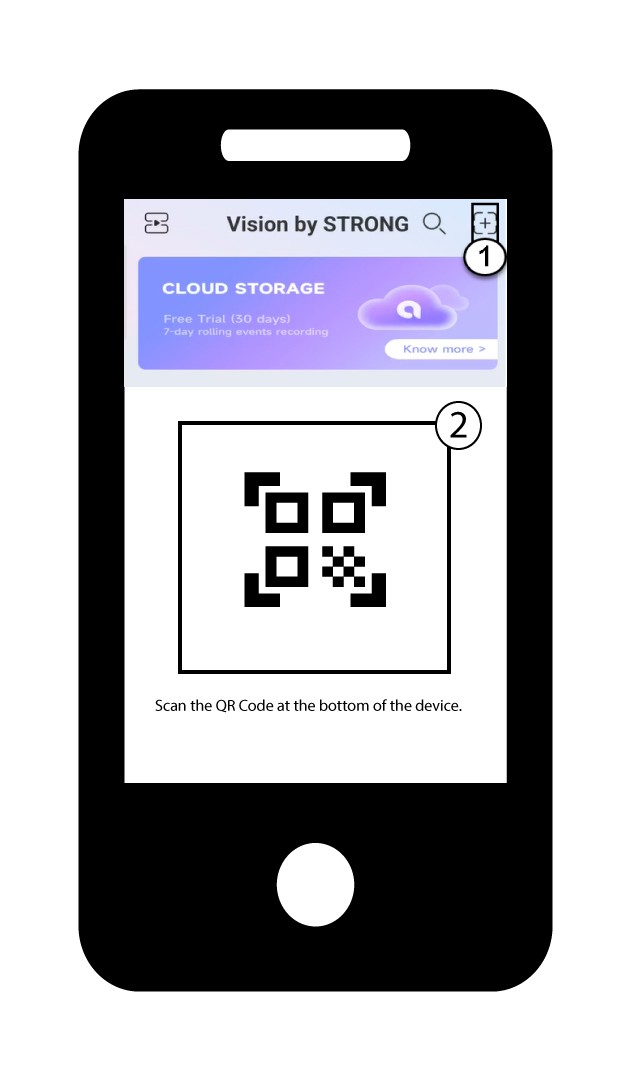
1Початидодавання пристрою
Натисніть на значок «+» і відскануйте QR-код за допомогою камери.
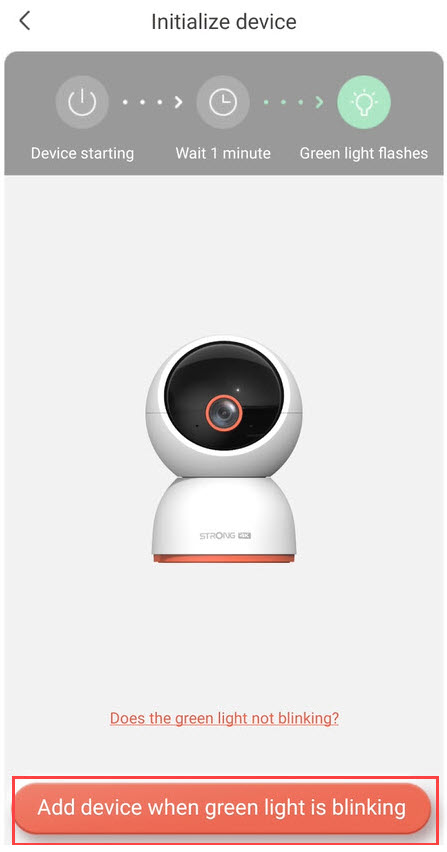
2. Перевіртесвітлодіод камери
Потім зверніть увагу на світлодіод на камері; якщо він блимає зеленим світлом, натисніть кнопку «Додати пристрій».
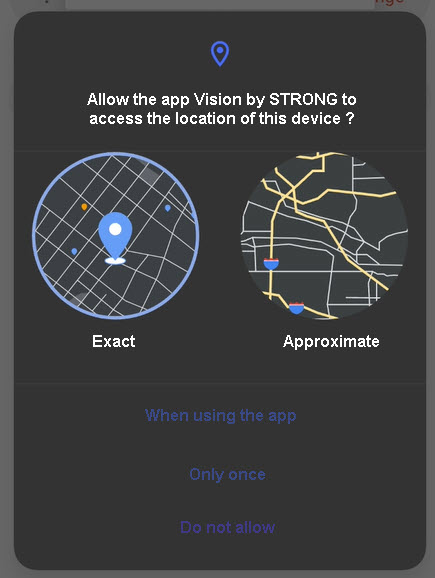
3. Надатидоступ до даних про місцезнаходження
Надайте додатку Vision by Strong дозвіл на доступ до даних про місцезнаходження вашого пристрою.
4.Налаштування мережі Wi-Fi
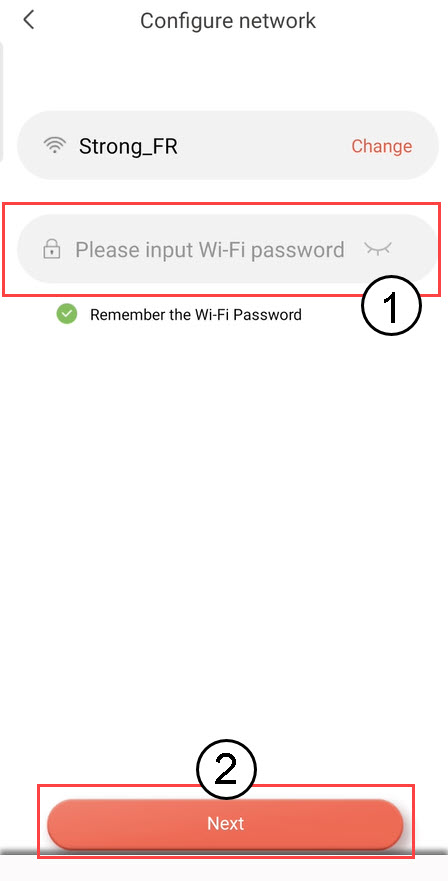
Виберіть варіант зі списку, що відображається на екрані. Вам потрібно налаштувати мережу Wi-Fi. Додаток автоматично вибере мережу Wi-Fi, до якої підключений ваш телефон. Потім введіть пароль мережі Wi-Fi та натисніть «Далі».
ПІДКАЗКА: Натисніть «Змінити», щоб вибрати іншу мережу Wi-Fi зі списку. Якщо ви хочете відобразити пароль до мережі Wi-Fi, натисніть на піктограму у вигляді ока.
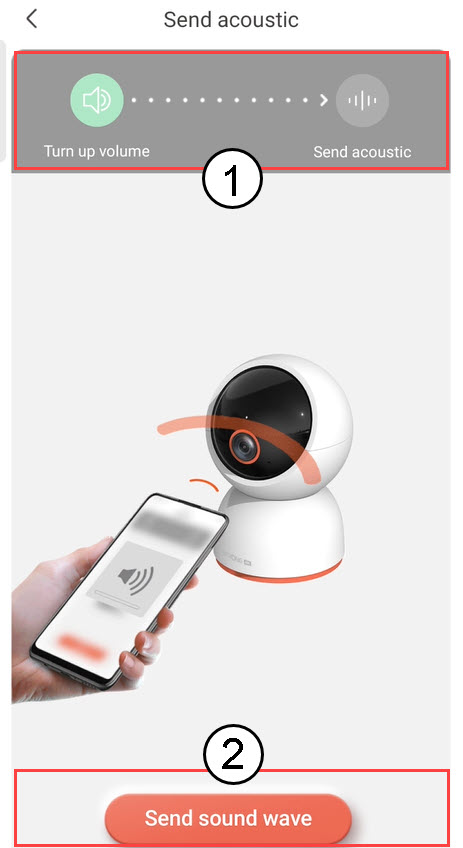
5. Надіслатизвукову хвилю
Збільште гучність телефону та натисніть «Надіслати звукову хвилю».
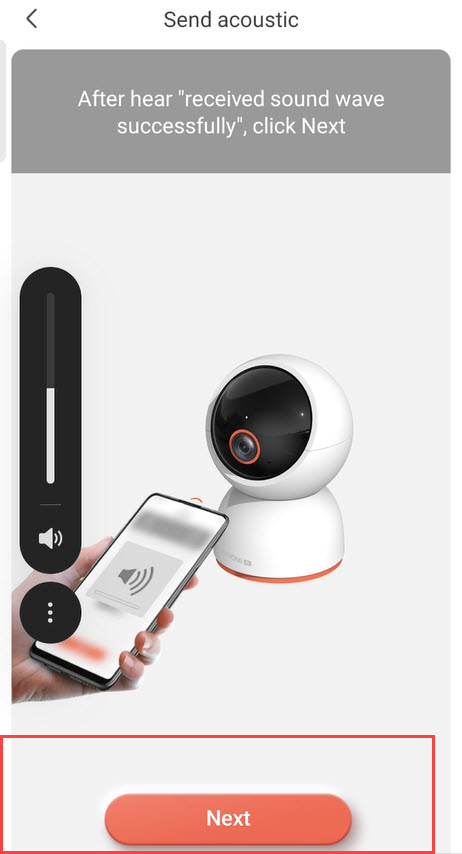
6. Перевіркаприйому звукових хвиль
Дочекайтеся появи повідомлення: «Звукова хвиля успішно отримана», а потім натисніть «Далі».
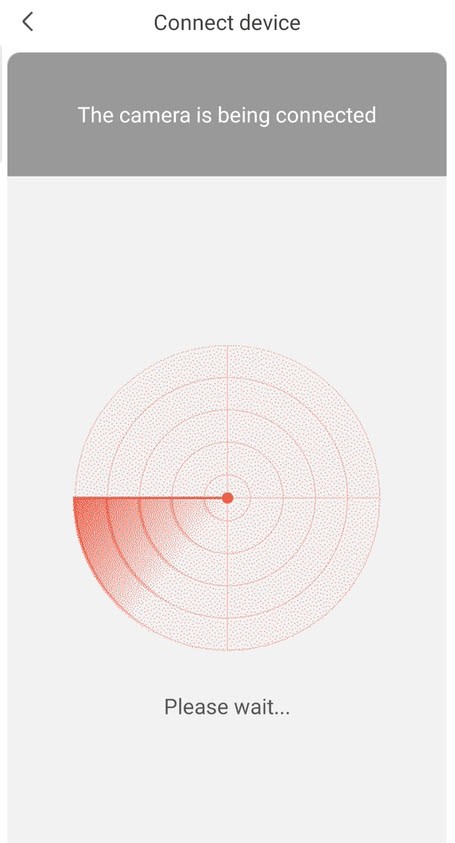
7. Триває налаштування
Будь ласка, зачекайте, поки камера налаштовується.
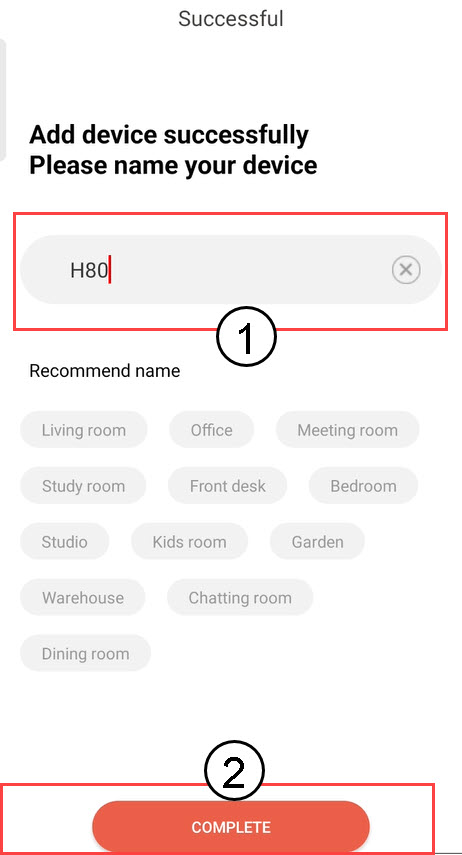
8. Назвітьсвою камеру
Після завершення налаштування необхідно вказати ім’я камери. Потім натисніть «ЗАВЕРШИТИ».
Порада: Якщо у вас є кілька камер, будь ласка, назвіть їх відповідно до приміщення, в якому вони розташовані.
9. Додано камеру
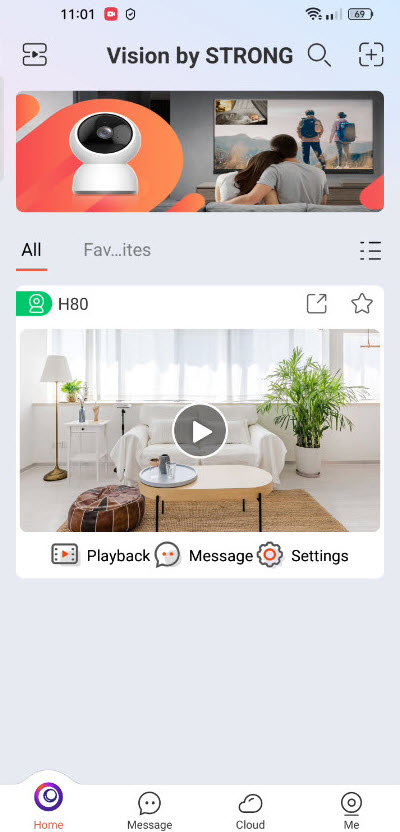
Ваша камера тепер відображається на головній сторінці додатка.