
4G AIRSPOT 220 Mobil Wi-Fi med Display
Alle spørgsmål
4G AIRSPOT 220 Mobil Wi-Fi med Display
Hvordan ændrer jeg SSID’et (Wi-Fi-netværksnavnet) og Wi-Fi-adgangskoden?
I webgrænsefladen har du to måder at ændre SSID’et (Wi-Fi-netværksnavnet) og Wi-Fi-adgangskoden på din router:
• Via Hurtigindstillinger
• Eller via Wi-Fi-indstillinger
1TILFÆLDE1: Hurtige indstillinger
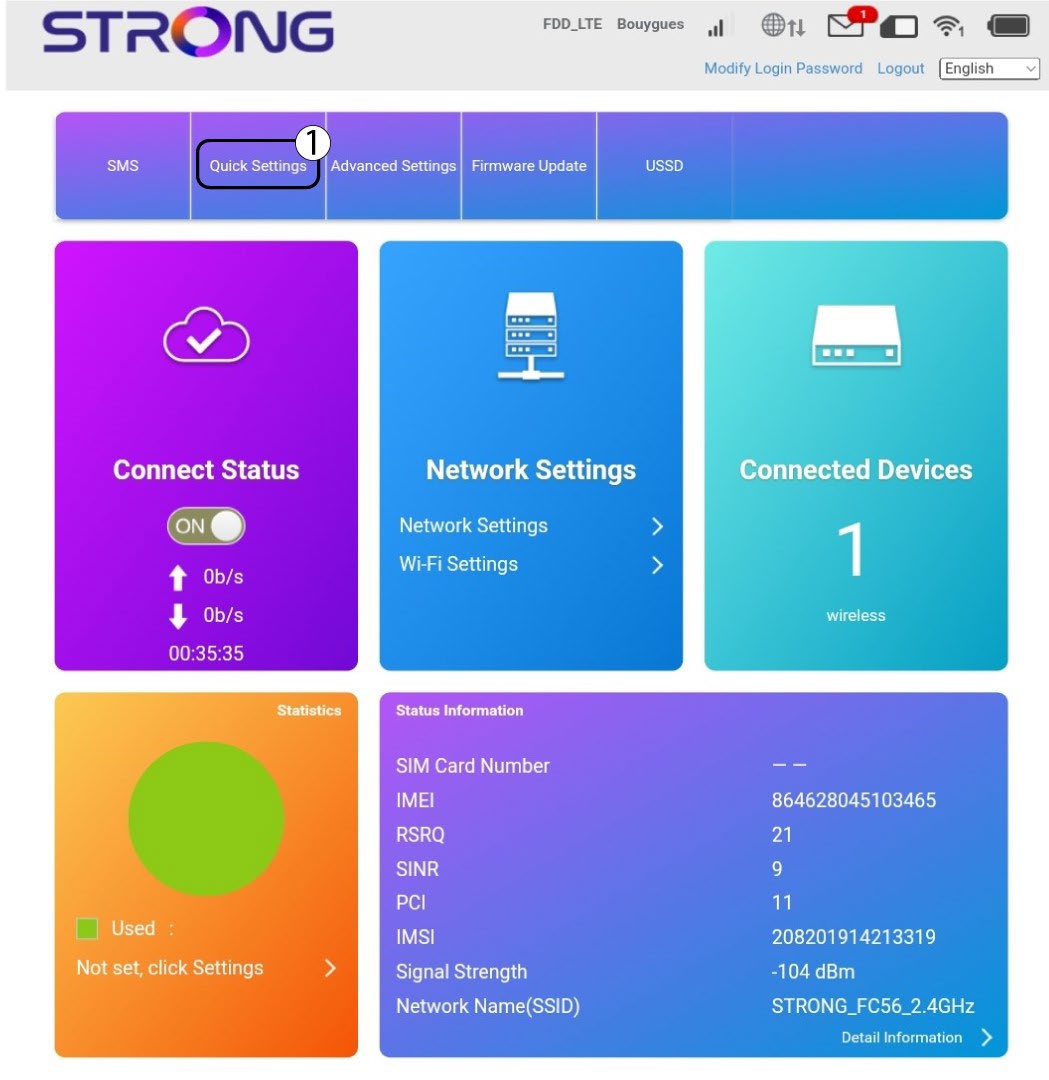
I webgrænsefladen kan du via »Hurtige indstillinger« ændre oplysningerne om dit netværk: dets SSID (Wi-Fi-netværksnavn) og Wi-Fi-adgangskode.
For at gøre det skal du klikke på »Hurtige indstillinger« i den øverste bjælke.
2APN-indstilling
Klik på »Næste«.

3SSID
Indtast det nye netværksnavn, og klik på »Næste«.

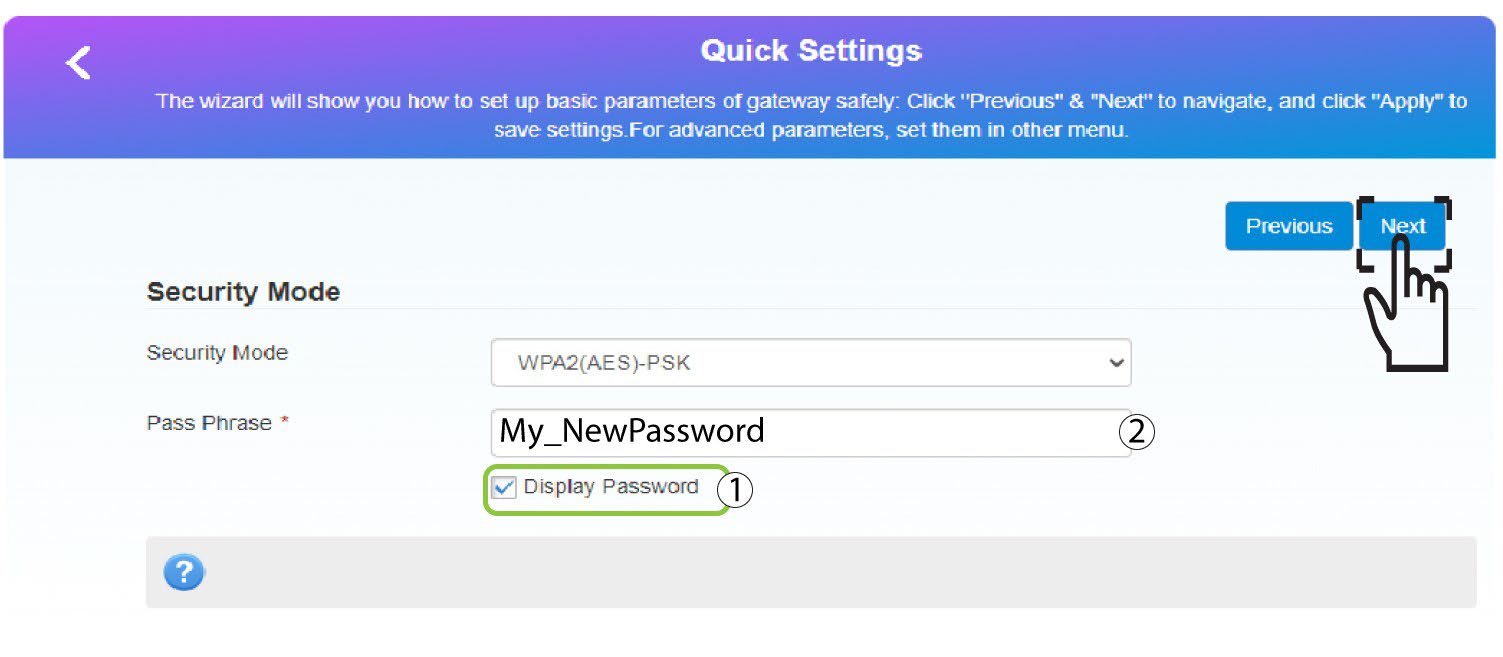
4Indtastden nye adgangskode
Klik på »Vis
adgangskode «, indtast den nye adgangskode til Wi-Fi-netværket, og klik derefter på »Næste«.
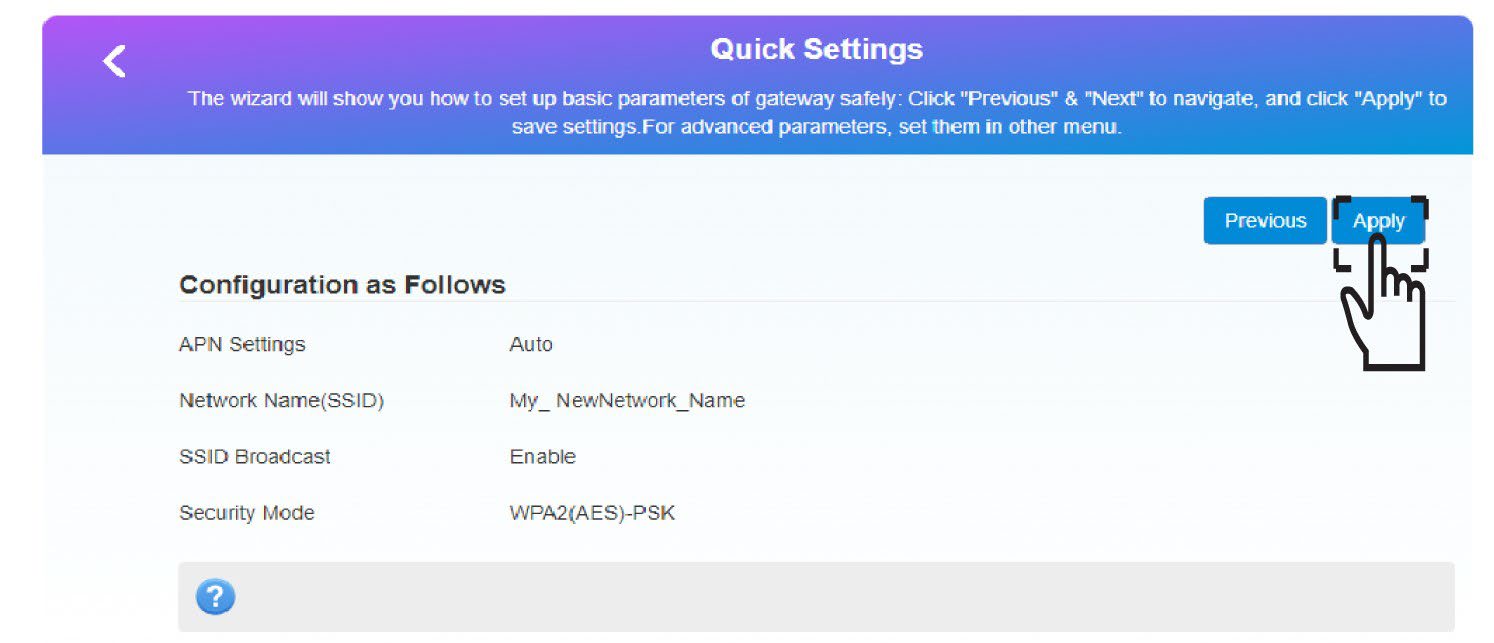
5. Gemde nye netværksoplysninger
Klik på »Anvend« for at gemme ændringerne.
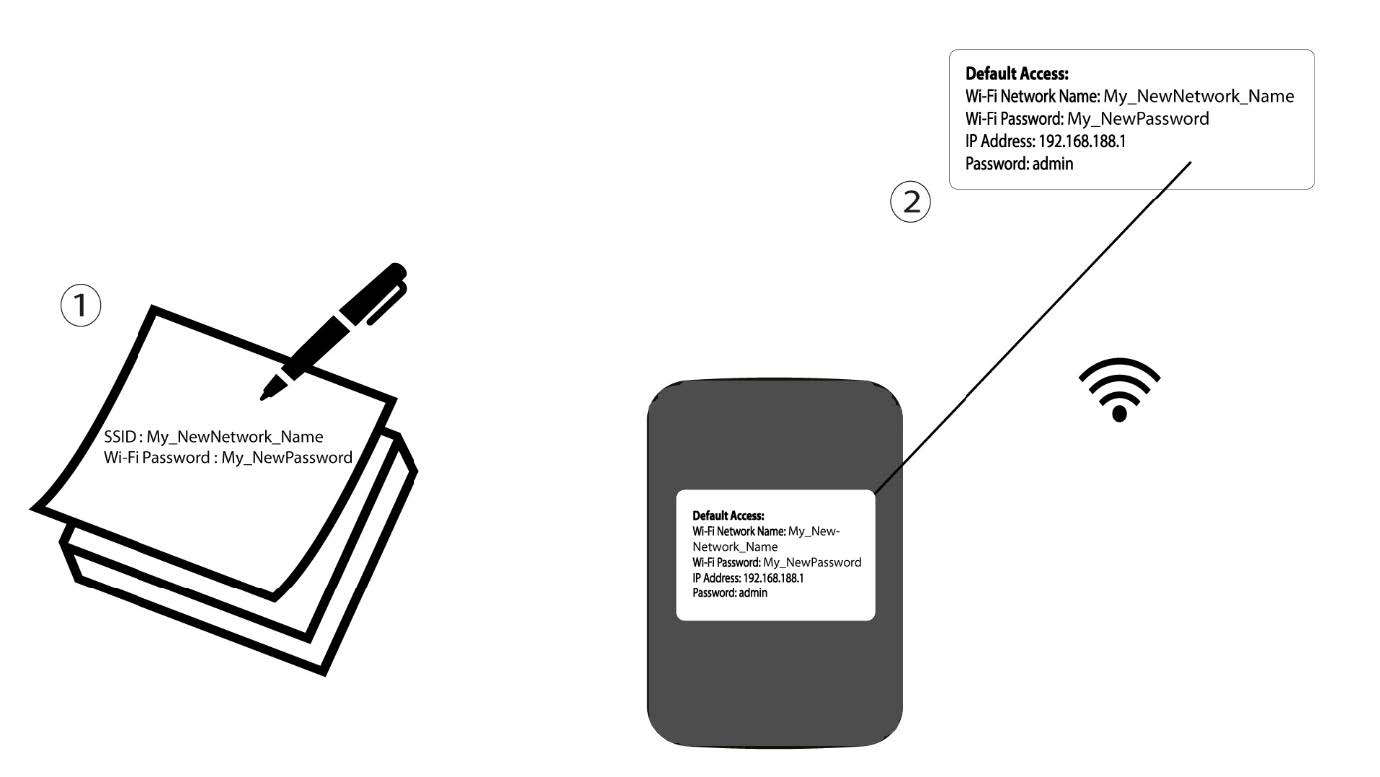
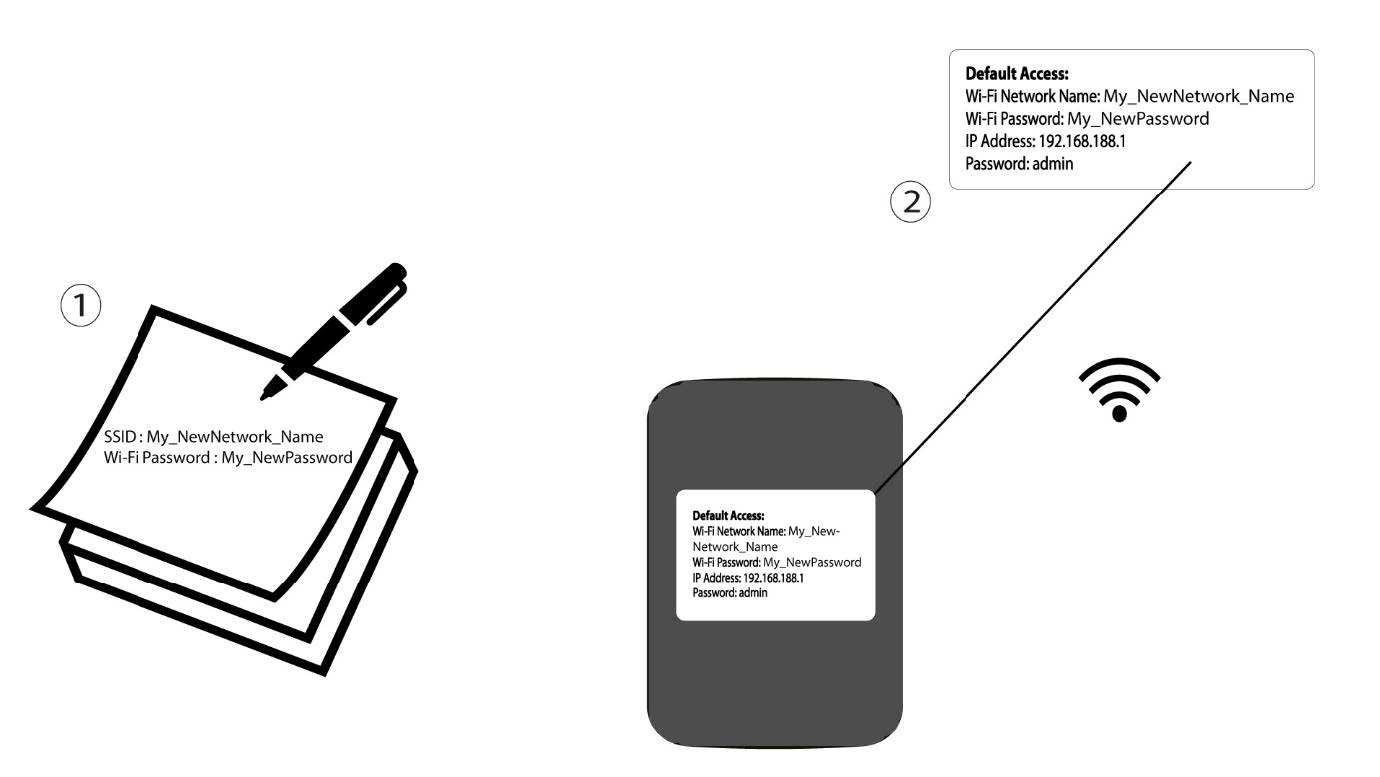
6. Skrivde nye netværksoplysninger ned
Skriv de nye netværksoplysninger ned på et stykke papir.
1TILFÆLDE2: Wi-Fi-indstillinger
Opret forbindelse til din routers Wi-Fi.

2Gåtil IP-adressen for webgrænsefladen
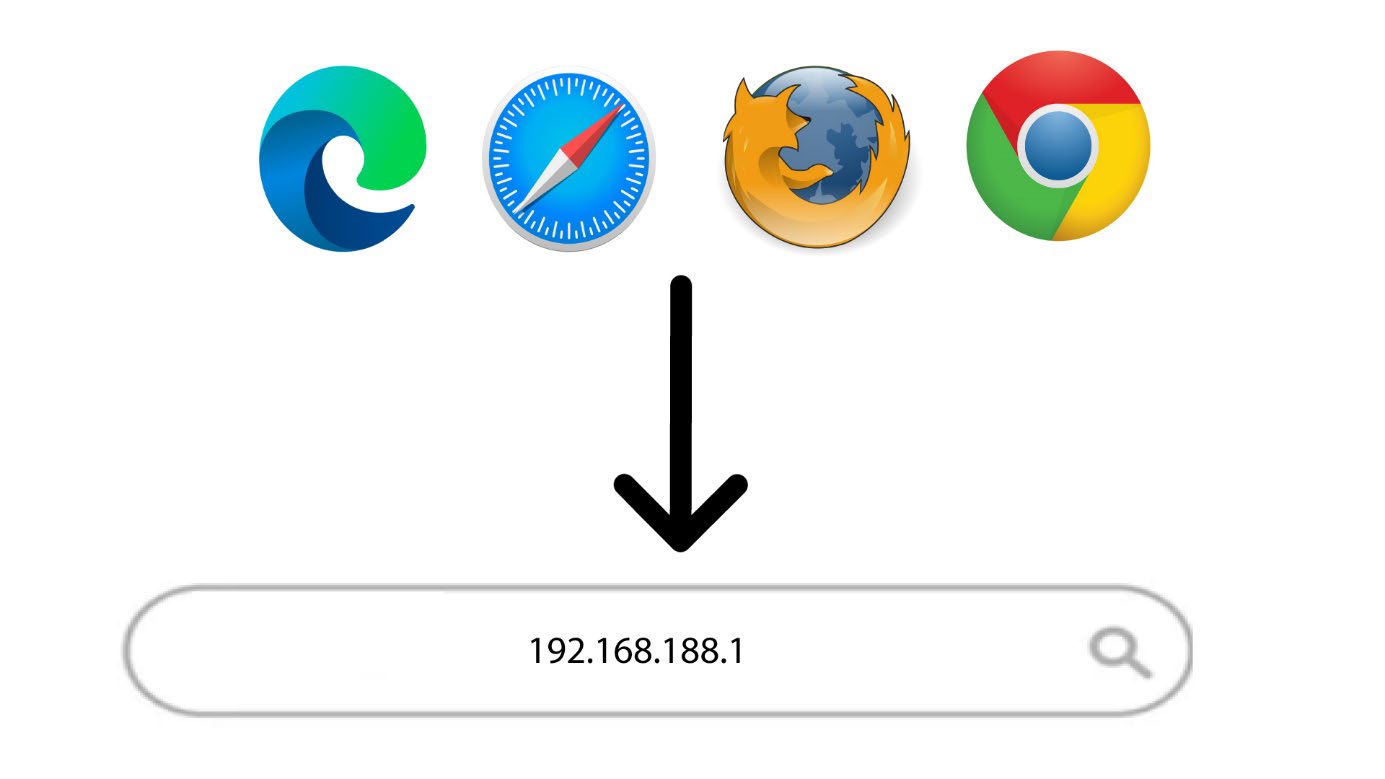
Indtast derefter følgende IP-adresse: 192.168.188.1 i din browser.
3Login
Du skal indtaste adgangskoden.

4. Wi-Fi-indstillinger
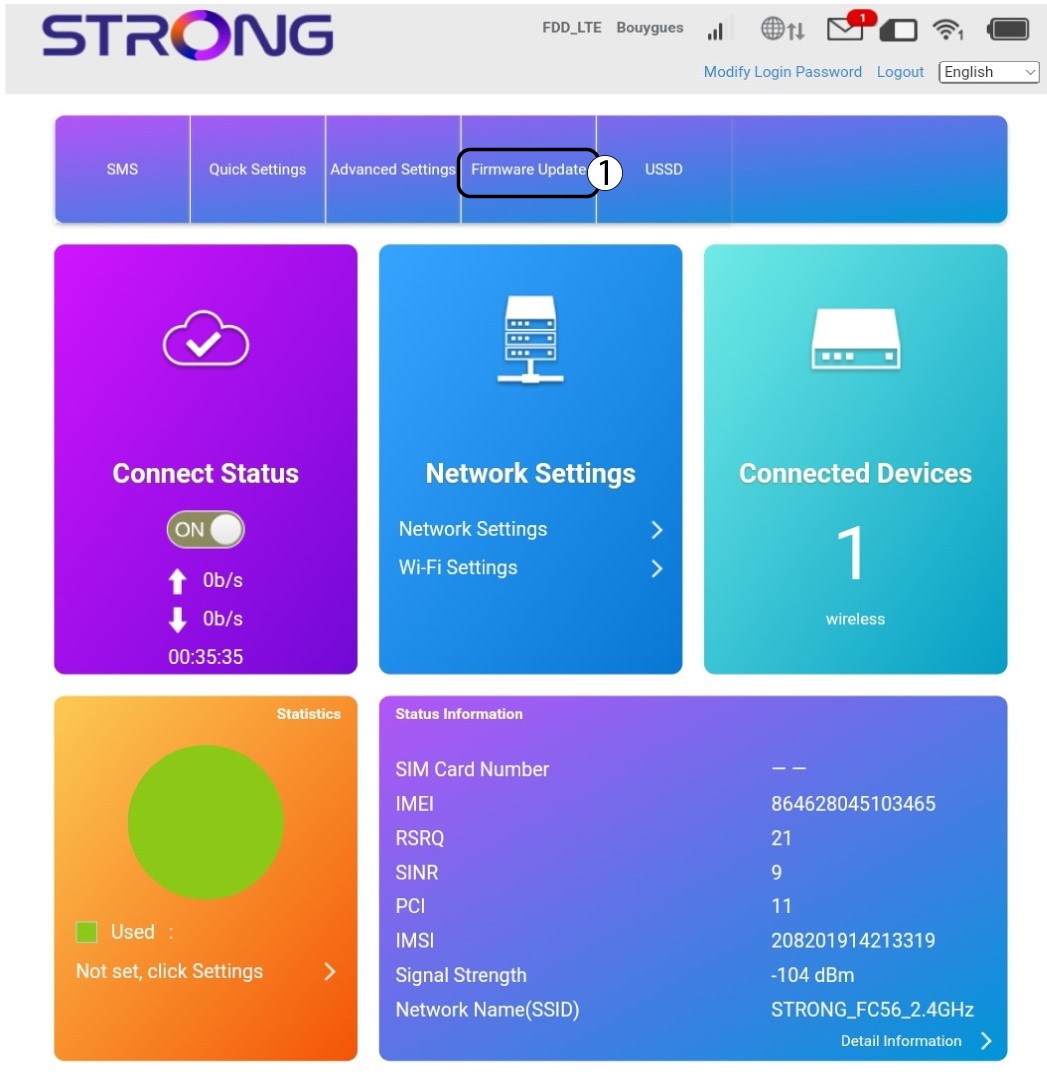
Klik på »Wi-Fi-indstillinger« i afsnittet »Netværksindstillinger«.
5Skiftadgangskode
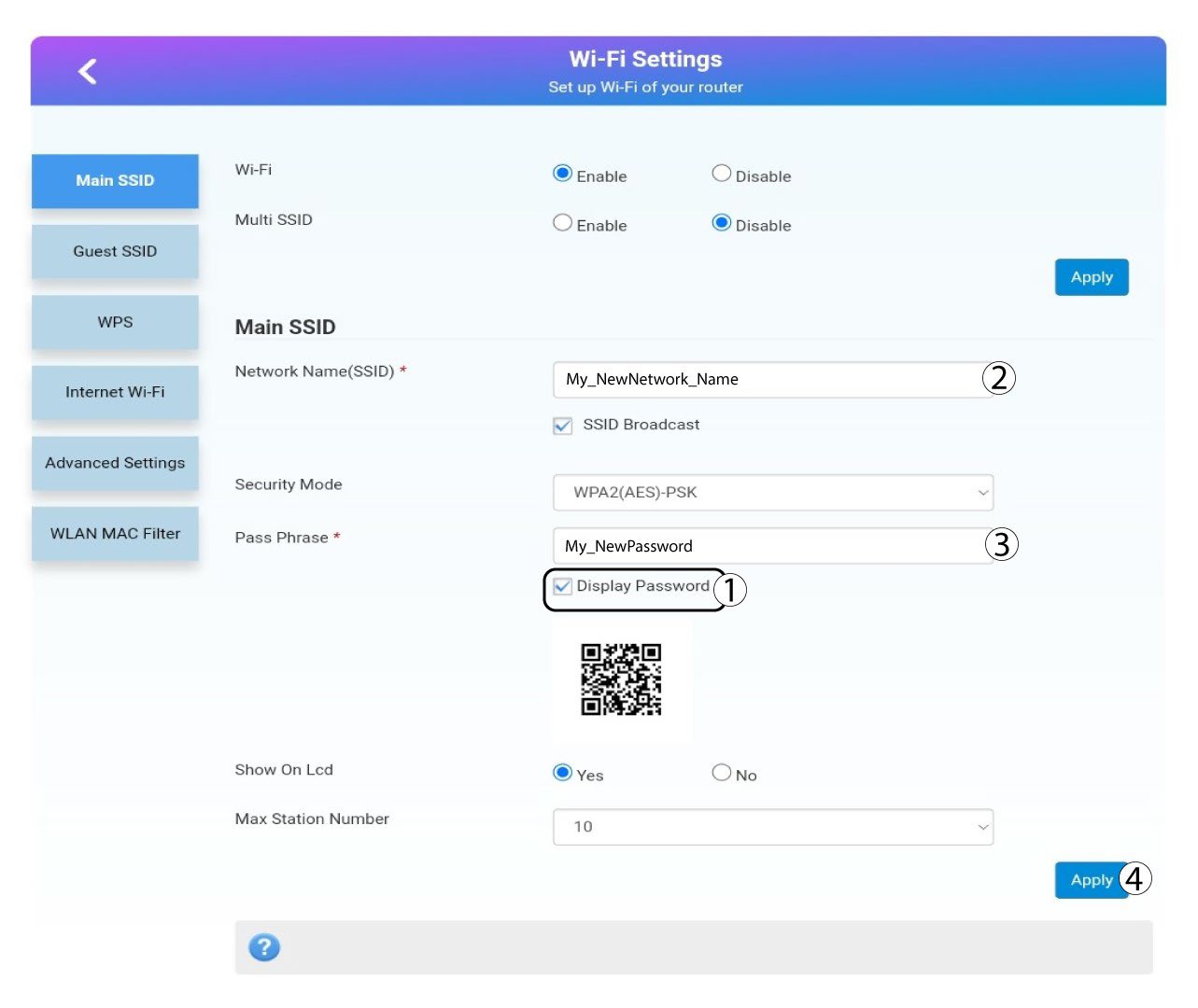
Klik vis adgangskode og indtast følgende oplysninger, inden du klikker Ansøg:a. Indtast det nye netværksnavn.b. Indtast den nye Wi-Fi-adgangskode.
6Bekræftelse
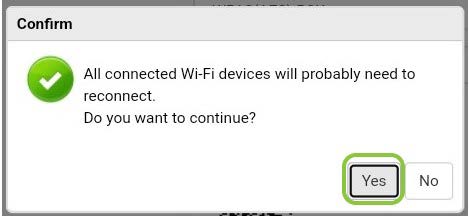
Klik på »Ja« i pop op-meddelelsen for at gemme dine ændringer.
7Skrivde nye netværksoplysninger ned
Skriv de nye netværksoplysninger ned på et stykke papir.

Advarsel: Når du har ændret Wi-Fi-netværksoplysningerne, vil alle enheder, der var forbundet til netværket, automatisk blive afbrudt.