Mesh ATRIA Wi-Fi 6 Mesh 3000 (pakiet 2 szt.)
Wszystkie pytania
Mesh ATRIA Wi-Fi 6 Mesh 3000 (pakiet 2 szt.)
Jak mogę ustawić statyczny adres IP lub przypisać dedykowany adres IP do mojego urządzenia Atria Mesh AX3000?
Warto rozważyć przypisanie stałego adresu IP do kontrolera mesh , aby ułatwić sobie dostęp do interfejsu użytkownika w sieci za pośrednictwem aplikacji Atria Mesh .
W interfejsie użytkownika można również przypisać dedykowane adresy IP do urządzeń podłączonych do sieci mesh .
1Przypadek1: Skonfiguruj stały adres IP kontrolera mesh w aplikacji Atria Mesh
Należy połączyć się na swoim urządzeniu z siecią Wi-Fi „ mesh ” i uruchomić aplikację Atria.

2. Wprowadźswoje dane logowania
Wprowadź nazwę użytkownika i hasło (admin/admin), a następnie kliknij „Zaloguj się”.
3. Ustawienia internetowe– statyczne
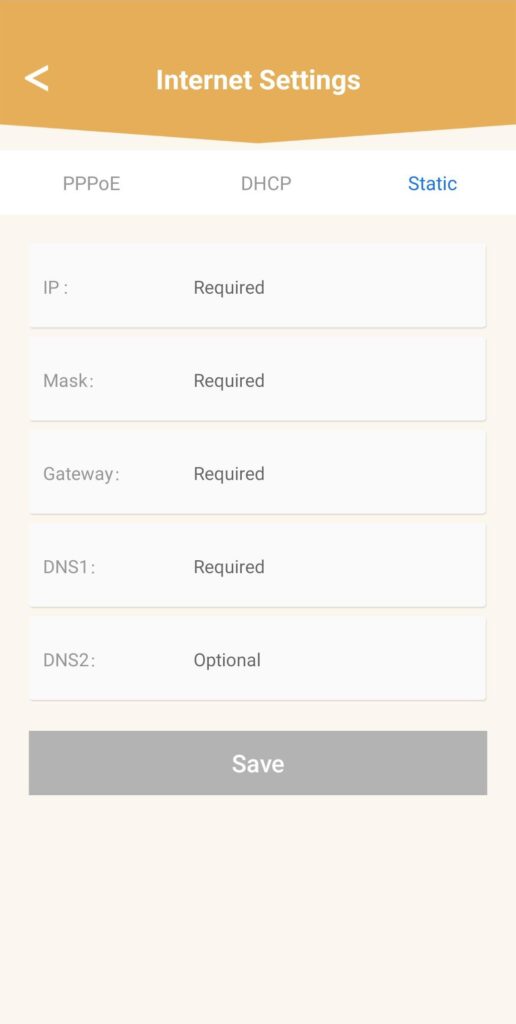
Kliknij „Ustawienia internetowe ”, a następnie „Statyczne”. Przed kliknięciem „Zapisz” należy wprowadzić następujące informacje:
• IP: wprowadź adres IP, który chcesz przypisać do urządzenia mesh.
• Maska: pole to jest wypełniane automatycznie na podstawie wcześniej wprowadzonego adresu IP.
• Brama: pole to jest wypełniane automatycznie na podstawie wcześniej wprowadzonego adresu IP.
• DNS1: Wprowadź główny adres DNS dostawcy usług internetowych, z którego korzysta Twój router.
• DNS2: Wprowadź dodatkowy adres DNS dostawcy usług internetowych, z którego korzysta Twój router.
1Przypadek2: Przydziel dedykowany adres IP agentom/urządzeniom mesh w interfejsie użytkownika (Web UI)
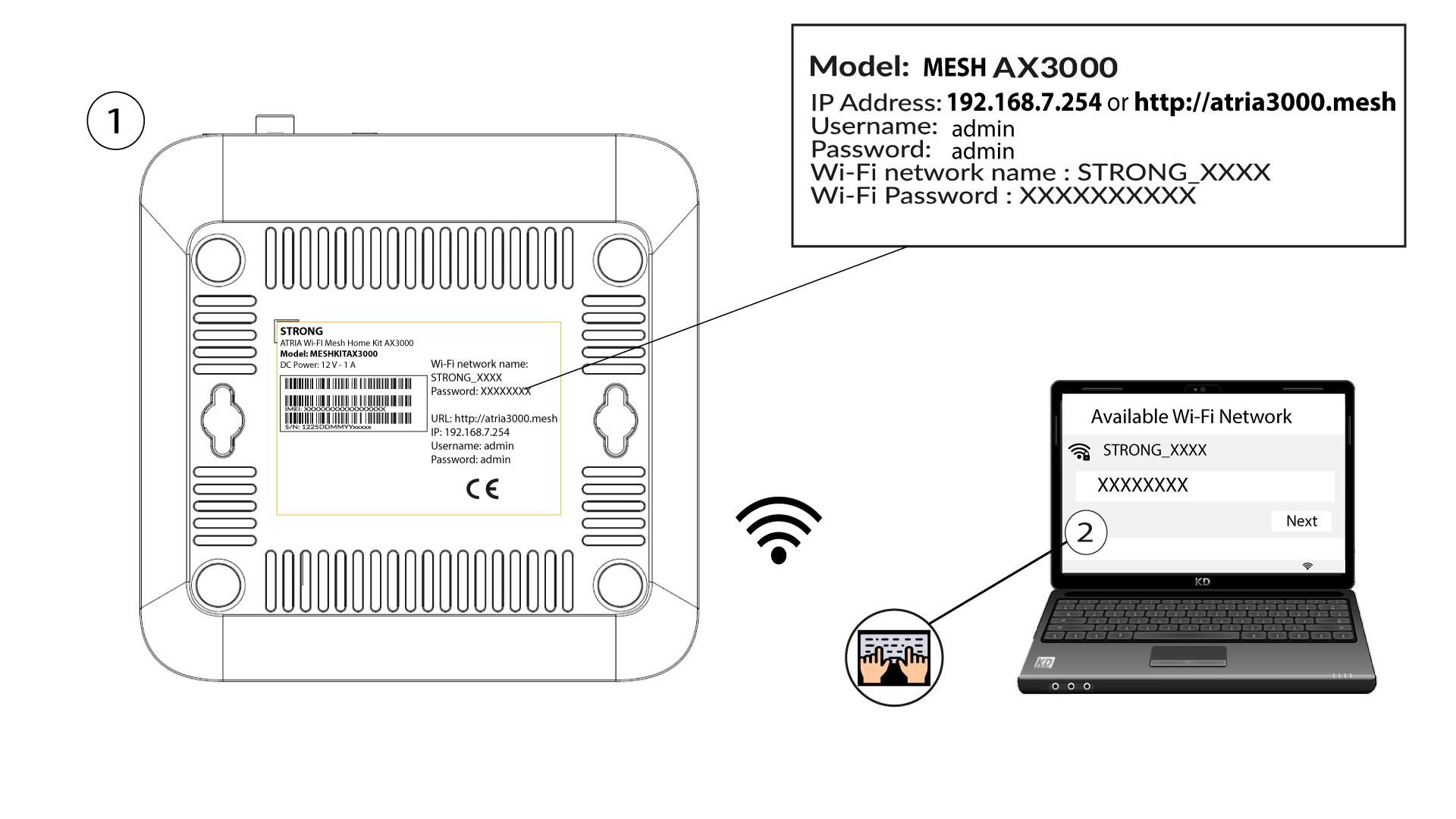
W tym celu wprowadź w swoim urządzeniu identyfikator SSID (nazwę sieci Wi-Fi) oraz hasło do sieci Wi-Fi routera:
2. Przejdźdo adresu IP interfejsu użytkownika (Web UI)
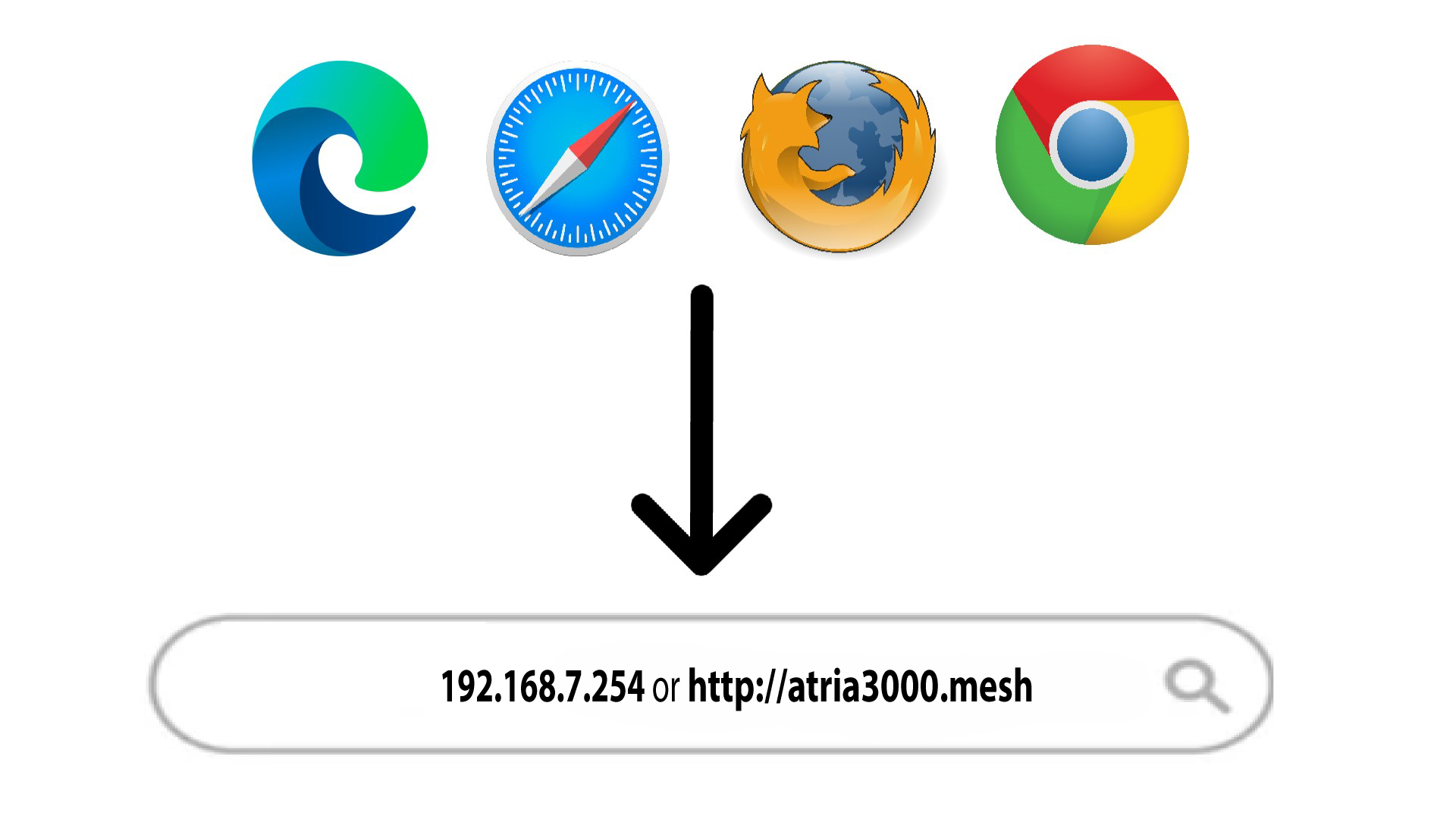
Następnie wpisz w przeglądarce następujący adres IP: 192.168.7.254 lub wpisz następujący adres: http://atria3000.mesh
3. Wprowadźswoje dane logowania
Należy wprowadzić nazwę użytkownika (admin) i hasło (admin) (należy pamiętać, że po pierwszym zalogowaniu się użytkownik utworzy swoje osobiste hasło administratora, co oznacza, że hasło podane na etykiecie produktu przestanie działać). Następnie należy kliknąć przycisk „Zaloguj się”.

4. Konfiguracja IPv4
Kliknij opcję „Sieć”, „Konfiguracja sieci LAN ” oraz „Konfiguracja IPv4”.

5. Dodajadres IPv4
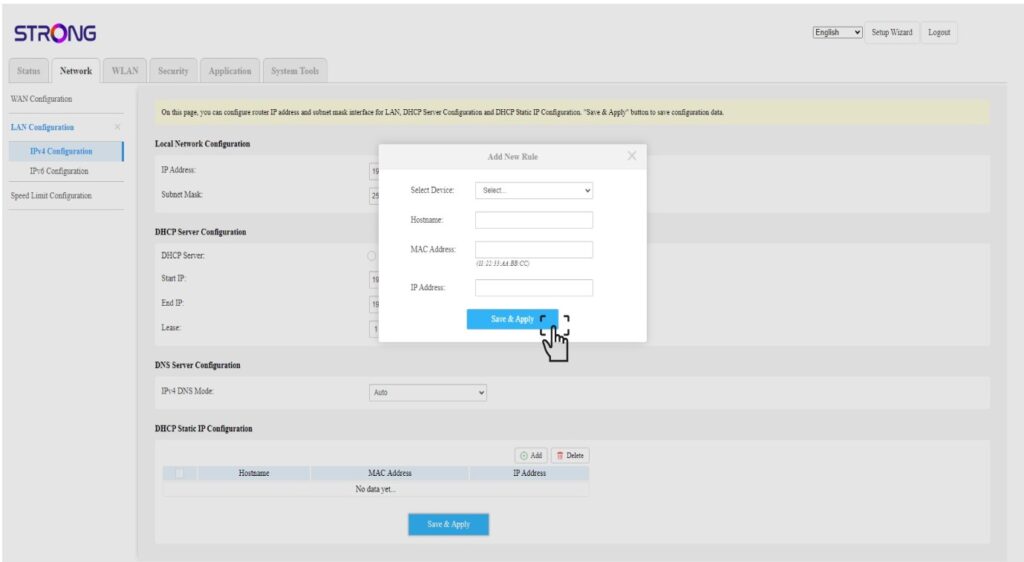
W oknie „Konfiguracja statycznego adresu IP DHCP” kliknij przycisk „Dodaj ”. Następnie wprowadź poniższe informacje, a następnie kliknij przycisk „Zapisz i zastosuj”.
• Wybierz urządzenie: wybierz nazwę urządzenia z listy.
• Nazwa hosta: pole to jest automatycznie wypełniane nazwą urządzenia.
• Adres MAC: pole to jest automatycznie wypełniane adresem MAC urządzenia.
• Adres IP: pole to jest automatycznie wypełniane statycznym adresem IP przypisanym do urządzenia