Mesh ATRIA Wi-Fi 6 Mesh 3000 (pakiet 2 szt.)
Wszystkie pytania
Mesh ATRIA Wi-Fi 6 Mesh 3000 (pakiet 2 szt.)
Zapomniałem hasła do sieci Wi-Fi „ Mesh ” – jak mogę je odzyskać?
Jak utworzyć lub zmienić hasło Wi-Fi w sieci „ Mesh ”?
1. Lokalizacja hasła domyślnego
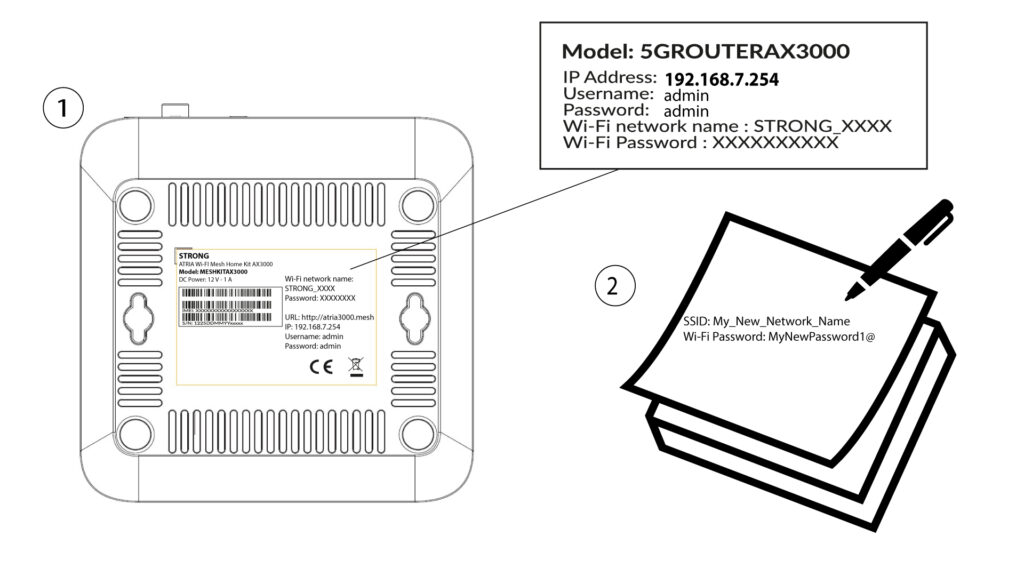
Domyślne hasło do sieci Wi-Fi znajduje się na spodzie urządzenia, jednak jeśli zostało już zmienione, konieczne może być przywrócenie urządzenia Mesh AX 3000 do domyślnych ustawień fabrycznych.
W tym celu zapoznaj się z poniższą sekcją: Jak przywrócić ustawienia fabryczne urządzeń Mesh ?
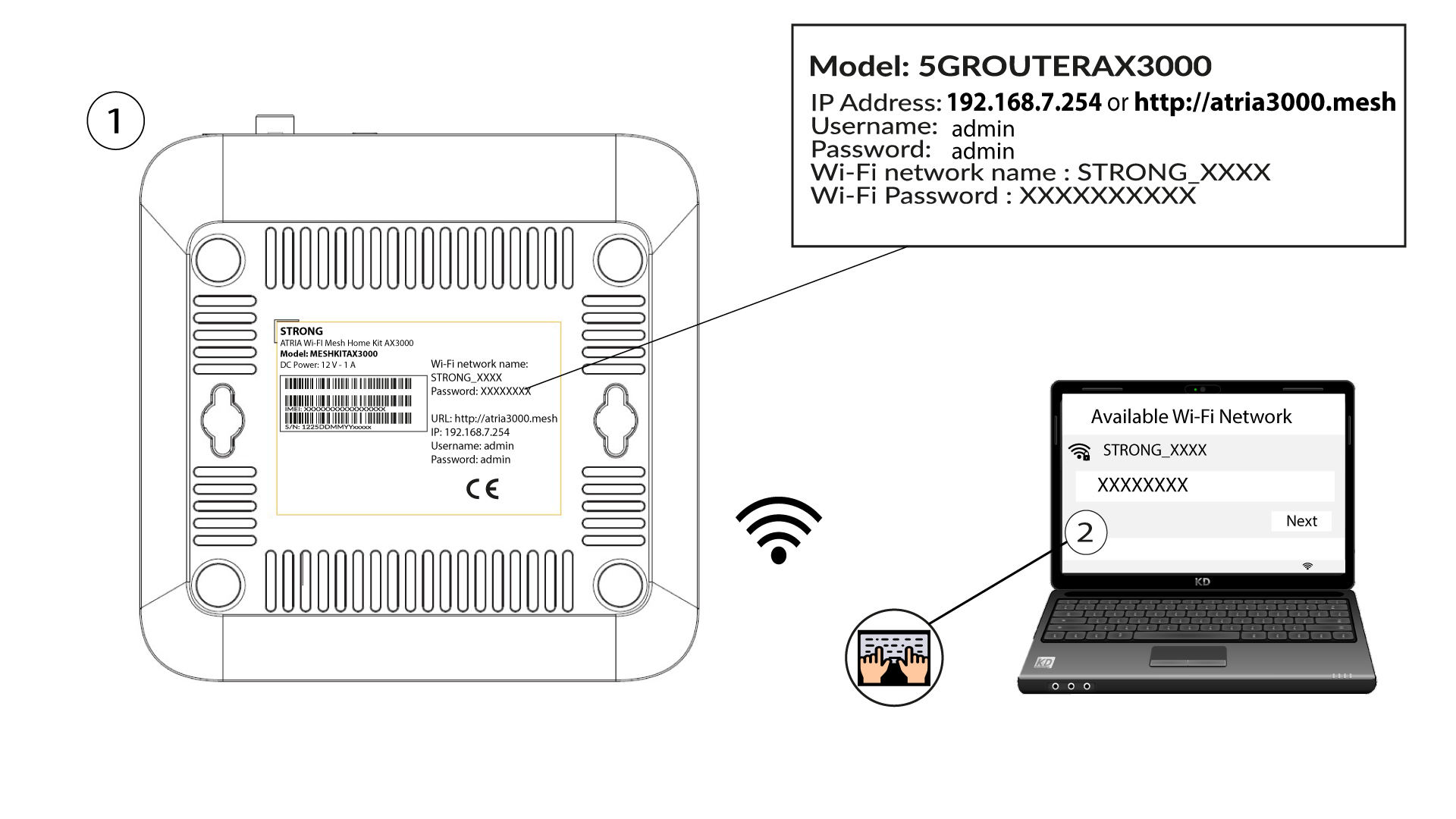
Gdy to zrobisz, możesz zmienić domyślne hasło do sieci Wi-Fi na swoje własne hasło
1. Połącz sięz siecią Wi-Fi tego urządzenia
W tym celu wprowadź w swoim urządzeniu identyfikator SSID (nazwę sieci Wi-Fi) oraz hasło do sieci Wi-Fi routera:
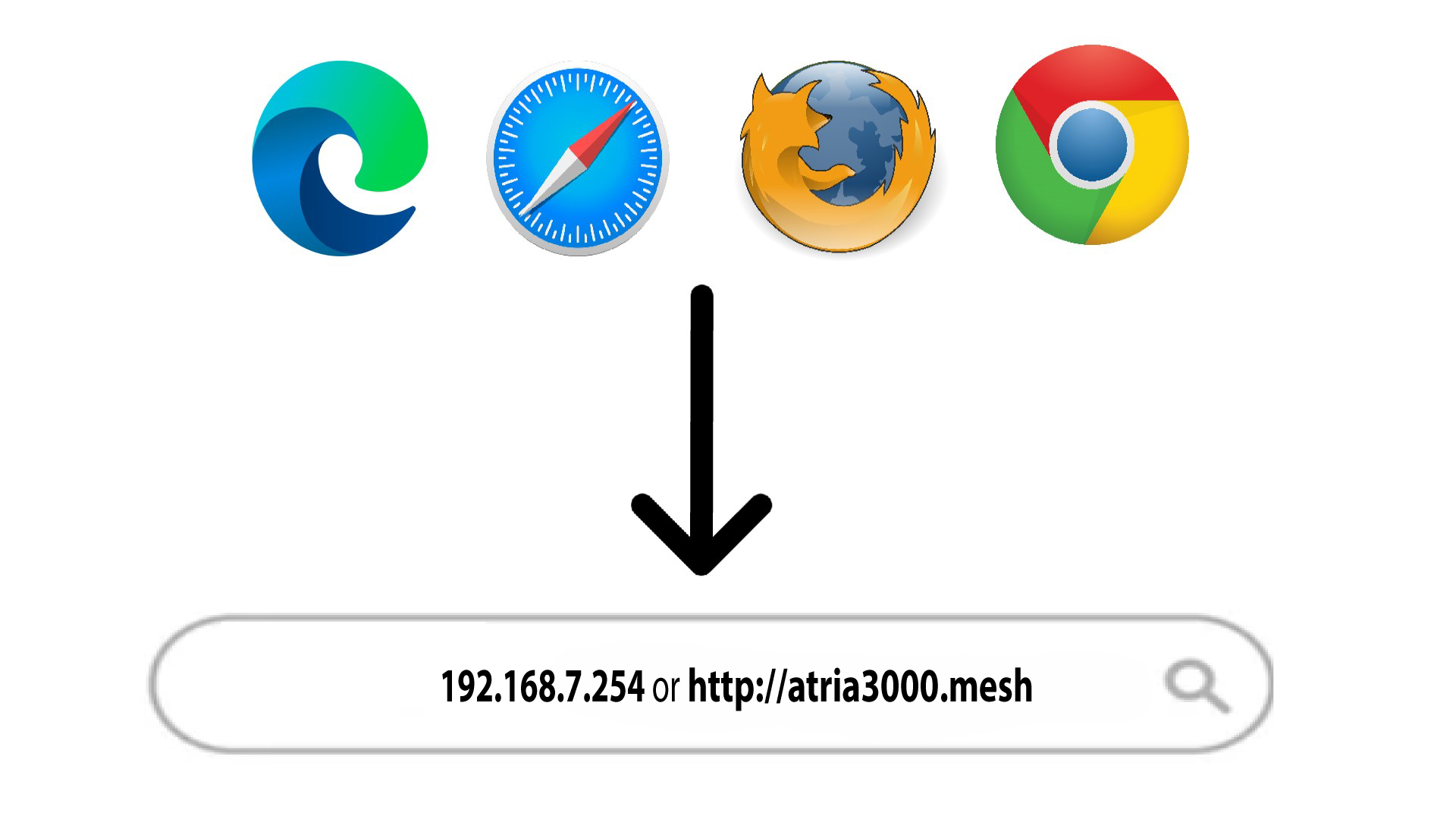
2. Przejdźdo adresu IP interfejsu użytkownika (Web UI)
Następnie wpisz w przeglądarce następujący adres IP: 192.168.7.254 lub wpisz następujący adres: http://atria3000.mesh
3. Wprowadźswoje dane logowania
Należy wprowadzić nazwę użytkownika (admin) i hasło (admin) (należy pamiętać, że po pierwszym zalogowaniu się użytkownik utworzy swoje osobiste hasło administratora, co oznacza, że hasło podane na etykiecie produktu przestanie działać). Następnie należy kliknąć przycisk „Zaloguj się”.

4. Sieć WLAN2,4 GHz i 5 GHz
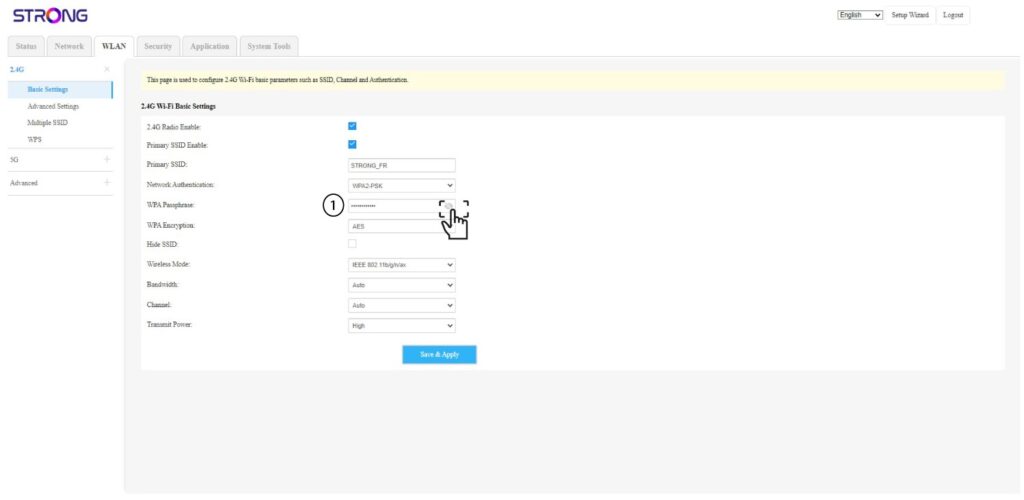
Następnie kliknij opcję „WLAN” na górnym pasku i przejdź do sek cji „2,4 GHz” lub „5 GHz ” – w zależności od tego, z jakim typem sieci jesteś połączony. Następnie przejdź do sekcji „Ustawienia podstawowe”.
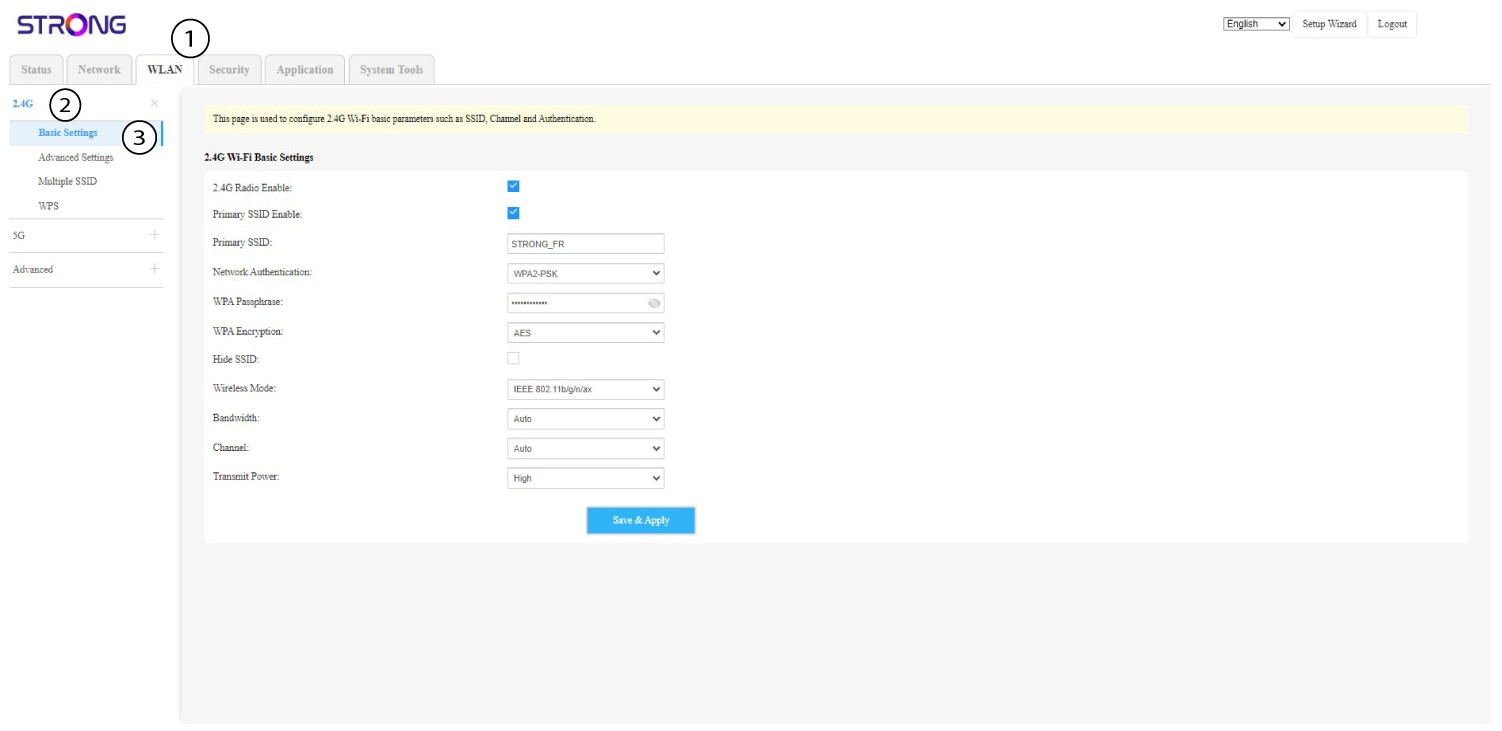
5Zmieńhasło
Teraz możesz zmienić hasło w sekcji „WPA Passphrase”. Dzięki opcji z małą ikoną oka możesz sprawdzić, czy wpisałeś właściwe hasło.
6. Zapisz to
Zapisz nowe hasło na kartce papieru i przyklej ją taśmą do urządzenia.
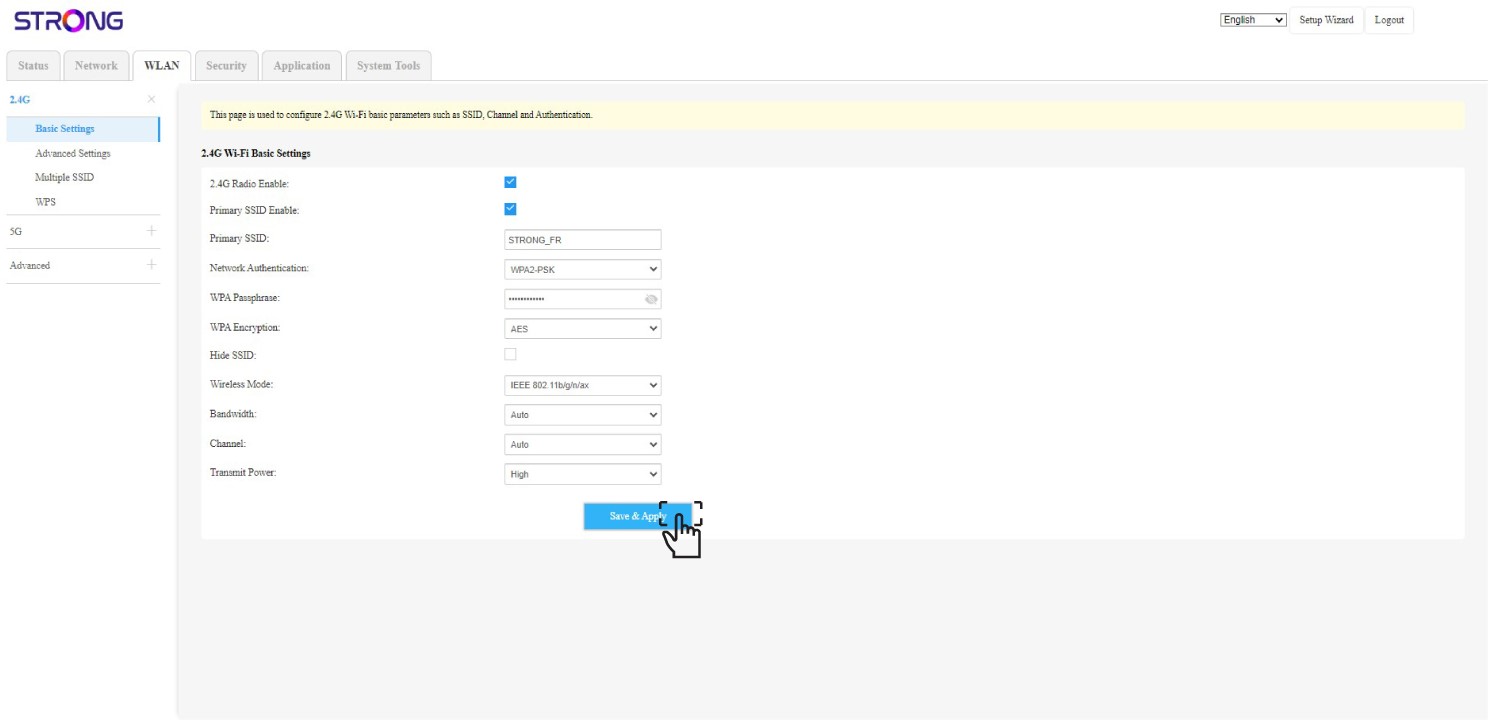
7. Zapiszzmiany
Kliknij „Zapisz i zastosuj”.