
5G AIRHOME 1050 | Wi-Fi 6
All questions
Credentials and Web UI access
How do I access the Web UI?
To access the Web UI, you must be connected to the Wi-Fi of your device after positioning the SIM card in the slot.
1Connect to the router Wi-Fi network
To do so, enter the SSID (Wi-Fi Network Name) and Wi-Fi password of the router in your device:
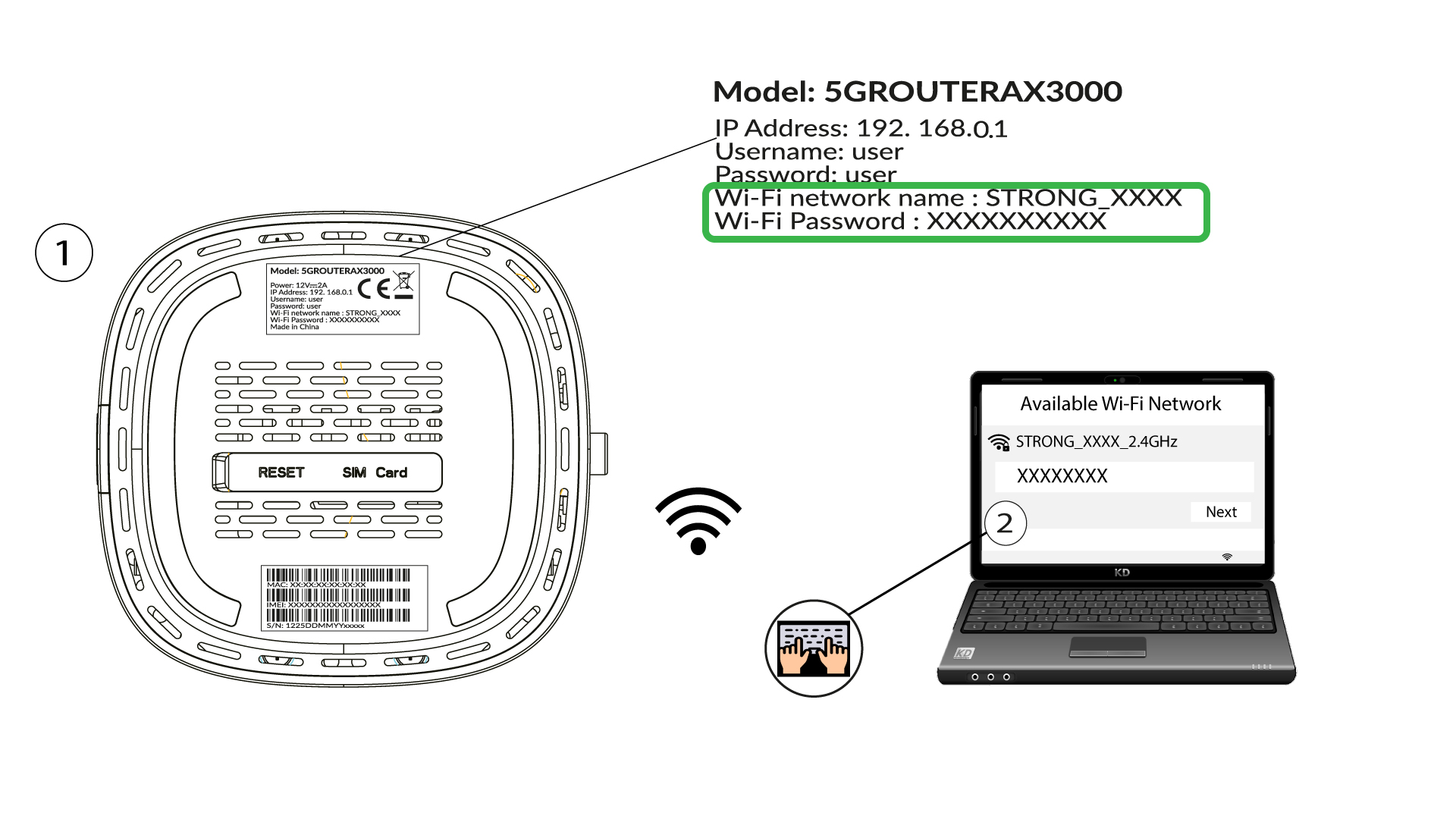
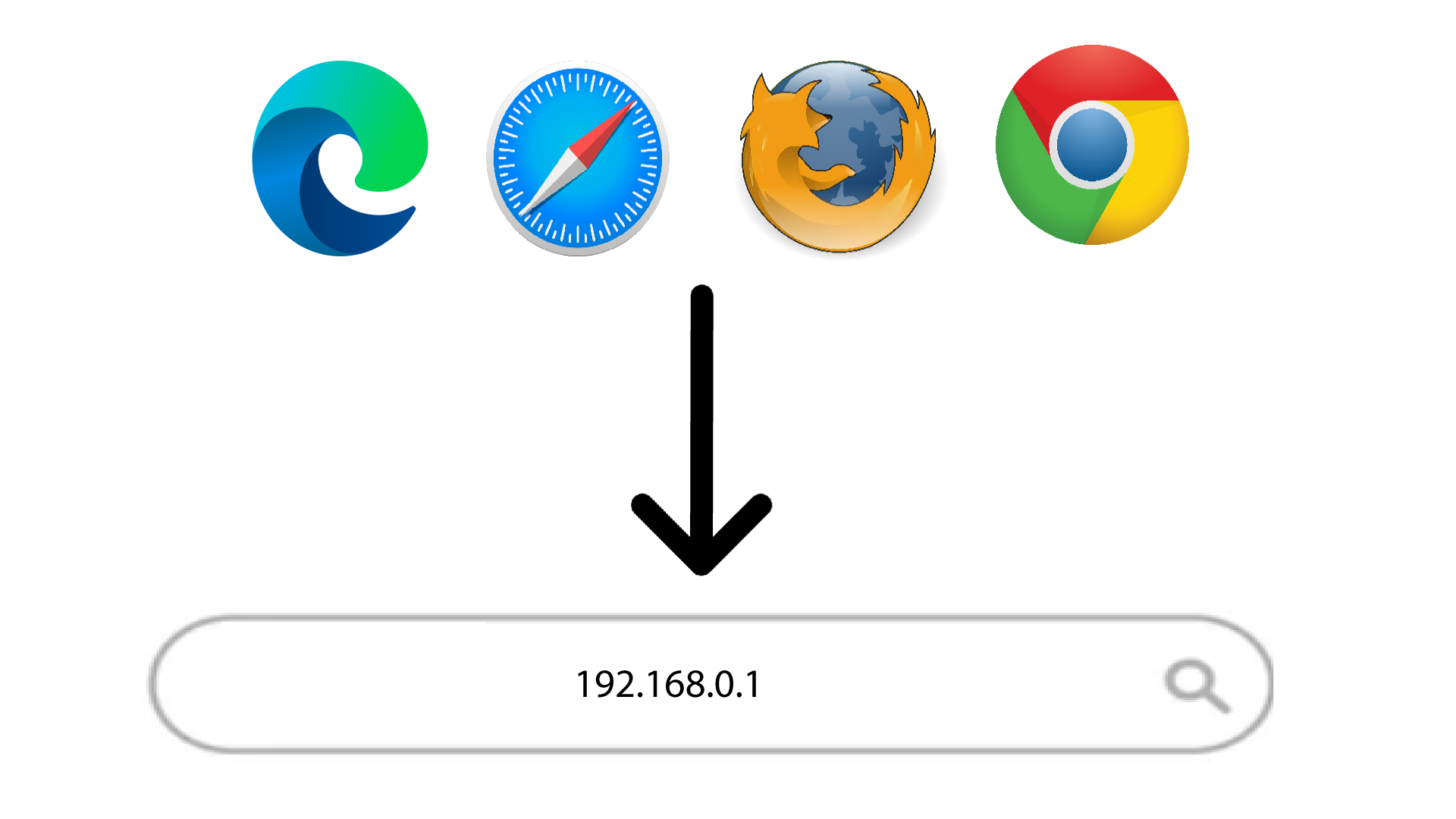
2Browse to the Web UI IP Address
Then, enter the following IP address in your browser: 192.168.0.1
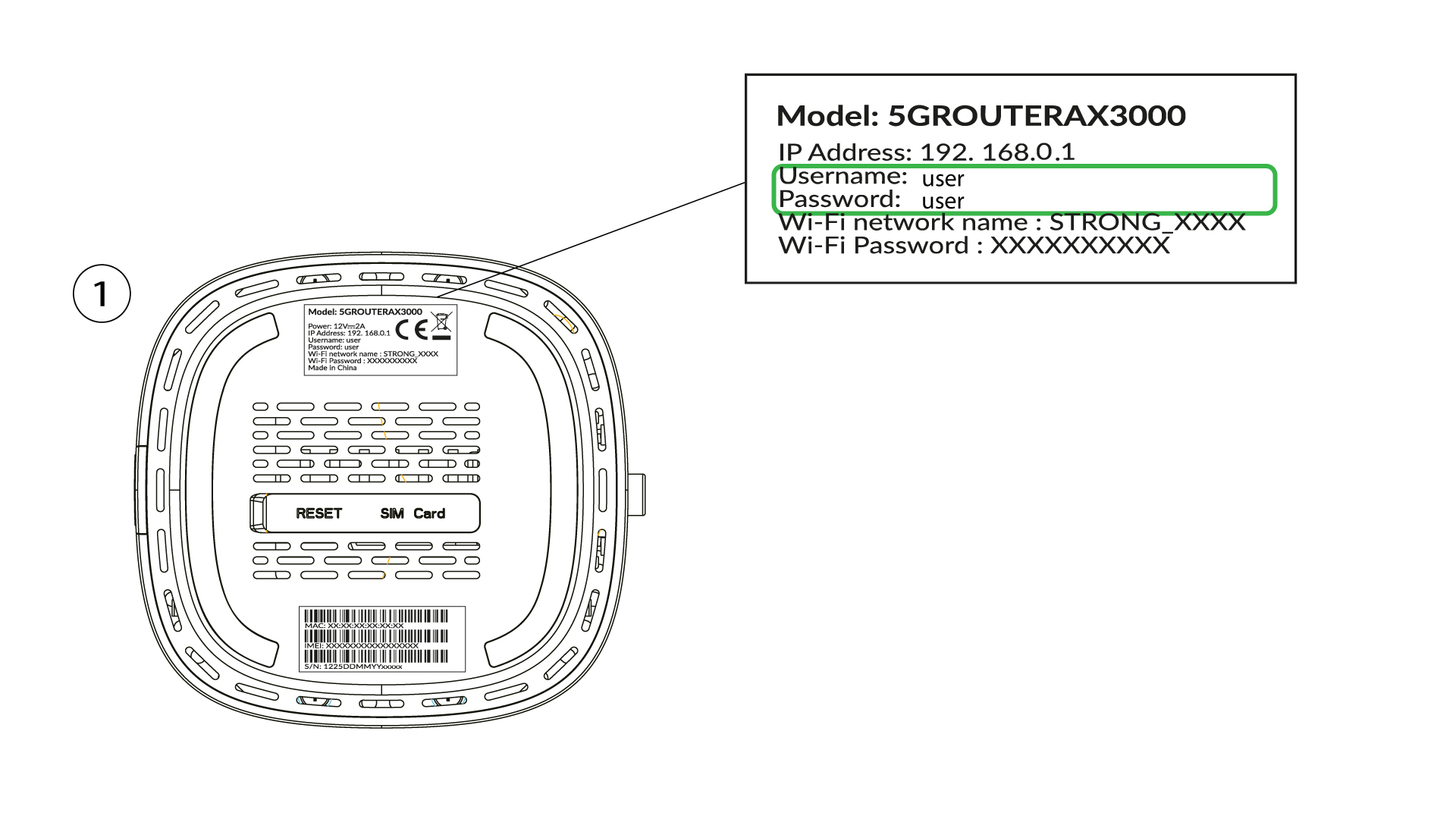
3Find your credential
To find your credentials please refer to the label located behind your device.
4Enter your credentials
You must enter the username and password and click Login (to find your credentials, please refer to the previous step).

5Change admin password
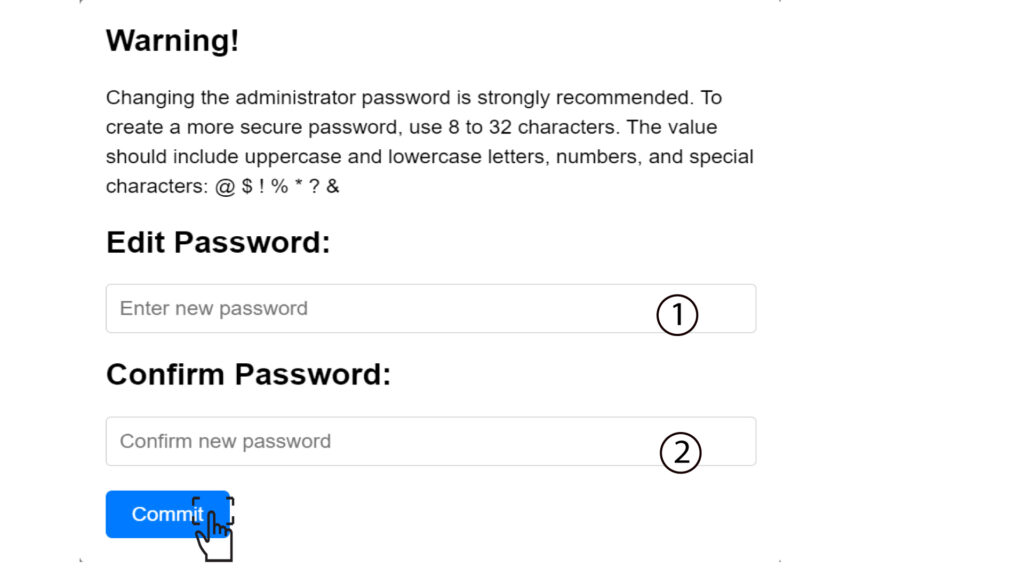
In the pop-up window that appears, you must create a new admin password after your first connection, to do so enter the following information before clicking Commit:
- Edit Password: enter a password between 8 and 32 characters containing uppercase, lowercase, number and at least one special character (@, $, !, %, *, ?, &)
- Confirm Password: enter the same password.
6Write the new credentials
Please write down the new admin password and the username on a piece of paper:
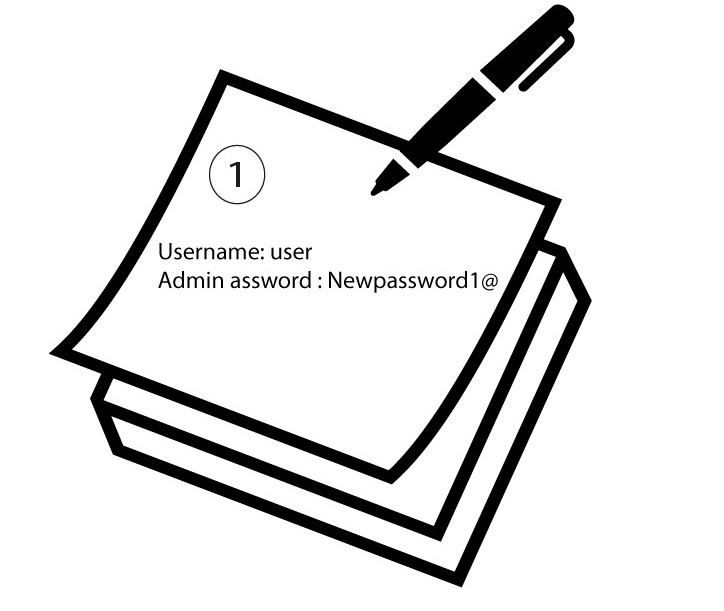

Warning: If the default administration password is set to user, you must change it after the first connection to secure the access to the router and prevent hacking. After setting up the new password, please write it down.
How do I change the SSID (Wi-Fi Network Name) and Wi-Fi password?
How do I change the SSID and password?
The 5G router AX 3000 is a dual band router, you can edit the information of your 2.4 GHz, 5 GHz Wi-Fi Mesh network.
1Connect to the device
To change the SSID (Wi-Fi Network Name) and Wi-Fi password, you must be connected to the Wi-Fi of your device.
2Access the Web UI
Then enter the following IP address: 192.168.0.1 in your browser.
3Login
You must enter the Username and Password (please note that after the first connection you will create your personal admin password which means that the password written on the product label will not work anymore). Then, click Login.
4Wi-Fi Configuration
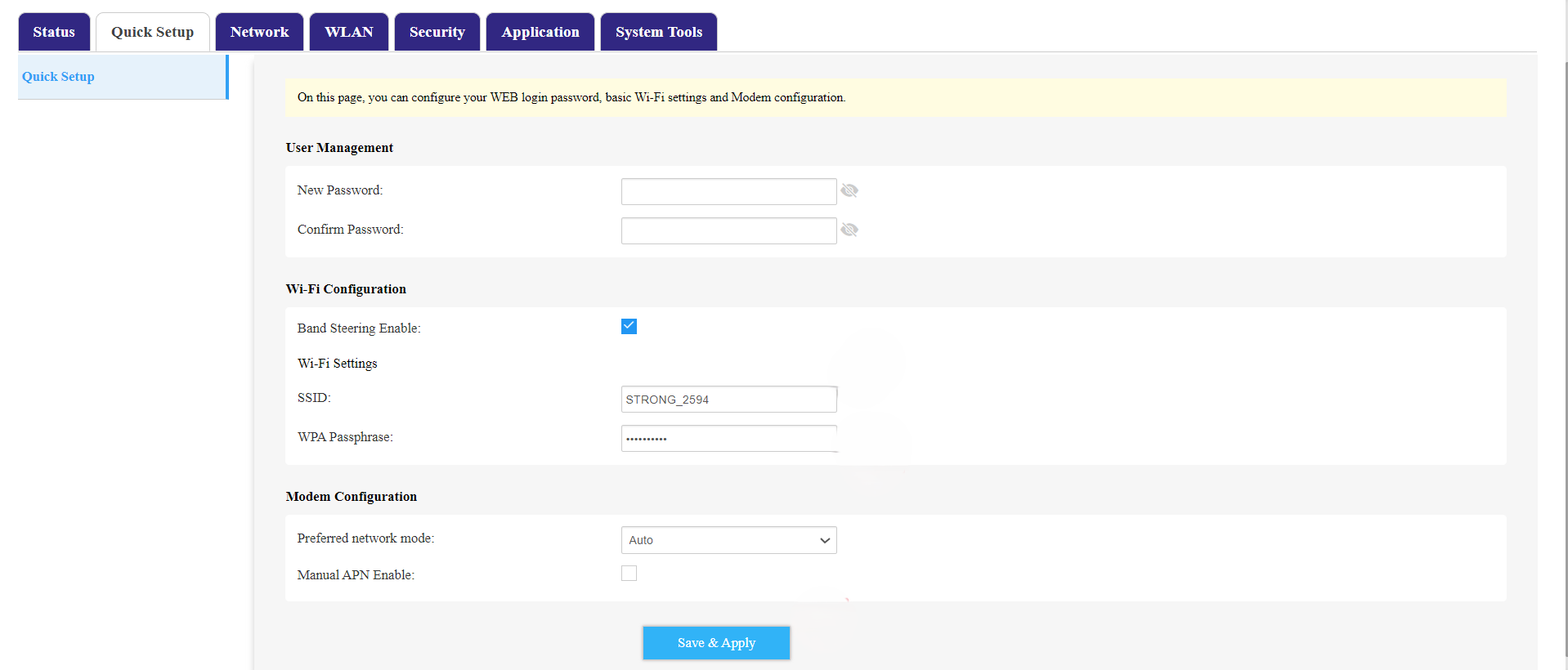
Click Quick Setup in the top bar and go to the Wi-Fi Configuration.
5Change SSID and Password
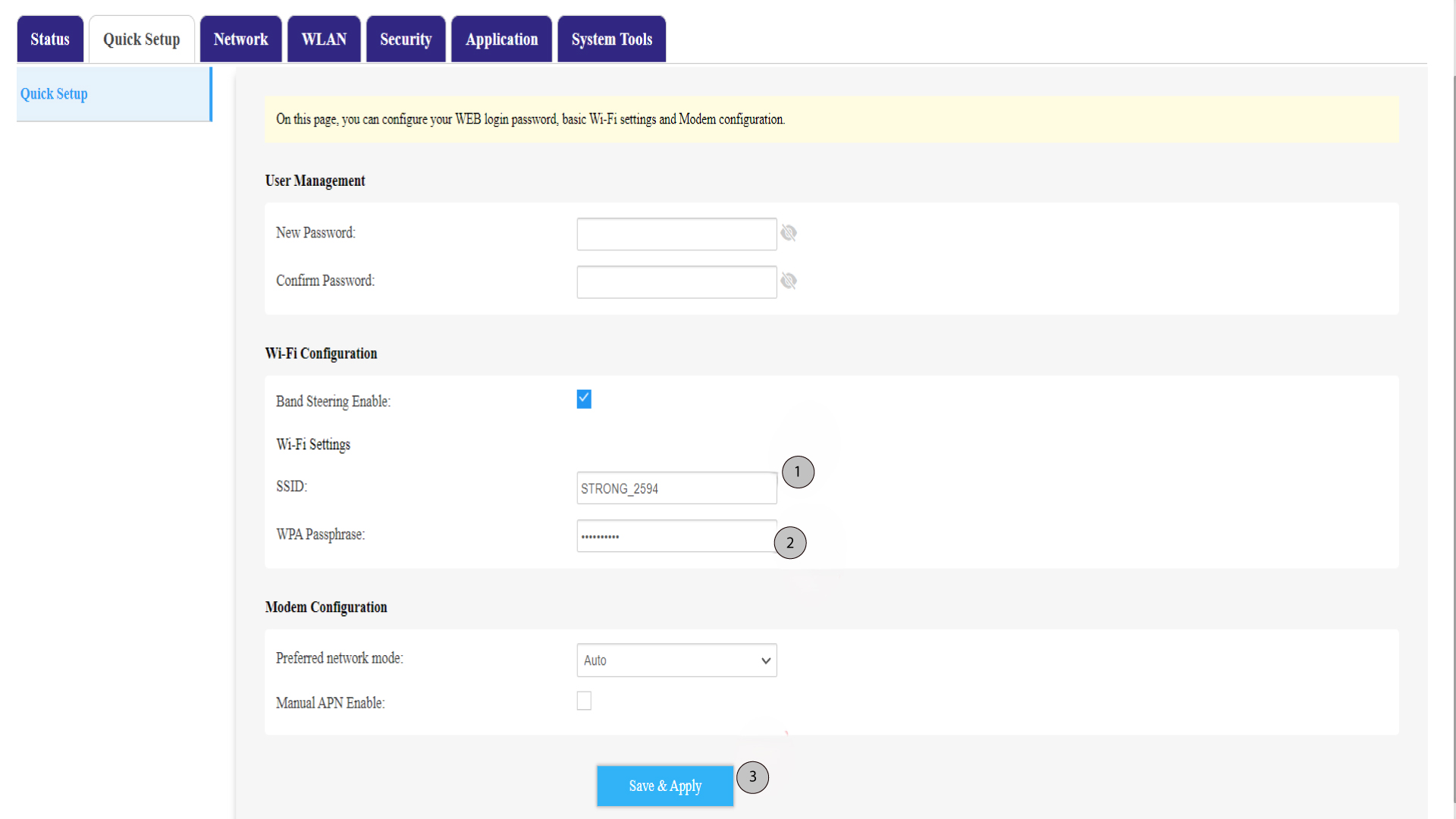
Change the name entered in the SSID field. Then, click on the eye icon to display the password and change the password entered in the WPA Passphrase field Then, click Save & Apply to save the changes.
6Write down the new nework name and password
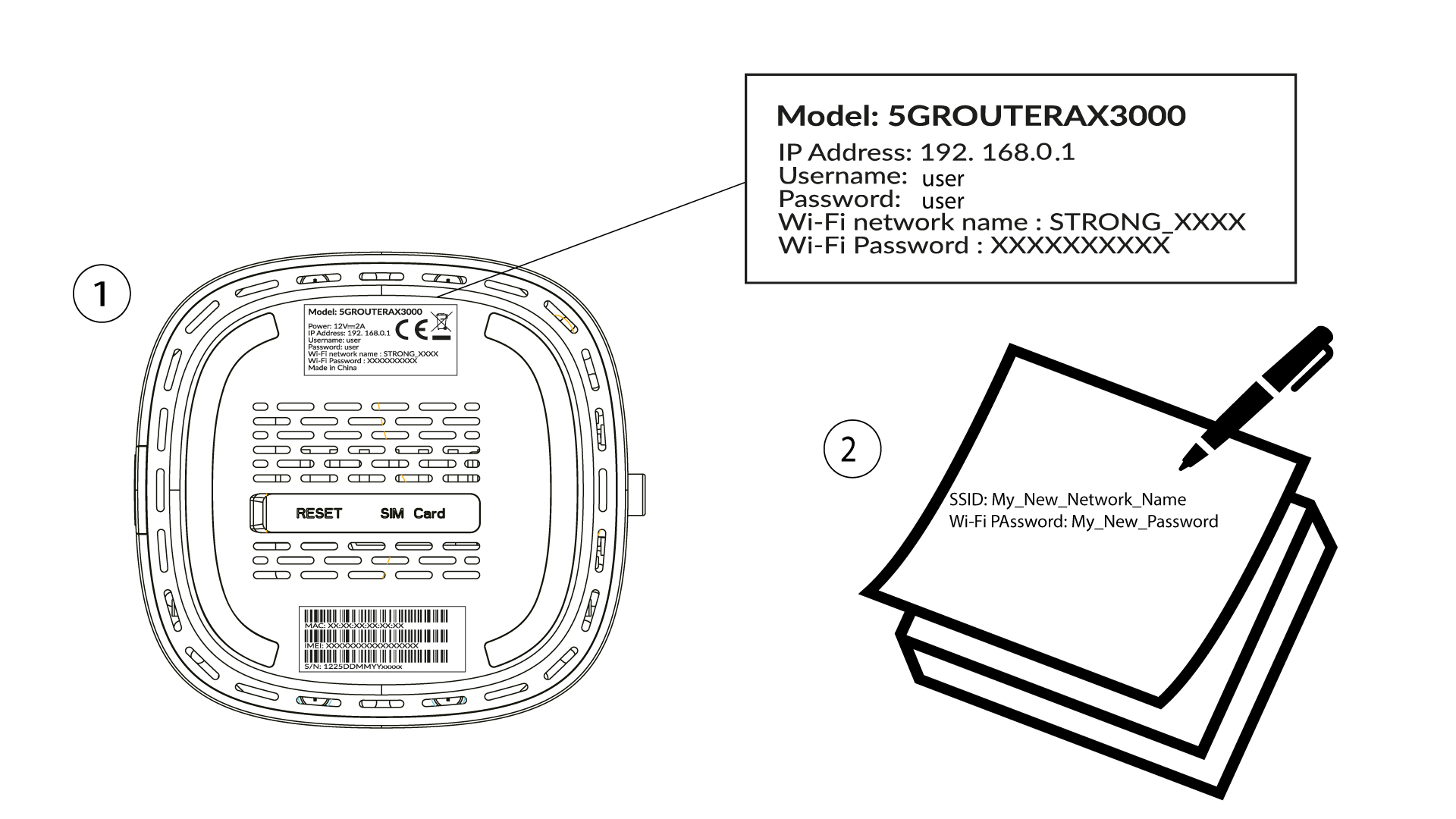
Write your new SSID (Wi-Fi Network Name) and Wi-Fi password on a paper and tape it to the router.
How do I change the admin password?
Warning: please note that it is not possible to change the administration username. You can only change the password.
1Connect to the device
To update the admin password, you must connect to the Wi-Fi of your device.
2Access the Web UI
Then enter the following IP address: 168.0.1 in your browser.
3Login
You must enter the Username and Password. Then click Login.
4User Management
Once this is done, click System Tools and User Management
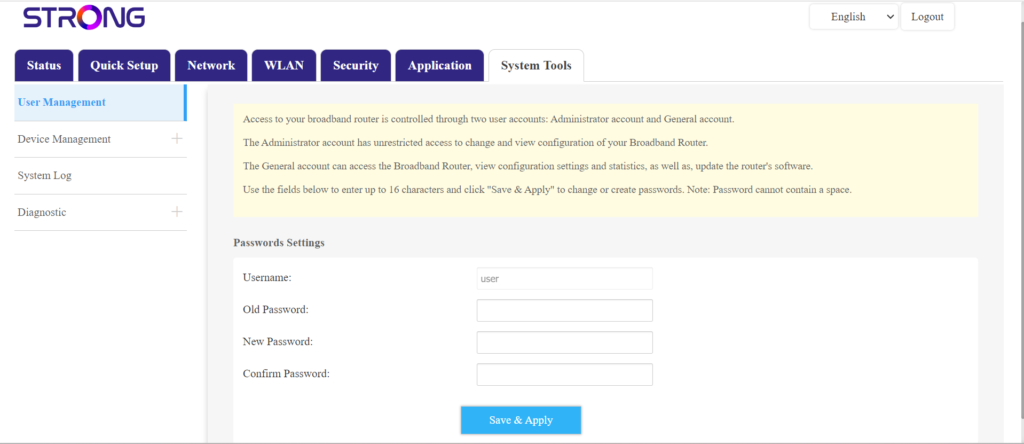
5Change Password
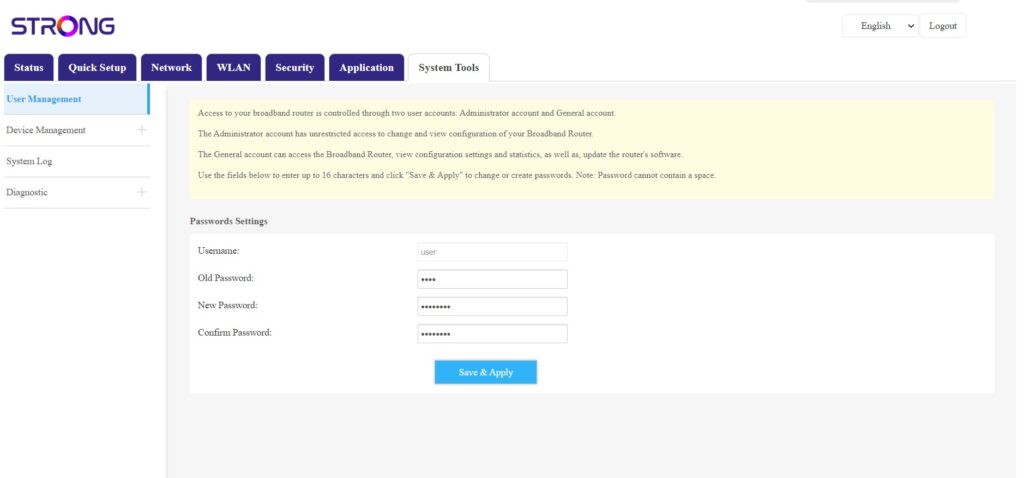
Enter the following information in the fields before clicking Save & Apply:
- Old Password: Enter the current password that you used to connect to the Web UI.
- New Password: Enter a new password to connect to the Web UI.
- Confirmed Password: Enter the same password as in the New Password field.
I lost the admin password; how can I connect to the Web UI?
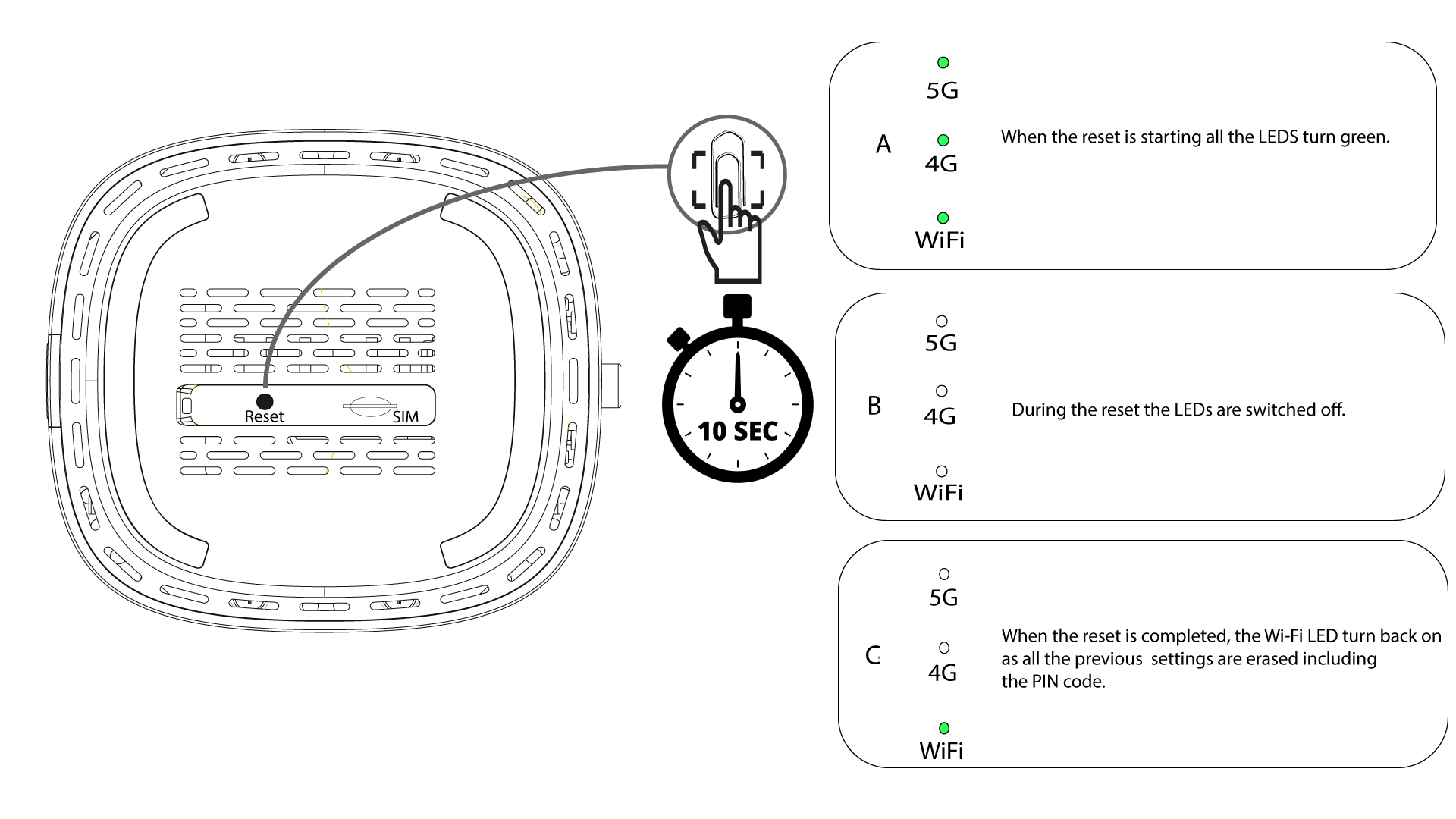
If you created your personal admin password after the first connection and forgot to write it down and even forgot the information, you can reset the router to its factory settings and create a new one.
1Case 1: Full size SIM card
To do so, insert a paper clip in the hole to press the reset button. Press the reset button for 10 seconds. The LEDS will switch off and turn back on again.
What can I do in the Web UI?
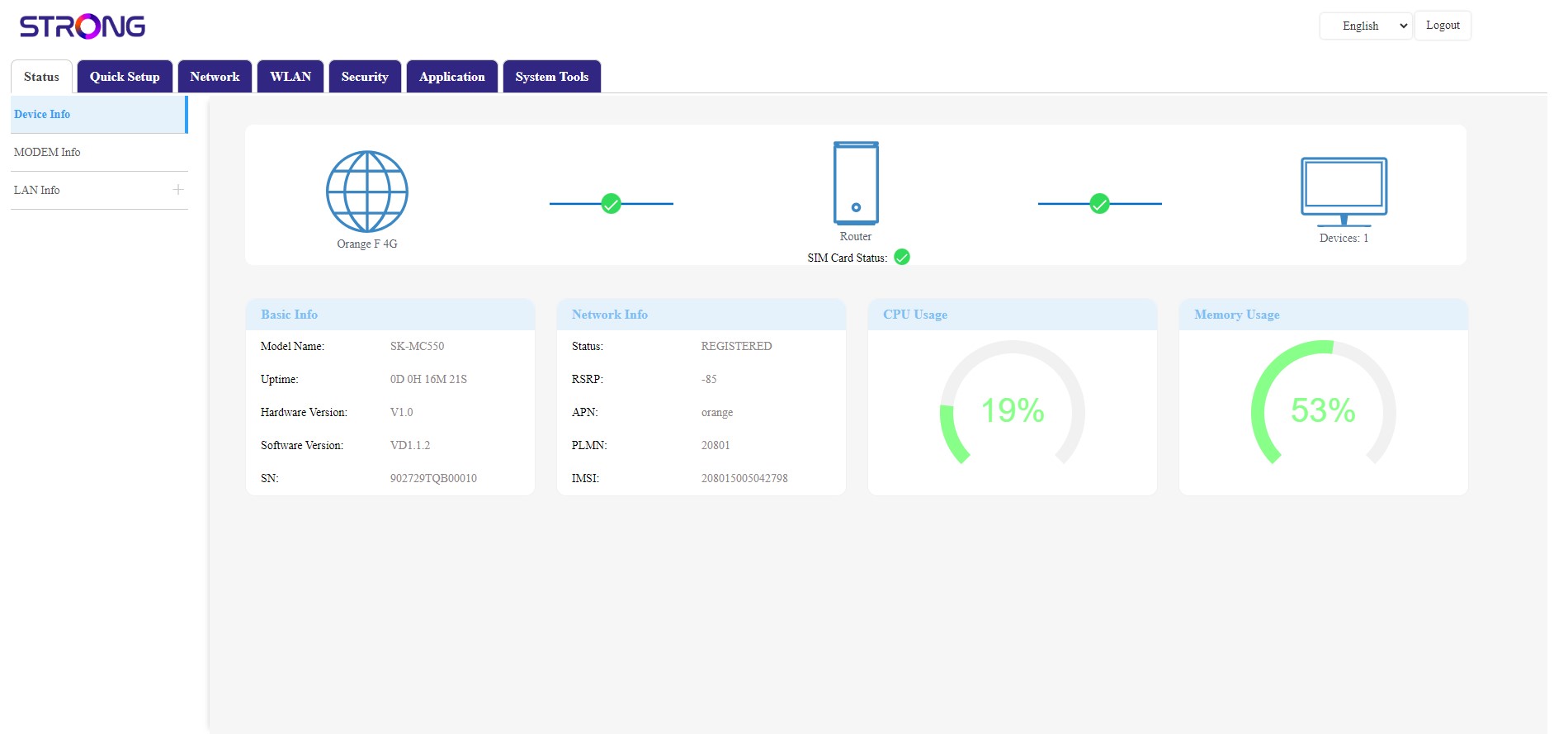
The Web UI is divided into 7 sections:
- Status: where you can see the information about the device, PIN Code, Internet, LAN and wireless connections.
- Quick Setup: where you can modify the password of the Wi-Fi, the name of the network and configure the Modem.
- Network: where you can choose the Uplink mode, set up the APN, change or enter the PIN code, WAN, LAN, manage the traffic, set up the voice configuration and Speed Limit.
- WLAN: where you choose between 2.4G and 5G network, set up multiples SSID, the WPS, manage the internet access of the different mac address, schedule the Wi-Fi activation and set up a Mesh.
- Security: where you can set up a firewall, DoS Settings, URL/MAC filters, IP filters and parental/service control.
- Application: where you can set up DNZ, DDNS, a VPN, UPnP settings and the USB devices.
- System Tools: where you can change the login credentials, reboot the device, update the firmware, save and restore a backup, reset to factory settings, manage the LEDs, access the logs and launch diagnostics.
Where are the SSID (Wi-Fi Network Name) and Wi-Fi Password written?
To find the password of your device, you can look under the device, the information will be written.