Mesh Wi-Fi 6 ATRIA 3000 (confezione da 2)
Tutte le domande
Mesh Wi-Fi 6 ATRIA 3000 (confezione da 2)
Come posso impostare un indirizzo IP statico o assegnare un indirizzo IP dedicato al mio dispositivo Atria Mesh AX3000?
Può essere utile impostare un indirizzo IP statico per il controller mesh , in modo da poter accedere più facilmente all’interfaccia utente web dalla propria rete tramite l’app Atria Mesh .
È inoltre possibile assegnare indirizzi IP dedicati ai dispositivi collegati alla rete mesh tramite l’interfaccia utente web.
1Caso1: Configurare un indirizzo IP statico per il controller mesh nell'app Atria Mesh
È necessario connettersi al Wi-Fi dell’ mesh o dal proprio dispositivo e aprire l’applicazione Atria.

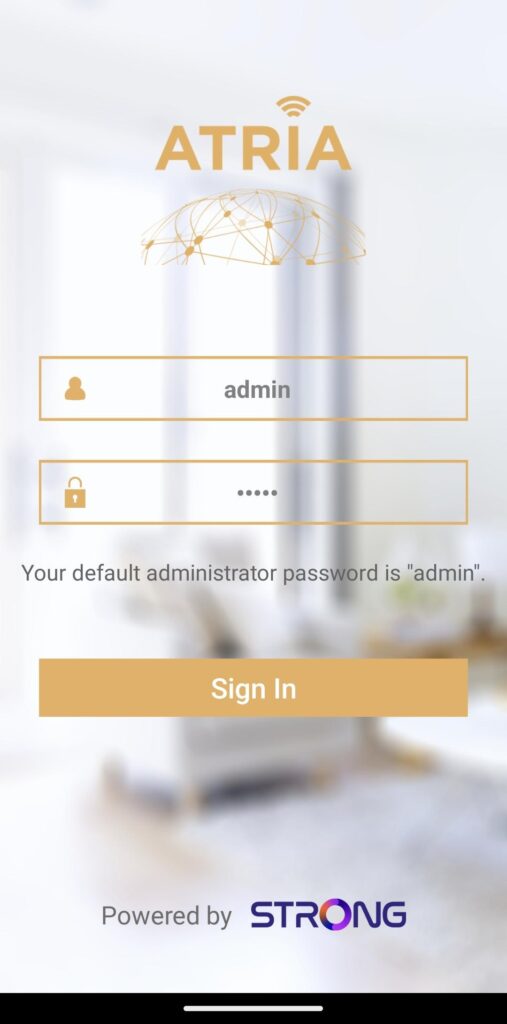
2. Inseriscile tue credenziali
Inserisci il nome utente e la password (admin/admin) prima di fare clic su "Accedi".
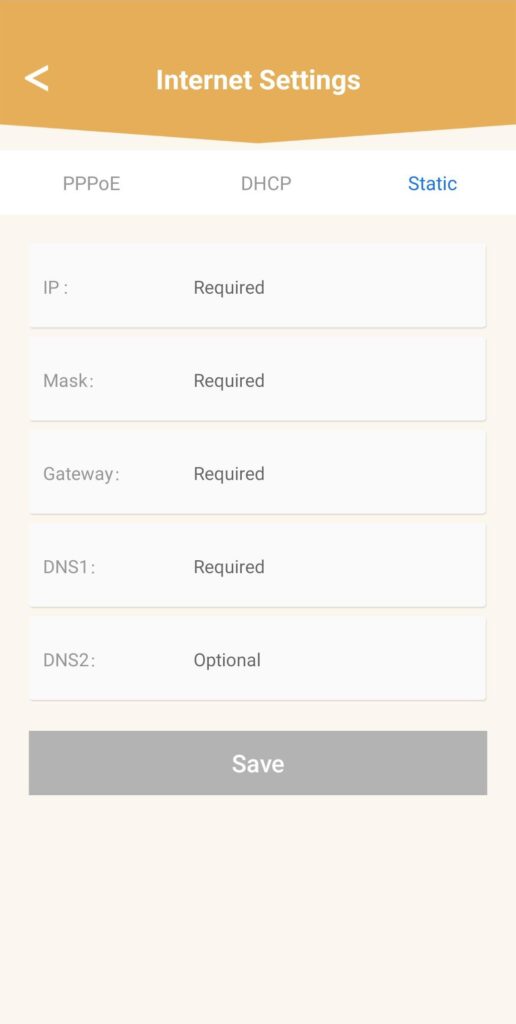
3Impostazioni Internet- Statiche
Fare clic su “Impostazioni Internet ” e poi su “Statico”. È necessario inserire le seguenti informazioni prima di fare clic su “Salva ”:
• IP: inserire l’indirizzo IP che si desidera assegnare all’ mesh.
• Maschera: il campo viene compilato automaticamente in base all’indirizzo IP inserito in precedenza.
• Gateway: il campo viene compilato automaticamente in base all’indirizzo IP inserito in precedenza.
• DNS1: inserisci l’indirizzo DNS principale del tuo provider di servizi Internet box.
• DNS2: inserisci l’indirizzo DNS secondario del tuo provider di servizi Internet box.
1Caso2: Assegnare un indirizzo IP dedicato agli agenti/dispositivi di mesh nell'interfaccia utente web
Per farlo, inserisci l'SSID (nome della rete Wi-Fi) e la password Wi-Fi del router sul tuo dispositivo:
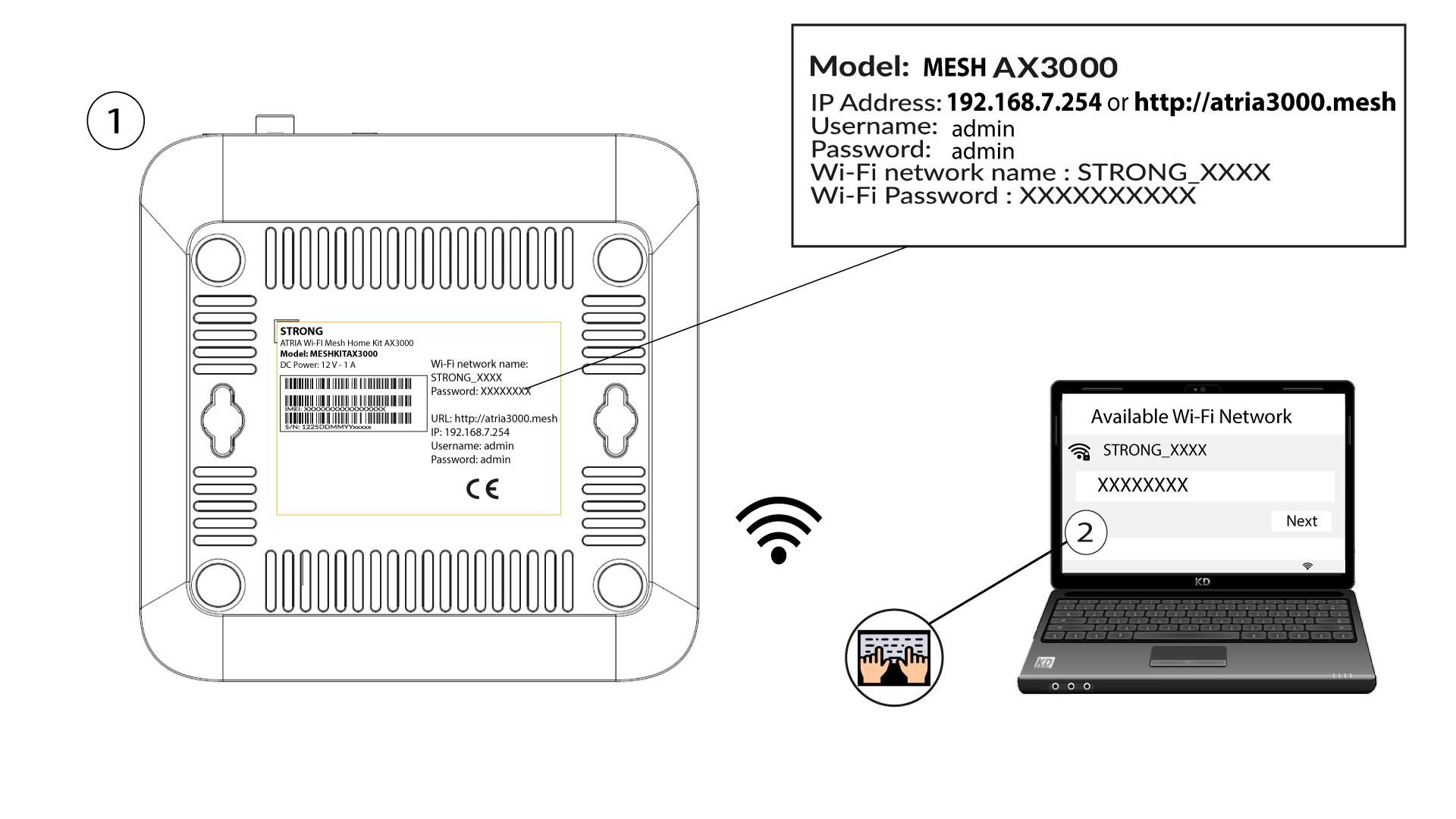
2. Accedereall'indirizzo IP dell'interfaccia utente web
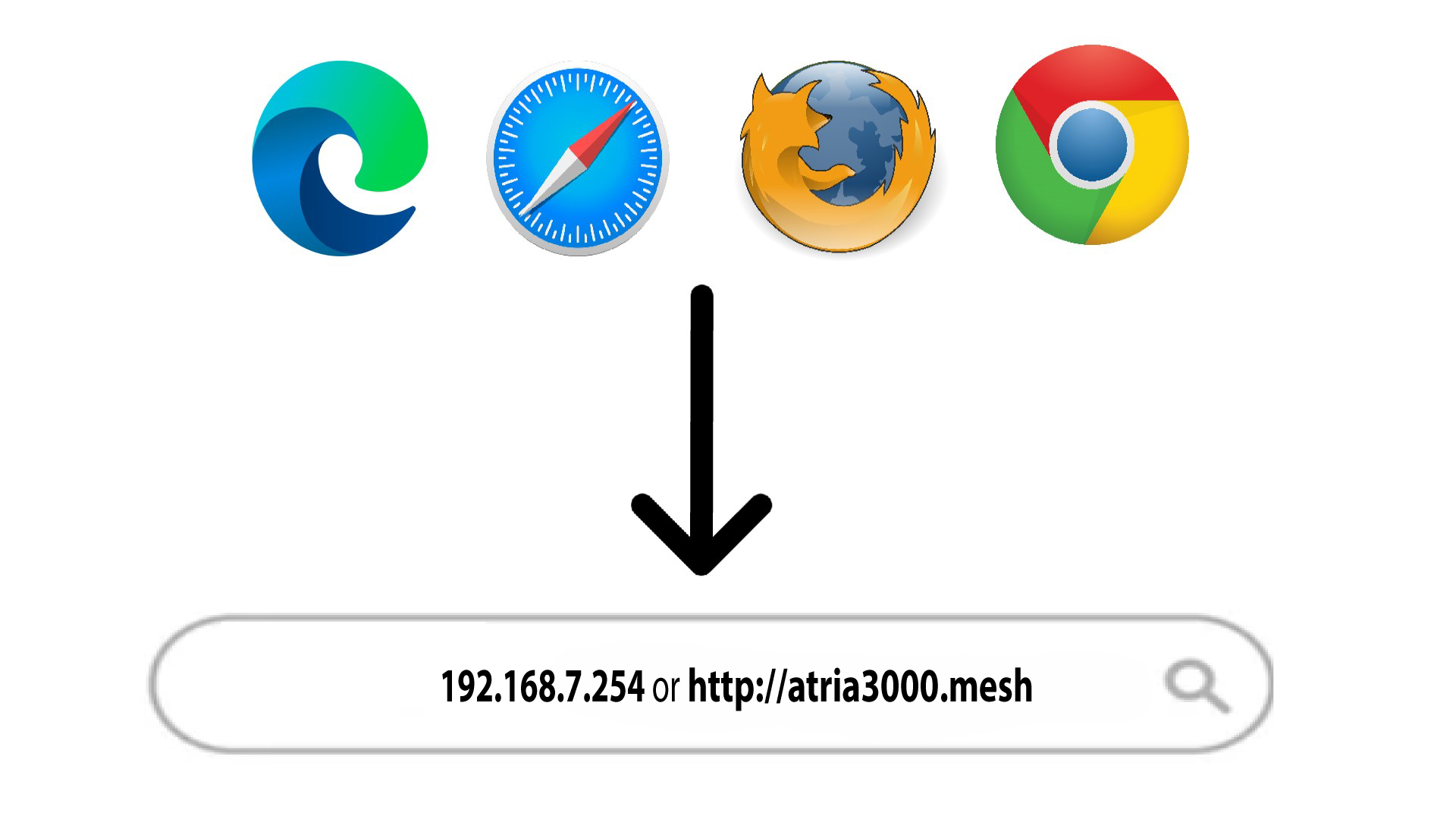
A questo punto, inserisci nel browser il seguente indirizzo IP: 192.168.7.254 oppure digita il seguente indirizzo: http://atria3000.mesh
3. Inseriscile tue credenziali
È necessario inserire il nome utente (admin) e la password (admin) (si prega di notare che, dopo il primo accesso, verrà creata una password di amministratore personale, il che significa che la password riportata sull'etichetta del prodotto non funzionerà più). Quindi, fare clic su "Accedi".

4. Configurazione IPv4
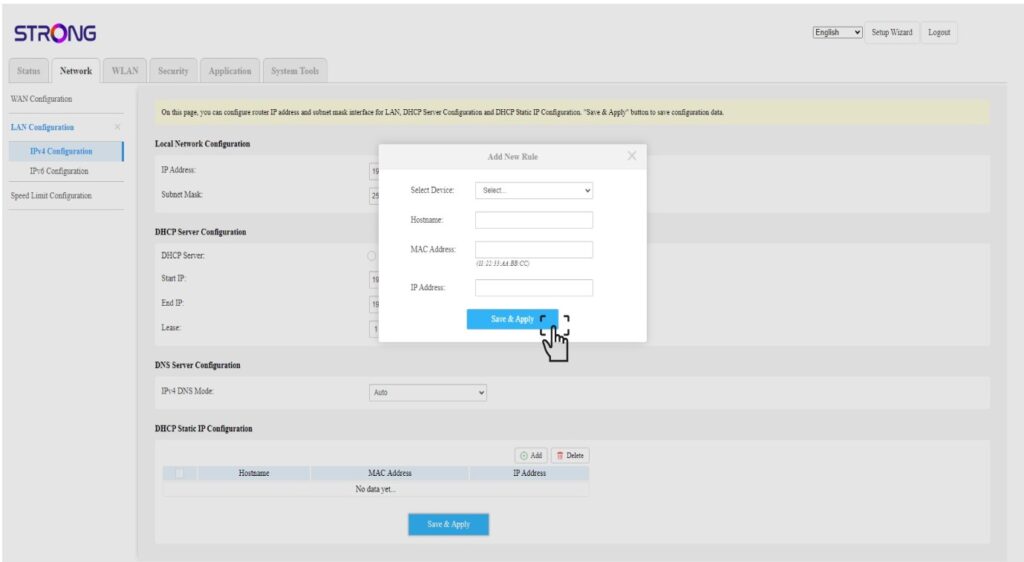
Fare clic su “Rete”, “Configurazione LAN ” e “Configurazione IPv4”.

5. Aggiungiun indirizzo IPv4
Fare clic su “Aggiungi ” nella finestra “Configurazione IP statico DHCP”. Quindi inserire le seguenti informazioni prima di fare clic su “Salva e applica”.
• Seleziona dispositivo: seleziona il nome del dispositivo dall'elenco.
• Nome host: il campo viene compilato automaticamente con il nome del dispositivo.
• Indirizzo MAC: il campo viene compilato automaticamente con l'indirizzo MAC del dispositivo.
• Indirizzo IP: il campo viene compilato automaticamente con l'indirizzo IP statico assegnato al dispositivo