Mesh Wi-Fi 6 ATRIA 3000 (confezione da 2)
Tutte le domande
Mesh Wi-Fi 6 ATRIA 3000 (confezione da 2)
Ho dimenticato la password Wi-Fi della mia rete Mesh , come posso recuperarla?
Come posso creare o modificare la password Wi-Fi della mia rete Mesh ?
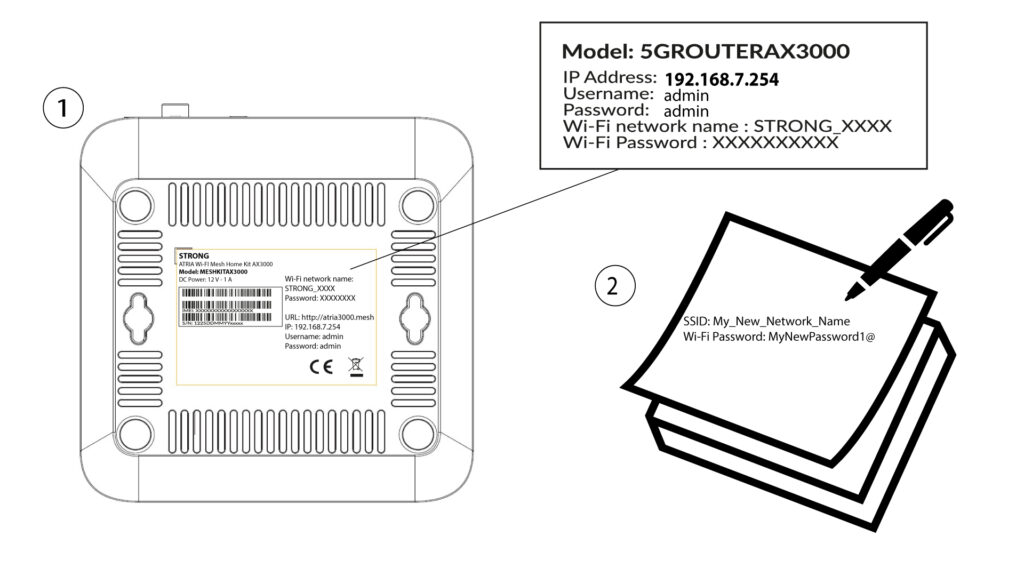
1. Posizione della password predefinita
La password Wi-Fi predefinita è riportata sul fondo del dispositivo; tuttavia, se l'hai già modificata, potrebbe essere necessario ripristinare le impostazioni di fabbrica dell'Mesh AX 3000.
A tal fine, consulta la seguente sezione: Come posso ripristinare le impostazioni di fabbrica delle mie unità Mesh ?
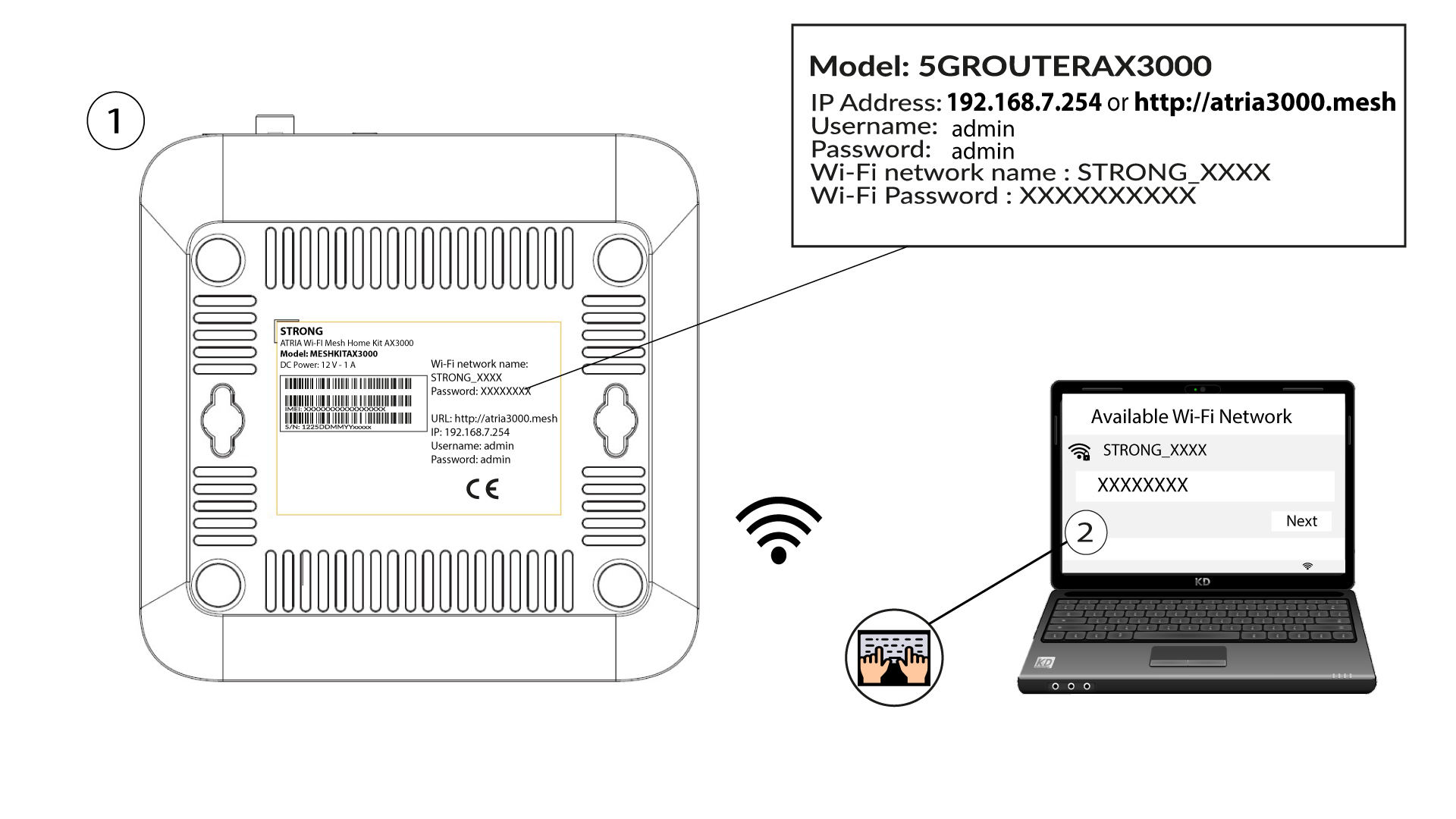
Una volta fatto ciò, potrai modificare la password predefinita del Wi-Fi sostituendola con una password personale
1. Connettitialla rete Wi-Fi del dispositivo
Per farlo, inserisci l'SSID (nome della rete Wi-Fi) e la password Wi-Fi del router sul tuo dispositivo:
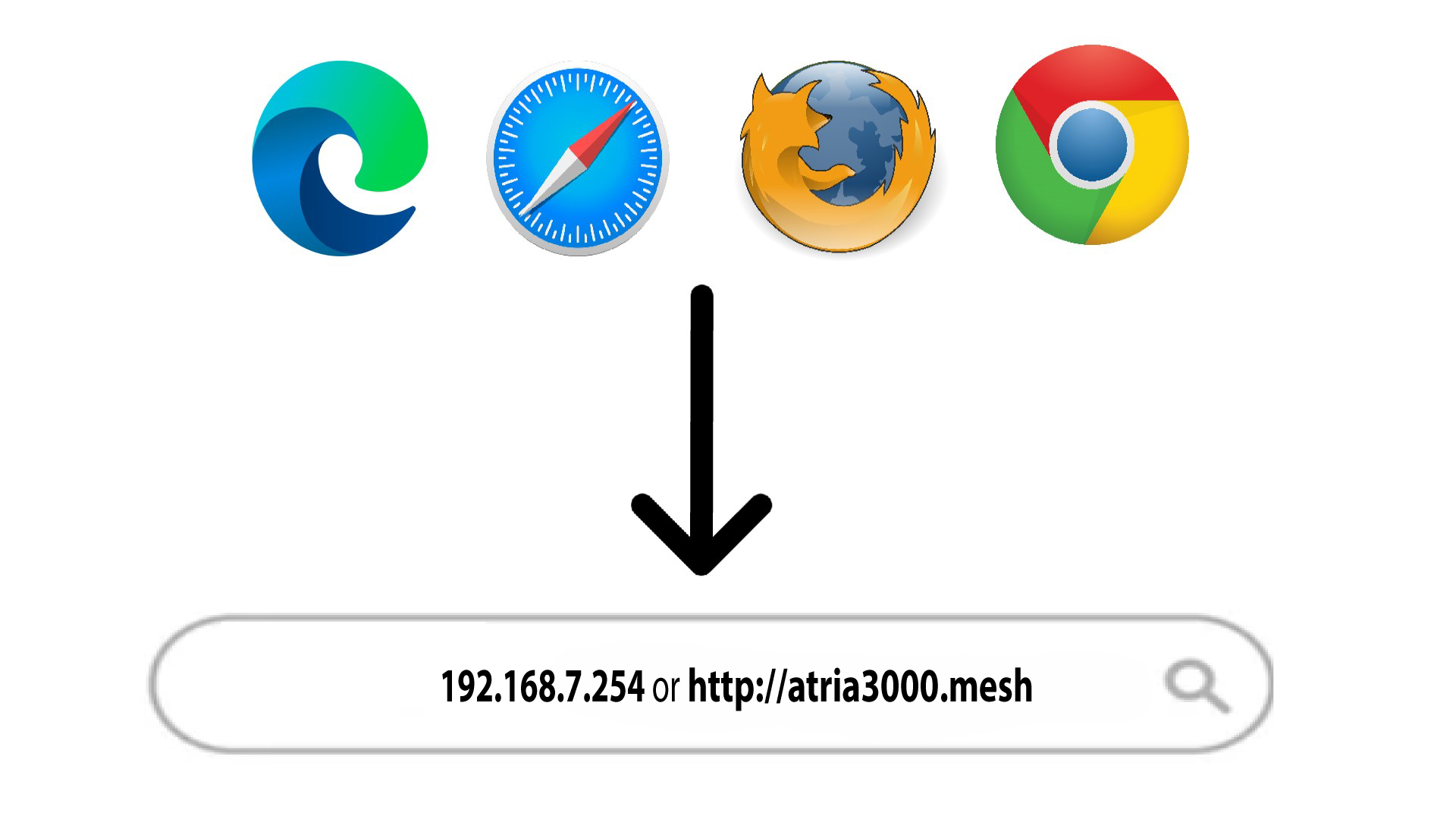
2. Accedereall'indirizzo IP dell'interfaccia utente web
A questo punto, inserisci nel browser il seguente indirizzo IP: 192.168.7.254 oppure digita il seguente indirizzo: http://atria3000.mesh
3. Inseriscile tue credenziali
È necessario inserire il nome utente (admin) e la password (admin) (si prega di notare che, dopo il primo accesso, verrà creata una password di amministratore personale, il che significa che la password riportata sull'etichetta del prodotto non funzionerà più). Quindi, fare clic su "Accedi".

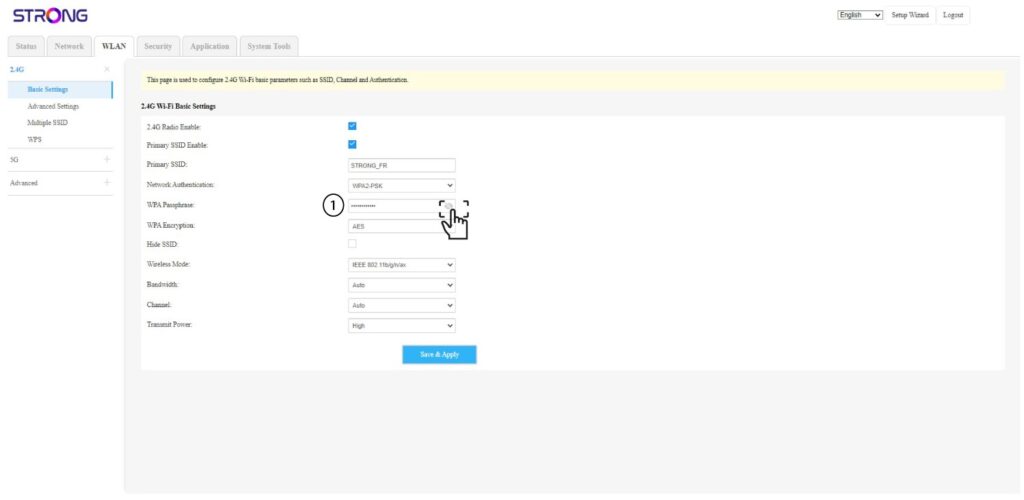
4. WLANa 2,4 GHz e 5 GHz
Quindi, clicca su “WLAN” nella barra in alto e seleziona “2,4G” o “5G” a seconda del tipo di rete a cui sei connesso. Successivamente, vai su “Impostazioni di base”.
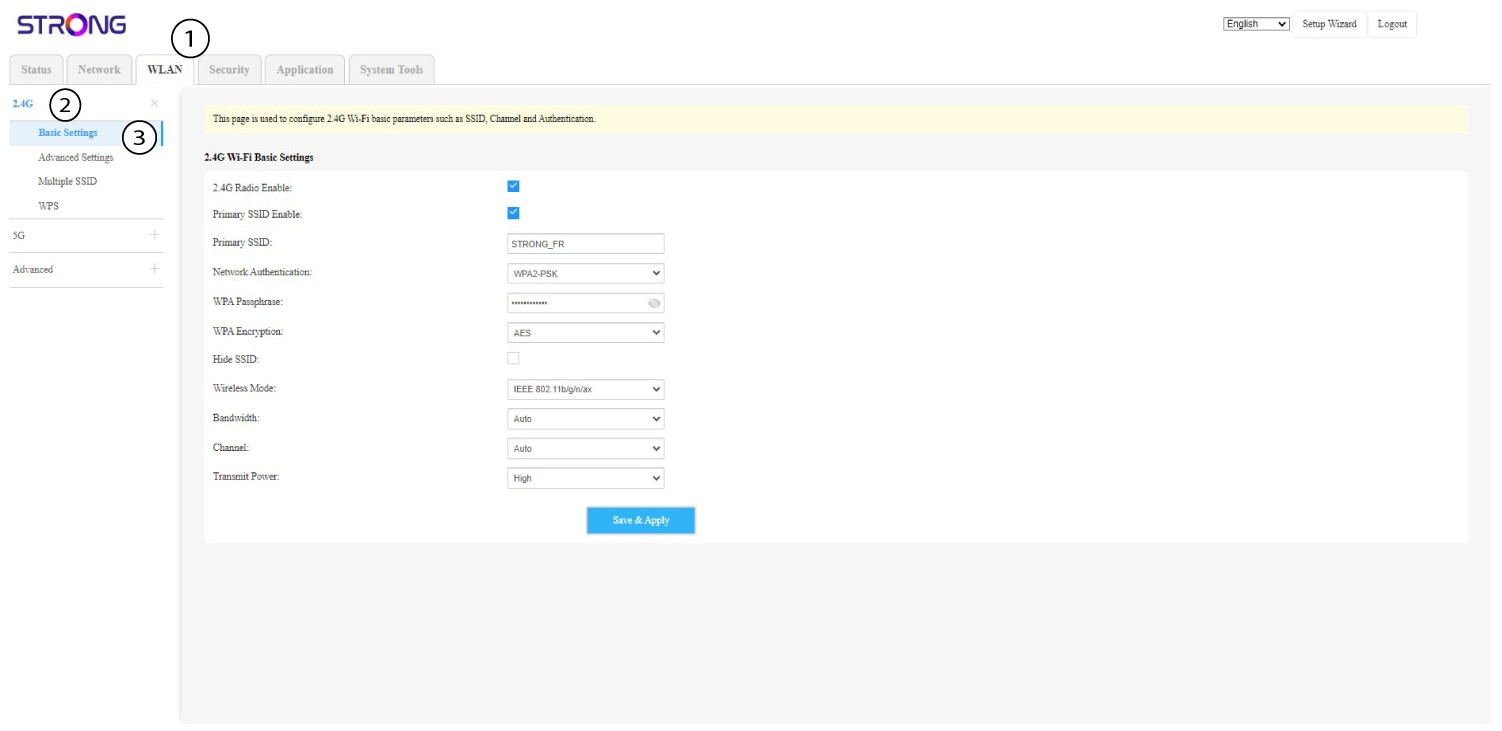
5. Cambiapassword
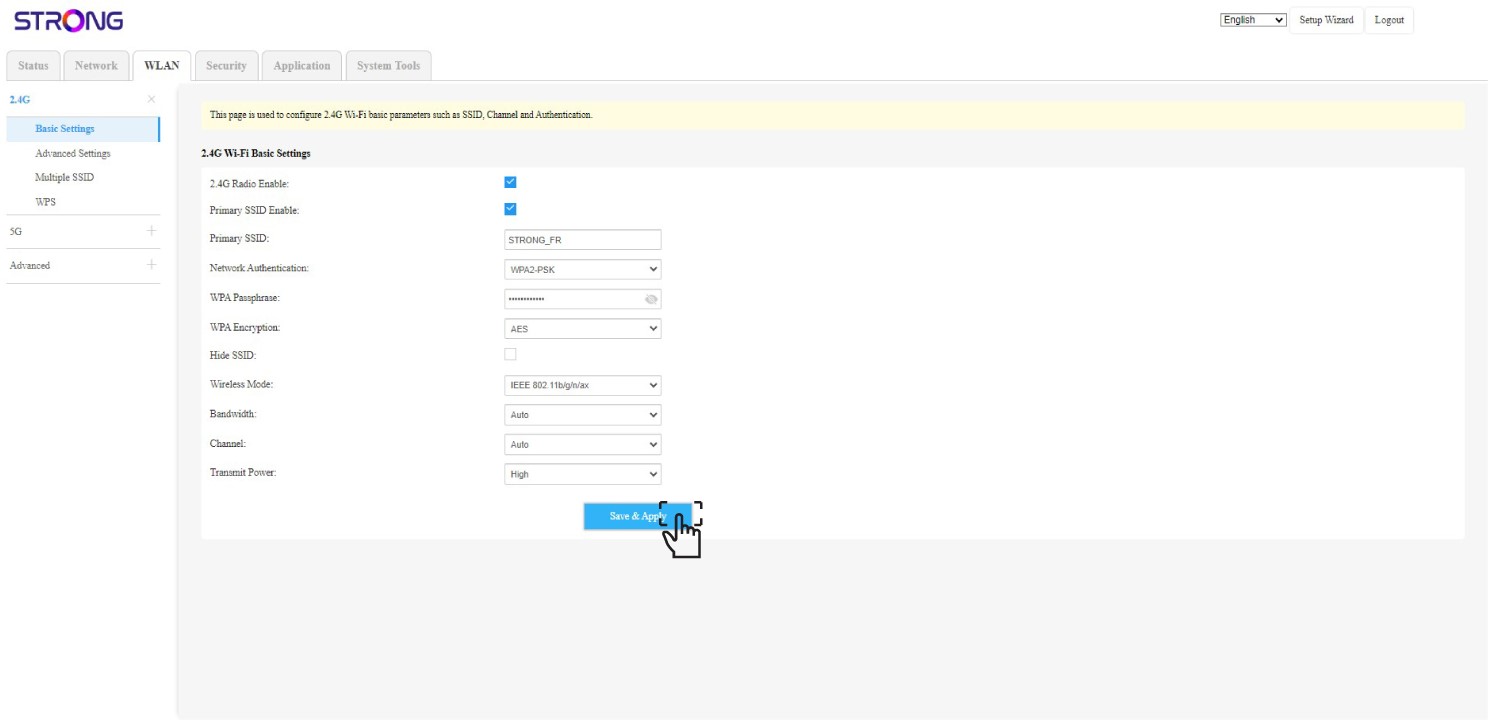
Ora puoi modificare la password nella sezione" Passphrase WPA". Puoi verificare se hai inserito quella corretta grazie all'icona a forma di occhio.
6. Scrivilo
Annota la nuova password su un foglio di carta e attaccalo con del nastro adesivo al tuo dispositivo.
7. Salvale modifiche
Fai clic su “Salva e applica”.