
4G AIRSPOT 220 Wi-Fi kijelzővel
Minden kérdés
4G AIRSPOT 220 Wi-Fi kijelzővel
Hogyan módosíthatom az SSID-t (a Wi-Fi-hálózat nevét) és a Wi-Fi-jelszót?
A webes felhasználói felületen kétféle módon módosíthatja az útválasztó SSID-jét (Wi-Fi-hálózat nevét) és Wi-Fi-jelszavát:
• A Gyorsbeállítások használatával:
• Vagy a Wi-Fi-beállítások használatával
1. ESET: Gyorsbeállítások
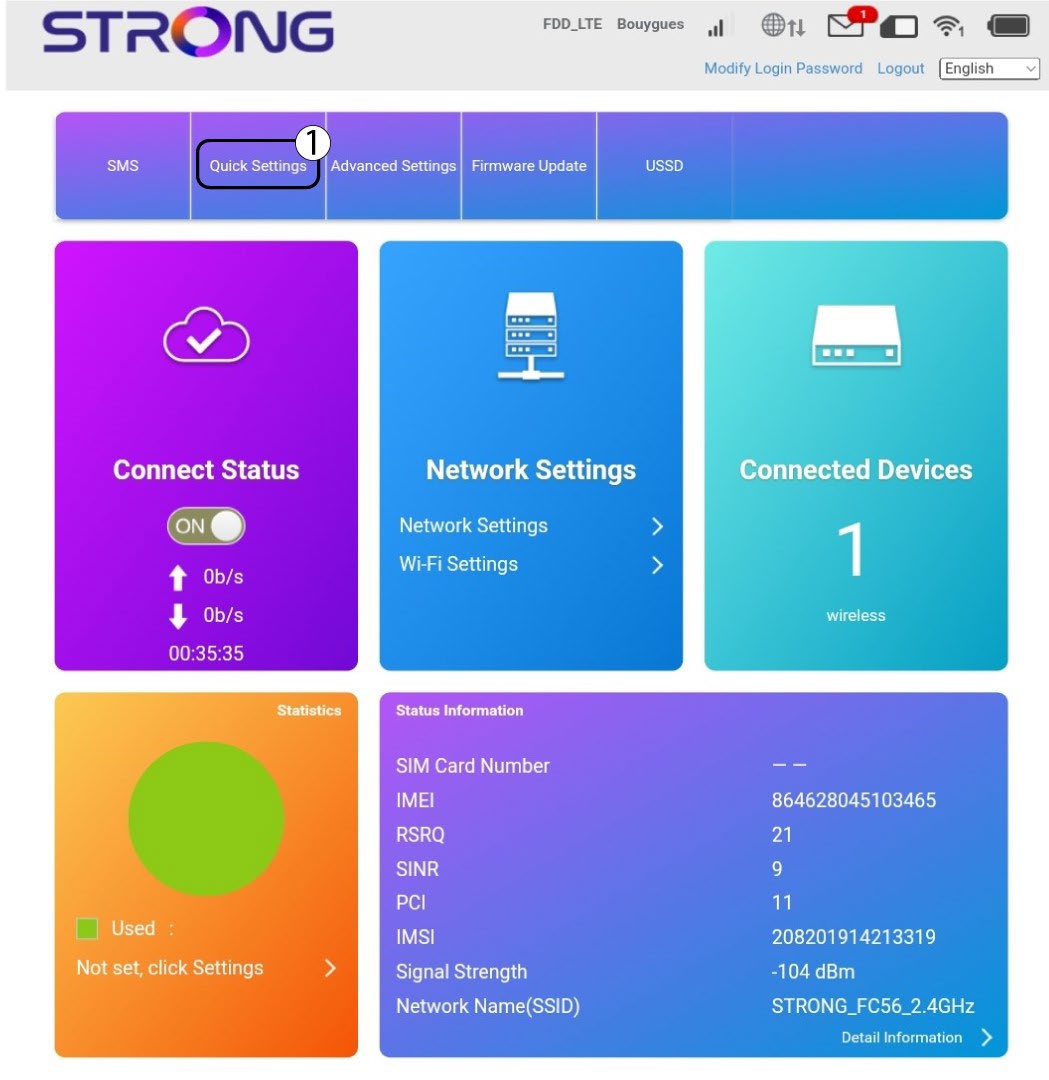
A webes felhasználói felületen a „Gyorsbeállítások” menüpont segítségével módosíthatja a hálózat adatait: az SSID-t (a Wi-Fi-hálózat nevét) és a Wi-Fi-jelszót.
Ehhez kattints a felső sávban a „Gyorsbeállítások” elemre.
2APNbeállítás
Kattintson a „Tovább” gombra.

3SSID
Írja be az új hálózat nevét, majd kattintson a „Tovább” gombra.

4Írja beaz új jelszót
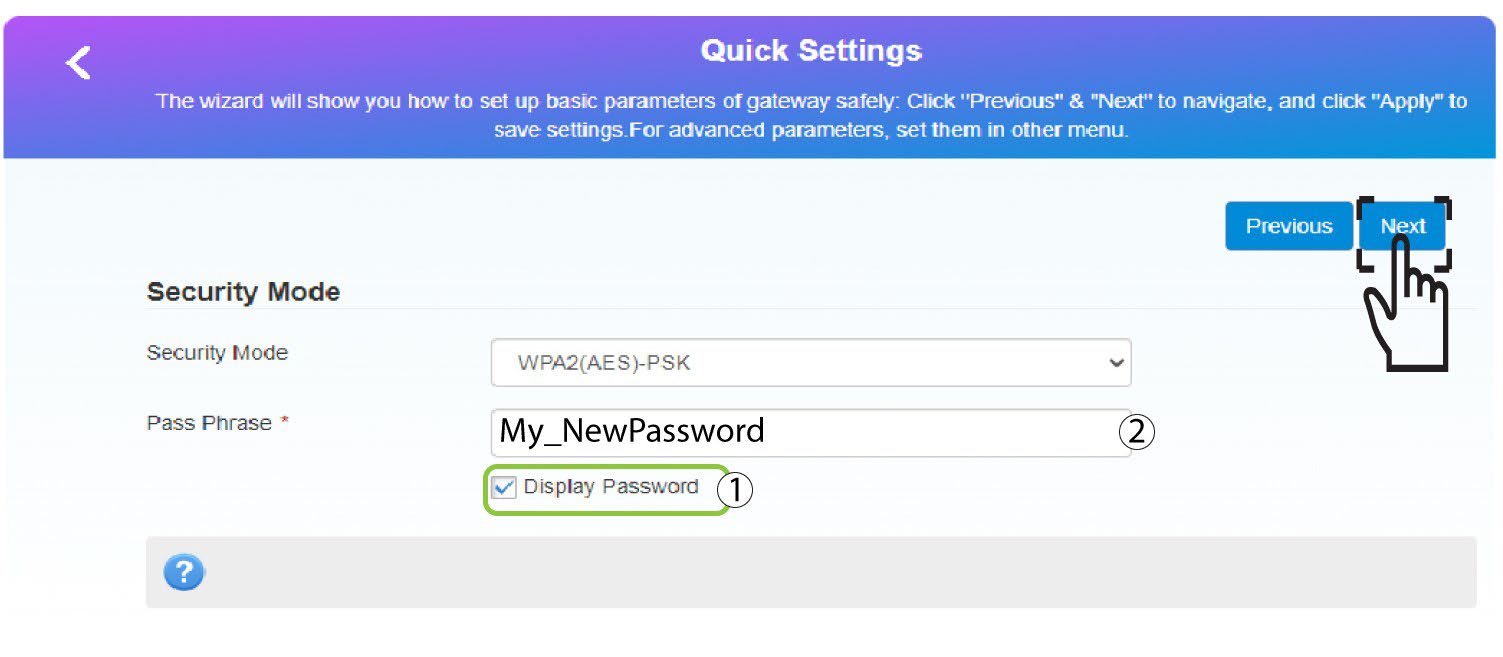
Kattintson a „Jelszó megjelenítése” gombra,
írja be a Wi-Fi-hálózat új jelszavát, majd kattintson a „Tovább” gombra.
5. Az új hálózati adatok mentése
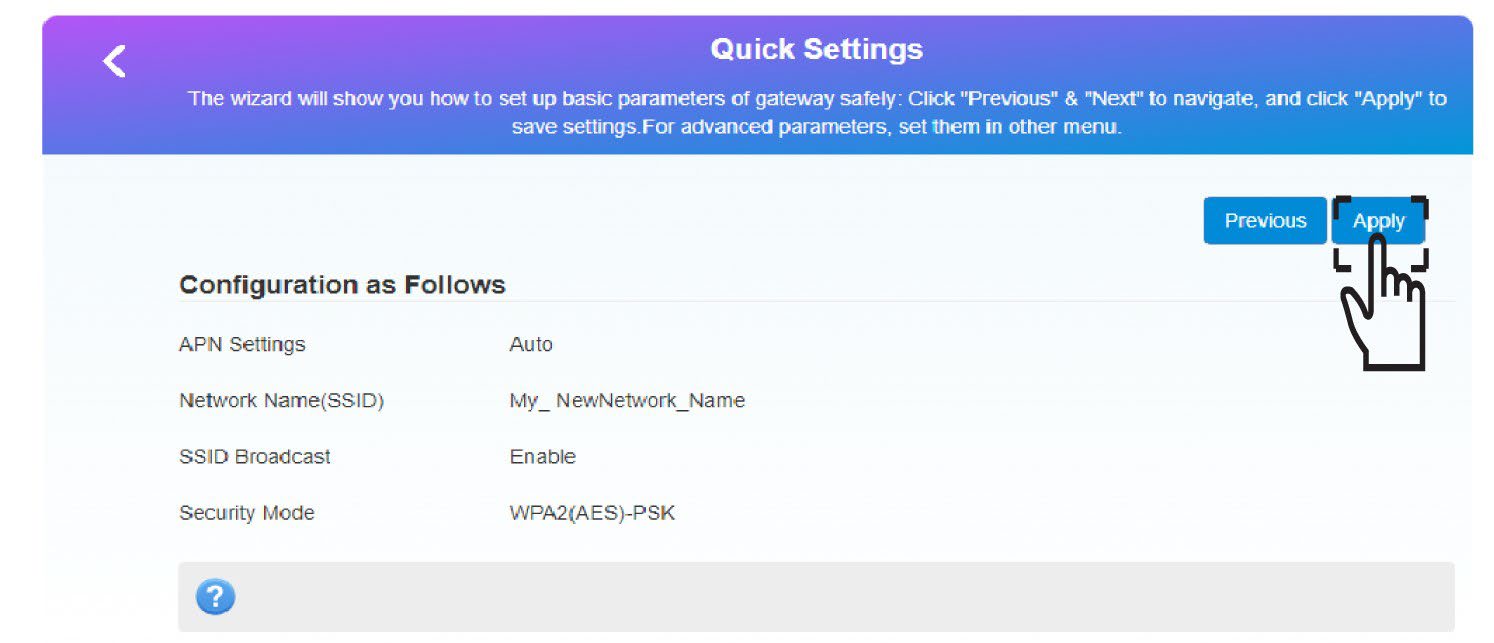
Kattintson az „Alkalmazás” gombra a módosítások mentéséhez.
6. Írjale az új hálózati adatokat
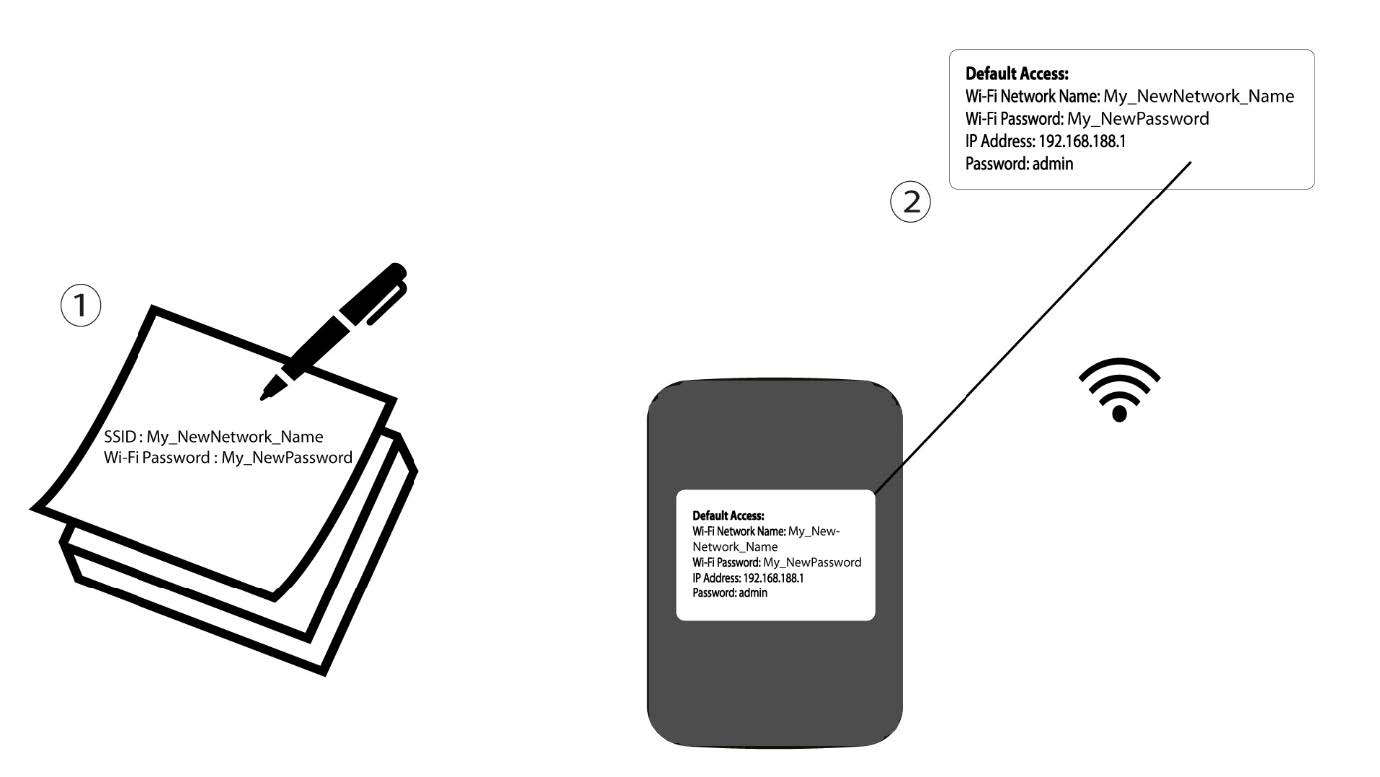
Írja le az új hálózati adatokat egy papírlapra.
1.2. eset: Wi-Fi-beállítások
Csatlakozz a routered Wi-Fi-hálózatához.

2Keressemeg a webes felhasználói felület IP-címét
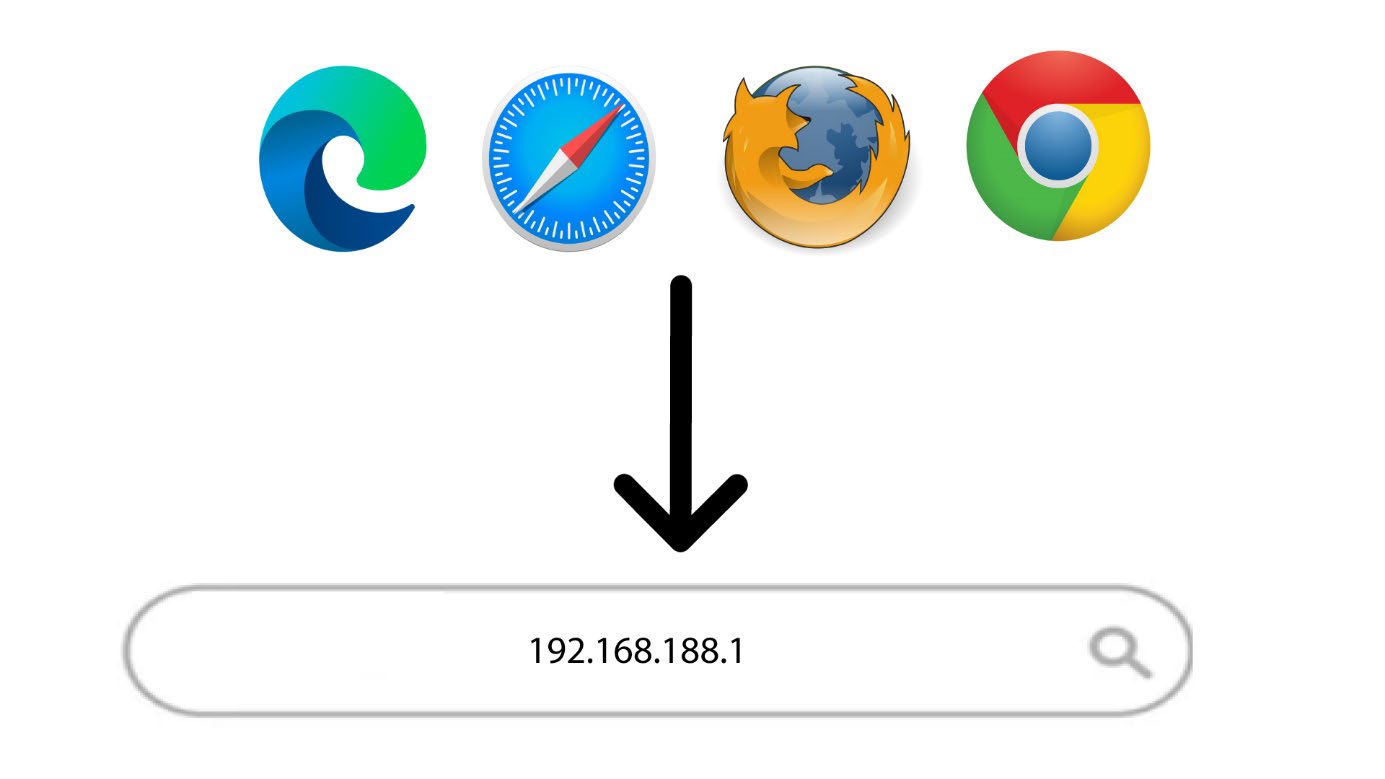
Ezután írja be a böngészőjébe a következő IP-címet: 192.168.188.1.
3Bejelentkezés
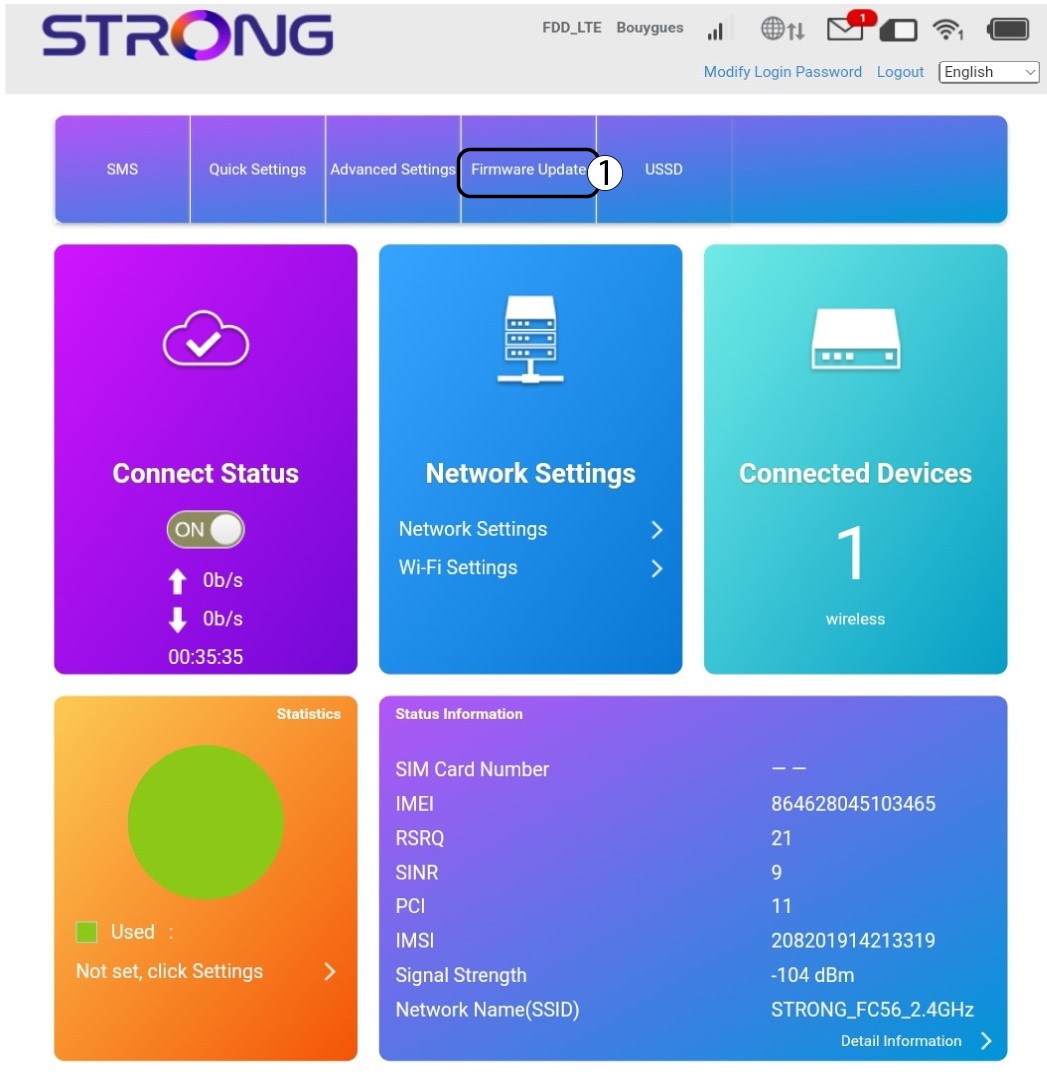
Be kell írnia a jelszót.

4. Wi-Fi-beállítások
Kattintson a „Hálózati beállítások” részben a „Wi-Fi-beállítások” elemre.
5. Jelszó módosítása
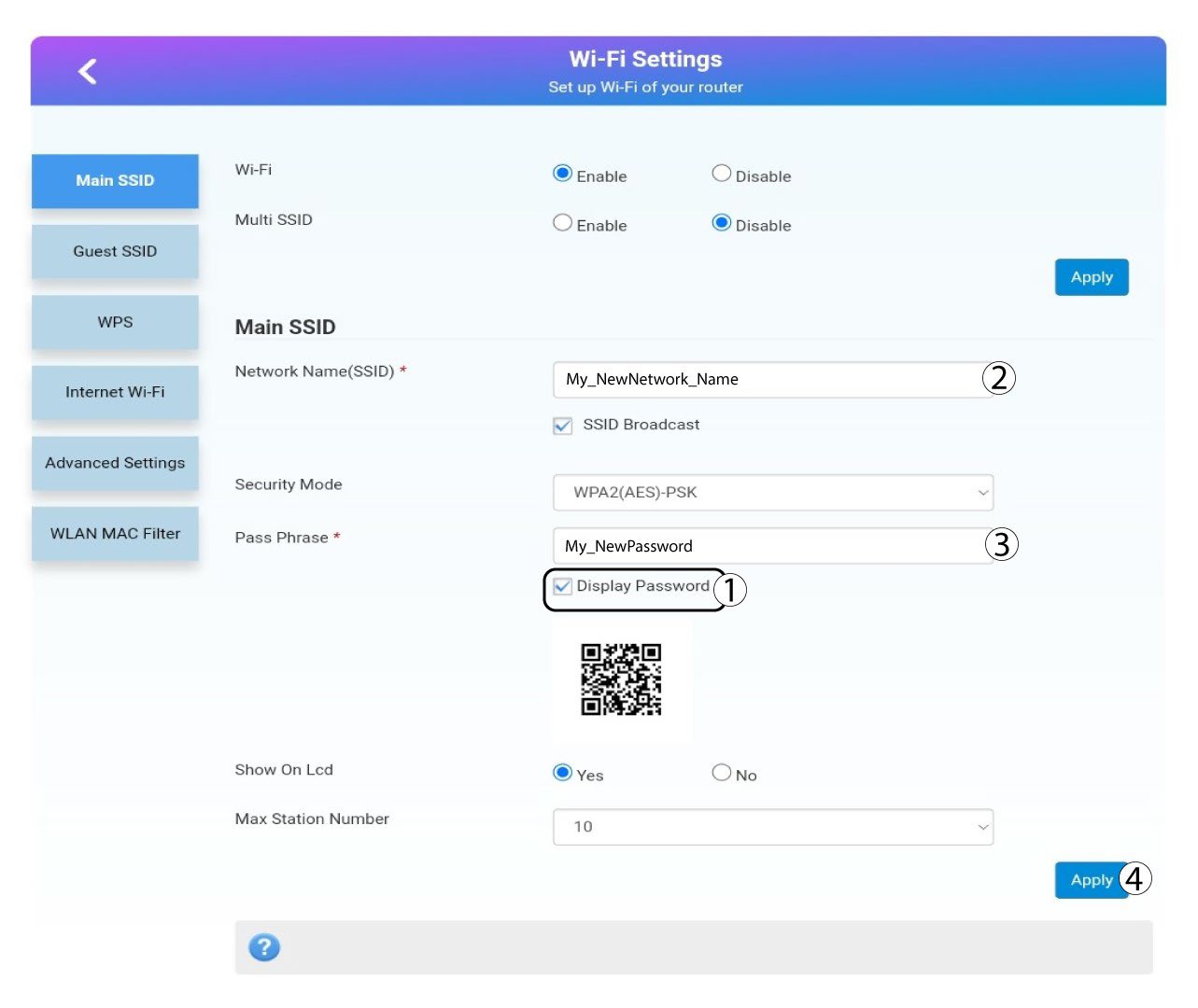
Kattintson jelszó megjelenítése majd a kattintás előtt adja meg az alábbi adatokat Alkalmazza a:a. Írja be az új hálózat nevét.b. Írja be az új Wi-Fi jelszót.
6. Megerősítés
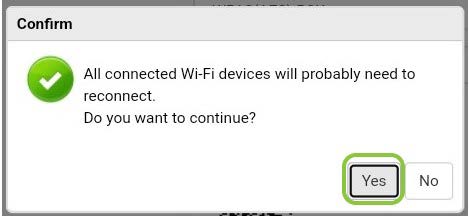
A felugró ablakban kattintson az „Igen” gombra a módosítások alkalmazásához .
7. Írjale az új hálózati adatokat
Írja le az új hálózati adatokat egy papírlapra.
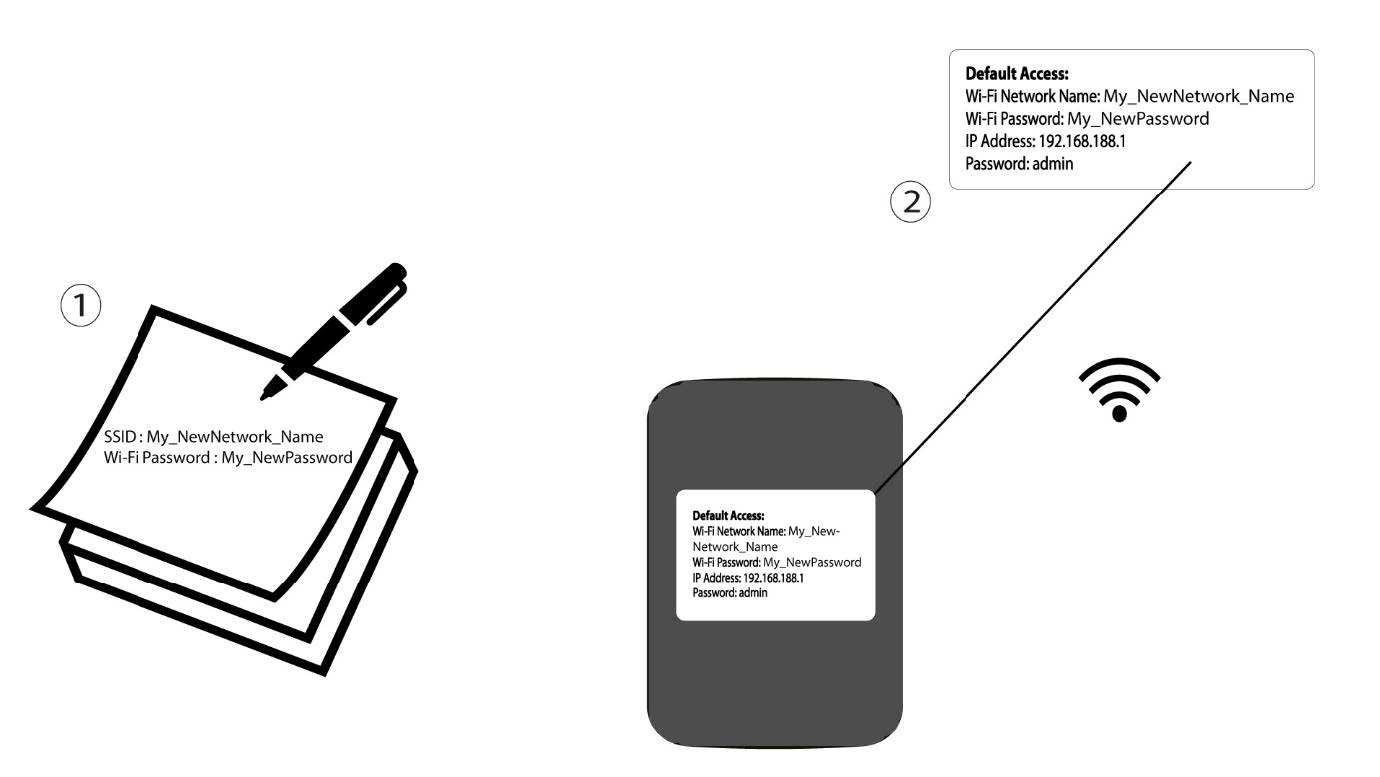

Figyelem: A Wi-Fi-hálózat adatainak módosítása után a hálózathoz csatlakozó összes eszköz automatikusan leválik a hálózatról.