
4G AIRSPOT 220 Mobiele wifi met display
Alle vragen
4G AIRSPOT 220 Mobiele wifi met display
Hoe kan ik de SSID (de naam van het wifi-netwerk) en het wifi-wachtwoord wijzigen?
In de webinterface kunt u op twee manieren de SSID (de naam van het wifi-netwerk) en het wifi-wachtwoord van uw router wijzigen:
• Via het snelinstellingen
• Of via de Wi-Fi-instellingen
1 GEVAL1: Snelle instellingen
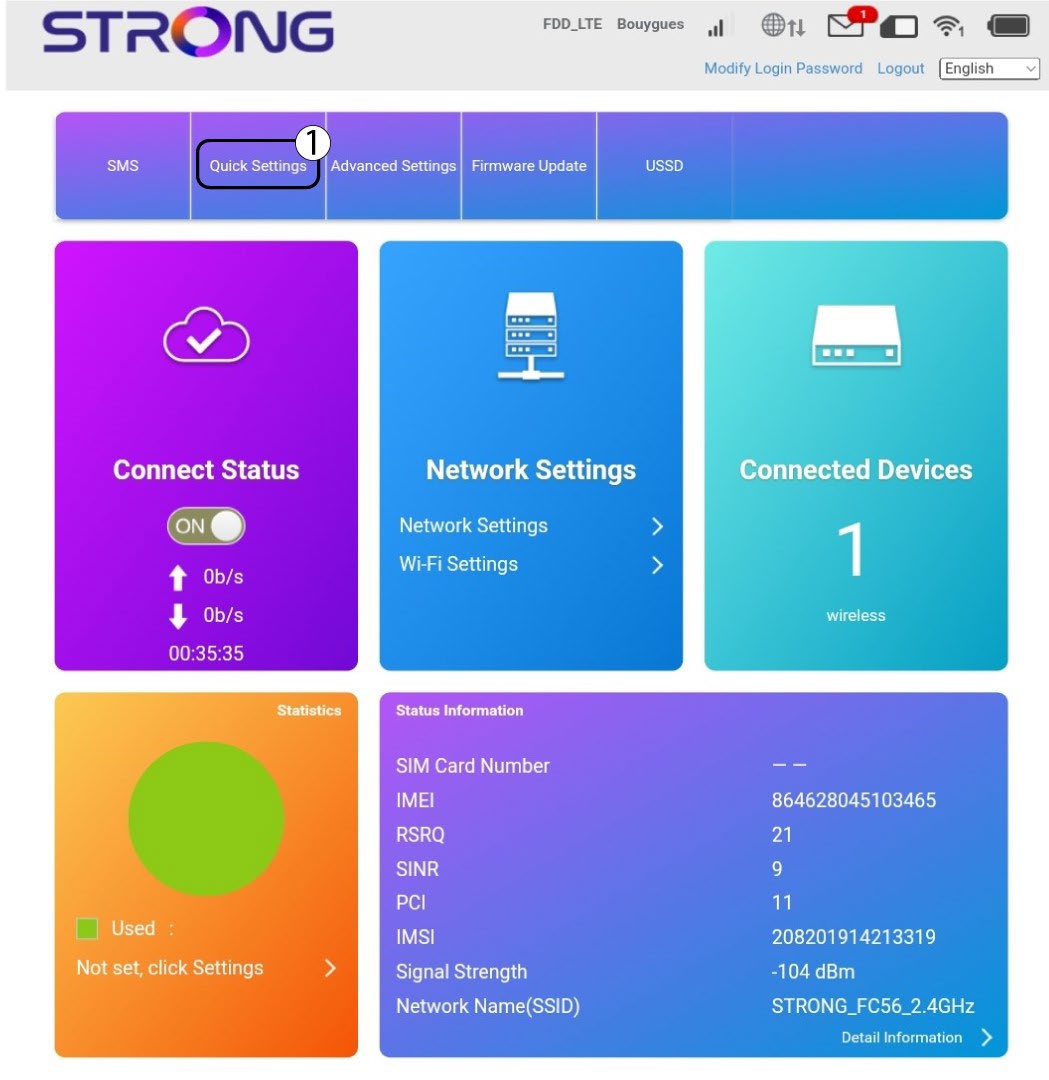
Via de webinterface kun je met de snelle instellingen de gegevens van je netwerk wijzigen: de SSID (naam van het wifi-netwerk) en het wifi-wachtwoord.
Klik hiervoor op ‘Snelle instellingen’ in de bovenste balk.
2APN-instelling
Klik op ‘Volgende’.

3SSID
Voer de nieuwe netwerknaam in en klik op Volgende.

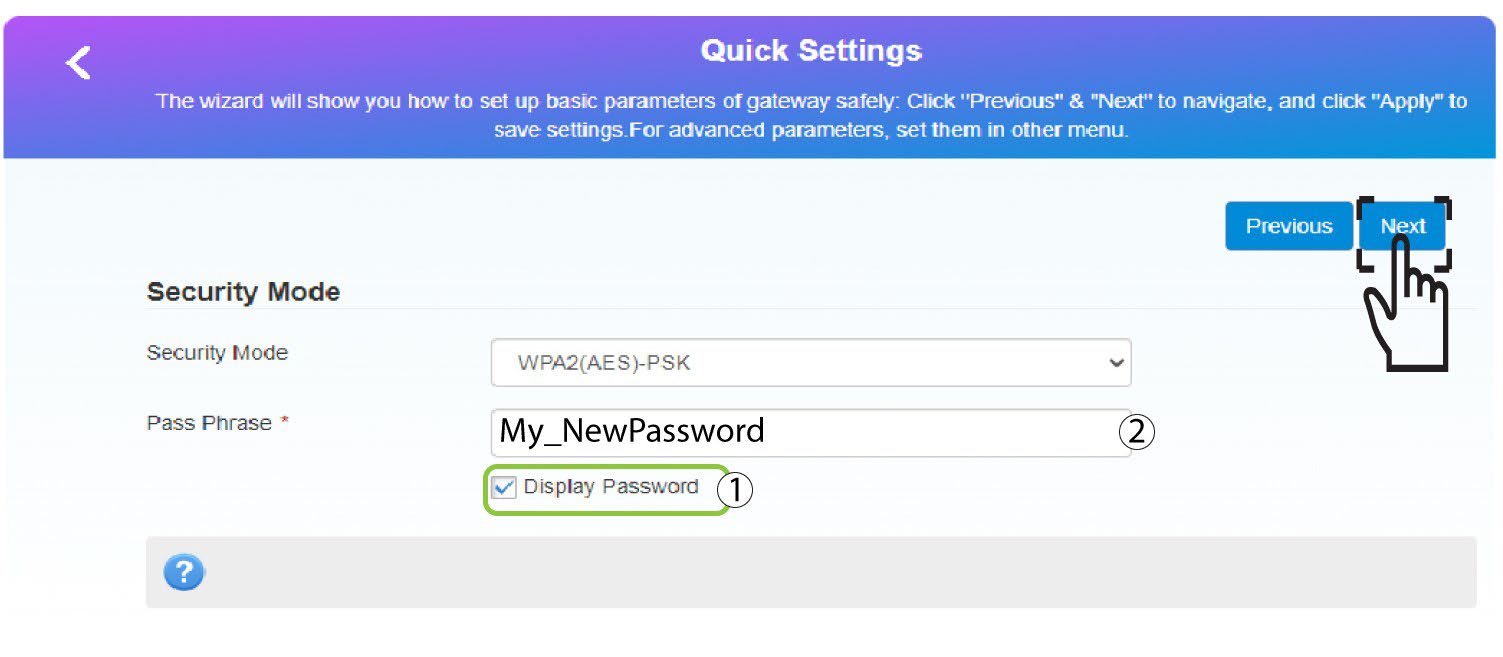
4Voerhet nieuwe wachtwoord in
Klik op ‘Wachtwoord weergeven’
en voer het nieuwe wachtwoord voor het wifi-netwerk in. Klik vervolgens op ‘Volgende’.
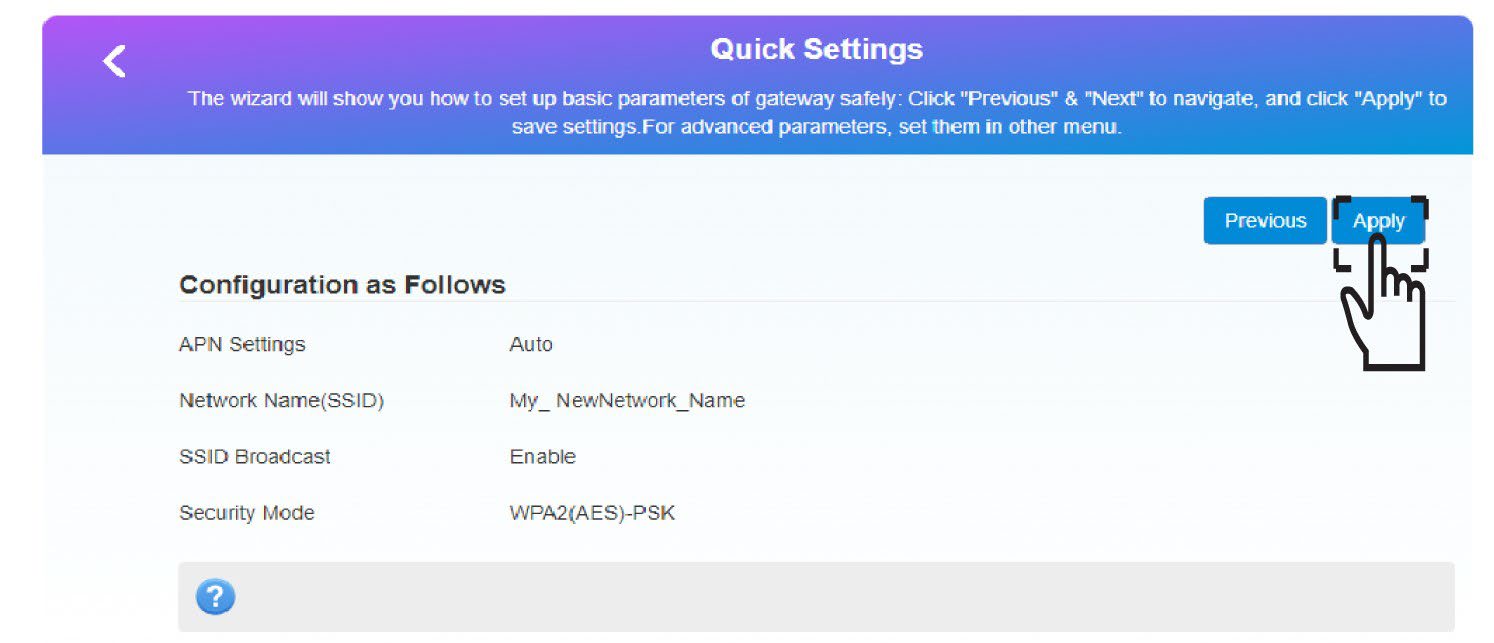
5. Slade nieuwe netwerkinformatie op
Klik op ‘Toepassen’ om de wijzigingen op te slaan.
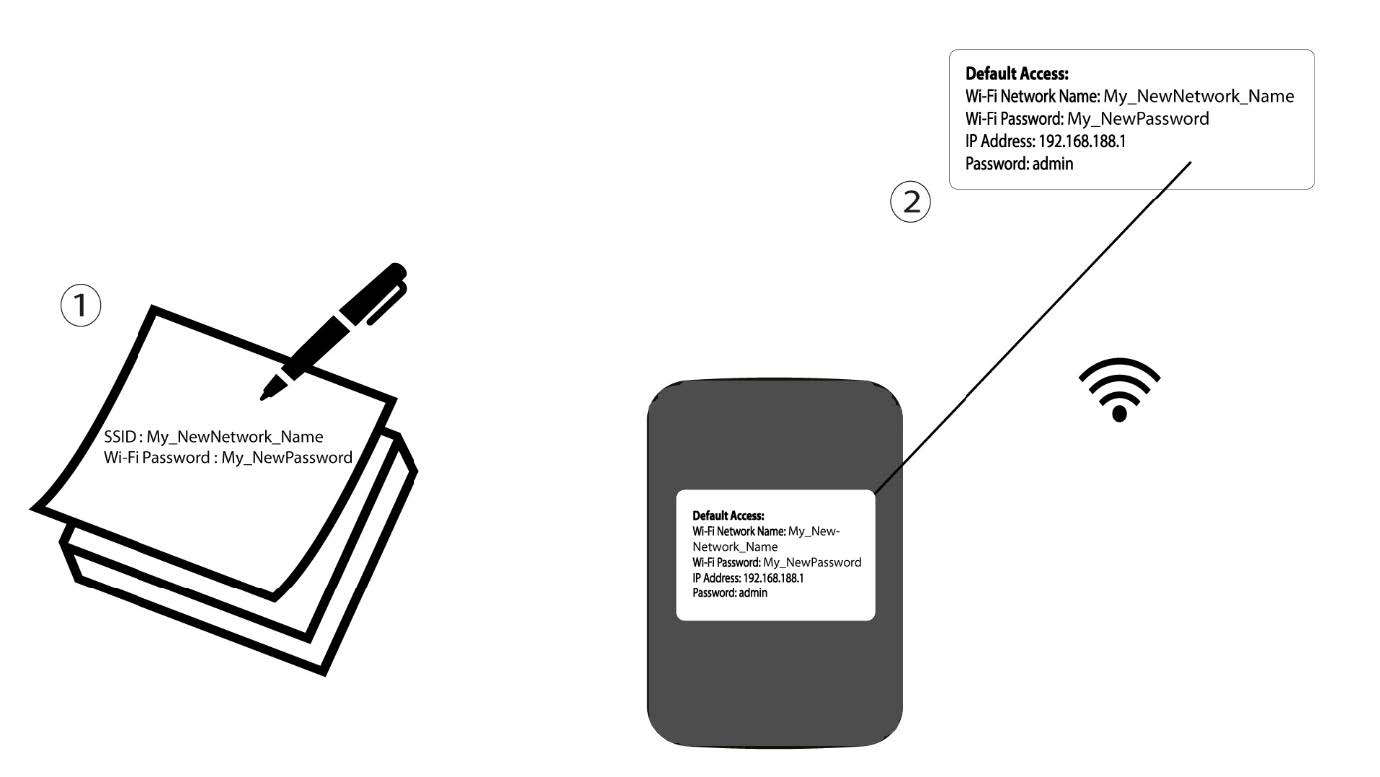
6. Noteerde nieuwe netwerkgegevens
Schrijf de nieuwe netwerkgegevens op een stukje papier.
1GEVAL2: Wi-Fi-instellingen
Maak verbinding met het wifi-netwerk van je router.

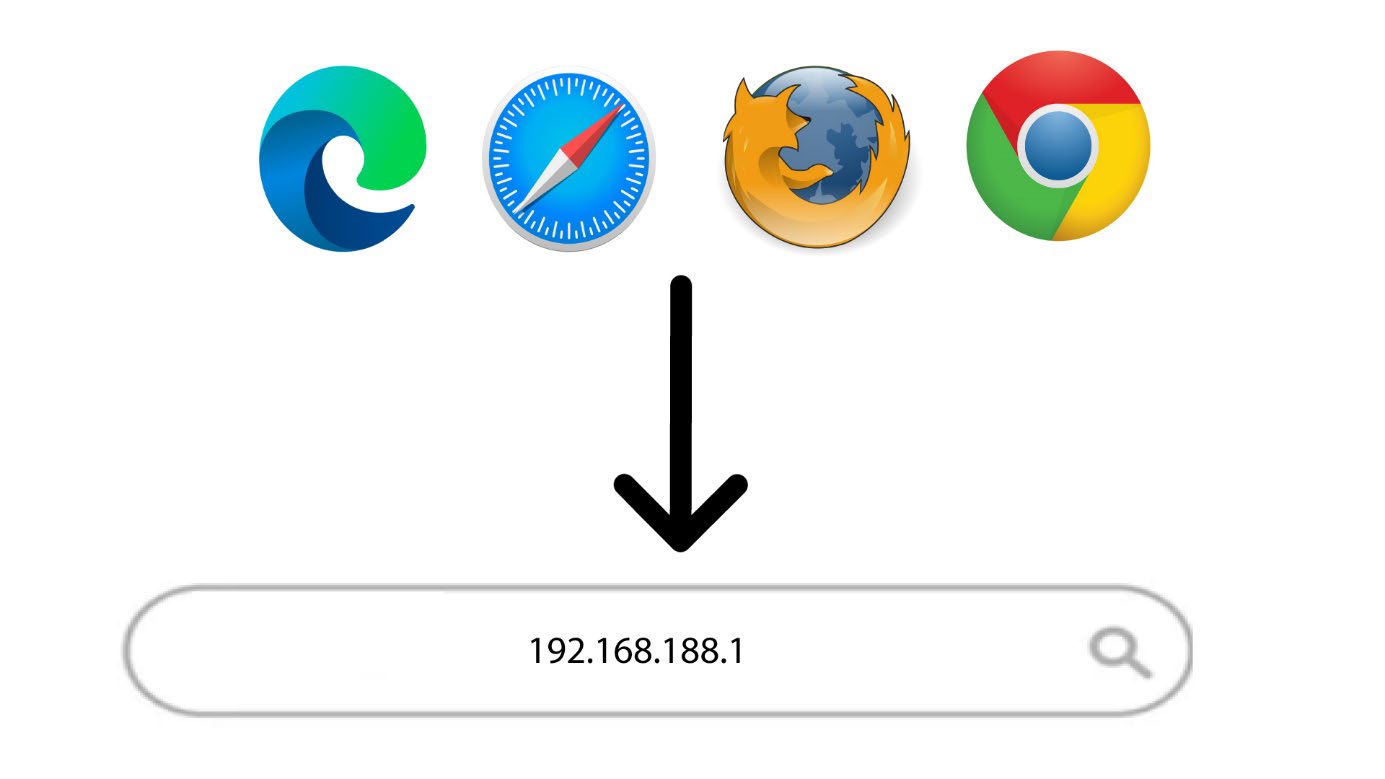
2. Ganaar het IP-adres van de webinterface
Voer vervolgens het volgende IP-adres in je browser in: 192.168.188.1.
3Inloggen
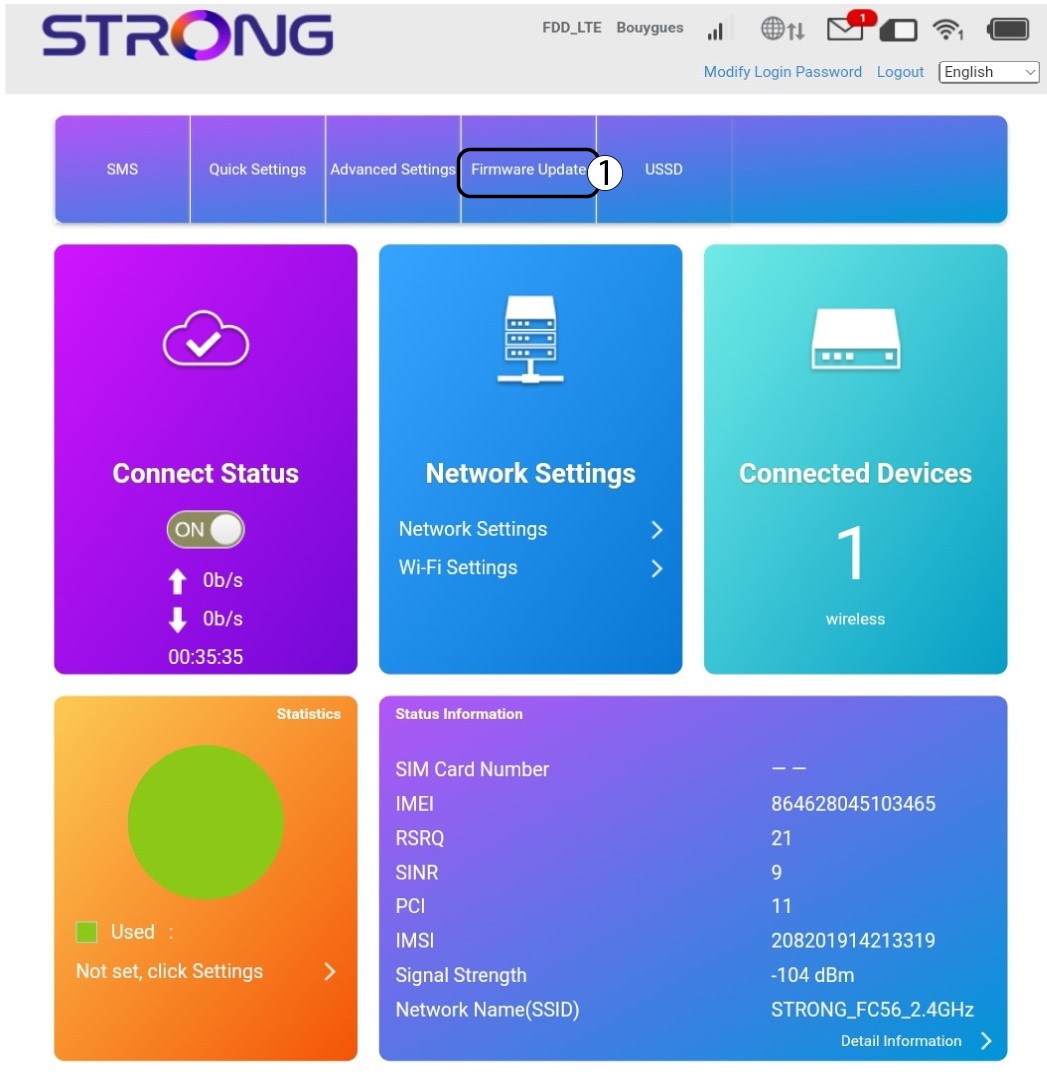
U moet het wachtwoord invoeren.

4. Wi-Fi-instellingen
Klik op ‘Wi-Fi-instellingen’ in het gedeelte ‘Netwerkinstellingen’.
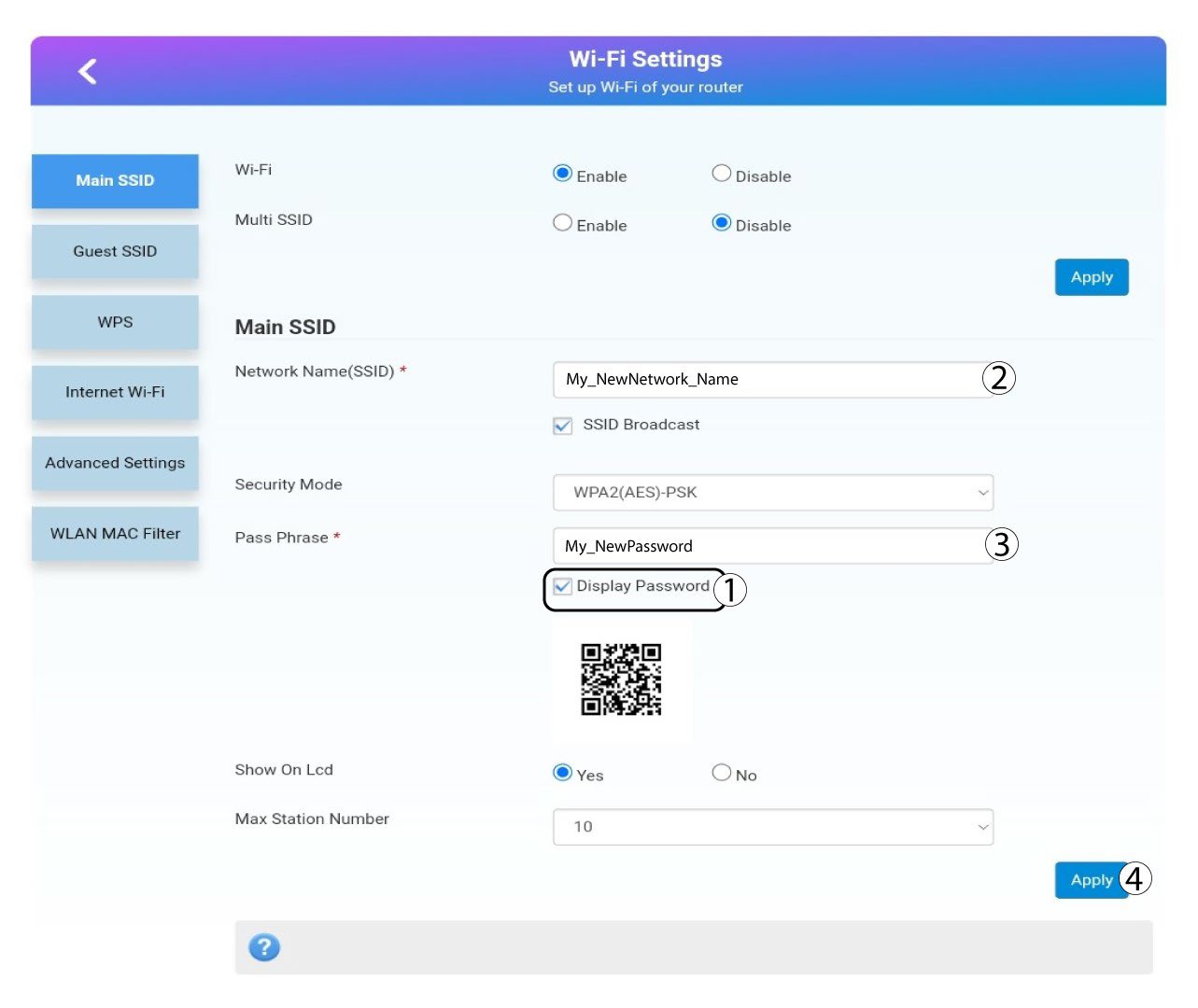
5Wachtwoord wijzigen
Klik wachtwoord weergeven en vul de volgende gegevens in voordat je klikt Toepassen:a. Voer de nieuwe netwerknaam in.b. Voer het nieuwe wifi-wachtwoord in.
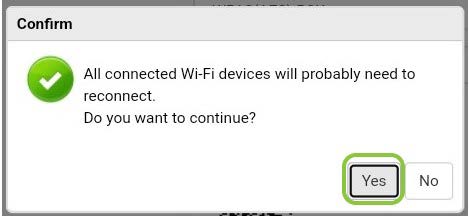
6Bevestiging
Klik in het pop-upvenster op Ja om je wijzigingen toe te passen.
7. Noteerde nieuwe netwerkinformatie
Schrijf de nieuwe netwerkgegevens op een stukje papier.
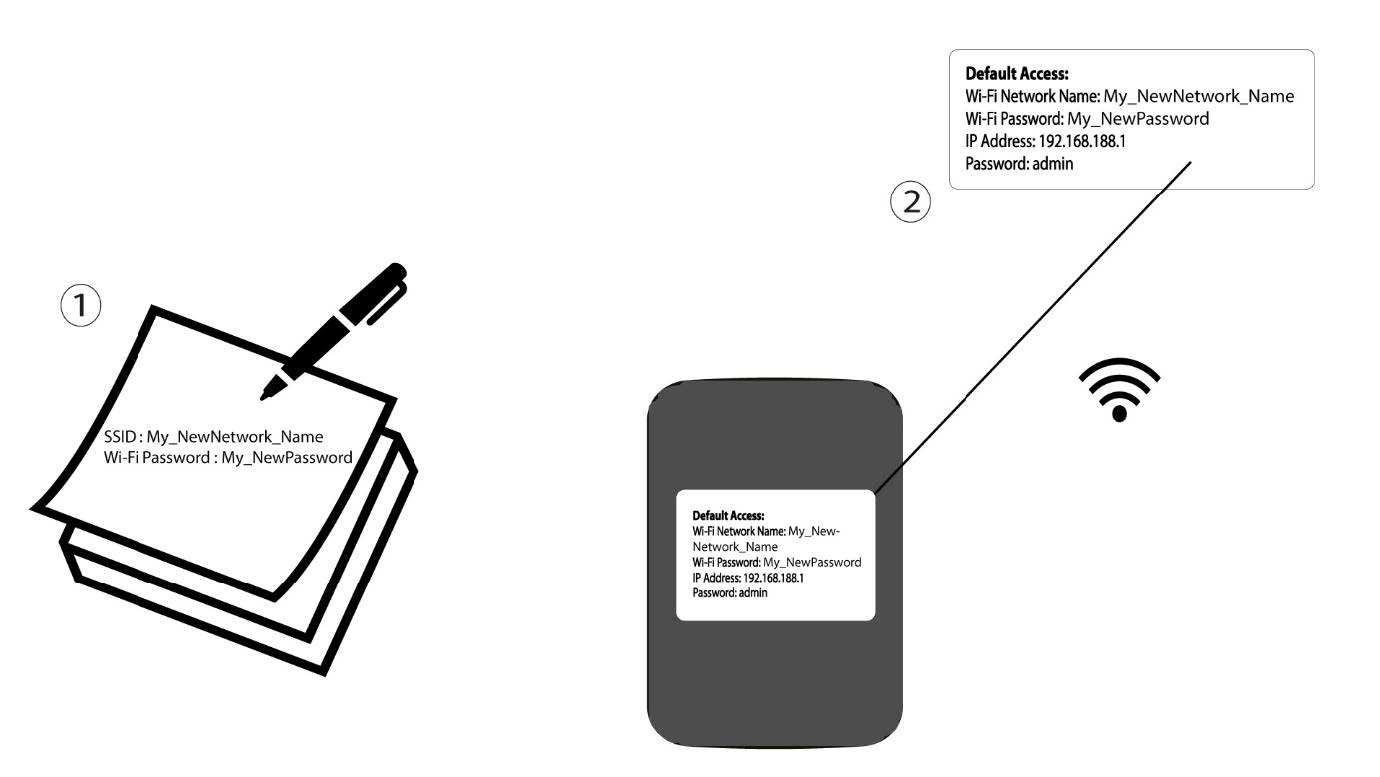

Waarschuwing: Nadat u de gegevens van het wifi-netwerk hebt gewijzigd, worden alle apparaten die met het netwerk waren verbonden automatisch losgekoppeld.