
4G AIRSPOT 220 WLAN-Hotspot mit Display
Alle Fragen
4G AIRSPOT 220 WLAN-Hotspot mit Display
Wie ändere ich die SSID (den WLAN-Netzwerknamen) und das WLAN-Passwort?
In der Web-Benutzeroberfläche haben Sie zwei Möglichkeiten, die SSID (den WLAN-Netzwerknamen) und das WLAN-Passwort Ihres Routers zu ändern:
• Über die Schnellkonfiguration
• Oder über die WLAN-Einstellungen
1FALL1: Schnelleinstellungen
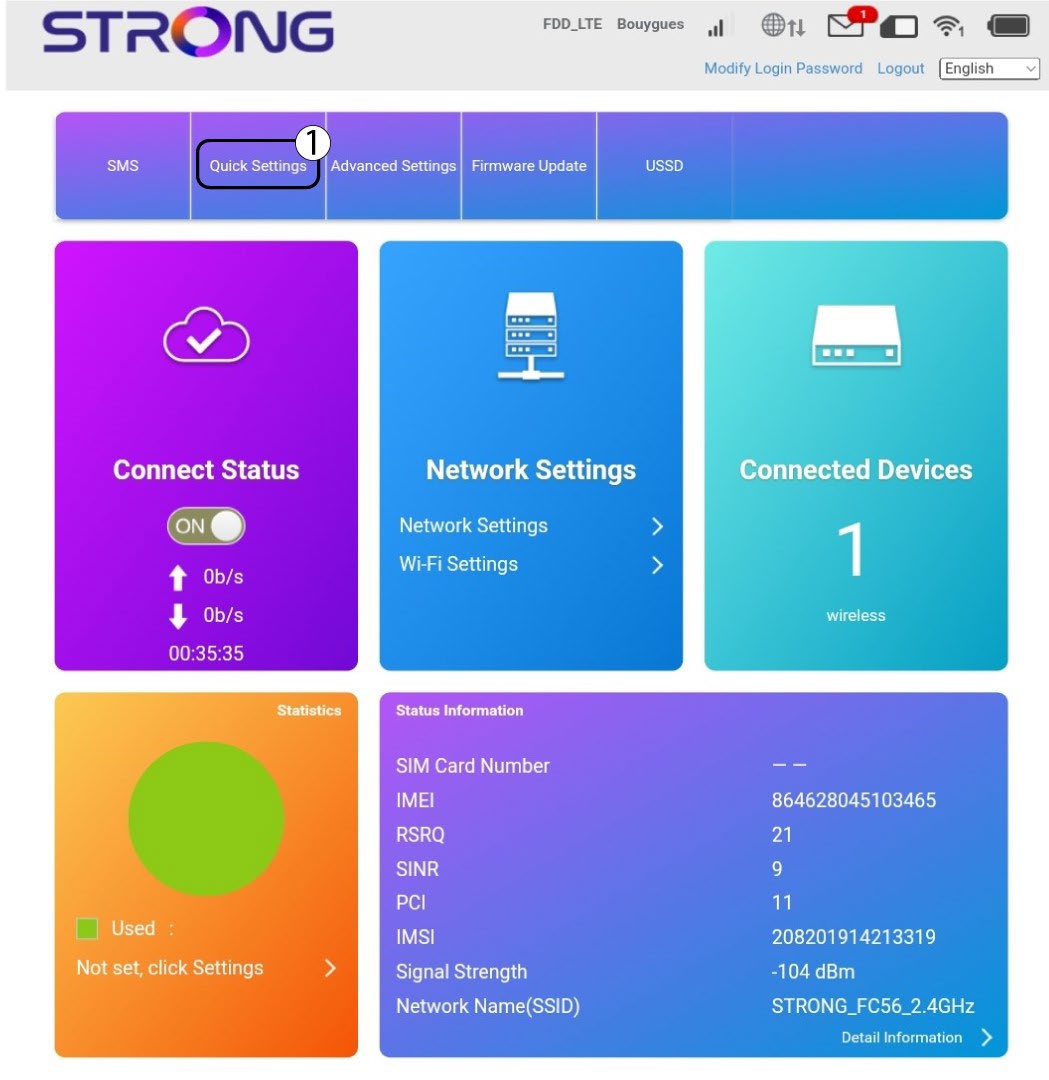
Über die Schnellkonfiguration in der Weboberfläche können Sie die Daten Ihres Netzwerks ändern: die SSID (WLAN-Netzwerkname) und das WLAN-Passwort.
Klicken Sie dazu in der oberen Leiste auf „Schnelleinstellungen “.
2APN-Einstellung
Klicken Sie auf „Weiter“.

3SSID
Geben Sie den neuen Netzwerknamen ein und klicken Sie auf „Weiter“.

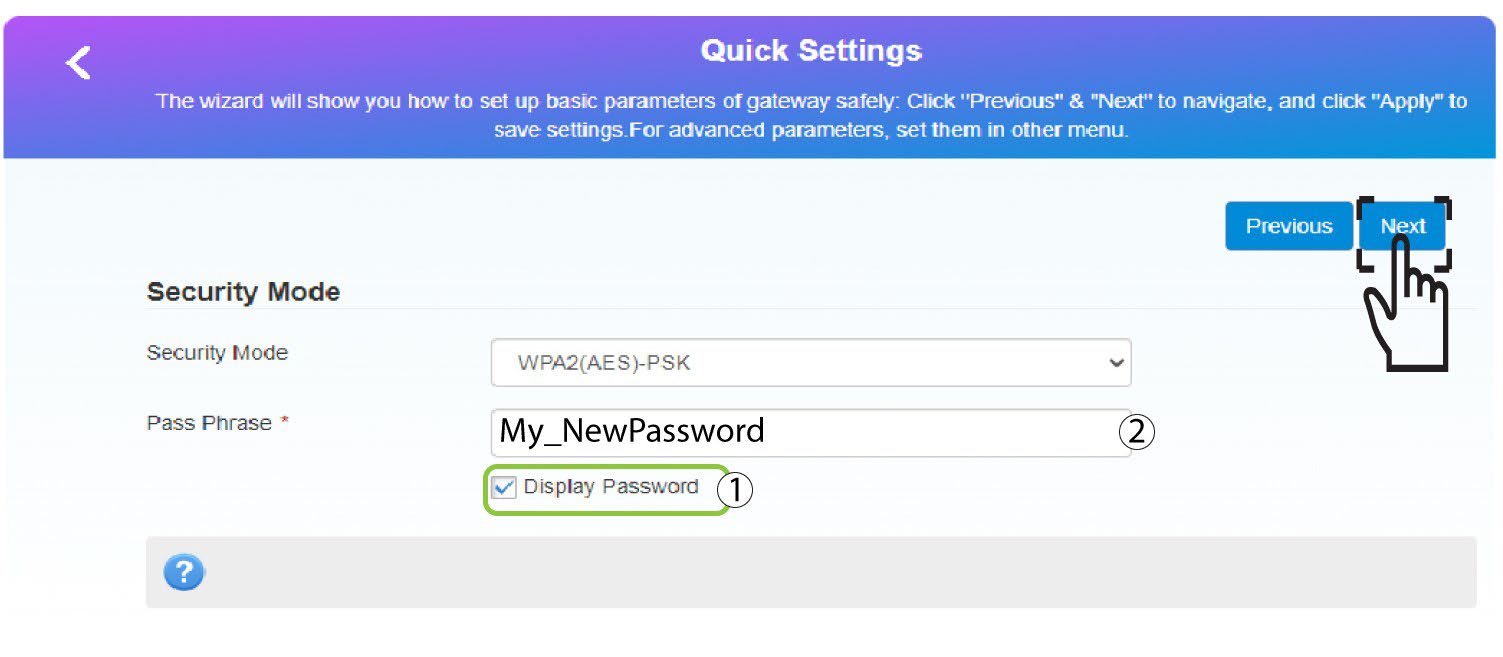
4Geben Siedas neue Passwort ein
Klicken Sie auf „Passwort anzeigen“,
geben Sie das neue Passwort für das WLAN-Netzwerk ein und klicken Sie anschließend auf „Weiter“.
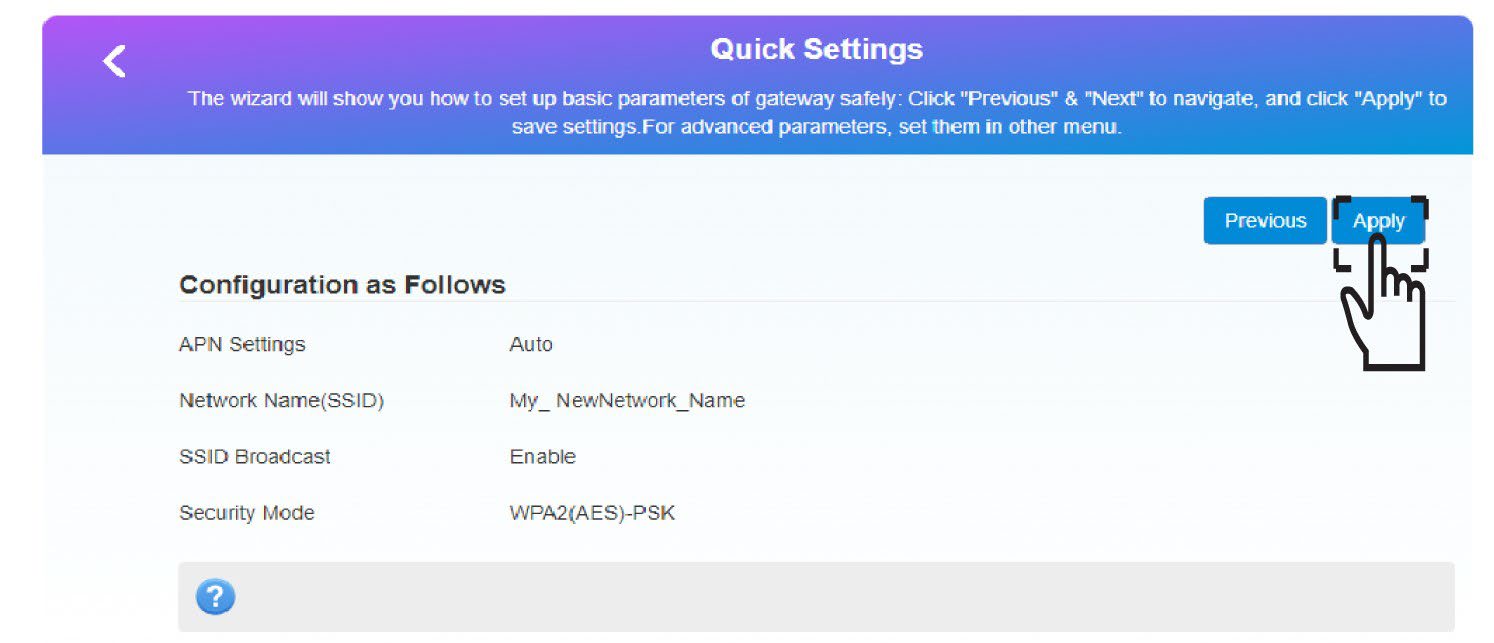
5. Speichern Siedie neuen Netzwerkinformationen
Klicken Sie auf „Übernehmen“, um die Änderungen zu speichern.
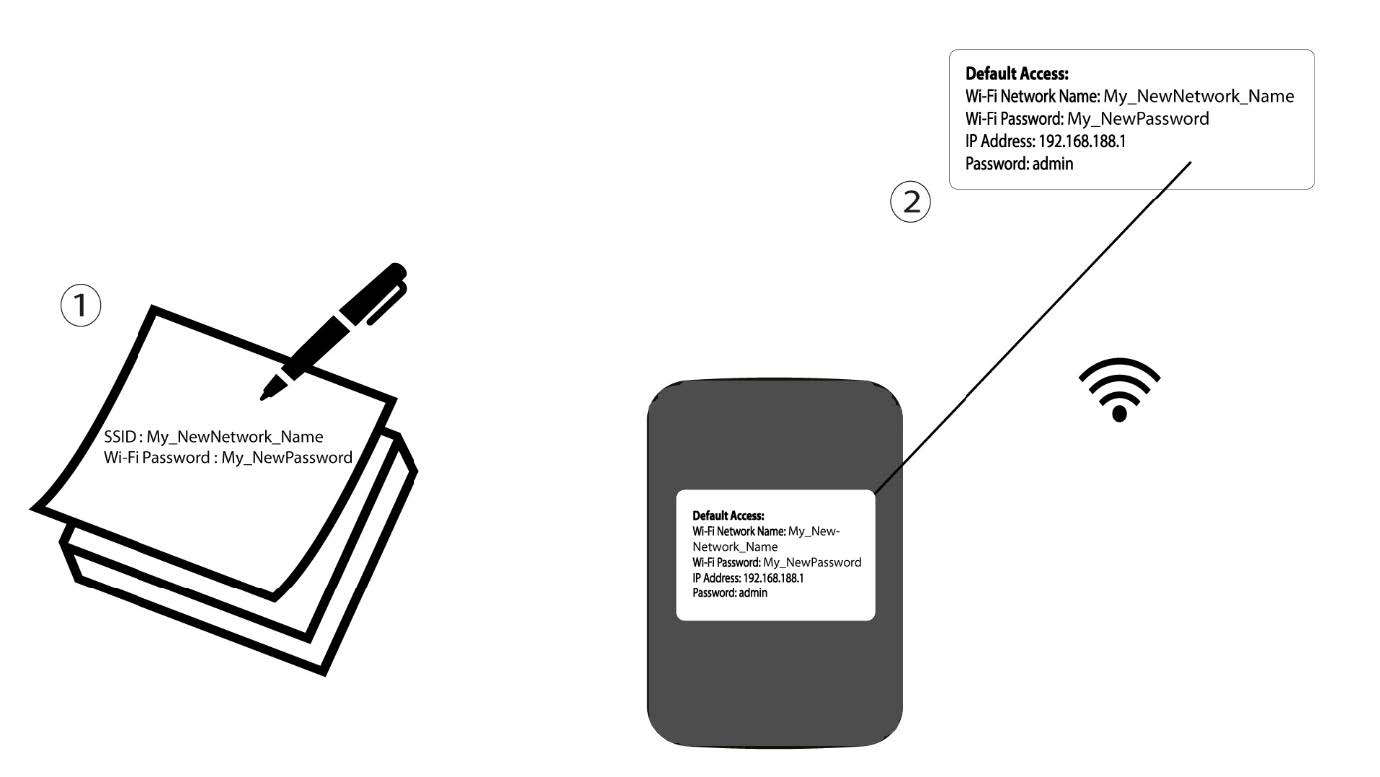
6. Notieren Siesich die neuen Netzwerkdaten
Notieren Sie sich die neuen Netzwerkdaten auf einem Blatt Papier.
1FALL2: WLAN-Einstellungen
Stellen Sie eine Verbindung zum WLAN Ihres Routers her.

2. Rufen Siedie IP-Adresse der Web-Benutzeroberfläche auf
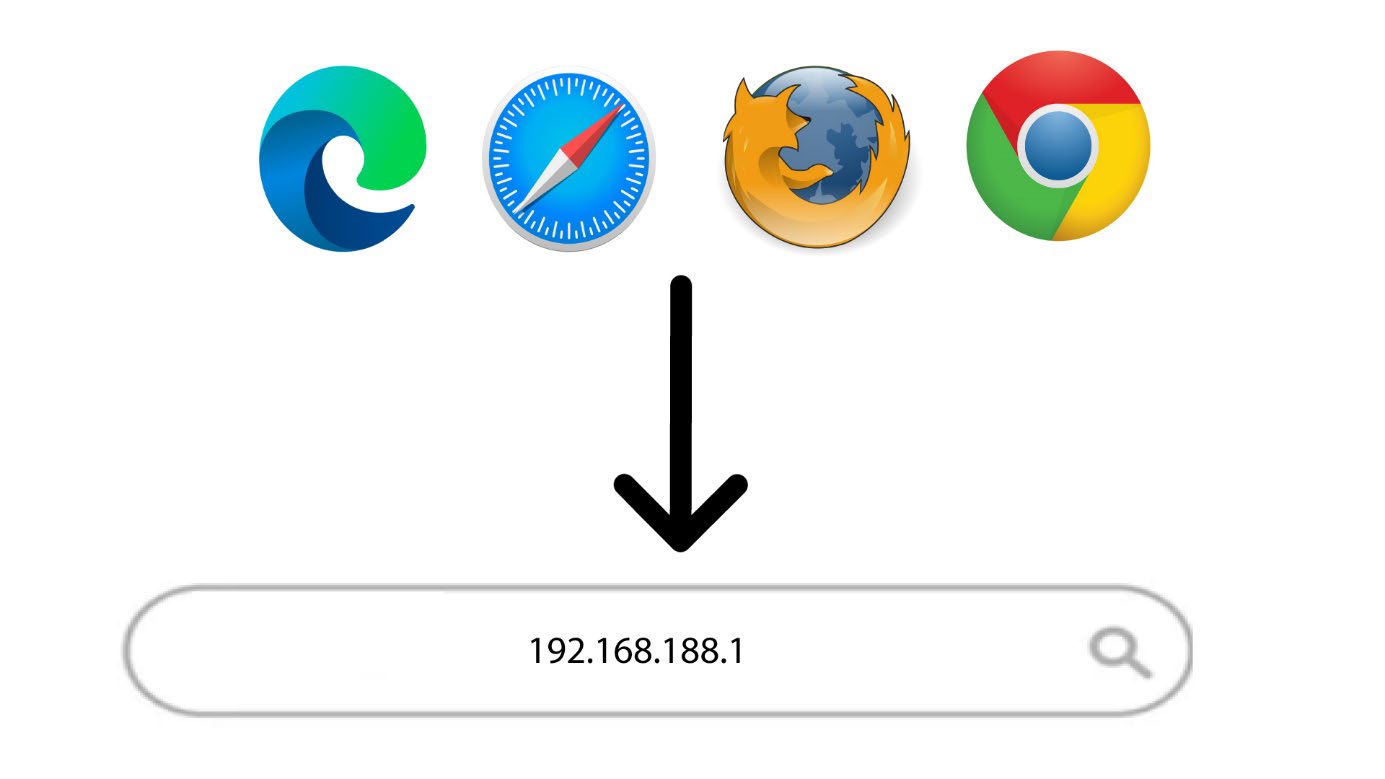
Geben Sie anschließend die folgende IP-Adresse in Ihren Browser ein: 192.168.188.1.
3Anmelden
Sie müssen das Passwort eingeben.

4. WLAN-Einstellungen
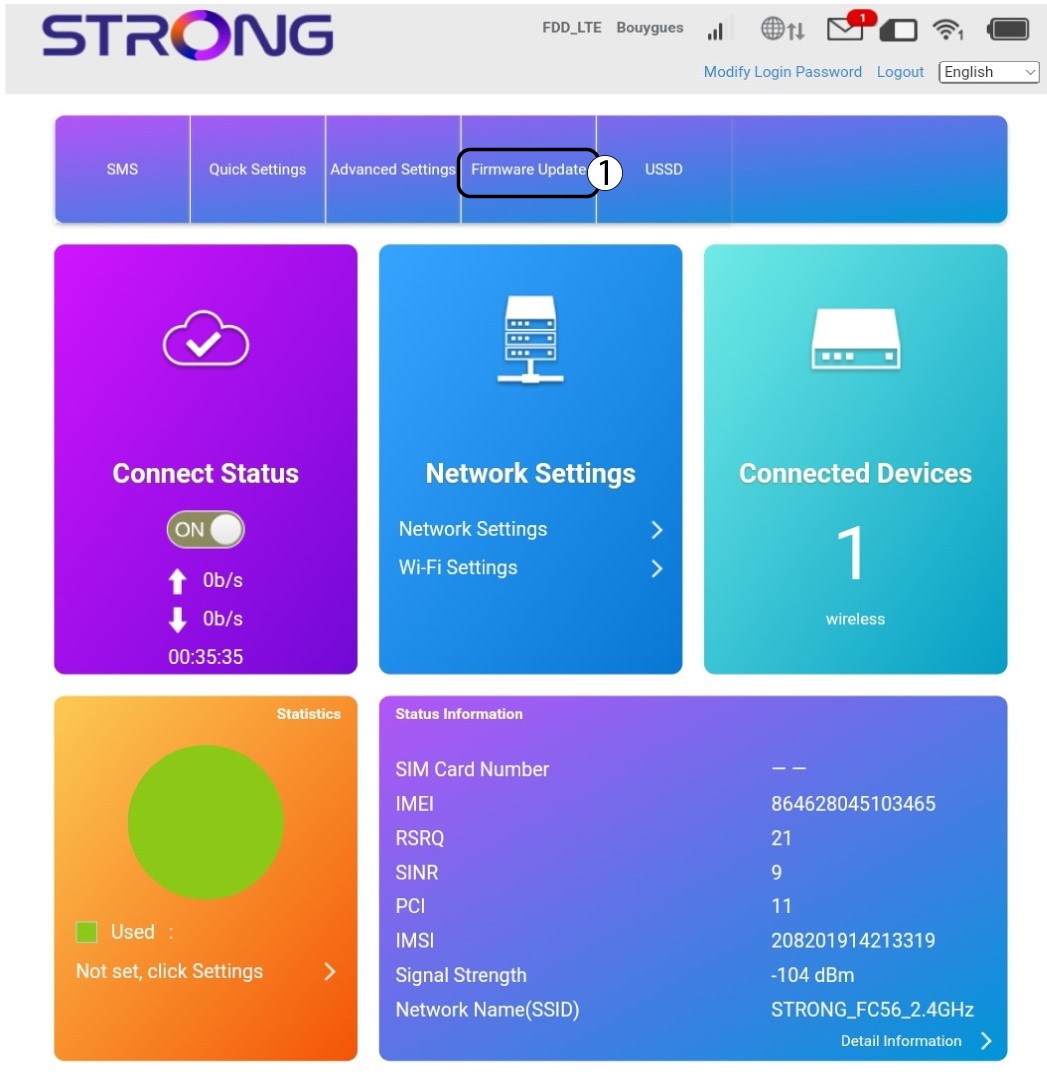
Klicken Sie im Abschnitt „Netzwerkeinstellungen“ auf „WLAN-Einstellungen “.
5Passwort ändern
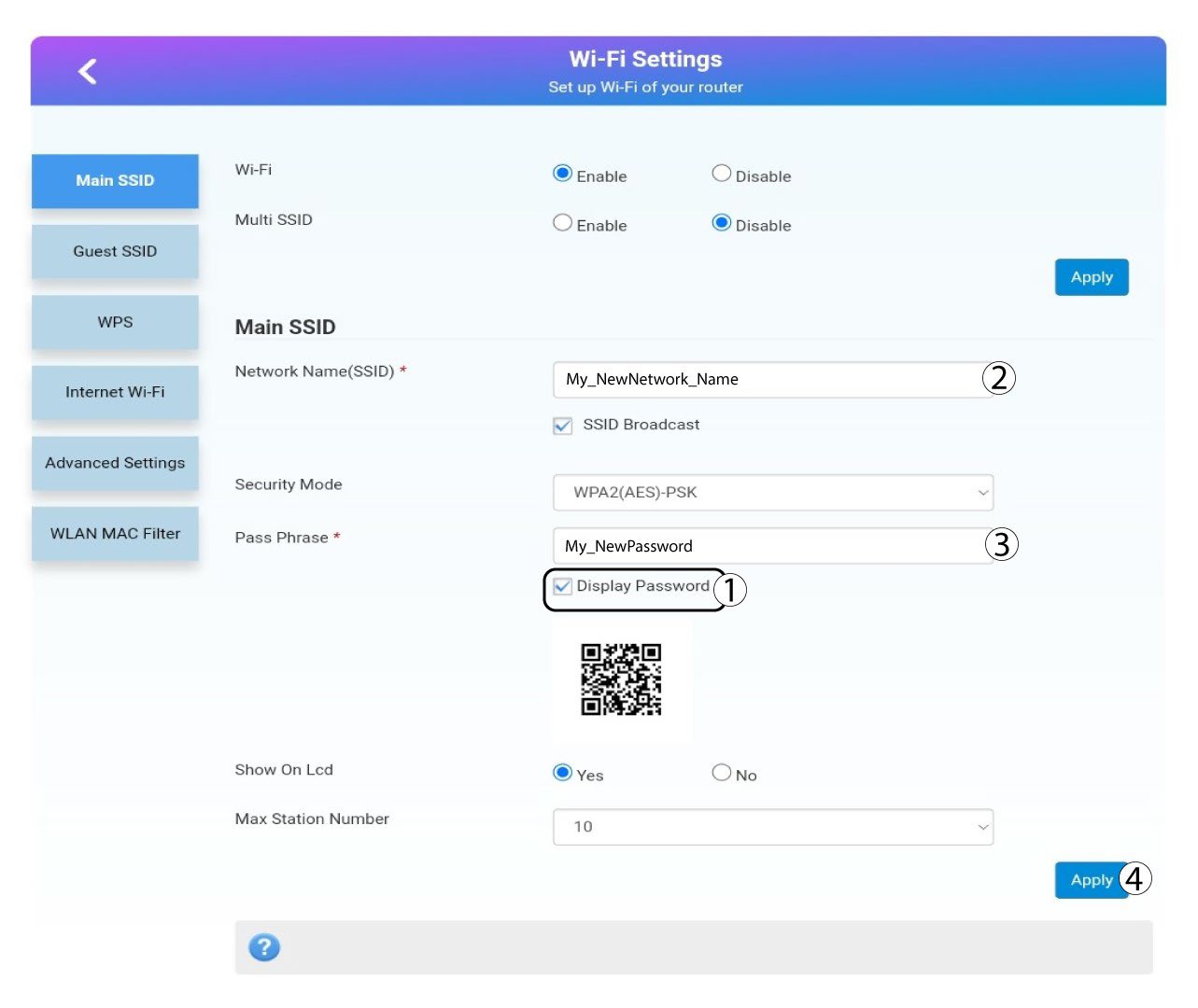
Klicken Passwort anzeigen und geben Sie die folgenden Informationen ein, bevor Sie auf Bewerbung:a. Geben Sie den neuen Netzwerknamen ein.b. Geben Sie das neue WLAN-Passwort ein.
6Bestätigung
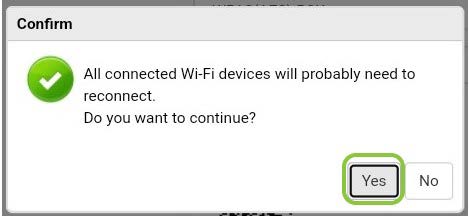
Klicken Sie in der Popup-Meldung auf „Ja“, um Ihre Änderungen zu übernehmen.
7. Notieren Siesich die neuen Netzwerkinformationen
Notieren Sie sich die neuen Netzwerkdaten auf einem Blatt Papier.
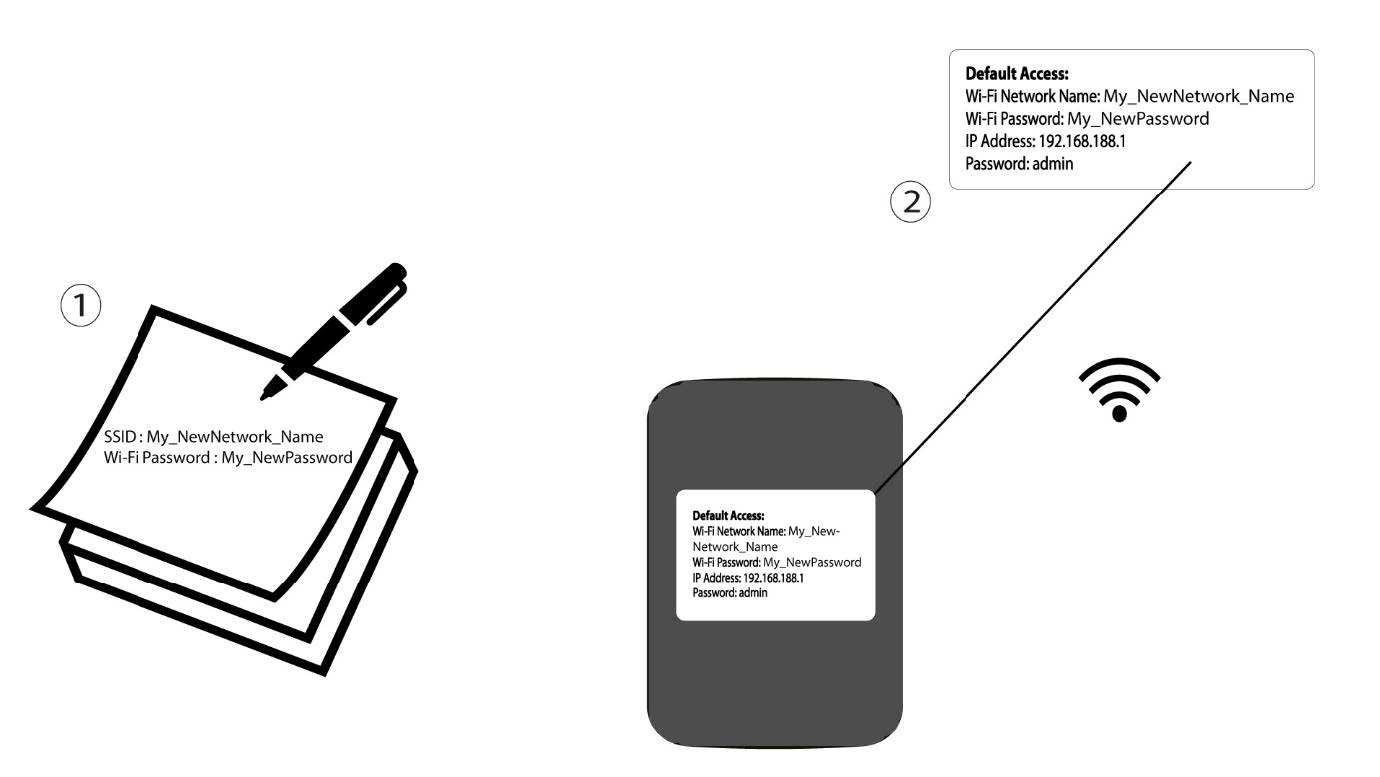

Warnung: Nach dem Ändern der WLAN-Netzwerkinformationen werden alle Geräte, die mit dem Netzwerk verbunden waren, automatisch getrennt.